Brother DCP-585CW - User Manual
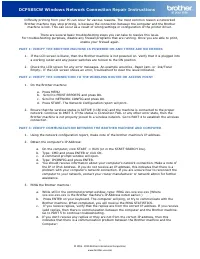
Brother DCP-585CW – User Manual, read for free online in PDF format. We hope this helps you resolve any issues you may have. If you have further questions, please contact us through the contact form.


Table of Contents:
- Page 2 – DCP585CW Windows Network Connection Repair Instructions; NOTE: Resetting the network card will erase all current network
- Page 3 – Select using up or down arrow and press OK.; are using TKIP with this protocol you will receive this error
- Page 4 – Status
- Page 5 – Note: If the software is not installed, skip to; Choose WIRELESS NETWORK CONNECTION and click NEXT.
- Page 6 – Note: After restarting the computer you must be
DCP585CW Windows Network Connection Repair Instructions
1
© 1995 - 2010 Brother International Corporation
www.brother-usa.com
Difficulty printing from your PC can occur for various reasons. The most common reason a networked
Brother machine may stop printing, is because the connection between the computer and the Brother
machine is lost. This can occur as a result of wrong settings or configuration of the printer driver.
There are several basic troubleshooting steps you can take to resolve this issue.
For troubleshooting purposes, disable any firewall programs that are running. Once you are able to print,
enable your firewall again.
PART 1: VERIFY THE BROTHER MACHINE IS POWERED ON AND THERE ARE NO ERRORS
1.
If the LCD screen is blank, then the Brother machine is not powered on. Verify that it is plugged into
a working outlet and any power switches are turned to the ON position.
2.
Check the LCD screen for any error messages. An example would be -Paper Jam- or -Ink/Toner
Empty-. If the LCD screen shows an error, troubleshoot to clear the issue indicated.
PART 2: VERIFY THE CONNECTION TO THE WIRELESS ROUTER OR ACCESS POINT
1.
On the Brother machine:
a.
Press MENU
b.
Scroll to PRINT REPORTS and press OK.
c.
Scroll to NETWORK CONFIG and press OK.
d.
Press START. The Network Configuration report will print.
2.
Ensure that the wireless status is ACTIVE (11B/11G) and the machine is connected to the proper
network. Continue to PART 3. If the status is Connection FAIL or any other error state, then the
Brother machine is not properly joined to a wireless network. Go to PART 4 to establish the wireless
connection.
PART 3: VERIFY COMMUNICATION BETWEEN THE BROTHER MACHINE AND COMPUTER
1.
Using the network configuration report, make note of the brother machine’s IP address.
2.
Obtain the computer’s IP Address:
a.
On the computer, click START -> RUN (or in the START SEARCH line).
b.
Type: CMD and press ENTER or click OK.
c.
A command prompt window will open.
d.
Type: IPCONFIG and press ENTER.
e.
You should receive information about your computer’s network connection. Make a note of
the IP or IPv4 Address. If you do not receive an IP address, this indicates that there is a
problem with your computer’s network connection. If you are unsure how to reconnect the
computer to your network, contact your router manufacturer or network admin for further
assistance.
3.
PING the Brother machine:
a.
While still in the command prompt window, type: PING xxx.xxx.xxx.xxx (Where
xxx.xxx.xxx.xxx is the Brother machine’s IP Address noted earlier.)
b.
Press ENTER on your keyboard. The computer will ping, or try to communicate with the
Brother machine. When completed, you will receive the PING STATISTICS.
c.
If you receive replies, verify that the replies are from the correct IP address. If you receive
valid replies, then there is communication between the computer and the Brother machine.
Go to PART 5 to continue troubleshooting.
d.
If you don’t receive any replies or they are not from the correct IP address, then this
indicates that there is a communication problem between the Brother machine and the
Computer:
"Loading the manual" means you need to wait until the file loads and becomes available for online reading. Some manuals are very large, and the time they take to appear depends on your internet speed.
Was this manual helpful?
About this manual
- Brand
- Brother
- Model
- DCP-585CW
- Document type
- User Manual
- Language(s)
- English
- Pages
- 6
- File size
- 196.9 KB
- Format
Summary
DCP585CW Windows Network Connection Repair Instructions 2 © 1995 - 2010 Brother International Corporation www.brother-usa.com If the computer is wireless, confirm that it is connected to the same network that the Brother machine is connected to. If it is connected to a neighboring wireless network, ...
DCP585CW Windows Network Connection Repair Instructions 3 © 1995 - 2010 Brother International Corporation www.brother-usa.com keys to choose your network, then press OK. Go to step 10. If your access point is set to not broadcast the SSID you will have to manually add the SSID name. Continue to step...
DCP585CW Windows Network Connection Repair Instructions 4 © 1995 - 2010 Brother International Corporation www.brother-usa.com PART 5: VERIFY THAT THE PRINTER DRIVER IS INSTALLED 1. On the computer Click START -> (SETTINGS) -> CONTROL PANEL -> PRINTERS (AND FAXES) -OR- START -> (SETTINGS)...
Ask a question
Related manuals
Popular Brother Other



More Brother Other models
 Brother DCP-197C User Manual
 Brother DCP-330C User Manual
 Brother DCP-350C User Manual
 Brother DCP-357C User Manual
 Brother DCP-375CW User Manual
 Brother DCP-385C User Manual
 Brother DCP-1510 User Manual
 Brother DCP-1600 User Manual
 Brother DCP-1601 User Manual
 Brother DCP-1610NW User Manual
 Brother DCP-6690CW User Manual
 Brother DCP-7010L User Manual