Page 2 - If you need to call Customer Service; * The serial number can be displayed on the LCD screen
If you need to call Customer Service Please complete the following information for future reference: Model Number: DCP-7020 Serial Number:* Date of Purchase: Place of Purchase: * The serial number can be displayed on the LCD screen (Menu, 3, 1). Retain this User’s Guide with your sales receipt as a ...
Page 3 - Brother numbers; Register your product; Note; You can check here for Brother driver updates.; For Customer Service; IMPORTANT; from within
i Brother numbers Register your product By registering your product with Brother International Corporation, you will be recorded as the original owner of the product. Your registration with Brother: ■ may serve as confirmation of the purchase date of your product should you lose your receipt; ■ may ...
Page 4 - Ordering accessories and supplies
ii Brother fax back system (USA only) Brother has installed an easy-to-use fax back system, so you can get instant answers to common technical questions and product information for all Brother products. This system is available 24 hours a day, 7 days a week. You can use the system to receive faxed i...
Page 5 - Notice - Disclaimer of Warranties
iii Notice - Disclaimer of Warranties (USA and Canada) BROTHER’S LICENSOR(S), AND THEIR DIRECTORS, OFFICERS, EMPLOYEES OR AGENTS (COLLECTIVELY BROTHER’S LICENSOR) MAKE NO WARRANTIES, EXPRESS OR IMPLIED, INCLUDING WITHOUT LIMITATION THE IMPLIED WARRANTIES OF MERCHANTABILITY AND FITNESS FOR A PARTICUL...
Page 6 - Brother; What is the length of the Warranty Periods:
iv Brother ® One Year Limited Warranty and Replacement Service (USA only) Who is covered: • This limited warranty ("warranty") is given only to the original end-use/retail purchaser(referred to in this warranty as "OriginalPurchaser") of the accompanying product,consumables and acces...
Page 7 - Retain your original; • This warranty gives you certain rights and
v Brother ® One Year Limited Warranty and Replacement Service (USA only) Brother reserves the right to supply arefurbished or remanufactured replacementMachine and/or accompanying Consumableand Accessory Items and use refurbishedparts provided such replacement productsconform to the manufacturer's s...
Page 9 - Safety precautions; We use the following icons throughout this User’s Guide.; To use the DCP safely; Warnings tell you what to do to prevent possible personal injury.; WARNING
vii Safety precautions We use the following icons throughout this User’s Guide. To use the DCP safely Please keep these instructions for later reference and read them before attempting any maintenance. Warnings tell you what to do to prevent possible personal injury. Electrical Hazard icons alert yo...
Page 10 - washing machine, in a wet basement or near a swimming pool.
viii To prevent injuries, be careful not to put your hands on the edge of the DCP under the document cover or scanner cover. To prevent injuries, be careful not to put your fingers in the area shaded in the illustrations. When you move the DCP, grasp the side hand holds that are under the scanner. D...
Page 11 - Table of Contents; Introduction; To view Documentation (For Windows; Getting started
ix Table of Contents 1 Introduction Using this Guide .................................................................................................. 1-1Choosing a location ............................................................................................. 1-2How to access the complete U...
Page 13 - Specifications
xi S Specifications Product description ............................................................................................. S-1General ............................................................................................................... S-1Print media................................
Page 14 - Using this Guide; Bold; Bold typeface identifies specific keys on the DCP’s control panel.; Courier type face identifies the messages on the LCD of the DCP.
1 - 1 1 Using this Guide Throughout this Guide you will see special symbols alerting you to important warnings, notes and actions. Special fonts identify keys you should press, messages that appear on the LCD, and important points or related topics. Introduction Bold Bold typeface identifies specifi...
Page 15 - Choosing a location; CAUTION; Avoid placing your DCP in a high-traffic area.
Introduction 1 - 2 1 Choosing a location Place your DCP on a flat, stable surface that is free of vibration and shocks, such as a desk. Put the DCP near a standard, grounded AC power outlet. Choose a location where the temperature remains between 50° to 90.5° F (10° to 32.5°C). CAUTION ■ Avoid placi...
Page 17 - Documentation; How to find Scanning instructions; PageManager
Introduction 1 - 4 1 To view Documentation (For Macintosh ® ) 1 Turn on your Macintosh ® . Insert the Brother CD-ROM labeled Macintosh ® into your CD-ROM drive. The following window will appear. 2 Double-click the Documentation icon. 3 The select Language screen appears, double-click your language. ...
Page 18 - Control panel overview
Chapter 1 1 - 5 Control panel overview Stack Copies:01100%
Auto 1 Copy keys(Temporary settings): Options You can quickly and easily select temporary settings for copying. Enlarge/Reduce Lets you enlarge or reduce copies depending on the ratio you select. Contrast Lets you select the copy quali...
Page 19 - Load document; ) paper and always fan the pages
Introduction 1 - 6 1 Load document You can make copies and scan from the ADF (automatic document feeder) and from the scanner glass. Using the automatic document feeder (ADF) The ADF can hold up to 35 pages and feeds each sheet individually. Use standard 20 lb (80 g/m 2 ) paper and always fan the pa...
Page 20 - Using the scanner glass; Lift the document cover.
Chapter 1 1 - 7 Using the scanner glass You can use the scanner glass to copy or scan pages of a book or one page at a time. Documents can be up to Letter/A4 size (8.5 to 11 in. (215.9 to 297.4 mm)). Note To use the scanner glass, the ADF must be empty. 1 Lift the document cover. 2 Using the documen...
Page 21 - About paper; Recommended Paper; You can use recycled paper in this DCP.
Introduction 1 - 8 1 About paper Recommended Paper To get the best print quality, we suggest using the following paper. ■ Use paper that is made for plain-paper copying. ■ Use paper that is 20 to 24 lb (75 to 90 g/m 2 ). ■ Use neutral paper. Do not use acidic or alkaline paper. ■ Use long-grain pape...
Page 22 - Paper capacity of the paper trays
Chapter 1 1 - 9 Paper capacity of the paper trays CAUTION Do not use the following types of paper or envelopes, they may cause a paper jam and damage your machine. Do not use: • Inkjet paper; • Coated paper, such as vinyl coated paper; • Pre-printed or highly textured paper, or paper with an embosse...
Page 23 - How to load paper; Put paper in the paper tray.
Introduction 1 - 10 1 How to load paper To load paper or other media in the paper tray 1 Pull the paper tray completely out of the DCP. 2 While pressing the paper guide release lever, slide the adjusters to fit the paper size.Check that the guides are firmly in the slots. Note For Legal size paper, ...
Page 24 - The side to be printed on must be face up.
Chapter 1 1 - 11 To load paper or other media in the manual feed slot You can load envelopes and special print media one at a time into this slot. Use the manual feed slot to print or copy on labels, envelopes or thicker paper. 1 Slide the paper guides to fit the paper size. 2 Using both hands put o...
Page 25 - Initial Setup; Setting the Paper Type; Setting the Paper Size
2 - 1 2 2 Initial Setup Setting the Paper Type To get the best print quality, set the DCP for the type of paper you are using. 1 Press Menu and or to select 1.General Setup . Press Set . 2 Press or to select 1.Paper Type . Press Set . 3 Press or to select Plain , Thin , Thick , Thicker , Transparenc...
Page 26 - Setting the Beeper Volume
Chapter 2 2 - 2 Setting the Beeper Volume You can change the beeper volume. The default setting is Med . When the beeper is on, the DCP will beep when you press a key or make a mistake. 1 Press Menu and or to select 1.General Setup . Press Set . 2 Press or to select 3.Beeper . Press Set . 3 Press or...
Page 27 - Sleep Time; off; Setting the LCD Contrast; Printing the User Settings List
Getting started 2 - 3 2 Sleep Time Setting the Sleep Time reduces power consumption by turning off the fuser inside the DCP while it is idle. You can choose how long the DCP is idle (from 00 to 99 minutes) before it goes into sleep mode. The timer is automatically reset when the DCP receives PC data...
Page 28 - Making a single copy; Making multiple copies; Sorting; Stop copying; Making copies
3 - 1 3 Using the DCP as a copier You can use your DCP as a copier, making up to 99 copies at a time. The printable area of your DCP begins at approximately 0.12 in. (3 mm) from both sides and 0.12 in. (3 mm) from the top or bottom of the paper. Note The printable area shown above is for a single co...
Page 29 - Changing the default copy settings; Temporary Copy keys
Making copies 3 - 2 3 Using the Temporary Copy keys When you want to quickly change the copy settings temporarily for the next copy, use the Temporary Copy keys. You can use different combinations. Note ■ These settings are temporary, and the DCP returns to its default settings 60 seconds after copy...
Page 30 - Adjusting contrast
Chapter 3 3 - 3 3 Press or to select the enlargement or reduction ratio you want. Press Set . — OR — You can select Custom(25-400%) and press Set . Press or to enter an enlargement or reduction ratio from 25% to 400% . Press Set . Note Enlargement or reduction ratio can also be increased or decrease...
Page 31 - Changing the temporary copy settings; Use the; Options; The factory settings are shown in Bold.; Set; Start; if you have finished choosing settings.
Making copies 3 - 4 3 Changing the temporary copy settings Use the Options key to quickly set the following copy settings temporarily for the next copy. Note The factory settings are shown in Bold. After you choose your settings by pressing Set , the LCD shows Set temporarily . Press Start if you ha...
Page 33 - If you are using the scanner glass:
Making copies 3 - 6 3 If you are using the scanner glass: 6 After the DCP scans the page, the LCD shows: Press to scan the next page. 7 Put the next document on the scanner glass. Press Set . Repeat Steps 6 and 7 for each page of the layout. 8 After all the pages of the document have been scanned, p...
Page 36 - See also; Software Features
4 - 1 4 The User’s Guide on the CD-ROM includes the Software User’s Guide for features available when connected to a computer (for example, Printing and Scanning). The availability of the features listed below varies by model: ■ Using the machine as a Printer (See Chapter 1 in the Software User’s Gu...
Page 37 - Important; Important information
5 - 1 5 5 Federal Communications Commission (FCC) Declaration of Conformity (USA only) Responsible Party: Brother International Corporation 100 Somerset Corporate Boulevard Bridgewater, NJ 08807-0911 USA TEL: (908) 704-1700 declares, that the products Product Name: Laser DCP, DCP-7020 comply with Pa...
Page 38 - Disconnect device; Internal laser radiation
Chapter 5 5 - 2 Industry Canada Compliance Statement (Canada only) This Class B digital apparatus complies with Canadian ICES-003. Cet appareil numérique de la classe B est conforme à la norme NMB-003 du Canada. Disconnect device This product must be installed near an AC power outlet that is easily ...
Page 39 - Important safety instructions
Important information 5 - 3 5 Important safety instructions 1 Read all of these instructions. 2 Save them for later reference. 3 Follow all warnings and instructions marked on the product. 4 Unplug this product from the wall outlet before cleaning inside of the DCP. Do not use liquid or aerosol clea...
Page 40 - Trademarks
Chapter 5 5 - 4 F Unplug this product from the AC power outlet and refer servicing to Authorized Service Personnel under the following conditions: • When the power cord is damaged or frayed. • If liquid has been spilled into the product. • If the product has been exposed to rain or water. • If the p...
Page 41 - Troubleshooting; Error messages
6 - 1 6 6 Troubleshooting Error messages As with any sophisticated office product, errors may occur. If this happens, your DCP identifies the problem and displays an error message. The most common error messages are shown below. You can correct most problems by yourself. If you need more help, the B...
Page 44 - Paper jams; Paper is jammed inside the DCP; Open the front cover.
Chapter 6 6 - 4 Paper jams To clear paper jams, please follow the steps in this section. Paper is jammed inside the DCP 1 Pull the paper tray completely out of the DCP. 2 Pull the jammed paper up and out of the paper tray opening. 3 Open the front cover. 4 Pull out the drum unit and toner cartridge ...
Page 45 - Close the front cover.; Paper is jammed at back of the DCP
Troubleshooting and routine maintenance 6 - 5 6 6 Put the drum unit and toner cartridge assembly back in the DCP. 7 Close the front cover. 8 Put the paper tray in the DCP. Paper is jammed at back of the DCP 1 Open the front cover. 2 Pull out the drum unit and toner cartridge assembly. 3 Open the bac...
Page 46 - Close the back cover.
Chapter 6 6 - 6 4 Pull the tab toward you to open the rear chute cover. 5 Pull the jammed paper out of the fuser unit. If the jammed paper cannot be pulled out easily, push down on the blue tab with one hand as you gently pull out the paper with the other hand. 6 Close the back cover. 7 Put the drum...
Page 48 - If you are having difficulty with your DCP
Chapter 6 6 - 8 If you are having difficulty with your DCP If you think there is a problem with your DCP, check the chart below and follow the troubleshooting tips. The Brother Solutions Center offers the latest FAQs and troubleshooting tips. Visit us at http://solutions.brother.com. DIFFICULTY SUGG...
Page 51 - Improving the print quality; This section provides information on the following topics:
Troubleshooting and routine maintenance 6 - 11 6 Improving the print quality This section provides information on the following topics: Examples of poor print quality Recommendation Faint Check the DCP’s environment. Conditions such as humidity, high temperatures, and so on may cause this print faul...
Page 52 - Cleaning the drum unit
Chapter 6 6 - 12 White Spots on black text and graphics at 3.1 in. (78.5 mm) intervals Black Spots at 3.1 in. (78.5 mm) intervals Cleaning the drum unit Dust, paper powder, glue, and so on may stick to the surface of the photosensitive drum (OPC) and cause black or white spots to appear on printed d...
Page 55 - Turn off the DCP’s power switch.; Close the carton and tape it shut.
Troubleshooting and routine maintenance 6 - 15 6 Packing and shipping the DCP When you transport the DCP, use the packing materials that came with your DCP. If you do not pack the DCP properly, you could void your warranty. The DCP should be adequately insured with the carrier. 1 Turn off the DCP’s ...
Page 56 - Routine maintenance
Chapter 6 6 - 16 Routine maintenance Cleaning the outside of the DCP 1 Pull the paper tray completely out of the DCP. 2 Wipe the outside of the DCP with a soft cloth to remove dust. 3 Remove anything that is stuck inside the paper tray. 4 Wipe the inside of the paper tray with a soft cloth to remove...
Page 57 - Cleaning the scanner glass; not
Troubleshooting and routine maintenance 6 - 17 6 Cleaning the scanner glass Turn off the DCP’s power switch and lift the document cover. Clean the scanner glass and white plastic with isopropyl alcohol on a soft lint-free cloth. In the ADF unit, clean the white plastic bar and the scanner glass stri...
Page 59 - Cleaning the corona wire; Cleaning the laser scanner; may have vertical black stripes on them.
Troubleshooting and routine maintenance 6 - 19 6 Cleaning the corona wire We recommend placing the drum unit and toner cartridge assembly on a cloth or large disposable paper to avoid spilling and scattering toner. 1 Open the front cover and pull out the drum unit and toner cartridge assembly. 2 Cle...
Page 60 - Never touch the shaded parts
Chapter 6 6 - 20 How to replace the toner cartridge 1 Open the front cover and pull out the drum unit and toner cartridge assembly. 2 Hold down the lock lever on the left and pull the toner cartridge out of the drum unit. 3 Unpack the new toner cartridge. Place the used toner cartridge into the alum...
Page 61 - Remove the protective cover.
Troubleshooting and routine maintenance 6 - 21 6 4 Gently rock the toner cartridge from side to side five or six times to distribute the toner evenly inside the cartridge. 5 Remove the protective cover. CAUTION ■ Brother strongly recommends that you do not refill the toner cartridge provided with yo...
Page 62 - , the drum unit is near; Cleaning the laser scanner window; up to
Chapter 6 6 - 22 6 Insert the new toner cartridge in the drum unit until it clicks into place. If you put it in properly, the lock lever will lift automatically. 7 Clean the primary corona wire inside the drum unit by gently sliding the blue tab from right to left several times. Return the blue tab ...
Page 63 - So please be careful.
Troubleshooting and routine maintenance 6 - 23 6 1 Open the front cover and pull out the drum unit and toner cartridge assembly. 2 Hold down the lock lever on the left and pull the toner cartridge out of the drum unit. Note Discard the used drum unit according to local regulations, keeping it separa...
Page 64 - Machine Information; Checking the Serial Number
Chapter 6 6 - 24 4 Install the drum unit and toner cartridge assembly in the DCP. 5 Press Options . To confirm you are installing a new drum, press . 6 When the LCD shows Accepted , close the front cover. Machine Information Checking the Serial Number You can view the DCP’s serial number on the LCD....
Page 65 - Checking the Drum Life; new
Troubleshooting and routine maintenance 6 - 25 6 3 Press or to select Total , List , Print or Copy . Press Set . 4 Press Stop/Exit . Checking the Drum Life You can view the DCP’s drum life on the LCD. 1 Press Menu and or to select 3.Machine Info. Press Set . 2 Press or to select 3.Drum Life . Press ...
Page 66 - Menu table; Menu Mode; You can access the menu mode by pressing; When you enter the menu, press; Appendix
A - 1 A On-screen programming Your DCP is designed to be easy to use with LCD on-screen programming. User-friendly programming helps you take full advantage of all the menu selections your DCP has to offer. Since your programming is done on the LCD, we have created step-by-step on-screen instruction...
Page 71 - Print media
Specifications S - 2 S Print media Paper Input Paper Tray ■ Paper type: Plain paper, Recycled paper or Transparencies 2 ■ Paper size: A4, Letter, Legal 1 , Executive, A5, A6, B5 and B6 For more details, see About paper on page 1-8. ■ Paper Weight: 16 - 28 lb (60 -105 g/m 2 ) ■ Maximum paper tray cap...
Page 72 - Mac OS
S - 3 Copy Scanner Note Mac OS ® X scanning is supported in Mac OS ® X 10.2.4 or greater. Color/Monochrome Monochrome Document Size ADF Width: 5.8 to 8.5 in. (147.3 mm to 215.9 mm) ADF Height: 5.8 to 14 in. (147.3 mm to 356 mm) Scanner Glass Width: Max. 8.5 in. (215.9 mm) Scanner Glass Height: Max. ...
Page 73 - Printer
Specifications S - 4 S Printer Interfaces (Cables are not included.) Note Your DCP has a USB 2.0 full-speed interface. This interface is compatible with USB 2.0 Hi-Speed; however, the maximum data transfer rate will be 12 Mbits/s. The DCP can also be connected to a computer that has a USB 1.1 interf...
Page 74 - Computer requirements
S - 5 Computer requirements Minimum System Requirements Computer Platform & Operating System Version Processor Minimum Speed Minimum RAM Recommended RAM Available Hard Disk Space for Drivers for Applications Windows ® Operating System 98, 98SE Pentium ® II or equivalent 32 MB 64 MB 90 MB 130 MB ...
Page 75 - Consumable items; You can assign the; Scan; key to only one networked computer.
Specifications S - 6 S Consumable items Note Toner life expectancy will vary depending upon the type of average print job. Note There are many factors that determine the actual drum life, such as temperature, humidity, type of paper, toner you use and number of pages per print job. Optional External...
Page 77 - Index
I - 1 I A Accessories and supplies ............................iiADF (automatic document feeder) .......... 1-6ADF cover ............................................... 6-3Apple ® Macintosh ® See Software User’s Guide on the CD-ROM. B Brother accessories and supplies .........................iiBroth...
Page 79 - Visit us on the World Wide Web
These machines are made for use in the USA and Canada only. We cannot recommend using them overseas because the power requirements of your Digital Copier/Printer may not be compatible with the power available in foreign countries. Using USA or Canada models overseas is at your own risk and may void ...




 Brother DCP-375CW User Manual
 Brother DCP-385C User Manual
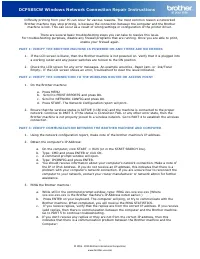 Brother DCP-585CW User Manual
 Brother DCP-1510 User Manual
 Brother DCP-1600 User Manual
 Brother DCP-1601 User Manual
 Brother DCP-6690CW User Manual
 Brother DCP-7010L User Manual
 Brother DCP-7020 User Manual
 Brother DCP-7030 User Manual
 Brother DCP-7040 User Manual
 Brother DCP-7045N User Manual