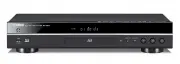
Page 2 - Caution for AC Mains Lead; IMPORTANT; OR COLOURED GREEN OR; Before use; Figure A
R Q T6 797 2 Caution for AC Mains Lead (For United Kingdom) (U.K. model only) For your safety, please read the following text carefully. This appliance is supplied with a moulded three pin mains plug for your safety and convenience.A 5-ampere fuse is fitted in this plug.Should the fuse need to be re...
Page 3 - Dear customer; Table of contents; Getting started
R Q T6 797 3 1 To assure the finest performance, please read this manual carefully. Keep it in a safe place for future reference. 2 Install this sound system in a well ventilated, cool, dry, clean place — away from direct sunlight, heat sources, vibration, dust, moisture, or cold. In a cabinet, allo...
Page 4 - ALL
R Q T6 797 4 Accessories ∫ Discs that can be played § 1 Some discs cannot be played depending on the disc characteristics or recording conditions. § 2 This unit can play DVD-R/RW if they are recorded with the Video Format. Do not use irregularly shaped discs (e.g. heart-shaped), as these can damage ...
Page 5 - Control reference guide
R Q T6 797 5 Control reference guide Buttons such as 2 function the same as the controls on the remote control. Page 1 Standby/on button (POWER Í /I) . . . . . . . . . . . . . . . . . . . . . . . . . 0 8 2 Stop button ( ∫ STOP) . . . . . . . . . . . . . . . . . . . . . . . . . . . . . . . . . . 0 9 ...
Page 6 - Connection; Audio connection; CH INPUT; Digital connection
R Q T6 797 6 Connection Audio connection A B C CENTER SUB WOOFER SURROUND 6 CH INPUT (L) (R) MAIN (L) (R) OPTICAL COAXIAL DIGITAL INPUT AUDIO (L) (R) Change “Digital output” ( ➡ page 19). Connect an amplifier with Dolby Digital and DTS decoders.You can also enjoy high-quality stereo sound with sampl...
Page 7 - Video connection; VCR; FOR THE UNITED KINGDOM ONLY
R Q T6 797 7 This unit equips three types of video jacks as follows: Plug the power cable into the AC IN when all connections are complete, and then plug this unit to the wall outlet. CautionDo not use other AC power cables than the one provided. Otherwise it may result in causing fire or an electri...
Page 8 - The remote control; Quick Setup
R Q T6 797 8 The remote control ∫ Batteries ≥ Insert so the poles ( i and j ) match those in the remote control. ≥ Do not use rechargeable type batteries. Do not: ≥ mix old and new batteries. ≥ use different types at the same time. ≥ heat or expose to flame. ≥ take apart or short circuit. ≥ attempt ...
Page 9 - Basic play; Place the disc on the disc tray.; Position Memory function; Position memorized
R Q T6 797 9 Basic play [DVD-A] [DVD-V] [VCD] [CD] [MP3] Preparation Turn on the other equipment (amplifier, television, etc.) and select the audio/video input to suit the connections to this player. [1] Press [POWER Í /I] to turn on the unit. [2] Press [OPEN/CLOSE] to open the disc tray. [3] Place ...
Page 10 - Press the numbered buttons to select the item.; Starting play from a selected item; TOP MENU; Skipping items
R Q T6 797 10 Basic play [DVD-A] [DVD-V] [VCD] [CD] [MP3] Press the numbered buttons to select the item. To select a 2-digit numbere.g. 23: [ S 10] ➡ [2] ➡ [3] [MP3] Press [ENTER] after pressing the numbered buttons. (You do not have to press [ S 10].) Play starts from the selected item. [Note] ≥ Th...
Page 11 - ] to select the track and press; Using the tree screen to find a group; Finding a track to play
R Q T6 797 11 [MP3] This unit can play MP3 files recorded on CD-R/RW with a computer. Files are treated as tracks and folders are treated as groups. [CD] (CD text) This unit reads and displays the information on CD text discs. You can display disc titles, artist names and track titles. 1 Press [TOP ...
Page 12 - Increasing your enjoyment of movies; Cinema; MULTI CH indicator; SP OFF
R Q T6 797 12 Increasing your enjoyment of movies [DVD-A] [DVD-V] [VCD] You can change the picture quality for movie viewing. Press [CINEMA]. Each time you press the button: [# Cinema1: Mellows images and l ; enhances detail in dark scenes. l Cinema2: Sharpens images and enhances detail in dark scen...
Page 13 - Changing soundtracks, subtitles and angles; Soundtracks; Subtitles; I love you; ON
R Q T6 797 13 Some DVDs have multiple soundtracks, subtitle languages and camera angles, and you can change them during play. ≥ “–” or “– –” is displayed instead of the language number in circumstances such as when no language is recorded on the disc. ≥ Some discs allow changes to soundtracks, subti...
Page 14 - Convenient features; Press the numbered buttons to select the track; Selecting groups to play; Playing bonus groups; Selecting still pictures—Page Skip; A B
R Q T6 797 14 Convenient features [DVD-A] [MP3] The tracks on DVD-Audio and MP3 are divided into groups. How these groups are played depends on the recording method. 1 Press [GROUP]. The group number changes each time you press the button. 2 Press [ENTER]. 3 Press the numbered buttons to select the ...
Page 15 - To repeat only your favorite tracks/chapters; Press the numbered buttons to select a track; Chapter; Program play/All group play; Program play
R Q T6 797 15 [DVD-A] [DVD-V] [VCD] [CD] [MP3] (When the elapsed play time is displayed) During play Press [REPEAT]. The indication changes each time you press the button. § 1 During all group, program and random play. If the Video CD has playback control1. Press [ ∫ ] to clear “PBC” from the displa...
Page 16 - Using Graphical User Interface (GUI) screens; To change the position of the icons; RETURN; Disc information; a b; Page
R Q T6 797 16 Using Graphical User Interface (GUI) screens [DVD-A] [DVD-V] [VCD] [CD] [MP3] GUI screens are menus that contain information about the disc or unit. These menus allow you to perform operations by changing this information. 1 Press [ON SCREEN]. Each time you press the button: [> Disc...
Page 17 - Unit information; Play Menu; Display Menu
R Q T6 797 17 a A-B repeat [DVD-A] [DVD-V] [VCD] [CD] [MP3] ( ➡ page 14) [ENTER] (start point) ➡ [ENTER] (finish point) To cancel: [ENTER] b Repeat mode ( ➡ page 15) § 1 During all group, program and random play c Play mode display [DVD-A] [DVD-V] [VCD] [CD] [MP3] ---: Normal play PGM:Program playRN...
Page 18 - Changing settings; Menus
R Q T6 797 18 Changing settings This chart shows the settings for this unit. Change the settings to suit your preferences and to suit the unit to the environment in which it isbeing used. These settings are retained in memory until they are changed, even if the unit is turned off. See page 19 for de...
Page 19 - Common procedures; Digital output; Digital Audio Output
R Q T6 797 19 See page 18 for menu and option details. 1 Press [SET UP] to show the menus. ≥ The QUICK SETUP screen appears when you press [SET UP] the first time after purchase ( ➡ page 8). 2 Press [ 2 , 1 ] to select the menu’s tab. The screen changes to display the menu. 3 Press [ 3 , 4 ] to sele...
Page 20 - Speaker setting; Speaker presence and size (; Language code list
R Q T6 797 20 Changing settings Change speaker presence and size a , delay time b , and channel balance c to suit the speakers you have connected. These settings are not necessary when you select “2-channel” (only two speakers are connected). [Note] This feature works only for analogue connection ( ...
Page 21 - Troubleshooting guide; Power; Operation
R Q T6 797 21 Troubleshooting guide Before requesting service, make the below checks. If you are in doubt about some of the check points, or if the remedies indicated in the chart do not solve the problem, consult your dealer for instructions. Power Page Operation Picture No power. ≥ Insert the powe...
Page 22 - Sound; Glossary
R Q T6 797 22 Troubleshooting guide Sound Page Unit displays Television displays BitstreamThis is the digital form of multi-channel audio data (e.g., 5.1 channel) before it is decoded into its various channels.DecoderA decoder restores the coded audio signals on DVDs to normal. This is called decodi...
Page 23 - Specifications
R Q T6 797 23 Specifications Signal system: PAL625/50, PAL525/60, NTSC Operating temperature range: i 5 to i 35 o C Operating humidity range: 5 to 90 % RH (no condensation) Discs played [8 cm or 12 cm]: (1) DVD-Audio(2) DVD-Video(3) DVD i RW/DVD i R (4) DVD-R/DVD-RW (DVD-Video compatible)(5) CD-Audi...