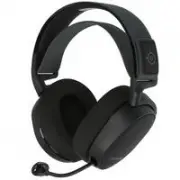
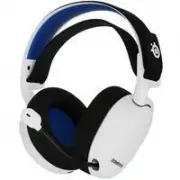
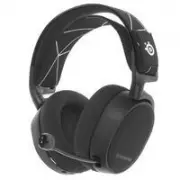
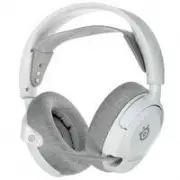
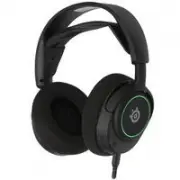
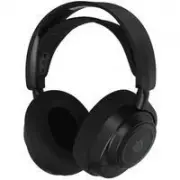
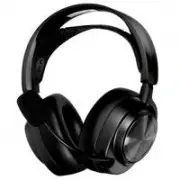
Page 3 - WELCOME TO ARCTIS
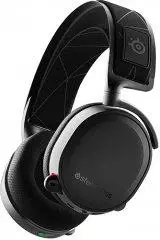
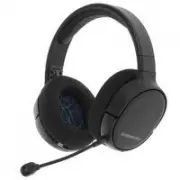
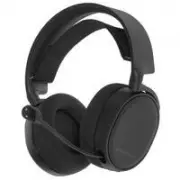
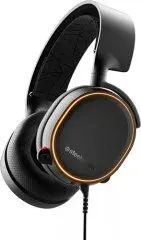
2 WELCOME TO ARCTIS . Your new headset is the result of more than 15 years of gaming expertise and our unyielding pursuit of perfection. We poured our hearts into making your new Arctis, giving it the best gaming mic available, 7.1 surround sound and comfort and style unlike anything you’ve experien...
Page 4 - find help at; PACKAGE CONTENTS; PC
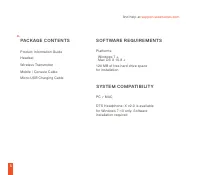
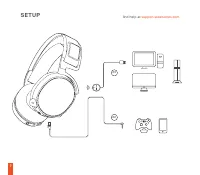
3 find help at support.steelseries.com Product Information GuideHeadsetWireless TransmitterMobile / Console Cable Micro-USB Charging Cable PACKAGE CONTENTS SYSTEM COMPATIBILITY SOFTWARE REQUIREMENTS PC / MAC DTS Headphone: X v2.0 is available for Windows 7-10 only. Software installation required Pla...
Page 5 - CONTENTS; Translations
4 CONTENTS SteelSeries EngineWelcomeInfo and Table of ContentsProduct OverviewSetupChargingPower on / offPairingLine in / Line outMicrophoneSki Goggle HeadbandSystem Setting: WindowsSystem Setting: Mac Translations Español 简体中文 繁體中文 日本語 한국어 Deutsch Русский Français Italiano Português Regulatory 1 2 ...
Page 6 - selected accessories available at; PRODUCT OVERVIEW
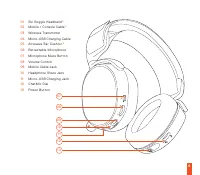
5 * selected accessories available at steelseries.com PRODUCT OVERVIEW 01 02 03 05 04 06 b.
Page 8 - SETUP
Page 9 - CHARGING
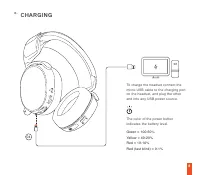
8 To charge the headset connect the micro-USB cable to the charging port on the headset, and plug the other end into any USB power source. The color of the power button indicates the battery level. Green = 100-50% Yellow = 49-20% Red = 19-10% Red (fast blink) = 9-1% CHARGING 04 c.
Page 11 - PAIRING
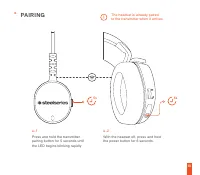
10 Press and hold the transmitter pairing button for 5 seconds until the LED begins blinking rapidly The headset is already paired to the transmitter when it arrives. With the headset off, press and hold the power button for 6 seconds. PAIRING 5s 6s e. e -1 e -2
Page 13 - MICROPHONE; top view
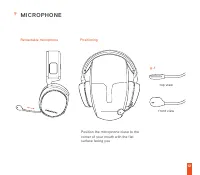
12 MICROPHONE top view Retractable microphone Positioning front view Position the microphone close to the corner of your mouth with the flat surface facing you g. g -1
Page 14 - SKI GOGGLE HEADBAND; Velcro
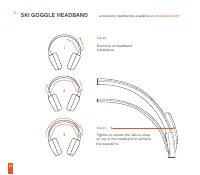
13 SKI GOGGLE HEADBAND Velcro Tighten or loosen the Velcro strap on top of the headband to achieve the desired fit. Install Direction of headband installation. accessory headbands available at steelseries.com h. 1 2 3
Page 15 - SYSTEM SETTING : WINDOWS
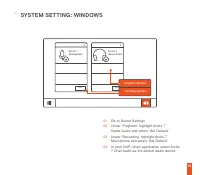
14 OK SYSTEM SETTING : WINDOWS 01 Go to Sound Settings 02 Under ‘Playback’ highlight Arctis 7 Game Audio and select ‘Set Default’ 03 Under ’Recording’ highlight Arctis 7 Microphone and select ‘Set Default’ 04 In your VoIP (chat) application select Arctis 7 Chat Audio as the default audio device play...
Page 17 - ESPAÑOL; Descripción general del producto
16 ESPAÑOL a. b. c. Contenido Del PaqueteGuía de Información del ProductoAuricularesTransmisor inalámbrico Cable de móvil / consolaCable de carga con micro USB Compatibilidad del sistema PC / MAC Plataformas: Windows 7 + Mac OS X 10.8 +Se requieren 120 MB de espacio libre en el disco duro para la in...
Page 18 - Cómo Aparear; Los audífonos ya están apareados; Micrófono
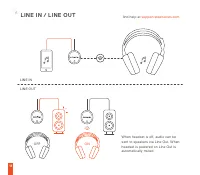
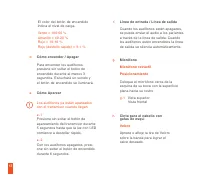
17 Cómo encender / ApagarPara encender los audífonos presione sin soltar el botón de encendido durante al menos 3 segundos. Escuchará un sonido y el botón de encendido se iluminará. Línea de entrada / Línea de salidaCuando los audífonos estén apagados, se puede enviar el audio a los parlantes a trav...
Page 19 - Dispositivos de reproducción; Ajustes de sistema: Mac; 简 体 中 文
18 包 装 内 含 产 品 信 息 指 南耳 机无 线 发 射 器 a. Instalación Instrucción para instalar la cinta para cabello Más cintas para cabello disponibles env steelseries.com i. Ajustes de sistema: Windows i - 1 Dispositivos de reproducción Audio para juegos Arctis 7 Dispositivos de grabación Micrófono Arctis 7 i - 2 01...
Page 20 - 系 统 兼 容 性; P C; 适 用 平 台; s t e e l s e r i e s . c o m / e n g i n e; 产 品 概 览; s t e e l s e r i e s . c o m; 充 电
19 系 统 兼 容 性 P C / M A C S t e e l S e r i e s v 2 . 0 环 绕 音 效 只 兼 容 W i n d o w s 7 - 1 0 。 需 要 安 装 软 件 。 适 用 平 台 Windows 7 + Mac OS X 10.8 + 安 装 需 要 1 2 0 M B 磁 盘 空 间 访 问 s t e e l s e r i e s . c o m / e n g i n e 下 载 b. 产 品 概 览 0 1 滑 雪 镜 头 带 * 0 2 手 机 音 频 线 * 0 3 无 线 发 射 器 0 4 M i c r o - U S B ...
Page 21 - 麦 克 风; 鸟瞰图; 配 对; 收 到 产 品 时 , 耳 机 已 经 和 发 射 器 配 对; 滑 雪 镜 头 带
20 g . 麦 克 风 伸 縮 式 麦 克 风麦 克 风 位 置 將 麦 克 风 放 置 於 靠 近 您 嘴 角 处 , 宽 平 面 朝 向 您 自 己 。 g -1 鸟瞰图 正 面 图 f. e. 线 路 输 入 / 线 路 输 出 当 耳 机 关 闭 时 , 声 音 可 以 通 过 线 入 输 出 发 送 到 扩 音 器 。 当 耳 机 打 开 时 , 线 入 输 出 功 能 自 动 静 音 。 配 对 e -1 长 按 发 射 器 配 对 按 钮 5 秒 , 直 至 L E D 灯 快 速 闪 烁 e -2 先 关 闭 耳 机 电 源 , 再 长 按 电 源 键 6 秒 。 收 到 产...
Page 22 - 声音; 输出:Arctis 7 游戏耳机; 繁 體 中 文; 包 裝 內 容; 適 用 系 統
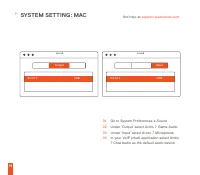
21 j. 系统设定: Mac j - 1 声音 输出:Arctis 7 游戏耳机 j - 2 输入:Arctis 7 游戏耳机 j - 3 01 打开偏好设定 > 声音 02 在播放设备的视窗里选取 Arctis 7 游戏耳机并右键选择 设置为默认设备 03 在录音设备的视窗里选取 Arctis 7 麦克风并右键选择设 置为默认设备 04 在您的VoIP (chat)应用程式 里将Arctis 7 游戏耳机设为 默认设备 04 在您的VoIP (chat)应用程式 里将Arctis 7 游戏耳机设为默认设备 訪 問 s u p p o r t . s t e e l s e r i e...
Page 23 - 產 品 概 覽; 充 電; 收 到 產 品 時 , 耳 機 已 經 和 發 射 器 配 對
22 b. 產 品 概 覽 0 1 滑 雪 鏡 頭 帶 * 0 2 手 機 音 源 線 * 0 3 無 線 發 射 器 0 4 M i c r o - U S B 充 電 線 0 5 A i r w e a v e 耳 罩 * 0 6 伸 縮 式 麥 克 風 0 7 麥 克 風 靜 音 按 鈕 0 8 音 量 控 制 0 9 主 線 接 口 1 0 耳 機 分 享 接 口 1 1 M i c r o - U S B 充 電 線 接 口 1 2 C h a t M i x 旋 鈕 1 3 電 源 按 鍵 * 勾 選 商 品 可 在 s t e e l s e r i e s . c o m 購 ...
Page 24 - 麥 克 風; 鳥 瞰 圖; 滑 雪 鏡 頭 帶; 聲音; 輸出:Arctis 7 遊戲耳機
23 g . 麥 克 風 伸 縮 式 麥 克 風麥 克 風 位 置 將 麥 克 風 放 置 於 靠 近 您 嘴 角 處 , 寬 平 面 朝 向 您 自 己 。 g -1 鳥 瞰 圖 正 面 圖 h. 滑 雪 鏡 頭 帶 魔 鬼 氈 調 整 頭 帶 兩 側 的 魔 鬼 氈 至 適 宜 鬆 緊 度 安 裝 頭 帶 安 裝 方 法 更 多 頭 帶 樣 式 請 參 考 官 網 s t e e l s e r i e s . c o m i. 系 统 設 定 : W i n d o w s i- 1 播放設備 Arctis 7 錄音設備 Arctis 7 麥克風 i- 2 01 打開聲音設定 02 在播...
Page 25 - s u p p o r t . s t e e l s e r i e s . c o m; 日本語; パッケージの内容; 製 品 概 要
24 03 在錄音設備的視窗裡選取 Arctis 7 麥克風按右鍵選擇設 定為預設設備 04 在您的VoIP (chat)應用程式 裡將Arctis 7遊戲耳機設定為預設設備 訪 問 s u p p o r t . s t e e l s e r i e s . c o m 尋 求 幫 助 日本語 a. パッケージの内容 製品情報ガイドヘッドセットワイヤレス ・ トランスミッター モバイル / コンソールケーブルマイクロ USB 充電ケーブル プラットフォーム Windows 7 + Mac OS X 10.8 + イ ン ス ト ー ル に 1 2 0 M B 以 上 の 空 き 容 量 が...
Page 26 - ト ラ ン ス ミ ッ タ ー が 繋 が れ ば ヘ ッ ド; ラ イ ン イ ン / ラ イ ン ア ウ ト; マイク; トップビュー
25 c. 充 電 ヘ ッ ド セ ッ ト を 充 電 す る に は 、 マ イ ク ロ U S B ケ ー ブ ル を ヘ ッ ド セ ッ ト の 充 電 ポ ー ト に 接 続 し 、 反 対 側 の ケ ー ブ ル を 他 の U S B 電 源 に 接 続 し て く だ さ い 。 電 源 ボ タ ン の 色 は バ ッ テ リ ー 残 量 を 示 し て い ま す 。 緑 = 1 0 0 - 5 0 %黄 = 4 9 - 2 0 %赤 = 1 9 - 1 0 %赤 ( 素 早 い 点 滅 ) = 9 - 1 % d. 電 源 オ ン / オ フ ヘ ッ ド セ ッ ト を オ ...
Page 27 - 出力:Arctis 7 ゲームオーディオ; サウンド; 入力:Arctis 7 ゲームオーディオ
26 h. イ ン ス ト ー ル ヘ ッ ド バ ン ド の 取 り 付 け 方 法 の 説 明 で す 。 ス キ ー ゴ ー グ ル ヘ ッ ド バ ン ド ベ ル ク ロ ヘ ッ ド バ ン ド の 上 部 に あ る ベ ル ク ロ テ ー プ で フ ィ ッ ト 感 の 調 節 が で き ま す 。 他 の ヘ ッ ド バ ン ド を お 求 め の 場 合 は s t e e l s e r i e s . c o m を ご 覧 く だ さ い i. システム設定: Windows i - 1 再生機器 Arctis 7 ゲームオーディオ 記録機器 Arctis 7 マイク ...
Page 28 - 한국인; 패키지 구성; 제품 개요; s t e e l s e r i e s .; 충전
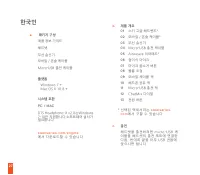
27 한국인 a. 패키지 구성 제품 정보 가이드 헤드셋 무선 송신기 모바일 / 콘솔 케이블 Micro-USB 충전 케이블 플랫폼 Windows 7 + Mac OS X 10.8 + 시스템 호환 PC / MAC DTS Headphone: X v2.0는Windows 7-10만 지원합니다.소프트웨어 설치가 필요합니다 s t e e l s e r i e s . c o m / e n g i n e 에 서 다 운 로 드 할 수 있 습 니 다 b. 제품 개요 01 스키 고글 헤드밴드 * 02 모바일 / 콘솔 케이블 * 03 무선 송신기 04 Mi...
Page 29 - 페어링; 마이크; 접 이 식 마 이 크; 스키고글 헤드밴드; 헤 드 밴 드 설 치 방 향
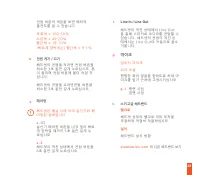
28 전 원 버 튼 의 색 깔 을 보 면 배 터 리 충 전 도 를 알 수 있 습 니 다 . 초 록 색 = 1 0 0 - 5 0 % 노 란 색 = 4 9 - 2 0 % 빨 간 색 = 1 9 - 1 0 % ( 빠 르 게 깜 박 이 는 ) 빨 간 색 = 9 - 1 % d. 전원 켜기 / 끄기 헤 드 셋 의 전 원 을 켜 려 면 전 원 버 튼 을 최 소 한 3 초 동 안 길 게 누 르 십 시 오 . 톤이 들 리 며 전 원 버 튼 에 불 이 켜 질 것입 니 다 . 헤 드 셋 의 전 원 을 끄 려 면 전 원 버 튼 을 최 소 한 3 초 동 안...
Page 30 - 재생 장치; 시스템 설정; DEUTSCH
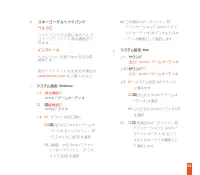
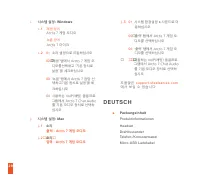
29 i. 시스템 설정 : Windows i - 1 재생 장치 Arctis 7 게임 오디오 녹음 장치 Arctis 7 마이크 i -2 01 소리 설정으로 이동하십시오 02 ‘재생’ 탭에서 Arctis 7 게임 오 디오를선택하고 ‘기본 장치로 설정’ 을 체크하십시오 03 ‘녹음’ 탭에서 Arctis 7 잡담 선택하고기본 장치로 설정’을 체 크하십시오 04 사용하는 VoIP(채팅) 응용프로 그램에서 Arctis 7 Chat Audio 를 기본 오디오 장치로 선택하 십시오 j. 시스템 설정 : Mac j - 1 소리 출력:Arctis 7...
Page 31 - Produktüberblick
30 Plattformen : Windows 7 + Mac OS X 10.8 +120 MB freien Platz auf der Festplatte für die Installation Compatibilité du système PC / MAC DTS Headphone:X v2.0 ist nur für Windows 7-10 verfügbar. Software-Installation erforderlich Download bei steelseries.com/engine b. Produktüberblick 01 Skibrillen-...
Page 32 - Mikrofon
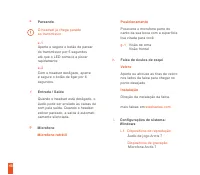
31 Power ein / ausZum Einschalten des Headsets drücken und halten Sie mindestens 3 Sekunden lang die Power-Taste. Sie hören einen Ton und die Power-Taste leuchtet auf.Zum Ausschalten des Headsets drücken und halten Sie mindestens 3 Sekunden lang die Power-Taste. d. e. Verbinden (Pairing) e -1 Drücke...
Page 33 - Systemeinstellungen: Windows; Wiedergabegeräte; Systemeinstellungen: Mac; РУССКИЙ
32 i. Systemeinstellungen: Windows i - 1 Wiedergabegeräte Arctis 7 Game Audio Aufnahmegeräte Arctis 7 Mikrofon i - 2 01 Zu Sound-Einstellungen 02 Wähle bei ‘Playback’ Arctis 7 Game Audio und dann ‘Standard’ 03 Wähle bei 'Aufnahme' Arctis 7 Chat und dann 'Standard' 04 Wähle in deiner VoIP (Chat) Anwe...
Page 35 - Подключение; При включении передатчика; микрофон; Оголовье как у лыжных очков
34 Включение и выключение Чтобы включить наушники, зажмите кнопку включения на 3 секунды или дольше. Включённые наушники должны подать звуковой сигнал, а кнопка включения — загореться.Чтобы выключить наушники, зажмите кнопку включения на 3 секунды или дольше.3 Sekunden lang die Power-Taste. d. e. По...
Page 36 - Запись звука; Системные настройки: Mac; FRANÇAIS
35 i . Системные настройки: Windows i - 1 Воспроизведение звука Игровой звук Arctis 7 Запись звука Микрофон Arctis 7 i - 2 01 Перейдите к настройкам звука. 02 В разделе «Воспроизведение» выберите «Игровой звук Arctis 7», а затем — «По умолчанию». 03 В разделе «Запись» выберите «чат Arctis 7», а зате...
Page 37 - Présentation du produit; 1 Serre-tête de masque de ski
36 Plateformes : Windows 7 + Mac OS X 10.8 +120 Mo d’espace disque dur disponible pour l’installation Compatibilité du système PC / MAC Casque DTS X v2.0 Surround est disponible uniquement pour Windows 7-10.Installation de logiciel requise Téléchargements ici steelseries.com/engine b. Présentation d...
Page 38 - Appairage; Le casque est déjà appairé à; Microphone
37 Marche / arrêtPour allumer le casque, appuyez sur le bouton d’alimentation et main- tenez-le appuyé pendant au moins 3 secondes. Vous entendrez une tonalité, et le bouton d’alimentation s’illuminera.Pour éteindre le casque, appuyez sur le bouton d’alimentation et main- tenez-le appuyé pendant au ...
Page 39 - Périphériques d’enregistrement; Configuration système: Mac; ITALIANO
38 i. Configuration système: Windows i - 1 Périphériques de lecture Audio de jeu Arctis 7 Périphériques d’enregistrement Microphone Arctis 7 i - 2 01 Ouvrir la configuration sonore . 02 Sous « Lecture », activez « Audio de jeu Arctis 7» et sélectionnez « Par défaut ». 03 Sous « Enregistrement », act...
Page 40 - Generalità sul prodotto
39 scarica da steelseries.com/engine 120 MB di spazio libero sull’hard drive per l’installazione Piattaforma: Windows 7 + Mac OS X 10.8 + Compatibilità di sistema PC / MAC DTS Headphone:X v2.0 Surround è di- sponibilesolamente per Windows 7-10. Richiede l’installazione del software b. Generalità sul...
Page 41 - Accoppiamento; Le cuffie vengono fornite già; Microfono; Periferica di registrazione
40 Per spegnere le cuffie tieni premuto il tasto Power per almento 3 secondi e. Accoppiamento e -1 Tieni premuto il tasto di accop- piamento del trasmettitore per 5 secondi fin quando il LED inizia a lampeggiare rapidamente e -2 A cuffie spente, tieni premuto il tasto Power per 6 secondi. Le cuffie ...
Page 42 - Entrée: Microfono Arctis 7; PORTUGUÊS
41 i - 2 01 Vai a Impostazioni audio. 02 In "Riproduzione" evidenzia audio del gioco Arctis 7 quindi seleziona "Impostazi- oni predefinite" 03 In "Registrazione" evidenzia il chat Arctis 7 quindi seleziona "Impostazioni predefinite" 04 Seleziona Arctis 7 Chat Audio co...
Page 43 - Visão geral do produto; 1 Faixa de óculos de esqui
42 faça download em steelseries.com/engine Compatibilidade do sistemaПК / MAC Fone de ouvido DTS:X v2.0 Surround disponível apenas no Win- dows 7-10. Instalação de software necessária b. Visão geral do produto 01 Faixa de óculos de esqui * 02 Cabo móvel / console * 03 Transmissor sem fio04 Cabo de e...
Page 44 - Pareando; O headset já chega parado; Microfone; Dispositivos de gravação
43 e. Pareando e -1 Aperte e segure o botão de parear do transmissor por 5 segundos até que o LED comece a piscar rapidamente e -2 Com o headset desligado, aperte e segure o botão de ligar por 6 segundos. O headset já chega parado ao transmissor Entrada / SaídaQuando o headset está desligado, o áudi...
Page 45 - Entrada: Microfone Arctis 7
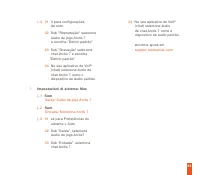
44 i - 2 01 Ir para configurações de som. 02 Sob "Reprodução" selecione áudio de jogo Arctis 7 e escolha "Definir padrão" 03 Sob "Gravação" selecione chat Arctis 7 e escolha "Definir padrão" 04 No seu aplicativo de VoIP (chat) selecione áudio de chat Arctis 7 como o d...
Page 54 - learn more at steelseries.com