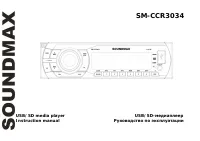
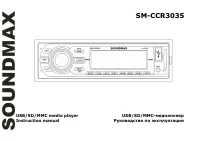
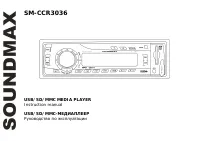
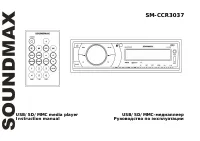
Page 2 - Table of contents
2 Dear customer! Thank you for purchasing our product. For safety, it is strongly recommended to read this manual carefully before connecting, operating and/or adjusting the product and keep the manual for reference in the future. Table of contents TABLE OF CONTENTS ....................................
Page 3 - Important safeguards
3 Important safeguards Read carefully through the manual to familiarize yourself with this unit. Keep this manual handy as a reference for operating procedures and precautions. Do not allow persons who have not read through this manual to use this unit. “CLASS 1 LASER PRODUCT” This product contains ...
Page 4 - Accessories
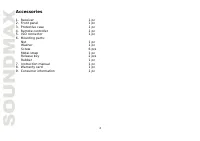
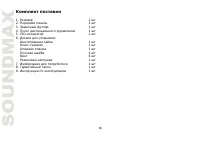
4 Accessories 1. Receiver 1 pc 2. Front panel 1 pc 3. Protective case 1 pc 4. Remote controller 1 pc 5. ISO connector 1 pc 6. Mounting parts: Nut 1 pc Washer 1 pc Screw 6 pcs Metal strap 1 pc Release key 2 pcs Rubber 1 pc 7. Instruction manual 1 pc 8. Warranty card 1 pc 9. Consumer information 1 pc
Page 5 - Installation/Connections; Mounting into dashboard; for the unit installation.
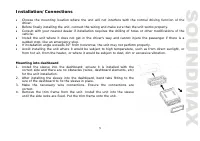
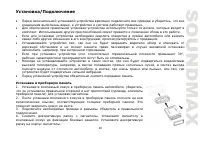
5 Installation/Connections Choose the mounting location where the unit will not interfere with the normal driving function of the driver. Before finally installing the unit, connect the wiring and make sure that the unit works properly. Consult with your nearest dealer if installation requires the d...
Page 6 - when you leave the vehicle to deter theft.
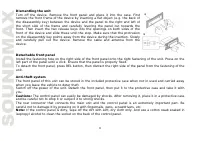
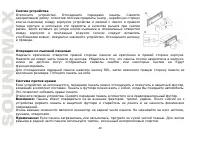
6 Dismantling the unit Turn off the device. Remove the front panel and place it into the case. First remove the front frame of the device by inserting a flat object (e.g. the back of the disassembly key) between the device and the panel to the right and left of the short side of the frame and carefu...
Page 7 - Connection diagram; Connector; Connector wires
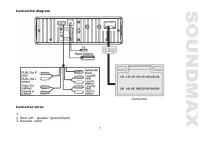
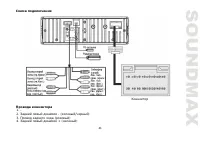
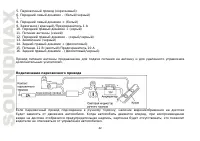
7 Connection diagram Connector Connector wires 1. - 2. Rear left - speaker (green/black) 3. Reverse (pink)
Page 8 - Parking wire connection
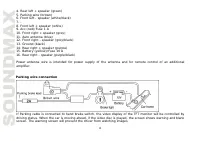
8 4. Rear left + speaker (green) 5. Parking wire (brown) 6. Front left - speaker (white/black) 7. - 8. Front left + speaker (white) 9. Acc (red)/Fuse 1 A 10. Front right + speaker (grey) 11. Auto antenna (blue) 12. Front right - speaker (grey/black) 13. Ground (black) 14. Rear right + speaker (purpl...
Page 9 - Reverse driving cable connection
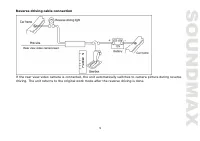
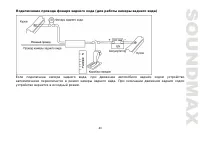
9 Reverse driving cable connection If the rear view video camera is connected, the unit automatically switches to camera picture during reverse driving. The unit returns to the original work mode after the reverse driving is done.
Page 10 - Panel controls; Front panel
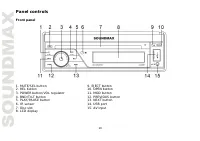
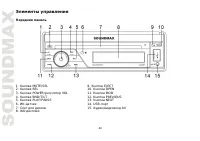
10 Panel controls Front panel 1. MUTE/SEL button 9. EJECT button 2. REL button 10. OPEN button 3. POWER button/VOL regulator 11. MOD button 4. BND/TILT button 12. PREVIOUS button 5. PLAY/PAUSE button 13. NEXT button 6. IR sensor 14. USB port 7. Disc slot 15. AV input 8. LCD display
Page 11 - Inner panel; Panel status indicator
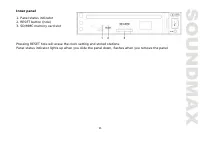
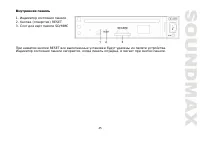
11 Inner panel 1. Panel status indicator 2. RESET button (hole) 3. SD/MMC memory card slot Pressing RESET hole will erase the clock setting and stored stations. Panel status indicator lights up when you slide the panel down, flashes when you remove the panel.
Page 12 - Remote controller
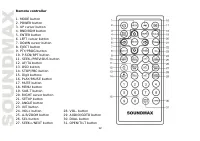
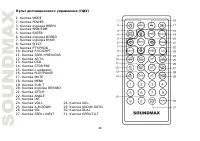
12 Remote controller 1. MODE button2. POWER button3. UP cursor button4. BND/RDM button5. ENTER button6. LEFT cursor button7. DOWN cursor button8. EJECT button9. PTY/PROG button10. P.SCN/RPT button11. SEEK-/PREVIOUS button12. AF/TA button13. OSD button14. STOP/PBC button15. Digit buttons16. PLAY/PAUS...
Page 13 - battery to give off heat, crack or start a fire.
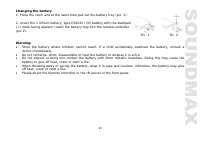
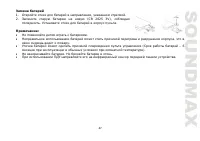
13 Changing the battery1. Press the catch and at the same time pull out the battery tray (pic. 1). 2. Insert the 1 lithium battery, type CR2025 (3V) battery with the stamped(+) mark facing upward. Insert the battery tray into the remote controller(pic.2). Warning: Store the battery where children ca...
Page 14 - LCD layout
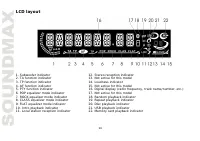
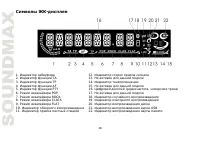
14 LCD layout 1. Subwoofer indicator 12. Stereo reception indicator 2. TA function indicator 13. Not active for this model 3. TP function indicator 14. Loudness indicator 4. AF function indicator 15. Not active for this model 5. PTY function indicator 16. Digital display (radio frequency, track name...
Page 15 - General operations; or on the panel to turn off the power.
15 General operations Touch screen Due to the touch screen, you can fulfill most functions not only by pressing buttons but also by touching the options you need. Turning the unit on/off Press any button (except REL button and EJECT button) to switch the unit on. Press POWER button on the RC or on t...
Page 17 - external monitor, the main unit will keep in current mode.
17 MODE button on the RC or MOD button on the panel can switch all modes of the main unit, but the external monitor is showing DVD/USB/SD mode only. D-Dual on: When D-Dual is on, all buttons are working regularly except VOL+/- buttons on the RC or VOL regulator on the panel for the external monitor ...
Page 18 - System setup; Sound page; Balance: Adjust the balance between left and right channels.; Display page
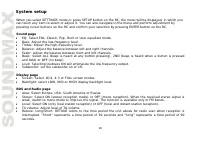
18 System setup When you select SETTINGS mode or press SETUP button on the RC, the menu will be displayed, in which you can touch any item to select or adjust it. You can also navigate in the menu and perform adjustment by pressing cursor buttons on the RC and confirm your selection by pressing ENTE...
Page 20 - System info page; with the touch screen, and it needs adjustment.
20 Note: if you forget your password, there is no possibility to reset the password again. Do not forget your password and write it down or store the password in a safe place. Rating: The Rating control level is for parents to control playing content and protect your children from violence and eroti...
Page 21 - Radio operations; User interface of Radio mode
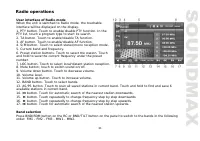
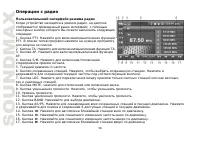
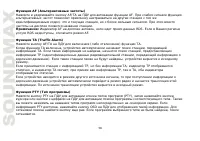
21 Radio operations User interface of Radio mode When the unit is switched to Radio mode, the touchable interface will be displayed on the display. 1. PTY button. Touch to enable/disable PTY function. In the PTY list, touch a program type to start its search. 2. TA button. Touch to enable/disable TA...
Page 22 - Manual/automatic tuning; repeatedly to select a frequency downward or upward step by step.; Programming tuner stations; press the button again.; RDS background; following service is not available.
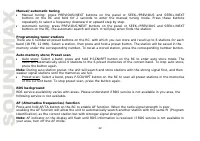
22 Manual/automatic tuning Manual tuning: press PREVIOUS/NEXT buttons on the panel or SEEK-/PREVIOUS and SEEK+/NEXT buttons on the RC and hold for 2 seconds to enter the manual tuning mode. Press these buttons repeatedly to select a frequency downward or upward step by step. Automatic tuning: press ...
Page 23 - after the TA is over.
23 TA (Traffic alarm) function Press AF/TA button on the RC to switch on the TA function. When TA is on, the TA displays on TFT, or else, if there is no TP information, the mode will search TP station automatically. When TA is playing, the volume will be adjusted to a TA level automatically. When ot...
Page 24 - TV operations
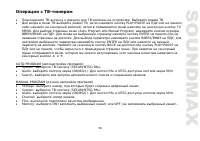
24 TV operations Connect a TV antenna to the TV antenna jack of the unit. Select TV mode. Select TV mode, then press PLAY/PAUSE button on the RC or front panel, or touch the screen, then touch TV MENU item to show the TV Menu. To select a menu page (Auto Program or Manual Program) press UP/DOWN curs...
Page 25 - DVD touch interface
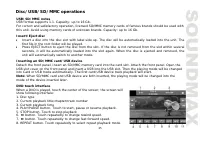
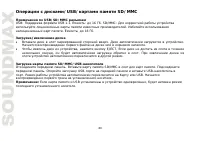
25 Disc/USB/SD/MMC operations USB/SD/MMC notes USB format supports 1.1. Capacity: up to 16 Gb. For correct and satisfactory operation, licensed SD/MMC memory cards of famous brands should be used with this unit. Avoid using memory cards of unknown brands. Capacity: up to 16 Gb. Insert/Eject disc Ins...
Page 26 - VCD touch interface
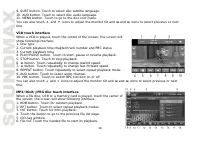
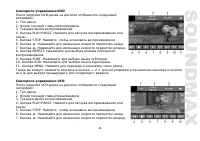
26 9. SUBT button. Touch to select disc subtitle language. 10. AUD button. Touch to select disc audio language. 11. MENU button. Touch to go to the disc root menu. You can also touch and icons to adjust the monitor tilt and and icons to select previous or next title. VCD touch interface When a VCD i...
Page 27 - Stop playback; resumed only from the beginning of the disc.; Selecting tracks
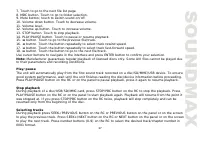
27 7. Touch to go to the next file list page. 8. MDC button. Touch to go to folder selection. 9. Mute button; touch to switch sound on/off. 10. Volume down button. Touch to decrease volume. 11. Volume level. 12. Volume up button. Touch to increase volume. 13. STOP button. Touch to stop playback. 14....
Page 28 - Repeat playback; played. Press the button again to cancel intro playback.; GOTO
28 Fast forward/rewind Press and hold repeatedly SEEK-/PREVIOUS or SEEK+/NEXT buttons on the RC or PREVIOUS or NEXT buttons on the panel or corresponding buttons on the screen for fast backward or forward playing correspondingly. With each pressing playback speed will increase. While fast playback, ...
Page 30 - screen to confirm the selected item and start playing.; ID3 Tag function
30 Menu navigation (for DVD only) Press and hold MENU button on the RC to activate the disc menu list on the screen. Choose the desired item. Press ENTER button or PLAY/PAUSE button on the RC or on the panel or touch corresponding button on the screen to confirm the selected item and start playing. ...
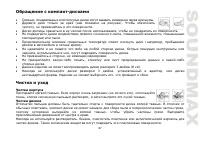
Page 31 - Handling compact discs; Do not insert anything other than a CD into the CD loading slot.; Cleaning; Cleaning the cabinet; weak solution of soapy water, and then wipe clean.; Cleaning discs
31 Handling compact discs Do not insert anything other than a CD into the CD loading slot. Do not use cracked, chipped, warped, or otherwise damaged discs as they may cause skipping or noise damage the player. Handle the disc only by the edges (as shown in the picture). To keep discs clean do not to...
Page 32 - Troubleshooting guide; Symptom
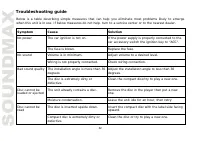
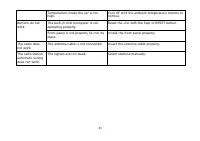
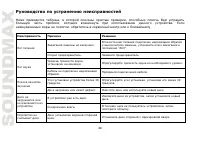
32 Troubleshooting guide Below is a table describing simple measures that can help you eliminate most problems likely to emerge when this unit is in use. If below measures do not help, turn to a service center or to the nearest dealer. Symptom Cause Solution The car ignition is not on. If the power ...
Page 34 - Specification
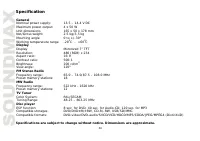
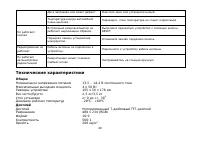
34 Specification General Nominal power supply: 13.5 – 14.4 V DC Maximum power output: 4 x 50 W Unit dimensions 165 x 50 x 178 mm Net/Gross weight 2.5 kg/3.5 kg Mounting angle 0 to +/-30 0 Working temperature range -20 0 - +60 0 Display Display Motorized 7” TFT Resolution: 480 (RGB) x 234 Aspect rati...
Page 45 - RESET
Page 52 - RDS
52 SETTINGS SETUP , . , - ENTER . (Sound) EQ ( ): Flat, Classic, Pop, Rock User ). Bass ( ): . Treble ( ): . Balance ( ): . Fader ( ): . Beep ( ): ALL ( ), 2ND ( ) OFF ( ). Loud ( ): ON (“ ”) . Subwoofer ( ): . (Display) Screen ( ): 16:9, 4:3 FULL (“ ”). Backlight ( ): LOW (“ ”), MID (“ ”) HIGH (“ ”...
Page 60 - USB
60 /USB/ SD/MMC USB/SD/MMC USB: USB 1.1. : 16 . SD/MMC: . . : 16 . . . . , EJECT. , . . SD/MMC/USB- . SD/MMC . . USB- USB- . USB. . : USB , .
Page 70 - FM
70 120 0 FM 65 – 74 /87,5 – 108 18 AM (MW) 522 – 1620 12 PAL/SECAM 48,25 – 863,25 DVD/DVD±R/±RW, CD-R/-RW, USB/SD/MMC DVD-video/DVD-audio/SVCD/VCD/HDCD/MP3/CDDA/ JPEG/MPEG4 (DivX/XviD) 8 c DVD/40 CD/120 c MP3 . . ! , , . , ( 2010 – 2019) . : (2011) R31982101-01792 ( )