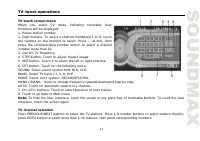
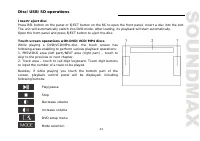
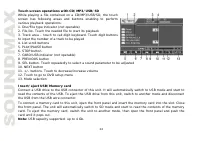
Page 2 - Table of contents
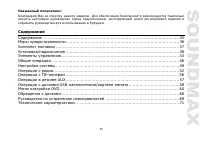
2 Dear customer!Thank you for purchasing our product. For safety, it is strongly recommended to read this manual carefully before connecting, operating and/or adjusting the product and keep the manual for reference in the future. Table of contents Table of contents .....................................
Page 3 - Important safeguards
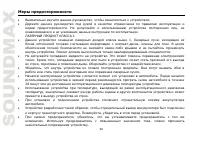
3 Important safeguards Read carefully through the manual to familiarize yourselves with this unit.Keep this manual handy as a reference for operating procedures and precautions. Do not allow personswho have not read through this manual to use this unit.“CLASS 1 LASER PRODUCT”This product contains a ...
Page 4 - Accessories
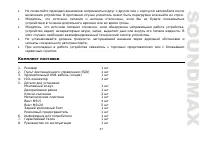
4 Make sure you disconnect the power supply if the system appears to be working incorrectly, is makingan unusual sound, has a strange smell, has smoke emitting from it or liquids have got inside it. Let aqualified technician check the system.Always keep the volume low enough so that you can hear sou...
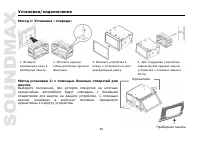
Page 5 - Installation/connection; Installation method 2: Installation using the screw holes; Select a position where the screw holes of the mounting bracket
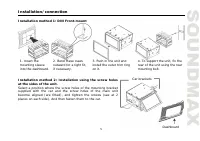
5 Installation/connection Installation method 1: DIN Front-mount 1. Insert themounting sleeveinto the dashboard. 2. Bend these clawsoutward for a tight fit,if necessary. 3. Push in the unit andinstall the outer trim ringon it. 4. To support the unit, fix therear of the unit using the rearmounting bo...
Page 6 - Detach the unit; keys makes it possible to remove the unit from the dashboard.
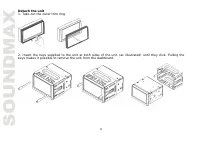
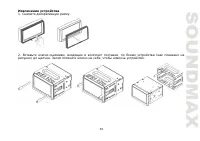
6 Detach the unit 1. Take out the outer trim ring. 2. Insert the keys supplied to the unit at both sides of the unit (as illustrated) until they click. Pulling the keys makes it possible to remove the unit from the dashboard.
Page 7 - Electrical Connection
Page 8 - Using the ISO Connector; connectors as illustrated.; Function; additional amplifier.
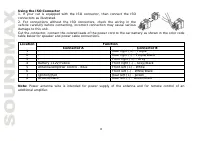
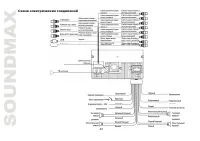
8 Using the ISO Connector 1. If your car is equipped with the ISO connector, then connect the ISO connectors as illustrated. 2. For connections without the ISO connectors, check the wiring in the vehicle carefully before connecting, incorrect connection may cause serious damage to this unit. Cut the...
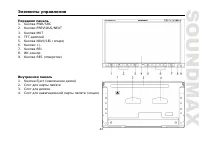
Page 10 - Unit controls; Front panel
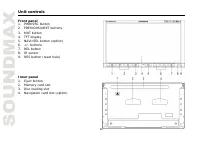
10 Unit controls Front panel 1. PWR/SRC button2. PREVIOUS/NEXT buttons3. MUT button4. TFT display5. NAVI/SEL button (option)6. +/- buttons7. REL button8. IR sensor9. RES button (reset hole) Inner panel1. Eject button2. Memory card slot3. Disc loading slot4. Navigation card slot (option)
Page 13 - General operations; Angle setting; panel to adjust the monitor forward.
13 General operations Touch screenDue to the touch screen, you can fulfill most functions not only by pressing buttons but also by touching theoptions you need. Reset the unitOperating the unit for the first time or after replacing the car battery, you must reset the unit. Press RESbutton on the uni...
Page 14 - After inputting false data, press CLEAR button to clear it.
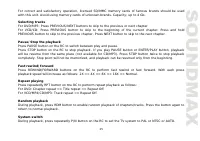
14 Volume control Press VOL+/VOL- button on the RC or +/- buttons on the unit to increase/decrease the sound level. Setting the sound characteristics Repeatedly press SEL button on the RC or NAVI/SEL button on the unit to select the desired parameter in the following order: VOL => BALAN => FAD...
Page 15 - System setup; Source adjust
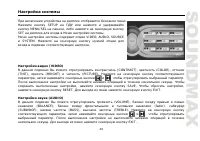
15 System setup When the unit is on, the Main menu will be displayed.Press SETUP button on the RC or press and hold MENU/SEL buttonon the unit, or touch SET item on the monitor to enter the Systemsetup menu.System setup menu includes VIDEO, AUDIO, SOURCE and SYSTEMitems. Touch them on the monitor to...
Page 16 - System adjust
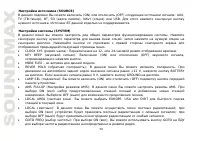
16 System adjust In this menu you can adjust a number of general system operation parameters. Touch an item on thescreen to get the option menu, and then select the needed option by touching it on the screen. Touch arrowbuttons at the right side of the screen to display the next or previous menu pag...
Page 17 - Radio operations; Manual/automatic tuning
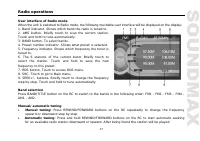
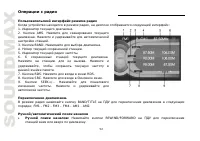
17 Radio operations User interface of Radio modeWhen the unit is switched to Radio mode, the following touchable user interface will be displayed on the display:1. Band indicator. Shows which band the radio is tuned to.2. AMS button. Briefly touch to scan the current station.Touch and hold to tune a...
Page 22 - AUX operations
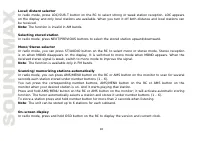
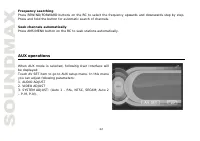
22 Frequency searchingPress REWIND/FORWARD buttons on the RC to select the frequency upwards and downwards step by step.Press and hold the button for automatic search of channels. Seek channels automaticallyPress AMS/MENU button on the RC to seek stations automatically. AUX operations When AUX mode ...
Page 27 - and
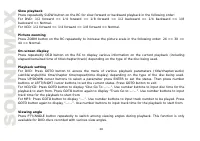
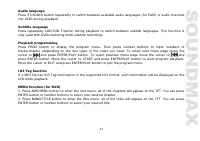
27 Audio languagePress ST/AUDIO button repeatedly to switch between available audio languages (for DVD) or audio channels(for VCD) during playback. Subtitle languagePress repeatedly LOC/SUB-T button during playback to switch between subtitle languages. This function isonly valid with DVDs featuring ...
Page 28 - DVD Setup menu; ANGLE MARK
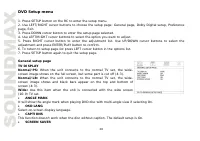
28 DVD Setup menu 1. Press SETUP button on the RC to enter the setup menu.2. Use LEFT/RIGHT cursor buttons to choose the setup page: General page, Dolby Digital setup, Preferencepage, Exit.3. Press DOWN cursor button to enter the setup page selected.4. Use LEFT/RIGHT cursor buttons to select the opt...
Page 30 - Reset to the initial factory setups.
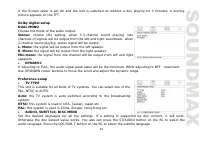
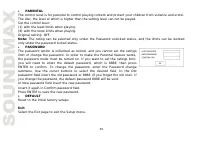
30 PARENTAL The control level is for parental to control playing content and protect your children from violence and erotic.The disc, the level of which is higher than the setting level can not be played.Set the control level:(1) with the least limits when playing.(8) with the most limits when playi...
Page 31 - Handling and cleaning discs; Cleaning
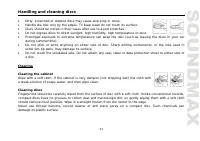
31 Handling and cleaning discs Dirty, scratched or warped discs may cause skip ping or noise.Handle the disc only by the edges. To keep clean do not touch its surface.Discs should be stored in their cases after use to avoid scratches.Do not expose discs to direct sunlight, high humidity, high temper...
Page 32 - Troubleshooting guide; Symptom
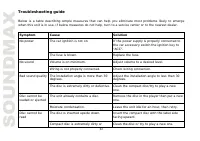
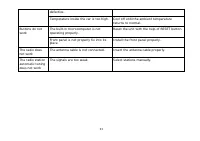
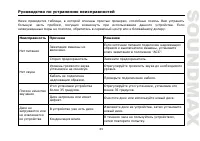
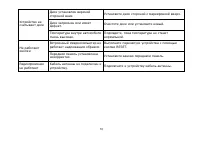
32 Troubleshooting guide Below is a table describing simple measures that can help you eliminate most problems likely to emergewhen this unit is in use. If below measures do not help, turn to a service center or to the nearest dealer. Symptom Cause Solution The car ignition is not on. If the power s...
Page 34 - Specification; Maximum power output:
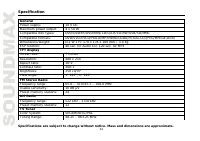
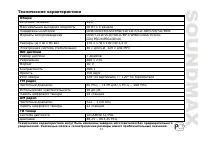
34 Specification GeneralPower supply: 14 V DC Maximum power output: 4 x 50 W Compatible disk types: DVD/DVD±R/DVD±RW/CD/CD-R/CD-RW/USB/SD/MMC Compatible formats: DVD/SVCD/VCD/HDCD/MP3/WMA/CDDA/Picture-CD/JPEG/MPEG4(DivX) Dimensions/weight: D x W x H: 170 x 178 x 100 mm / 3.4 kg ESP function: 40 sec....
Page 41 - ISO
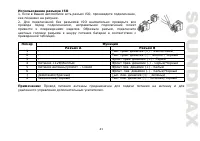
41 ISO 1. ISO, , . 2. ISO , . , . A B 1 - . . (+) - 2 - . . (-) - ./ 3 - . (+) - 4 +12 . (-) - 5 . - . (+) - 6 - . . (-) - 7 . . (+) - 8 . . (-) - : .
Page 42 - “Attention! You cannot use this function while driving” (“
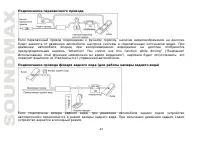
42 , , . “Attention! You cannot use this function while driving” (“ ! “), ; . ( ) , . .
Page 51 - “Adjust successful”
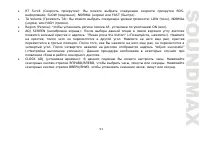
51 RT Scroll ( ): RDS- : SLOW ( ), NORMAL ( ) FAST ( ). TA Volume ( ): : LOW ( ), NORMAL ) HIGH ( ). Region ( ): AF, ON ( ). ADJ SCREEN ( ): : “Please press the button” (« , »). , . ; . , , . “Adjust successful” (« »). . CLOCK ADJ ( ): . , , . , , .
Page 54 - RDS; RDS; PTY
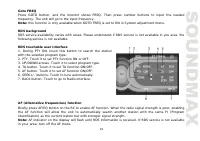
54 2 . : 6 . OSD . GOTO, FREQ. , . . : , GOTO FREQ (ON) . RDS RDS ( ) . , RDS , . RDS 1. PTY (ON), . 2. PTY. (ON) (OFF).3. . . 4. . (ON)/ (OFF) . 5. AF. (ON)/ (OFF) AF. 6. SEEK+/-. .
Page 57 - GOTO; AUX
57 PREVIOUS/NEXT . 1 - 9 . 9 GOTO , . REWIND/FORWARD . . AMS/MENU . AUX AUX : AV SET AUX. : 1. AUDIO ADJUST ( ) 2. VIDEO ADJUST ( ) 3. VIDEO FORMAT ( ): (Auto 1 – PAL, NTSC, SECAM; Auto 2 – P-M, P-N).
Page 59 - DVD
59 DVD CD/MP3/USB/SD , CD/MP3/USB- SD, : 1. ( ) 2. . . 3. – . . 4. 5. PLAY/PAUSE ( ) 6. STOP ( ) 7. CARD ( )/USB ( ) 8. PREVIOUS ( ) 9. SEL. , . 10. NEXT ( ) 11. +/-. . 12. DVD. 13.
Page 64 - SETUP
64 DVD 1. SETUP , . 2. : , DOLBY, , . 3. . 4. , . 5. . ENTER/PLAY . 6. . 7. SETUP . 4:3 PS: , , . 4:3 LB: , , . : , . DVD – , . , DVD , , .
Page 65 - DOLBY; FULL
65 . , . - . , , , . DOLBY : . c : , 5,1- , . .: . .: . . : . FULL . OFF ( .) . . , , .