Page 2 - Table of contents
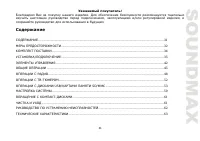
2 Dear customer! Thank you for purchasing our product. For safety, it is strongly recommended to read this manual carefully before connecting, operating and/or adjusting the product and keep the manual for reference in the future. Table of contents TABLE OF CONTENTS ....................................
Page 3 - Important safeguards
3 Important safeguards Read carefully through the manual to familiarize yourself with this unit. Keep this manual handy as a reference for operating procedures and precautions. Do not allow persons who have not read through this manual to use this unit. “CLASS 1 LASER PRODUCT” This product contains ...
Page 4 - Accessories
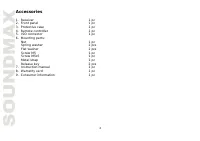
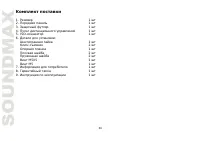
4 Accessories 1. Receiver 1 pc 2. Front panel 1 pc 3. Protective case 1 pc 4. Remote controller 1 pc 5. ISO connector 1 pc 6. Mounting parts: Nut 1 pc Spring washer 2 pcs Flat washer 2 pcs Screw M5 1 pc Screw M5x5 1 pc Metal strap 1 pc Release key 2 pcs 7. Instruction manual 1 pc 8. Warranty card 1 ...
Page 5 - Installation/Connections; following illustrated installation methods.
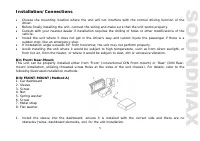
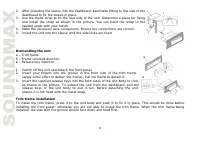
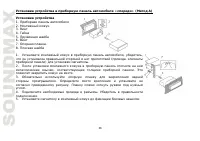
5 Installation/Connections Choose the mounting location where the unit will not interfere with the normal driving function of the driver. Before finally installing the unit, connect the wiring and make sure that the unit works properly. Consult with your nearest dealer if installation requires the d...
Page 7 - radio mounting brackets.; Detachable front panel; panel until a click. Ensure that the panel is properly fixed.
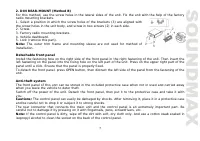
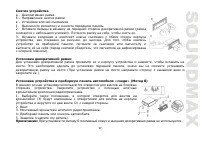
7 2. DIN REAR-MOUNT (Method B) For this method, use the screw holes in the lateral sides of the unit. Fix the unit with the help of the factory radio mounting brackets. 1. Select a position in which the screw holes of the brackets (3) are aligned with the screw holes in the unit body, and screw in t...
Page 8 - Connection diagram; distortion during high volume level.
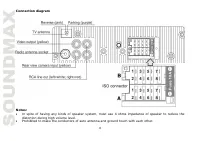
8 Connection diagram Notes: In spite of having any kinds of speaker system, must use 4 ohms impedance of speaker to reduce the distortion during high volume level. Prohibited to make the conductors of auto antenna and ground touch with each other.
Page 9 - Using the ISO Connector; Location; Parking wire connection
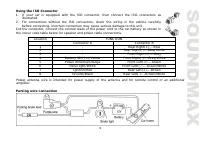
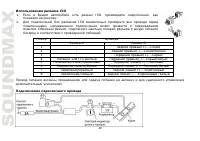
9 Using the ISO Connector 1. If your car is equipped with the ISO connector, then connect the ISO connectors as illustrated. 2. For connections without the ISO connectors, check the wiring in the vehicle carefully before connecting, incorrect connection may cause serious damage to this unit. Cut the...
Page 10 - Reverse driving cable connection
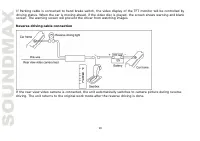
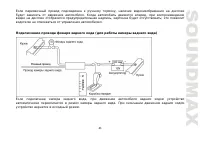
10 If Parking cable is connected to hand brake switch, the video display of the TFT monitor will be controlled by driving status. When the car is moving ahead, if the video disc is played, the screen shows warning and blank screen. The warning screen will prevent the driver from watching images. Rev...
Page 11 - Panel controls; Front panel
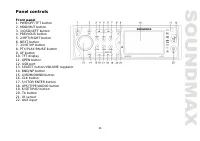
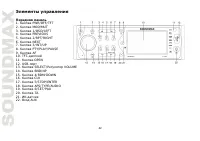
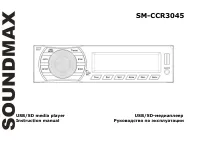
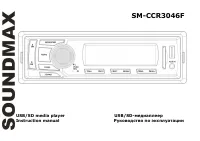
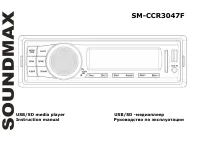
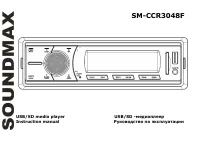
11 Panel controls Front panel 1. PWR/OFF/TFT button 2. MOD/MUT button 3. 1/OSD/LEFT button 4. PREVIOUS button 5. 2/RPT/RIGHT button 6. NEXT button 7. 3/INT/UP button 8. PTY/PLAY/PAUSE button 9. AF button 10. TFT display 11. OPEN button 12. USB port 13. SELECT button/VOLUME regulator 14. BND/NP butto...
Page 12 - Inner panel; Press OPEN button on the front panel to detach it.
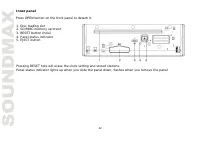
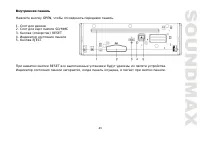
12 Inner panel Press OPEN button on the front panel to detach it. 1. Disc loading slot 2. SD/MMC memory card slot 3. RESET button (hole) 4. Panel status indicator 5. EJECT button Pressing RESET hole will erase the clock setting and stored stations. Panel status indicator lights up when you slide the...
Page 13 - Press the catch and at the same time pull out the battery tray.
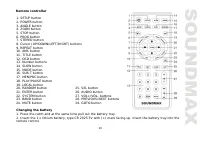
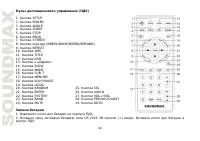
13 Remote controller 1. SETUP button 2. POWER button 3. ANGLE button 4. ZOOM button 5. STOP button 6. PROG button 7. STEREO button 8. Cursor (UP/DOWN/LEFT/RIGHT) buttons 9. REPEAT button 10. AMS button 11. TITLE button 12. OSD button 13. Number buttons 14. SLOW button 15. MODE button 16. SUB-T butto...
Page 14 - General operations
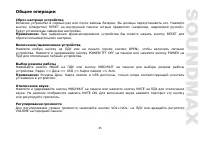
14 General operations Reset the unit Operating the unit for the first time or after replacing the car battery, you must reset the unit. Press RESET button (hole) with a pointed object, such as a ballpoint pen, to set the unit to initial state. Note: When some errors occur, you can also press RESET b...
Page 15 - order for the new setting to take effect.
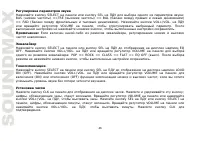
15 between the left and right speakers. Fader is to adjust the balance between the rear and front speakers. After you have reached your desired effect, leave the unit idle in order for the new setting to take effect. Note: If the equalizer is set on, bass and treble are not adjustable. EQ modes Pres...
Page 16 - AUX in jack; to listen to tracks using the car acoustic system.
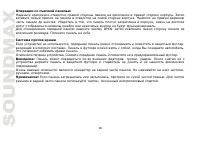
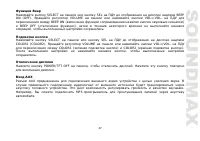
16 COLOR1 (green button backlight) and COLOR2 (red button backlight). After you have reached your desired effect, leave the unit idle in order for the new setting to take effect. TFT on/off Press POWER/TFT OFF button on the panel to switch the TFT display off. Press the button again to switch the di...
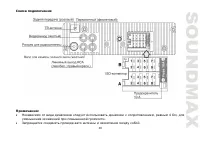
Page 17 - Radio operations; Band select; stations, making total 30 preset memory stations.; Programming tuner stations; by selecting mono mode, which may cut down some reception noise.
17 Radio operations Band select Press repeatedly BND/NP button on the panel or BAND button on the RC to select your desired radio band in Radio mode: FM1, FM2, FM3, AM1 (MW1), AM2 (MW2). In each set of the bands you can store up to 6 preset stations, making total 30 preset memory stations. Auto/Manu...
Page 18 - Local radio station search; and distant station reception.; RDS function; If RDS service is not available in your area, turn off the AF mode.
18 Local radio station search Press repeatedly SELECT button on the panel or SEL button on the RC until the display shows LOC ON (LOC OFF). Press VOL+/VOL- buttons on the RC or rotate VOLUME regulator on the panel to select between LOC ON/OFF. LOC ON means that only local stations are received; LOC ...
Page 19 - music programs available.; Other parameter setting; mode the alarm is set off.
19 Press PTY/PLAY/PAUSE button to show the music type. Then press 1 - 6 number buttons to choose different music programs available. Press PTY/PLAY/PAUSE button twice to show the speech type program. Then press 1 - 6 number buttons to choose different speech programs. Each number button will show 2 ...
Page 20 - TV operations; TV and audio system; frequency step by step.; Save channels
20 TV operations TV and audio system Press repeatedly SYSTEM button on the RC or BND/NP button on the panel to select one of the available TV systems. Press repeatedly AUDIO button on the RC to select one of the available sound systems. Search channels Press AUDIO TYPE/APS button on the panel or AMS...
Page 22 - Selecting tracks/chapters; panel to resume normal speed.; Repeat playback; playing mode. Press one more time to return to normal playing.; Goto
22 Play/Pause/Stop During playback press PLAY/PAUSE button on the RC or press and hold 6/SET/PAU button on the panel to pause playback. Do this operation again to resume playback. To stop playback, press STOP button on the RC or press and hold 5/STOP/ENTER button on the panel. Selecting tracks/chapt...
Page 24 - angle playback, this function will not work.; Selecting subtitle language (for DVD only); selected item and start playing.; ID3 Tag function
24 Changing angle (for DVD only) Press ANGLE button on the RC to playback images at different camera angles. If a disc doesn’t support multi- angle playback, this function will not work. Selecting audio language (for DVD only) During DVD disc playback, press AUDIO button on the RC repeatedly to sele...
Page 25 - select USB or memory card mode.
25 USB/SD/MMC notes USB format supports 2.0. Capacity: up to 32 Gb. For correct and satisfactory operation, licensed SD/MMC memory cards of famous brands should be used with this unit. Avoid using memory cards of unknown brands. Capacity: up to 32 Gb. Inserting SD/MMC card/USB device Insert an MMC/S...
Page 26 - System setup; TV Ratio: Select TV type to watch wide screen movies.; Disc setup; preferred audio from those included on the DVD video disk.
26 System setup Press SETUP button on the RC or 6/SET/PAU button on the panel to display setup screen, use UP/DOWN cursor buttons to select the desired setup page: System, Disc. Press RIGHT cursor button to go to the selected page item list. In the selected page select an item using UP/DOWN cursor b...
Page 27 - Handling compact discs; Do not insert anything other than a CD into the CD loading slot.; Cleaning; Cleaning the cabinet; weak solution of soapy water, and then wipe clean.; Cleaning discs
27 Handling compact discs Do not insert anything other than a CD into the CD loading slot. Do not use cracked, chipped, warped, or otherwise damaged discs as they may cause skipping or noise damage the player. Handle the disc only by the edges (as shown in the picture). To keep discs clean do not to...
Page 28 - Troubleshooting guide; Symptom
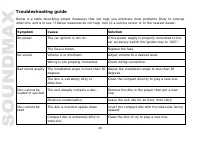
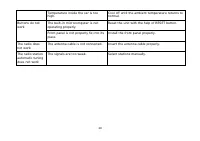
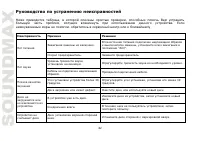
28 Troubleshooting guide Below is a table describing simple measures that can help you eliminate most problems likely to emerge when this unit is in use. If below measures do not help, turn to a service center or to the nearest dealer. Symptom Cause Solution The car ignition is not on. If the power ...
Page 30 - Specification
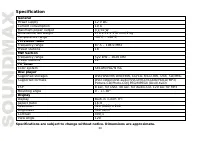
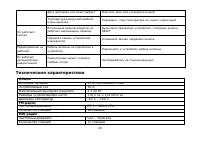
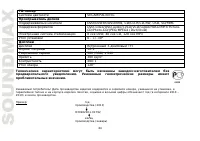
30 Specification GeneralPower supply 12 V DC Current consumption 10 A Maximum power output 4 x 50 W Dimensions/Net weight 178 x 51 x 178 mm/2 kg Temperature range -20 0 C - +60 0 C FM stereo radioFrequency range 87.5 – 108.0 MHz Preset stations 18 MW SectionFrequency range 522 kHz – 1620 kHz Preset ...
Page 35 - DIN
35 , , . , . . , . , , , . 30°, . , , , , , , , , . . « » « » « » ( DIN ), « » ( DIN, , ). .
Page 40 - ISO
40 ISO 1. ISO, , . 2. ISO , . , . A B 1 - (+)--- 2 - (-)--- 3 - (+)--- 4 12 (+)/ (-)--- 5 (+)--- 6 ((-)--- 7 (+)--- 8 (-)--- / .
Page 50 - PTY
50 TA ( ) TA. TA. . , . , TA; ; TA. , . PTY ( ) FM- , RDS, . PTY/PLAY/PAUSE, . 1-6, . PTY/PLAY/PAUSE , . 1-6, . : Pop ( ), Rock ( - ), Easy ( ), Light ( ), Classics ( ), Other ( ), Jazz ( ), Country ( ), Nation ( ), Oldies ( ), Folk ), News ( ), Affairs ( ), Info ( ), Sport ( ), Educate ( ), Drama )...
Page 53 - AVI
53 /USB/ SD/MMC . . . . , EJECT. , . . : . AVI- , . AVI 2 . MP3/DivX/JPEG , MP3/DivX/JPEG, : 1. : 2. 3. , ( ) 4.
Page 64 - TFT
64 SECAM/PAL/NTSC DVD/DVD±R/DVD±RW, CD/CD-R/CD-RW, USB, SD/MMCDVD-video/DVD-audio/SVCD/VCD/CDDA/HDCD/MP3/Picture- CD/Photo-CD/JPEG/MPEG4 (DivX/XviD)8 DVD, 40 CD, 120 c MP3 0 - +/-30 0 3- TFT 16:9320 (RGB) 240300 2 400:1120° . . ! , , . , ( 2010 – 2019) . : (2011) R31982101-01792 ( )