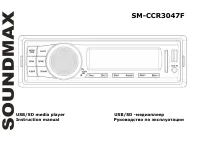
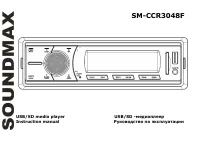
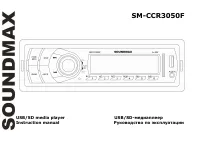
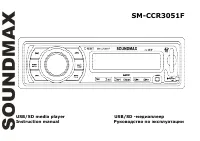
Page 2 - Table of contents
2 Dear customer! Thank you for purchasing our product. For safety, it is strongly recommended to read this manual carefully before connecting, operating and/or adjusting the product and keep the manual for reference in the future. Table of contents Table of contents ....................................
Page 3 - Important safeguards
3 Important safeguards Read carefully through the manual to familiarize yourselves with this unit.Keep this manual handy as a reference for operating procedures and precautions. Do not allow personswho have not read through this manual to use this unit.“CLASS 1 LASER PRODUCT”This product contains a ...
Page 4 - Accessories
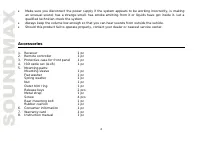
4 Make sure you disconnect the power supply if the system appears to be working incorrectly, is makingan unusual sound, has a strange smell, has smoke emitting from it or liquids have got inside it. Let aqualified technician check the system.Always keep the volume low enough so that you can hear sou...
Page 5 - Installation/connection
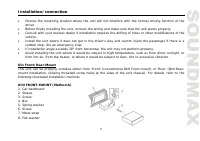
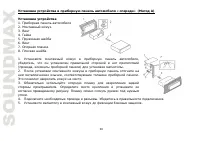
5 Installation/connection Choose the mounting location where the unit will not interfere with the normal driving function of thedriver.Before finally installing the unit, connect the wiring and make sure that the unit works properly.Consult with your nearest dealer if installation requires the drill...
Page 6 - the dashboard to fix the sleeve in place.; Dismantling the unit; some effort to detach the frame). Pull the frame to detach it.
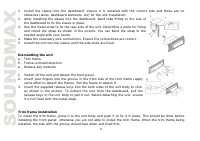
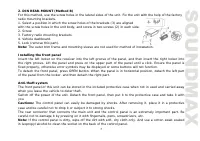
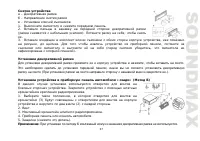
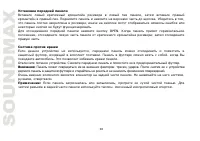
6 1. Install the sleeve into the dashboard; ensure it is installed with the correct side and there are no obstacles (wires, dashboard elements, etc) for the unit installation. 2. After installing the sleeve into the dashboard, bend tabs fitting to the size of the dashboard to fix the sleeve in place...
Page 8 - Auto antenna output
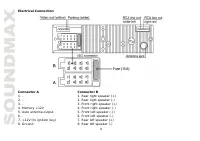
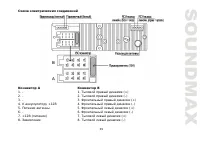
8 Electrical Connection Connector A Connector B 1. - 1. Rear right speaker (+) 2. - 2. Rear right speaker (-) 3. - 3. Front right speaker (+) 4. Memory +12V 4. Front right speaker (-) 5. Auto antenna output 5. Front left speaker (+) 6. - 6. Front left speaker (-) 7. +12V (to ignition key) 7. Rear le...
Page 9 - additional amplifier.
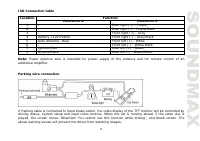
9 ISO Connection table Function Location Connector A Connector B 1 - Rear right (+) - Purple 2 - Rear right (-) - Purple/Black 3 - Front right (+) - Grey 4 Battery +12V/Yellow Front right (-) - Grey/Black 5 Auto Antenna - Blue Front left (+) - White 6 - Front left (-) - White/Black 7 Ignition/Red Re...
Page 10 - Unit controls; Front panel
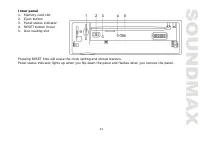
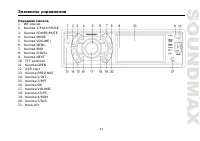
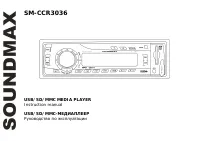
10 Unit controls Front panel 1. IR sensor2. 1/PLAY/PAUSE button3. POWER/MUTE button4. MODE button5. VOLUME+ button6. MENU button7. BND button8. 6/DIR+ button9. NEXT button10. TFT display11. OPEN button12. USB port13. PREVIOUS button14. 2/INT button15. 3/RPT button16. OK button17. VOLUME- button18. A...
Page 14 - General operations
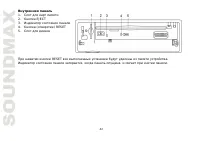
14 General operations Reset the unitOperating the unit for the first time or after replacing the car battery, you must reset the unit. Press RESETbutton (hole) with a pointed object (such as a ballpoint pen) to set the unit to initial state.Note: When some errors occur, you can also press RESET butt...
Page 17 - Radio operations; Manual/automatic tuning
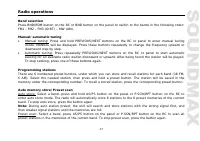
17 Radio operations Band selectionPress BND/RDM button on the RC or BND button on the panel to switch to the bands in the following order:FM1 - FM2 - FM3 (OIRT) – MW (AM). Manual/automatic tuning Manual tuning: Press and hold PREVIOUS/NEXT buttons on the RC or panel to enter manual tuningmode. MANUA...
Page 24 - Programming the playback
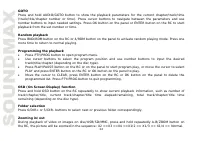
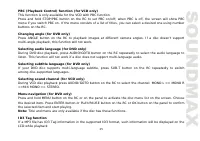
24 GOTOPress and hold AUDIO/GOTO button to show the playback parameters for the current chapter/track/time(track/title/chapter number or time). Press cursor buttons to navigate between the parameters and usenumber buttons to input needed settings. Press OK button on the panel or ENTER button on the ...
Page 26 - DVD Setup menu; System setup
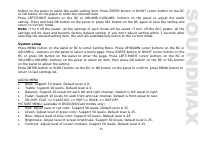
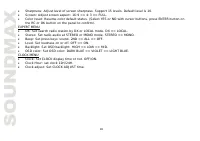
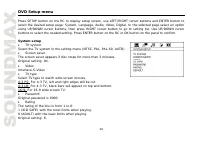
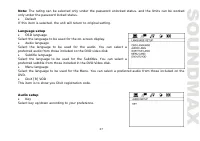
26 DVD Setup menu Press SETUP button on the RC to display setup screen, use LEFT/RIGHT cursor buttons and ENTER button toselect the desired setup page: System, Language, Audio, Video, Digital. In the selected page select an optionusing UP/DOWN cursor buttons, then press RIGHT cursor button to go to ...
Page 28 - Digital setup; Dynamic range
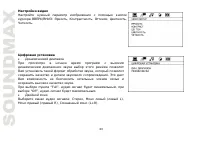
28 Video setupSet a parameter with UP/DOWN cursor buttons: Brightness, Contrast,Hue, Saturation, Sharpness. Digital setup Dynamic range If watching large dynamic scope movie program at night, selecting thismode you can reduce the volume to a very low level, at the sametime, to keep the fine details ...
Page 29 - Handling and cleaning discs; Cleaning
29 Handling and cleaning discs Dirty, scratched or warped discs may cause skip ping or noise.Handle the disc only by the edges. To keep clean do not touch its surface.Discs should be stored in their cases after use to avoid scratches.Do not expose discs to direct sunlight, high humidity, high temper...
Page 30 - Troubleshooting guide; Symptom
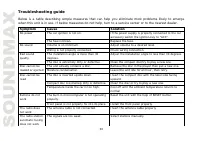
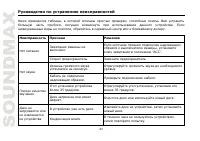
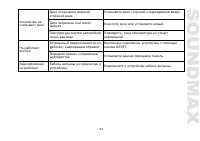
30 Troubleshooting guide Below is a table describing simple measures that can help you eliminate most problems likely to emerge when this unit is in use. If below measures do not help, turn to a service center or to the nearest dealer. Symptom Cause Solution The car ignition is not on. If the power ...
Page 31 - Specification; Maximum power output:
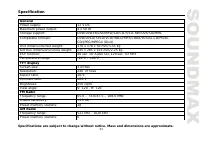
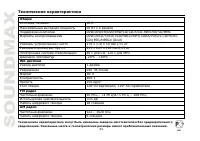
31 Specification GeneralPower supply: 12 V DC Maximum power output: 4 x 50 W Storage support: DVD/DVD±R/DVD±RW/CD/CD-R/CD-RW/USB/SD/MMC Compatible formats: DVD/DVCD/SVCD/VCD/HDCD/MP3/CDDA/Picture-CD/Photo-CD/JPEG/MPEG4 (DivX) Unit dimensions/Net weight: 170 x 178 x 50 mm/1.55 kg Gift box dimensions/...
Page 35 - DIN
35 , , . , . . , . , , , . 30°, . , , , , , , , , . . « » « » « » ( DIN ), « » ( DIN, , ). .
Page 40 - ISO; “Attention! You cannot use this function while driving” (“
40 ISO A B 1 - . . (+) - 2 - . . (-) - ./ 3 - . (+) - 4 +12 . (-) - 5 . - . (+) - 6 - . . (-) - 7 . . (+) - 8 . . (-) - : . , , . “Attention! You cannot use this function while driving” (“ ! “), ; .
Page 49 - RDS
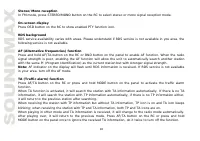
49 : , P.SCN/RPT AS/PS ; , . FM- STEREO/MONO . , . OSD PTY. RDS RDS ( ) . , RDS , . AF ( ) AF/TA BND AF. , , . . : AF , RDS. RDS , AF. TA (Traffic Alarm) AF/ MODE ) TA. , , TA. , , TP
Page 58 - DVD; SETUP
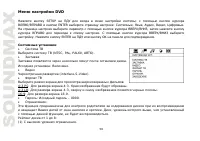
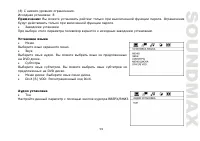
58 DVD SETUP ; ENTER : , , , , . , . . ENTER OK . (NTSC, PAL, PAL60, ). . : . (interlace-S-Video). . 4:3 PS: 4:3. . 4:3 LB: 4:3, . 16:9: 16:9. : – 0000. : . , , , . 1 8: (1) .