Page 2 - Recording; Recording movies/photos
Attaching the lens hood [9] Power source preparations Attaching the battery pack [10] Charging the battery pack using the AC Adaptor [11] Charging the battery pack using your computer [12] Turning the power on [13] Using this product supplying power from a wall outlet (wall socket) [14] Initial setu...
Page 3 - Useful functions for recording; Playback; Playing images using Event View; Playing images using Highlight Playback; Editing images from the playback screen
Adjusting the exposure [28] Adjusting the light intensity (ND filter) [29] Useful functions for recording Zooming [30] Adjusting the focus manually [31] Magnifying the image to obtain better manual focus (Focus Magnifier) [32] Capturing photos during movie recording (Dual Capture) [33] Recording in ...
Page 4 - Playing images on a non-high-definition TV; Saving images with an external device; How to save movies
Deleting the selected images [47] Deleting by date [48] Dividing a movie [49] Capturing a photo from a movie (models with the USB IN/OUT jacks) [50] Playing images on a 4K TV Viewing images on a 4K TV (models with the 4K functionality) [51] Using the Trimming Playback function with an XAVC S 4K movi...
Page 5 - Using the Wi-Fi function
Saving images on an external media device Notes on use of the external media [66] Saving images on an external media device [67] Saving the desired images in this product to the external media device [68] Playing back images in the external media device on this product [69] Deleting images in the ex...
Page 6 - Connecting a smartphone; Installing PlayMemories Mobile; Menu operations; Using menu items
Connecting a smartphone Connecting to an Android smartphone or tablet [79] Connecting to an iPhone or iPad [80] Connecting to an NFC-enabled smartphone or tablet [81] Installing PlayMemories Mobile About the PlayMemories Mobile software [82] Menu operations Using menu items Setting up menu items [83...
Page 10 - Bit-rate for each recording mode; Additional information; Precautions; Handling of this product; Maintenance
Expected movie recording time and number of recordable photosfor memory cards Notes on recording [180] Expected recording time of movies [181] Expected number of recordable photos [182] Bit-rate for each recording mode Bit-rate and recording pixels [183] Pixels recorded at each image size of photos ...
Page 11 - Troubleshooting
About care and storage of the lens [196] Using this product abroad Using this product abroad [197] World time difference [198] Trademarks On trademarks [199] License Notes on the License [200] Zoom magnifications Zoom magnifications [201] Troubleshooting Troubleshooting If you have problems If you h...
Page 12 - Batteries/power sources; Monitor; Viewfinder; Wireless Remote Commander
Batteries/power sources The power abruptly turns off. [208] The POWER/CHG (charge) lamp does not light while the battery pack is being charged. [209] The POWER/CHG (charge) lamp flashes while the battery pack is being charged. [210] The remaining battery power is not displayed correctly. [211] The b...
Page 14 - Self-diagnosis display/Warning indicators
Cannot transfer movies to your smartphone. [251] The shooting screen does not display smoothly. The connection is cut off. [252] The NFC connection does not work. [253] Editing movies/photos on this product Unable to edit. [254] A movie cannot be divided. [255] Playback on a TV Neither image nor sou...
Page 15 - Model Information; To confirm the model name of this product; Differences in functions
Warning Indicators [265] [1] How to Use Before use Model Information Model Information In this Help Guide, the differences in the specifications for each model are described together. If you find the description “Models with ... ” like below, confirm in this chapter whether the description applies t...
Page 19 - To fasten the grip belt; Parts and controls (Wireless Remote Commander)
4. Viewfinder lens adjustment dial If the indications in the viewfinder appear blurred, adjust the viewfinder lens adjustment dial. 5. Battery pack 6. POWER/CHG (charge) lamp 7. / (Shooting Mode) button 8. START/STOP button 9. Built -in USB Cable 10. DC IN jack 11. Tripod receptacle Attach a tripod ...
Page 20 - Screen indicators
1. DATA CODE button Displays the date and time and the camera settings data when you press this button during playback. 2. PHOTO button The on-screen image when you press this button will be recorded as a still image. 3. SCAN/SLOW buttons 4. / (Previous/Next) buttons 5. PLAY button 6. STOP button 7....
Page 23 - Supplied items; For all models
50 Mbps Feature: Allows you to record clearer images since XAVC S HD has more information compared with AVCHD. AVCHDRecording pixels: 1,920 × 1,080 dots Bit-rate: Max. 28 Mbps Feature: Allows you to save images on devices other than computers. Hint Bit-rate refers to the data amount recordable over ...
Page 26 - To remove the battery pack; Charging the battery pack using the AC Adaptor
To remove the battery pack Turn off this product. Slide the battery release lever ( ) and remove the battery pack ( ). Note You cannot use any InfoLITHIUM battery pack other than the V series to this product. You cannot use the NP -FV30 InfoLITHIUM battery pack with this product. In the default sett...
Page 27 - Charging the battery pack using your computer
A: AC Adaptor B: Power cord (mains lead) C: DC IN jack D: Align the mark on the DC plug Note Be aware of the following notes on using the AC Adaptor. Use a nearby wall outlet (wall socket) when using the AC Adaptor. Disconnect the AC Adaptor from the wall outlet (wall socket) immediately if any malf...
Page 28 - To put the Built-in USB Cable away
2. Pull out the Built -in USB Cable from this product. 3. Connect this product to a running computer using the Built -in USB Cable. The POWER/CHG (charge) lamp turns orange. The POWER/CHG (charge) lamp turns off when the battery pack is fully charged. Disconnect the Built -in USB Cable from the comp...
Page 29 - Turning the power on; To turn off the power
°F to 86 °F). [13] How to Use Getting started Power source preparations Turning the power on Turn on this product. 1. Open the LCD monitor of this product and turn the power on. You can also turn on this product by pressing POWER or by pulling out the viewfinder. To turn off the power Close the LCD ...
Page 30 - Setting the language, date and time
Power On Note Even if the LCD monitor is closed, if the viewfinder is pulled out, this product is not turned off. When you turn off the power of this product, make sure that the viewfinder is retracted to the original position. [14] How to Use Getting started Power source preparations Using this pro...
Page 31 - Adjusting the angle of the LCD monitor for easier viewing
3. Select the desired geographical area with / , then select [Next]. 4. Set [Daylight Savings] or [Summer Time], select the date format and the date and time. If you set [Daylight Savings] or [Summer Time] to [On], the clock advances 1 hour. When you select the date and time, select one of the items...
Page 33 - Inserting a memory card; Types of memory card you can use with this product
Inserting a memory card Insert a memory card into this product. 1. Open the cover and insert the memory card until it clicks. A: Access lamp B: Insert the card with the notched edge in the direction as illustrated. Note To ensure stable operation of the memory card, it is recommended to format the m...
Page 34 - Types of SD memory card you can use with this product; Recording movies
The following types of memory cards can be used with this product. Types of Memory Stick media you can use with thisproduct In this Help Guide, the following types of Memory Stick media you can use with this product are called Memory Stick PRO Duo media. Memory Stick PRO Duo media (*) Memory Stick P...
Page 36 - Shooting photos
Shooting photos Shoot photos. 1. Remove the lens cap. 2. Open the LCD monitor of this product to turn the power on. Press the / (Shooting Mode) button to select the photo recording mode. You can also select the photo recording mode by selecting [MODE] on the LCD monitor. You can also turn on this pr...
Page 38 - Items you can control with the MANUAL dial
3. Press the MANUAL button to confirm. Items you can control with the MANUAL dial [Exposure] [AE Shift ] [WB Color Temp.] [WB B-A] [WB G-M] Hint The camera data that appears on the LCD monitor will differ, depending on the recording settings of this product. The settings will be displayed with the f...
Page 39 - To restore the setting to automatic adjustment; Adjusting the shutter speed
A: Aperture value B: Icon to switch operating mode Descriptions of icons to switch operating mode (no icon): manual operation : automatic operation : manual operation of [Exposure] 3. Rotate the MANUAL dial to adjust the IRIS (aperture). When the setting value is highlighted, the IRIS (aperture) is ...
Page 41 - Adjusting the exposure
Each time you press the button, the setting switches between manual and auto. 3. Rotate the MANUAL dial to adjust the gain (ISO). To restore the setting to automatic adjustment Press the GAIN/ISO button again. appears next to the gain (ISO) value. At default, you can set in the range -3dB to +33dB. ...
Page 42 - Adjusting the light intensity (ND filter); When adjusting the IRIS (aperture) automatically
Descriptions of icons to switch operating mode (no icon): manual operation : automatic operation : manual operation of [Exposure] 3. Rotate the MANUAL dial to adjust [Exposure]. The setting value of the IRIS (aperture)/gain (ISO)/shutter speed changes according to the number of dial rotations. [29] ...
Page 43 - Zooming
If you change the ND filter setting during recording, the movie and sound may be distorted. While adjusting the IRIS (aperture) manually, the ND filter icon will not flash even when the ND filter setting needs adjusting. [30] How to Use Recording Useful functions for recording Zooming You can record...
Page 44 - Adjusting the focus manually
Adjusting the focus manually You can adjust the focus manually by rotating the lens ring to right/left. 1. Press the AF/MF button to set the focus to manual. appears on the LCD monitor when the manual focus setting is selected. Use this function in the following cases. To record a subject behind a w...
Page 45 - Capturing photos during movie recording (Dual Capture); Recording in mirror mode
Each time you press the FOCUS MAGNIFIER button, the magnification scaling changes as follows: Movies: between ×1 → ×2 → ×4 → OffPhotos: between ×1 → ×6.3 → ×12.6 → Off Note Even though the image displayed on this product has been magnified, the recorded image is not magnified. When the focus is set ...
Page 46 - Intelligent Auto; About the detectable scenes
1. Open the LCD monitor 90 degrees to this product ( ), then rotate it 180 degrees to the lens side ( ), and then start recording. Hint A mirror-image of the subject appears on the LCD monitor, but the image will be normal when recorded. [35] How to Use Recording Useful functions for recording Intel...
Page 48 - Recording the selected subject clearly (Face Priority); Recording subjects other than people (Tracking focus)
[37] How to Use Recording Useful functions for recording Recording the selected subject clearly (Face Priority) This product can track a face you select and adjust the focus, exposure, and skin tone of the face automatically. 1. Touch one of the faces targeted. To cancel the Face Priority function, ...
Page 49 - Playing movies and photos from the Event View screen
Note When [Dual Video REC] is set to [On], this function is not available. Even if you touch the subject on the LCD monitor, it does not react. [39] How to Use Playback Playing images using Event View Playing movies and photos from the Event View screen You can search for recorded images by date and...
Page 50 - Buttons for playback operations
3. Select the image. This product plays from the selected image to the last image in the event. 4. Select the appropriate buttons on the LCD monitor for various playback operations. Buttons for playback operations / : Previous/Next : Delete / : Fast -reverse/fast-forward : Context / : Pause/Play : S...
Page 51 - Screen display on the Event View screen; Event View screen
[40] How to Use Playback Playing images using Event View Screen display on the Event View screen Explains items displayed on the Event View screen. Event View screen 1. To the MENU screen 2. Event name 3. To the previous event 4. To the movie/photo recording mode 5. To play back short movies (Highli...
Page 52 - Playing back a short movie (Highlight Playback)
2. To close the index screen 3. To the previous event 4. To the next event 5. To the movie/photo recording mode 6. Last played image 7. Recorded time/number of photos 8. To switch between the movie/photo playback screen (VISUAL INDEX) Select the image type ( MOVIE, PHOTO, MOVIE/PHOTO) you want to pl...
Page 53 - Changing the settings for Highlight Playback
3. Play a movie or a photo. 4. Select the desired operation when the highlight playback finishes. A: This product plays the Highlight Playback scenes again. B: You can change the settings for Highlight Playback. Buttons for playback operations / : Previous/Next : Volume : Context / : Pause/Play : St...
Page 54 - Descriptions of menu items; Saving Highlight Playback (Scenario Save)
1. Select [Highlight Setting] on the LCD monitor before or after the Highlight Playback. You can also change the setting by selecting while this product is playing highlight scenes. Descriptions of menu items [Playback Range] You can set the playback range (starting and ending date) of the Highlight...
Page 55 - Playing back a saved scenario
Note The scenarios can be played on this product only. [44] How to Use Playback Playing images using Highlight Playback Playing back a saved scenario You can play back Highlight Scenarios saved on this product. This function is available only when [ File Format] is set to [ AVCHD ]. 1. Select - [Pla...
Page 57 - Deleting by date
Another icon may appear instead of depending on the [ File Format] setting and the movie playback format. 3. - [Edit/Copy] - [Delete ]. 4. Select [Multiple Images], and then select the type of image you want to delete. 5. Add check marks to the movies or photos to be deleted and select . Hint You ca...
Page 58 - Dividing a movie
and the movie playback format. 3. - [Edit/Copy] - [Delete ]. 4. Select [All In Event]. 5. Select the date you want to delete using / , and then select . [49] How to Use Playback Editing images from the playback screen Dividing a movie Split a recorded movie at your desired point. This function is av...
Page 61 - Connecting this product to a high definition TV
[52] How to Use Playback Playing images on a 4K TV Using the Trimming Playback function with an XAVC S 4Kmovie (models with the 4K functionality) You can trim & play a desired area of image recorded in the movie format [ XAVC S 4K]. The trimmed image is played in high definition image quality. 1...
Page 62 - When the movie format is XAVC S HD or AVCHD
quality by connecting this product to a TV with an HDMI jack. 1. Switch the input on the TV to the connected jack. - [Setup] - [ Connection] - [HDMI Resolution] - desired setting. The playback image quality differs, depending on the [HDMI Resolution] setting value. When the movie format is XAVC S 4K...
Page 63 - Enjoying 5.1ch surround sound; Using BRAVIA Sync
[54] How to Use Playback Playing images on a high definition TV Enjoying 5.1ch surround sound You can record Dolby Digital 5.1ch surround sound with the built-in microphone (default setting). Realistic sound can be enjoyed when playing a movie on devices that support 5.1ch surround sound input. This...
Page 64 - On Photo TV HD
the remote commander of your TV. Note There may be some operations you cannot do with the remote commander. Set [CTRL FOR HDMI] to [On]. Also set your TV accordingly. Refer to the instruction manual of the TV for details. The operation of BRAVIA Sync differs according to each model of BRAVIA. Refer ...
Page 65 - Connecting this product to a non-high-definition TV; Saving movies
Connecting this product to a non-high-definition TV Play back images with this product connected to a TV by an AV cable (sold separately). A: AV cable (sold separately) 1. Switch the input on the TV to the connected jack. 2. Connect the Multi/Micro USB terminal of this product and the VIDEO/AUDIO ja...
Page 66 - To transfer images to your smartphone; Using the PlayMemories Home software
XAVC S HDHow to save: Save images on your computer using the PlayMemories Home software. Saving format: XAVC S HD AVCHDHow to save: Save images on external media or on your computer using the PlayMemories Home software. Saving format: AVCHD Hint For the latest storage environment, visit the followin...
Page 67 - Checking the computer system
A: Import images from this product B: The functions below are also available on a Windows PC C: View images in a calendar D: Create a movie disc E: Upload images to online services F: Play the imported images G: Share images on PlayMemories Online Installing the PlayMemories Home software in yourcom...
Page 69 - Disconnecting this product from the computer; About the dedicated software for this product
Disconnecting this product from the computer Disconnect this product from the computer connected with the Built -in USB Cable. 1. Click in the task tray, and then click . If you use a Windows Vista computer, click in the task tray. 2. Click the message displayed on the computer screen. 3. Select - o...
Page 71 - Devices that cannot be used as an external media device; Saving images on an external media device
The number of scenes may be smaller depending on the type of images recorded. If this product does not recognize the external media device, try the following operations. Reconnect the USB Adaptor Cable to this product. If the external media device has the AC power cord (mains lead) , connect it to a...
Page 74 - Deleting images in the external media device
Hint You can also view images on a TV connected to this product. When an external media device is connected, will appear on the Event View screen. To play back the images saved on an external media device using your computer, select the drive that represents the external media device on the PlayMemo...
Page 75 - Creating a disc with a recorder
images. [71] How to Use Saving images with an external device Creating a disc with a recorder Creating a disc with a recorder You can copy images on this product onto a disc or video cassette. Connect this product to a disc recorder with an AV cable (sold separately). Note Connect the AC Adaptor to ...
Page 76 - What you can do with the Wi-Fi function; Saving movies and photos to your computer
separately) to the video input jack, and the white (left channel) or the red (right channel) plug to the audio input jack on the device. Hint Change the [Data Code ] setting if you want to copy the date and time and the camera setting data information. Set [TV Type] to [4:3 ] if the screen size of y...
Page 77 - Playing images on a TV
Playing images on a TV Note You cannot use the Wi-Fi function of this product to connect to a public wireless network. PlayMemories Mobile is not guaranteed to work on all smartphones and tablets. [73] How to Use Using the Wi-Fi function Controlling via a smartphone Using your smartphone or tablet a...
Page 83 - Send to Computer
Note You cannot transfer XAVC S movies or AVCHD movies. [Send to Smartphone ] is not available when MP4 movies or still images have not been saved on this product. This application is not guaranteed to work on all smartphones and tablets. If the connections is not made successfully, try the procedur...
Page 85 - Connecting to an Android smartphone or tablet
This function is not available for [ XAVC S 4K] (models with the 4K functionality) and [ XAVC S HD ] movies. This function is available with the DLNA player compatible TVs. You can view images only on TVs that are compatible with the network function (including wired network). It may take time until...
Page 86 - Connecting to an iPhone or iPad
3. Enter the password displayed on this product. [80] How to Use Using the Wi-Fi function Connecting a smartphone Connecting to an iPhone or iPad Shows how to connect this product to your iPhone or iPad. Display the SSID and password in advance by selecting [Send to Smartphone ] or [Ctrl with Smartp...
Page 88 - Connecting to an NFC-enabled smartphone or tablet; What you can do with the NFC connection
[81] How to Use Using the Wi-Fi function Connecting a smartphone Connecting to an NFC-enabled smartphone or tablet You can easily connect this product to your NFC-enabled Android smartphone or tablet. Note Make sure that your smartphone is not in sleep mode and the screen is unlocked in advance. 1. ...
Page 89 - About the PlayMemories Mobile software
[Send to Smartphone ] starts up and images being played back are transferred. Note To use the one-touch functions of this product, an NFC-enabled smartphone or tablet is required. NFC (Near Field Communication) is an international standard for short-range wireless communication technology. If the co...
Page 90 - To find a menu item quickly
3. Select your desired menu item. Note Select to finish setting the menu or to return to the previous screen. To find a menu item quickly The [Camera/Mic ] and [Setup] menus have sub-categories. Select the sub-category icon so that you can select your desired menu item. A: Sub-category icons When yo...
Page 93 - Golf Shot
[Recording...] disappears when recording is finished. Note You cannot record sound. Image quality is not as good as that of normal recording. [ REC Mode ] will be set to [Standard ] automatically. [88] How to Use Menu operations Shooting Mode Golf Shot Divides 2 seconds of fast movement into frames ...
Page 94 - High Speed REC
Note If this product cannot detect the sound of a club hitting the ball, this product automatically sets the impact point at 0.5 second before the START/STOP button has been pressed, and records a movie in the time period between 1.5 seconds before the impact point to 0.5 second after the impact poi...
Page 95 - White Balance
White Balance You can adjust the color balance to the recording environment. 1. - [Camera/Mic ] - [ Manual Settings] - [White Balance] - desired setting. You can also use the WHITE BALANCE button for this setting. Descriptions of menu items (Auto) (default setting): The white balance is adjusted aut...
Page 96 - Spot Meter
1. Select [OPTION] on the [White Balance] setting screen. 2. Adjust the color balance using / (B-A) and / (G-M). 3. Select . Hint You can check the currently selected color balance on the LCD monitor with the color chart. Note Set [White Balance] to [Auto] or adjust the color in [One Push] under whi...
Page 97 - Spot Focus; Exposure
1. - [Camera/Mic ] - [ Manual Settings] - [Spot Meter]. 2. Touch the subject of which you want to adjust the exposure. To return the setting to automatic exposure, select [Auto]. Note [Exposure] is automatically set to [Manual]. [93] How to Use Menu operations Camera/Mic Spot Focus Focus can be adju...
Page 98 - Focus
1. - [Camera/Mic ] - [ Manual Settings] - [Exposure] - desired setting. Descriptions of menu items Auto (default setting): The exposure is adjusted automatically. Manual: Select if the subject is white or the backlight is bright, or select if the subject is black or the light is dim. [95] How to Use...
Page 99 - AGC Limit; AE Shift
This product displays the focal distance information for a few seconds when [Focus] is set to [Manual] or when you set the focus manually. You can use this information as a guide when the subject is dark and focus adjustment is difficult. [96] How to Use Menu operations Camera/Mic AGC Limit You can ...
Page 100 - Low Lux; Scene Selection
is bright, and when the subject is dark or the light is dim. [98] How to Use Menu operations Camera/Mic Low Lux You can record bright color images, even in dim light. 1. - [Camera/Mic ] - [ Manual Settings] - [Low Lux] - desired setting. Descriptions of menu items Off (default setting): The Low Lux ...
Page 102 - Picture Effect
(Snow): Takes bright pictures of a white landscape. * Adjusted to focus on subjects farther away only. Note If you set [Scene Selection], the following settings are canceled. White Balance Cinematone IRIS (aperture) Shutter Speed Gain (ISO) [100] How to Use Menu operations Camera/Mic Picture Effect ...
Page 103 - Cinematone
(Posterization): Creates a high contrast, abstract look by heavily emphasizing primary colors, or in black and white. Select the effect you want with [OPTION]. (Retro Photo): Creates the look of an aged photo with sepia color tones and faded contrast. (Soft High-key): Allows you to shoot soft, clear...
Page 104 - Fader
[102] How to Use Menu operations Camera/Mic Fader You can record a transition with the following effects adding to the interval between scenes. Select the desired effect in [STBY] (to fading in) or [REC] (to fading out) mode. 1. - [Camera/Mic ] - [ Camera Settings] - [ Fader] - desired setting. Desc...
Page 106 - Digital Zoom; Auto Back Light
[105] How to Use Menu operations Camera/Mic SteadyShot (Photo) You can compensate for camera shake. Set [ SteadyShot] to [Off] when using a tripod (sold separately), then the image becomes natural. 1. - [Camera/Mic ] - [ Camera Settings] - [ SteadyShot] - desired setting. Descriptions of menu items ...
Page 107 - Dial Setting; Menu items that you can set; NIGHTSHOT Light
This product adjusts the exposure for backlit subjects automatically. 1. - [Camera/Mic ] - [ Camera Settings] - [Auto Back Light] - desired setting. Descriptions of menu items On (default setting): The exposure for backlit subjects is adjusted automatically. Off: Does not adjust the exposure for bac...
Page 108 - Face Detection; Smile Shutter
Does not emit infrared light. [110] How to Use Menu operations Camera/Mic Face Detection You can set this product to detect a face automatically. This product adjusts the focus/color/exposure automatically for the face of the selected subject. 1. - [Camera/Mic ] - [ Face] - [Face Detection] - desire...
Page 109 - Smile Sensitivity; Flash (Only when connecting an external flash)
Dual Capture ( ): Only during movie recording, the shutter is released automatically, when this product detects a smile. Always On ( ): The shutter is released when this product detects a smile whenever this product is in recording mode. Off (default setting): Smiles are not detected, so photos are ...
Page 110 - Flash Level (Only when connecting an external flash)
separately) compatible with this product. 1. - [Camera/Mic ] - [ Flash ] - [Flash ] - desired setting. Descriptions of menu items Auto (default setting): Automatically flashes when there is insufficient ambient light. On ( ): Always uses the flash regardless of the surrounding brightness. Off ( ): R...
Page 111 - My Voice Canceling
[115] How to Use Menu operations Camera/Mic Red Eye Reduction (Only when connecting an externalflash) Prevent redeye by activating the pre -flash before the flash operates. Set this function when you record photos using an external flash (sold separately) compatible with this product. 1. - [Camera/M...
Page 112 - Auto Wind NR
Decreases the voice volume of the person recording the movie and records the voice of the subject clearly. Note Set [My Voice Canceling ] to [Off] if you want to record a movie without decreasing the voice volume of the person recording the movie. Depending on the recording condition, you cannot dec...
Page 113 - Audio Mode; Audio Rec Level
Descriptions of menu items Off ( ): Does not reduce the wind noise. On (default setting): Reduces the wind noise. Note When you set [Auto Wind NR ] to [Off], Intelligent Auto is set to [Off]. [Auto Wind NR ] will not function while an external microphone is attached to this product. [119] How to Use...
Page 114 - Ctrl with Smartphone
1. - [Camera/Mic ] - [ Microphone] - [Audio Rec Level ] - desired setting. Descriptions of menu items Auto (default setting): The audio recording level is adjusted automatically. Manual ( ): Adjust the audio recording level with to raise the audio recording level and to lower the audio recording lev...
Page 115 - Grid Line
1. - [Camera/Mic ] - [ Shooting Assist] - [My Button]. 2. Select the menu item that you want to assign to a My Button using / . 3. Select one of the My Buttons to which the menu item will be assigned. 4. Select . [123] How to Use Menu operations Camera/Mic Grid Line You can display the lines and che...
Page 116 - Zebra; Peaking
[124] How to Use Menu operations Camera/Mic Zebra You can display a zebra pattern as a guide for adjusting brightness. 1. - [Camera/Mic ] - [ Shooting Assist] - [Zebra] - desired setting. Descriptions of menu items Off (default setting): Does not display the zebra pattern. On : Displays and the brig...
Page 117 - Audio Level Display
Color: Select the color from [White], [Red] or [Yellow ]. (The default setting is [White].) Level: Select the peaking sensitivity from [High], [Mid] or [Low]. (The default setting is [Mid].) Note The enhanced outlines may not appear in a dark location. Hint The enhanced outlines will not be recorded...
Page 118 - REC Mode
Off: Does not display the audio level meter. [128] How to Use Menu operations Image Quality/Size REC Mode You can select your desired image quality for AVCHD movies. The recording time or the type of media device to which the images can be copied may differ, depending on the movie quality selected. ...
Page 119 - Frame Rate; Available frame rate settings
[50p]. [129] How to Use Menu operations Image Quality/Size Frame Rate You can select the frame rate to be used to record [ XAVC S 4K] (FDR -AX100/FDR- AX100E), [ XAVC S HD ] or [ AVCHD ] movies. Set [ REC Mode ] first, before setting [ Frame Rate]. 1. - [Image Quality/Size] - [ Frame Rate] - desired...
Page 120 - Dual Video REC; File Format
The media that the recorded images can be saved on will depend on the recording mode that has been set during recording. [130] How to Use Menu operations Image Quality/Size Dual Video REC You can set the dual recording mode (recording an MP4 movie during movie recording) to on or off. 1. - [Image Qu...
Page 121 - Image Size
Set the recording format for recording and playback. 1. - [Image Quality/Size] - [ File Format] - desired setting. Descriptions of menu items FDR-AX100/FDR-AX100E XAVC S 4K (default setting): Records 4K images in XAVC S format. This setting is suitable for watching on a 4K TV. Both recording and pla...
Page 122 - Event View
The image size is set according to the format selected as [ File Format]. L (20.0M) (*) L (15.0M)(*) M (14.2M) M (10.6M) S (2.1M) S (VGA) * Only for FDR-AX100/FDR-AX100E Note The default value is M. You cannot select L when [ File Format] is set to [ XAVC S HD ] or [ AVCHD ] (L will be changed to M ...
Page 123 - Send to Smartphone
Note This function is available only when [ File Format] is set to [ AVCHD ]. [135] How to Use Menu operations Edit/Copy Send to Smartphone Transfer images recorded with this product to your smartphone. 1. Press the button on this product to enter the playback mode. 2. - [Edit/Copy] - [Send to Smart...
Page 124 - Delete; Protect
[138] How to Use Menu operations Edit/Copy Delete You can delete unnecessary images. 1. Press the button on this product to enter the playback mode. 2. On the Event View screen, select , and then select the movie format you want to delete. Another icon may appear instead of depending on the [ File F...
Page 125 - Direct Copy
and the movie playback format. 3. - [Edit/Copy] - [Protect] - desired setting. Descriptions of menu items Multiple Images : You can select images to be protected. Select the type of image you want to protect, then add to the desired images, and then select . Set All In Event : You can protect all im...
Page 126 - Media Info; Format
Media Info You can check the remaining recordable time and the approximate free and used space of the recording media. 1. - [Setup] - [ Media Settings] - [Media Info]. Note Since there is a management file area, the used space is not displayed as 0% even if you perform [Format]. [142] How to Use Men...
Page 127 - File Number; Data Code
Repair the image database file when necessary, such as when the image database repair message appears. 1. - [Setup] - [ Media Settings] - [Repair Img. DB F. ] - desired recording medium, and select . Hint To play movie files edited on a computer or other equipment and written back to the recording m...
Page 129 - Volume
Note The data code is displayed on the TV screen if you connect this product to a TV. Depending on the recording media condition, [-- -- --] may appear. [146] How to Use Menu operations Setup Volume You can adjust the volume of playback sound. 1. - [Setup] - [ Playback Settings] - [Volume ] - adjust...
Page 130 - WPS Push; Access point settings
[149] How to Use Menu operations Setup WPS Push If your access point has a WPS button, you can register the access point to this product easily. 1. - [Setup] - [ Connection] - [WPS Push]. 2. Press the WPS button on the access point you want to register. Note [WPS Push] requires that the security of ...
Page 131 - Other setting items; Edit Device Name
The desired access point is not displayed: Select [Manual setting ], then enter the SSID name of the access point, and then select the security mode. 3. Enter the password, and then select [Next] - [Register]. Access points without the icon do not require a password to be entered. Other setting item...
Page 132 - Disp MAC Address
You can change the device name for Wi-Fi Direct etc. 1. - [Setup] - [ Connection] - [Edit Device Name]. 2. Select the input box, input the device name, and then select . Hint For input method, see “How to use the keyboard.” [152] How to Use Menu operations Setup Disp MAC Address Display the MAC addr...
Page 133 - Network Info Reset; TV Type
Network Info Reset In addition to the SSID/password, you can also reset the information of the access point, etc. If you want to change the access point to connect to, reset the connection information by the following procedure. 1. - [Setup] - [ Connection] - [Network Info Reset]. Note After resetti...
Page 134 - HDMI Resolution; CTRL FOR HDMI
A: Images recorded in 16:9 (wide) mode B: Images recorded in 4:3 mode [156] How to Use Menu operations Setup HDMI Resolution Select the output image resolution when connecting this product to a TV with the HDMI cable. 1. - [Setup] - [ Connection] - [HDMI Resolution] - desired setting. Descriptions o...
Page 135 - USB Connect
1. - [Setup] - [ Connection] - [CTRL FOR HDMI] - desired setting. Descriptions of menu items On (default setting): Operates this product using the TV’s Remote Commander. Off: Does not operate this product using the TV’s Remote Commander. [158] How to Use Menu operations Setup USB Connect Select this...
Page 136 - USB Power Supply; USB LUN Setting
Note When this product is connected to an external device in the [MTP] mode, image files will be displayed with the recorded date, however, some information included in the image files cannot be displayed on the connected device. To import images from this product to your computer, use the PlayMemor...
Page 137 - Beep; Monitor Brightness
1. - [Setup] - [ Connection] - [USB LUN Setting] - desired setting. Descriptions of menu items Multi (default setting): Use this setting for ordinary operations. Single: Try this setting only if you cannot connect to an external device. [162] How to Use Menu operations Setup Beep You can turn on or ...
Page 138 - Display Setting; Airplane Mode
Bright : Select this when the LCD monitor is not bright enough. This adjustment does not affect the recorded images in any way. When using the AC Adaptor, [Monitor Brightness] is set to [Bright] automatically. [164] How to Use Menu operations Setup Display Setting You can set the duration of display...
Page 139 - REC Lamp; Remote Ctrl
On ( ): Use the setting when you are on board an airplane. [166] How to Use Menu operations Setup REC Lamp You can make the camera recording lamp on the front of this product not to turn on. 1. - [Setup] - [ General Settings] - [REC Lamp ] - desired setting. Descriptions of menu items On (default se...
Page 140 - Language Setting
[168] How to Use Menu operations Setup Language Setting You can select the language to be used on the LCD monitor. 1. - [Setup] - [ General Settings] - [Language Setting] - desired language. [169] How to Use Menu operations Setup 24p Mode (HDR-CX900E/FDR-AX100E) You can record 24p movies with changi...
Page 141 - Calibration; Battery Info
[171] How to Use Menu operations Setup Calibration Use this function if the buttons on the touch panel does not work correctly. 1. - [Setup] - [ General Settings] - [Calibration]. 2. Touch “×” displayed on the LCD monitor with the corner of memory card or the like 3 times. Note If you did not press ...
Page 142 - Power Save; Initialize
Power Save You can change the settings for the backlight of the LCD monitor and the power status of this product. 1. - [Setup] - [ General Settings] - [Power Save]. Descriptions of menu items Standard (default setting): The backlight of the LCD monitor turns dark automatically if you do not attempt ...
Page 143 - Area Setting; Charging time
[175] How to Use Menu operations Setup Date & Time Setting Set the date & time settings. 1. - [Setup] - [ Clock Settings] - [Date & Time Setting] - desired setting. Descriptions of menu items Date & Time Format: You can select the order of year, month and day displayed. Daylight Savi...
Page 145 - Expected recording time with each battery pack; Continuous recording time
The charging times are measured without using the USB Connection support cable. [178] How to Use Charging time/recording time of movies/number of recordable photos Expected recording and playback times for individual batteries Expected recording time with each battery pack Approximate recording time...
Page 146 - Expected playback time with each battery pack
220 min 240 min FDR-AX100/FDR-AX100ENP-FV70 (supplied): 65 min 70 min NP-FV100 : 135 min 145 min Top: When the LCD monitor is opened Bottom: When recording with the viewfinder without opening the LCD monitor Hint Recording times are those at the default settings. When [ File Format ] is set to [ XAV...
Page 147 - Notes on recording
NP-FV50 (supplied): 135 min 145 min NP-FV70 : 280 min 300 min NP-FV100 : 555 min 600 min FDR-AX100/FDR-AX100E NP-FV70 (supplied): 180 min 185 min NP-FV100 : 360 min 375 min Top: When the LCD monitor is opened Bottom: When recording with the viewfinder without opening the LCD monitor [180] How to Use...
Page 148 - Expected recording time of movies
suit the recording scene. This technology causes fluctuations in the recording time of the media. Movies containing quickly moving and complex images are recorded at a higher bit- rate, and this reduces the overall recording time. [181] How to Use Charging time/recording time of movies/number of rec...
Page 150 - Expected number of recordable photos; When recording 20.0 M size of images; Bit-rate and recording pixels
[182] How to Use Charging time/recording time of movies/number of recordable photos Expected movie recording time and number of recordable photos for memory cards Expected number of recordable photos The expected number of images you can save on a memory card is shown as follows. When recording 20.0...
Page 151 - Recording pixels and aspect ratio
(movie + audio, etc.). XAVC S 4K (FDR-AX100/FDR-AX100E): Approx. 60 Mbps 3,840 × 2,160 pixels/30p(*), 3,840 × 2,160 pixels/24p(*) or 3,840 × 2,160 pixels/25p(**), 16:9 XAVC S HD : Approx. 50 Mbps 1,920 × 1,080 pixels/60p(*), 1,920 × 1,080 pixels/50p(**), 1,920 × 1,080 pixels/30p(*), 1,920 × 1,080 pi...
Page 152 - About the AVCHD format; What is the AVCHD format?; About the memory card
1,920 × 1,080 dots/16:9 640 × 480 dots/4:3 (*) * Not available for Dual Capture Capturing a photo from a movie (models with the USB IN/OUTjacks) : 1,920 × 1,080 dots/16:9 [185] How to Use Additional information Precautions About the AVCHD format What is the AVCHD format? The AVCHD format is a high d...
Page 153 - On types of memory card you can use with this product; About the Memory Stick media
computer. Do not attach a label or the like on memory card or memory card adaptor. Do not touch, or allow metallic objects to come into contact with the terminals. Do not bend, drop or apply strong force to the memory card. Do not disassemble or modify the memory card. Do not allow the memory card t...
Page 154 - About the InfoLITHIUM battery pack; What is an InfoLITHIUM battery pack?
Recording/Playback: supported (*) * Except for XAVC S format This product does not support 8-bit parallel data transfer but it supports 4-bit parallel data transfer the same as with Memory Stick PRO Duo media. This product cannot record or play back data that uses MagicGate technology. MagicGate is ...
Page 156 - On use and care; On recording; LCD monitor; About this Help Guide, illustrations and on-screen displays
one. Each battery’s life depends on storage, operating and environmental conditions. [188] How to Use Additional information Handling of this product On use and care On recording Before starting to record, test the recording function to make sure the image and sound are recorded without any problems...
Page 157 - On use and storage place
AVCHD disc. On use and storage place This product is not dustproofed, dripproofed or waterproofed. Do not hold this product by the following parts, and also do not hold this product by the jack covers. A: LCD monitor B: Built -in USB Cable C: Viewfinder D: Shoe cover Do not aim this product at the s...
Page 158 - When not using this product for a long time
Consult your local authorized Sony service facility. Wash off any liquid that may have contacted your skin. If any liquid gets in your eyes, wash with plenty of water and consult a doctor. When not using this product for a long time To keep this product in optimum state for a long time, turn it on a...
Page 159 - ZEISS lens; On the pre-installed rechargeable battery; On connecting to a computer or accessory etc.
ZEISS lens This product is equipped with a ZEISS lens, which was developed jointly by ZEISS, in Germany, and Sony Corporation, and produces superior images. It adopts the MTF(*) measurement system for video cameras and offers a quality typical of a ZEISS lens. Also, the lens for this product is T*-c...
Page 160 - If moisture condensation occurs; Note on disposal/transfer of the memory card
Notes on optional accessories We recommend using genuine Sony accessories. Genuine Sony accessories may not be available in some countries/regions. [191] How to Use Additional information Handling of this product On moisture condensation If this product is brought directly from a cold place to a war...
Page 161 - Notes on the Wireless Remote Commander; To change the battery of the Wireless Remote Commander; On handling the LCD monitor
recommended that you destroy the actual body of the memory card. [193] How to Use Additional information Handling of this product Notes on the Wireless Remote Commander Remove the insulation sheet before using the Wireless Remote Commander. Point the Wireless Remote Commander towards the remote sens...
Page 162 - To clean the casing surface; About care and storage of the lens; Using this product abroad
If you leave fingerprints, hand cream, etc. on the LCD monitor, the coating of the LCD monitor will come off easily. Wipe those off as soon as possible. If you wipe the LCD monitor strongly with a tissue, etc., the coating of the LCD monitor may be scratched. If the LCD monitor becomes dirty with fi...
Page 163 - Viewing high definition image quality (HD) movies; On TV color systems
Power supply You can use this product in any countries/regions using the AC Adaptor supplied with this product within the AC 100 V to 240 V, 50 Hz/60 Hz range. You can also charge the battery pack. Viewing images on a TV connected To view images on a TV (or monitor), you need to connect this product...
Page 164 - Setting to the local time; World time difference
NTSC: Bahama Islands, Bolivia, Canada, Central America, Chile, Colombia, Ecuador, Guyana, Jamaica, Japan, Korea, Mexico, Peru, Surinam, Taiwan, the Philippines, the USA, Venezuela, etc. SECAM: Bulgaria, France, Guiana, Iran, Iraq, Monaco, Russia, Ukraine, etc. Setting to the local time You can easil...
Page 166 - On trademarks
Azores/Cape Verde Is. [199] How to Use Additional information Trademarks On trademarks Handycam and are registered trademarks of Sony Corporation. AVCHD, AVCHD logotype, AVCHD Progressive and AVCHD Progressive logotype are trademarks of Panasonic Corporation and Sony Corporation. PlayMemories Home, ...
Page 167 - Notes on the License; On GNU GPL/LGPL applied software
“ ” and “PlayStation” are registered trademarks of Sony Computer Entertainment Inc. SDXC logo is a trademark of SD -3C, LLC. Facebook and the “f” logo are trademarks or registered trademarks of Facebook, Inc. YouTube and the YouTube logo are trademarks or registered trademarks of Google Inc. Other s...
Page 168 - Zoom magnifications; When recording a movie with; If you have problems
This informs you that you have a right to have access to, modify, and redistribute source code for these software programs under the conditions of the supplied GPL/LGPL. Source code is provided on the web. Use the following URL to download it. When downloading the source code, select FDR-AX100/HDR -...
Page 170 - The power abruptly turns off.
[206] Troubleshooting Troubleshooting Overall operations This product gets warm. This product may become warm during operation. This is not a malfunction. [207] Troubleshooting Troubleshooting Overall operations Intelligent Auto is canceled. The Intelligent Auto setting is canceled if you change the...
Page 171 - The remaining battery power is not displayed correctly.
Use the AC Adaptor. In the default setting, this product turns itself off when no operations are performed for more than about 2 minutes ([Power Save]). Change the setting of [Power Save], or turn on the power again. Charge the battery pack. [209] Troubleshooting Troubleshooting Batteries/power sour...
Page 179 - Sound is not recorded correctly.
[239] Troubleshooting Troubleshooting Recording [Monitor Brightness] cannot be set. You cannot set [Monitor Brightness] when: The LCD monitor is closed on this product with the LCD monitor facing out. The power is supplied from the AC Adaptor. [240] Troubleshooting Troubleshooting Recording Sound is...
Page 181 - No sound or only a quiet sound is heard during playback.
[246] Troubleshooting Troubleshooting Playback No sound or only a quiet sound is heard during playback. Turn up the volume. If you turn the volume down to the minimum level by adjusting in [Audio Rec Level ], the sound of movies cannot be recorded. Sounds are not recorded while shooting with [Smth S...
Page 182 - Cannot transfer movies to your smartphone.
Depending on the wireless access point setting, [WPS Push] may not be available. Confirm the password and SSID of the wireless access point to set [Access point settings ]. [250] Troubleshooting Troubleshooting Wi-Fi [Ctrl with Smartphone], [Send to Smartphone], [Send toComputer] or [View on TV] ter...
Page 183 - Neither image nor sound is played on the connected TV.
The NFC connection does not work. Change the position of the compatible device to reduce the distance between (N mark) on the smartphone and (N mark) on this product. If this still does not solve the problem, move the smartphone a few millimeters, or move the smartphone away from this product and wa...
Page 186 - Self-diagnosis display; (Warning indicator pertaining to battery pack
display/Warning indicators Self-diagnosis display If indicators appear on the LCD monitor or in the viewfinder, check the following. If the problem persists even after you have tried to fix a couple of times, contact your Sony dealer or local authorized Sony service facility. When you contact them, ...
Page 187 - Warning Indicators
delete unnecessary images, or format the memory card. The image data base file may be damaged. Check the data base file by selecting - [Setup] - [ Media Settings] - [Repair Img. DB F. ] - the recording medium. The memory card is damaged. (Warning indicators pertaining to memory card formatting) The ...
Page 189 - The maximum number of still image folders has been
information in the file. Select to back up the high definition image quality (HD) movies and repair the database file. You cannot see the backed-up movies on this product. By connecting this product to a computer after repairing the database, you can import backed- up high definition image quality (...
Page 190 - External media cannot execute functions.; Unable to access external media.
Do not eject the memory card during writing. Data may bedamaged. Reinsert the memory card. External media cannot execute functions. - [Setup] - [ Media Settings] - [Repair Img. DB F. ] - the recording. If even then the indicator flashes, format the external media using your computer, and then reconn...
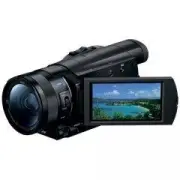


 Sony CCD-TR2300E
User Manual
Sony CCD-TR2300E
User Manual
 Sony CCD-TR3100E
User Manual
Sony CCD-TR3100E
User Manual
 Sony CCD-TR311E
User Manual
Sony CCD-TR311E
User Manual
 Sony CCD-TR315E
User Manual
Sony CCD-TR315E
User Manual
 Sony CCD-TR317E
User Manual
Sony CCD-TR317E
User Manual
 Sony CCD-TR3300E
User Manual
Sony CCD-TR3300E
User Manual
 Sony CCD-TR3400E
User Manual
Sony CCD-TR3400E
User Manual
 Sony CCD-TR411E / CCD-TR412E
User Manual
Sony CCD-TR411E / CCD-TR412E
User Manual
 Sony CCD-TR415E
User Manual
Sony CCD-TR415E
User Manual
 Sony CCD-TR417E
User Manual
Sony CCD-TR417E
User Manual
 Sony CCD-TR425E
User Manual
Sony CCD-TR425E
User Manual
 Sony CCD-TR427E
User Manual
Sony CCD-TR427E
User Manual