Page 2 - English; WARNING; Русский; ПРЕДУПРЕЖДЕНИЕ
2 English Welcome! Congratulations on your purchase of this SonyHandycam ® camcorder. With your Handycam, you can capture life’s precious moments withsuperior picture and sound quality.Your Handycam is loaded with advancedfeatures, but at the same time it is very easy touse. You will soon be produci...
Page 3 - Table of contents; Shooting backlit subjects
3 English Table of contents Checking supplied accessories ............................. 5 Quick Start Guide ................................... 6 Getting started Using this manual ......................................... 10Step 1 Preparing the power supply ........... 12 Installing the battery pack...
Page 4 - Оглавление; Подготовка к эксплуатации
4 Русский Оглавление Проверка прилагаемых принадлежностей ... 5 Руководство по быстромузапуску ....................................................... 8 Подготовка к эксплуатации Использование данного руководства .. 10Пункт 1 Подготовка источника питания .. 12 Установка батарейного блока ........ 12...
Page 5 - Mains lead
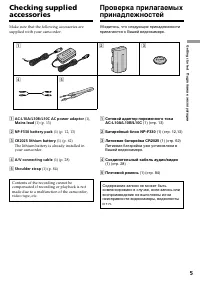
5 Getting started Подготовка к эксплуатации Checking suppliedaccessories Make sure that the following accessories aresupplied with your camcorder. 1 AC-L10A/L10B/L10C AC power adaptor (1), Mains lead (1) (p. 13) 2 NP-F330 battery pack (1) (p. 12, 13) 3 CR2025 lithium battery (1) (p. 62) The lithium ...
Page 6 - Quick Start Guide; Inserting a cassette; mark
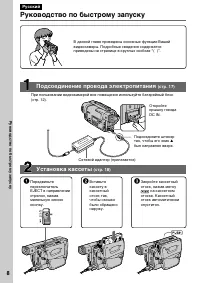
6 Quick Start Guide English Quick Start Guide This chapter introduces you to the basic features of yourcamcorder. See the page in parentheses “( )” for moreinformation. Open the DC INjack cover. Connect the plug withits v mark facing up. Inserting a cassette (p. 18) Connecting the mains lead (p. 17)...
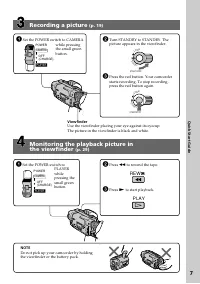
Page 7 - Recording a picture; Viewfinder; Monitoring the playback picture in; NOTE; Set the POWER switch to; REW
7 Quick Start Guide Recording a picture (p. 19) Viewfinder Use the viewfinder placing your eye against its eyecup.The picture in the viewfinder is black and white. Monitoring the playback picture in the viewfinder (p. 29) NOTE Do not pick up your camcorder by holdingthe viewfinder or the battery pac...
Page 8 - Руководство по быстрому запуску; Установка кассеты; на кассетном
8 Руководство по быстрому запуску Русский Руководство по быстрому запуску В данной главе приведены основные функции Вашейвидеокамеры. Подробные сведения содержатсяприведены на странице в круглых скобках “( )”. Откройтекрышку гнездаDC IN. Подсоедините штекертак, чтобы его знак v был направлен вверх. ...
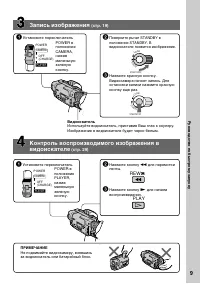
Page 9 - Запись изображения; Видоискатель
9 Руководство по быстрому запуску Запись изображения (стр. 19) Видоискатель Используйте видоискатель, приставив Ваш глаз к окуляру.Изображение в видоискателе будет черно-белым. Контроль воспроизводимого изображения ввидоискателе (стр. 29) ПРИМЕЧАНИЕ Не поднимайте видеокамеру, взявшисьза видоискатель...
Page 10 - — Getting started —; Using this manual; Note on TV colour systems; — Подготовка к эксплуатации —
10 — Getting started — Using this manual As you read through this manual, buttons andsettings on your camcorder are shown in capitalletters.e.g. Set the POWER switch to CAMERA.When you carry out an operation, you can hear abeep sound to indicate that the operation is beingcarried out. Note on TV col...
Page 11 - • Do not let your camcorder get wet. Keep your; Использование данного руководства; • Не допускайте, чтобы видеокамера
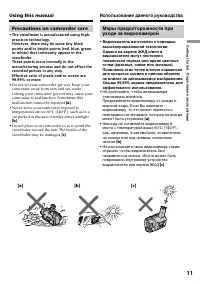
11 Getting started Подготовка к эксплуатации [a] [b] [c] Using this manual Precautions on camcorder care • The viewfinder is manufactured using high-precision technology.However, there may be some tiny blackpoints and/or bright points (red, blue, greenor white) that constantly appear in theviewfinde...
Page 12 - BATT RELEASE; Installing the battery pack; Slide the battery pack down until it clicks.; To remove the battery pack; After installing the battery pack; Step 1 Preparing the; Установка батарейного блока; Для снятия батарейного блока; После установки батарейного блока; Пункт 1 Подготовка
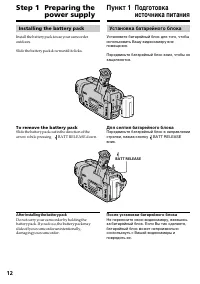
12 BATT RELEASE Installing the battery pack Install the battery pack to use your camcorderoutdoors. Slide the battery pack down until it clicks. To remove the battery pack Slide the battery pack out in the direction of thearrow while pressing BATT RELEASE down. After installing the battery pack Do n...
Page 13 - Step 1 Preparing the power; Connect the mains lead to the mains.; normal charge; is completed. To fully charge; Пункт 1 Подготовка источника; был направлен вверх.; нормальная зарядка; завершена. Для полной
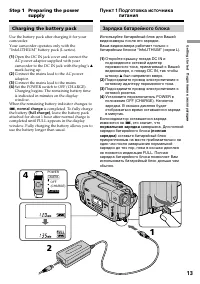
13 Getting started Подготовка к эксплуатации POWER OFF PLAYER CAMERA (CHARGE) Step 1 Preparing the power supply Charging the battery pack Use the battery pack after charging it for yourcamcorder.Your camcorder operates only with the“InfoLITHIUM” battery pack (L series). ( 1 ) Open the DC IN jack cov...
Page 14 - Notes; • Prevent metallic objects from coming into; Remaining battery time indicator; “– – – – min” appears in the display window.; Примечания; • Не допускайте контакта металлических; Батарейный блок; – Что-то не в порядке с батарейным блоком.
14 Notes • Prevent metallic objects from coming into contact with the metal parts of the DC plug ofthe AC power adaptor. This may cause a short-circuit, damaging the AC power adaptor. • Keep the battery pack dry.• When the battery pack is not to be used for a long time, charge the battery pack once ...
Page 15 - Время зарядки; Numbers in parentheses “(
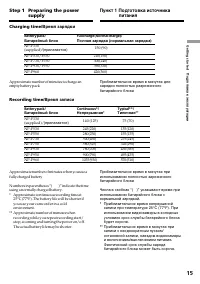
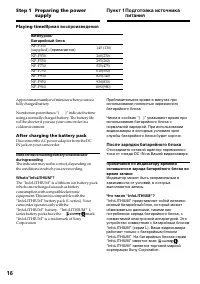
15 Getting started Подготовка к эксплуатации Step 1 Preparing the power supply Charging time/ Время зарядки Approximate number of minutes to charge anempty battery pack Recording time/ Время записи Approximate number of minutes when you use afully charged battery Numbers in parentheses “( )” indicat...
Page 16 - Время воспроизведения; After charging the battery pack; What is ”InfoLITHIUM”?; После зарядки батарейного блока; Что такое “InfoLITHIUM”?
16 Playing time/ Время воспроизведения Approximate number of minutes when you use afully charged battery Numbers in parentheses “( )” indicate the time using a normally charged battery. The battery lifewill be shorter if you use your camcorder in acold environment. After charging the battery pack Di...
Page 17 - Connecting to the mains; PRECAUTION; • The AC power adaptor can supply power even; Using a car battery; Подсоединение к сетевой розетке; на; МЕРА ПРЕДОСТОРОЖНОСТИ; • Питание от сетевого адаптера переменного
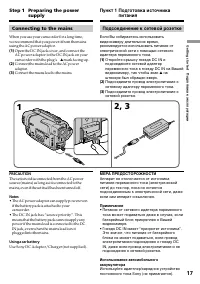
17 Getting started Подготовка к эксплуатации Connecting to the mains When you use your camcorder for a long time,we recommend that you power it from the mainsusing the AC power adaptor. ( 1 ) Open the DC IN jack cover, and connect theAC power adaptor to the DC IN jack on yourcamcorder with the plug’...
Page 18 - mark on the cassette compartment.; To eject a cassette; Note; Закройте отсек для кассеты, нажав метку; Для извлечения кассеты; Примечание; Step 2 Inserting a; Пункт 2 Установка
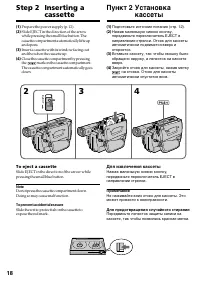
18 ( 1 ) Prepare the power supply (p. 12). ( 2 ) Slide EJECT in the direction of the arrowwhile pressing the small blue button. Thecassette compartment automatically lifts upand opens. ( 3 ) Insert a cassette with its window facing outand the tab on the cassette up. ( 4 ) Close the cassette compartm...
Page 19 - — Recording – Basics —; Your camcorder automatically focuses for you.; Микрофон
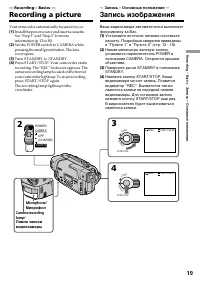
19 Recording – Basics Запись – Основные положения 3 4 LO CK START/STOP S TA N D B Y LO CK START/STOP S TA N D B Y 40min SP STBY 0:00:00 40min SP REC 0:00:01 2 POWER OFF PLAYER CAMERA (CHARGE) — Recording – Basics — Recording a picture Your camcorder automatically focuses for you. ( 1 ) Install the p...
Page 20 - After recording; Turn STANDBY down to LOCK.; После записи
20 Note Fasten the grip strap firmly. Do not touch thebuilt-in microphone during recording. To enable smooth transition You can make the transition between the lastscene you recorded and the next scene smooth aslong as you do not eject the cassette. When youexchange the battery pack in the recording...
Page 21 - Using the zoom feature; Zoom greater than 20
21 Recording – Basics Запись – Основные положения T W Using the zoom feature Move the power zoom lever a little for a slowerzoom. Move it further for a faster zoom.Using the zoom function sparingly results inbetter-looking recordings.“T” side: for telephoto (subject appears closer)“W” side: for wide...
Page 22 - When you shoot close to a subject; • Digital zoom starts to function when zoom
22 Recording a picture Запись изображения When you shoot close to a subject If you cannot get a sharp focus, move the powerzoom lever to the “W” side until the focus issharp. You can shoot a subject that is at leastabout 80 cm (about 2 feet 5/8 inch) away fromthe lens surface in the telephoto positi...
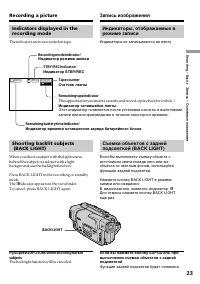
Page 23 - The indicators are not recorded on tape.; Индикаторы не записываются на ленту.; Recording mode indicator/
23 Recording – Basics Запись – Основные положения Indicators displayed in therecording mode The indicators are not recorded on tape. Shooting backlit subjects (BACK LIGHT) When you shoot a subject with the light sourcebehind the subject or a subject with a lightbackground, use the backlight function...
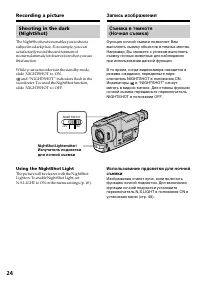
Page 24 - and “NIGHTSHOT” indicators flash in the; Using the NightShot Light; NightShot Light emitter/
24 Shooting in the dark(NightShot) The NightShot function enables you to shoot asubject in a dark place. For example, you cansatisfactorily record the environment ofnocturnal animals for observation when you usethis function. While your camcorder is in the standby mode,slide NIGHTSHOT to ON. and “NI...
Page 25 - • Do not use the NightShot function in bright; NightShot Light; • Не используйте функцию ночной съемки в; Подсветка для ночной съемки
25 Recording – Basics Запись – Основные положения Recording a picture Notes • Do not use the NightShot function in bright places (ex. outdoors in the daytime). This maycause your camcorder to malfunction. • When you keep NIGHTSHOT set to ON in normal recording, the picture may be recordedin incorrec...
Page 27 - Checking the recording; – EDITSEARCH/Rec Review; You can search for the next recording start point.; Rec Review; You can check the last recorded section.; Проверка записи; – EDITSEARCH/Просмотр записи; Нажмите кратковременно сторону – (
27 Recording – Basics Запись – Основные положения Checking the recording – EDITSEARCH/Rec Review You can use these buttons to check the recordedpicture or shoot so that the transition betweenthe last recorded scene and the next scene yourecord is smooth. EDITSEARCH You can search for the next record...
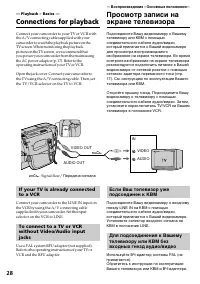
Page 28 - — Playback – Basics —; Connections for playback; Передача сигнала; — Воспроизведение – Основные положения—
28 VIDEO OUT AUDIO OUT VIDEO AUDIO IN If your TV is already connectedto a VCR Connect your camcorder to the LINE IN input onthe VCR by using the A/V connecting cablesupplied with your camcorder. Set the inputselector on the VCR to LINE. To connect to a TV or VCRwithout Video/Audio inputjacks Use a P...
Page 29 - Playing back a tape; To stop playback; Press; Для остановки воспроизведения
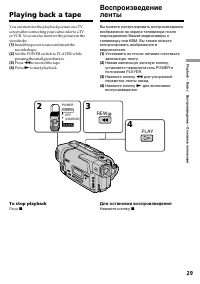
29 Playback – Basics Воспроизведение – Основные положения Playing back a tape You can monitor the playback picture on a TVscreen after connecting your camcorder to a TVor VCR. You can also monitor the picture in theviewfinder. ( 1 ) Install the power source and insert therecorded tape. ( 2 ) Set the...
Page 30 - Various playback modes; To advance the tape; In the various playback modes; Для ускоренной перемотки ленты назад; В переменных режимах воспроизведения; Воспроизведение ленты
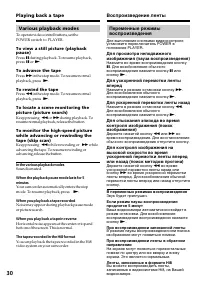
30 Various playback modes To operate video control buttons, set thePOWER switch to PLAYER. To view a still picture (playbackpause) Press X during playback. To resume playback, press X or N . To advance the tape Press M in the stop mode. To resume normal playback, press N . To rewind the tape Press m...
Page 31 - back on a normal TV; Using the wide mode; CINEMA; — Усовершенствованные операции съемки —
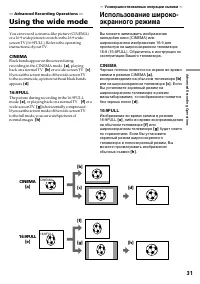
31 Advanced Recording Operations You can record a cinema-like picture (CINEMA)or a 16:9 wide picture to watch on the 16:9 wide-screen TV (16:9FULL). Refer to the operatinginstructions of your TV. CINEMA Black bands appear on the screen duringrecording in the CINEMA mode [ a ] , playing back on a nor...
Page 32 - To cancel the wide mode; Set 16:9WIDE to OFF in the menu settings.; In the wide mode
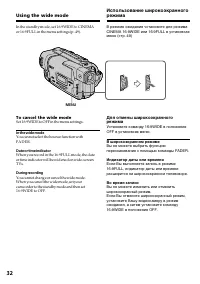
32 Using the wide mode In the standby mode, set 16:9WIDE to CINEMAor 16:9FULL in the menu settings (p. 49). To cancel the wide mode Set 16:9WIDE to OFF in the menu settings. In the wide mode You cannot select the bounce function withFADER. Date or time indicator When you record in the 16:9FULL mode,...
Page 33 - MONOTONE
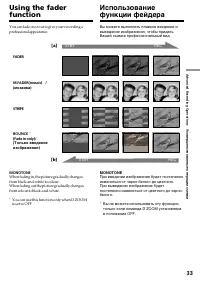
33 Advanced Recording Operations Усовершенствованные операции съемки [a] REC STBY REC STBY [b] You can fade in or out to give your recording aprofessional appearance. Using the faderfunction MONOTONE When fading in, the picture gradually changesfrom black-and-white to colour.When fading out the pict...
Page 34 - Using the fader function; To cancel the fader function; Использование функции фейдера; При введении изображения; STRIPE; Для отмены функции фейдера
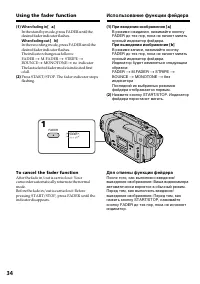
34 Using the fader function ( 1 ) When fading in [ a ] In the standby mode, press FADER until thedesired fader indicator flashes. When fading out [ b ] In the recording mode, press FADER until thedesired fader indicator flashes.The indicator changes as follows:FADER t M.FADER t STRIPE t BOUNCE t MON...
Page 35 - Note on the bounce function; the menu settings; Примечание по функции перескакивания
35 Advanced Recording Operations Усовершенствованные операции съемки The date, time indicator and title do not fadein or fade out Erase them before operating the fader function ifthey are not needed. While using the bounce function, you cannotuse the following functions: – Focus– Zoom– Picture effec...
Page 36 - : The colour and brightness of the; The picture is sepia.; SEPIA; : Яркость света будет
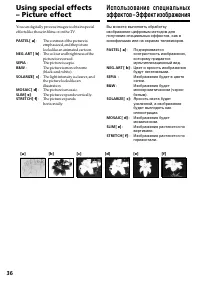
36 You can digitally process images to obtain specialeffects like those in films or on the TV. PASTEL [ a ] : The contrast of the picture isemphasized, and the picturelooks like an animated cartoon. NEG. ART [ b ] : The colour and brightness of the picture is reversed. SEPIA : The picture is sepia. ...
Page 37 - When you turn the power off
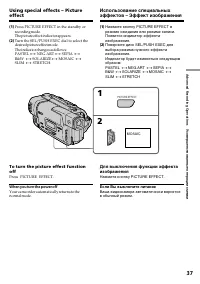
37 Advanced Recording Operations Усовершенствованные операции съемки Using special effects – Pictureeffect ( 1 ) Press PICTURE EFFECT in the standby orrecording mode.The picture effect indicator appears. ( 2 ) Turn the SEL/PUSH EXEC dial to select thedesired picture effect mode.The indicator changes...
Page 39 - Using the PROGRAM AE function; Нажмите кнопку PROGRAM AE.
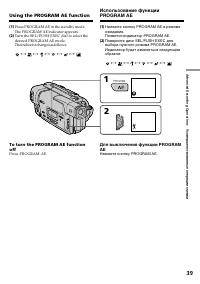
39 Advanced Recording Operations Усовершенствованные операции съемки Using the PROGRAM AE function ( 1 ) Press PROGRAM AE in the standby mode.The PROGRAM AE indicator appears. ( 2 ) Turn the SEL/PUSH EXEC dial to select thedesired PROGRAM AE mode.The indicator changes as follows: y y y y y To turn t...
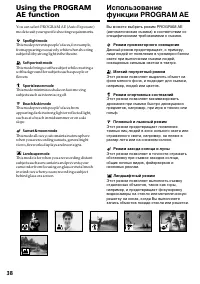
Page 40 - • In the spotlight, sports lesson and beach & ski; • В режимах прожекторного освещения,
40 Notes • In the spotlight, sports lesson and beach & ski modes, you cannot take close-ups. This isbecause your camcorder is set to focus only onsubjects in the middle to far distance. • In the sunset & moon and landscape modes, your camcorder is set to focus only on distantsubjects. • The ...
Page 41 - faithfully; ночных сцен) с большой достоверностью; NIGHTSHOT в положение ON
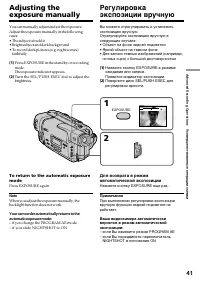
41 Advanced Recording Operations Усовершенствованные операции съемки You can manually adjust and set the exposure.Adjust the exposure manually in the followingcases:• The subject is backlit• Bright subject and dark background• To record dark pictures (e.g. night scenes) faithfully ( 1 ) Press EXPOSU...
Page 42 - Focusing manually; droplets; To return to the autofocus mode; Фокусировка вручную; воды; FOCUS
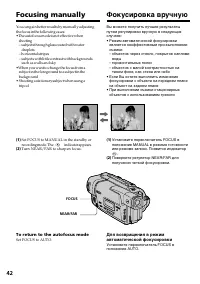
42 Focusing manually You can gain better results by manually adjustingthe focus in the following cases:•The autofocus mode is not effective when shooting– subjects through glass coated with water droplets – horizontal stripes– subjects with little contrast with backgrounds such as walls and sky •Whe...
Page 43 - To record distant subjects; To focus precisely; Для съемки удаленных объектов; . Если Вы отпустите кнопку; Для точной фокусировки
43 Advanced Recording Operations Усовершенствованные операции съемки To record distant subjects When you press FOCUS down to INFINITY, thelens focuses on infinity and indicator appears. When you release FOCUS, your camcorderreturns to the manual focus mode. Use this modewhen your camcorder focuses o...
Page 44 - Superimposing a title; Наложение титра; VACATION; TITLE
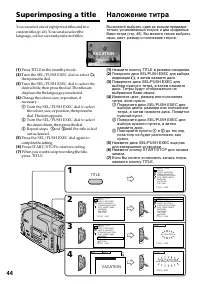
44 Superimposing a title You can select one of eight preset titles and twocustom titles (p. 46). You can also select thelanguage, colour, size and position of titles. ( 1 ) Press TITLE in the standby mode. ( 2 ) Turn the SEL/PUSH EXEC dial to select , then press the dial. ( 3 ) Turn the SEL/PUSH EXE...
Page 47 - To change a title you have stored; To delete the title; Making your own titles; Если Вы выбрали команду [; вернуться к предыдущему экрану.; Для удаления титра
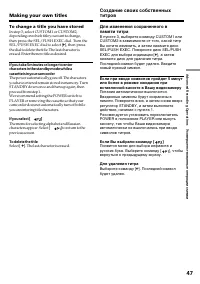
47 Advanced Recording Operations Усовершенствованные операции съемки To change a title you have stored In step 3, select CUSTOM1 or CUSTOM2,depending on which title you want to change,then press the SEL/PUSH EXEC dial. Turn theSEL/PUSH EXEC dial to select [ C ], then press the dial to delete the tit...
Page 48 - — Editing —; Dubbing a tape; Using the A/V connecting cable; Set the POWER switch to PLAYER.; —Монтаж —; Перезапись ленты; Если Вы закончили перезапись ленты; Нажмите кнопку
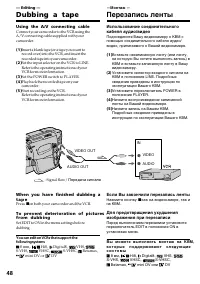
48 — Editing — Dubbing a tape Using the A/V connecting cable Connect your camcorder to the VCR using theA/V connecting cable supplied with yourcamcorder. ( 1 ) Insert a blank tape (or a tape you want torecord over) into the VCR, and insert therecorded tape into your camcorder. ( 2 ) Set the input se...
Page 49 - — Customizing Your Camcorder —; Изменение установок меню
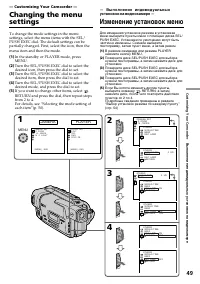
49 Customizing Your Camcorder Выполнение индивидуальных установок на видеокамере — Customizing Your Camcorder — Changing the menusettings To change the mode settings in the menusettings, select the menu items with the SEL/PUSH EXEC dial. The default settings can bepartially changed. First, select th...
Page 50 - Changing the menu settings; To make the menu display disappear; D ZOOM; Selecting the mode setting of each item; is the default setting.
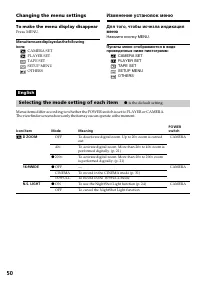
50 Changing the menu settings To make the menu display disappear Press MENU. Menu items are displayed as the followingicons: CAMERA SETPLAYER SETTAPE SETSETUP MENUOTHERS Icon/item D ZOOM 16:9WIDE N.S. LIGHT Mode OFF 40 × z 200 × z OFF CINEMA 16:9FULL z ON OFF Meaning To deactivate digital zoom. Up t...
Page 51 - Note on the playback of the NTSC tapes
51 Customizing Your Camcorder Выполнение индивидуальных установок на видеокамере Changing the menu settings Icon/item EDIT TBC TBC stands for “Time Base Corrector”. DNR DNR stands for “Digital Noise Reduction”. NTSC PB Mode z OFF ON z ON OFF z ON OFF z ON PAL TV NTSC 4.43 Meaning — To minimize pictu...
Page 52 - REC MODE; Notes on the LP mode; ON” is displayed if ORC TO SET is already set.
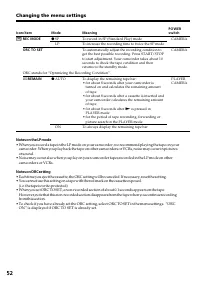
52 Changing the menu settings Icon/item REC MODE ORC TO SET ORC stands for “Optimizing the Recording Condition”. q REMAIN Mode z SP LP z AUTO ON Meaning To record in SP (Standard Play) mode To increase the recording time to twice the SP mode To automatically adjust the recording condition toget the ...
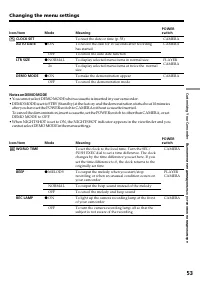
Page 53 - Notes on DEMO MODE; cannot select DEMO MODE in the menu settings.
53 Customizing Your Camcorder Выполнение индивидуальных установок на видеокамере Icon/item WORLD TIME BEEP REC LAMP Mode z MELODY NORMAL OFF z ON OFF Meaning To set the clock to the local time. Turn the SEL/PUSH EXEC dial to set a time difference. The clockchanges by the time difference you set here...
Page 54 - Выбор установок режима по каждому пункту; установка по умолчанию.
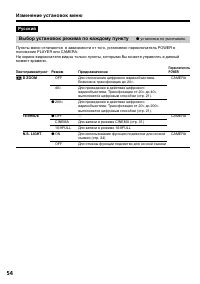
54 Русский Выбор установок режима по каждому пункту z установка по умолчанию. Пункты меню отличаются в зависимости от того, установлен переключатель POWER вположение PLAYER или CAMERA.На экране видоискателя видны только пункты, которыми Вы можете управлять в данныймомент времени. Пиктограмма/пункт D...
Page 55 - Примечание по воспроизведению лент NTSC
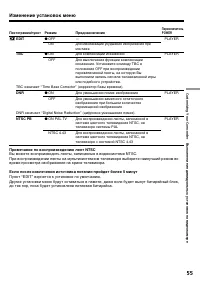
55 Customizing Your Camcorder Выполнение индивидуальных установок на видеокамере Изменение установок меню Пиктограмма/пункт EDIT TBC ТВС означает “Time Base Corrector” (корректор базы времени). DNR DNR означает “Digital Noise Reduction” (цифровое уменьшение помех). NTSC PB Режим z OFFON z ONOFF z ON...
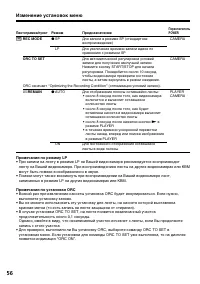
Page 56 - Примечания по режиму LP; записанных в режиме LP на других видеокамерах или КВМ.; Примечания по установке ORC; выполните установку заново.
56 Пиктограмма/пункт REC MODE ORC TO SET ORC означает “Optimizing the Recording Condition” (оптимизация условий записи). q REMAIN Режим z SP LP z AUTO ON Предназначение Для записи в режиме SP (стандартноевоспроизведение)Для увеличения времени записи вдвое посравнению с режимом SPДля автоматической р...
Page 57 - Примечания по режиму DEMO MODE
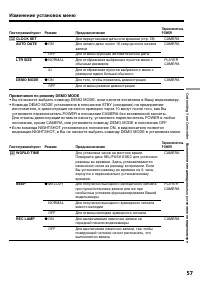
57 Customizing Your Camcorder Выполнение индивидуальных установок на видеокамере Примечания по режиму DEMO MODE • Вы не можете выбрать команду DEMO MODE, если кассета вставлена в Вашу видеокамеру.• Команда DEMO MODE установлена в положение STBY (ожидание) на предприятии- изготовителе, и демонстрация...
Page 58 - Turn the SEL/PUSH EXEC dial to select
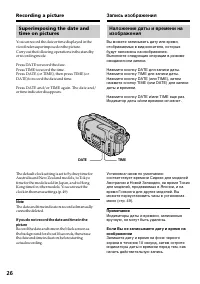
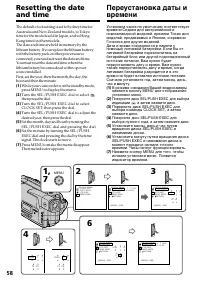
58 Resetting the dateand time The default clock setting is set to Sydney time forAustralia and New Zealand models, to Tokyotime for the models sold in Japan, and to HongKong time for other models.The date and time are held in memory by thelithium battery. If you replace the lithium batterywith the b...
Page 59 - To check the preset date and time; The year changes as follows:; function works only once a day.; Note on the time indicator; back ON in the menu settings.; Resetting the date and time; Год изменяется следующим образом:; функция работает один раз в день.; Примечание по индикатору времени; Переустановка даты и времени
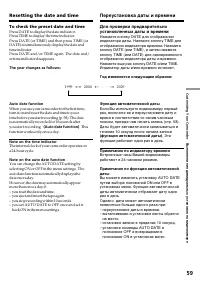
59 Customizing Your Camcorder Выполнение индивидуальных установок на видеокамере To check the preset date and time Press DATE to display the date indicator.Press TIME to display the time indicator.Press DATE (or TIME) and then press TIME (orDATE) to simultaneously display the date andtime indicator....
Page 60 - — Additional Information —; Playback modes; — Дополнительная информация —; Режимы воспроизведения; Что такое Video 8
60 — Additional Information — Playback modes What is Video 8 ? “Video 8 XR” is a function that further enhancesthe image quality of Video 8. This functionallows you to record and playback pictures withclearer details.Video tapes recorded on a camcorder having the“XR” function show excellent picture ...
Page 61 - Foreign 8 mm video; Playing back an NTSC-recorded tape; • During playback, a black band appears on the; Иностранные 8-мм видеоленты; • Во время воспроизведения в нижней части
61 Additional information Дополнительная информация Playback modes When you play back The playback mode (SP/LP) is automaticallyselected according to the recording system inwhich the tape has been recorded. The quality ofthe recorded picture in the LP mode, however,will not be as good as the SP mode...
Page 63 - Changing the lithium battery; Замена литиевой батарейки
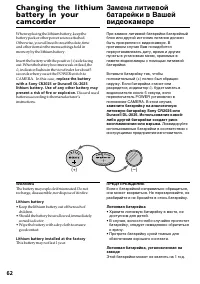
63 Additional information Дополнительная информация Changing the lithium battery ( 1 ) Open the lid of the lithium batterycompartment. ( 2 ) Push the lithium battery down once and pullit out from the holder. ( 3 ) Install a Sony CR2025 or Duracell DL-2025lithium battery with the positive (+) sidefac...
Page 64 - In the recording mode; Symptom; Tro u b l e s h o o t i n g
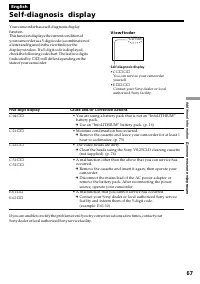
64 If you run into any problem using your camcorder, use the following table to troubleshoot theproblem. If the problem persists, disconnect the power source and contact your Sony dealer or localauthorized Sony service facility. If “C: ss : ss ” appears in the viewfinder, the self-diagnosis display ...
Page 65 - In the playback mode
65 Additional information Дополнительная информация The battery pack is quicklydischarged. The battery remaining indicator doesnot indicate the correct time. Symptom Cause and/or Corrective Actions • NIGHTSHOT is set to ON. c Set it to OFF. (p. 24) • NIGHTSHOT is set to ON in a bright place. c Set i...
Page 66 - Others; Troubleshooting
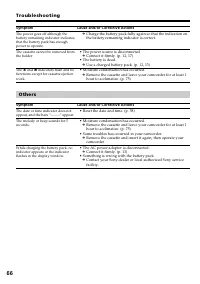
66 Symptom Cause and/or Corrective Actions c Charge the battery pack fully again so that the indication onthe battery remaining indicator is correct. • The power source is disconnected. c Connect it firmly. (p. 12, 17) • The battery is dead. c Use a charged battery pack. (p. 12, 13) • Moisture conde...
Page 67 - Cause and/or Corrective Actions; ss; Self-diagnosis display
67 Additional information Дополнительная информация Five-digit display Cause and/or Corrective Actions • You are using a battery pack that is not an “InfoLITHIUM” battery pack. c Use an “InfoLITHIUM” battery pack. (p. 16) • Moisture condensation has occurred. c Remove the cassette and leave your cam...
Page 68 - Warning indicators; The video heads are dirty; Warning messages; The battery is dead or nearly dead
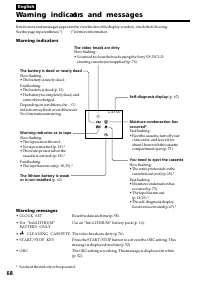
68 C:21:00 Warning indicat ors and messages If indicators and messages appear in the viewfinder or the display window, check the following:See the page in parentheses “( )” for more information. Warning indicators The video heads are dirty Slow flashing:• You need to clean the heads using the Sony V...
Page 69 - Поиск и устранение неисправностей; В режиме записи; Возможная неисправность
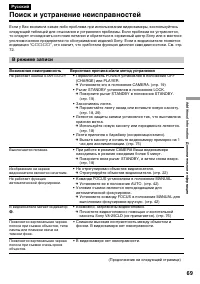
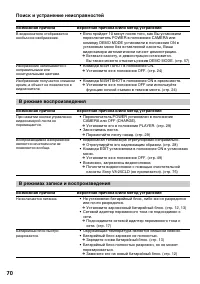
69 Additional information Дополнительная информация Русский Поиск и устранение неисправностей Если у Вас возникла какая-либо проблема при использовании видеокамеры, воспользуйтесьследующей таблицей для отыскания и устранения проблемы. Если проблема не устраняется,то следует отсоединить источник пита...
Page 71 - Прочее; Возможная причина
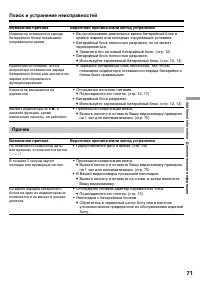
71 Additional information Дополнительная информация Возможная причина Вероятная причина и/или метод устранения • Вы использовали длительное время батарейный блок в крайне жарких или холодных окружающих условиях. • Батарейный блок полностью разряжен, но не может перезаряжаться. c Замените его на новы...
Page 72 - Индикация самодиагностики
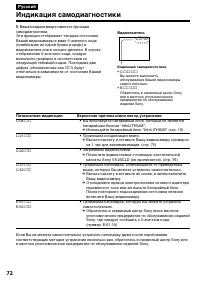
72 Пятизначная индикация Вероятная причина и/или метод устранения • Вы используете батарейный блок, который не является батарейным блоком “InfoLITHIUM”. c Используйте батарейный блок “InfoLITHIUM” (стр. 16) • Произошла конденсация влаги. c Выньте кассету и оставьте Вашу видеокамеру примернона 1 час ...
Page 73 - Предупреждающие индикаторы и сообщения; Предупреждающие индикаторы; Загрязнились видеоголовки; Вам нужно извлечь кассету
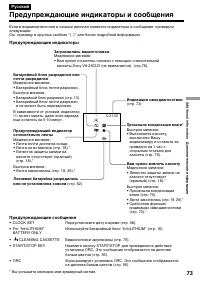
73 Additional information Дополнительная информация C:21:00 Предупреждающие индикаторы и сообщения Если в видоискателе или в окошке дисплея появятся индикаторы и сообщения, проверьтеследующее:См. страницу в круглых скобках “( )” для более подробной информации. Предупреждающие индикаторы Загрязнились...
Page 74 - Using your camcorder abroad; PAL system; Brazil; NTSC system; Бразилия; Система NTSC
74 Using your camcorder abroad You can use your camcorder in any country orarea with the AC power adaptor supplied withyour camcorder within 100 V to 240 V AC,50/60 Hz. Your camcorder is a PAL system basedcamcorder. If you want to view the playbackpicture on a TV, it must be a PAL system basedTV wit...
Page 75 - Moisture condensation; If moisture condensation occurred; Note on moisture condensation; Конденсация влаги; Если произошла конденсация влаги; Примечание по конденсации влаги
75 Additional information Дополнительная информация Maintenanceinformation andprecautions Moisture condensation If your camcorder is brought directly from a coldplace to a warm place, moisture may condenseinside your camcorder, on the surface of the tape,or on the lens. In this condition, the tape m...
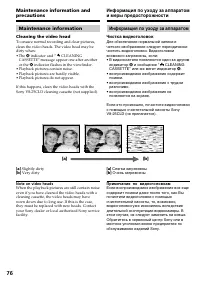
Page 76 - Maintenance information; Cleaning the video head; ␣ indicator and “; Note on video heads; Информация по уходу за аппаратом; Чистка видеоголовок; Примечание по видеоголовкам
76 Maintenance information Cleaning the video head To ensure normal recording and clear pictures,clean the video heads. The video head may bedirty when:• The x ␣ indicator and “ CLEANING CASSETTE” message appear one after anotheror the x indicator flashes in the viewfinder. • Playback pictures conta...
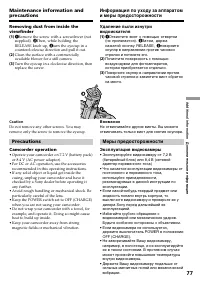
Page 77 - Caution; Precautions; Camcorder operation; Внимание; Меры предосторожности; Эксплуатация видеокамеры
77 Additional information Дополнительная информация Maintenance information andprecautions Removing dust from inside theviewfinder ( 1 ) 1 Remove the screw with a screwdriver (not supplied). 2 Then, while holding the RELEASE knob up, 3 turn the eyecup in a counterclockwise direction and pull it out....
Page 78 - Относительно обращения с лентами
78 On handling tapes Do not insert anything into the small holes on therear of the cassette. These holes are used to sensethe type and thickness of the tape and if therecording tab is in or out. Camcorder care • When your camcorder is not to be used for a long time, remove the battery. • Remove the ...
Page 79 - Battery pack
79 Additional information Дополнительная информация Maintenance information andprecautions • While the unit is in use, particularly during charging, keep it away from AM receivers andvideo equipment. AM receivers and videoequipment disturb AM reception and videooperation. • The unit becomes warm dur...
Page 80 - Specifications; AC power adaptor
80 Input/outputconnectors Video output Phono jack, 1 Vp-p, 75 ohms,unbalanced Audio output Monaural, phone jack, 327 mV RFU DC OUT Special minijack, DC 5V LANC control jack Stereo mini-minijack (ø 2.5 mm) MIC jack Monaural minijack (ø 3.5 mm) General Power requirements 7.2 V (battery pack)8.4 V (AC ...
Page 81 - Технические характеристики; Видеокамера
81 Additional information Дополнительная информация Технические характеристики Видеокамера Система Система видеозаписи 2 вращающиеся головкиСистема наклонноймеханической развертки ЧМ Система аудиозаписи Вращающиеся головки, системаЧМ Видеосигнал Цветовой сигнал PAL, стандартМККР Используемые кассеты...
Page 82 - Camcorder; qa
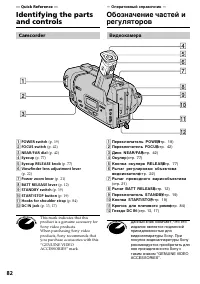
82 — Quick Reference — Identifying the partsand controls 1 POWER switch (p. 19) 2 FOCUS switch (p. 42) 3 NEAR/FAR dial (p. 42) 4 Eyecup (p. 77) 5 Eyecup RELEASE knob (p. 77) 6 Viewfinder lens adjustment lever (p. 22) 7 Power zoom lever (p. 21) 8 BATT RELEASE lever (p. 12) 9 STANDBY switch (p. 19) 0 ...
Page 83 - Identifying the parts and controls; PLAY (воспроизведение
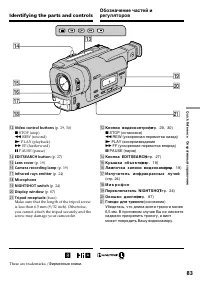
83 Quick Reference Оперативный справочник qd Video control buttons (p. 29, 30) x STOP (stop) m REW (rewind) N PLAY (playback) M FF (fastforward) X PAUSE (pause) qf EDITSEARCH button (p. 27) qg Lens cover (p. 19) qh Camera recording lamp (p. 19) qj Infrared rays emitter (p. 24) qk Microphone ql NIGHT...
Page 85 - wl
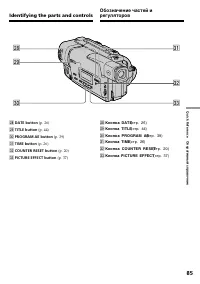
85 Quick Reference Оперативный справочник Identifying the parts and controls wk DATE button (p. 26) wl TITLE button (p. 44) e; PROGRAM AE button (p. 39) ea TIME button (p. 26) es COUNTER RESET button (p. 20) ed PICTURE EFFECT button (p. 37) wk Кнопка DATE (стр. 26) wl Кнопка TITLE (стр. 44) e; Кнопк...
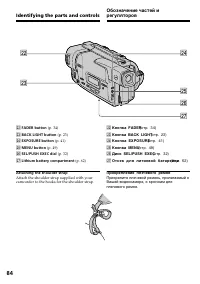
Page 86 - Прикрепите ремень для захвата надежно.
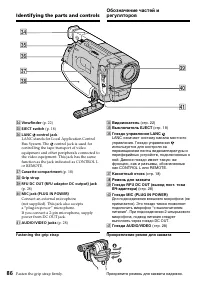
86 Identifying the parts and controls ef Viewfinder (p. 22) eg EJECT switch (p. 18) eh LANC control jack LANC stands for Local Application ControlBus System. The control jack is used forcontrolling the tape transport of videoequipment and other peripherals connected tothe video equipment. This jack ...
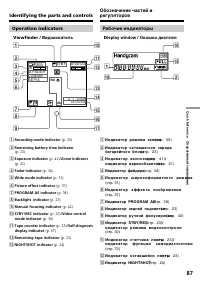
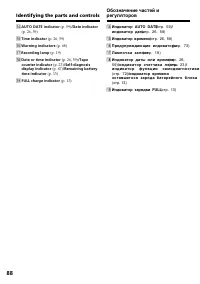
Page 87 - Operation indicators; Рабочие индикаторы; STBY; qk
87 Quick Reference Оперативный справочник Operation indicators Viewfinder / Видоискатель D isplay window / Окошко дисплея 1 Recording mode indicator (p. 52) 2 Remaining battery time indicator (p. 23) 3 Exposure indicator (p. 41) /Zoom indicator (p. 21) 4 Fader indicator (p. 34) 5 Wide mode indicator...
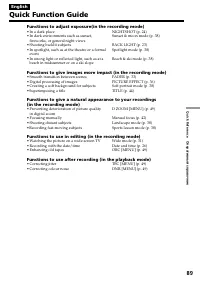
Page 89 - Quick Function Guide; Functions to adjust exposure(in the recording mode)
89 Quick Reference Оперативный справочник English Quick Function Guide Functions to adjust exposure(in the recording mode) • In a dark place• In dark environments such as sunset, fireworks, or general night views • Shooting backlit subjects• In spotlight, such as at the theatre or a formal event • I...
Page 90 - Руководство по быстрым функциям
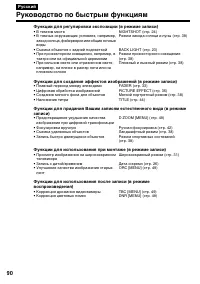
90 Функции для регулировки экспозиции (в режиме записи) • В темном месте• В темных окружающих условиях, например, заход солнца, фейерверки или общие ночныевиды • Съемка объектов с задней подсветкой• При прожекторном освещении, например, в театре или на официальной церемонии • При сильном свете или о...
Page 91 - Index
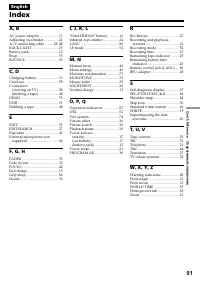
91 Quick Reference Оперативный справочник English Index A, B AC power adaptor ..................... 13Adjusting viewfinder ................ 22A/V connecting cable ......... 28, 48BACK LIGHT ............................. 23Battery pack ................................ 12Beep ............................
Page 92 - Алфавитный указатель; Sony Corporation
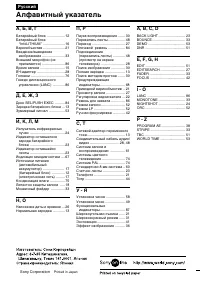
92 Русский Алфавитный указатель А, Б, В, Г Батарейный блок .................. 12 Батарейный блок “InfoLITHIUM” ...................... 16 Вариообъектив ...................... 21Введение/выведение изображения ....................... 33 Внешний микрофон (не прилагается) ....................... 86 Время...