Page 2 - CAUTION; WARNING
2 US Do not install the appliance in a confined space, such as a bookcase or built-in cabinet. To reduce the risk of fire, do not cover the ventilation opening of the apparatus with newspapers, tablecloths, curtains, etc. Do not place the naked flame sources such as lighted candles on the apparatus....
Page 6 - Table of Contents; Step 4: Setting up the
6 US Table of Contents About These Operating Instructions ....... 5Unpacking ............................................... 7Index to Parts and Control .................... 10 Getting Started Step 1: Installing the System ....... 16Step 2: Connecting the System ... 21Step 3: Connecting to the Netwo...
Page 7 - Unpacking
7 US Unpacking BDV-HZ970W • Main unit (1) • Front speakers (2) • Surround speakers (2) • Center speaker (1) • Subwoofer (1) • Bases for the front speakers (2) • Posts for the front speakers (long) (2) • Posts for the front speakers (short) (2) • Screws for the front speakers (8) • FM wire antenna (a...
Page 9 - and; Preparing the remote
9 US Insert two R6 (size AA) batteries (supplied) by matching the 3 and # ends on the batteries to the markings inside the compartment. Preparing the remote
Page 10 - Index to Parts and Control; Play operation buttons; Front panel
10 US Index to Parts and Control For more information, refer to the pages indicated in parentheses. A " / 1 (on/standby) Turns on the unit, or sets it to standby mode. B Play operation buttons N (play) Starts or re-starts playback (resume play).Plays a slideshow when a disc containing JPEG image...
Page 11 - About the indications in the front panel display; Displays the current sound format.; Front panel display
11 US About the indications in the front panel display A Displays the current sound format. B Lights up when the system is playing via the PARTY STREAMING function. C Lights up when outputting 1920 × 1080p/24 Hz video signals. D Lights up while virtual 7.1ch decoding is activated. E Lights up when o...
Page 12 - Rear panel
12 US A Wireless transceiver (EZW-RT10) slot (page 27) B S-AIR ID switch (pages 29, 47) C LAN (100) terminal (page 28) D HDMI (IN 1/IN 2) jack (page 24) E HDMI (OUT) jack (page 22) F ANTENNA (75 Ω COAXIAL FM) jack (page 26) G (USB) port (pages 28, 36) H COMPONENT VIDEO OUT jacks (page 22) I VIDEO OU...
Page 13 - PAIRING button; Surround amplifier
13 US A " / 1 (Power) Turns the surround amplifier on/off. B S-AIR/STANDBY indicator You can check the status of wireless transmission of surround speaker audio signals between the main unit and surround amplifier. C S-AIR ID switch Selects the S-AIR ID. D PAIRING button Starts pairing. E PAIRIN...
Page 14 - FAVORITES; Remote control
14 US The buttons for system operation only are described below. See “Controlling Your TV or Other Components with the Supplied Remote” (page 57) for the buttons for operation of the connected components. • Number 5, AUDIO, CH +, and N buttons have a tactile dot. Use the tactile dot as a reference w...
Page 16 - Gettin; Step 1: Installing the System; The subwoofer can be placed anywhere in the room.; Getting Started; Positioning the speakers
16 US Gettin g Star ted Step 1: Installing the System For the best possible surround sound, place all speakers at the same distance from the listening position ( A ). The distance can be between 0 to 23 feet (0.0 to 7.0 meters). If you cannot place the center speaker and surround speakers at the sam...
Page 17 - To add the optional surround back speakers
17 US Getting Star te d To add the optional surround back speakers You can enjoy 7.1 surround sound by purchasing the Wireless Surround Speaker Kit (WAHT-SBP2, optional). The optional product lineup differs depending on the area. For the position of the surround back speakers, refer the illustration...
Page 18 - Speaker terminals are located on the rear of the speakers.; Caution; , and the speaker cord without the colored tube to; Assembling the speakers
18 US Gettin g Star ted For assembling the speakers, refer to “Speaker Installation Guide” (supplement). To connect speaker cords to the center speaker and subwoofer (BDV-IZ1000W only) Speaker terminals are located on the rear of the speakers. Caution • Contact a screw shop or installer regarding th...
Page 19 - Fasten the screws to the wall.
19 US Getting Star te d 1 Prepare screws (not supplied) that are suitable for the hole on the back of each speaker. See the illustrations below. 2 Fasten the screws to the wall. 30 mm (1 3 / 16 inches) 4 mm ( 3 / 16 inch) Hole on the back of the speaker 5 mm ( 7 / 32 inch) 10 mm( 13 / 32 inch) 8 to ...
Page 20 - Hang the speakers on the screws.
20 US Gettin g Star ted 3 Hang the speakers on the screws. 5 mm ( 7 / 32 inch) 10 mm( 13 / 32 inch) Hole on the back of the speaker Rear of the speaker
Page 21 - Step 2: Connecting the System; , and the speaker cord without the color tube to; To connect speaker cords to the unit and surround amplifier; Connecting the speakers
21 US Getting Star te d Step 2: Connecting the System For connecting the system, read the information on the following pages.Do not connect the AC power cord (mains lead) of the unit to a wall outlet (mains) until all the other connections are made. Note • When you connect another component with a v...
Page 24 - Connecting the other components
24 US Gettin g Star ted When another component you wish to connect to the system has an HDMI OUT jack You can connect a component that has an HDMI OUT jack such as a set-top box/digital satellite receiver or PLAYSTATION ® 3, etc., with an HDMI cable. An HDMI cable connection can send both video and ...
Page 25 - When the component does not have an HDMI OUT jack
25 US Getting Star te d When the component does not have an HDMI OUT jack Video signals from the system and the components are sent to the TV, and audio signals from the components are sent to the system as follows. You can enjoy connected components via the system’s speakers.• VCR or digital satell...
Page 27 - Inserting the wireless transceiver
27 US Getting Star te d You can transmit the audio signal from the main unit to an S-AIR product, such as the surround amplifier or S-AIR receiver.To transmit sound from the unit, insert one wireless transceiver into the main unit and the other one into the S-AIR product, e.g. the surround amplifier...
Page 28 - To set the network settings; To set the network settings; About wireless LAN security; Wired Setup
28 US Gettin g Star ted Step 3: Connecting to the Network Connecting the system to the Internet allows you to watch Internet video, listen to Internet audio, use BD-LIVE, and update the Home Theatre System software. Use a LAN cable to connect to the LAN (100) terminal on the unit. Tip • Using a shie...
Page 29 - Before performing Step 4; Press
29 US Getting Star te d WEP WEP applies security to communications to prevent outsiders from intercepting communications or intruding into your wireless network. WEP is a legacy security technology that enables older devices, which do not support TKIP/AES, to be connected. WPA-PSK (TKIP), WPA2-PSK (...
Page 30 - About the standby mode
30 US Gettin g Star ted 4 Press " / 1 to turn the surround amplifier on. When wireless transmission is activated, the S-AIR/STANDBY indicator turns green. If the S-AIR/STANDBY indicator does not turn green, see “Surround amplifier” (page 13).For details of the S-AIR function, see “Using an S-AIR...
Page 31 - To recall the Easy Setup Display; The home menu appears on the TV screen.
31 US Getting Star te d 3 Press [ / 1 on the unit, and [ / 1 on the surround amplifier. 4 Switch the input selector on your TV so that the signal from the system appears on the TV screen. The Easy Setup Display for OSD language selection appears. 5 Perform the [Easy Setup]. Follow the on-screen inst...
Page 33 - Step 7: Enjoying Surround Sound; About speaker output of each surround setting; Selecting surround settings based on your listening preference
33 US Getting Star te d Step 7: Enjoying Surround Sound After performing the previous Steps and starting playback, you can easily enjoy surround sound. You can also select pre-programmed surround settings that are tailored to different kinds of sound sources. They bring the exciting and powerful sou...
Page 35 - ck; Playing a Disc; • Connect the system to your 3D-; Playback
P layb a ck 35 US Playing a Disc For playable discs, see “Playable Discs” (page 76). 1 Switch the input selector on your TV so that the signal from the system appears on your TV screen. 2 Press Z , and place a disc on the disc tray. 3 Press Z to close the disc tray. appears on the home menu and play...
Page 36 - Connect the USB device to the; Displaying the play information
36 US You can check the playback information, etc., by pressing DISPLAY.The displayed information differs depending on the disc type and player status. Example: when playing a BD-ROM A Output resolution/Video frequency B Title number or name C The currently selected audio setting D Available functio...
Page 37 - Enjoying an iPod; Compatible iPod models
P layb a ck 37 US Enjoying an iPod You can enjoy the sound and charge the battery of an iPod via the system. Compatible iPod models The compatible iPod models are as follows. Update your iPod with the latest software before using with the system. 1 Connect the iPod to the (USB) port on the unit with...
Page 38 - Playing via a Network; To use the control panel; The file list or folder list appears.
38 US Playing via a Network BRAVIA Internet Video serves as a gateway delivering the selected Internet content and a variety of on-demand entertainment straight to your unit. 1 Prepare for BRAVIA Internet Video. Connect the unit to a network (page 28). 2 Press C / c to select [Video], [Music], or [P...
Page 39 - To start a party; To leave from a party; Press OPTIONS, press
P layb a ck 39 US party from the party host and plays the same audio as the party host is called a “party guest.” To start a party (for the party host only) You can use other components to play the content that is playing on the system. 1 Turn on the system and other Sony components compatible with ...
Page 40 - Available Options; Common options
40 US Available Options Various settings and playback operations are available by pressing OPTIONS. The available items differ depending on the situation. Common options [Video] only [Music] only Items Details [Playback History List] Displays titles/tracks in the playback history of a BD-ROM/DVD-ROM...
Page 41 - The system menu turns off.
P layb a ck 41 US [Photo] only When the sound does not match the pictures on the TV screen, you can adjust the delay between the picture and sound. 1 Press SYSTEM MENU. 2 Press X / x repeatedly until “A/V SYNC” appears in the front panel display, then press or c . 3 Press X / x to adjust the delay b...
Page 42 - Sound Adjustment
42 US Selecting the Effect to Suit the Source You can select a suitable sound mode for movies or music. Press SOUND MODE repeatedly during playback until the desired mode appears in the front panel display. • “AUTO”: The system selects “MOVIE” or “MUSIC” automatically to produce the sound effect dep...
Page 43 - CD; • “MAIN”: Sound of the main language will be
Sou nd Adj u stm e nt 43 US Press AUDIO repeatedly during playback to select the desired audio signal. The audio information appears on the TV screen. x BD/DVD VIDEO Depending on the BD/DVD VIDEO, the choice of language varies.When 4 digits are displayed, they indicate a language code. See “Language...
Page 44 - Using the Sound Effect; • “BASS”: You can adjust the bass; Enjoying sound at low volume; Changing the tonal balance
44 US Using the Sound Effect You can enjoy sound effects or dialog, as you would in a movie theater, even at low volume. It is useful for watching movies at night. 1 Press SYSTEM MENU. 2 Press X / x repeatedly until “NIGHT MODE” appears in the front panel display, then press or c . 3 Press X / x to ...
Page 45 - une; Listening to the Radio; Automatic tuning; To turn off the radio; Tuner; Presetting radio stations
T une r 45 US Listening to the Radio You can enjoy radio sound with the system’s speakers. 1 Press FUNCTION repeatedly until “TUNER FM” appears in the front panel display. 2 Select the radio station. Automatic tuning Press and hold TUNING +/– until the auto scanning starts.[Auto Tuning] appears on t...
Page 46 - To change the preset number; The last received station is tuned in.; Selecting the preset station
46 US 5 Press X / x to select the preset number you want. Tip • You can select the preset number directly by pressing the number buttons. 6 Press . “COMPLETE” appears in the front panel display, and the station is stored. 7 Repeat Steps 2 to 6 to store other stations. 8 Press SYSTEM MENU. The system...
Page 47 - Using an S-AIR Product; You; To set the ID of the unit; External Audio Device
Externa l Au dio De vice 47 US Using an S-AIR Product About S-AIR products There are two types of S-AIR product.• S-AIR main unit (this unit): This is for transmitting sound. You can use up to three S-AIR main units. (The number of usable S-AIR main units depends on the use environment.) • S-AIR sub...
Page 48 - To enjoy a 7.1 channel system; For the S-AIR receiver
48 US To enjoy a 7.1 channel system You can enjoy the more realistic surround sound effect of 7.1 channels when you use the Wireless Surround Speaker Kit (WAHT-SBP2, optional). For details, refer to the operating instructions of the Wireless Surround Speaker Kit.In this case, set [Surround Back] in ...
Page 49 - To cancel pairing
Externa l Au dio De vice 49 US When using S-AIR products, neighbors may also receive your system’s sound if IDs are the same, or you may receive sound from neighbors. To prevent this, you can identify the unit with a specific S-AIR sub unit by performing the pairing operation.When you perform pairin...
Page 51 - to turn on the system.; Other Operations
O ther O p erati ons 51 US Using the Control for HDMI Function for “BRAVIA” Sync This function is available on TVs with the “BRAVIA” Sync function.By connecting Sony components that are compatible with the Control for HDMI function with an HDMI cable, operation is simplified as below: – System Power...
Page 52 - on the; • When sound of the TV or other components is; Using the Theater Mode
52 US 3 Press X / x to select [System Settings], then press . 4 Press X / x to select [HDMI Settings], then press . The [HDMI Settings] display appears. 5 Press X / x to select [Control for HDMI], then press . 6 Press X / x to select the setting, then press . • [On]: On.• [Off]: Off. (System Power O...
Page 54 - to change the page. The first page; Setting the Speakers
54 US 6 Press X / x to select [OK]. To cancel, select [Cancel]. 7 Press . [Auto Calibration] starts.The system adjusts the speaker settings automatically.For proper calibration results, please remain quiet during the measurement. Note • Before [Auto Calibration], make sure that the surround amplifie...
Page 56 - The system returns to the previous display.; Using the Sleep Timer; To check the remaining time; for 5 seconds so that
56 US x [Test Tone] The speakers will emit a test tone to adjust [Level]. [Off]: The test tone is not emitted from the speakers.[On]: The test tone is emitted from each speaker in sequence while adjusting level. When you select one of the [Speaker Settings] items, the test tone is emitted from each ...
Page 57 - : The button can be used with the
O ther O p erati ons 57 US Controlling Your TV or Other Components with the Supplied Remote You can control your TV and other components such as a cable box or digital satellite receiver with the supplied remote. The remote is initially set to control Sony components. You can control non-Sony compon...
Page 59 - Point the remotes at each other.; Press and hold AV
O ther O p erati ons 59 US • You cannot use z individually. z is used with H , X , or x . When learning, press H , X , or x while pressing z . 9 Point the remotes at each other. 10 Press the button on the other remote that you want to program to the supplied remote. Note • If you do not press a butt...
Page 60 - Using the Setup Display; Settings and Adjustments
60 US Using the Setup Display You can make various adjustments of items such as picture and sound.Select (Setup) on the home menu when you need to change the settings of the system.The default settings are underlined. Note • Playback settings stored in the disc take priority over the Setup Display s...
Page 61 - Sets the screen size of your 3D compatible TV.
Settings and Adjus tments 61 US [Network Update] You can update and improve the functions of the system.For information about update functions, refer to the following website:http://www.sony.com/blurayhtsupport During a software update, “UPDATING” appears in the front panel display and video signals...
Page 63 - on the rear panel to store BD data.
Settings and Adjus tments 63 US x [Speaker Settings] To obtain the best possible surround sound, set the speakers. For details, see “Setting the Speakers” (page 54). x [Auto Calibration] You can calibrate the appropriate settings automatically. For details, see “Calibrating the Appropriate Settings ...
Page 64 - You can make the system-related settings.
64 US x [Internet Video Parental Control] Playback of some Internet videos can be limited according to the age of the users. Scenes may be blocked or replaced with different scenes. Follow the on-screen instructions and enter your four-digit password. x [Internet Video Unrated] [Allow]: Allows the p...
Page 66 - Registers your “BD remote” device.
66 US x [Connection Server Settings] Sets whether or not to display the connected DLNA server. x [Renderer Options] [Automatic Access Permission]: Sets whether or not to allow automatic access from newly detected DLNA controller.[Smart Select]: Allows a Sony DLNA controller to find the system as the...
Page 67 - Precautions; • Do not use cleaning discs or disc/lens cleaners; Additional Information
A d ditio n al Inf o rm at ion 67 US Precautions On safety • To prevent fire or shock hazard, do not place objects filled with liquids, such as vases, on the system, or place the system near water, such as near a bathtub or shower room. Should any solid object or liquid fall into the cabinet, unplug...
Page 68 - On moving the system; Notes about the Discs; On handling discs
68 US On moving the system • Before moving the system, make sure that there is no disc inserted, and remove the AC power cord (mains lead) from the wall outlet (mains). About S-AIR function • As the S-AIR products transmit sound by radio waves, sound may skip when radio waves are obstructed. This is...
Page 69 - Troubleshooting; Power
A d ditio n al Inf o rm at ion 69 US Troubleshooting If you experience any of the following difficulties while using the system, use this troubleshooting guide to help remedy the problem before requesting repairs. Should any problem persist, consult your nearest Sony dealer.Note that if service pers...
Page 70 - Sound
70 US Sound No picture appears when the video output resolution selected in [Output Video Format] is incorrect. • Press and hold N and VOLUME – on the unit for more than 5 seconds to reset the video output resolution to the lowest resolution. Video signals are only output from the HDMI (OUT) jack wh...
Page 72 - Operation
72 US Operation There is no sound from the surround speakers or surround back speakers. Check the status of the S-AIR/STANDBY indicator on the surround amplifier. • Turns off. – Check that the AC power cord (mains lead) of the surround amplifier is connected securely. – Turn the surround amplifier o...
Page 75 - Network connection
A d ditio n al Inf o rm at ion 75 US Network connection USB Wireless LAN Adapter (BDV-HZ970W only) Other The picture is small. • Press X to zoom in. Symptom Problems and solutions The system cannot connect to the network. • Check the network connection (page 28) and the network settings (page 65). Y...
Page 76 - Playable Discs; Discs that cannot be played
76 US Playable Discs 1) Since the Blu-ray Disc specifications are new and evolving, some discs may not be playable depending on the disc type and the version. Also, the audio output differs depending on the source, connected output jack, and selected audio settings. 2) BD-RE: Ver.2.1 BD-R: Ver.1.1, ...
Page 77 - Playable Types of Files; Video
A d ditio n al Inf o rm at ion 77 US Playable Types of Files Video 7) Music Photo 7) 1) The system does not play files encoded with DRM. 2) Canadian models only ABOUT DIVX VIDEO: DivX ® is a digital video format created by DivX, Inc. This is an official DivX Certified device that plays DivX video. V...
Page 78 - Supported Audio Formats; Audio formats supported by this system are as follows.; Video Output Resolution
78 US Supported Audio Formats Audio formats supported by this system are as follows. a : Supported format. –: Unsupported format. Note • HDMI (IN 1) and HDMI (IN 2) do not input sound in the case of an audio format that contains copy protections such as Super Audio CD or DVD-Audio. Video Output Reso...
Page 79 - Specifications
A d ditio n al Inf o rm at ion 79 US Specifications Amplifier Section U.S. models:POWER OUTPUT AND TOTAL HARMONIC DISTORTION:(FTC)Front L + Front R: With 3 ohms loads, both channels driven, from 180 Hz - 20,000 Hz; rated 60 W per channel minimum RMS power, with no more than 1% total harmonic distort...
Page 80 - General
80 US Surround (SS-TSB101) for BDV-HZ970W Speaker system Full range Bass reflex Speaker unit 55 mm × 80 mm (2 1 / 4 in × 3 1 / 4 in) cone type Rated impedance 3 ohms Dimensions (approx.) 75 mm × 225 mm × 71 mm (3 in × 8 7 / 8 in × 2 7 / 8 in) (w/h/d) Mass (approx.) 0.45 kg (1 lb) Front/Surround (SS-...
Page 82 - Language Code List; Parental Control/Area Code List
82 US Language Code List The language spellings conform to the ISO 639: 1988 (E/F) standard. Parental Control/Area Code List
Page 83 - Glossary; AVCHD; Dolby Digital
A d ditio n al Inf o rm at ion 83 US Glossary AVCHD The AVCHD format is a high-definition digital video camera format used to record SD (standard definition) or HD (high definition) signals of either the 1080i specification* or the 720p specification** on DVDs, using efficient data compression codin...
Page 84 - Dolby Pro Logic II
84 US Dolby Pro Logic II Dolby Pro Logic II creates five full-bandwidth output channels from 2 channel sources. This is done using an advanced, high-purity matrix surround decoder that extracts the spatial properties of the original recording without adding any new sounds or tonal colorations. x Mov...
Page 85 - Parental Control
A d ditio n al Inf o rm at ion 85 US Parental Control A function of the BD/DVD to limit playback of the disc by the age of the users according to the limitation level in each country. The limitation varies from disc to disc; when it is activated, playback is completely prohibited, violent scenes are...
Page 86 - Index; Numerics
86 US Index Numerics 24p True Cinema 853D 353D Output Setting 61 A A/V SYNC 41ARC 23Attenuate - AUDIO 62Audio 63Audio DRC 62Audio Output 62Audio Return Channel 23, 64Audio Settings 62Auto Calibration 53, 63Auto Display 65Auto Standby 65AVCHD 83 B BD Audio MIX Setting 62BD Data Jack Selection 63BD Hy...
Page 87 - Super Audio CD Playback
87 US Screen Settings 61SLEEP 56Slideshow 41Sound Effect 62Speaker Settings 54, 63 Connection 55Distance 55Level 55 Subtitle 63Super Audio CD Playback Channel 64 Super Audio CD Playback Layer 64 Surround amplifier 13, 47System Information 65SYSTEM MENU 33, 41, 44 T Test Tone 56TV Screen Size Setting...


 Sony BDV-E2100
Manual
Sony BDV-E2100
Manual
 Sony BDV-E280
Manual
Sony BDV-E280
Manual
 Sony BDV-E370
Manual
Sony BDV-E370
Manual
 Sony BDV-E490
Manual
Sony BDV-E490
Manual
 Sony BDV-E880
Manual
Sony BDV-E880
Manual
 Sony BDV-N790W
Manual
Sony BDV-N790W
Manual
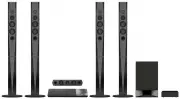 Sony BDVN9200WB
User Manual
Sony BDVN9200WB
User Manual
 Sony DAV-S400
Manual
Sony DAV-S400
Manual
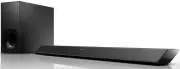 Sony HT-CT380
User Manual
Sony HT-CT380
User Manual
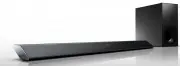 Sony HT-CT780
User Manual
Sony HT-CT780
User Manual
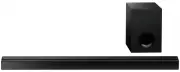 Sony HTCT80
User Manual
Sony HTCT80
User Manual
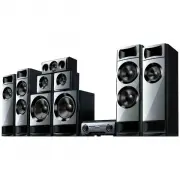 Sony HTM77
User Manual
Sony HTM77
User Manual
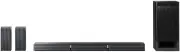 Sony HTRT3
User Manual
Sony HTRT3
User Manual
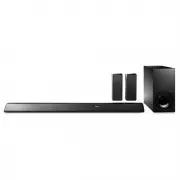 Sony HTRT5
User Manual
Sony HTRT5
User Manual
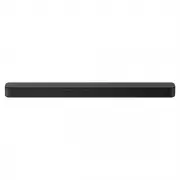 Sony HTS100F
User Manual
Sony HTS100F
User Manual
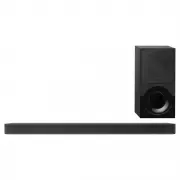 Sony HTX9000F
User Manual
Sony HTX9000F
User Manual
 Sony HTXT3
User Manual
Sony HTXT3
User Manual