Page 2 - WARNING
2 GB Do not install the appliance in a confined space, such as a bookcase or built-in cabinet. To reduce the risk of fire, do not cover the ventilation opening of the appliance with newspapers, tablecloths, curtains, etc.Do not expose the appliance to naked flame sources (for example, lighted candle...
Page 3 - This symbol on the battery
3 GB Disposal of Old Electrical & Electronic Equipment (Applicable in the European Union and other European countries with separate collection systems) This symbol on the product or on its packaging indicates that this product shall not be treated as household waste. Instead it shall be handed o...
Page 5 - Table of contents
5 GB Table of contents About These Operating Instructions ............................. 4 Listening/Viewing Listening to Sound from a TV, Blu-ray Disc™ Player, Cable/Satellite Box, etc. .................... 7 Playing Music/Photo from a USB Device ..................................... 8 Listening to ...
Page 6 - Additional Information
6 GB Further Setting for the Wireless System (Subwoofer/Surround speakers) .............................. 38 Calibrating the Appropriate Speaker Settings Automatically (Auto Calibration) ................. 39 Setting the Speakers (Speaker Settings) ................ 40 Mounting the Bar Speaker and the...
Page 7 - Press
7 GB L is tening / Viewing Listening to Sound from a TV, Blu-ray Disc™ Player, Cable/Satellite Box, etc. 1 Press HOME. The home menu appears on the TV screen. 2 Press / / / to select the desired input, and then press . You can also use INPUT on the remote control. • You can also press PAIRIN...
Page 9 - Press OPTIONS and; Sound Adjustment; Selecting the Sound Field
9 GB Sound A d ju s tment Enjoying Sound Effects (Football mode, etc.) You can easily enjoy pre-programmed sound fields that are tailored to different kinds of sound sources. Press SOUND FIELD repeatedly during playback. • You can also press CLEARAUDIO+ to select [ClearAudio+]. • You can not select ...
Page 10 - Press NIGHT repeatedly.; This helps make dialogues clearer.; Press VOICE repeatedly.; Using the Voice Function
10 GB • You can also select [Football] from the options menu (page 30). • If 5.1 channel audio stream is available, we recommend that you select it on your TV or cable/satellite box. • You can not select football mode when [Sound Effect] is not set to on (page 26). Sound is output at low volume with...
Page 11 - To cancel pairing operation; BLUETOOTH Functions
11 GB BLUE TOO T H Funct ions Listening to Music from a BLUETOOTH Device To pair the system with the device (Pairing) 1 Press PAIRING. The indicator (blue) of the Bar Speaker flashes quickly during BLUETOOTH pairing. 2 Turn on the BLUETOOTH function, and then select “HT-RT5” after searching for it o...
Page 12 - Make sure that the indicator
12 GB By holding an NFC-compatible BLUETOOTH device near to the N mark on the Bar Speaker, the system and BLUETOOTH device will pair and make a BLUETOOTH connection automatically. • Depending on your device, you may need to perform the following items on your remote device in advance.– Turn on the N...
Page 14 - – Turn off the system or the BLUETOOTH
14 GB • You can enable or disable the reception of AAC or LDAC audio from the BLUETOOTH device (page 27). • You can also switch the [Bluetooth Mode] using RX/TX on the remote control. When the BLUETOOTH device in step 5 has finished pairing and that is the most recently connected device, you can con...
Page 15 - Network Functions
15 GB N e two rk Fu n c ti o n s Connecting to a Wired Network The following illustration is an example configuration of the network.We recommend a wired connection for stable network functioning. • We recommend that you use a shielded straight interface cable (LAN cable). You can set up a wired net...
Page 16 - If using a fixed IP address
16 GB Connecting to a Wireless Network Before performing network settings When your wireless LAN router (access point) is Wi-Fi Protected Setup (WPS)-compatible, you can easily set the network settings with the WPS button.If not, you will be required to select or enter the following information. Che...
Page 17 - Select the desired device.
17 GB N e two rk Fu n c ti o n s Playing Music/Photo Files on a Home Network You can play music/photo files on other home network-compatible devices by connecting them to your home network.This system can be used as a player and renderer.• Server: Stores and shares digital media content • Player: Fi...
Page 18 - To exit mirroring
18 GB Displaying the Screen of the Mobile Device on a TV (Screen mirroring) [Screen mirroring] is a function to display the screen of a mobile device on the TV by Miracast technology.The system can be connected directly with a Screen mirroring-compatible device (e.g. smartphone, tablet). You can enj...
Page 19 - Select the desired music service.; Using Google CastTM; The music is played on the system.
19 GB N e two rk Fu n c ti o n s Enjoying Various Online Services (Music Services) You can listen to music services offered on the Internet with this system. To use this function, the system must be connected to the Internet.The operation below will display a guide to invite you to music services. F...
Page 20 - Connecting a 4K TV; Viewing Copyright-protected 4K Content
20 GB Connecting a 4K TV To view copyright-protected 4K content and listen to sound from the Bar Speaker, connect the Bar Speaker and the TV via an HDCP 2.2-compatible HDMI jack.You can only view copyright-protected 4K content through the HDCP 2.2-compatible HDMI jack connection. For details on whet...
Page 22 - Connecting 4K Devices
22 GB Connecting 4K Devices Connect a 4K device to the HDMI IN 1 jack of the Bar Speaker.For details on whether the device is HDCP 2.2-compatible, refer to the operating instructions supplied with the device. Blu-ray Disc Player, cable box or satellite box, etc. High Speed HDMI cable (not supplied) ...
Page 23 - Using the Setup Display; The home menu appears on the TV screen.; Settings and Adjustments
23 GB Set tings and Adjus tment s Using the Setup Display You can make various adjustments to items such as picture and sound.The default settings are underlined. 1 Press HOME. The home menu appears on the TV screen. 2 Press to select [Setup]. 3 Press / to select the setup category icon, and t...
Page 30 - Using the Options Menu; Common options
30 GB Runs [Easy Network Settings] to make the basic network settings. Follow the on-screen instructions. [Reset to Factory Default Settings] You can reset the system settings to the factory default by selecting the group of settings. All the settings within the group will be reset. [Initialise ...
Page 32 - Follow the instructions on SongPal.; Follow the instructions on SongPal.; Other Functions
32 GB Controlling the System Using a Smartphone or Tablet (SongPal) SongPal is a dedicated app for operating SongPal-compatible audio devices manufactured by Sony using an smartphone or tablet.Search for SongPal on Google Play or the App Store and download using your smartphone or tablet. SongPal al...
Page 33 - System Power Off
33 GB O ther Funct ions You can enjoy music stored on your computer or smartphone or from music services in multiple rooms at the same time.Refer to the following for details of SongPalhttp://www.sony.net/nasite Using the Control for HDMI Function for “BRAVIA” Sync This function is available on TVs ...
Page 34 - • If the current selected input is other
34 GB • This feature may not operate with certain devices. • If you set [Standby Through] to [Auto] or [On] (page 28), and then play back the content on a connected device when the system is in standby mode, sound and image can only be output from the TV while the system remains in standby mode. • T...
Page 35 - Notes on HDMI connections
35 GB O ther Funct ions • Be sure to set the audio output setting on your TV so that the sound can be output through this system. • The Echo Canceling Sync function is a proprietary function of Sony. This function cannot operate with devices other than those manufactured by Sony. Home Theatre Contro...
Page 36 - Changing the brightness; Press DIMMER repeatedly.; You can adjust the brightness in 3 levels.*
36 GB Deactivating Buttons on the Bar Speaker (Child Lock) You can deactivate buttons on the Bar Speaker (except for ) for preventing misoperation, such as child mischief.Be sure to use buttons on the Bar Speaker to perform this operation. Press and hold INPUT followed by VOLUME –, VOLUME +, VOL...
Page 39 - To cancel the Secure Link function; For the Bar Speaker; You can select the frequency band.; The speaker layout display appears.; Selecting the Frequency Band
39 GB O ther Funct ions To cancel the Secure Link function For the Bar Speaker Select [Off] on Step 3 above. For the subwoofer or the surround speakers Press and hold SECURE LINK on the rear of the subwoofer or the surround speakers for several seconds until the on/standby indicator on the subwoofer...
Page 40 - Auto Calibration; Check the following settings.
40 GB 7 Press . [Auto Calibration] starts.The system adjusts the speaker settings automatically.Be quiet during the measurement. • Before measurement, make sure that the speaker power is on, and confirm the position of the wireless speakers. • While [ Auto Calibration ] is in progress, do not operat...
Page 44 - Precautions
44 GB Precautions On safety • Should any solid object or liquid fall into the system, unplug the system and have it checked by qualified personnel before operating it any further. • Do not climb on the Bar Speaker, subwoofer and surround speakers as you may fall down and injure yourself, or system d...
Page 45 - Notes on updating; The BLUETOOTH; Copyrights
45 GB Addit ional I n fo rmation Disclaimer regarding services offered by third parties Services offered by third parties may be changed, suspended, or terminated without prior notice. Sony does not bear any responsibility in these sorts of situations. Notes on updating This system allows you to upd...
Page 47 - Troubleshooting; The system does not power up.; Power
47 GB Addit ional I n fo rmation Troubleshooting If you experience any of the following difficulties while using the system, use this troubleshooting guide to help remedy the problem before requesting repairs. Should any problem persist, consult your nearest Sony dealer.Be sure to bring both your Ba...
Page 48 - Sound
48 GB Images from the HDMI jack is distorted. Video from the device connected to the HDMI jack may be distorted. If this happens, set [Video Direct] to [On] (page 25). No TV sound is output from the system. Select [TV] on the home menu (page 7). Depending on the order of turning on the TV and ...
Page 49 - Press SW; USB device
49 GB Addit ional I n fo rmation Make sure that the on/standby indicator on the surround speakers is lit in green. If not, refer to “No sound is heard from the subwoofer/surround speakers.” in “Wireless sound Subwoofer/Surround Speakers” (page 51). No sound or only very low-level sound is heard fr...
Page 50 - Network connection
50 GB Connecting cannot be done. The pairing registration information has been erased. Perform the pairing operation again (page 11). Pairing cannot be achieved. Bring this system and the BLUETOOTH device closer together. Make sure this system is not receiving interference from a wireless LAN ...
Page 51 - Sound skips or has noise.
51 GB Addit ional I n fo rmation The wireless LAN connection may be unstable depending on the usage environment, especially while using the BLUETOOTH function of the system. In this case, adjust the usage environment. The wireless router you want is not shown in the wireless network list. Press ...
Page 52 - Remote control
52 GB The remote control of this system does not function. Point the remote control at the remote control sensor on the Bar Speaker (page 54). Remove any obstacles in the path between the remote control and the system. Replace both batteries in the remote control with new ones, if they are wea...
Page 53 - Sensors of the TV do not work properly.; To cancel resetting; Reset
53 GB Addit ional I n fo rmation Sensors of the TV do not work properly. The Bar Speaker may block some sensors (such as the brightness sensor), the remote control receiver of your TV, the emitter for 3D glasses (infrared transmission) of a 3D TV that supports the infrared 3D glass system, or wire...
Page 54 - Guide to Parts and Controls; Front; BLUETOOTH pairing in progress.; Bar Speaker
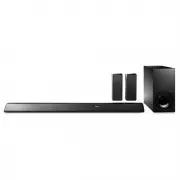
54 GB Guide to Parts and Controls Front (on/standby) button INPUT button PAIRING button VOLUME +/– buttons N mark When using the NFC function, touch your NFC device to the mark. Indicator • Flashes quickly (blue): BLUETOOTH pairing in progress. • Flashes (blue): Attempting to connect...
Page 55 - Rear; HDMI IN 1 jacks
55 GB Addit ional I n fo rmation Rear LAN (100) port HDMI OUT (ARC) jack This jack supports HDCP 2.2. HDMI IN 1 jacks This jack supports HDCP 2.2. HDMI IN 2 jack HDMI IN 3 jack ANALOG IN jack A.CAL MIC (ECM-AC3) jack DIGITAL IN (TV) jack IR BLASTER jack AC power cord (mains lead)
Page 56 - SECURE LINK button; Subwoofer
56 GB On/standby indicator (on/standby) button SECURE LINK button AC power cord (mains lead) Subwoofer
Page 57 - Surround speaker
57 GB Addit ional I n fo rmation On/standby indicator (on/standby) button SECURE LINK button AC power cord (mains lead) Surround speaker
Page 58 - and; DISPLAY; Remote Control
58 GB AUDIO, and + buttons have a tactile dot. Use the tactile dot as a reference when operating the remote control. INPUT (page 7) Selects the device you want to use. DISPLAY Displays playback and web browsing information on the TV screen. (on/standby) Turns on the system or sets it to st...
Page 59 - Selects the audio format.; Playable Types of Files; Music
59 GB Addit ional I n fo rmation / (previous/next) Selects the previous/next track or file. (play) Starts or re-starts playback (resume play). (pause) Pauses or re-starts playback. (stop) Stops playback. AUDIO (page 35) Selects the audio format. RX/TX (receiver/transmitter) Switches [Recei...
Page 60 - Supported Audio Formats
60 GB • Some files may not play depending on the file format, the file encoding, the recording condition, or the home network server condition. • Some files edited on a PC may not play.• Fast forward or fast reverse may not be available with some files. • The system does not play coded files such as...
Page 61 - Specifications
61 GB Addit ional I n fo rmation Specifications Amplifier section POWER OUTPUT (rated) Front L + Front R: 50 W + 50 W (at 4 ohms, 1 kHz, 1% THD) POWER OUTPUT (reference) Front L/Front R speaker blocks: 90 W (per channel at 4 ohms, 1 kHz)Center speaker block: 90 W (at 4 ohms, 1 kHz) Inputs HDMI IN 1*...
Page 63 - Design and specifications are subject to change without notice.
63 GB Addit ional I n fo rmation 1) YCbCr 4:2:0/Supports 8-bit only 2) Supports 8-bit only Design and specifications are subject to change without notice. Video formats supported by the systemInput/Output (HDMI Repeater block) Format 2D 3D Frame packing Side-by-Side (Half) Over-Under (Top-and- Botto...
Page 65 - Index; Numerics
65 GB Addit ional I n fo rmation Index Numerics 24p Output 24 4K Output 24 A A/V SYNC 31 Attenuation settings - Analog 25 Audio DRC 25 Audio Output 25 Audio Return Channel (ARC) 27 Audio Settings 25 Auto Calibration 39 Auto Display 28 Auto Renderer Access Permission 29 Auto Standby 28 Auto Update 28...
Page 67 - SOFTWARE LICENSE
67 GB Addit ional I n fo rmation END USER LICENSE AGREEMENT IMPORTANT: BEFORE USING THE SOFTWARE, PLEASE READ THIS END USER LICENSE AGREEMENT (“EULA”) CAREFULLY. BY USING THE SOFTWARE YOU ARE ACCEPTING THE TERMS OF THIS EULA. IF YOU DO NOT ACCEPT THE TERMS OF THIS EULA, YOU MAY NOT USE THE SOFTWARE....
Page 69 - LIMITATION OF LIABILITY
69 GB Addit ional I n fo rmation EXCLUSION OF WARRANTY ON SOFTWARE You acknowledge and agree that use of the SOFTWARE is at your sole risk and that you are responsible for use of the SOFTWARE. The SOFTWARE is provided “AS IS,” without warranty, duty or condition of any kind. SONY AND EACH OF THE THI...
Page 71 - Copyright © 2014 Sony Corporation.
71 GB Addit ional I n fo rmation Should you have any questions concerning this EULA, you may contact SONY by writing to SONY at applicable contact address of each area or country. Copyright © 2014 Sony Corporation.
Page 72 - Printed in Malaysia
* 4 5 7 0 1 1 8 2 5 * 4-570-118- 25 (1) ©2015 Sony Corporation Printed in Malaysia The software of this system may be updated in the future. To find out details on any available updates, please visit the following URL.www.sony.eu/support


 Sony HT-CT380 User Manual
 Sony HT-CT780 User Manual
 Sony HTCT80 User Manual
 Sony HTM77 User Manual
 Sony HTRT3 User Manual
 Sony HTS100F User Manual
 Sony HTX9000F User Manual
 Sony HTXT3 User Manual
 Sony STRDH590 User Manual
 Sony STRDH790 User Manual
 Sony BDV-E280 Manual
 Sony BDV-E370 Manual
 Sony BDV-E490 Manual
 Sony BDV-E880 Manual
 Sony BDV-E2100 Manual
 Sony BDV-IZ1000W Manual
 Sony BDV-N790W Manual
 Sony BDV-N9200W Manual