Page 2 - or; and of the same rating
(243) / [396] / ((396)) (463) / [612] / ((612)) (253.4) / [304.3] / ((304.3))(253,4) / [304,3] / ((304,3)) (670) / [804] / ((926)) (567,9) / [700,4] / ((822,6)) (567.9) / [700.4] / ((822.6)) (345) / [388.5] / ((422.9)) (345) / [388,5] / ((422,9)) (554) / [636] / ((705)) (498) / [575] / ((644)) (56) ...
Page 3 - OPERATION MANUAL; Contents; ENGLISH
1 OPERATION MANUAL ENGLISH Contents …………………………………………………………… 1 Dear SHARP customer …………………………………………… 2 Important Safety Precautions ………………………………… 2 Supplied accessories …………………………………………… 3 Quick guide ………………………………………………………… 3 Attaching the stand …………………………………………… 3 Setting the TV ………………………………………………… ...
Page 4 - Dear SHARP customer; Precautions when transporting the TV; Important Safety Precautions
2 Thank you for your purchase of the SHARP LCD colour TV product. To ensure safety and many years of trouble-free operation of your product, please read the Important Safety Precautions carefully before using this product. Dear SHARP customer • Cleaning—Unplug the AC cord from the AC outlet before c...
Page 5 - Remote control unit (; Attaching the stand; Confirm the 8 screws supplied with the TV.; NOTE
3 Supplied accessories Quick guide Remote control unit ( g 1) AC cord ( g 1) Pages 5 and 6 Product shape varies in some countries. Page 4 • “AAA” size battery ( g 2) ...... Page 5 Cable clamp ( g 1) Page 4 Cable tie ( g 1) Page 4 3 RCA to 15-pin D-sub adapter ( g 1) Page 9 • Operation manual (This p...
Page 6 - Quick guide; Setting the TV; Bundling the cables
4 Quick guide Setting the TV Bundling the cables Setting the TV on the wall • Installing the LCD Colour TV requires special skill that should only be performed by qualified service personnel.Customers should not attempt to do the work themselves. SHARP bears no responsibility for improper mountingor...
Page 7 - CAUTION; Press and slide the battery cover to open it.; Close the battery cover.; Inserting the batteries; Cautions regarding the remote control unit; • Do not expose the remote control unit to shock.
5 Quick guide CAUTION Improper use of batteries can result in chemical leakage or explosion. Be sure to follow the instructions below.• Do not mix batteries of different types. Different types of batteries have different characteristics.• Do not mix old and new batteries. Mixing old and new batterie...
Page 8 - Remote control unit; Using; Press
6 Remote control unit Quick guide 1 2 3 4 7 9 10 15 16 12 8 56 11 14 17 13 18 19 21 27 29 30 2223 25 24 28 26 20 1 B (Standby/On) Enter standby mode or turn on thepower. (See page 8.) 2 m (Teletext) Select the TELETEXT mode. (all TVimage, DTV/DATA image, all TEXTimage, TV/TEXT image) (See pages21 an...
Page 10 - Turning on the power; Standby mode; numeric buttons; OK; You do not need to do anything during the auto search.
8 Quick guide Turning on the power Press a on the TV or B on the remote control unit. NOTE • If you are not going to use this TV for a long period of time, be sure to remove the AC cord from the power outlet. • Weak electric power is still consumed even when a is turned off. • In DTV input mode, if ...
Page 11 - Using external equipment; Setting the input source; To view external source images, select the input source using; Connecting a VCR; Connecting a DVD player
9 Using external equipment Setting the input source To view external source images, select the input source using b on the remote control unit or TV. NOTE • The cables marked with * are commercially available items. Connecting a VCR You can use the EXT 1 or 2 terminals when connectinga VCR and other...
Page 12 - One Touch Play; Using AV Link function; Use the EXT 4 terminals to connect a PC.; PC; Connecting a decoder; Decoder
10 Using external equipment NOTE • The cables marked with * are commercially available items. • The PC input terminals are DDC1/2B-compatible.• Refer to page 33 for a list of PC signals compatible with the TV. • Macintosh adaptor may be required for use for some Macintosh computers. • When connectin...
Page 13 - Menu operations; Example; Item displayed in yellow; Menu operation buttons
11 MENU [Option ... Colour System] Option Audio Only DNR Input Select Quick Shoot Colour System [On] [Off] [CVBS] [AUTO] Demo Menu operations On-Screen Display Example 1 Item displayed in yellow • This indicates the item currently selected. 2 Item in brackets • This indicates the current setting for...
Page 14 - Common operations
12 MENU [Picture] Picture Audio Contrast OPC AV Mode [STANDARD] [Off] Brightness Colour Tint Sharpness Advanced Reset [+30] [0] [0] [0] [0] 0 –30 –30 –30 –10 +40 +30 +30 +30 +10 Backlight [+6] –8 +8 Menu Operation: B 1 Press MENU and the MENU screen displays. 2 Press c / d to select the desired menu...
Page 15 - Picture menu; TitleB; OPC; Automatically adjust the brightness of the screen.; AV Mode; Picture adjustments
13 Picture menu TitleB Menu operations MENU [Picture] Picture Audio Contrast OPC AV Mode [STANDARD] [Off] Brightness Colour Tint Sharpness Advanced Reset [+30] [0] [0] [0] [0] 0 –30 –30 –30 –10 +40 +30 +30 +30 +10 Backlight [+6] –8 +8 Off: The brightness is fixed at the value set in Backlight. On: A...
Page 16 - For viewing a video in monochrome.; Film Mode; Audio menu; Audio adjustments; Surround
14 Menu operations Black For easier viewing, change the viewing depth byselecting a level for automatically adjusting the darkportion of an image. 3D-Y/C Provide high quality images with minimal dot crawl andcross colour noise by detecting changes in the image. Off: No detecting Standard: Normal adj...
Page 17 - Setup menu; Auto Installation; Power Control menu; No Signal Off; No Operation Off
15 Setup menu Auto Installation You can run Auto Installation again, even after settingup the preset channels. 1 Press MENU and the MENU screen displays. 2 Press c / d to select “Setup”. 3 Press a / b to select “Auto Installation”, and then press OK . If you have already set the PIN under “Child Loc...
Page 18 - Manual Adjust; Sort
16 Manual Adjust You can set some channel items manually. 1 Press MENU and the MENU screen displays. 2 Press c / d to select “Setup”. 3 Press a / b to select “Programme Setup”, and then press OK . If you have already set the PIN under “Child Lock”,enter it here. • See page 17 for setting PIN. 4 Pres...
Page 19 - Child Lock; Changing the PIN; Resetting the PIN; Allow you to reset your PIN to the factory preset “1234”.; • See page 32 for resetting the current PIN to the factory; Input Label; You can assign each input source a label you like.
17 Child Lock Allow you to use a PIN to protect certain settings frombeing accidentally changed. Changing the PIN 1 Press MENU and the MENU screen displays. 2 Press c / d to select “Setup”. 3 Press a / b to select “Child Lock”, and then press OK . New PIN – – – Reconfirm – – – – – Change PIN Reset 4...
Page 20 - Position; You can set the orientation of the picture.; ABC; Language; Option menu; Audio Only
18 Menu operations WSS (Wide Screen Signalling) Menu Operation: A (Page 12) WSS allows a television to switch automatically amongthe different screen formats. NOTE • Use WIDE MODE if an image does not switch to the correct screen format. When the broadcast signal contains noWSS information, the func...
Page 21 - HDMI Setup; Colour System; For setting the signal type of external equipment.; Demo; I n p u t S o u rc e :; Input source
19 Menu operations HDMI Setup HDMI (High-Definition Multimedia Interface) terminalselection. 1 To watch an HDMI equipment image, select“EXT5” from “INPUT SOURCE” menu using b on the remote control unit or TV. 2 Press MENU and the MENU screen displays. 3 Press c / d to select “Option”. 4 Press a / b ...
Page 22 - Manual Selection; Auto Selection; Useful features; WIDE MODE; You can select the picture size.; EXAMPLE; Normal; Item
20 4:3 Mode set to “Normal” NOTE • If the signal contains no WSS information, Auto Selection will not function even when the WSS option is enabled. WIDE MODE You can select the picture size. Selectable picture sizevaries with the type of signal received. 4:3 Mode set to “Panorama” Normal: For 4:3 “s...
Page 23 - Teletext function; Turning on and off Teletext; Time display; Still image; You can freeze a motion picture on the screen.; Button functions
21 Teletext function What is Teletext? Te l e t e x t b r o a d c a s t s p a g e s o f i n f o r m a t i o n a n dentertainment to specially equipped television sets.Your TV receives Teletext signals broadcast by a TVnetwork, and decodes them into graphical format forviewing. News, weather and spor...
Page 24 - DTV On-Screen Display; DTV menu operations; DTV menu operation buttons; RADIO
22 DTV On-Screen Display Example 1 Language • To customise the language preference for audio and MHEG5 application. 2 Programme Setup • To configure various settings for each service. These include: Fav(ourite), Lock, Move, Move To, Skip,Select, Erase, Label, and View functions. 3 Installation • To ...
Page 25 - About using the character set screen; While in the input area:; Programme Setup; numeric buttons to access each; Available language list; * Languages available for MHEG5 service; Y E L L OW
23 DTV menu operations About using the character set screen I n s o m e c a s e s y o u m a y b e p ro m p t e d t o e n t e rcharacters. See below for details. Sample Alpha Numerical Character Set screen Alpha Numerical Character Set OK END Select FAV ! ~ # $ % & ‘ ( ) * + , - . / 0 1 2 3 4 5 6...
Page 26 - Assign services to 4 different favourite groups.; END
24 DTV menu operations Favourite Assign services to 4 different favourite groups. 1 Press a / b to select the desired service. 2 Press on the remote control. A selection box displays. 3 Press a / b to register the selected service to any of the 4 favourite groups (None, Fav 1 ... Fav 4)and then pres...
Page 27 - Label; Change individual service names.; Erase; View; Tune to the service shown in the picture window.; Installation; on page 8 for details.
25 Label Change individual service names. 1 Press a / b to select the desired service. 2 Press on the remote control. A character set screen displays. 3 Enter new name for the service. See page 23 foroperations using the character set screen. Erase Erase the selected service(s) from the memory. 1 Pr...
Page 28 - Carrier Setup; System Setup; Configure On-Screen Display and Child Lock settings.; OSD Setup
26 DTV menu operations Carrier Setup This is provided for you to rename (label), erase, orre-scan carriers. “Carrier” in this context refers to aservice station that provides a set of individualservices. 1 Press c / d to select “Installation”. 2 Press a / b to select “Carrier Setup”, and then press ...
Page 29 - Accessories
27 DTV menu operations Child Lock This function allows TV and Radio services to berestricted. It prevents children from watching violentor sexual scenes that may be harmful. 1 Press c / d to select “System Setup”. 2 Press a / b to select “Child Lock”, and then press OK . 3 If you have already set th...
Page 30 - Inserting a CA card; Supplying power to the antenna; Common Interface; O K
28 DTV menu operations Inserting a CA card A s i n g l e D V B C o m m o n I n t e r f a c e ( C I ) w i l l b eimplemented to allow adoption of a Conditional Access(CA) system by means of a plug-in CA module.Scrambled Broadcasting service can be routed via theCA system.If the CA system on the CI mo...
Page 31 - About EPG; Using the EPG; Using the EPG Timer; GREEN
29 Useful features (DTV) About EPG With the Electronic Programme Guide (EPG), you cancheck the schedule of DTV and Radio events, viewdetailed information about them, tune to an eventcurrently on-air and set a timer for future events. General EPG screen *** EPG Sun 16/04/2005 07:05:11 Sun 16/04/2005 ...
Page 32 - Using the ESG; numeric buttons or; Viewing a service banner; Currently tuned service
30 Useful features (DTV) ESG Sun 16/04/2005 07:05:11 Sun 16/04/2005 07:05:11 Services Current Event 070 BBC News 07:00 – 07:30 The Bold and Beautiful BBC News The Bold and Beautiful *** *** *** BBC 1 BBC 2 CBBC Channel Page l Page k Select i+ END OK DTV MENU RADIO TV/Radio 7 BBC 1 07:4504/11/2005MHE...
Page 33 - Using the multi audio function
31 Useful features (DTV) Multi Audio S.No Language Code 1 Eng 2 Fre 3 Ger 4 Fin MPEG2 MPEG2 MPEG2 1212 1213 1214 PID 1211 Audio Type MPEG2 Stereo Audio Mode Select OK END DTV MENU 2 Press a / b to select “Language”, c / d to select the desired language available in the stream, andthen press b . 3 Se...
Page 34 - SLEEP; Troubleshooting; Appendix; IMPORTANT NOTE ON RESETTING THE PIN; Repeat steps 1 to 3 in; Enter “3001” to cancel out the current PIN.; Problem
32 • Check if you pressed B on the remote control unit. (See page 8.) If the indicator on the TV lights up red, press B . • Is the AC cord disconnected? (See page 4.)• Check if you pressed a on the TV. (See page 8.) • External influences such as lightning, static electricity, etc., may cause imprope...
Page 35 - PC compatibility chart; Communication procedure; Command format; RS-232C port specifications; PC Control of the TV; • When a program is set, the TV can be controlled; None
33 Appendix PC compatibility chart Resolution Horizontal Frequency Vertical Frequency VESA Standard 640 g 480 VGA 31.5 kHz 60 Hz ✓ 800 g 600 SVGA 37.9 kHz 60 Hz ✓ 1024 g 768 XGA 48.4 kHz 60 Hz ✓ Communication procedure Send the control commands from the PC via the RS-232C connector.The TV operates a...
Page 36 - Rating table for Child Lock; Broadcasted
34 Appendix Commands P I I I I I D D C C D D D D I I I I I I I I I I I I I A A A A A A A V V POWER OFF INPUT SWITCHING (Toggle) TV (CHANNEL FIXED) DTV (CHANNEL FIXED) EXT1 – 5 (1 – 5) 1 to 5, ERR (TV/DTV) TV DIRECT CHANNEL (1 – 99) 1 to 99 CHANNEL UP CHANNEL DOWN DTV DIRECT CHANNEL (1 to 999) 1 to 9...
Page 37 - Specifications; Part name; Optional accessories
35 Item 26 o LCD COLOUR TV, Model: LC-26P70E Video Colour System PAL/SECAM/NTSC 3.58/NTSC 4.43/PAL 60 TVFunction CCIR (B/G, I, D/K, L, L’) TV-Standard Specifications LCD panel 26 o Advanced Super View & BLACK TFT LCD Number of dots 1,555,200 dots (960 g 540 g 3 dots) • As a part of policy of con...
Page 40 - PIN
LCD COLOUR TELEVISIONLCD-FARBFERNSEHGERÄTTÉLÉVISION COULEUR À ÉCRANÀ CRISTAUX LIQUIDES (LCD)TELEVISORE A COLORI LCDLCD-KLEURENTELEVISIETELEVISIÓN EN COLOR LCD OPERATION MANUALBEDIENUNGSANLEITUNGMODE D’EMPLOIMANUALE DI ISTRUZIONIGEBRUIKSAANWIJZINGMANUAL DE MANEJO LC-26P70E LC-32P70E LC-37P70E Printed...


 Sharp 2T-C42BD1X
User Manual
Sharp 2T-C42BD1X
User Manual
 Sharp 2T-C42BG1X
User Manual
Sharp 2T-C42BG1X
User Manual
 Sharp 32BI3EA
User Manual
Sharp 32BI3EA
User Manual
 Sharp 32CB5E
User Manual
Sharp 32CB5E
User Manual
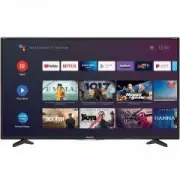 Sharp 40CI1EA
User Manual
Sharp 40CI1EA
User Manual
 Sharp 4T-C50EL8UR
User Manual
Sharp 4T-C50EL8UR
User Manual
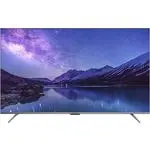 Sharp 4T-C65DL6
User Manual
Sharp 4T-C65DL6
User Manual
 Sharp 4T-C65FV1U
User Manual
Sharp 4T-C65FV1U
User Manual
 Sharp 4T-C75EL8UR
User Manual
Sharp 4T-C75EL8UR
User Manual
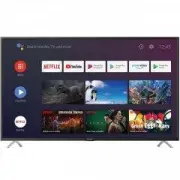 Sharp 55BL3EA
User Manual
Sharp 55BL3EA
User Manual
 Sharp 55BN5EA
User Manual
Sharp 55BN5EA
User Manual
 Sharp 55CFG6352E
User Manual
Sharp 55CFG6352E
User Manual
 Sharp 70CL5EA
User Manual
Sharp 70CL5EA
User Manual
 Sharp Aquos 32BC4E
User Manual
Sharp Aquos 32BC4E
User Manual
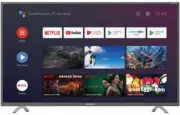 Sharp Aquos 40BL2EA
User Manual
Sharp Aquos 40BL2EA
User Manual