Page 2 - Contents; Safety information; Charging
ENGLISH- 02 Contents 03 Safety information 08 Installation Accessories / Installation note 10 Charging Automatic charging / Recharging / Low battery (Lo) 12 Using POWERbot Turning the power on/off / Selecting cleaning modes / Using special cleaning functions 16 Using the remote control 19 Name of ea...
Page 3 - SAFETY INFORMATION
ENGLISH- 03 Safety information SAFETY INFORMATION WARNING • Before operating the appliance, please read this manual thoroughly and retain it for your reference. WARNING • Because these following operating instructions cover various models, the characteristics of your vacuum cleaner may differ slight...
Page 6 - Power related; In use; Before use
ENGLISH- 06 WARNING Power related f Please prevent any risk of electric shock or fire. – Do not damage the power cord. – Do not pull the power cord too hard or touch the power plug with wet hands. – Do not use a power source other than 100- 240 V~ and also do not use a multi outlet to supply power t...
Page 8 - Installation; The docking station must be plugged in and turned on at all times.
ENGLISH- 08 DC-IN 1 Connect the battery charger jack to the docking station 2 Connect the power cord to the battery charger When using the battery charger, the side with the sticker attached must face down. 3 Connect the power plug to the outlet Installation The docking station must be plugged in an...
Page 9 - Accessories; Installation note; Note
ENGLISH- 09 Accessories or Remote control (Not included with SR10M701 ✴✴✴ Series ) Batteries (AAA type) User manual Spare filter (Option) Docking station Power cord Battery charger Boundary markers (Option) ✻ ✻ Refer to page 15 for the installation of boundary markers. ✻ ✻ Battery SpecSR10M70 ✴✴✴✴ s...
Page 11 - Automatic charging; Steps to take if recharging not occuring:
ENGLISH- 11 1. SR10M701 ✴✴✴ Series If the battery indicator blinks at 0.4 sec. intervals, the POWERbot will automatically return to the docking station to be charged. 2. SR10M70 ✴✴✴✴ / SR2070 ✴✴✴✴ Series When the battery indicator blinks during cleaning, the POWERbot will return to the docking stati...
Page 12 - Using POWERbot; Turning the power on/off; Starting Auto clean mode
ENGLISH- 12 Using POWERbot You must turn on the emergency switch on the bottom of the unit before using POWERbot. Turning the power on/off Press the button for more than 3 seconds Starting Auto clean mode Press and release this button. The POWERbot moves and automatically cleans the set areas only o...
Page 13 - Selecting cleaning modes
ENGLISH- 13 Selecting cleaning modes Cleaning mode How to select Displayed icon SR10M702 ✴✴✴ SR10M703 ✴✴✴ SR20M70 ✴✴✴✴ SR10M701 ✴✴✴ Auto clean Spot clean Repeat clean ✻ ✻ Press the [A,B type ], [C,D type ] on the remote controller first and then press the [Start/Stop ]. - Manual clean ✻ ✻ Manual c...
Page 14 - Cleaning method for each modes; Using special cleaning functions
ENGLISH- 14 Cleaning method for each modes About 1.5 m Abou t 1.5 m Auto clean Automatically cleans the set areas only once. ✻ ✻ SR10M701 ✴✴✴ series : Cleans repeatedly until the battery is depleted. Spot clean Cleans a localized area intensely. It can be used to clean bread or cookie crumbs. Manual...
Page 15 - About the boundary markers
ENGLISH- 15 About the boundary markers To prevent the POWERbot from entering the following areas, attach the boundary markers on the floor in the shape at an interval of about 15 cm. About 15 cm Boundary markers About 5 cm About 15 cm Boundary markers where a raised spot is below 5 cm where there is...
Page 16 - Using the remote control
ENGLISH- 16 Using the remote control [C Type] [D Type] 1 1 3 3 5 5 2 2 Refer to page 22 Refer to page 22 4 4 4 4 6 6 [A Type] [B Type] 1 1 1, 2 1, 2 1, 2 1, 2 3 3 5 5 Refer to page 21 Refer to page 21 2 2 4 4 VR7000_EN_DJ68-00763D-05_SA.indd 16 2017-05-19 오후 5:30:56
Page 18 - Manual clean mode & Direction control; Move forward; Point cleaning; Inserting batteries
ENGLISH- 18 5 Manual clean mode & Direction control Move forward Select to move forward Turn left Select to turn left Turn right Select to turn right ✻ ✻ Moving backward is not available. 6 Point cleaning Available only with C, D type remote controllers. You can use the remote control to point a...
Page 19 - Name of each part; Top
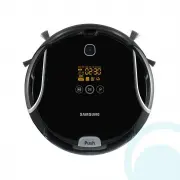
ENGLISH- 19 Name of each part 1 4 2 2 6 5 3 7 8 Top 1. Display panel2. Remote control signal receiver3. Obstacle sensor4. Dustbin5. Camera6. Dustbin button7. Bumper sensor8. Auto shutter tool 5 5 4 2 3 4 10 7 4 8 9 6 1 Bottom 1. Charge pins2. Brush3. Brush cover4. Cliff sensor5. Roller6. Battery cov...
Page 21 - Setting time/schedule; Setting the time; Setting the schedule; Cancelling during setup
ENGLISH- 21 Setting time/schedule [A Type, B Type] Only Auto clean mode can be scheduled. Setting the time You must set the current time before using the One-time/daily schedule. Start setting Select "Hour" Select "Minute" Select "AM/PM" Setting complete Skip to previous, nex...
Page 23 - Cancelling daily schedule
ENGLISH- 23 [SR10M701 ✴✴✴ series] For the models which do not include a remote controller, schedule setting is available as below. Setting the schedule Setting/cancelling the schedule can only be done while POWERbot is docked on the docking station. Press for 3 sec. When the schedule LED is turned o...
Page 24 - Cleaning and maintaining; Cleaning the dustbin
ENGLISH- 24 Cleaning and maintaining You must turn off the emergency switch before cleaning POWERbot. Cleaning the dustbin 1 Press the button to remove the dustbin 2 Remove the dustbin cover 3 Remove dust in the dustbin and cyclone unit 'Click' 4 Detach the cyclone unit from the dustbin cover, and t...
Page 25 - Cleaning the brush and Auto shutter tool; Cleaning the Driving wheel
ENGLISH- 25 Cleaning the brush and Auto shutter tool Brush design may differ depending on the model. 1 Remove the brush cover 2 Remove the brush 3 Clean the brush 4 Clean the auto shutter tool 5 Reassemble the brush 6 Reassemble the brush cover Cleaning the Driving wheel 1 Put a soft cloth on the fl...
Page 26 - Samsung Connect App; Setting up the wireless router
ENGLISH- 26 Samsung Connect App The Samsung Connect App is only compatible with models that have a Wi-Fi function. Setting up the wireless router f Please refer to the user manual of your wireless router if you have access problems. f Samsung POWERbot supports only Wi-Fi 2.4 Ghz. f Samsung POWERbot ...
Page 27 - Downloading the Samsung Connect App; Setting up a Samsung account
ENGLISH- 27 Downloading the Samsung Connect App f Download and install the Samsung Connect app from the markets (Google Play Store, Apple App Store, or Samsung Galaxy Apps). To find the app, use the keyword “Samsung Connect”. Note f The Samsung Connect app requires Android OS 6.0 (marshmallow) or la...
Page 28 - Adding a device to the Samsung Connect APP
ENGLISH- 28 Adding a device to the Samsung Connect APP 1. Connect your smartphone to your wireless router.2. Launch the Samsung Connect app on your smartphone.3. If a pop-up saying that a new device has been found appears, tap ADD NOW. – If the pop-up doesn’t appear, tap the + button and select the ...
Page 30 - Using; Cleaning and maintenance; Notes and cautions
ENGLISH- 30 Charging Note f If the battery overheats during charging, it may take longer to charge. f When automatic charging is not working, do the following: – Turn the emergency switch (on the bottom of POWERbot) off and on again. – Unplug the docking station's power plug and then plug it back on...
Page 31 - About the battery; About the IrDA sensor; Caution
ENGLISH- 31 f Since the brush removes dirt from the floor during cleaning, foreign matter such as thread, long hair, etc. may get caught in it. For the best cleaning results, check and clean it regularly. About the battery Note f Purchase batteries at authorized Samsung centers and check for the sym...
Page 32 - Information codes
ENGLISH- 32 Information codes <SR10M701 ✴✴✴ series> 1 The three indicators below blink and an information codes alarm sounds. 2 Turn off the emergency switch and check the below instructions and take appropriate action 3 Information code will disappear when you turn on the emergency switch Inf...
Page 34 - Troubleshooting; Symptom
ENGLISH- 34 Troubleshooting Symptom Checklist The POWERbot is not working at all. f Check if the emergency switch is on. f Check if all the icons are displayed on the display panel. f Check if the POWERbot's battery is depleted. – When "Lo" is displayed, place the POWERbot on the docking sta...
Page 36 - Open Source Announcement
ENGLISH- 36 Open Source Announcement The software included in this product contains open source software. You may obtain the complete corresponding source code for a period of three years after the last shipment of this product by sending an email to mailto:[email protected]. It is also possible to ...
Page 37 - Specifications
ENGLISH- 37 Specifications <SR10M70 ✴✴✴✴ series> Classification Item Detail information SR10M701 ✴✴✴ SR10M702 ✴✴✴ SR10M703 ✴✴✴ Mechanical specifications (POWERbot) Size (D x H x L) 340 mm x 97 mm x 348 mm Weight 4 kg Sensor Ceiling shape recognition (Visionary mapping plus TM) Button type of P...
Page 38 - Memo
ENGLISH- 38 Memo VR7000_EN_DJ68-00763D-05_SA.indd 38 2017-05-19 오후 5:31:05