Page 2 - Front Panel; Contents; Connections
2 Contents Front Panel ≫ Rear Panel ≫ Remote ≫ Contents ≫ Connections ≫ Playback ≫ Setup ≫ Table of contents What’s in the box 4 Additional Function (Firmware Update) 5 Update Information of the firmware 5 Operation of added new functions 5 Firmware Update Procedure 6 Part Names 8 Front Panel 8 Disp...
Page 3 - Setup; Setup Menu; Troubleshooting; When the unit is operating erratically; Appendix; About HDMI
3 Front Panel ≫ Rear Panel ≫ Remote ≫ Contents ≫ Connections ≫ Playback ≫ Setup ≫ Speaker Layouts and Selectable Listening Modes 56 Listening Mode Effects 58 Input Formats and Selectable Listening Modes 62 Setup Setup Menu 67 Menu list 67 Menu operations 69 1. Input/Output Assign 70 2. Speaker 73 3....
Page 5 - Update Information of the firmware; Operation of added new functions; Supplementary Information; Firmware Update Procedure (
5 Front Panel ≫ Rear Panel ≫ Remote ≫ Contents ≫ Connections ≫ Playback ≫ Setup ≫ Additional Function (Firmware Update) This unit is equipped with a function to update the firmware via USB port when the firmware update is announced after purchase. This enables various functions to be added and opera...
Page 6 - Disclaimer; Updating the Firmware via USB; Update
6 Front Panel ≫ Rear Panel ≫ Remote ≫ Contents ≫ Connections ≫ Playback ≫ Setup ≫ Firmware Update Procedure Approx. 30 minutes are required for updating. Existing settings are kept after updating. Disclaimer : The program and accompanying online documentation are furnished to you for use at your own...
Page 7 - If an Error Message is Displayed
7 Front Panel ≫ Rear Panel ≫ Remote ≫ Contents ≫ Connections ≫ Playback ≫ Setup ≫ 6. Select "7. Miscellaneous" - "Firmware Update" - "Update via USB" with the cursors in order, then press ENTER. Setup 1. Input/Output Assign 2. Speaker 1. Tuner 4. Lock 2. Firmware Update3. Ini...
Page 8 - Part Names
8 Contents ≫ Connections ≫ Playback ≫ Setup ≫ Front Panel ≫ Rear Panel ≫ Remote ≫ Part Names Front Panel ❏ For details, see ( p9 )
Page 11 - Rear Panel
11 Contents ≫ Connections ≫ Playback ≫ Setup ≫ Front Panel ≫ Rear Panel ≫ Remote ≫ Rear Panel ❏ For details, see ( p12 )
Page 13 - Remote Controller
13 Contents ≫ Connections ≫ Playback ≫ Setup ≫ Front Panel ≫ Rear Panel ≫ Remote ≫ Remote Controller 1. STANDBY/ON button 2. PERSONAL PRESET 1/2/3 buttons: Registers the current setting conditions such as input selector, listening mode, etc. or call the registered settings. ( p48 ) 3. Input selector...
Page 15 - Connecting speakers; Yes
15 Front Panel ≫ Rear Panel ≫ Remote ≫ Contents ≫ Connections ≫ Playback ≫ Setup ≫ - Connecting Speakers Connecting speakers You can select the layout of speakers to be installed from various patterns when using this unit. Use the following flow chart to select the speaker layout that suits your spe...
Page 16 - Speaker Layouts and Selectable Listening
16 Front Panel ≫ Rear Panel ≫ Remote ≫ Contents ≫ Connections ≫ Playback ≫ Setup ≫ Speaker Installation 5.1 Channel System a b 1 2 4 5 3 6 a: 22° to 30°, b: 120° This is a basic 5.1 Channel System. Front speakers output the front stereo sound, and a center speaker outputs the sound of the center o...
Page 18 - Front High Speakers/Rear High Speakers
18 Front Panel ≫ Rear Panel ≫ Remote ≫ Contents ≫ Connections ≫ Playback ≫ Setup ≫ 5.1.2 Channel System A 5.1.2 Channel System is a speaker layout consisting of the basic 5.1 Channel System ( p16 ) and added height speakers. Select the height speakers that suit your speakers and usage environment ...
Page 19 - or more
19 Front Panel ≫ Rear Panel ≫ Remote ≫ Contents ≫ Connections ≫ Playback ≫ Setup ≫ ❏ Front High Speakers/Rear High Speakers Installation Example a b 7 8 7 8 a: 22° to 30°, b: 120° 3´ (0.9 m) or more 3´ (0.9 m) or more This is a system with the basic 5.1 channel system ( p16 ) consisting of front spe...
Page 20 - Ceiling Speakers Installation Example
20 Front Panel ≫ Rear Panel ≫ Remote ≫ Contents ≫ Connections ≫ Playback ≫ Setup ≫ ❏ Ceiling Speakers Installation Example a b c 7 8 8 8 7 7 a: 30° to 55°, b: 65° to 100°, c: 125° to 150° This is a system with the basic 5.1 channel system ( p16 ) consisting of front speakers, a center speaker, surro...
Page 21 - Installation Example
21 Front Panel ≫ Rear Panel ≫ Remote ≫ Contents ≫ Connections ≫ Playback ≫ Setup ≫ ❏ Dolby Enabled Speakers (Dolby Speakers) Installation Example a b 7 8 7 8 a: 22° to 30°, b: 120° This is a system with the basic 5.1 channel system ( p16 ) consisting of front speakers, a center speaker, surround spe...
Page 22 - Connect the Speaker Cables
22 Front Panel ≫ Rear Panel ≫ Remote ≫ Contents ≫ Connections ≫ Playback ≫ Setup ≫ Speaker Connections and "Speaker Setup" Settings Connections (Note) Speaker Impedance Connect speakers with an impedance of 4 Ω to 16 Ω. If any of the speakers to be connected has an impedance of 4 Ω or more...
Page 23 - Connect the Subwoofer
23 Front Panel ≫ Rear Panel ≫ Remote ≫ Contents ≫ Connections ≫ Playback ≫ Setup ≫ Connect the Subwoofer a a Subwoofer cable Connect a powered subwoofer with this unit using a subwoofer cable. Up to two powered subwoofers can be connected. The same signal is output from each SUBWOOFER PRE OUT jack...
Page 25 - ZONE B
25 Front Panel ≫ Rear Panel ≫ Remote ≫ Contents ≫ Connections ≫ Playback ≫ Setup ≫ 5.1 Channel System + ZONE B SPEAKER ZONE B 7 8 MAIN ROOM (ZONE A) 1 2 4 5 3 6 MAIN ROOM (ZONE A): This is a basic 5.1 Channel System. For details of the speaker layout, refer to "Speaker Installation" ( p16 ...
Page 31 - TV
31 Front Panel ≫ Rear Panel ≫ Remote ≫ Contents ≫ Connections ≫ Playback ≫ Setup ≫ To ARC TV If the TV supports the ARC (Audio Return Channel) function (*), use only the HDMI cable to connect with the TV. Use the ARC-compatible HDMI IN jack of the TV for connection. Setup • Settings are required to ...
Page 33 - Streaming media
33 Front Panel ≫ Rear Panel ≫ Remote ≫ Contents ≫ Connections ≫ Playback ≫ Setup ≫ Connecting Playback Devices Connecting an AV Component with HDMI Jack Mounted This is a connection example of an AV component equipped with an HDMI jack. When connecting with an AV component that conforms to the CEC (...
Page 34 - OR; CD
34 Front Panel ≫ Rear Panel ≫ Remote ≫ Contents ≫ Connections ≫ Playback ≫ Setup ≫ Connecting an Audio Component This is a connection example of an audio component. Connect a CD player using a digital coaxial cable or analog audio cable. a Analog audio cable, b Digital coaxial cable a b OR CD
Page 38 - Playback
38 Playback Front Panel ≫ Rear Panel ≫ Remote ≫ Contents ≫ Connections ≫ Playback ≫ Setup ≫ Playback AV Component Playback 39 BLUETOOTH ® Playback 40 Listening To the AM/FM Radio 41 ZONE B Playback 46 Convenience functions 48 Listening Mode 53
Page 39 - Input selector; Inputs; INPUT; TV’s REMOTE
39 Front Panel ≫ Rear Panel ≫ Remote ≫ Contents ≫ Connections ≫ Playback ≫ Setup ≫ AV Component Playback You can play the audio from AV components, such as Blu-ray disc players through this unit. Basic Operations Perform the following procedure when this unit is on. 1. Switch the input on the TV to ...
Page 40 - Pairing
40 Front Panel ≫ Rear Panel ≫ Remote ≫ Contents ≫ Connections ≫ Playback ≫ Setup ≫ BLUETOOTH ® Playback You can wirelessly play the audio on a BLUETOOTH-enabled device, such as a smartphone. Basic Operations Perform the following procedure when this unit is on. Pairing 1. When you press the BLUETOOT...
Page 41 - Tuning Automatically; TUNER
41 Front Panel ≫ Rear Panel ≫ Remote ≫ Contents ≫ Connections ≫ Playback ≫ Setup ≫ Listening To the AM/FM Radio You can receive AM and FM radio stations on this unit with the built-in tuner. Tuning into a Radio Station Perform the following procedure when this unit is on. Tuning Automatically 1. Pre...
Page 42 - When FM broadcasts reception is poor:; Tuning Manually; Frequency step setting; Presetting a Radio Station (
42 Front Panel ≫ Rear Panel ≫ Remote ≫ Contents ≫ Connections ≫ Playback ≫ Setup ≫ When FM broadcasts reception is poor: Perform the procedure for "Tuning Manually" ( p42 ). Note that if you tune manually, the reception for FM broadcasts will be monaural rather than stereo, irrespective of t...
Page 43 - Registration Procedure; CLEAR
43 Front Panel ≫ Rear Panel ≫ Remote ≫ Contents ≫ Connections ≫ Playback ≫ Setup ≫ Presetting a Radio Station Registration Procedure You can preset up to 40 of your favorite AM/FM radio stations.After tuning in to the AM/FM radio station you want to register, perform the following procedure. 1. Pres...
Page 44 - Selecting a Preset Radio Station; Using RDS (European, Australian and Asian
44 Front Panel ≫ Rear Panel ≫ Remote ≫ Contents ≫ Connections ≫ Playback ≫ Setup ≫ Selecting a Preset Radio Station 1. Press TUNER. 2. Press the cursors / to select a preset number. Deleting a Preset Radio Station 1. Press TUNER. 2. Press the cursors / to select the preset number to delete. 3. After...
Page 45 - Search for Stations by Program Type
45 Front Panel ≫ Rear Panel ≫ Remote ≫ Contents ≫ Connections ≫ Playback ≫ Setup ≫ Using RDS (European, Australian and Asian models) RDS stands for Radio Data System, and is a method of transmitting data in FM radio signals. In regions where RDS can be used, when you tune in to a radio station broad...
Page 48 - Registration; PERSONAL
48 Front Panel ≫ Rear Panel ≫ Remote ≫ Contents ≫ Connections ≫ Playback ≫ Setup ≫ Convenience functions Using PERSONAL PRESET Registration You can register settings ( p49 ) such as the current input selector and listening mode with the three PERSONAL PRESET buttons, and call a registered setting in...
Page 49 - Settings that can be registered; Using the registered settings; Checking the registered settings
49 Front Panel ≫ Rear Panel ≫ Remote ≫ Contents ≫ Connections ≫ Playback ≫ Setup ≫ Settings that can be registered The following settings can be registered with PERSONAL PRESET. – Input selector (AM/FM radio stations can also be registered.) – Listening mode – Volume level (Upper limit "-32 dB&#...
Page 50 - Adjusting TREBLE/BASS; Adjusting DIALOG; Adjusting SUBWOOFER; TONE
50 Front Panel ≫ Rear Panel ≫ Remote ≫ Contents ≫ Connections ≫ Playback ≫ Setup ≫ Adjusting the tone Adjusting TREBLE/BASS You can adjust the sound quality of the speakers. 1. Press TONE repeatedly to select Treble or Bass and adjust the content. Treble: Enhances or moderates the high-tone range of...
Page 53 - SURR
53 Front Panel ≫ Rear Panel ≫ Remote ≫ Contents ≫ Connections ≫ Playback ≫ Setup ≫ Listening Mode You can change the listening mode during play by pressing repeatedly "AUTO/DIRECT", "SURR", or "STEREO". Selecting a Listening mode • Each of AUTO/DIRECT, SURR, and STEREO button...
Page 54 - SURR button
54 Front Panel ≫ Rear Panel ≫ Remote ≫ Contents ≫ Connections ≫ Playback ≫ Setup ≫ AUTO/DIRECT button Press repeatedly and the listening modes suited to the input signal are switched between "Auto Surround", "Direct", and "Pure Direct". After selecting one of them, "Aut...
Page 55 - Checking the input format and listening mode
55 Front Panel ≫ Rear Panel ≫ Remote ≫ Contents ≫ Connections ≫ Playback ≫ Setup ≫ Checking the input format and listening mode Pressing button on the remote controller or STATUS button on the main unit repeatedly will switch the display of the main unit in the following order. • When using a BLUETO...
Page 56 - Speaker layout
56 Front Panel ≫ Rear Panel ≫ Remote ≫ Contents ≫ Connections ≫ Playback ≫ Setup ≫ Speaker Layouts and Selectable Listening Modes See the following table for selectable listening modes for each speaker layout. Speaker layout Listening mode 2.1 ch 3.1 ch 4.1 ch 5.1 ch 6.1 ch 7.1 ch 2.1.2 ch 3.1.2 ch ...
Page 58 - Updating of listening modes; In alphabetical order; Classical; (Firmware version before supporting
58 Front Panel ≫ Rear Panel ≫ Remote ≫ Contents ≫ Connections ≫ Playback ≫ Setup ≫ Listening Mode Effects Updating of listening modes Listening modes such as Atmos 2.0 and DSur 2.0 are added when the firmware is updated after purchase or the firmware is switched in the product production process. Fo...
Page 59 - Drama
59 Front Panel ≫ Rear Panel ≫ Remote ≫ Contents ≫ Connections ≫ Playback ≫ Setup ≫ 5.1 channels on a DVD-Video or Blu-ray Disc; two front channels, one center channel, two surround channels, and the LFE channel dedicated to the bass region (sound elements for the subwoofer). • To enable transfer of ...
Page 60 - DTS
60 Front Panel ≫ Rear Panel ≫ Remote ≫ Contents ≫ Connections ≫ Playback ≫ Setup ≫ • This listening mode cannot be selected if the output setting on your Blu-ray Disc/DVD player is not set to DSD. DTS This mode faithfully reproduces the sound design recorded in the DTS audio format. The DTS audio ...
Page 61 - Mono; PCM; Stereo
61 Front Panel ≫ Rear Panel ≫ Remote ≫ Contents ≫ Connections ≫ Playback ≫ Setup ≫ • This mode cannot be selected when "Speaker Virtualizer" ( p77 ) is set to "Off" (Default: On). DTS:X This mode faithfully reproduces the sound design recorded in the DTS:X audio format. The DTS:X a...
Page 62 - Selectable listening modes; Speaker Layouts and
62 Front Panel ≫ Rear Panel ≫ Remote ≫ Contents ≫ Connections ≫ Playback ≫ Setup ≫ Input Formats and Selectable Listening Modes You can select a variety of listening modes according to the audio format of the signal to be input. • The Stereo mode can be selected with any audio format. • When analog ...
Page 68 - Absorber
68 Front Panel ≫ Rear Panel ≫ Remote ≫ Contents ≫ Connections ≫ Playback ≫ Setup ≫ 5. Source 1. Input Volume Absorber Adjust the volume level when there are differences in volume level among multiple devices connected to this unit. p80 2. Name Edit Set an easy name for each input. p80 3. Audio Selec...
Page 71 - Digital Audio Input
71 Front Panel ≫ Rear Panel ≫ Remote ≫ Contents ≫ Connections ≫ Playback ≫ Setup ≫ 3. Digital Audio Input Change input assignment between the input selectors and DIGITAL IN COAXIAL/ OPTICAL jacks. If you do not assign a jack, select "---". Setting Item Default Value Setting Details BD/DVD ...
Page 72 - PERSONAL PRESET Information
72 Front Panel ≫ Rear Panel ≫ Remote ≫ Contents ≫ Connections ≫ Playback ≫ Setup ≫ 5. Input Skip You can skip inputs to which nothing is connected when selecting them with the INPUT SELECTOR dial on the main unit. Setting Item Default Value Setting Details BD/DVD Use Set whether to skip the BD/DVD...
Page 77 - Dolby Enabled Speaker; Speaker Virtualizer
77 Front Panel ≫ Rear Panel ≫ Remote ≫ Contents ≫ Connections ≫ Playback ≫ Setup ≫ 5. Dolby Enabled Speaker Change the settings of Dolby Enabled Speakers. Setting Item Default Value Setting Details Dolby Enabled Speaker to Ceiling 6.0 ft/1.80 m Set the distance between the Dolby Enabled Speaker an...
Page 80 - Input Volume Absorber
80 Front Panel ≫ Rear Panel ≫ Remote ≫ Contents ≫ Connections ≫ Playback ≫ Setup ≫ 5. Source 1. Input Volume Absorber Adjust the volume level when there are differences in volume level among multiple devices connected to this unit. Select the input selector to make the setting. Setting Item Defaul...
Page 86 - HDMI; Audio Return Channel:
86 Front Panel ≫ Rear Panel ≫ Remote ≫ Contents ≫ Connections ≫ Playback ≫ Setup ≫ AV Adjust Menu operations You can quickly adjust the settings you frequently use, such as tone adjustments, etc. You can make the settings on the TV screen while playing something. Press on the remote controller to di...
Page 87 - Audio
87 Front Panel ≫ Rear Panel ≫ Remote ≫ Contents ≫ Connections ≫ Playback ≫ Setup ≫ Audio Sound Retriever: Improve the quality of the compressed audio. Playback sound of lossy compressed files such as MP3 will be improved. The setting can be separately set to each input selector. The setting is eff...
Page 91 - Before starting the procedure; Try restarting the unit; Troubleshooting 93
91 Troubleshooting Front Panel ≫ Rear Panel ≫ Remote ≫ Contents ≫ Connections ≫ Playback ≫ Setup ≫ Troubleshooting Before starting the procedure Problems may be solved by simply turning the power on/off or disconnecting/ connecting the power cord, which is easier than working on the connection, sett...
Page 93 - Power; The unit turns off unexpectedly; WARNING
93 Front Panel ≫ Rear Panel ≫ Remote ≫ Contents ≫ Connections ≫ Playback ≫ Setup ≫ Troubleshooting Power ❏ When the power is turned on, "AMP Diag Mode" appears on the display of the main unit. • The protection circuit function may have operated. If the unit suddenly enters the standby stat...
Page 94 - No sound from the TV; No sound from a connected player; The subwoofer produces no sound; Noise can be heard
94 Front Panel ≫ Rear Panel ≫ Remote ≫ Contents ≫ Connections ≫ Playback ≫ Setup ≫ ❏ No sound from the TV • Change the input selector on this unit to the position of the terminal to which the TV is connected. • If the TV does not support the ARC function, along with the connection by an HDMI cable, ...
Page 95 - The beginning of audio received by an HDMI IN cannot be heard; Listening Modes; Cannot select a desired listening mode
95 Front Panel ≫ Rear Panel ≫ Remote ≫ Contents ≫ Connections ≫ Playback ≫ Setup ≫ ❏ The beginning of audio received by an HDMI IN cannot be heard • Since it takes longer to identify the format of an HDMI signal than it does for other digital audio signals, audio output may not start immediately. ❏ ...
Page 96 - Video; No image appears; Linked operation
96 Front Panel ≫ Rear Panel ≫ Remote ≫ Contents ≫ Connections ≫ Playback ≫ Setup ≫ Video • Confirm that the connection between the output jack on the connected device and the input jack on this unit is correct. • Make sure that none of the connecting cables are bent, twisted, or damaged. • When th...
Page 97 - Tuner; Poor reception or much noise; BLUETOOTH function; Cannot connect with this unit
97 Front Panel ≫ Rear Panel ≫ Remote ≫ Contents ≫ Connections ≫ Playback ≫ Setup ≫ Tuner ❏ Poor reception or much noise • Recheck the antenna connection. • Move the antenna away from the speaker cord or power cord. • Move the unit away from your TV or PC. • Passing cars or airplanes in the vicinit...
Page 98 - ZONE B function; The display does not light up; Others; Strange noise can be heard from the unit
98 Front Panel ≫ Rear Panel ≫ Remote ≫ Contents ≫ Connections ≫ Playback ≫ Setup ≫ ZONE B function ❏ Cannot ZONE B-output the audio of externally connected AV components • To output audio to ZONE B, set the audio output destination to "ZONE A+B" or "ZONE B". ( p46 ) Remote Contro...
Page 99 - Compatible functions
99 Appendix Front Panel ≫ Rear Panel ≫ Remote ≫ Contents ≫ Connections ≫ Playback ≫ Setup ≫ About HDMI Compatible functions HDMI (High Definition Multimedia Interface) is a digital interface standard for connecting TVs, projectors, Blu-ray Disc/DVD players, digital tuners, and other video components...
Page 100 - Supported Audio Formats; Supported resolutions
100 Front Panel ≫ Rear Panel ≫ Remote ≫ Contents ≫ Connections ≫ Playback ≫ Setup ≫ Supported Audio Formats 2 ch linear PCM: 32 kHz, 44.1 kHz, 48 kHz, 88.2 kHz, 96 kHz, 176.4 kHz, 192 kHz, 16/20/24 bit Multi-channel linear PCM: Maximum 7.1 channels, 32 kHz, 44.1 kHz, 48 kHz, 88.2 kHz, 96 kHz, 176.4 ...
Page 101 - Amplifier Section
101 Front Panel ≫ Rear Panel ≫ Remote ≫ Contents ≫ Connections ≫ Playback ≫ Setup ≫ General Specifications Amplifier Section Rated Output Power (FTC) (North American) With 8 ohm loads, both channels driven, from 20-20,000 Hz; rated 80 watts per channel minimum RMS power, with no more than 0.08% to...
Page 102 - General; Supported input resolutions
102 Front Panel ≫ Rear Panel ≫ Remote ≫ Contents ≫ Connections ≫ Playback ≫ Setup ≫ Supported Codecs SBC AAC Transmission range (A2DP) 20 Hz - 20 kHz (Sampling frequency 44.1 kHz) Maximum communication range Line of sight approx. 15 m (*) * The actual range will vary depending on factors such as obs...
Page 103 - Audio Outputs
103 Front Panel ≫ Rear Panel ≫ Remote ≫ Contents ≫ Connections ≫ Playback ≫ Setup ≫ Audio Outputs Analog ZONE B PRE/LINE OUT 2 SUBWOOFER PRE OUT Speaker Outputs FRONT L/R (North American models support banana plugs.), CENTER, SURROUND L/R, SURROUND BACK L/R or ZONE B L/R Phones PHONES (Front, ø6.3...
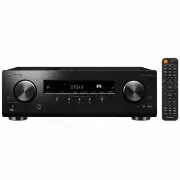


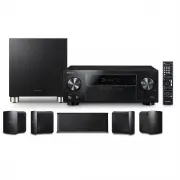 Pioneer HTP074
User Manual
Pioneer HTP074
User Manual
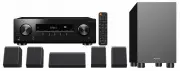 Pioneer HTP076
User Manual
Pioneer HTP076
User Manual
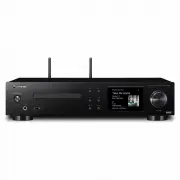 Pioneer NC50DAB
User Manual
Pioneer NC50DAB
User Manual
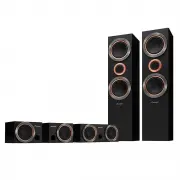 Pioneer SRS55TB
User Manual
Pioneer SRS55TB
User Manual
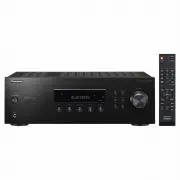 Pioneer SX10AE
User Manual
Pioneer SX10AE
User Manual
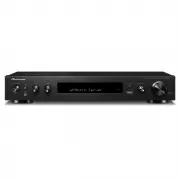 Pioneer SXS30DAB
User Manual
Pioneer SXS30DAB
User Manual
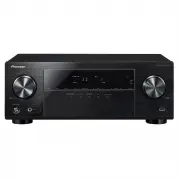 Pioneer VSX330
User Manual
Pioneer VSX330
User Manual
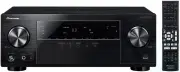 Pioneer VSX524
User Manual
Pioneer VSX524
User Manual
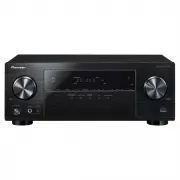 Pioneer VSX531
User Manual
Pioneer VSX531
User Manual
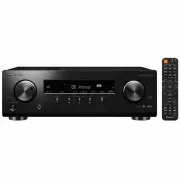 Pioneer VSX534
User Manual
Pioneer VSX534
User Manual
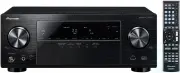 Pioneer VSX824
User Manual
Pioneer VSX824
User Manual
 Pioneer VSX-830
User Manual
Pioneer VSX-830
User Manual
 Pioneer VSX934
User Manual
Pioneer VSX934
User Manual