Page 2 - For Your Safety; Warnings and Cautions; Before Using the; This chapter provides information that you
For Your Safety 2 3 This section contains important safety information. Read this section inits entirety before using your COOLPIX995 or the software providedwith your camera. Warnings and Cautions The symbols listed below are used in this guide and in other documentation toindicate warnings and cau...
Page 3 - —continued; Cautions
For Your Safety —continued 4 5 Observe proper precautions when handling the battery The battery may leak or explode if improperly handled. Observe the followingprecautions when handling the battery for use in this product:• Make sure the product is off before replacing the battery. If you are using ...
Page 4 - Do not drop; Notice for customers in Canada
For Your Safety —continued 6 7 Do not drop The product may malfunction if subjected to strong shocks or vibration. Attachthe strap (p. 40) and lens-cap cord and keep the strap around your wristwhen carrying the camera. Keep away from strong magnetic fields Do not use or store this device in the vici...
Page 6 - Fast Track Guide
Introduction About This Manual 10 11 Thank you for purchasing the Nikon COOLPIX995 digital camera—acamera that is sure to make photography a bigger part of your life. Get to know your COOLPIX995 digital camera, and be sure to read thismanual thoroughly before using it. We recommend that you keep thi...
Page 7 - Contents
Contents 12 13 Before Using the Camera ................................................................2-27 For Your Safety ..............................................................................................3-9Introduction .....................................................................
Page 8 - Nomenclature
Nomenclature 14 15 MOD E 10 11 12 13 14 16 15 17 18 19 20 21 22 23 1 2 3 4 5 6 7 8 9 1 Viewfinder p. 16 2 Red-eye reduction/Self-timer lamp p. 70/53 3 Lens 4 MONITOR button p. 46 5 QUICK review button p. 51 6 MENU button p. 92 7 Control panel p. 16 8 Mode dial p. 44 9 Shutter release button p. 43 10...
Page 10 - Quick Guide; Note: Using a new CF memory card; Removing the CF memory card; Note: Inserting/removing the CF memory card; Set the Mode dial to; Image quality and Image size
Quick Guide 18 19 This section will rapidly guide you through the first steps, from settingup the camera to taking your first picture. For fully detailed descriptionsof each operation, please see the page referred as “(p. 00)”. 1 Set the Mode dial to and insert the battery (p. 30). 2 Insert the CF m...
Page 11 - Press the QUICK; Deleting images
21 Quick Guide —continued 20 5 Press the Shutter release button lightly to focus on the subject byusing autofocus. (p. 48). • The Green LED lights when the subject is in focus and flashes rapidly when the camera cannot autofocus. In-focus Out-of-focus Green LED lights. Green LED flashes. 6 Use the b...
Page 12 - Shooting Mode; Shooting Menu 1; BSS; Shooting Menu 2
23 Menu Guide: Shooting Mode 22 Press MENUbutton to select. Press the Multiselector to switchbetween Shootingmenu 1 and 2. Shooting Menu 1 WHITE BALANCE Select white balance in accor-dance with lighting conditions(p. 95) METERING Select metering mode (p. 97) CONTINUOUS Select Shooting mode (p. 99) B...
Page 14 - Playback Mode; Playback Menu
27 Menu Guide: Playback Mode 26 Press MENUbutton to select. Press the Multiselector to switchbetween Playbackmenu and SET-UPmenu. DELETE Delete selected images usingthumbnail display; delete allimages or the settings of AutoTransfer and Print-order files(p. 138) FOLDERS Create new folders, rename or...
Page 15 - PREPARATION; This section introduces preparations necessary; Check list
29 28 PREPARATION This section introduces preparations necessary before using the camera. Check list Check that all the components listed below are includedin the package. If any components are missing, contactthe retailer where you purchased your COOLPIX995. 1. Nikon COOLPIX995 Digital Camera 2. St...
Page 16 - Installing Battery; Power sources
31 Installing Battery 30 The camera requires either the supplied Li-ion Rechargeable Battery ora 2CR5 (DL245) 6V lithium battery (available separately). Make sure tocheck the battery power when a new battery is installed or beforeshooting. 1 Turn the Mode dial (p. 44) to and open the battery chamber...
Page 17 - Selecting a Language; The languages available in the “Language” sub-menu are:
33 32 Selecting a Language The language in which menus and messages are displayed can beselected using the Language sub-menu. 1 Turn the Mode dial to ˘ . • The Language can also be set using the SET-UP menu in the Shooting mode. 2 Press the MENU button so the Playback menu is displayed. • The appear...
Page 18 - Set the date display order.; Printing image date/time with a photo
34 35 Setting Date/Time The date and time for your country or location should be set beforeuse. 1 Set the Mode dial to and press the MENU button to display the SET-UP menu. 2 Select “Date” in the SET-UP menu. • Press ≤ / ≥ on the Multi selector (p. 44) to highlight Date and press > to display dat...
Page 19 - Inserting CF Memory Card; Inserting the CF Memory Card; Notes: Removing the CF memory card; Note: Inserting the CF memory card
37 Inserting CF Memory Card 36 The COOLPIX995 uses a CompactFlash™ (CF) memory card to storeimages and movies. Use a Nikon CF memory cards or other recommended memory card. See p. 163and the instruction manual of the CF memory card for notes on using the card. Inserting the CF Memory Card 1 Turn the...
Page 20 - Formatting CF Memory Cards; Note: Formatting CF memory cards; Turn the Mode dial to; Aborting format; Press
39 Formatting CF Memory Cards 38 CF memory cards must be formatted before being used with theCOOLPIX995. Note that the CF memory card supplied with yourcamera has already been formatted. Note: Formatting CF memory cards Note that when a CF memory card is formatted, the entire contents of the cardare...
Page 21 - Strap and Lens Cap; Attaching strap; Lens cap; Useful Advice on
41 Strap and Lens Cap 40 Attaching strap MOD E SIZE ISO M-FOCUS • Attach the strap as illustrated. Lens cap • Press the latch on the lens cap to attach/detach it.• Since the lens cap can easily be misplaced, we recommend attaching it to the strap with the supplied cord. Useful Advice on COOLPIX Came...
Page 22 - Holding the Camera; Check point; Using the Swivel; Holding the Camera/Pressing the Shutter Release Button; Self-portrait pictures; Diopter adjustment dial; Pressing the Shutter release button; Note: Pressing the Shutter release button; Frame photographs in the Monitor
Holding the Camera 42 43 To reduce blurring caused by camera shake, hold the camera steadilyin both hands and press the Shutter release button slowly and gently.Photographs can be framed in the Monitor or the Viewfinder. Check point The lens section of this camera rotates so the subject can be seen ...
Page 23 - Mode Dial and Multi Selector; Simple Shooting and; Having mastered simple point operation and; Mode Dial
45 Mode Dial and Multi Selector 44 Simple Shooting and Playback Having mastered simple point operation and studied the section “Useful Advice on COOLPIX Camera Techniques”, we recommend that you read this section which explains some aspects of simple “Point and Shoot” photography in more detail. Set...
Page 24 - Note: Composing using image in Viewfinder.; MONITOR button
47 Basic Operation (Auto Mode) 46 1 Set the camera to Auto Mode (Set the Mode dial to ). • The camera beeps once when the power is turned on and standby operation starts. After a short pause, the camera is ready and the Viewfinder image isdisplayed on the Monitor. Control panel Monitor • Individual ...
Page 25 - Lightly press the Shutter release button and confirm the focus.; Focus Lock; Gently depress the Shutter release button.; Note: Recording on CF Memory Cards
49 Basic Operation (Auto Mode) —continued 48 3 Lightly press the Shutter release button and confirm the focus. Note: Continuous AF When the Monitor is on, the camera continues to attempt to focus (ContinuousAF, p. 62). The shutter can be released without focus being achieved. Checkthe focus status o...
Page 27 - Self-Timer Operation; Press the Focus mode button several times until
Self-Timer Operation 53 Basic Operation (Auto Mode) —continued 52 6 Press the Delete button in Full-screen review mode and select“Yes” with the Multi selector to delete a single image. • Using the Multi selector choose the image to be deleted. Pressing the Delete button displays a confirmation dialo...
Page 28 - Simple Playback Operations
55 Simple Playback Operations 54 Set the Mode dial to ˘ to set the camera to Playback mode. In Playback mode, recorded images are visible on the Monitor. Multiplereduced size images can be viewed at once (Thumbnail Playback) orreviewed for deletion. Full-Frame Playback (See p. 74) 1 Set the Mode dia...
Page 29 - Other Functions; Connect COOLPIX995 to a TV Set; Detailed Operations; This section describes detailed operations in
57 Other Functions 56 By connecting the camera to your TV set or a personal computer, youcan view, edit or print out images taken with the COOLPIX995. Connect COOLPIX995 to a TV Set By connecting the COOLPIX995 to a TV set, you can view your still pictures andmovies on the television. Connect the ca...
Page 30 - Setting Image Quality and Size; In both; Image Quality; Image Size
59 Setting Image Quality and Size 58 Shooting Mode In both or mode, one of the most important options for your pictures is the combination of Image quality setting (imagecompression ratio) and Image size setting that you select. There arefour available Image quality settings and six Image size setti...
Page 31 - Selecting the Focus Mode; Notes: The number of exposures remaining; In
Selecting the Focus Mode How Much Space is Left on my CF Memory Card—Confirming the Number of Exposures Remaining 60 Shooting Mode The total number of images that can be saved on a CF memory carddepends on the amount of space left in the CF memory card beingused, and on the selected Image quality an...
Page 32 - Autofocus Options; Autofocus Target Area Selection; With the Monitor turned on,; Digital zoom; electronically magnifies the; Keep pressing the; Canceling Digital zoom
Digital zoom 63 Selecting Focus Mode —continued 62 Shooting Mode Shooting Mode Autofocus Options There are several advanced options that may be employed when setting up the Autofocus . In particular, a difference will be noticed when the Monitor is on or off in Autofocus or Macro Close-up mode. Moni...
Page 33 - Setting the Exposure mode; Note: At slow shutter speed; Flexible Program (only in
65 Setting the Exposure mode 64 Shooting Mode To create a variety of photographic treatments, various Exposuremodes can be selected to achieve a desired effect. Four Exposuremodes can be selected in Shooting mode. Rotate the Command dial while pressing the MODE button so thedesired Exposure mode is ...
Page 34 - Note: Control range of the camera
67 Setting the Exposure mode —continued 66 Shooting Mode A : Aperture-Priority Auto This mode enables you to choose the camera aperture (lens’ minimum tomaximum in 1/3 steps) manually. The camera automatically selects an appropriateshutter speed (8 to 1/2300 sec.) to ensure correct exposure. • Turni...
Page 35 - Condition in which Flash mode can be set
Setting the Flash Mode 69 Setting the Exposure mode —continued 68 Shooting Mode Long time (BULB) exposure (up to 60 sec.) Å Set the Exposure mode to  , and place the camera on a tripod or secure position, then rotate the Command dial to set the shutter speed indication to bu1b (next after 8 sec.) t...
Page 36 - Notes: SLOW Sync Flash; Selectable Exposure Compensation values; Canceling Exposure Compensation
Setting the Exposure Compensation Value 71 Setting the Flash Mode —continued 70 Shooting Mode Shooting Mode Setting Indication Characteristics AUTO flash ⁄ Speedlight automatically fires when the subject is darkand the built-in Speedlight is released. Speedlight doesnot fire if the subject is adequa...
Page 37 - Adjusting Sensitivity; AUTO; Canceling sensitivity setting
73 Adjusting Sensitivity 72 Shooting Mode Sensitivity increases the use that the camera makes of available light,allowing faster shutter speeds to be employed. However as sensitivityis increased, the picture may become noisy. Standard sensitivity isequivalent to film ISO 100. The camera will automat...
Page 38 - Taking a Closer Look: Zooming In; Playback; Check points; Deleting photographs/setting other Playback modes
75 74 Playback Playback Mode ˘ You can see more detail in the image by zooming into the desired areaof the image. Taking a Closer Look: Zooming In 1 Set the Mode dial to ˘ . 2 Press and hold the ( ) Zoom button to see the image in closer detail. • The amount of Zoom increases each time the button is...
Page 39 - By pressing the Delete (; Deleting Individual Photographs; Deleting photographs; Thumbnail Playback
77 Playback —continued 76 Playback Mode ˘ By pressing the Delete ( D ) button in Full-frame playback or Thumbnail Playback you can delete individual images. Deleting Individual Photographs 1 Set the Mode dial to ˘ . • The most recent photograph is displayed on the Monitor. 2 Display the photograph t...
Page 40 - Advanced operation; This section provides complete descriptions of; Deleting Individual Photographs in Thumbnail Playback; To delete the currently selected Thumbnail, press the
79 78 Advanced operation This section provides complete descriptions of advanced camera operations. Deleting Individual Photographs in Thumbnail Playback 1 Highlight the image to be deleted using the Multi selector. Theselected image is marked with a yellow highlight. Deleting photographs —continued...
Page 41 - When the Mode dial is set to; indication appears in the Control panel; To Cancel Manual Focus mode
Manual Focus 81 Autofocus Lock/Auto Exposure Lock 80 If the subject is outside of the Autofocus area, a feature calledAutofocus lock can be used to maintain focus on the subject.Autofocus is locked by half pressing the shutter with the subject in thefocus target area. At the same time, exposure for ...
Page 42 - No subject detail for Autofocus system.; Conflicting or confusing subject detail.; Movie Shooting Mode; Movie Playback Mode
Recording Movie/Movie Playback 83 Situations Where Autofocus May not Work as Expected 82 Shooting Mode Autofocus does not perform well under the conditions listed below. Youcan Autofocus as detailed below. 1. No subject detail for Autofocus system. • Very dark subjects.• Scenes with a pronounced dif...
Page 43 - Operation in Movie Playback mode; Quick Delete; Holding the Image on the Display
Quick Delete/Holding the Image in the Display 85 Recording Movie/Movie Playback —continued 84 Operation in Movie Playback mode When the first frame is displayed as a still image Start movie After completing the playback, the final frame isdisplayed for one second, and then returns tothe still image ...
Page 44 - Quick Review Mode/Full-Screen Review Mode; in Shooting mode; Quick Review Mode; Various operations in Quick review mode
87 Quick Review Mode/Full-Screen Review Mode 86 Shooting Mode Quick review mode/Full-screen review mode is set by pressing theQUICK review button in Shooting mode . These two review modes enable you to quickly review and confirm theimage without having to turn the Mode dial from to ˘ . • The display...
Page 45 - Viewing Additional Picture Information; Basic display screen
89 Viewing Additional Picture Information 88 Rotating the Command dial changes the display to the following fivescreens while a picture is displayed on the Monitor in any Full-frameplayback mode. 1. Basic display 2. Detailed information display 1 3. Detailed information display 2 4. Histogram displa...
Page 46 - Sync Terminal; Note: Flash Units Made by Manufacturers other than Nikon; Using the Camera; and; Menu
91 Sync Terminal 90 External Nikon Speedlights can be accommodated by using theoptional Multi-Flash Bracket Unit SK-E900. 1 Remove the Sync terminal cover and connect the camera plug ofthe multiple flash adapter. • The following Nikon optional Speedlights can be used: SB-28DX, SB-28, SB- 26, SB-25, ...
Page 47 - Setting Shooting Menus; Displaying the Shooting Menu
93 Choosing from the Shooting Menu (example: Focus Mode) 1 Select the Shooting menu item. • Press ≤ / ≥ on the Multi selector to highlight the desired menu item, then press > to display the options for the selected item. 2 Select the option for the selected item. • Press ≤ / ≥ to highlight the de...
Page 48 - Select the menu item with the Multi selector.; Check points: Moving from page to page; WHITE BALANCE; may be preset to one of a
95 94 Setting Shooting Menus —continued Shooting Mode If the symbol (Command dial) appears to the right of a menu item, you can select an option quickly by rotating the Command dial instead of using the Multiselector. 1 Select the menu item with the Multi selector. Using the Command Dial to Make a S...
Page 49 - — Preset White Balance —
97 Setting Shooting Menus —continued 96 Shooting Mode — Preset White Balance — In certain lighting, you may find that you can obtain a more accurate color balanceby measuring the color temperature of the light manually. The Preset White Balance function allows you to photograph a neutral object (usu...
Page 50 - CONTINUOUS
99 98 Setting Shooting Menus —continued Shooting Mode • When you set the Metering mode, the Metering indications are displayed on the Control panel and on the Monitor. Spot Metering Area display Metering system Characteristic Spot AF Area Metering can be selectedwhen the autofocus mode in FOCUS OPTI...
Page 52 - The; function is most effective in situations where; Notes: Best Shot Selector
103 102 Setting Shooting Menus —continued Shooting Mode BEST SHOT SELECTOR The Best Shot Selector function is most effective in situations where inadvertent camera movement may affect the outcome of thephotograph, such as the following:• The camera is zoomed in or you are using an optional teleconve...
Page 53 - menu gives you control; SATURATION CONTROL; Adjust the; Saturation; to control the intensity of color in the picture. In
105 104 IMAGE ADJUSTMENT When you take a photograph, the camera automatically compensatesfor optical brightness and contrast before recording the photograph onthe CF memory card. The Image Adjustment menu gives you control over this image compensation. Auto Image is adjusted automatically. Normal Im...
Page 54 - LENS; Swivel Lock; Slide Copy Adptr; when the camera is attached to a Slide Copy
107 106 Normal Normal setting Wide Adapter Wideangle Converter setting Telephoto 1 2x Telephoto Converter TC-E2 setting Telephoto 2 3x Telephoto Converter TC-E3ED setting Fisheye 1 Fisheye Converter setting(Records a circular image.) Fisheye 2 Fisheye Converter setting (The corners ofthe rectangular...
Page 55 - USER SETTING; on the Multi selector and then press; to record a number of shots with the same aperture,
109 108 USER SETTING The camera can “memorize” up to three combinations of settings,including White Balance, Metering, Continuous, Best Shot Selector,Image Adjustment, Saturation Control, Lens and Image Sharpening.These settings can be recalled as desired, allowing you to createseparate combinations...
Page 56 - — AF Area Mode —; Note: AF Area selection
111 110 Setting Shooting Menus —continued Shooting Mode — Exposure Compensation —Exposure metering can be offset to allow manual compensation formore creative control of your pictures. Twelve settings are available forExposure Compensation, from –2EV to +2EV in 1/3-EV steps. • The Exposure Compensat...
Page 57 - can operate in two modes: Continuous AF; Manual Focus
113 112 Setting Shooting Menus —continued Shooting Mode — Auto-Focus Mode —The camera Auto-Focus can operate in two modes: Continuous AF and Single AF. Continuous AF As long as the monitor is turned on, Autofocus is enabled continuouslyregardless of whether the shutter is being pressed or not. The F...
Page 58 - IMAGE SHARPENING; Note: Image Sharpening setting; AUTO BRACKETING
115 114 Setting Shooting Menus —continued Shooting Mode IMAGE SHARPENING The camera can emphasize the details and borders of objects, makingthe picture appear sharper and bolder. Auto The camera automatically sets thesharpness. High Sets the Sharpness to high. Normal Sets the Standard sharpness. Low...
Page 59 - Notes: Auto Bracketing and White Balance Bracketing; NOISE REDUCTION; Note: Time taken to save an image to the CF memory card
117 116 Setting Shooting Menus —continued Shooting Mode • The Exposure Compensation indication ≠ flashes on the Control panel and along with the compensated EV value for the next shot are displayed on theMonitor when the bracketing is set. — WB Bracketing —White balance is bracketed when you press t...
Page 60 - RESET ALL; Shooting menu; Functions set for each control
119 118 RESET ALL The Reset all setting allows you to restore settings in all Shootingmodes , and Playback ˘ to their default values. No Exit menu without changing the settings. Yes Restore the settings to their default values. Setting Shooting Menus —continued Shooting Mode When you perform Reset A...
Page 61 - Setting Shooting SET-UP Menus; In mode
3 Press ≤ / ≥ to display SET-UP 2 at the top of the screen. • The 14 SET-UP items are divided into two displays. Press ≤ / ≥ on the Multi selector to move the cursor and display SETUP 2 . 121 120 Setting Shooting SET-UP Menus The SET-UP menu allows you to select various settings for basic camerasetu...
Page 62 - Folders; Creates a new folder on the CF memory card.
123 122 Setting Shooting SET-UP Menus —continued Folders The Shooting SET-UP Items (in mode) You can use this option to select new folders to help you organize yourpictures on the camera for shooting and image playback. This featureallows you to create, rename and delete folders. Options Options for...
Page 63 - Notes: Deleting folders; Monitor Options; in mode
124 Setting Shooting SET-UP Menus —continued Shooting Mode [Delete]This option enables you to delete folders (other than the NIKON folder). 1 Select “Delete” in Options and press > on the Multi selector to display the folder list. 2 Press ≤ / ≥ to select the folder to be deleted and press > to...
Page 64 - Selecting Brightness and Hue settings; Shutter Sound; Auto Off
127 126 — Hue —The hue (overall color) of the Monitor can be finely adjusted to any ofeleven levels. Press ≤ or ≥ to alter the hue by moving the arrow at the right side of the display up (reddish) or down (bluish). Once you have adjustedhue to your satisfaction, press > to complete the hue settin...
Page 65 - Image file numbers and folder numbers; Formats a CF memory card in the camera.
129 128 Setting Shooting SET-UP Menus —continued Shooting Mode Seq. Numbers In order to avoid taking multiple pictures with the same file name (forexample DSC0001.JPG), it is possible to allocate sequential numbersthat are automatically assigned to image files. This feature can be usedeven when more...
Page 66 - You can use the
131 130 Setting Shooting SET-UP Menus —continued Shooting Mode Controls Shooting SET-UP Items (only in mode) You can use the Controls setting to specify whether individual functions are retained in the camera or cleared from the camera’smemory when you turn the camera off. Various alternative functi...
Page 67 - Zoom Options; to determine various functions that relate to the; — Digital Tele —; — Start-up Position —; Note: Exposure in Fixed Aperture setting; Speedlight Options; setting is not selected, you can
133 132 Zoom Options You can use the Zoom Options to determine various functions that relate to the initial set up of the lens and the aperture variations relative to the Zoom position. Digital Tele Sets the Digital zoom setting. Startup Position Sets the initial Zoom position. Fixed Aperture Fixes ...
Page 68 - Note: Activating an optional Speedlight; Video Mode
135 134 — Shot Confirm Lamp —With the Shot Confirm Lamp setting On , the Red-eye reduction/Self- timer lamp next to lens lights each time a single picture is taken as ashot confirmation lamp. • The Shot Confirm Lamp setting becomes effective when a setting is selected by pressing ≤ / ≥ on the Multi ...
Page 69 - Playback Menus; Displaying the Playback Menu
137 Playback Menus 136 Playback Mode ˘ The Playback mode has two pages of settings which are controlledfrom the Playback menu (Page 1) and Playback SET-UP menu screens. The Playback options enable you to delete photographs individually or as a selection ( Delete ), protect photographs from being del...
Page 70 - Notes: Images with Protect or Hide Image setting; — Deleting All Images —; Note: Deleting All Images
139 138 Playback Menus —continued Playback Mode ˘ Playback Menu Delete Saved photographs, the settings of Auto Transfer and Print-order files can be deleted. With the Delete option in the Playback menu , it is possible to delete either selected photographs from the thumbnailpages or alternatively al...
Page 71 - Playback of photos taken in Ultra HS mode; Slide Show; — Frame Intvl —; After the slide show is finished:
141 140 Playback Menus —continued Playback Mode ˘ Folders The Folders option in the Playback menu can be used to select images in all folders for playback, or only images in a selected folder.This menu also contains options for creating, renaming and deletingfolders. Options Options for folder setup...
Page 73 - Playback SET-UP Menus; Print Set; — Selecting images to be printed and designating print status —; — Print Set options —
145 144 Playback SET-UP Menus —continued Playback Mode ˘ Print Set The Digital Print Order Format (DPOF) allows images to be marked for printing at a Lab, Print Shop or on a desktop Printer that can read theDPOF information. As well as the instruction to print the image, the DPOFsystem also allows t...
Page 74 - — Setting Auto Transfer —; — Canceling auto transfer —; — Transferring all images —; To set all image files to be transferred, select
147 146 Playback Menus —continued Playback Mode ˘ Auto Transfer The Auto Transfer setting controls whether or not the Nikon View 4 software will automatically copy selected images to a computer whenthe camera is connected by the USB cable. — Setting Auto Transfer — 1 Press < / > on the Multi s...
Page 75 - Displaying the Playback SET-UP Menu
149 148 Playback SET-UP Menus Playback Mode ˘ Displaying the Playback SET-UP Menu In the Playback SET-UP menu, you can make changes to basic camerasettings and perform tasks such as formatting memory cards. 1 In Playback ˘ mode, press the MENU button to display the Playback menu and press < on th...
Page 76 - Playback SET-UP Menu items
151 150 Playback SET-UP Menus —continued Playback Mode ˘ Monitor Options Playback SET-UP Menu items The hue (overall color) and brightness of the Monitor can be adjustedto improve visibility. Brightness Adjusts Monitor brightness Hue Adjusts overall Monitor color • For setting Monitor Options , see ...
Page 77 - This chapter provides information on
153 152 Language The camera menus and messages can be viewed in one of a numberof languages. D German E English F French J Japanese S Spanish • For information on Selecting a Language , see p. 32. Playback SET-UP Menus —continued Playback Mode ˘ Connections This chapter provides information on conne...
Page 78 - Connecting to a television or VCR; Open the DC-in connector cover as indicated.; Notes: Connecting the AC adapter; Connect the video cable provided.
155 154 Connecting to a television or VCR Connecting to an AC Adapter (optional) 1 Open the DC-in connector cover as indicated. 2 Set the Mode dial to , and connect the AC adapter plug to the DC-in connector. 3 Plug in the adapter. The camera can be powered from AC electrical outlets rated at 100-24...
Page 79 - Connecting to a computer; Note: Transferring image data; Connecting to a Computer via the USB Interface; Complete the Connection session.; Note: Disconnecting the camera from the computer
157 Connecting to a computer 156 Although it is not necessary to own or use a computer to enjoy digitalimages from your COOLPIX, a computer greatly enhances the range ofpossibilities and uses for digital photography. With the aid of acomputer, you can view the images stored in the CF memory card,app...
Page 80 - DCF; Reading Photographs from Memory Cards
159 158 Connecting to a computer —continued 1 Insert the CF memory card into the EC-AD1 PC-card adapter, CFcard reader etc. of your computer. Com pac tFla sh Car d TM EC -16 CF MB Com pac tFla sh Car d TM EC -AD 1 AD AP TE R Com pac tFla sh C ard TM EC-16CF MB Com pac tFla sh Car d TM EC-AD1 AD AP T...
Page 81 - This chapter provides information on optional; Image files and folders—naming
161 Miscellaneous This chapter provides information on optional accessories and advice on troubleshooting, and lists the specifications of the camera. 160 Connecting to a computer —continued info.txt A separate text file, called info.txt , is automatically created in the same folder as the images if...
Page 82 - Optional Accessories; Usable CF memory cards; Notes: Using CF memory cards
163 162 Optional Accessories Wideangle Converter WC-E63 When the WC-E63 is attached to the COOLPIX995, the focal length is reducedby a factor of 0.63X. The combined focal length becomes 5.0mm (35mm [135]format equivalent to approx. 24mm) The combined f-number becomes f/2.6. Fisheye Converter FC-E8 W...
Page 83 - /Operating Conditions; Notes: Using CF memory cards—continued; Caring for Your Camera
165 164 Optional Accessories —continued /Operating Conditions Notes: Using CF memory cards—continued • Do not attempt to touch the terminals or contacts with your hand or a metal object. • Do not stress or bend the CF memory card.• Most CF memory cards, being slight and durable, are immune to physic...
Page 84 - Troubleshooting
167 166 Troubleshooting If the COOLPIX995 is not operating properly, check the following items.If the problem persists, contact the retailer where you bought thiscamera or an authorized Nikon dealer or service center. Problem Power does not turn on. Power turns offimmediately. Cannot take photo when...
Page 85 - Error Messages
169 Error Messages 168 If the following error messages appear on the Monitor or Control panel,please check the possible solutions before ordering repairs orrequesting service under Warranty. Monitor Control panel Problem • CF memory card is not inserted or is not correctly inserted. • CF memory card...
Page 87 - Specifications
173 Specifications Type Digital camera E995 CCD 1/1.8" high-density CCD, total number of pixels: 3.34million Image size (pixel) 2,048 x 1,536 (FULL) 1,600 x 1,200 (UXGA) 1,280 x 960 (SXGA) 1,024 x 768 (XGA) 640 x 480 (VGA) 2,048 x 1,360 (3:2) Lens 4x Zoom-Nikkor; f=8 - 32mm [35mm (135) formatequ...
Page 88 - Activating Auto Power Off; Canceling Auto Power Off
175 Specifications —continued 174 Interface USB, video output (NTSC/PAL selectable) I/O terminal DC input, Video output, Digital terminal (USB), Syncterminal Power requirements One Li-ion Rechargeable Battery EN-EL1, or one 6Vlithium battery (2CR5/DL245) (optional)External power source (8.4V, 1.3A) ...
Page 89 - Index
177 Index 176 3 : 2 size .........................................................................P. 59, 60 Shooting mode ........................................................P. 44, 45Shooting mode ..............................................................P. 44 ˘ Playback mode ..................
Page 91 - NIKON CORPORATION
No reproduction in any form of this manual, inwhole or in part (except for brief quotation incritical articles or reviews), may be made withoutwritten authorisation from NIKON CORPORATION. NIKON CORPORATION FUJI BLDG., 2-3, MARUNOUCHI 3-CHOME, CHIYODA-KU, TOKYO 100-8331, JAPAN Printed in Japan 6MEA1...


 Nikon Coolpix A1000
Manual
Nikon Coolpix A1000
Manual
 Nikon Coolpix A900
Manual
Nikon Coolpix A900
Manual
 Nikon Coolpix B500
Manual
Nikon Coolpix B500
Manual
 Nikon Coolpix B600
Manual
Nikon Coolpix B600
Manual
 Nikon Coolpix B700
Manual
Nikon Coolpix B700
Manual
 Nikon Coolpix L110
Manual
Nikon Coolpix L110
Manual
 Nikon Coolpix L12
User Manual
Nikon Coolpix L12
User Manual
 Nikon Coolpix L14
User Manual
Nikon Coolpix L14
User Manual
 Nikon Coolpix L16
User Manual
Nikon Coolpix L16
User Manual
 Nikon Coolpix L18
User Manual
Nikon Coolpix L18
User Manual
 Nikon Coolpix S200
Manual
Nikon Coolpix S200
Manual
 Nikon Coolpix S550
User Manual
Nikon Coolpix S550
User Manual
 Nikon Coolpix S560
User Manual
Nikon Coolpix S560
User Manual
 Nikon Coolpix S640
Manual
Nikon Coolpix S640
Manual
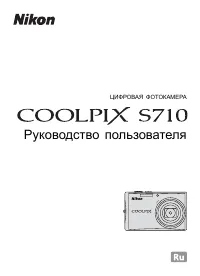 Nikon Coolpix S710
User Manual
Nikon Coolpix S710
User Manual
 Nikon Coolpix W100
Manual
Nikon Coolpix W100
Manual
 Nikon Coolpix W300
Manual
Nikon Coolpix W300
Manual
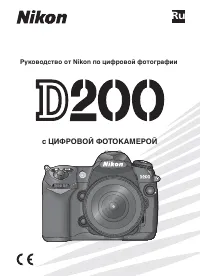 Nikon D200
Manual
Nikon D200
Manual
 Nikon D3
Manual
Nikon D3
Manual
 Nikon D300
Manual
Nikon D300
Manual