Page 2 - English
Page 3 - Contents
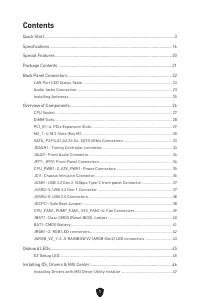
1 Contents Quick Start..................................................................................................................... 3Specifications .............................................................................................................. 16Special Features .................
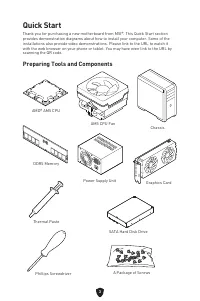
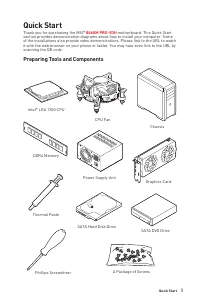
Page 5 - Quick Start; Preparing Tools and Components
3 Quick Start Thank you for purchasing a new motherboard from MSI®. This Quick Start section provides demonstration diagrams about how to install your computer. Some of the installations also provide video demonstrations. Please link to the URL to watch it with the web browser on your phone or table...
Page 6 - Safety Information
4 Safety Information ∙ The components included in this package are prone to damage from electrostatic discharge (ESD). Please adhere to the following instructions to ensure successful computer assembly. ∙ Ensure that all components are securely connected. Loose connections may cause the computer to ...
Page 7 - Case stand-off notification; Avoid collision notification
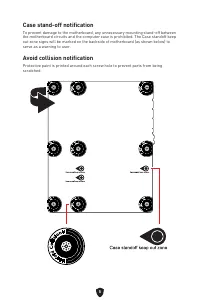
5 Case stand-off notification To prevent damage to the motherboard, any unnecessary mounting stand-off between the motherboard circuits and the computer case is prohibited. The Case standoff keep out zone signs will be marked on the backside of motherboard (as shown below) to serve as a warning to u...
Page 8 - Installing a Processor
6 Installing a Processor ⚽ 1 1 2 2 3 3 6 6 4 4 5 5 7 7 8 8 11 11 9 9 10 10 ∙ https://youtu.be/cltgIYiGtWY
Page 9 - Important
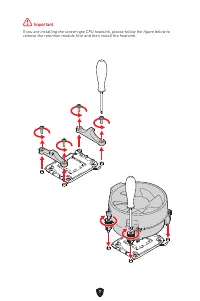
7 ⚠ Important If you are installing the screw-type CPU heatsink, please follow the figure below to remove the retention module first and then install the heatsink.
Page 10 - Installing DDR5 memory
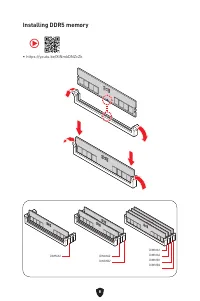
8 Installing DDR5 memory DIMMA2 DIMMA2DIMMB2 DIMMA1DIMMA2DIMMB1DIMMB2 ∙ https://youtu.be/XiNmkDNZcZk ⚽
Page 11 - Connecting the Front Panel Header
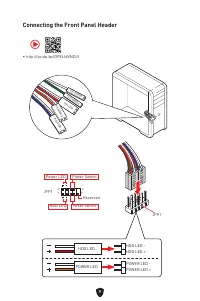
9 HDD LED RESET SW Connecting the Front Panel Header ∙ http://youtu.be/DPELIdVNZUI JFP1 HDD LED HDD LED - HDD LED + POWER LED -POWER LED + POWER LED RESET SW POWER SW POWER LED+ POWER LED- HDD LED ⚽ 1 2 10 9 Power LED Reserved Power Switch JFP1 Reset Switch HDD LED
Page 12 - Installing the Motherboard
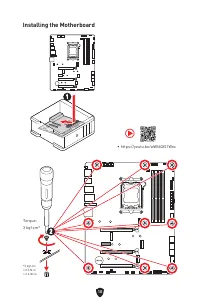
10 Installing the Motherboard 1 1 ∙ https://youtu.be/wWI6Qt51Wnc ⚽ Torque:3 kgf·cm* *3 kgf·cm = 0.3 N·m = 2.6 lbf·in 2 2
Page 13 - Connecting the Power Connectors
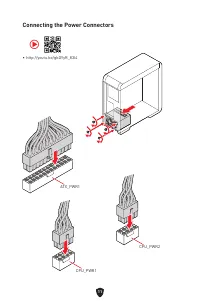
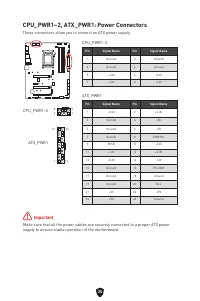
11 Connecting the Power Connectors ∙ http://youtu.be/gkDYyR_83I4 ATX_PWR1 CPU_PWR1 ⚽ CPU_PWR2
Page 14 - Installing SATA Drives
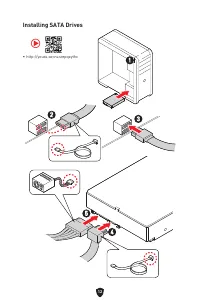
12 Installing SATA Drives ∙ http://youtu.be/RZsMpqxythc 1 1 2 2 3 3 4 4 5 5 ⚽
Page 15 - Installing a Graphics Card
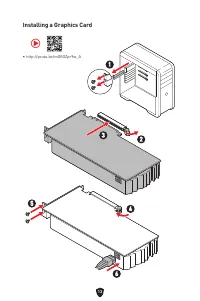
13 Installing a Graphics Card ∙ http://youtu.be/mG0GZpr9w_A ⚽ 1 1 2 2 3 3 4 4 5 5 6 6
Page 16 - Connecting Peripheral Devices
Page 17 - Power On
Page 18 - Specifications
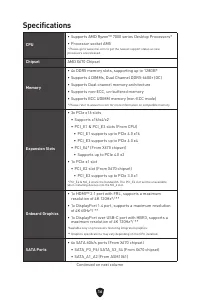
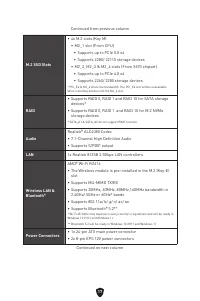
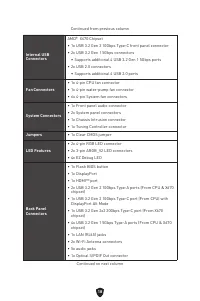
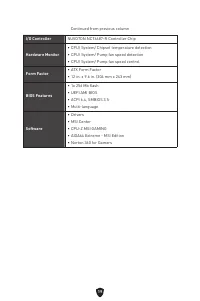
16 Specifications CPU ∙ Supports AMD Ryzen™ 7000 series Desktop Processors* ∙ Processor socket AM5 * Please go to www.msi.com to get the newest support status as new processors are released. Chipset AMD X670 Chipset Memory ∙ 4x DDR5 memory slots, supporting up to 128GB* ∙ Supports 4 DIMMs, Dual Chan...
Page 22 - Special Features
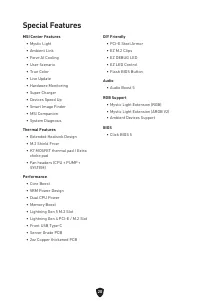
20 Special Features MSI Center Features • Mystic Light• Ambient Link• Forzr AI Cooling• User Scenario• True Color• Live Update• Hardware Monitoring• Super Charger• Devices Speed Up• Smart Image Finder• MSI Companion• System Diagnosis Thermal Features • Extended Heatsink Design• M.2 Shield Frozr• K7 ...
Page 23 - Package Contents
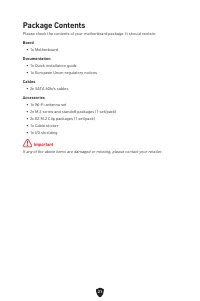
21 Package Contents Please check the contents of your motherboard package. It should contain: Board • 1x Motherboard Documentation • 1x Quick installation guide• 1x European Union regulatory notices Cables • 2x SATA 6Gb/s cables Accessories • 1x Wi-Fi antenna set• 2x M.2 screw and standoff packages ...
Page 24 - Back Panel Connectors
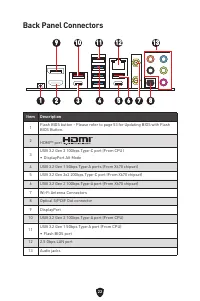
22 Back Panel Connectors Item Description 1 Flash BIOS button - Please refer to page 53 for Updating BIOS with Flash BIOS Button. 2 HDMI™ port 3 USB 3.2 Gen 2 10Gbps Type-C port (From CPU) ∙ DisplayPort Alt Mode 4 USB 3.2 Gen 1 5Gbps Type-A ports (From X670 chipset) 5 USB 3.2 Gen 2x2 20Gbps Type-C p...
Page 25 - LAN Port LED Status Table; Audio Jacks Connection; Audio jacks to headphone and microphone diagram
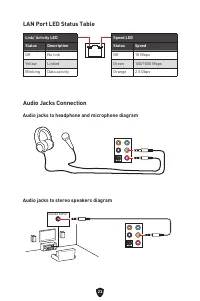
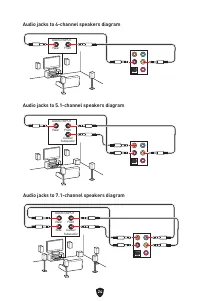
23 AUDIO INPUT LAN Port LED Status Table Link/ Activity LEDStatus Description Off No link Yellow Linked Blinking Data activity Speed LEDStatus Speed Off 10 Mbps Green 100/1000 Mbps Orange 2.5 Gbps Audio Jacks Connection Audio jacks to headphone and microphone diagram Audio jacks to stereo speakers d...
Page 27 - Installing Antennas
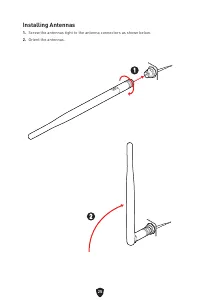
25 Installing Antennas 1. Screw the antennas tight to the antenna connectors as shown below. 2. Orient the antennas. 1 1 2 2
Page 28 - Overview of Components
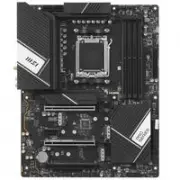
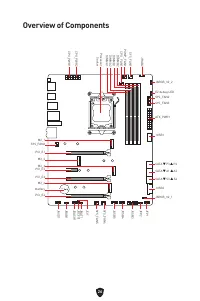
26 Overview of Components SATA ▼ P3 ▲ P4 SATA ▼ A1 ▲ A2 SATA ▼ S3 ▲ S4 JUSB1 JUSB2 ATX_PWR1 SYS_FAN2SYS_FAN3 JARGB_V2_2 EZ debug LED PUMP_FAN1 SYS_FAN1 JRGB2 CPU_FAN1 Processor Socket CPU_PWR1 CPU_PWR2 JFP2 JFP1 JUSB3 JUSB4 JUSB5 SYS_FAN4 JBAT1 JCI1 JOCFS1 JDASH1 JRGB1 SYS_FAN5 JAUD1 M2_4 PCI_E3 PCI...
Page 29 - CPU Socket; Introduction to the AM5 CPU
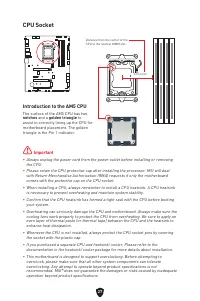
27 ⚠ Important ∙ Always unplug the power cord from the power outlet before installing or removing the CPU. ∙ Please retain the CPU protective cap after installing the processor. MSI will deal with Return Merchandise Authorization (RMA) requests if only the motherboard comes with the protective cap o...
Page 30 - DIMM Slots; Memory module installation recommendation
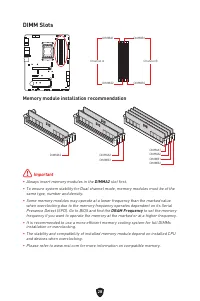
28 DIMM Slots DIMMA1 DIMMB1 Channel A Channel B DIMMA2 DIMMB2 Memory module installation recommendation ⚠ Important ∙ Always insert memory modules in the DIMMA2 slot first. ∙ To ensure system stability for Dual channel mode, memory modules must be of the same type, number and density. ∙ Some memory ...
Page 35 - JDASH1 : Tuning Controller connector
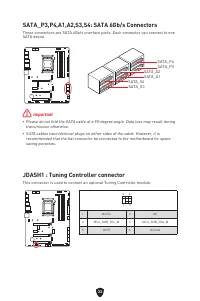
33 JDASH1 : Tuning Controller connector This connector is used to connect an optional Tuning Controller module. 1 2 6 5 1 No Pin 2 NC 3 MCU_SMB_SCL_M 4 MCU_SMB_SDA_M 5 VCC5 6 Ground SATA_P3,P4,A1,A2,S3,S4: SATA 6Gb/s Connectors These connectors are SATA 6Gb/s interface ports. Each connector can conn...
Page 36 - JAUD1: Front Audio Connector
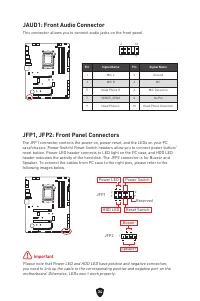
34 JAUD1: Front Audio Connector This connector allows you to connect audio jacks on the front panel. 1 2 10 9 Pin Signal Name Pin Signal Name 1 MIC L 2 Ground 3 MIC R 4 NC 5 Head Phone R 6 MIC Detection 7 SENSE_SEND 8 No Pin 9 Head Phone L 10 Head Phone Detection JFP1, JFP2: Front Panel Connectors T...
Page 38 - JCI1: Chassis Intrusion Connector
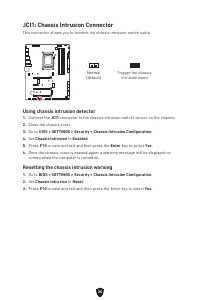
36 Normal (default) Trigger the chassis intrusion event Using chassis intrusion detector 1. Connect the JCI1 connector to the chassis intrusion switch/ sensor on the chassis. 2. Close the chassis cover. 3. Go to B IOS > SETTINGS > Security > Chassis Intrusion Configuration . 4. Set Chassis ...
Page 40 - JOCFS1: Safe Boot Jumper
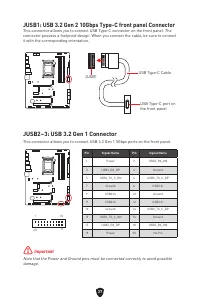
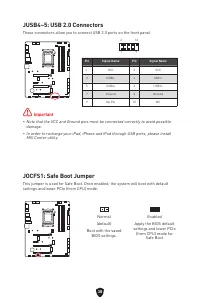
38 JUSB4~5: USB 2.0 Connectors These connectors allow you to connect USB 2.0 ports on the front panel. ⚠ Important ∙ Note that the VCC and Ground pins must be connected correctly to avoid possible damage. ∙ In order to recharge your iPad, iPhone and iPod through USB ports, please install MSI Center ...
Page 42 - Resetting BIOS to default values
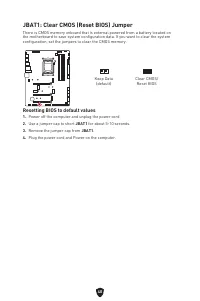
40 JBAT1: Clear CMOS (Reset BIOS) Jumper There is CMOS memory onboard that is external powered from a battery located on the motherboard to save system configuration data. If you want to clear the system configuration, set the jumpers to clear the CMOS memory. Keep Data (default) Clear CMOS/ Reset B...
Page 43 - Replacing CMOS battery
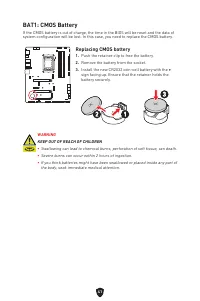
41 BAT1: CMOS Battery If the CMOS battery is out of charge, the time in the BIOS will be reset and the data of system configuration will be lost. In this case, you need to replace the CMOS battery. Replacing CMOS battery 1. Push the retainer clip to free the battery. 2. Remove the battery from the s...
Page 44 - RGB LED Strip Connection; RGB LED Fan Connection
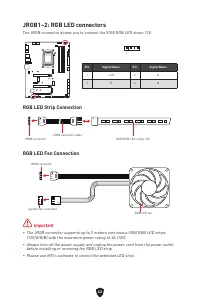
42 ⚠ Important ∙ The JRGB connector supports up to 2 meters continuous 5050 RGB LED strips (12V/G/R/B) with the maximum power rating of 3A (12V). ∙ Always turn off the power supply and unplug the power cord from the power outlet before installing or removing the RGB LED strip. ∙ Please use MSI’s sof...
Page 45 - Addressable RGB LED Strip Connection
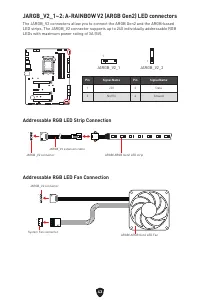
43 Pin Signal Name Pin Signal Name 1 +5V 2 Data 3 No Pin 4 Ground 1 1 JARGB_V2_1 JARGB_V2_2 JARGB_V2_1~2: A-RAINBOW V2 (ARGB Gen2) LED connectors The JARGB_V2 connectors allow you to connect the ARGB Gen2 and the ARGB-based LED strips. The JARGB_V2 connector supports up to 240 individually addressab...
Page 46 - CAUTION
44 ⚠ CAUTION Do not connect the wrong type of LED strips. The JRGB connector and the JARGB_V2 connector provide different voltages, and connecting the JARGB_V2 5V LED strip to the JRGB connector will result in damage to the LED strip. ⚠ Important ∙ If you connect ARGB Gen1 and ARGB Gen2 LED strips i...
Page 47 - EZ Debug LED; Onboard LEDs
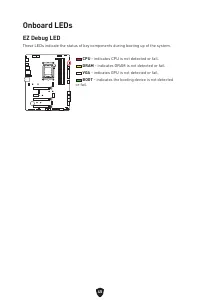
45 EZ Debug LED These LEDs indicate the status of key components during booting up of the system. Onboard LEDs CPU - indicates CPU is not detected or fail. DRAM - indicates DRAM is not detected or fail. VGA - indicates GPU is not detected or fail. BOOT - indicates the booting device is not detected ...
Page 48 - Installing Windows 10/ Windows 11
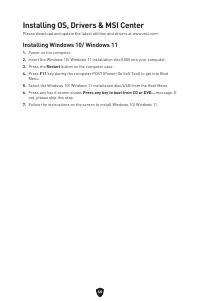
46 Installing OS, Drivers & MSI Center Please download and update the latest utilities and drivers at www.msi.com Installing Windows 10/ Windows 11 1. Power on the computer. 2. Insert the Windows 10/ Windows 11 installation disc/USB into your computer. 3. Press the Restart button on the computer...
Page 49 - Installing Drivers with MSI Driver Utility Installer
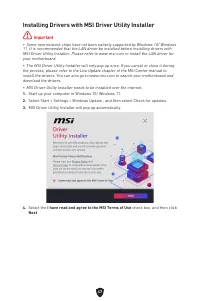
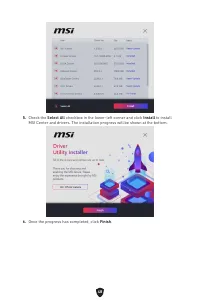
47 Installing Drivers with MSI Driver Utility Installer ⚠ Important ∙ Some new network chips have not been natively supported by Windows 10/ Windows 11. It is recommended that the LAN driver be installed before installing drivers with MSI Driver Utility Installer. Please refer to www.msi.com to inst...
Page 51 - MSI Center; MSI Center User Guide
49 MSI Center MSI Center is an application that helps you easily optimize game settings and smoothly use content creation softwares. It also allows you to control and synchronize LED light effects on PCs and other MSI products. With MSI Center, you can customize ideal modes, monitor system performan...
Page 52 - UEFI BIOS; UEFI advantages; How to check the BIOS mode?
50 UEFI BIOS MSI UEFI BIOS is compatible with UEFI (Unified Extensible Firmware Interface) architecture. UEFI has many new functions and advantages that traditional BIOS cannot achieve, and it will completely replace BIOS in the future. The MSI UEFI BIOS uses UEFI as the default boot mode to take fu...
Page 53 - BIOS Setup; Entering BIOS Setup; BIOS User Guide
51 BIOS Setup The default settings offer the optimal performance for system stability in normal conditions. You should always keep the default settings to avoid possible system damage or failure booting unless you are familiar with BIOS. ⚠ Important ∙ BIOS items are continuously update for better sy...
Page 54 - Resetting BIOS; Updating BIOS; Updating BIOS with M-FLASH
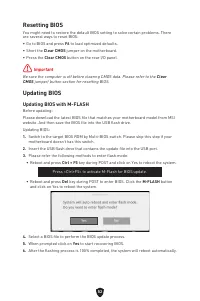
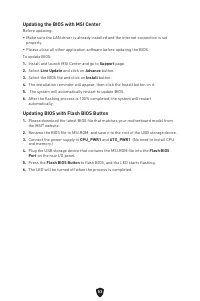
52 Resetting BIOS You might need to restore the default BIOS setting to solve certain problems. There are several ways to reset BIOS: ∙ Go to BIOS and press F6 to load optimized defaults. ∙ Short the Clear CMOS jumper on the motherboard. ∙ Press the Clear CMOS button on the rear I/O panel. ⚠ Importa...
Page 56 - Regulatory Notices; FCC-B Radio Frequency Interference Statement; FCC Conditions
i Regulatory Notices FCC-B Radio Frequency Interference Statement This equipment has been tested and found to comply with the limits for a Class B digital device, pursuant to part 15 of the FCC rules. These limits are designed to provide reasonable protection against harmful interference in a reside...
Page 57 - CE Conformity; Restrictions for Products with Radio Functionality
ii CE Conformity Products bearing the CE marking comply with one or more of the following EU Directives as may be applicable: ∙ RED 2014/53/EU ∙ Low Voltage Directive 2014/35/EU ∙ EMC Directive 2014/30/EU ∙ RoHS Directive 2011/65/EU ∙ ErP Directive 2009/125/EC Compliance with these directives is ass...
Page 58 - Wireless Radio Use; Compliance Statement of Innovation, Science and; クラスB情報技術装置
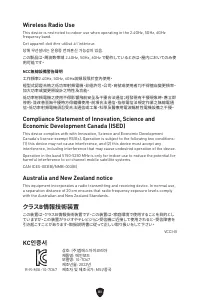
iii Wireless Radio Use This device is restricted to indoor use when operating in the 2.4GHz, 5GHz, 6GHz frequency band.Cet appareil doit être utilisé à l’intérieur. 당해 무선설비는 운용중 전파혼신 가능성이 있음. この製品は、周波数帯域 2.4GHz, 5GHz, 6GHz で動作しているときは、屋内においてのみ使 用可能です。 NCC無線設備警告聲明 工作頻率2.4GHz, 5GHz, 6GHz該頻段限於室內使用。經型式認證...
Page 59 - Battery Information; Chemical Substances Information
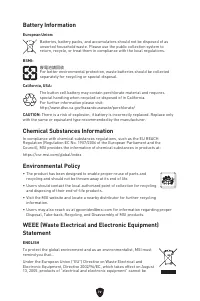
iv Battery Information European Union: Batteries, battery packs, and accumulators should not be disposed of as unsorted household waste. Please use the public collection system to return, recycle, or treat them in compliance with the local regulations. BSMI: 廢電池請回收 For better environmental protectio...
Page 62 - India RoHS
vii výrobky” v běžném komunálním odpadu a výrobci elektronických výrobků, na které se tato směrnice vztahuje, budou povinni odebírat takové výrobky zpět po skončení jejich životnosti. Společnost MSI splní požadavky na odebírání výrobků značky MSI, prodávaných v zemích EU, po skončení jejich životnos...
Page 63 - Việt Nam RoHS
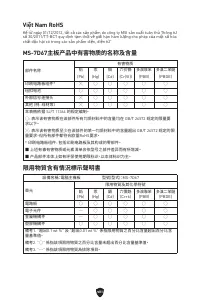
viii Việt Nam RoHS Kể từ ngày 01/12/2012, tất cả các sản phẩm do công ty MSI sản xuất tuân thủ Thông tư số 30/2011/TT-BCT quy định tạm thời về giới hạn hàm lượng cho phép của một số hóa chất độc hại có trong các sản phẩm điện, điện tử” MS-7D67主板产品中有害物质的名称及含量 部件名称 有害物质 铅 (Pb) 汞 (Hg) 镉 (Cd) 六价铬 (Cr(VI...
Page 64 - Copyright and Trademarks Notice; Technical Support; Revision History
ix Copyright and Trademarks Notice Copyright © Micro-Star Int’l Co., Ltd. All rights reserved. The MSI logo used is a registered trademark of Micro-Star Int’l Co., Ltd. All other marks and names mentioned may be trademarks of their respective owners. No warranty as to accuracy or completeness is exp...