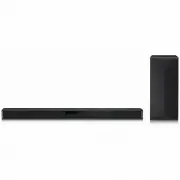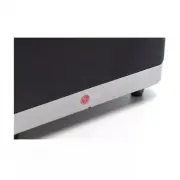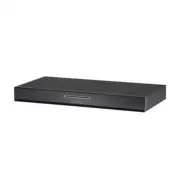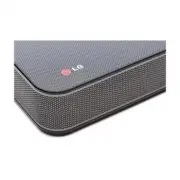
Page 2 - Installing and using the Product; Connect the LG WOWCAST to your TV via an HDMI cable.; LG WOWCAST Quick Guide
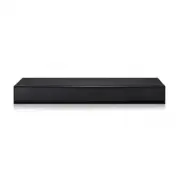
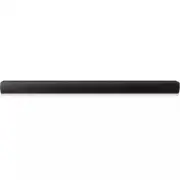
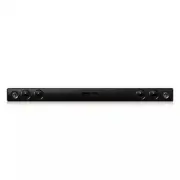
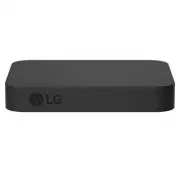
2 LG WOWCAST Quick Guide Installing and using the Product a Connect the LG WOWCAST to your TV via an HDMI cable. TV (e)ARC HDMI IN (eARC/ARC) USB HDMI IN a b D C B A A LG WOWCAST B Sound bar C Remote Control Receiver / Status Display D Wireless Subwoofer - Install it close to the sound bar. LG WOWCA...
Page 3 - Manually connecting the LG WOWCAST to the sound bar (
3 b Connect the LG WOWCAST to your TV via a USB cable for the power supply. You can also connect to an electrical outlet for a stable power supply. c Install the LG WOWCAST on the rear panel of your TV. After attaching the double-sided foam tape on the LG WOWCAST, fix it to the rear panel of the TV....
Page 4 - Table of Contents
4 Table of Contents LG WOWCAST Quick Guide 2 Installing and using the Product Connecting to the TV 5 Supported LG Wi-Fi Sound Bar models 6 Connecting LG WOWCAST automatically 8 Connecting LG WOWCAST manually Resetting the Products 9 How to reset Safety Precautions 10 Safety and Regulatory Before Rep...
Page 5 - Supported LG Wi-Fi Sound Bar models; Connecting to the TV
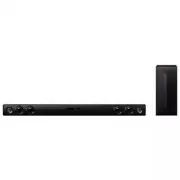
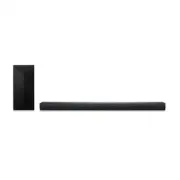
5 Connecting to the TV You can enjoy the sound by connecting LG WOWCAST to the sound bar wirelessly. Supported LG Wi-Fi Sound Bar models LG WOWCAST can only be connected to some LG Wi-Fi sound bar models and is not compatible with sound bars from other companies. For more information on compatible m...
Page 6 - Connecting LG WOWCAST automatically
6 Connecting LG WOWCAST automatically After completing installation, LG WOWCAST will automatically be connected to the sound bar. Connect the LG WOWCAST to the sound bar in the following order. a Using the HDMI cable, connect the HDMI TV (e)ARC terminal on the LG WOWCAST to the HDMI IN eARC/ARC term...
Page 7 - Checking the connection with the LED on LG WOWCAST
7 d Press the Function / button on the remote contorl of the sound bar repeatedly until “ OPT/HDMI ARC ” appears on the status display. e On your TV's settings, set the output speaker to [HDMI ARC]. f When the connection is automatically established with the LG WOWCAST and the sound bar, “ LG WOWCAS...
Page 8 - Connecting LG WOWCAST manually
8 Connecting LG WOWCAST manually a Check if the sound bar is updated. Press the or button of the remote control for 3 seconds. When LG WOWCAST READY is displayed, proceed from d . LG WOWCAST READY 3” b To reset, press the Wi-Fi button or Mic mute button of the sound bar for 3 seconds. 3” c Use the Q...
Page 9 - How to reset; Resetting the Products
9 Resetting the Products If LG WOWCAST is frozen and does not work, you will need to reset the LG WOWCAST and your sound bar. If the sound bar has been reseted, you will need to connect it to your smartphone again. How to reset a Press and hold the RESET button on the LG WOWCAST for 3 seconds. The L...
Page 10 - Safety and Regulatory; CAUTION; Safety Precautions
10 Safety Precautions Safety and Regulatory CAUTION RISK OF ELECTRIC SHOCK DO NOT OPEN CAUTION: TO REDUCE THE RISK OF ELECTRIC SHOCK DO NOT REMOVE COVER (OR BACK) NO USER- SERVICEABLE PARTS INSIDE REFER SERVICING TO QUALIFIED SERVICE PERSONNEL. This lightning flash with arrowhead symbol within an eq...
Page 12 - Troubleshooting; General Errors; Before Reporting Product Malfunction
12 Before Reporting Product Malfunction Troubleshooting If you experience the following issues while using the product, please perform several checks, as they may not be malfunctions. General Errors Issue Solution LG WOWCAST does not work properly • Check if the TV is properly connected to the LG WO...
Page 13 - Appendix
13 Appendix Specifications General Power Requirement Refer to the main label. Power Consumption Refer to the main label. Dimensions (W x H x D) Approx. 65.0 mm x 13.0 mm x 85.0 mm Operation Temperature Range 5 °C - 40 °C Operation Humidity Range 5 % - 60 % RH Input/Output HDMI 19-pin (mini HDMI, HDM...
Page 14 - Registered Trademarks and Licenses
14 Registered Trademarks and Licenses All trademarks and trade names are the property of their respective owners. The terms HDMI, HDMI High-Definition Multimedia Interface, and the HDMI Logo are trademarks or registered trademarks of HDMI Licensing Administrator, Inc.
Page 15 - When shipping the Product; Cleaning the product
15 Open Source Software Notice Information To obtain the source code under GPL, LGPL, MPL, and other open source licenses that have the obligations to disclose source code, that is contained in this product, and to access all referred license terms, copyright notices and other relevant documents ple...