Page 2 - Safety Information; CAUTION
1 Getting Started Getting Started 2 Getting Star ted 1 Safety Information CAUTION RISK OF ELECTRIC SHOCK DO NOT OPEN CAUTION: TO REDUCE THE RISK OF ELECTRIC SHOCK DO NOT REMOVE COVER (OR BACK) NO USER-SERVICEABLE PARTS INSIDE REFER SERVICING TO QUALIFIED SERVICE PERSONNEL. This lightning flash with ...
Page 4 - Symbols
Getting Started 4 Getting Star ted 1 Symbols ~ Refers to alternating current (AC). 0 Refers to direct current (DC). Refers to class II equipment. 1 Refers to stand-by. ! Refers to “ON” (power). Refers to dangerous voltage.
Page 5 - Getting Started; Troubleshooting; Table of Contents
Table of Contents 5 1 2 3 4 5 1 Getting Started 2 Safety Information 6 Unique features 6 Introduction 7 Front 8 Rear / Bottom 2 Connecting 9 Setting up the Smart Display 9 – Connecting the AC Adapter 9 – Network connection 10 – Installing “Google Home” App10 – Connecting to Wi-Fi 3 Operating 12 Basi...
Page 6 - Unique features; The Google Assistant; Control smart home devices; Introduction; Symbol used in this manual; Caution
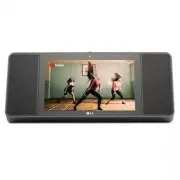
Getting Started 6 Getting Star ted 1 Unique features The Google Assistant You can use a variety of voice commands to control the Smart Display with the Google Assistant. BLUETOOTH ® Listen to music stored on your Bluetooth device. Control smart home devices Your Google Assistant on your LG ThinQ Vie...
Page 7 - Front; Note
Getting Started 7 Getting Star ted 1 Front a c b d e f a , Adjusts the volume. b (Microphone off) button Enables or disables voice recognition (Page 17) c Built-in microphones d Camera Switch Enables or disables camera (Page 18) e Camera f Proximity/Ambient light sensor Precautions in using the touc...
Page 9 - Setting up the Smart; Connecting the AC Adapter; Network connection
2 Connecting Connecting 9 Connecting 2 Setting up the Smart Display Connecting the AC Adapter Connect the Smart Display to the power supply with the supplied AC adapter.1. Connect the supplied AC power cord to DC IN Adapter input. 2. Plug the AC power cord into an AC outlet. 3. Screen turns on when ...
Page 10 - Installing “Google Home” App; Requirements before set up; Google Home
Connecting 10 Connecting 2 Installing “Google Home” App The "Google Home" app allows you to manage various functions of this Smart Display through your device: Use the Google Home app on your device to set up your Smart Display.” Requirements before set up y A wireless router must be connect...
Page 12 - Basic Operations; Simple Operation Guide; Function
3 Operating Operating 12 Oper ating 3 Basic Operations Simple Operation Guide Function How to Status Bluetooth pairing Say "Hey Google, turn on Bluetooth” When you paired device before, it will automatically paired. Volume control Tap or (0~10 level). Or Scroll up on the screen to activate volum...
Page 13 - How to use; Talk to the Google Assistant; Smart Home Control
Operating 13 Oper ating 3 How to use the Google Assistant Talk to the Google Assistant You can use a variety of voice commands to control your Smart Display with the Google Assistant. Just start with “Hey Google” to quickly manage daily tasks, view glanceable answers, stay connected with loved ones,...
Page 14 - Voice command
Operating 14 Oper ating 3 Voice command 1. Timers and alarms “Set a timer for 15 minutes” “Wake me up tomorrow at 6am” 2. Weather and traffic “What’s the weather this weekend” “How’s the traffic to work today?” 3. Calendar and reminders “What’s on my agenda?” “Add doctor’s appointment to my calendar...
Page 15 - Using BLUETOOTH®; About BLUETOOTH; Listening to music stored on the; Pairing your unit and BLUETOOTH
Operating 15 Oper ating 3 Using BLUETOOTH® technology About BLUETOOTH Bluetooth is wireless communication technology for short range connection. The sound may be interrupted if the connection has interference by some other electronic waves or you connect the Bluetooth in some other room. Connecting ...
Page 17 - Other Operations; Turn off the microphone; Edit Smart Display name; Resetting
Operating 17 Oper ating 3 Other Operations Turn off the microphone temporarily You can turn off the microphone to temporarily disable the detect voice recognition by pressing (Microphone off) button. is displayed on the screen and "The mic is muted" is heard.To cancel it, press (Microphone o...
Page 18 - Turn off the camera temporarily
Operating 18 Oper ating 3 Turn off the camera temporarily You can turn off the camera to temporarily by Sliding the camera switch. "Camera off" is appears on the screen. To cancel it, Slide the camera switch again. "Camera on" is appears on the screen. Getting Google Assistant help F...
Page 19 - Connecting Google
Operating 19 Oper ating 3 Connecting Google Chromecast and Chromecast Audio Google Chromecast is a technology that lets you instantly transfer entertainment content and apps from your device, tablet, or laptop to your TV or Smart Displays. 1. Make sure you have the icon in the upper right corner of ...
Page 20 - Troubleshooting; General; Problem
4 Troubleshooting Troubleshooting 20 Troubleshoo ting 4 Troubleshooting General Problem Cause & Correction No Power y The power cord is unplugged. Plug in the power cord. y Check whether electricity failed. Check the condition by operating other electronic devices. No sound or sound distortion. ...
Page 21 - Network; Application; Symptoms
Troubleshooting 21 Troubleshoo ting 4 Network Symptoms Cause & Solution Cannot connect the Smart Display to your home network. The wireless communication may be interrupted from household devices that are using radio frequencies. Move the Smart Display away from them. The application doesn’t wor...
Page 22 - Trademarks and; When shipping the unit
5 Appendix Appendix 22 Appendix 5 Trademarks and Licenses The Bluetooth® word mark and logos are registered trademarks owned by the Bluetooth SIG, Inc. and any use of such marks by LG Electronics is under license. Other trademarks and trade names are those of their respective owners. Google, Google ...
Page 23 - OPEN SOURCE; Android Things OPEN SOURCE
Appendix 23 Appendix 5 OPEN SOURCE You can find “Open Source Software Notice” at the "Google Home" app Android Things OPEN SOURCE 1. Launch "Google Home" app on your device.2. Follow these instructions in order. [ ] [ [ ] [ [Settings] [ [ ] 3. Tap [Open source licenses] on [ of Devic...
Page 24 - Specifications
Appendix 24 Appendix 5 Specifications Smart Display Power consumption Refer to main label. AC adapter y Model: LCAP16B-A y Manufacturer: Lien Chang Electronic Enterprise Co., Ltd. y Input: 100-240 V~ 50-60 Hz 1.1 A y Output: 19 V 0 2.1 A Dimensions (W x H x D) Approx. 321 mm X 136 mm X 133 mm (12.64...