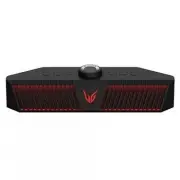
Page 2 - Connecting and Using the Speaker; Charge the speaker before using it by opening the rear cover and; Gaming Speaker Quick Guide
2 Gaming Speaker Quick Guide Connecting and Using the Speaker a OPTICAL OUT b c d a Charge the speaker before using it by opening the rear cover and connecting the speaker to the charging adapter. b Connect the speaker to the PC via a USB cable ( [ See “Connecting via USB Cable” on page 10.) A Conne...
Page 4 - Table of Contents
4 Table of Contents Gaming Speaker Quick Guide 2 Connecting and Using the Speaker Exploring the Product 5 Top 7 Back Charge 8 Charging the Battery 9 Checking Battery Status Connecting via USB Cable 10 Connecting to PC for Gaming 12 Using Voice Chat Connecting via Optical Cable 13 Connecting to Game ...
Page 5 - Top; Exploring the Product
5 Exploring the Product Top a b c e f d a Power Turns the speaker on or off. Power LED Press and hold the Power button for 2 seconds to check the battery level while the power or the speaker is on. ( [ See “Checking Battery Status” on page 9.) Function Press the button repeatedly to select the desir...
Page 7 - Back
7 Back a b c d e f g a DC IN Connect an AC adapter to charge the speaker. b Plug in a USB (C-Type) cable to connect the speaker to the PC. c OPTICAL IN Plug in an optical cable to connect the speaker to the gaming console. d RESET When the speaker does not function properly, use a sharp object such ...
Page 8 - Charging the Battery; Charge
8 Charge Charging the Battery The speaker is a built-in battery. Make sure to charge the battery sufficiently before use. a Open the back cover and plug the AC adapter into the DC IN terminal. b Plug the power cable into the AC adapter. c Plug the power cable connected to the AC adapter into an outl...
Page 9 - Checking Battery Status; Charging Status
9 Checking Battery Status Charging Status Once the battery charging starts, the power LED indicates the charging status. LED LED Status Battery Status Turns on and off in green 15 seconds. Charging is complete. It is red. Charging is in progress. Note • Playing tracks while charging may lengthen the...
Page 10 - Connecting to PC for Gaming; Connecting via USB Cable
10 Connecting via USB Cable You can connect the device to a gaming PC to enjoy deep and rich sounds.You can play your PC games with more realistic sounds. Connecting to PC for Gaming Please check the following first. • This product can be used with gaming PCs, laptops or game console* that support U...
Page 12 - Using Voice Chat
12 Using Voice Chat a Voice chat can be used in the USB mode. Connect the speaker to the PC via a USB cable. ( [ See “Connecting via USB Cable” on page 10.) b Press the Microphone button on the speaker to turn the built-in microphone or a microphone of headset on or off. LED LED Status Microphone St...
Page 13 - Connecting to Game Console (OPTICAL OUT) for Gaming; Connecting via Optical Cable
13 Connecting via Optical Cable You can enjoy deep and rich sound by connecting the product to a device such as a game console.You can play your games with more realistic sounds. Connecting to Game Console (OPTICAL OUT) for Gaming a If the optical cable terminal has a cover, first remove the cover a...
Page 15 - Connecting Smartphone to the Speaker via Bluetooth; Connecting to Bluetooth
15 Connecting to Bluetooth Connecting Smartphone to the Speaker via Bluetooth You can play tracks or run a music app on a Bluetooth device and enjoy the sounds through the speaker. Please check the following first. • The speaker’s Bluetooth specifications are as follows: - Bluetooth version: 5.0 - B...
Page 18 - Connecting Two Bluetooth Devices to the Speaker; Multi phone pairing
18 Connecting Two Bluetooth Devices to the Speaker Multi phone pairing a Connect one Bluetooth device to the speaker first. ( [ See “Connecting to Bluetooth” on page 15.) b Press and hold the Function button on the speaker for 2 seconds. The function LED will start to blink in blue to indicate that ...
Page 19 - Talking on the Phone Hands-free
19 Talking on the Phone Hands-free a Connect a smart device to the speaker. ( [ See “Connecting to Bluetooth” on page 15.) b When you receive a phone call on the smartphone, operate as in the table below: LED Function How to Use Receiving phone call Press the Headset button then LED turns on in gree...
Page 20 - Using Voice command
20 Using Voice command You can turn on the Google Assistant or Siri function on your smartphone and use voice command through the speaker’s microphone. Please check the following first. • Use a smart device that provides a voice command function. • This function may not work depending on the Bluetoo...
Page 21 - Installing app; Downloading with a QR code; Connecting the GAMING SPEAKER App
21 Connecting the GAMING SPEAKER App Use the various functions of the speaker on the LG XBOOM app and PC App. Please check the following first. • The LG XBOOM app is available in the versions listed below. - Android OS: Version 5.0 or higher - iOS OS: Version 10 or higher (Minimum supported versions...
Page 22 - Downloading in Google Play or App Store
22 Downloading in Google Play or App Store a Find the LG XBOOM app on the Google Play or App Store and install it on your smartphone. Android™ Phone iPhone b Connect the smartphone to the speaker via Bluetooth . ( [ See “Connecting to Bluetooth” on page 15.) c Open the LG XBOOM app installed on the ...
Page 23 - Installing PC app; Downloading on PC
23 Installing PC app Please check the following first. • The PC app is available in the version below. - Supported PC OS : Windows 10 (20H2 or higher) / 11 Downloading on PC a Connect to URL https://lg.com/us/support/product/lg-GP9 b Download ‘ LG_UltraGear_Gaming_Speaker_PC_App_1.0.2209.03.zip ’ or...
Page 25 - Connecting via 3.5 mm Stereo Cable; Playing on an external device by connecting with a cable; Connecting to an External Device
25 Connecting to an External Device Connecting via 3.5 mm Stereo Cable You can connect an external device to the speaker via a 3.5 mm stereo cable to enjoy music. Playing on an external device by connecting with a cable a Open the back cover of the speaker and connect the speaker’s AUX OUT terminal ...
Page 26 - Setting Sound Effects; Setting Sound Effects with speaker; Additional Functions
26 Additional Functions Setting Sound Effects Setting Sound Effects with speaker Use the FPS , RTS , EQ buttons to select desired sound effects. Sound Effect Settings LED ( Off / On) Function Description Standard You can enjoy the natural music like the original sound. FPS You can enjoy sounds optim...
Page 27 - Setting Sound Effects with Headset or Earphones
27 FPS+ Custom You can enjoy FPS and Custom at the same time. Custom can be adjusted to the desired level on the LG XBOOM app. RTS+ Custom You can enjoy RTS and Custom at the same time. Custom can be adjusted to the desired level on the LG XBOOM app. Note • You can use the optimized EQ function by u...
Page 30 - Using Auto Power Off
30 Using Auto Power Off If there is no playback or button input for 15 minutes, the product turns off automatically. You can enable or disable the Auto Power Off function as follows. Function How to Use Enable Press and hold the FPS button and EQ at the same time for 2 seconds. • The function LED wi...
Page 31 - Attaching the ferrite core to a headset's wire
31 Attaching the ferrite core (optional) A ferrite core may not be provided depending on national standards. Attaching the ferrite core to a headset's wire Attach the ferrite core to a wire reduce radio noise. a Pull Part [a] to open the ferrite core. b Wind the headset's wire once around the ferrit...
Page 32 - Safety and Regulatory; CAUTION; Safety Precautions
32 Safety Precautions Safety and Regulatory CAUTION RISK OF ELECTRIC SHOCK DO NOT OPEN CAUTION: TO REDUCE THE RISK OF ELECTRIC SHOCK DO NOT REMOVE COVER (OR BACK) NO USER- SERVICEABLE PARTS INSIDE. REFER SERVICING TO QUALIFIED SERVICE PERSONNEL. This lightning flash with arrowhead symbol within an e...
Page 35 - Troubleshooting; Before Reporting Product Malfunction
35 Before Reporting Product Malfunction Troubleshooting If you experience the following issues while using the product, please perform several checks, as they may not be malfunctions. Symptom Cause and Solution Power is not supplied. • The battery is discharged. Recharge the battery. • Connect the s...
Page 37 - Appendix
37 Appendix Specifications General Power Supply 19 V 0 2.1 A (AC Adapter) Built-in rechargeable battery Power consumption Refer to the main label. AC adapter • Model: ADS-45SN-19-2 19040G • Manufacturer: SHENZHEN HONOR ELECTRONIC CO.,LTD • Input: 100 - 240 V ~ 50/60 Hz • Output: 19 V 0 2.1 A Dimensi...
Page 38 - Registered Trademarks and Licenses
38 Registered Trademarks and Licenses All trademarks and trade names are the property of their respective owners. Dolby, Dolby Audio, and the double-D symbol are trademarks of Dolby Laboratories Licensing Corporation. Manufactured under license from Dolby Laboratories. Confidential unpublished works...
Page 39 - Handling the Product; When shipping the Product; Cleaning the product
39 Handling the Product When shipping the Product Please save the original shipping carton and packing materials. If you need to ship the product, for maximum protection, re-pack the product as it was originally packed at the factory. Keeping the exterior surfaces clean • Do not use volatile liquids...