LG G7050 - Manuals
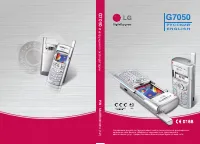
LG G7050 Smartphone – User Manual in PDF format online.
Manuals:
User Manual LG G7050
Summary
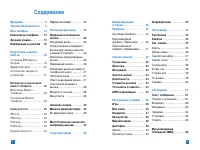
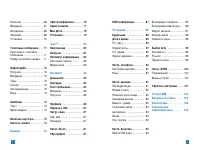
ǂ‰ÂÌË ⋯ ⋯ ⋯ ⋯ ⋯ ⋯ ⋯ ⋯ 8 íÂıÌË͇ ·ÂÁÓÔ‡ÒÌÓÒÚË ⋯ ⋯ 9 LJ¯ ÚÂÎÂÙÓÌ ⋯ ⋯ ⋯ ⋯ ⋯ 14 äÓÏÔÓÌÂÌÚ˚ ÚÂÎÂÙÓ̇ ⋯ 14 îÛÌ͈ËË Í·‚˯ ⋯ ⋯ ⋯ ⋯ ⋯ 15 àÌÙÓχˆËfl ̇ ‰ËÒÔΠ⋯ 16 èÓ‰„ÓÚӂ͇ Í Ì‡˜‡ÎÛ ‡·ÓÚ˚ ⋯ ⋯ ⋯ ⋯ ⋯ ⋯ ⋯ ⋯ 18 ìÒÚ‡Ìӂ͇ SIM ͇Ú˚ Ë ·‡Ú‡ÂË ⋯ ⋯ ⋯ ⋯ ⋯ ⋯ ⋯ ⋯ ⋯ 18 á‡fl‰Í‡ ·‡Ú‡ÂË ⋯ ⋯ ⋯ ⋯ ⋯ 20 éÚÍβ˜ÂÌË Á‡fl...
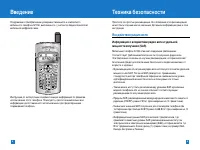
ǂ‰ÂÌË èÓÁ‰‡‚ÎflÂÏ Ò ÔËÓ·ÂÚÂÌËÂÏ ÛÒӂ¯ÂÌÒÚ‚Ó‚‡ÌÌÓ„Ó Ë ÍÓÏÔ‡ÍÚÌÓ„ÓÏÓ·ËθÌÓ„Ó ÚÂÎÂÙÓ̇ G7050, ‚˚ÔÓÎÌÂÌÌÓ„Ó Ò Û˜ÂÚÓÏ ÔÓÒΉÌËı ÚÂıÌÓÎÓ„ËÈÏÓ·ËθÌÓÈ ˆËÙÓ‚ÓÈ Ò‚flÁË. àÌÒÚÛ͈Ëfl ÔÓ ˝ÍÒÔÎÛ‡Ú‡ˆËË ÒÓ‰ÂÊËÚ ‚‡ÊÌÛ˛ ËÌÙÓχˆË˛ ÔÓ Ô‡‚Ë·ÏËÒÔÓθÁÓ‚‡ÌËfl ˝ÚÓ„Ó ÚÂÎÂÙÓ̇. èÓʇÎÛÈÒÚ‡, ÔÓ˜ÚËÚ ‚ÌËχÚÂθÌÓ ‚Ò˛ËÌÙ...
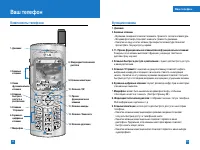
1. ÑË̇ÏËÍ 8. ÜˉÍÓÍËÒÚ‡Î΢ÂÒÍËÈ ‰ËÒÔÎÂÈ 9. ä·‚Ë¯Ë Ì‡‚Ë„‡ˆËË 3. ょfl ÙÛÌ͈ËÓ̇θ̇flÍ·‚˯‡ 2. ÅÓÍÓ‚˚ Í·‚Ë¯Ë 5. ä·‚˯‡ ‘éÚÔ‡‚ËÚ¸’ 10. ä·‚˯‡ ‘éä’ 11. 臂‡fl ÙÛÌ͈ËÓ̇θ̇flÍ·‚˯‡ 4. ä·‚˯‡ ·˚ÒÚÓ„Ó ‰ÓÒÚÛÔ‡ Í ‡ÒÔËÒ‡Ì˲ 13. ä·‚˯‡ ‘á‡ÍÓ̘ËÚ¸’ 7. åËÍÓÙÓÌ 6. ÅÛÍ‚ÂÌÌÓ- ˆËÙÓ‚˚ÂÍ·‚Ë¯Ë 14. ä·...
LJ¯ ÚÂÎÂÙÓÌ Ç‡¯ ÚÂÎÂÙÓÌ • ç‡Ê‡ÚË Í·‚Ë¯Ë Ì‡‚Ë„‡ˆËË ‚Ô‡‚Ó ÔÓÁ‚ÓÎflÂÚ ÔÂÂÈÚË Í ÏÂÌ˛ ‚ıÓ‰fl˘Ëı ÒÓÓ·˘ÂÌËÈ. 10. ä·‚˯‡ ‘éä’: ÒÎÛÊËÚ ‰Îfl ‚˚·Ó‡ ÔÛÌÍÚ‡ ÏÂÌ˛ Ë ÔÓ‰Ú‚ÂʉÂÌËfl ‚˚·Ó‡ ÙÛÌ͈ËË. 12. ä·‚˯‡ ͇ÏÂ˚: ÒÎÛÊËÚ ‰Îfl ·˚ÒÚÓ„Ó ‰ÓÒÚÛÔ‡ Í ‚ÓÁÏÓÊÌÓÒÚflÏ Í‡ÏÂ˚. 13. ä·‚˯‡ ‘á‡ÍÓ̘ËÚ¸’: ËÒÔÓθÁÛÂÚÒfl ‰Îfl ÔÂ...
For Your Safety ìÒÚ‡Ìӂ͇ SIM ͇Ú˚ Ë ·‡Ú‡ÂË 1. è‰ ÚÂÏ, Í‡Í ‚˚ÌÛÚ¸ ·‡Ú‡Â˛, ۷‰ËÚÂÒ¸ ‚ ÚÓÏ, ˜ÚÓ ÚÂÎÂÙÓÌ ÓÚÍβ˜ÂÌ.ç‡ÊÏËÚ Á‡˘ÂÎÍÛ ‰ÂʇÚÂÎfl ·‡Ú‡ÂË Ë ‚˚Ú‡˘ËÚ ·‡Ú‡Â˛ ËÁ ÚÂÎÂÙÓ̇ÔÓ‰ Û„ÎÓÏ 45 „‡‰ÛÒÓ‚. èÓ‰„ÓÚӂ͇ Í Ì‡˜‡ÎÛ ‡·ÓÚ˚ èÓ‰„ÓÚӂ͇ Í Ì‡˜‡ÎÛ ‡·ÓÚ˚ 2. ÇÒÚ‡‚¸Ú SIM ͇ÚÛ ‚ ‰ÂʇÚÂθ Ë Á‡‰‚Ë...
èÓ‰„ÓÚӂ͇ Í Ì‡˜‡ÎÛ ‡·ÓÚ˚ èÓ‰„ÓÚӂ͇ Í Ì‡˜‡ÎÛ ‡·ÓÚ˚ á‡fl‰Í‡ ·‡Ú‡ÂË àÒÔÓθÁÛÈÚ ÚÓθÍÓ ÔË·„‡ÂÏ˚È Í ‚‡¯ÂÏÛ ÚÂÎÂÙÓÌÛ ÔÂÂÌÓÒÌÓÈ ‡‰‡ÔÚÂ. 1. ÇÒÚ‡‚¸Ú ¯ÚÂÍ ÔÂÂÌÓÒÌÓ„Ó Á‡fl‰ÌÓ„Ó ÛÒÚÓÈÒÚ‚‡ ‚ ÒÔˆˇθÌ˚ȇÁ˙ÂÏ ‚ ÚÂÎÂÙÓÌÂ. 2. ÇÒÚ‡‚¸Ú ‰Û„ÓÈ ÍÓ̈ Á‡fl‰ÌÓ„Ó ÛÒÚÓÈÒÚ‚‡ ‚ ÓÁÂÚÍÛ. éÚÍβ˜ÂÌË Á‡fl‰ÌÓ„Ó...
ÇÍβ˜ÂÌËÂ Ë ‚˚Íβ˜ÂÌË ‚‡¯Â„Ó ÚÂÎÂÙÓ̇ ÇÍβ˜ÂÌË LJ¯Â„Ó ÚÂÎÂÙÓ̇ 1. ìÒÚ‡ÌÓ‚ËÚ Á‡flÊÂÌÌÛ˛ ·‡Ú‡Â˛ ‚ ÚÂÎÂÙÓÌ ËÎË ÔÓ‰ÒÓ‰ËÌËÚÂ Â„Ó Í‚Ì¯ÌÂÏÛ ËÒÚÓ˜ÌËÍÛ ÔËÚ‡ÌËfl. 2. ç‡ÊÏËÚ ̇ ÌÂÒÍÓθÍÓ ÒÂÍÛ̉ Í·‚Ë¯Û , ÔÓ͇ Ì Á‡„ÓËÚÒfl Üä‰ËÒÔÎÂÈ. 3. Ç Á‡‚ËÒËÏÓÒÚË ÓÚ Ì‡ÒÚÓÂÍ Ç‡Ï, ‚ÓÁÏÓÊÌÓ, ·Û‰ÂÚ ÌÂÓ·ıÓ‰ËÏÓ ‚‚ÂÒÚË ‚‡¯P...
äÓ‰ ·ÂÁÓÔ‡ÒÌÓÒÚË (ÓÚ 4 ‰Ó 8 ˆËÙ) äÓ‰ ·ÂÁÓÔ‡ÒÌÓÒÚË Á‡˘Ë˘‡ÂÚ ÓÚ ÌÂÒ‡Ì͈ËÓÌËÓ‚‡ÌÌÓ„Ó ËÒÔÓθÁÓ‚‡ÌËfl‚‡¯Â„Ó ÚÂÎÂÙÓ̇. èÓ ÛÏÓΘ‡Ì˲ ÍÓ‰ ·ÂÁÓÔ‡ÒÌÓÒÚË - ‘ 0000 ’. í‡ÍÊ ÍÓ‰ ·ÂÁÓÔ‡ÒÌÓÒÚË ÌÂÓ·ıÓ‰ËÏ ‰Îfl ‰ÓÒÚÛÔ‡ Í Ú‡ÍËÏ ÙÛÌ͈ËflÏ Í‡Í, Ó˜ËÒÚ͇ ‚Ò„ÓÒÓ‰ÂÊËÏÓ„Ó ÚÂÎÂÙÓ̇ Ë ‚ÓÒÒÚ‡ÌÓ‚ÎÂÌË Á‡‚Ó‰ÒÍËı ÛÒÚ‡ÌÓ‚ÓÍ. í‡ÍÊÂ...
àÒıÓ‰fl˘ËÈ ‚˚ÁÓ‚ ̇ ÌÓÏ ËÁ ÚÂÎÂÙÓÌÌÓÈ ÍÌË„Ë Ç˚ ÏÓÊÂÚ ÒÓı‡ÌËÚ¸ ˜‡ÒÚÓ ËÒÔÓθÁÛÂÏ˚ ËÏÂ̇ Ë ÌÓχ ÚÂÎÂÙÓÌÓ‚ ̇SIM ͇Ú Ë/ËÎË ‚ Ô‡ÏflÚË ÚÂÎÂÙÓ̇. ÑÎfl ÔÓÒÏÓÚ‡ ‰ÂڇθÌÓ„Ó ÓÔËÒ‡ÌËflÙÛÌ͈ËË ÚÂÎÂÙÓÌÌÓÈ ÍÌË„Ë, ÔÓʇÎÛÈÒÚ‡, Ó·‡ÚËÚÂÒ¸ Í ÒÚ‡Ìˈ‡Ï 55-56. ç‡ÒÚÓÈ͇ Á‚Û͇ ÖÒÎË ‚˚ ıÓÚËÚ ̇ÒÚÓËÚ¸ „ÓÏÍÓÒÚ¸ ‰Ë...
éÚÍÎÓÌÂÌË ‚ıÓ‰fl˘Â„Ó ‚˚ÁÓ‚‡ Ç˚ ÏÓÊÂÚ ÓÚÍÎÓÌËÚ¸ ‚ıÓ‰fl˘ËÈ ‚˚ÁÓ‚ ÔÛÚÂÏ Ì‡Ê‡ÚËfl Û‰ÂÊË‚‡ÌËfl Ó‰ÌÓÈ ËÁ·ÓÍÓ‚˚ı Í·‚˯ ‚ ÔÓÎÓÊÂÌËË Á‡Í˚ÚÓÈ Í·‚ˇÚÛ˚. åÓ˘ÌÓÒÚ¸ Ò˄̇· óÚÓ·˚ ÛÁ̇ڸ ÏÓ˘ÌÓÒÚ¸ ÒÂÚÂ‚Ó„Ó Ò˄̇· Ó·‡ÚËÚ ‚ÌËχÌË ̇ Ë̉Ë͇ÚÓÒ˄̇· ̇ Üä ‰ËÒÔΠ‚‡¯Â„Ó ÚÂÎÂÙÓ̇. åÓ˘ÌÓÒÚ¸ ÒÂÚ‚ӄÓÒ˄̇· ÏÓÊÂÚ...
– Ç˚ ÏÓÊÂÚ ‚˚·‡Ú¸ ÂÊËÏ í9. ç‡ÊÏËÚ ÎÂ‚Û˛ ÙÛÌ͈ËÓ̇θÌÛ˛ Í·‚˯Û, Á‡ÚÂÏ ‚˚·ÂËÚ flÁ˚ÍË í9. Ç˚·ÂËÚ ÌÛÊÌ˚È flÁ˚Í ÂÊËχ í9.í‡ÍÊ ‚˚ ÏÓÊÂÚ ÓÚÍβ˜ËÚ¸ ÂÊËÏ í9 ‚˚·‡‚ í9 ‚˚ÍÎ . èÓ ÛÏÓΘ‡Ì˲ ÂÊËÏ í9 ̇ ÚÂÎÂÙÓÌ ‚Íβ˜ÂÌ. 2. ǂ‰ËÚ ÒÎÓ‚Ó ˆÂÎËÍÓÏ ‰Ó Â„Ó ËÁÏÂÌÂÌËfl ËÎË Û‰‡ÎÂÌËfl. 3. á‡Í‡Ì˜Ë‚‡ÈÚ ̇·Ó ͇Ê...
éÒÌÓ‚Ì˚ ÙÛÌ͈ËË éÒÌÓ‚Ì˚ ÙÛÌ͈ËË á‡ÔËÒ̇fl ÍÌËÊ͇ Ç˚ ÏÓÊÂÚ ÒÓı‡ÌflÚ¸ ÌÓχ ÚÂÎÂÙÓÌÓ‚ Ë ÒÓÓÚ‚ÂÚÒÚ‚Û˛˘Ë ËÏ ËÏÂ̇ ‚Ô‡ÏflÚË ‚‡¯ÂÈ SIM ͇Ú˚ ËÎË ‚ Ô‡ÏflÚË ÚÂÎÂÙÓ̇. ÅÓΠ‰Âڇθ̇fl ËÌÙÓχˆËfl Ó ‡·ÓÚÂ Ò á‡ÔËÒÌÓÈ ÍÌËÊÍÓÈ ÓÔË҇̇ ̇ÒÚ‡Ìˈ ÑÎfl ‰ÂڇθÌÓÈ ËÌÙÓχˆËË ÒÏ. ÒÚ‡Ìˈ˚ 55-60. åÂÌ˛ ‚Ó ‚ÂÏfl ‡Á„Ó‚...
åÌÓ„ÓÒÚÓÓÌÌË Á‚ÓÌÍË ËÎË ÍÓÌÙÂÂ̈-‚˚ÁÓ‚˚ ìÒÎÛ„‡ ÏÌÓ„ÓÒÚÓÓÌÌËı Á‚ÓÌÍÓ‚ ËÎË ÍÓÌÙÂÂ̈-‚˚ÁÓ‚Ó‚ ÔÓÁ‚ÓÎflÂÚ ‚‡ÏÓ‰ÌÓ‚ÂÏÂÌÌÓ ‡Á„Ó‚‡Ë‚‡Ú¸ Ò ÌÂÒÍÓθÍËÏË ‡·ÓÌÂÌÚ‡ÏË, ÂÒÎË ‚‡¯ ÓÔ‡ÚÓÒÓÚÓ‚ÓÈ Ò‚flÁË ÔÓ‰‰ÂÊË‚‡ÂÚ ˝ÚÛ ÛÒÎÛ„Û. åÌÓ„ÓÒÚÓÓÌÌËÈ ‡Á„Ó‚Ó ÏÓÊÂÚ·˚Ú¸ ÛÒÚ‡ÌÓ‚ÎÂÌ, ÂÒÎË Ç˚ ‡Á„Ó‚‡Ë‚‡ÂÚÂ Ò Ó‰ÌËÏ ‡·ÓÌÂÌ...
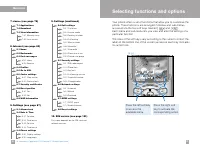
Ç Ç‡¯ÂÏ ÚÂÎÂÙÓÌ Á‡ÎÓÊÂÌ Ì‡·Ó ÙÛÌ͈ËÈ, ÍÓÚÓ˚ ÔÓÁ‚ÓÎflÚ Ì‡ÒÚÓËÚ¸ÚÂÎÂÙÓÌ ÔÓ ‚‡¯ÂÏÛ Ê·Ì˲. ùÚË ÙÛÌ͈ËË Ò„ÛÔÔËÓ‚‡Ì˚ ‚ ÏÂÌ˛ ËÔÓ‰ÏÂÌ˛, ‰ÓÒÚÛÔ Í ÍÓÚÓ˚Ï ÓÒÛ˘ÂÒÚ‚ÎflÂÚÒfl ÔË ÔÓÏÓ˘Ë ‰‚ÛıÙÛÌ͈ËÓ̇θÌ˚ı Í·‚˯, Ë . ä‡Ê‰Ó ÏÂÌ˛ Ë ÔÓ‰ÏÂÌ˛ ÔÓÁ‚ÓÎflÂÚ‚‡Ï ÔÓÒÏÓÚÂÚ¸ Ë ËÁÏÂÌËÚ¸ ÛÒÚ‡ÌÓ‚ÍË ÓÚ‰ÂθÌÓÈ ÙÛÌ͈ËË. ç‡Á...
èÓÙËÎË åÂÌ˛ 1 Ç ÔÓÙËÎflı, ‚˚ ÏÓÊÂÚ ̇ÒÚÓËÚ¸ ÚÓÌ˚ ÚÂÎÂÙÓ̇ ‰Îfl ‡Á΢Ì˚ı ÒÓ·˚ÚËÈ,Ó·ÒÚ‡ÌÓ‚ÍË ËÎË „ÛÔÔ ‡·ÓÌÂÌÚÓ‚.ëÛ˘ÂÒÚ‚ÛÂÚ ¯ÂÒÚ¸ ‚ÓÁÏÓÊÌ˚ı ÔÓÙËÎÂÈ: íÓθÍÓ ‚Ë·‡ , ÅÂÁ Á‚Û͇ , éÒÌÓ‚ÌÓÈ , ÉÓÏÍÓ , ç‡Û¯ÌËÍË Ë Ç ‡‚ÚÓÏÓ·ËΠ. ä‡Ê‰˚È ÔÓÙËθ ÏÓÊÌÓ Ì‡Òڇ˂‡Ú¸ ÔÂÒÓ̇θÌÓ. ç‡ÊÏËÚ Í·‚Ë¯Û ÏÂÌ˛ ( ) Ë ‚˚·...
Ç˚ ÏÓÊÂÚ ÔÓÒÏÓÚÂÚ¸ ÔÓÒΉÌË ÛÔÛ˘ÂÌÌ˚Â, ÔËÌflÚ˚Â Ë ËÒıÓ‰fl˘ËÂÁ‚ÓÌÍË. çÓÏÂ Ë ËÏfl (ÂÒÎË ÂÒÚ¸) ÓÚÓ·‡Ê‡˛ÚÒfl ̇ ‰ËÒÔΠ‚ÏÂÒÚÂ Ò ‰‡ÚÓÈ Ë‚ÂÏÂÌÂÏ Á‚ÓÌ͇. í‡ÍÊ ‚˚ ÏÓÊÂÚ ÔÓÒÏÓÚÂÚ¸ ‰ÎËÚÂθÌÓÒÚ¸ Á‚ÓÌ͇ Ë Â„ÓÒÚÓËÏÓÒÚ¸. ç‡ÊÏËÚ Í·‚Ë¯Û ÏÂÌ˛ ( ) Ë ‚˚·ÂËÚ ëÔËÒÓÍ Á‚ÓÌÍÓ‚ , ËÒÔÓθÁÛfl Í·‚Ë¯Ë Ì‡‚Ë„‡ˆËË ‚‚Â...
ëÔËÒÓÍ Á‚ÓÌÍÓ‚ ëÔËÒÓÍ Á‚ÓÌÍÓ‚ • èÓÒÎ ‚˚ÁÓ‚: èÓ‰ÓÎÊËÚÂθÌÓÒÚ¸ ÔÓÒΉÌÂ„Ó Á‚ÓÌ͇. • èËÌflÚ˚Â: èÓ‰ÓÎÊËÚÂθÌÓÒÚ¸ ‚ıÓ‰fl˘Ëı Á‚ÓÌÍÓ‚ • àÒıÓ‰fl˘ËÂ: èÓ‰ÓÎÊËÚÂθÌÓÒÚ¸ ËÒıÓ‰fl˘Ëı Á‚ÓÌÍÓ‚ • ÇÒ ‚˚ÁÓ‚˚: é·˘‡fl ÔÓ‰ÓÎÊËÚÂθÌÓÒÚ¸ ‚ÒÂı Á‚ÓÌÍÓ‚, ҉·ÌÌ˚ı ËÎË ÔÓÎÛ˜ÂÌÌ˚ı Ò ÏÓÏÂÌÚ‡ ÔÓÒΉ̄ÓÒ·ÓÒ‡ Ú‡Èχ. ëÚÓËÏÓÒÚ¸ ...
ê‡Á‚ΘÂÌËfl Ë Ò‚ËÒ åÂÌ˛ 3 ç‡ÊÏËÚ Í·‚Ë¯Û åÂÌ˛ Ë ‚˚·ÂËÚ ‡Á‰ÂÎ ê‡Á‚ΘÂÌËfl Ë ÒÎÛÊ·˚ , ËÒÔÓθÁÛfl Í·‚Ë¯Ë Ì‡‚Ë„‡ˆËË ‚‚Âı, ‚ÌËÁ, ‚ÎÂ‚Ó Ë ‚Ô‡‚Ó. à„˚ åÂÌ˛ 3.1 Ç˚ ÏÓÊÂÚ ÔÓË„‡Ú¸ ‚Ó ‚ÒÚÓÂÌÌÛ˛ Ë„Û. ÑÎfl ·ÓΠÔÓ‰Ó·ÌÓÈËÌÙÓχˆËË ‚ÓÒÔÓθÁÛÈÚÂÒ¸ ‚ÒÚÓÂÌÌÓÈ ‚ Ë„Û ÒÔ‡‚ÍÓÈ. åÓfl Ô‡Ô͇ åÂÌ˛ 3.2 ê‡Á‰ÂÎ å...
ê‡Á‚ΘÂÌËfl Ë Ò‚ËÒ ä‡Î¸ÍÛÎflÚÓ åÂÌ˛ 3.4 àÒÔÓθÁÛfl ‰‡ÌÌÛ˛ ÓÔˆË˛, Ç˚ ÏÓÊÂÚ ËÒÔÓθÁÓ‚‡Ú¸ ÚÂÎÂÙÓÌ ‚ ͇˜ÂÒÚ‚Â͇θÍÛÎflÚÓ‡. ä‡Î¸ÍÛÎflÚÓ ‚˚ÔÓÎÌflÂÚ ÓÒÌÓ‚Ì˚ ‡ËÙÏÂÚ˘ÂÒÍË ÙÛÌ͈ËË:ÒÎÓÊÂÌËÂ, ‚˚˜ËÚ‡ÌËÂ, ÛÏÌÓÊÂÌËÂ Ë ‰ÂÎÂÌË (Ç˚ ÏÓÊÂÚ ‚‚Ó‰ËÚ¸ ˜ËÒ· ‰Ó‚ÚÓÓ„Ó ‰ÂÒflÚ˘ÌÓ„Ó ‡Áfl‰‡) àÒÔÓθÁÓ‚‡ÌË ͇θÍÛÎflÚÓ‡ 1...
ê‡Á‚ΘÂÌËfl Ë Ò‚ËÒ ê‡Á‚ΘÂÌËfl Ë Ò‚ËÒ èÓÒÏÓÚ ÒÔËÒ͇ èË Ì‡ıÓʉÂÌËË ÚÂÎÂÙÓ̇ ‚ ÂÊËÏ ÓÊˉ‡ÌËfl ‚˚ÁÓ‚‡, ÔÓÒΠ̇ʇÚËfl LJÏË̇ Í·‚Ë¯Û ÚÂÎÂÙÓÌ ÔÓ͇Á˚‚‡ÂÚ Ì‡Á‚‡ÌË „ÓÎÓÒÓ‚ÓÈ Á‡ÔËÒË, ÍÓÚÓÛ˛Ç˚ ÒÓÁ‰‡ÎË. Ç˚ ÏÓÊÂÚ èÓË„‡Ú¸ ËÎË ì‰‡ÎËÚ¸ ҉·ÌÌÛ˛ „ÓÎÓÒÓ‚Û˛Á‡ÔËÒ¸. àÌه͇ÒÌ˚È åÂÌ˛ 3.7 чÌ̇fl ÙÛÌ͈Ëfl ÔÓ...
鄇̇ÈÁ åÂÌ˛ 4 ç‡ÊÏËÚ Í·‚Ë¯Û ÏÂÌ˛ ( ). Ç˚·ÂËÚ ‡Á‰ÂΠ鄇̇ÈÁ , ËÒÔÓθÁÛfl Í·‚Ë¯Ë Ì‡‚Ë„‡ˆËË ‚‚Âı, ‚ÌËÁ, ‚ÎÂ‚Ó Ë ‚Ô‡‚Ó. ê‡ÒÔËÒ‡ÌË åÂÌ˛ 4.1 ÖÒÎË Ç˚ ‚ÓȉfiÚ ‚ ˝ÚÓ ÏÂÌ˛, ÚÓ Ì‡ ‰ËÒÔΠÓÚÓ·‡ÁËÚÒfl ͇ÎẨ‡¸.䂇‰‡ÚÌ˚È ÍÛÒÓ ‡ÒÔÓÎÓÊÂÌ Ì‡ ÚÂÍÛ˘ÂÈ ‰‡ÚÂ. Ç˚ ÏÓÊÂÚ Ô‰‚ËÌÛÚ¸ÍÛÒÓ Ì‡ ‰Û„Û˛ ‰‡...
鄇̇ÈÁ á‡ÏÂÚ͇ åÂÌ˛ 4.2 Ç˚ ÏÓÊÂÚ Á‡ÔËÒ˚‚‡Ú¸, ‰‡ÍÚËÓ‚‡Ú¸ Ë Û‰‡ÎflÚ¸ ‚‚‰fiÌÌÛ˛ ‚ Ô‡ÏflÚ¸Á‡ÔËÒ¸, ÒÓÓÚ‚ÂÚÒÚ‚Û˛˘Û˛ Û͇Á‡ÌÌÓÈ ‰‡ÚÂ. 1. èÓÍÛÚËÚ ËÁÓ·‡ÊÂÌË ‚ ÓÍÌ ‰Ó ÚÂı ÔÓ, ÔÓ͇ Ì ‚˚Ò‚ÂÚËÚÒfl ÔÛÌÍÚ ‘á‡ÏÂÚ͇’. 2. ç‡ÊÏËÚ ÎÂ‚Û˛ ÙÛÌ͈ËÓ̇θÌÛ˛ Í·‚Ë¯Û ‘ÑÓ·‡‚ËÚ¸’. 3. ǂ‰ËÚ ÌÂÓ·ıÓ‰ËÏÛ˛ ËÌÙÓχˆË˛ Ë...
鄇̇ÈÁ 鄇̇ÈÁ • ÑÓ·‡‚. çÓ‚˚È: ÑÓ·‡‚ÎflÂÚ ÌÓ‚Û˛ Á‡ÔËÒ¸ ‰Îfl ÓÒÛ˘ÂÒÚ‚ÎÂÌËfl „ÓÎÓÒÓ‚Ó„Ó Ì‡·Ó‡. • ëÚÂÂÚ¸ ‚ÒÂ: 쉇ÎflÂÚ ‚Ò Á‡ÔËÒË ‰Îfl ÓÒÛ˘ÂÒÚ‚ÎÂÌËfl „ÓÎÓÒÓ‚Ó„Ó Ì‡·Ó‡. ÉÛÔÔ˚ ‚ıÓ‰. (åÂÌ˛ 4.3.5) ëÛ˘ÂÒÚ‚ÛÂÚ ¯ÂÒÚ¸ Á‡‡Ì ÓÔ‰ÂÎfiÌÌ˚ı „ÛÔÔ, ‡ Ú‡ÍÊ Ӊ̇‰ÓÔÓÎÌËÚÂθ̇fl „ÛÔÔ‡ ÔÓ‰ ̇Á‚‡ÌËÂÏ ÑÛ„Ë , ‚ Í...
鄇̇ÈÁ ëÔ‡‚͇ (åÂÌ˛ 4.3.9) ] çÓÏ Ò‚ËÒ‡ (Á‡‚ËÒËÚ ÓÚ SIM-͇Ú˚): àÒÔÓθÁÛÈÚ ˝ÚÛ ÓÔˆË˛ ‰Îfl ÔÓÒÏÓÚ‡ ÒÔËÒ͇ Ò‚ËÒÌ˚ı ÌÓÏÂÓ‚ ÚÂÎÂÙÓÌÓ‚, ÒÓÒÚ‡‚ÎÂÌÌÓ„Ó Ç‡¯ËÏÓÔ‡ÚÓÓÏ ÒÂÚË, (ÂÒÎË ‰‡Ì̇fl ÓÔˆËfl ÔÓ‰‰ÂÊË‚‡ÂÚÒfl LJ¯ÂÈ SIM-͇ÚÓÈ). Ç ˝ÚÓÏ ÒÔËÒÍ ̇ıÓ‰flÚÒfl ÌÓχ ÚÂÎÂÙÓÌÓ‚ ‰Îfl Ó͇Á‡ÌËfl˝ÍÒÚÂÌÌÓÈ ÔÓÏ...
] ëÓı‡ÌËÚ¸ ‚ ˜ÂÌÓ‚ËÍ: ÔÓÁ‚ÓÎËÚ ÒÓı‡ÌËÚ¸ ‚‡¯Â ÒÓÓ·˘ÂÌËÂ, ˜ÚÓ·˚ ‚˚ ÏÓ„ÎË ÓÚÓÒ·ڸ Â„Ó ÔÓÁÊÂ. ] üÁ˚ÍË í9: èÓÁ‚ÓÎflÂÚ ‚˚·Ë‡Ú¸ flÁ˚Í ‰Îfl ÂÊËχ ‚‚Ó‰‡ ÚÂÍÒÚ‡ í9. í‡ÍÊ ‚˚ ÏÓÊÂÚ ÓÚÍβ˜ËÚ¸ ÂÊËÏ ‚‚Ó‰‡ ÚÂÍÒÚ‡ í9 ‚˚·‡‚ í9 ‚˚ÍÎ.ÑÎfl ÔÓÒÏÓÚ‡ ·ÓΠÔÓ‰Ó·ÌÓÈ ËÌÙÓχˆËË Ó ÂÊËÏ í9Ó·‡ÚËÚÂÒ¸ Í Í ÒÚ‡Ìˈ‡Ï 28...
ëÓÓ·˘ÂÌËfl ëÓÓ·˘ÂÌËfl àÒıÓ‰fl˘Ë (åÂÌ˛ 5.1.3) Ç ˝ÚÓÏ ÏÂÌ˛ Ç˚ ÏÓÊÂÚ ÔÓÒÏÓÚÂÚ¸ ÒÓ‰ÂʇÌË ÓÚÓÒ·ÌÌ˚ı ÒÓÓ·˘ÂÌËÈ, ‡Ú‡ÍÊ ÛÒÔ¯ÌÓ ÎË ·˚ÎÓ ‰ÓÒÚ‡‚ÎÂÌÓ ÒÓÓ·˘ÂÌËÂ. àϲÚÒfl ÒÎÂ‰Û˛˘Ë ‚ÓÁÏÓÊÌÓÒÚË: ] ÇÔ‰: ÔÂÂÒ·ڸ ÚÂÍÛ˘Â ÒÓÓ·˘ÂÌË ‰Û„ÓÏÛ ‡·ÓÌÂÌÚÛ. ] ëÚÂÂÚ¸: Û‰‡ÎflÂÚ ‚˚·‡ÌÌÓ ÒÓÓ·˘ÂÌË ËÁ fl˘Ë͇ ËÒıÓ‰fl˘Ëı ...
ëÓÓ·˘ÂÌËfl ëÓÓ·˘ÂÌËfl åÛθÚËωËÈÌ˚ ÒÓÓ·˘ÂÌËfl (MMS) åÂÌ˛ 5.2 åÛθÚËωËÈÌÓ ÒÓÓ·˘ÂÌË ÏÓÊÂÚ ÒÓ‰Âʇڸ ÚÂÍÒÚ, ‚ˉÂÓ Ë/ËÎË Á‚ÛÍÓ‚˚ÂÍÎËÔ˚.ùÚ‡ ÛÒÎÛ„‡ ÏÓÊÂÚ ·˚Ú¸ ËÒÔÓθÁÓ‚‡Ì‡, ÚÓθÍÓ ÂÒÎË ÔÓ‰‰ÂÊË‚‡ÂÚÒfl ‚‡¯ËÏÓÔ‡ÚÓÓÏ ÒÓÚÓ‚ÓÈ Ò‚flÁË. íÓθÍÓ ÛÒÚÓÈÒÚ‚‡, ÒÓ‚ÏÂÒÚËÏ˚ ÒÏÛθÚËωËÈÌ˚ÏË ÒÓÓ·˘ÂÌËflÏË ËÎË Ô‡‡ÏÂÚ...
ëÓÓ·˘ÂÌËfl ëÓÓ·˘ÂÌËfl • ÑÂÚ‡ÎË: èÓ͇Á˚‚‡ÂÚ Ì‡ ‰ËÒÔΠËÌÙÓχˆË˛ Ó ÔËÌflÚÓÏ ÒÓÓ·˘ÂÌËË. ĉÂÒ ÓÚÔ‡‚ËÚÂÎfl, Ô‰ÏÂÚ (ÚÓθÍÓ ‰Îfl ÏÛθÚËωËÈÌÓ„Ó ÒÓÓ·˘ÂÌËfl),‰‡ÚÛ ÓÚÔ‡‚ÍË ÒÓÓ·˘ÂÌËfl Ë ‚ÂÏfl, ‡ Ú‡ÍÊ ÚËÔ ÒÓÓ·˘ÂÌËfl Ë ‡ÁÏÂÒÓÓ·˘ÂÌËfl. àÒıÓ‰fl˘Ë (åÂÌ˛ 5.2.3) àÒÔÓθÁÛÂÚÒfl ‰Îfl ÔÓÒÏÓÚ‡ ÔÓÒ·ÌÌ˚ı ÒÓÓ·˘ÂÌËÈ. ÑÎfl ...
ëÓÓ·˘ÂÌËfl ëÓÓ·˘ÂÌËfl ìÒÚ‡ÌÓ‚ÍË (åÂÌ˛ 5.2.5) Ç ˝ÚÓÏ ÏÂÌ˛ Ç˚ ÏÓÊÂÚ ËÁÏÂÌËÚ¸ ̇ÒÚÓÈÍË ÏÛθÚËωËÈÌ˚ı ÒÓÓ·˘ÂÌËÈ. ] ᇄÓÎÓ‚ÓÍ ÒÓÓ·˘ÂÌËfl: ǂ‰ËÚ Á‡„ÓÎÓ‚ÓÍ ÒÓÓ·˘ÂÌËfl. ] ÑÎËÚÂθÌÓÒÚ¸ Ò·ȉ‡: ëÎÛÊËÚ ‰Îfl ‚˚·Ó‡ ÔÓ‰ÓÎÊËÚÂθÌÓÒÚË ÔÓ͇Á‡ Ò·ȉ‡. ] Ç˚‡‚ÌË‚‡ÌËÂ: ëÎÛÊËÚ ‰Îfl ÛÒÚ‡ÌÓ‚ÍË ‡ÒÔÓÎÓÊÂÌËfl ÒÓ‰ÂÊËÏÓ„Ó ÒÓ...
ëÓÓ·˘ÂÌËfl ëÓÓ·˘ÂÌËfl àÌÙÓÒÎÛÊ·‡ åÂÌ˛ 5.4 àÌÙÓχˆËÓÌÌ˚ ÒÓÓ·˘ÂÌËfl - ˝ÚÓ ÚÂÍÒÚÓ‚˚ ÒÓÓ·˘ÂÌËfl, ÓÚÔ‡‚ÎÂÌÌ˚ÂÒÂÚ¸˛ ̇ ÏÓ·ËθÌ˚È ÚÂÎÂÙÓÌ ÔÓθÁÓ‚‡ÚÂÎfl. éÌË Ô‰ÓÒÚ‡‚Îfl˛ÚÒÔ‡‚Ó˜ÌÛ˛ ËÌÙÓχˆË˛, Ú‡ÍÛ˛ Í‡Í ÔÓ„ÌÓÁ ÔÓ„Ó‰˚, ËÌÙÓχˆË˛ ÓÔӷ͇ı ̇ ‰ÓÓ„‡ı, Ú‡ÍÒË, ‡ÔÚÂ͇ı, ‡ Ú‡ÍÊÂ Ó ˆÂ̇ı ̇ ‡ÍˆËË. ä‡Ê‰˚È ÚËÔËÌÙÓ...
ëÓÓ·˘ÂÌËfl ëÓÓ·˘ÂÌËfl åÛθÚËωˇ (åÂÌ˛ 5.5.2) • èÓÒ·ڸ: èÓÁ‚ÓÎflÂÚ ÓÚÔ‡‚ËÚ¸ ÏÛθÚËωËÈÌ˚È ¯‡·ÎÓÌ. • èÓÒÏÓÚ: èÓÁ‚ÓÎflÂÚ ÔÓÒÏÓÚÂÚ¸ ÏÛθÚËωËÈÌÓ ÒÓÓ·˘ÂÌËÂ. • ëÓı‡ÌËÚ¸: ëÓı‡ÌflÂÚ ÏÛθÚËωËÈÌÓ ÒÓÓ·˘ÂÌË ‚ ÙÓÏ ˜ÂÌÓ‚Ë͇ ËÎË Í‡Í ¯‡·ÎÓÌ. • ëÚÂÂÚ¸: 쉇ÎflÂÚ ÏÛθÚËωËÈÌ˚È ¯‡·ÎÓÌ. • ìÒÚ‡ÌÓ‚ÍË: ëÎÛÊ...
ä‡Ï‡ åÂÌ˛ 6 5. ëÔ‡‚͇: ̇ÊÏËÚ ·ÓÍÓ‚Û˛ Í·‚Ë¯Û ‚‚Âı ‰Îfl ÔÓÒÏÓÚ‡ ‡Áχ ËÁÓ·‡ÊÂÌËfl Ë ÂÊËχ Ò˙ÂÏÍË(Ó‰ËÌӘ̇fl ËÎË ÒÂËfl ÒÌËÏÍÓ‚). ç‡ÊÏËÚ ¢ ‡Á ËÒÔ‡‚Ә̇fl ËÌÙÓχˆËfl ËÒ˜ÂÁÌÂÚ. ëÂËfl ÒÌËÏÍÓ‚ åÂÌ˛ 6.2 ç‡ÊÏËÚ Í·‚Ë¯Û åÂÌ˛ ( ) Ë ‚˚·ÂËÚ ä‡Ï‡ → ëÂËfl ÒÌËÏÍÓ‚ . Ç˚ ÏÓÊÂÚ ‰Â·ڸ ÒÂ˲ ÒÌËÏÍÓ‚....
Java TM åÂÌ˛ 7 Java - ˝ÚÓ ÚÂıÌÓÎÓ„Ëfl, ‡Á‡·ÓÚ‡Ì̇fl ÍÓÏÔ‡ÌËÂÈ ‘Sun Microsystems’. í‡Í ÊÂÍ‡Í Ç˚ ·˚ Á‡„ÛʇÎË Java Applet, ËÒÔÓθÁÛfl Òڇ̉‡ÚÌ˚ ·‡ÛÁÂ˚ NetscapeËÎË MS Internet Explorer, ÏÓÊÌÓ Á‡„ÛÁËÚ¸ Ë Java MIDlet, ËÒÔÓθÁÛfl ÚÂÎÂÙÓÌ,ÔÓ‰‰ÂÊË‚‡˛˘ËÈ WAP. Ç Á‡‚ËÒËÏÓÒÚË ÓÚ ÒÂÚÂ‚Ó„Ó ÔÓ‚‡È‰Â‡, ‚ÒÂÔÓ„...
èÓÒÏÓÚ ËÌÙÓχˆËË åÂÌ˛ 7.3 èÓ„‡ÏÏ˚, Á‡„ÛÊÂÌÌ˚ ÔË ÔÓÏÓ˘Ë WAP ı‡ÌflÚÒfl ‚ Ô‡ÏflÚË ÚÂÎÂÙÓ̇.é·˙fiÏ Ô‡ÏflÚË ÚÂÎÂÙÓ̇ Ì ·ÂÁ„‡Ì˘ÂÌ, ÔÓ˝ÚÓÏÛ, Í‡Í ÚÓθÍÓ ‚Òfl Ô‡ÏflÚ¸·Û‰ÂÚ Á‡ÔÓÎÌÂ̇, Ç˚ ·Óθ¯Â Ì ÒÏÓÊÂÚ ÒÓı‡ÌflÚ¸ ‚ Ô‡ÏflÚË ÚÂÎÂÙÓ̇ Java-ÔÓ„‡ÏÏ˚. åÂÌ˛ èÓÒÏÓÚ‡ ËÌÙÓχˆËË ‰‡fiÚ Ç‡Ï ‚ÓÁÏÓÊÌÓÒÚ¸ÔÓ‚ÂËÚ¸ ...
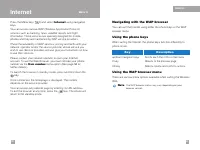
燂˄‡ˆËfl Ò ÔÓÏÓ˘¸˛ WAP-·‡ÛÁ‡ Ç˚ ÏÓÊÂÚ ÔÛÚ¯ÂÒÚ‚Ó‚‡Ú¸ ÔÓ àÌÚÂÌÂÚÛ, ËÒÔÓθÁÛfl Í·‚Ë¯Ë ÚÂÎÂÙÓ̇ ËÎËÏÂÌ˛ WAP-·‡ÛÁ‡. àÒÔÓθÁÓ‚‡ÌË Í·‚˯ ÚÂÎÂÙÓ̇ ÇÓ ‚ÂÏfl ÔÛÚ¯ÂÒÚ‚Ëfl ÔÓ àÌÚÂÌÂÚÛ ÙÛÌ͈ËË Í·‚˯ ÚÂÎÂÙÓ̇ ÓÚ΢‡˛ÚÒflÓÚ Ëı ÙÛÌ͈ËÈ ‚ ÂÊËÏ ÚÂÎÂÙÓ̇. àÍÓÌ͇ éÔËÒ‡ÌË ÙÛÌ͈ËË ä·‚Ë¯Ë Ì‡‚Ë„‡ˆËË ‚‚Âı/...
àÌÚÂÌÂÚ àÌÚÂÌÂÚ èÓÙËÎË åÂÌ˛ 8.4 ÑÎfl ÔÓÎÛ˜ÂÌËfl ‰ÓÔÓÎÌËÚÂθÌÓÈ ËÌÙÓχˆËË Ò‚flÊËÚÂÒ¸ Ò Ç‡¯ËÏÓÔ‡ÚÓÓÏ ÒÂÚË. ä‡Ê‰˚È ÔÓÙËθ ÒÓ‰ÂÊËÚ ‚ Ò· ÒÎÂ‰Û˛˘Ë ÔÓ‰ÔÛÌÍÚ˚ ÏÂÌ˛: ] ÄÍÚË‚ËÓ‚‡Ú¸: ÄÍÚË‚ËÛÂÚ ‚˚·‡ÌÌ˚È ÔÓÙËθ. ] ìÒÚ‡ÌÓ‚ÍË: àÒÔÓθÁÛÈÚ ˝ÚÓÚ ÔÛÌÍÚ ‰Îfl ‰‡ÍÚËÓ‚‡ÌËfl ËÎË ËÁÏÂÌÂÌËfl ̇ÒÚÓÂÍ WAP ‰Îfl ‚˚...
ìÒÚ‡ÌÓ‚ÍË åÂÌ˛ 9 ìÒÚ‡ÌÓ‚ÍË ç‡ÊÏËÚ ̇ Í·‚Ë¯Û ÏÂÌ˛ ( ) Ë ‚˚·ÂËÚ ÔÛÌÍÚ ÏÂÌ˛ ìÒÚ‡ÌÓ‚ÍË , ËÒÔÓθÁÛfl Í·‚Ë¯Ë Ì‡‚Ë„‡ˆËË ‚‚Âı, ‚ÌËÁ, ‚ÎÂ‚Ó Ë ‚Ô‡‚Ó. ÅÛ‰ËθÌËÍ åÂÌ˛ 9.1 èÓÁ‚ÓÎflÂÚ Ì‡ÒÚÓËÚ¸ ·Û‰ËθÌËÍ Ì‡ ÓÔ‰ÂÎÂÌÌÓ ‚ÂÏfl. Ç ÏÂÌ˛ ÅÛ‰ËθÌËÍ ËϲÚÒfl ÒÎÂ‰Û˛˘Ë ÔÓ‰ÏÂÌ˛ ÇÍÎ: èÓÁ‚ÓÎflÂÚ ‡ÍÚË‚ËÓ‚‡Ú¸ ·Û‰ËθÌËÍ. ...
ç‡ÒÚ. ÚÂÎÂÙÓ̇ åÂÌ˛ 9.3 åÌÓ„Ë ÙÛÌ͈ËË ‚‡¯Â„Ó ÚÂÎÂÙÓ̇ ÏÓ„ÛÚ ·˚Ú¸ ÛÒÚ‡ÌÓ‚ÎÂÌ˚ ÔÓ Î˘ÌÓÏÛÛÒÏÓÚÂÌ˲ ‰Îfl ÚÓ„Ó, ˜ÚÓ·˚ ÓÌË Ï‡ÍÒËχθÌÓ Óڂ˜‡ÎË ‚‡¯ËÏÔÓÚ·ÌÓÒÚflÏ. ùÚË ÙÛÌ͈ËË ÏÓÊÌÓ Ì‡ÈÚË ‚ ÏÂÌ˛ ç‡ÒÚ. íÂÎÂÙÓ̇ . ç‡ÒÚÓÈÍË ‰ËÒÔÎÂfl (åÂÌ˛ 9.3.1) ] á‡ÒÚ‡‚ÍË: á‰ÂÒ¸ Ç˚ ÏÓÊÂÚ ‚˚·‡Ú¸ ͇ÚËÌÍÛ, ÓÚÓ·‡Ê‡˛˘Û˛Òfl...
êÂÊËÏ ÓÚ‚ÂÚ‡ (åÂÌ˛ 9.4.2) Ç˚·ÂËÚ ÌÂÓ·ıÓ‰ËÏ˚È ÂÊËÏ ‰Îfl ÓÚ‚ÂÚ‡ ̇ Á‚ÓÌÓÍ. ] è‡ÌÂθ Ò‰‚ËÌÛÚ‡: äÓ„‰‡ ÚÂÎÂÙÓÌ Á‚ÓÌËÚ, ‚˚ ÏÓÊÂÚ ÓÚ‚ÂÚËÚ¸ ̇ Á‚ÓÌÓÍ ÔÓÒÚ˚Ï ÓÚÍ˚ÚËÂÏ Í·‚ˇÚÛ˚. ] ã˛·‡fl ÍÌÓÔ͇: äÓ„‰‡ ÚÂÎÂÙÓÌ Á‚ÓÌËÚ, ‚˚ ÏÓÊÂÚ ÓÚ‚ÂÚËÚ¸ ̇ Á‚ÓÌÓÍ Ì‡Ê‡ÚËÂÏ Î˛·ÓÈ Í·‚˯Ë, Á‡ ËÒÍβ˜ÂÌËÂÏ Í·‚Ë¯Ë Ë Ô‡‚ÓÈÙÛÌ...
Ä‚ÚÓ‰ÓÁ‚ÓÌ (åÂÌ˛ 9.4.7) Ç˚·ÂËÚ ÇÍÎ , Ë ‚‡¯ ÚÂÎÂÙÓÌ ÚËʉ˚ ÔÓÔ˚Ú‡ÂÚÒfl ÔÓ‚ÚÓËÚ¸ ÒÓ‰ËÌÂÌË ÔÓÒΠÌÂÛ‰‡˜ÌÓ„Ó Á‚ÓÌ͇. ãËÌËfl (åÂÌ˛ 8.4.8) чÌ̇fl ÙÛÌ͈Ëfl ËÒÔÓθÁÛÂÚÒfl ÚÓθÍÓ ÚÓ„‰‡, ÍÓ„‰‡ èÓÒÚ‡‚˘ËÍ ìÒÎÛ„Ô‰ÓÒÚ‡‚ÎflÂÚ ‰‚ ÎËÌËË. Ñ‚‡ ÓÚ‰ÂθÌ˚ı ÚÂÎÂÙÓÌÌ˚ı ÌÓχ„ËÒÚËÛ˛ÚÒfl Á‡ ÚÂÎÂÙÓÌÓÏ. чÌ̇fl ÙÛÌ͈Ëfl Ô...
ìÒÚ‡ÌÓ‚ÍË ìÒÚ‡ÌÓ‚ÍË Ç‡Ï ‰ÓÒÚÛÔÌ˚ ÒÎÂ‰Û˛˘Ë ÙÛÌ͈ËË: 1 èËÚ‡ÌË ‚ÍÎ ] ÇÍβ˜ËÚ¸: Ç‡Ï ·Û‰ÂÚ ÌÂÓ·ıÓ‰ËÏÓ ‚‚ÂÒÚË Ô‡Óθ ÚÂÎÂÙÓ̇ ÔË Â„Ó ‚Íβ˜ÂÌËË. ] éÚÍβ˜ËÚ¸: Ç‡Ï Ì ÌÛÊÌÓ ·Û‰ÂÚ ‚‚Ó‰ËÚ¸ Ô‡Óθ ÚÂÎÂÙÓ̇ ÔË ‚˚Íβ˜ÂÌËË ÚÂÎÂÙÓ̇. ] ÖÒÎË SIM-͇ڇ ËÁÏÂÌË·Ҹ: LJ¯ ÚÂÎÂÙÓÌ Á‡ÔÓÒËÚ ÍÓ‰ ·ÂÁÓÔ‡ÒÌÓÒÚË ÚÓθÍÓ ÔË ...
îËÍÒË Ì‡·Ó(ÙÛÌ͈Ëfl Á‡‚ËÒËÚ ÓÚ SIM-͇Ú˚) (åÂÌ˛ 9.5.5) àÒÔÓθÁÛÈÚ ‰‡ÌÌÛ˛ ÙÛÌÍˆË˛ ‰Îfl Ó„‡Ì˘ÂÌËfl LJ¯Ëı ËÒıÓ‰fl˘Ëı Á‚ÓÌÍӂ̇ ÓÔ‰ÂÎfiÌÌ˚ ÌÓχ ÚÂÎÂÙÓÌÓ‚, ÂÒÎË ˝Ú‡ ÙÛÌ͈Ëfl ÔÓ‰‰ÂÊË‚‡ÂÚÒflLJ¯ÂÈ SIM-͇ÚÓÈ. ÑÎfl ‡ÍÚË‚‡ˆËË ˝ÚÓÈ ÙÛÌ͈ËË ÌÂÓ·ıÓ‰ËÏ ÍÓ‰ PIN2. åÓÊÌÓ ËÒÔÓθÁÓ‚‡Ú¸ ÒÎÂ‰Û˛˘Ë ‚ÓÁÏÓÊÌÓÒÚË: ] ÄÍÚË...
ç‡ÒÚ. GPRS åÂÌ˛ 9.7 GPRS (General Packet Radio Service) - ˝ÚÓ ÚÂıÌÓÎÓ„Ëfl, ÍÓÚÓ‡fl ÔÓÁ‚ÓÎflÂÚËÒÔÓθÁÓ‚‡Ú¸ ÏÓ·ËθÌ˚ ÚÂÎÂÙÓÌ˚ ‰Îfl ÓÚÔ‡‚ÍË Ë ÔÓÎÛ˜ÂÌËfl ‰‡ÌÌ˚ı ˜ÂÂÁÏÓ·ËθÌÛ˛ ÒÂÚ¸. GPRS - ˝ÚÓ Í‡Ì‡Î Ô‰‡˜Ë ‰‡ÌÌ˚ı, ÍÓÚÓ˚È ÔÓÁ‚ÓÎflÂÚÔÓÎÛ˜ËÚ¸ ·ÂÒÔÓ‚Ó‰Ì˚È ‰ÓÒÚÛÔ Í ÒÂÚË ‰‡ÌÌ˚ı, Í‡Í Ì‡ÔËÏ àÌÚÂÌÂÚ. è‰...
ÄÍÒÂÒÒÛ‡˚ ÑÎfl LJ¯Â„Ó ÚÂÎÂÙÓ̇ ÒÛ˘ÂÒÚ‚ÛÂÚ ·Óθ¯Ó ÍÓ΢ÂÒÚ‚Ó ‡Á΢Ì˚ı‡ÍÒÂÒÒÛ‡Ó‚. Ç˚ ÏÓÊÂÚ ‚˚·‡Ú¸ Ëı ‚ ÒÓÓÚ‚ÂÚÒÚ‚ËË Ò Ç‡¯ËÏË Ú·ӂ‡ÌËflÏË.èÓÍÓÌÒÛθÚËÛÈÚÂÒ¸ Û Ç‡¯Â„Ó ‰Ë· Ó Ì‡Î˘ËË Û ÌÂ„Ó ÌÂÓ·ıÓ‰ËÏ˚ı LJχÍÒÂÒÒÛ‡Ó‚. ĉ‡ÔÚ ùÚÓÚ ‡‰‡ÔÚ ‰‡ÂÚ Ç‡Ï ‚ÓÁÏÓÊÌÓÒÚ¸ Á‡flʇڸÚÂÎÂÙÓÌ ‰Óχ ËÎË ‚ ÓÙËÒÂ. ÄÍ...
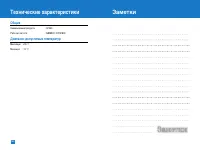
íÂıÌ˘ÂÒÍË ı‡‡ÍÚÂËÒÚËÍË é·˘Ë ç‡ËÏÂÌÓ‚‡ÌË ÔÓ‰ÛÍÚ‡ : G7050 ꇷӘ‡fl ˜‡ÒÚÓÚ‡ : GSM900 / DCS1800 ÑˇԇÁÓÌ ‰ÓÔÛÒÚËÏ˚ı ÚÂÏÔ‡ÚÛ å‡ÍÒËÏÛÏ : +55 °C åËÌËÏÛÏ : -10 °C 108 á‡ÏÂÚÍË
4 5 Introduction ⋯ ⋯ ⋯ ⋯ ⋯ ⋯ 8 Guidelines for safe and efficient use ⋯ ⋯ ⋯ ⋯ 9 Your phone ⋯ ⋯ ⋯ ⋯ ⋯ ⋯ 14 Phone components ⋯ ⋯ ⋯ 14 Your phone's features ⋯ ⋯ 15 Display information ⋯ ⋯ ⋯ 16 Getting started ⋯ ⋯ ⋯ ⋯ 18 Installing the SIM card and the handset battery ⋯ ⋯ 18 Charging the battery ⋯ ⋯ ⋯ ⋯ ...
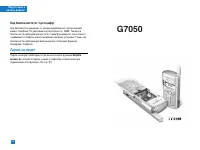
8 9 Introduction Congratulations on your purchase of the advanced and compactG7050 mobile phone, designed to operate with the latest digitalmobile communication technology. This user’s guide contains important information on the use andoperation of this phone. Please read all the information careful...
10 Guidelines 11 Guidelines Product care and maintenance Warning: Use only batteries, charger and accessoriesapproved for use with this particular phone model.The use of any other types may invalidate any approvalor warranty applying to the phone, and may bedangerous. • Do not disassemble this unit....
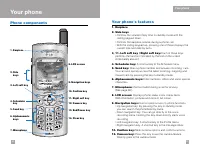
15 Your phone 14 Menu Names Thu 10 Jul10 : 23 AM 1. Earpiece 8. LCD screen 9. Navigation keys 3. Left soft key 2. Side keys 5. Send key 10. Confirm key 11. Right soft key 4. Scheduler key 13. End/Power key 7. Microphone 6. Alphanumeric keys 14. Clear key Your phone's features 1. Earpiece 2. Side key...
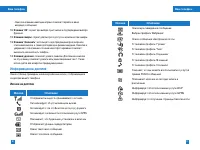
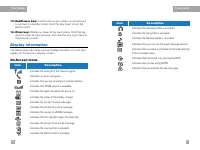
16 Your phone 17 Your phone 13. End/Power key: Used to end a call or reject a call and also to go back to standby mode. Hold this key down to turn thephone on/off. 14. Clear key: Deletes a character by each press. Hold the key down to clear all input all input. Also use this key to go back tothe pre...
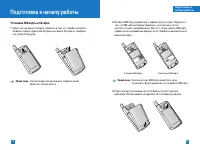
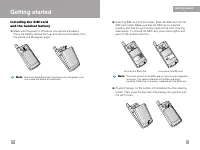
19 Getting started 18 Installing the SIM card and the handset battery 1. Make sure the power is off before you remove the battery. Press the battery release latch up and remove the battery fromthe phone at a 45 degree angle. Getting started 2. Insert the SIM card into the holder. Slide the SIM card ...
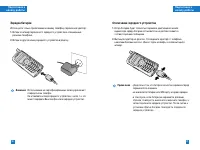
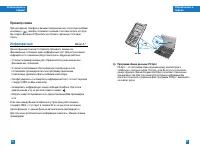
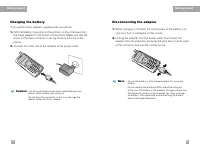
20 Getting started 21 Getting started Charging the battery Only use the mains adapter supplied with your phone. 1. With the battery in position on the phone, connect the lead fromthe travel adapter to the bottom of the phone. Make sure that thearrow on the lead connector is facing towards the front ...
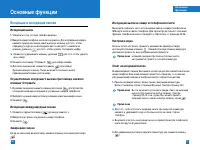
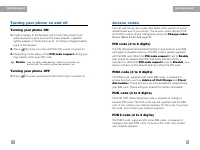
22 Getting started 23 Getting started Turning your phone on and off Turning your phone ON 1. Install a battery to the handset and connect the phone to anexternal power source such as the travel adapter, cigarettelighter adapter or hands-free car kit. Or install a charged batterypack to the handset. ...
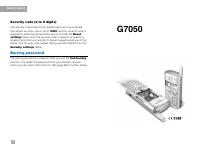
24 Getting started Security code (4 to 8 digits) The security code protects the unauthorised use of your phone.The default security code is set to ‘ 0000 ’ and the security code is required to delete all phone entries and to activate the Reset settings menu. Also, the security code is required to en...
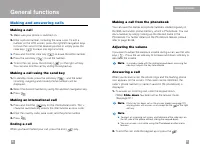
27 General functions 26 Making a call from the phonebook You can save the names and phone numbers dialled regularly inthe SIM card and/or phone memory, which is Phonebook. You candial a number by simply looking up the desired name in thePhonebook. For further details on the Phonebook feature, please...
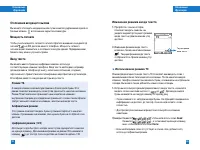
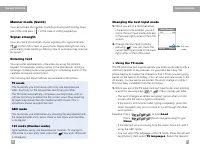
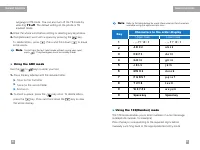
28 General functions 29 General functions Manner mode (Quick) You can activate the manner mode by pressing and holding downone of the side keys ( ) in the state of sliding keypad up. Signal strength You can check the strength of your signal by the signal indicator( ) on the LCD screen of your phone....
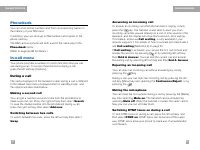
32 General functions 33 General functions Phonebook You can store phone numbers and their corresponding names inthe memory of your SIM card. In addition, you can store up to 255 numbers and names in thephone memory. The SIM card and phone are both used in the same way in the Phonebook menu. (Refer t...
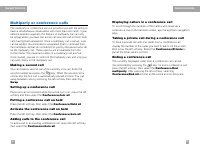
34 General functions 35 General functions Multiparty or conference calls The multiparty or conference service provides you with the ability tohave a simultaneous conversation with more than one caller, if yournetwork operator supports this feature. A multiparty call can onlybe set up when you have o...
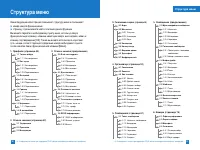
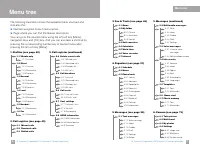
37 Menu tree 36 The following illustration shows the available menu structure andindicates the: ] Number assigned to each menu option. ] Page where you can find the feature description. You can go to the desired menu using the left soft key [Menu],navigation keys and [OK] key. And you can also take ...
39 38 Menu tree 7. Java TM (see page 79) 7.1 Applications 7.2 Download 7.3 View information 7.3.1 Memory status 7.3.2 Java version 8. Internet (see page 82) 8.1 Home 8.2 Bookmarks 8.3 Push messages 8.3.1 Inbox 8.3.2 Receive 8.4 Profiles 8.5 Go to URL 8.6 Cache settings 8.6.1 Clear cache 8.6.2 Cache ...
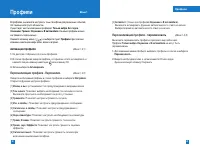
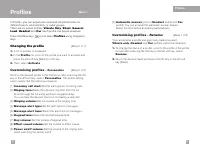
41 Profiles 40 Profiles Menu 1 In Profiles, you can adjust and customise the phone tones fordifferent events, environments, or caller groups.There are six preset profiles: Vibrate Only , Silent , General , Loud , Headset and Car . Each profile can be personalised. Press the Menu key ( ) and select P...
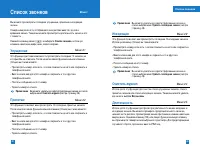
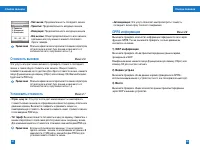
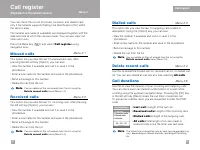
43 Call register 42 You can check the record of missed, received, and dialled callsonly if the network supports Calling Line Identification (CLI) withinthe service area. The number and name (if available) are displayed together with thedate and time at which the call was made. You can also view call...
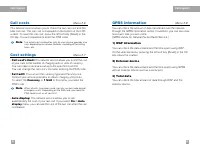
44 Call register 45 Call register Call costs Menu 2.6 This network service allows you to check the last call cost and thetotal call cost. The call cost is displayed on the bottom of the LCDscreen. To reset the call cost, press the left soft key [Reset] or theOK key. You are requested to enter the PI...
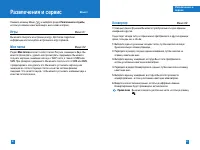
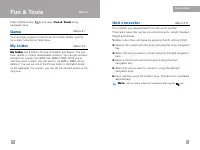
47 Fun & Tools 46 Fun & Tools Menu 3 Press the Menu key ( ) and select Fun & Tools using navigation keys. Game Menu 3.1 You can enjoy a game on the phone. For further details, use the on-screen instruction or help menu. My folder Menu 3.2 My folder has 3 folders: Picture, Animation and S...
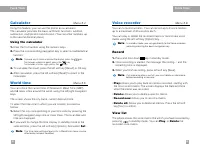
48 Fun & Tools 49 Fun & Tools Calculator Menu 3.4 Using this feature, you can use the phone as a calculator. The calculator provides the basic arithmetic functions: addition,subtraction, multiplication and division. (You can enter numbers upto the second decimal place) Using the calculator 1...
51 50 Fun & Tools Infrared Menu 3.7 This feature allows you to send or receive data/fax through theinfrared port. To use an infrared connection: • Install the modem driver for receiving or sending the data/fax. • Install the network dial-up software supplied by your networkprovider or fax applic...
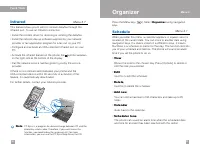
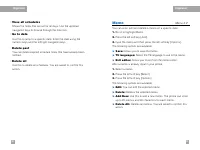
52 Organizer 53 Organizer • View all schedules Shows the notes that are set for all days. Use the up/downnavigation keys to browse through the note lists. • Go to date Use this to jump to a specific date. Enter the date using thenumeric keys and the left/right navigation keys • Delete past You can d...
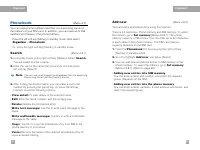
54 Organizer 55 Organizer Phonebook Menu 4.3 You can save phone numbers and their corresponding names inthe memory of your SIM card. In addition, you can save up to 255numbers and names in the phone memory. - Press the left soft key [Menu] in standby mode, then select Organizer → Phonebook . - Or, p...
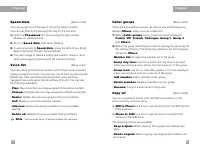
56 Organizer 57 Organizer Speed dials (Menu 4.3.3) You can assign any of the keys 2 to 9 with a name list entry. You can call directly by pressing this key for 2-3 seconds. 1. Open the Phonebook first by pressing the right soft key [Names] in standby mode. 2. Scroll to Speed dials , then press [Sele...
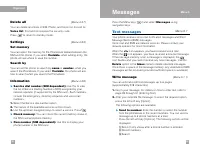
59 58 Organizer Delete all (Menu 4.3.7) You can delete all entries in SIM, Phone, and Voice list. Except for Voice list , this function requires the security code . Press to return to standby mode. Settings (Menu 4.3.8) Set memory You can select the memory for the Phonebook feature between theSIM an...
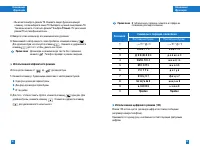
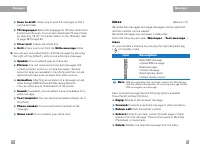
60 Messages 61 Messages ] Save to draft: Allows you to save the message so that it can be sent later. ] T9 languages: Select the language for T9 input mode from English and Russian. You can also deactivate T9 input modeby selecting ‘T9 off’. For further details on the T9 mode, referto page 28 throug...
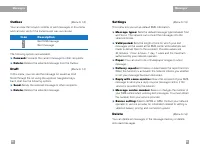
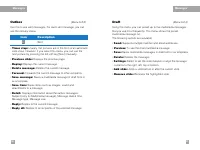
62 Messages 63 Messages Outbox (Menu 5.1.3) You can view the list and contents of sent messages in this menuand can also verify if the transmission was successful. The following options are available. ] Forward: Forwards the current message to other recipients. ] Delete: Deletes the selected message...
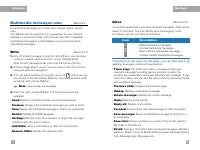
64 Messages 65 Messages Multimedia messages (MMS) Menu 5.2 A multimedia message can contain text, images, and/or soundclips.This feature can be used only if it is supported by your networkoperator or service provider. Only devices that offer compatiblemultimedia message or e-mail features can receiv...
66 Messages 67 Messages Outbox (Menu 5.2.3) Use this to see sent messages. For each sent message, you cansee the delivery status. • Timer stop: Usually, the pictures are in the form of an automatic slide show. However, if you select this menu, you can see thenext picture by pressing the left soft ke...
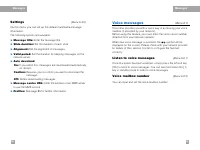
68 Messages 69 Messages Settings (Menu 5.2.5) Via this menu, you can set up the default multimedia messageinformation. The following options are available. ] Message title: Enter the message title. ] Slide duration: Set the duration of each slide. ] Alignment: Set the alignment of messages. ] Valid ...
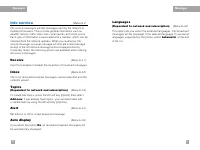
70 Messages 71 Messages Info service Menu 5.4 Info service messages are text messages sent by the network tomobile phone users. They provide general information such asweather reports, traffic news, taxis, pharmacies, and stock prices.Each type of information is associated with a number, which can b...
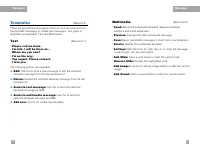
72 Messages 73 Messages Templates Menu 5.5 There are pre-defined messages in the list. You can view and editthe template messages or create new messages. Two types oftemplates are available: Text and Multimedia. Text (Menu 5.5.1) • Please call me back. • I’m late. I will be there at... • Where are y...
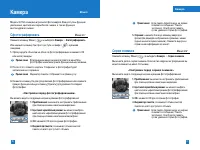
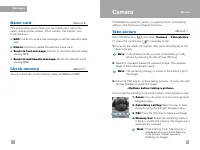
75 74 Messages The G7050 has a built-in camera. It supports Zoom, Colour/Greysettings, and Continuous Capture functions. Take picture Menu 6.1 Press the Menu key ( ) and select Camera → Take picture . Or, press the camera key ( ) in standby mode. 1. Focus on the subject to capture, then press the [O...
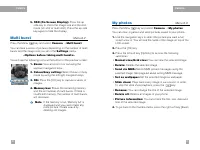
76 Camera 77 Camera 5. OSD (On Screen Display): Press the up side key to check the image size and the shotmode (sill shot or multi shot). Press the up sidekey again to hide the display. Multi burst Menu 6.2 Press the Menu key and select Camera → Multi burst . You can take a series of pictures depend...
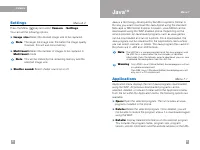
79 78 Camera Java TM Menu 7 Java is a technology developed by Sun Microsystems. Similar tothe way you would download the Java Applet using the standardNetscape or MS Internet Explorer browsers, Java MIDlet can bedownloaded using the WAP enabled phone. Depending on theservice provider, all Java based...
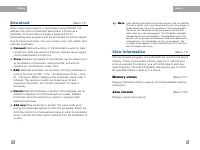
80 Java TM 81 Java TM Download Menu 7.2 When a new Java program is downloaded using the WAP, theaddress from which a download takes place is known as abookmark. The Java menu includes a bookmark list fordownloading Java programs and this bookmark list can be viewedfrom the Download menu. You can con...
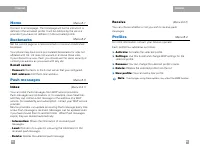
83 Internet 82 Press the Menu key ( ) and select Internet using navigation keys. You can access various WAP (Wireless Application Protocol)services such as banking, news, weather reports and flightinformation. These services are specially designed for mobilephones and they are maintained by WAP serv...
84 Internet 85 Internet Home Menu 8.1 Connect to a homepage. The homepage will be the site which isdefined in the activated profile. It will be defined by the serviceprovider if you have not defined it in the activated profile. Bookmarks Menu 8.2 Set the current page as a new bookmark or move an est...
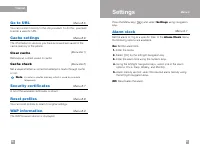
87 86 Internet Go to URL Menu 8.5 You can connect directly to the site you want. To do this, you needto enter a specific URL. Cache settings Menu 8.6 The information or services you have accessed are saved in thecache memory of the phone. Clear cache (Menu 8.6.1) Removes all context saved in cache. ...
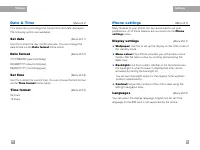
88 Settings 89 Settings Date & Time Menu 9.2 This option lets you change the current time and date displayed. The following options are available. Set date (Menu 9.2.1) Use this to enter the day, month and year. You can change thedate format via the Date format menu option. Date format (Menu 9.2...
90 Settings 91 Settings Call settings Menu 9.4 To change the settings for call diverting. Call divert (Menu 9.4.1) When this network service is activated, you can direct yourincoming calls to another number, for example, to your voicemailbox number. For details, contact your network operator. Select...
92 Settings 93 Settings Voice dial (Menu 9.4.6) You can make a phone call by speaking a voice tag that has beenadded to a contact card. Any spoken word(s) can be a voice tag.Before using voice-activated dialling, note that: • Voice tags are not language dependent. They are dependent onthe speaker’s ...
94 Settings 95 Settings Security settings Menu 9.5 Various passwords are used to protect certain features of yourphone. Refer to page 23-24 for the various passwords. PIN code request (Menu 9.5.1) When the PIN code request feature is enabled, you must enter your PIN each time you switch the phone on...
97 Settings 96 Settings Call barring service (Network dependent) (Menu 9.5.4) Call barring lets you restrict the making and receiving of calls withyour phone. For this function, you need the barring password,which you can obtain from your service provider. The following options are available: ] All ...
98 Settings 99 Settings Network settings Menu 9.6 The Network settings feature enables you to indicate whether the network used when roaming(outside your home area) isselected automatically, manually or preferably. Automatic (Menu 9.6.1) Use this to set the phone to automatically search for and sele...
101 100 Settings SIM service Menu 10 Your service provider can offer special application through SIMcard, such as home banking, stock market, etc. If you areregistered for one of these services, the service name will appearat the end of the main menu. With the SIM service menu, yourphone is future-p...
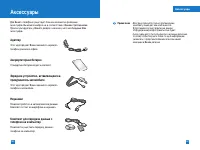
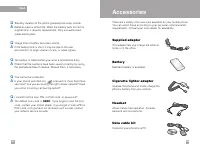
105 104 Q&A Accessories There are a variety of accessories available for your mobile phone.You can select these according to your personal communicationrequirements. Consult your local dealer for availability. Q Standby duration of the phone gradually becomes shorter. A Batteries have a limited ...
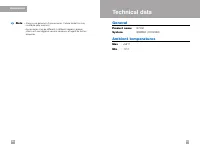
107 106 Accessories Technical data General Product name : G7050 System : GSM900 / DCS1800 Ambient temperatures Max : +55°C Min : -10°C Note • Always use genuine LG accessories. Failure to do this mayinvalidate your warranty. • Accessories may be different in different regions; pleasecheck with our r...
LG Smartphones Manuals
-
LG 600
User Manual
-
LG A7150
User Manual
-
LG B2000
User Manual
-
LG B2070
User Manual
-
LG B2100
User Manual
-
LG B2150
User Manual
-
LG B2250
User Manual
-
LG C1100
User Manual
-
LG C1400
User Manual
-
LG C2100
User Manual
-
LG C2200
User Manual
-
LG C2200
Manual
-

LG C2500
User Manual
-
LG C3320
User Manual
-
LG C3320
Manual
-

LG C3380
User Manual
-
LG C3400
User Manual
-
LG C3600
User Manual
-
LG E960(Nexus 4)
User Manual
-
LG F1200
User Manual