Page 2 - TABLE OF CONTENTS
TABLE OF CONTENTS INTRODUCTION ........................................................................................................... 1 WHAT’S IN THE BOX ..................................................................................................... 2 PRODUCT OVERVIEW .......................
Page 3 - Introduction
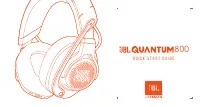
- 1 - Introduction Congratulations on your purchase! This manual includes information on the JBL QUANTUM910 WIRELESS gaming headset. We encourage you to take a few minutes to read this manual, which describes the product and includes step-by-step instructions to help you to set up and get started. R...
Page 4 - What’s in the box
- 2 - What’s in the box 01 02 03 04 08 05 07 06 01 JBL QUANTUM910 WIRELESS headset 02 Calibration microphone 03 USB charging cable (USB-A to USB-C) 04 3.5 mm audio cable 05 2.4GHz USB wireless dongle (USB-C) 06 USB-C to USB-A converter 07 QSG, warranty card and safety sheet 08 Windshield foam for bo...
Page 5 - PRODUCT OVERVIEW; Controls on headset
- 3 - PRODUCT OVERVIEW Controls on headset 01 16 15 14 13 12 02 03 040506 07 08 091011 01 ANC* / TalkThru** LED • Lights up when the ANC feature is enabled. • Flashes quickly when the TalkThru feature is enabled. 02 button • Press briefly to turn ANC on or off. • Hold for 2 seconds to turn TalkThru ...
Page 7 - USB wireless dongle; Controls on 3.5 mm audio cable
- 5 - Controls on 2.4GH z USB wireless dongle 01 01 02 02 01 CONNECT button • Hold for 5 seconds to enter 2.4GHz wireless pairing mode. 02 LED • Indicates the status of 2.4GHz wireless connection. Controls on 3.5 mm audio cable 01 01 02 02 01 Volume dial • Adjusts headset volume in 3.5 mm audio conn...
Page 8 - Getting started; Charging your headset
- 6 - Getting started Charging your headset 3.5hr Before use, fully charge your headset through the supplied USB-A to USB-C charging cable. TIPS: • It takes approximately 3.5 hours to fully charge the headset. • You can also charge your headset through a USB-C to USB-C charging cable (not supplied).
Page 9 - Wearing your headset
- 7 - Wearing your headset 1. Put the side marked L onto your left ear and the side marked R onto your right ear. 2. Adjust the earpads and headband for a comfortable fit. 3. Adjust the microphone as necessary.
Page 10 - Power on; Software requirements
- 8 - Power on • Slide the power switch upwards to power on the headset. The status LED glows solid white upon powering on. • Slide downwards to power off. First-time setup (for PC only) Download from jblquantum.com/engine to gain full access to features on your JBL Quantum headset - from headset ca...
Page 12 - Using your headset; With 3.5 mm audio connection
- 10 - Using your headset With 3.5 mm audio connection 1. Connect the black connector to your headset. 2. Connect the orange connector to the 3.5 mm headphone jack on your PC, Mac, mobile or gaming console device. Basic operation Controls Operation Volume dial on 3.5 mm audio cable Adjust master vol...
Page 13 - wireless connection
- 11 - With 2.4GH z wireless connection 2.4G 1. Plug the 2.4GHz USB wireless dongle into a USB-C port on your PC, Mac, laptop, PS5 console, or Nintendo Switch™ controller. • With the supplied USB-C to USB-A converter, you can connect the dongle to a USB-A port on your PC, Mac, desktop, PS4/PS5 conso...
Page 14 - To pair manually
- 12 - Controls Operation Rotate towards to increase chat volume. button Press to mute or unmute the microphone.Hold for 5 seconds to turn on or off the RGB light. button Press briefly to turn ANC on or off.Hold for 2 seconds to turn TalkThru on or off. To pair manually >5S 1. On the headset, sli...
Page 16 - Control calls
- 14 - 2. Enable Bluetooth on your mobile phone and choose “ JBL Quantum910 ” from “ Devices ”. The status LED flashes slowly (connecting), and then turns solid blue (connected). NOTE: • Next time when you power on the headset, push the / slider upwards to reconnect the headset to your mobile phone....
Page 17 - Product Specifications
- 15 - Product Specifications • Model: QUANTUM910WIRELESS • Driver size: 50 mm Dynamic drivers • Frequency response (Passive): 20 Hz - 40 kHz • Frequency response (Active): 20 Hz - 20 kHz • Microphone frequency response: 100 Hz - 8 kHz • Max input power: 30 mW • Sensitivity: 111 dB SPL / 1 mW • Maxi...
Page 19 - Troubleshooting
- 17 - Troubleshooting If you have problems using this product, check the following points before you request service. No power • The headset turns off automatically after 10 minutes of inactivity. Power on the headset again. • Recharge the headset (see “Charging your headset” ). 2.4GH z pairing fai...
Page 20 - My voice cannot be heard by my teammates; I can’t hear myself when I’m talking
- 18 - • You may experience obvious sound quality degradation when using the headset near a USB 3.0 enabled device. This is not a malfunction. Use an extension USB dock instead to keep the dongle as far from the USB 3.0 port as possible. In 2.4GHz wireless connection: • Make sure the headset and 2.4...
Page 21 - License
- 19 - License The Bluetooth® word mark and logos are registered trademarks owned by Bluetooth SIG, Inc. and any use of such marks by HARMAN International Industries, Incorporated is under license. Other trademarks and trade names are those of their respective owners.