Page 2 - TABLE OF CONTENTS
TABLE OF CONTENTS INTRODUCTION ........................................................................................................... 1 WHAT’S IN THE BOX ..................................................................................................... 2 PRODUCT OVERVIEW .......................
Page 3 - Introduction
- 1 - Introduction Congratulations on your purchase! This manual includes information on the gaming headset. We encourage you to take a few minutes to read this manual, which describes the product and includes step-by-step instructions to help you to set up and get started. Read and understand all t...
Page 4 - What’s in the box
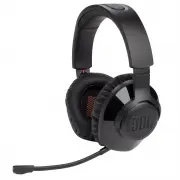
- 2 - What’s in the box 01 02 03 04 05 06 01 gaming headset 02 USB charging cable (USB-A to USB-C) 03 Removable microphone 04 2.4G USB wireless dongle 05 QSG, warranty card and safety sheet 06 Windshield foam for boom microphone
Page 5 - PRODUCT OVERVIEW; Controls on headset
- 3 - PRODUCT OVERVIEW Controls on headset 03 04 05 06 07 08 01 Volume +/- dial • Adjusts headset volume. 02 button • Press to mute or unmute the microphone. 03 Charging LED • Indicates the charging and battery status. 04 USB-C port 05 Jack for 2.5 mm boom microphone 06 Flat-fold ear cup 07 Status L...
Page 6 - Controls on 2.4G USB wireless dongle
- 4 - Controls on 2.4G USB wireless dongle 09 10 01 button • Hold for more than 5 seconds to enter 2.4G wireless pairing mode. 02 LED • Indicates the status of 2.4G wireless connection.
Page 7 - Getting started; Charging your headset
- 5 - Getting started Charging your headset 2HR Before use, fully charge your headset through the supplied USB-A to USB-C charging cable. TIPS: • It takes approximately 2 hours to fully charge the headset. • You can also charge your headset through a USB-C to USB-C charging cable (not supplied).
Page 8 - Wearing your headset
- 6 - Wearing your headset 1. Attach the detachable boom microphone. 1. Put the side marked L onto your left ear and the side marked R onto your right ear. 2. Adjust the earpads and headband for a comfortable fit. 3. Adjust the microphone as necessary.
Page 9 - Power on; Software requirements
- 7 - Power on • Slide the power switch upwards to power on the headset. • Slide downwards to power off. The status LED glows solid white upon powering on. First-time setup (for PC only) Download from jblquantum.com/engine to gain access to 3D audio technologies. Software requirements Platform: Wind...
Page 11 - Using your headset
- 9 - Using your headset 2.4G 1. Plug the 2.4G USB wireless dongle into a USB-A port on your PC, Mac, PS4/PS5 console, or Nintendo Switch™ console. 2. Power on the headset. It will pair and connect with the dongle automatically. Basic operation Controls Operation Volume dial Adjust main volume. butt...
Page 12 - To pair manually
- 10 - To pair manually >5S 1. Power on the headset. 2. On the 2.4G USB wireless dongle, hold for more than 5 seconds until the LED flashes white quickly. Both LEDs on the headset and dongle turn solid white after successful connection. TIPS: • While the headset is not being charged, it turns off...
Page 13 - Product Specifications
- 11 - Product Specifications • Driver size: 40 mm dynamic drivers • Frequency response: 20 Hz - 20 kHz • Microphone frequency response: 100 Hz - 10 kHz • Sensitivity: 115 dB SPL @1 kHz • Maximum SPL: 93 dB • Microphone sensitivity: -42 dBV/Pa @1 kHz • Impedance: 32 ohm • 2.4G Wireless transmitter p...
Page 14 - Troubleshooting; No power; No sound or poor sound
- 12 - Troubleshooting If you have problems using this product, check the following points before you request service. No power • The headset turns off automatically after 10 minutes of inactivity. Power on the headset again. • Recharge the headset (see “Charging your headset” ). 2.4G pairing failed...
Page 15 - My voice cannot be heard by my teammates; No response or malfunction
- 13 - My voice cannot be heard by my teammates • Make sure you have chosen JBL QUANTUM350 WIRELESS as the default device in the chat sound settings of your PC, Mac or gaming console device. • Make sure the microphone is not muted. No response or malfunction • Connect the headset to a powered USB-A ...