Page 2 - TABLE OF CONTENTS
2 TABLE OF CONTENTS 1. INTRODUCTION 3 2. WHAT’S IN THE BOX 3 3. CONNECT YOUR SOUNDBAR 3 CONNECT SOUNDBAR TO YOUR TV 3 CONNECT SOUNDBAR TO OTHER DEVICES 4 POWER ON YOUR SYSTEM 4 PAIR WITH THE SUBWOOFER 4 4. PLACE YOUR SOUNDBAR 5 PLACE THE SOUNDBAR ON THE TABLE 5 WALL MOUNT THE SOUNDBAR 5 5. USE YOUR ...
Page 3 - Soundbar; Wall Mount Brackets; CONNECT YOUR SOUNDBAR; Connect Soundbar to your TV; Do confirm if HDMI CEC function on your TV is turned on.
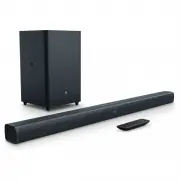
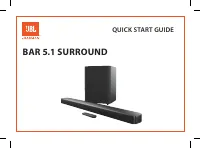
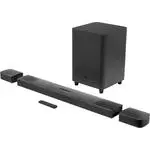
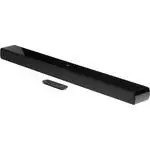
www.jbl.com E n g lis h 3 1. INTRODUCTION Thank you for purchasing the JBL Bar 2.1. The JBL Bar 2.1is designed to bring an extraordinary sound experience to yourhome entertainment system. We urge you to take a few minutesto read through this manual, which describes the productand includes step-by-st...
Page 4 - Connect Soundbar to other devices; Power on your system
4 Connect to TV through Optical An Optical connection supports digital audio and is an alternativeto an HDMI audio connection. Note: Confirm to set your TV audio settings to support “external speakers” and disable the built-in TV speakers. Connect Soundbar to other devices Option 1: Connect digital ...
Page 5 - button in sequence. Panel display will show “PAIRING”; PLACE YOUR SOUNDBAR; a. Place the Soundbar on the table; USE YOUR SOUNDBAR SYSTEM; to start Bluetooth pairing; PAIRING
www.jbl.com E n g lis h 5 If no audio from the wireless subwoofer can be heard, manuallypair the subwoofer: 1. Turn on the soundbar and the subwoofer. If the connection is lost, the LED indicator on the subwoofer blinks slowly. 2. Press the CONNECT button on the subwoofer to enter pairing mode. The ...
Page 6 - CONNECTED; NOTES; Control USB playback
6 2b. Select “JBL Bar 2.1” to connect CONNECTED Settings Bluetooth Bluetooth DEVICES JBL Bar 2.1 Now Discoverable Connected Remark: Press and hold Bluetooth (BT) button on your remote control for 3 seconds if you want to pair another mobile device. NOTES - If asked for a PIN code when connecting a B...
Page 7 - Before you connect a USB device, be aware of the following:; Before you start; Surround sound mode; Synchronize video and sound; RESPOND TO YOUR TV REMOTE; TV REMOTE OFF
www.jbl.com E n g lis h 7 Before you connect a USB device, be aware of the following: • This soundbar can display file or folder names that contain numbers or English characters only. Other languages andsymbol are not supported. • If the file name of a file on a USB device exceeds 15 characters, it ...
Page 8 - Set display brightness; receive more information about downloading update files.; PRODUCT SPECIFICATIONS; General
8 Note: – Make sure that the sound output of your TV is set to “External speaker”. – Depending on the remote control, this function may not work well. – This function does not operate on LG TV’s magic remote control. – This function may not work well when HDMI CEC is ON.– Some remote control may not...
Page 9 - Bluetooth specification; • Bluetooth Profile; USB specification; • 5.8G Max Transmitting power
www.jbl.com E n g lis h 9 Input and Output • Audio Inputs : 1 Analog, 1 Optical, Bluetooth, USB • HDMI Video Inputs : 1 • HDMI Video Output (with Audio Return Channel) : 1 • HDMI HDCP Version : 1.4 Bluetooth specification • Bluetooth Version : 4.2 • Max Bluetooth Range : 32 ft (10m) • Bluetooth Prof...
Page 10 - Remote Control; The remote control does not work.
10 Quality of audio play from a connected Bluetooth device is poor. • The Bluetooth reception is poor. Move the device closer to the soundbar, or remove any obstacle between the device and thesoundbar. The connected Bluetooth device connects and disconnectsconstantly. • The Bluetooth reception is po...
Page 11 - change without notice. The Bluetooth
www.jbl.com E n g lis h 11 HARMAN International Industries,Incorporated 8500 BalboaBoulevard, Northridge, CA 91329USAwww.jbl.com TR04370_A © 2017 HARMAN International Industries, Incorporated. All rights reserved. JBL is atrademark of HARMAN International Industries, Incorporated, registered in the ...