Page 2 - Where to Find Information; Online Reference Guide; Startup Guide; Information on EPSON Scanner Software (online help); Help; Information on other Software; Refer to the respective documentation for the information.
R4C5940Rev. C A5 size COVER.FM 3/30/01 Pass 3 L Proof Sign-off:KOW K.Tsukagoshi J.MiyakoshiM.FujimoriNOC Lee Where to Find Information Startup Guide (this document) Describes how to set up and use the scanner. Basic scanning operations are covered. It also explains how to install and configure the E...
Page 3 - Color Image Scanner
Proof Sign-off:KOW K.Tsukagoshi J.MiyakoshiM.FujimoriNOC Lee R4C5940Rev. C A5 size FRONT.FM 3/30/01 Pass 3 R Startup Guide Color Image Scanner All rights reserved. No part of this publication may be reproduced, stored in a retrieval system, or transmitted in any form or by any means, electronic, mec...
Page 4 - ii
ii L R4C5940Rev. C A5 size FRONT.FM 3/30/01 Pass 3 Proof Sign-off:KOW K.Tsukagoshi J.MiyakoshiM.FujimoriNOC Lee
Page 5 - iii; Contents; Safety Instructions
iii R Proof Sign-off:KOW K.Tsukagoshi J.MiyakoshiM.FujimoriNOC Lee R4C5940Rev. C A5 size STARTG.TOC 3/30/01 Pass 3 Contents Safety Instructions Important Safety Instructions . . . . . . . . . . . . . . . . . . . . . . . . . . . . . 1Warnings, Cautions, and Notes. . . . . . . . . . . . . . . . . . . ...
Page 6 - iv
iv L R4C5940Rev. C A5 size STARTG.TOC 3/30/01 Pass 3 Proof Sign-off:KOW K.Tsukagoshi J.MiyakoshiM.FujimoriNOC Lee
Page 7 - Important Safety Instructions; Do not let the power cord become damaged or frayed.
Safety Instructions 1 R Proof Sign-off:KOW K.Tsukagoshi J.MiyakoshiM.FujimoriNOC Lee R4C5940Rev. C A5 size INTRO.FM 3/30/01 Pass 3 Safety Instructions Important Safety Instructions Read all these instructions and save them for later reference. Follow all warnings and instructions marked on the scann...
Page 8 - If the power cord or plug is damaged
2 Safety Instructions L R4C5940Rev. C A5 size INTRO.FM 3/30/01 Pass 3 Proof Sign-off:KOW K.Tsukagoshi J.MiyakoshiM.FujimoriNOC Lee ❏ If you use an extension cord with the scanner, make sure the total ampere rating of the devices plugged into the extension cord does not exceed the cord's ampere ratin...
Page 10 - Warnings; must be followed carefully to avoid bodily injury.; Cautions; must be observed to avoid damage to your equipment.; Notes; ENERGY STAR Compliance
4 Safety Instructions L R4C5940Rev. C A5 size INTRO.FM 3/30/01 Pass 3 Proof Sign-off:KOW K.Tsukagoshi J.MiyakoshiM.FujimoriNOC Lee Warnings, Cautions, and Notes w Warnings must be followed carefully to avoid bodily injury. c Cautions must be observed to avoid damage to your equipment. Notes contain ...
Page 11 - For United Kingdom Users; The following safety information applies to the AC adapter.; Safety information; Replace fuses only with a fuse of the correct size and rating.
Safety Instructions 5 R Proof Sign-off:KOW K.Tsukagoshi J.MiyakoshiM.FujimoriNOC Lee R4C5940Rev. C A5 size INTRO.FM 3/30/01 Pass 3 For United Kingdom Users The following safety information applies to the AC adapter. Safety information w Warning: Refer to the rating plate for voltage and check that t...
Page 13 - Chapter 1; Setting up the Scanner
1 Setting up the Scanner 1-1 R4C5940Rev. C A5 size SETUP.FM 3/30/01 Pass 3 R Proof Sign-off:KOW K.Tsukagoshi J.MiyakoshiM.FujimoriNOC Lee Chapter 1 Setting up the Scanner Unpacking the Scanner . . . . . . . . . . . . . . . . . . . . . . . . . . . . . . . . . . . 1-2 Getting to Know Your Scanner . . ...
Page 14 - Unpacking the Scanner
1-2 Setting up the Scanner R4C5940Rev. C A5 size SETUP.FM 3/30/01 Pass 3 L Proof Sign-off:KOW K.Tsukagoshi J.MiyakoshiM.FujimoriNOC Lee Unpacking the Scanner When you unpack your EPSON Perfection 1240U/Perfection 1240U Photo, make sure the following parts are included and not damaged. If you find an...
Page 15 - For the Perfection 1240U Photo
1 Setting up the Scanner 1-3 R4C5940Rev. C A5 size SETUP.FM 3/30/01 Pass 3 R Proof Sign-off:KOW K.Tsukagoshi J.MiyakoshiM.FujimoriNOC Lee For the Perfection 1240U Photo Note: The Perfection 1240U Photo comes with the Film Adaptor which is also available as an option for the Perfection 1240U. See “Op...
Page 16 - Getting to Know Your Scanner; The scanner has one indicator light and three buttons.; Light
1-4 Setting up the Scanner R4C5940Rev. C A5 size SETUP.FM 3/30/01 Pass 3 L Proof Sign-off:KOW K.Tsukagoshi J.MiyakoshiM.FujimoriNOC Lee Getting to Know Your Scanner The scanner has one indicator light and three buttons. Light N = on, O = off, F = flashing Pattern Color Scanner Status F (Flashing slo...
Page 17 - Buttons; Option
1 Setting up the Scanner 1-5 R4C5940Rev. C A5 size SETUP.FM 3/30/01 Pass 3 R Proof Sign-off:KOW K.Tsukagoshi J.MiyakoshiM.FujimoriNOC Lee Buttons Option The following optional item is available to expand the versatility of your scanner. For detailed information on the use of this option, see “Option...
Page 18 - Choosing a Place for the Scanner
1-6 Setting up the Scanner R4C5940Rev. C A5 size SETUP.FM 3/30/01 Pass 3 L Proof Sign-off:KOW K.Tsukagoshi J.MiyakoshiM.FujimoriNOC Lee Choosing a Place for the Scanner Follow the guidelines below when selecting a location for your scanner: ❏ Place the scanner close enough to the computer for the in...
Page 19 - Avoid places subject to shocks and vibrations.
1 Setting up the Scanner 1-7 R4C5940Rev. C A5 size SETUP.FM 3/30/01 Pass 3 R Proof Sign-off:KOW K.Tsukagoshi J.MiyakoshiM.FujimoriNOC Lee ❏ Keep the scanner away from high temperatures, humidity and excessive dirt or dust. Also avoid using or storing the scanner in places subject to rapid changes of...
Page 20 - Initializing the Scanner
1-8 Setting up the Scanner R4C5940Rev. C A5 size SETUP.FM 3/30/01 Pass 3 L Proof Sign-off:KOW K.Tsukagoshi J.MiyakoshiM.FujimoriNOC Lee Initializing the Scanner Before connecting the scanner to your computer, follow the steps below to make sure that the scanner is operating properly. 1. Place the sc...
Page 21 - Make sure the carriage moves slightly and the fluorescent
1 Setting up the Scanner 1-9 R4C5940Rev. C A5 size SETUP.FM 3/30/01 Pass 3 R Proof Sign-off:KOW K.Tsukagoshi J.MiyakoshiM.FujimoriNOC Lee 6. Make sure the carriage moves slightly and the fluorescent lamp on the carriage turns on. 7. The indicator light stays on in green, meaning the scanner has comp...
Page 22 - Connecting the Scanner to Your Computer
1-10 Setting up the Scanner R4C5940Rev. C A5 size SETUP.FM 3/30/01 Pass 3 L Proof Sign-off:KOW K.Tsukagoshi J.MiyakoshiM.FujimoriNOC Lee Connecting the Scanner to Your Computer Make sure that your system meets the requirements. (See “Technical Specifications” in your Online Reference Guide for detai...
Page 23 - Connect the other end of the cable (Type A) to the USB port
1 Setting up the Scanner 1-11 R4C5940Rev. C A5 size SETUP.FM 3/30/01 Pass 3 R Proof Sign-off:KOW K.Tsukagoshi J.MiyakoshiM.FujimoriNOC Lee 2. Connect the other end of the cable (Type A) to the USB port on your computer, or USB hub. Note: ❏ USB cables enable you to connect the scanner whether your co...
Page 25 - Chapter 2; Installing the Software
2 Installing the Software 2-1 R4C5940Rev. C A5 size INSTALL.FM 3/30/01 Pass 3 R Proof Sign-off:KOW K.Tsukagoshi J.MiyakoshiM.FujimoriNOC Lee Chapter 2 Installing the Software Installing the Scanner Software for Windows . . . . . . . . . . . . . . . . 2-2 Installing the Scanner Software for Macintosh...
Page 26 - Installing the Scanner Software for Windows; 000, be sure to uninstall it before the
2-2 Installing the Software R4C5940Rev. C A5 size INSTALL.FM 3/30/01 Pass 3 L Proof Sign-off:KOW K.Tsukagoshi J.MiyakoshiM.FujimoriNOC Lee Installing the Scanner Software for Windows After connecting the scanner to your computer, install the scanner software (EPSON TWAIN) from the CD-ROM. Note: ❏ If...
Page 28 - Follow the instructions on the screen.
2-4 Installing the Software R4C5940Rev. C A5 size INSTALL.FM 3/30/01 Pass 3 L Proof Sign-off:KOW K.Tsukagoshi J.MiyakoshiM.FujimoriNOC Lee 7. Follow the instructions on the screen. For Windows 2000 users: When the following dialog box appears, click Yes to continue. Note: If you click No and stop in...
Page 29 - The EPSON Screen Calibration utility automatically starts.
2 Installing the Software 2-5 R4C5940Rev. C A5 size INSTALL.FM 3/30/01 Pass 3 R Proof Sign-off:KOW K.Tsukagoshi J.MiyakoshiM.FujimoriNOC Lee 8. The EPSON Screen Calibration utility automatically starts. Follow the instructions on the screen. For details, see “Calibrating Your Screen” on page 2-10. N...
Page 30 - Installing the application software for Windows; My Computer
2-6 Installing the Software R4C5940Rev. C A5 size INSTALL.FM 3/30/01 Pass 3 L Proof Sign-off:KOW K.Tsukagoshi J.MiyakoshiM.FujimoriNOC Lee Installing the application software for Windows 1. Double-click the My Computer icon. 2. Double-click the CD-ROM drive icon. A dialog box asking for your preferr...
Page 31 - OK
2 Installing the Software 2-7 R4C5940Rev. C A5 size INSTALL.FM 3/30/01 Pass 3 R Proof Sign-off:KOW K.Tsukagoshi J.MiyakoshiM.FujimoriNOC Lee 6. Click OK , then follow the instructions on the screen. The setup program installs the selected applications. Note: ❏ If you see README files in the applicat...
Page 32 - Installing the Scanner Software for Macintosh; Note for Macintosh users:
2-8 Installing the Software R4C5940Rev. C A5 size INSTALL.FM 3/30/01 Pass 3 L Proof Sign-off:KOW K.Tsukagoshi J.MiyakoshiM.FujimoriNOC Lee Installing the Scanner Software for Macintosh Before connecting the scanner to your Macintosh computer, install the EPSON scanner software (EPSON TWAIN, EPSON SM...
Page 33 - Install; and then; Be sure to install EPSON SMART PANEL for Scanner.
2 Installing the Software 2-9 R4C5940Rev. C A5 size INSTALL.FM 3/30/01 Pass 3 R Proof Sign-off:KOW K.Tsukagoshi J.MiyakoshiM.FujimoriNOC Lee 5. When a dialog box appears, click Install and then follow the instructions on the screen. When you complete the installation, the EPSON Screen Calibration ut...
Page 34 - Calibrating Your Screen; To calibrate your screen follow the steps below:
2-10 Installing the Software R4C5940Rev. C A5 size INSTALL.FM 3/30/01 Pass 3 L Proof Sign-off:KOW K.Tsukagoshi J.MiyakoshiM.FujimoriNOC Lee Calibrating Your Screen To calibrate your screen follow the steps below: 1. Look at the screen and move the slider right or left until the two shades of the gra...
Page 35 - Chapter 3; Using Your Scanner
3 Using Your Scanner 3-1 R4C5940Rev. C A5 size USING.FM 3/30/01 Pass 3 R Proof Sign-off:KOW K.Tsukagoshi J.MiyakoshiM.FujimoriNOC Lee Chapter 3 Using Your Scanner Scanning an Image . . . . . . . . . . . . . . . . . . . . . . . . . . . . . . . . . . . . . . 3-2 Scanning by using the buttons . . . . ....
Page 36 - Scanning an Image; Plug in the scanner; . The fluorescent lamp in the carriage turns; Turn on the computer and make sure that the scanner's
3-2 Using Your Scanner R4C5940Rev. C A5 size USING.FM 3/30/01 Pass 3 L Proof Sign-off:KOW K.Tsukagoshi J.MiyakoshiM.FujimoriNOC Lee Scanning an Image Before scanning a document, remember to respect the rights of copyright owners. Do not scan published text or images without first checking the copyri...
Page 37 - Place the document on the document table, with the side to
3 Using Your Scanner 3-3 R4C5940Rev. C A5 size USING.FM 3/30/01 Pass 3 R Proof Sign-off:KOW K.Tsukagoshi J.MiyakoshiM.FujimoriNOC Lee 5. Place the document on the document table, with the side to be scanned facing down. Make sure that the document is carefully aligned. Note: The area with a width of...
Page 38 - Close the document cover gently so that the document does
3-4 Using Your Scanner R4C5940Rev. C A5 size USING.FM 3/30/01 Pass 3 L Proof Sign-off:KOW K.Tsukagoshi J.MiyakoshiM.FujimoriNOC Lee 6. Close the document cover gently so that the document does not move. Note: ❏ Do not leave photographs on the document table for an extended period of time as they may...
Page 39 - Scanning by using the buttons; Using the Start button to scan; Start button on your scanner. The EPSON SMART
3 Using Your Scanner 3-5 R4C5940Rev. C A5 size USING.FM 3/30/01 Pass 3 R Proof Sign-off:KOW K.Tsukagoshi J.MiyakoshiM.FujimoriNOC Lee Scanning by using the buttons Using the Start button to scan 1. Press the ] Start button on your scanner. The EPSON SMART PANEL window appears. The applications avail...
Page 40 - Click an application icon. (The example used here is Scan for
3-6 Using Your Scanner R4C5940Rev. C A5 size USING.FM 3/30/01 Pass 3 L Proof Sign-off:KOW K.Tsukagoshi J.MiyakoshiM.FujimoriNOC Lee 2. Click an application icon. (The example used here is Scan for Creativity.) The following window appears. Note: You can use the Scan for Creativity only if Adobe Phot...
Page 41 - Scan; Using the Copy button to copy; Using the Scan button to scan; Online
3 Using Your Scanner 3-7 R4C5940Rev. C A5 size USING.FM 3/30/01 Pass 3 R Proof Sign-off:KOW K.Tsukagoshi J.MiyakoshiM.FujimoriNOC Lee 3. Click Scan . The following window appears. 4. Click Launch PhotoDeluxe... . The scanned image is sent to PhotoDeluxe. If you want to change more settings, refer to...
Page 42 - Scanning with a TWAIN-compliant application; Open Special; Scan Photo; EPSON TWAIN 5
3-8 Using Your Scanner R4C5940Rev. C A5 size USING.FM 3/30/01 Pass 3 L Proof Sign-off:KOW K.Tsukagoshi J.MiyakoshiM.FujimoriNOC Lee Scanning with a TWAIN-compliant application 1. Start a TWAIN-compliant application. (The example used here is PhotoDeluxe.) 2. Select Open Special from the File menu, a...
Page 43 - The following window appears with a progress bar to indicate
3 Using Your Scanner 3-9 R4C5940Rev. C A5 size USING.FM 3/30/01 Pass 3 R Proof Sign-off:KOW K.Tsukagoshi J.MiyakoshiM.FujimoriNOC Lee 4. The following window appears with a progress bar to indicate the scanning progress. You can see the type of document being scanned. When scanning multiple photos, ...
Page 44 - When you install the option; If you want to scan from the Film Adapter, click the
3-10 Using Your Scanner R4C5940Rev. C A5 size USING.FM 3/30/01 Pass 3 L Proof Sign-off:KOW K.Tsukagoshi J.MiyakoshiM.FujimoriNOC Lee When you install the option When you install the option, the following window appears first. Follow the instructions displayed in the window. If you want to scan from ...
Page 45 - Getting Information from Online Guide; Reference Guide; To learn more about your scanner, see the; Color Guide; Opening the Online Guide
3 Using Your Scanner 3-11 R4C5940Rev. C A5 size USING.FM 3/30/01 Pass 3 R Proof Sign-off:KOW K.Tsukagoshi J.MiyakoshiM.FujimoriNOC Lee Getting Information from Online Guide Reference Guide To learn more about your scanner, see the Online Reference Guide which includes detailed information on scannin...
Page 46 - View
3-12 Using Your Scanner R4C5940Rev. C A5 size USING.FM 3/30/01 Pass 3 L Proof Sign-off:KOW K.Tsukagoshi J.MiyakoshiM.FujimoriNOC Lee For Macintosh users: Double-click EPSON Perfection 1240U . A dialog box similar to the one shown below appears. 3. Click the appropriate View button to open the guide ...


 Epson V11HA52820
User Manual
Epson V11HA52820
User Manual
 Epson V12H004UA3
User Manual
Epson V12H004UA3
User Manual
 Epson V11HA85020
Installation Manual
Epson V11HA85020
Installation Manual
 Epson C11CK65201
User Manual
Epson C11CK65201
User Manual
 Epson V11H980020
Manual
Epson V11H980020
Manual
 Epson HOME CINEMA 3200
Manual
Epson HOME CINEMA 3200
Manual
 Epson HOME CINEMA 3800
User Manual
Epson HOME CINEMA 3800
User Manual
 Epson B11B252201
User Manual
Epson B11B252201
User Manual
 Epson WF 7210
Installation Manual
Epson WF 7210
Installation Manual
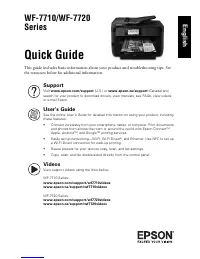 Epson WF 7720
User Manual
Epson WF 7720
User Manual
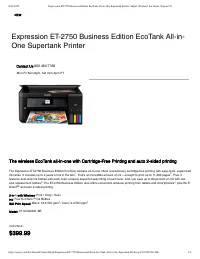 Epson ET 2750
User Manual
Epson ET 2750
User Manual
 Epson ET 7700
User Manual
Epson ET 7700
User Manual
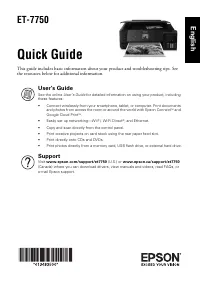 Epson ET 7750
Troubleshooting Guide
Epson ET 7750
Troubleshooting Guide