Bosch B09IB91NSP - Manuals
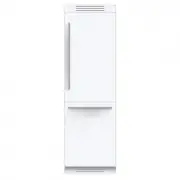
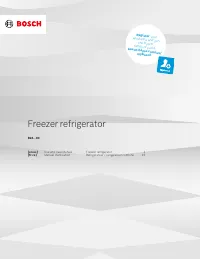
Bosch B09IB91NSP Refrigerator – User Manual, Manual in PDF format online.
Manuals:
User Manual Bosch B09IB91NSP


Summary
2 The future begins now in your home! We are glad you have chosen Home Connect * * The availability of the Home Connect functionality depends on the availability of the Home Connect Services in your country. Home Connect Services are not available in every country – for further information please ch...
3 – A smartphone or tablet, equipped with the latest version of the relevant operating system. – A home network signal (Wi-Fi) at the location where the appliance is fitted. Name and password for your home network (Wi-Fi): Network name (SSID): Password (key): Three steps to make your daily routine e...
4 Step 1: Installing the Home Connect app A B C D A On your smartphone or tablet, go to the App Store (Apple devices) or Google Play Store (Android devices). B Enter „Home Connect“ in the Store‘s search field. C Select the Home Connect app and install it on your smartphone or tablet. D Start the app...
Manual Bosch B09IB91NSP


Bosch Refrigerators Manuals
-
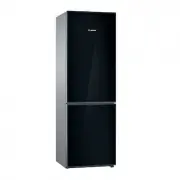 Bosch B10CB81NVB
User Manual
Bosch B10CB81NVB
User Manual
-
Bosch B10CB81NVB
Manual
-
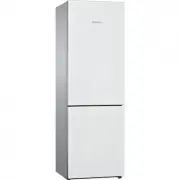 Bosch B10CB81NVW
User Manual
Bosch B10CB81NVW
User Manual
-
Bosch B10CB81NVW
Manual
-
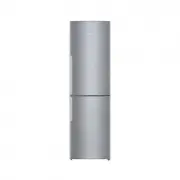 Bosch B11CB50SSS
User Manual
Bosch B11CB50SSS
User Manual
-
Bosch B11CB50SSS
Manual
-
Bosch B11CB50SSS
Installation Manual
-
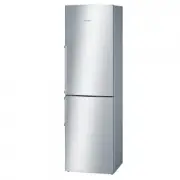 Bosch B11CB81SSS
User Manual
Bosch B11CB81SSS
User Manual
-
Bosch B11CB81SSS
Manual
-
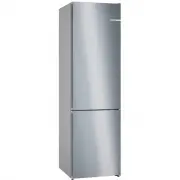 Bosch B24CB50ESS
User Manual
Bosch B24CB50ESS
User Manual
-
Bosch B24CB50ESS
Manual
-
Bosch B24CB50ESS
Installation Manual
-
 Bosch B24CB80ESB
User Manual
Bosch B24CB80ESB
User Manual
-
Bosch B24CB80ESB
Manual
-
Bosch B24CB80ESS
User Manual
-
Bosch B24CB80ESS
Manual
-
Bosch B24CB80ESS
Installation Manual
-
Bosch B24CB80ESW
User Manual
-
Bosch B24CB80ESW
Manual
-
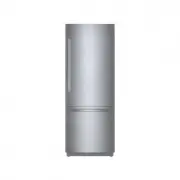 Bosch B30BB935SS
User Manual
Bosch B30BB935SS
User Manual