Autel EVO II Dual 640T Enterprisegged Bundle V3e (102001509) - Manuals
Autel EVO II Dual 640T Enterprisegged Bundle V3e (102001509) Quadcopter – User Manual in PDF format online.
Manuals:
User Manual Autel EVO II Dual 640T Enterprisegged Bundle V3e (102001509)


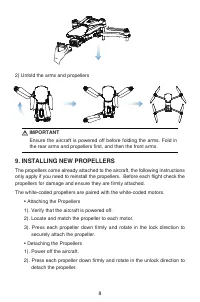
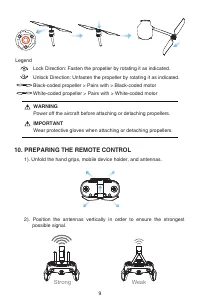
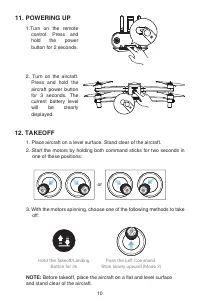
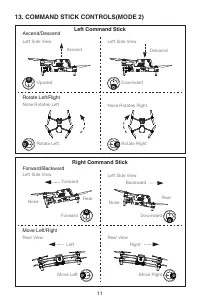


Summary
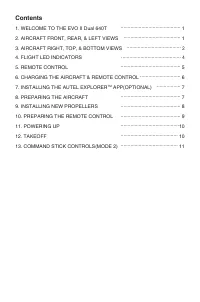
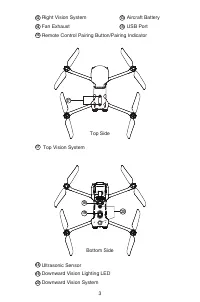
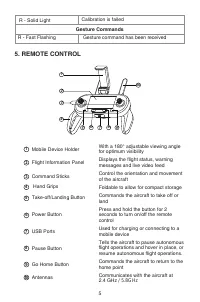
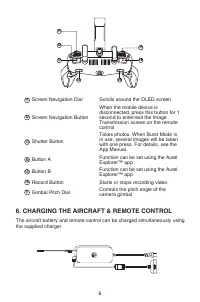
Contents 1. WELCOME TO THE EVO II Dual 640T 2. AIRCRAFT FRONT, REAR, & LEFT VIEWS 3. AIRCRAFT RIGHT, TOP, & BOTTOM VIEWS 4. FLIGHT LED INDICATORS 5. REMOTE CONTROL 6. CHARGING THE AIRCRAFT & REMOTE CONTROL 7. INSTALLING THE AUTEL EXPLORER TM APP(OPTIONAL) 8. PREPARING THE AIRCRAFT 9. INS...
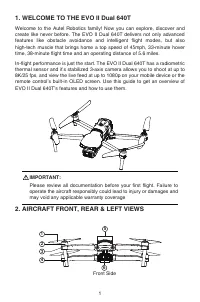
1. WELCOME TO THE EVO II Dual 640T Welcome to the Autel Robotics family! Now you can explore, discover and create like never before. The EVO II Dual 640T delivers not only advanced features like obstacle avoidance and intelligent flight modes, but also high-tech muscle that brings home a top speed o...
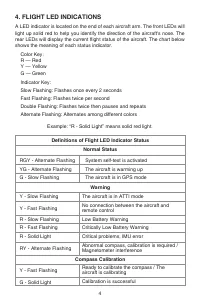
Normal Status Warning Compass Calibration Definitions of Flight LED Indicator Status RGY - Alternate FlashingYG - Alternate FlashingG - Slow Flashing Y - Slow Flashing Y - Fast Flashing R - Slow FlashingR - Fast FlashingR - Solid Light RY - Alternate Flashing Y - Fast Flashing G - Solid Light System...
Autel Quadcopters Manuals
-
 Autel EVO II Dualgged Bundle (640T) RTK V3 (102001511)
User Manual
Autel EVO II Dualgged Bundle (640T) RTK V3 (102001511)
User Manual
-
 Autel EVO II Dualgged Bundle (640T) V3 (102001518)
User Manual
Autel EVO II Dualgged Bundle (640T) V3 (102001518)
User Manual
-
Autel EVO II Dualgged Bundle (640T) V3 (102001752)
User Manual
-
 Autel EVO II Enterprisegged Bundle V3 (102001510)
User Manual
Autel EVO II Enterprisegged Bundle V3 (102001510)
User Manual
-
 Autel EVO IIgged Bundle V2 (102001026)
User Manual
Autel EVO IIgged Bundle V2 (102001026)
User Manual
-
Autel EVO IIgged Bundle V3 (102001514)
User Manual
-
Autel EVO IIgged Bundle V3 (102001738)
User Manual
-
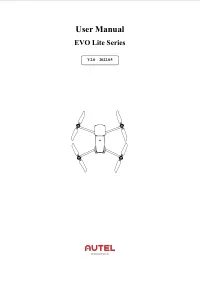 Autel EVO Lite (102000625)
User Manual
Autel EVO Lite (102000625)
User Manual
-
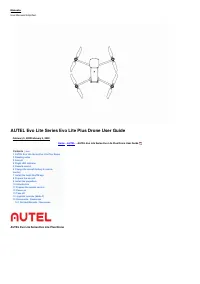 Autel EVO Lite (102000687)
User Manual
Autel EVO Lite (102000687)
User Manual
-
Autel EVO Lite (102000720)
User Manual
-
Autel EVO Lite+ Standard Package (102000668)
User Manual