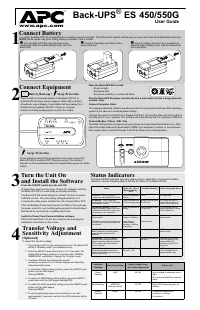
Page 2 - The UPS is shipped with the battery disconnected.
Back-UPS Pro BR1500MS2 2 Inventory Connect the Battery The UPS is shipped with the battery disconnected. Coaxial Cable USB communication cable Lay the UPS with the battery door facing up. The arrows point to the locking tabs of the battery compartment. Press the tabs downwards and pull the batte...
Page 3 - PowerChute is only compatible with a Windows operating system. If; Installation; Click the download link and select Software product. Select the; Connect the Equipment; Battery Backup and Surge Protected outlets
Back-UPS Pro BR1500MS2 3 Install PowerChute ™ Personal Edition Software Use PowerChute Personal Edition software to configure the UPS settings. During a power outage, PowerChute will save any open files on your computer and shut it down. When power is restored, it will restart the computer. Note: Po...
Page 5 - Operation; Power Saving Display; Generator Sensitivity
Back-UPS Pro BR1500MS2 5 Operation Power Saving Display The display interface can be configured to be continuously illuminated, or to save energy, it can be configured to darken after a period of inactivity. 1. Full Time Mode: Press and hold DISPLAY for two seconds. The display will illuminate and t...
Page 6 - Front Panel Buttons and Display Interface; Front panel; button; button
Back-UPS Pro BR1500MS2 6 Front Panel Buttons and Display Interface Use the three buttons on the front panel of the Back-UPS and the display interface to configure the Back-UPS. Front panel D ISPLAY button P OWER O N /O FF button M UTE button Display interface USB charging ports: The 2 USB ...
Page 7 - Detected Alarms and System Errors; Audible Indicators
Back-UPS Pro BR1500MS2 7 Detected Alarms and System Errors Audible Indicators Overload: The power demand from the load has exceeded the capacity of the Back-UPS. Mute: If the line through the speaker icon is illuminated, the audible alarm has been turned off. Out: Output voltage, frequency. In: Inpu...
Page 9 - Function Button Quick Reference
Back-UPS Pro BR1500MS2 9 Function Button Quick Reference Function Button Timing (seconds) UPS Status Description P OWER Power On 0.2 Off Press P OWER to start receiving input AC power. If AC input power is not available, the Back-UPS will run on battery power. Power Off 2 On The Back-UPS is not rece...
Page 10 - Troubleshooting; Problem
Back-UPS Pro BR1500MS2 10 Troubleshooting Problem Possible Cause Corrective Action Back-UPS will not switch on. The Back-UPS is not connected to AC power. Ensure that the Back-UPS is securely connected to an AC outlet. The circuit breaker has been tripped. Disconnect non-essential equipment from the...
Page 11 - is; Warranty
Back-UPS Pro BR1500MS2 11 Specifications Replacement Battery The battery typically lasts for 3 to 5 years, a shorter period if subjected to frequent outages or elevated temperatures. Battery replacement parts for Back-UPS Pro BR1500MS2 is APCRBC163 . Delaying the replacement of parts may corrode the...
Page 12 - Select models are ENERGY STAR; EMC Compliance; which the receiver is connected.
© 2020 APC by Schneider Electric. APC, the APC logo, and Back-UPS are owned by Schneider Electric Industries S.A.S., or their affiliated companies. All other trademarks are property of their respective owners. EN 990-6375 7/2020 APC by Schneider Electric IT Customer Support Worldwide For country spe...