Page 2 - En g l i sh; camcorder. With your; W ARNING; or; Русский; ПРЕДУПРЕЖДЕНИЕ
2 En g l i sh We l co m e ! Congratulations on your purchase of this SonyHandycam Vision TM camcorder. With your Handycam Vision, you can capture life’sprecious moments with superior picture andsound quality. Your Handycam Vision is loadedwith advanced features, but at the same time it isvery easy t...
Page 3 - M a i n Fe a t u re s; Fu n ct i o n s t o a d j u st e x p o su r e ( i n t h e r e co r d i n g m o d e ); OFF; Fu n ct i o n s t o u se i n e d i t i n g ( i n t h e r e co r d i n g m o d e )
3 En g l i sh M a i n Fe a t u re s Fu n ct i o n s t o a d j u st e x p o su r e ( i n t h e r e co r d i n g m o d e ) • In a dark place• In dark environments such as sunset, fireworks, or general night views • Shooting backlit subjects• In spotlight, such as at the theatre or a formal event• In s...
Page 4 - Функции для использования при монтаже (в режиме записи); Основные функции
4 Функции для регулировки экспозиции (в режиме записи) • В темном месте• В темных окружающих условиях, например, заход солнца, фейерверки или общиеночные виды • Съемка объектов с задней подсветкой• При прожекторном освещении, например, в театре или на официальной церемонии • При сильном свете или от...
Page 5 - Ta b l e o f co n t e n t s; Shooting backlit subjects
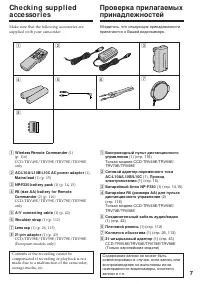
5 En g l i sh Ta b l e o f co n t e n t s Main Features ................................................... 3Checking supplied accessories ...................... 7 Qu i ck St a r t Gu i d e ................................... 8 Ge t t i n g st a r t e d Using this manual ...............................
Page 6 - Оглавление; Подготовка к эксплуатации
6 Русский Оглавление Основные функции ................................... 4 Проверка прилагаемых принадлежностей ............................................................. 7 Руководство по быстромузапуску ..................................................... 10 Подготовка к эксплуатации Использов...
Page 8 - Qu i ck St a r t Gu i d e; Quic; mark; Co n n e ct i n g t h e m a i n s l e a d
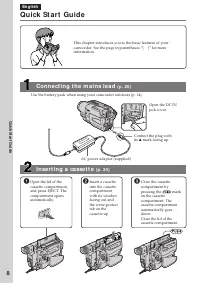
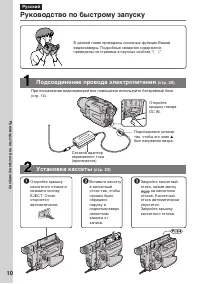
8 En g l i sh Qu i ck St a r t Gu i d e This chapter introduces you to the basic features of yourcamcorder. See the page in parentheses “( )” for more information. Open the DC INjack cover. Connect the plug withits v mark facing up. AC power adaptor (supplied) Quic k S tart Guide 3 Close the cassett...
Page 9 - Open the LCD panel; Press; REW; View f inder; Re co r d i n g a p i ct u r e
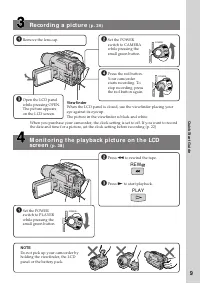
9 2 Set the POWERswitch to CAMERAwhile pressing thesmall green button. 4 Press the red button.Your camcorderstarts recording. Tostop recording, pressthe red button again. 1 Remove the lens cap. 3 Open the LCD panel while pressing OPEN.The picture appearson the LCD screen. Quic k S tart Guide NOTE Do...
Page 10 - Подсоединение провода электропитания; Сетевой адаптер; Установка кассеты; на кассетном; Руководство по быстрому запуску
10 Русский Руководство по быстрому запуску В данной главе приведены основные функции Вашейвидеокамеры. Подробные сведения содержатсяприведены на странице в круглых скобках “( )”. Откройтекрышку гнездаDC IN. Подсоедините штекертак, чтобы его знак v был направлен вверх. Подсоединение провода электропи...
Page 11 - Запись изображения; ПРИМЕЧАНИЕ; Видоискатель
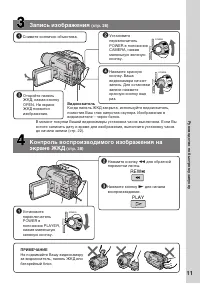
11 PLAYER POWER OFF CAMERA (CHARGE ) PLAYER POWER OFF CAMERA (CHARGE ) Руководство по быстрому запуску Запись изображения (стр. 26) Контроль воспроизводимого изображения наэкране ЖКД (стр. 38) ПРИМЕЧАНИЕ Не поднимайте Вашу видеокамеруза видоискатель, панель ЖКД илибатарейный блок. 1 Снимите колпачок...
Page 12 - — Ge t t i n g st a r t e d —; Usi n g t h i s m a n u a l; — Подготовка к эксплуатации —; Ty p e s o f d i f f e r e n ce s/; Цифровой вариообъектив; N o t e o n TV co l o u r sy st e m s
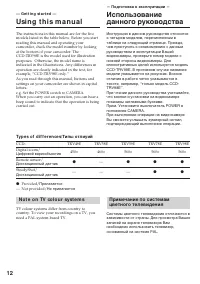
12 — Ge t t i n g st a r t e d — Usi n g t h i s m a n u a l The instructions in this manual are for the fivemodels listed in the table below. Before you startreading this manual and operating yourcamcorder, check the model number by lookingat the bottom of your camcorder. TheCCD-TRV98E is the model...
Page 13 - • Do not let your camcorder get wet. Keep your
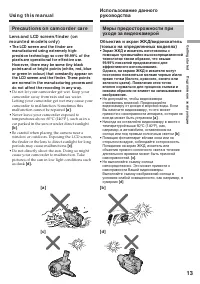
13 G etting s tarted Подготовка к эксплуатации [ a ] [ b ] [ c] Usi n g t h i s m a n u a l Pr e ca u t i o n s o n ca m co r d e r ca r e Le n s a n d LCD scr e e n /f i n d e r ( o nm o u n t e d m o d e l s o n l y ) • The LCD screen and t he f inder aremanuf act ured using ext remely high-precis...
Page 14 - I n st a l l i n g t h e b a t t e r y p a ck; Slide the battery pack down until it clicks.; To r e m o v e t h e b a t t e r y p a ck; St e p 1 Pre p a r i n g t h e; Установка батарейного блока; Для снятия батарейного блока; Пункт 1 Подготовка; BATT RELEASE
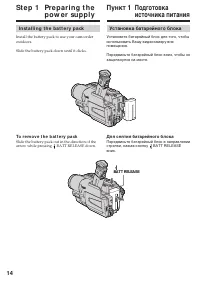
14 I n st a l l i n g t h e b a t t e r y p a ck Install the battery pack to use your camcorderoutdoors. Slide the battery pack down until it clicks. To r e m o v e t h e b a t t e r y p a ck Slide the battery pack out in the direction of thearrow while pressing BATT RELEASE down. St e p 1 Pre p a r...
Page 15 - St e p 1 Pr e p a r i n g t h e p o w e r; Connect the mains lead to the mains.; Зарядка батарейного блока; был направлен вверх.; A f t e r ch a r g i n g t h e b a t t e r y p a ck; Лампочка CHG; После зарядки батарейного блока; Пункт 1
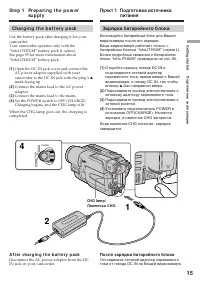
15 G etting s tarted Подготовка к эксплуатации St e p 1 Pr e p a r i n g t h e p o w e r su p p l y Ch a r g i n g t h e b a t t e r y p a ck Use the battery pack after charging it for yourcamcorder.Your camcorder operates only with the“InfoLITHIUM” battery pack (L series).See page 95 for more infor...
Page 16 - Not es; • Prevent metallic objects from coming into; Примечания; • Не допускайте контакта металлических
16 Not es • Prevent metallic objects from coming into contact with the metal parts of the DC plug ofthe AC power adaptor. This may cause a short-circuit, damaging the AC power adaptor. • Keep the battery pack dry.• When the battery pack is not to be used for a long time, charge the battery pack full...
Page 17 - Ch a r g i n g t i m e /; Батарейный блок
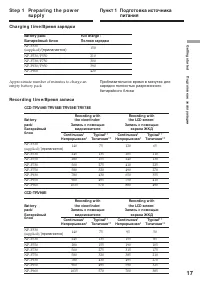
17 G etting s tarted Подготовка к эксплуатации St e p 1 Pr e p a r i n g t h e p o w e r su p p l y Ch a r g i n g t i m e / Время зарядки Approximate number of minutes to charge anempty battery pack Re co r d i n g t i m e / Время записи CCD-TRV49E/ TRV58E/ TRV59E/ TRV78E CCD-TRV98E Приблизительное...
Page 18 - Pl a y i n g t i m e /
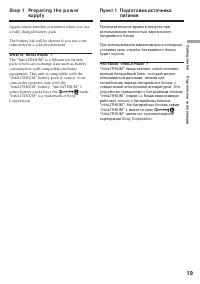
18 St e p 1 Pr e p a r i n g t h e p o w e r su p p l y Approximate number of minutes when you use afully charged battery pack * Approximate continuous recording time at25°C (77°F). The battery life will be shorter ifyou use your camcorder in a coldenvironment. * * Approximate number of minutes when...
Page 19 - Что такое “InfoLITHIUM”?
19 G etting s tarted Подготовка к эксплуатации Приблизительное время в минутах прииспользовании полностью заряженногобатарейного блока При использовании видеокамеры в холодныхусловиях срок службы батарейного блокабудет короче. Что такое “InfoLITHIUM”? “InfoLITHIUM” представляет собой литиево-ионный ...
Page 20 - Co n n e ct i n g t o t h e m a i n s
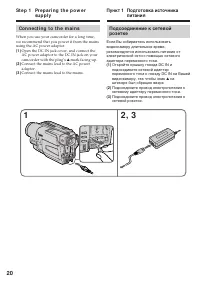
20 Подсоединение к сетевойрозетке Если Вы собираетесь использоватьвидеокамеру длительное время,рекомендуется использовать питание отэлектрической сети с помощью сетевогоадаптера переменного тока. (1 ) Откройте крышку гнезда DC IN иподсоедините сетевой адаптерпеременного тока к гнезду DC IN на Вашейв...
Page 21 - PRECAUTION; • The AC power adaptor can supply power even; Using a car bat t ery; • Питание от сетевого адаптера переменного
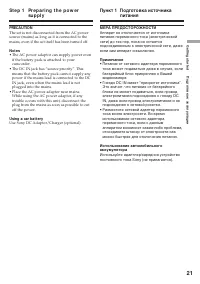
21 G etting s tarted Подготовка к эксплуатации St e p 1 Pr e p a r i n g t h e p o w e r su p p l y Пункт 1 Подготовка источника питания PRECAUTION The set is not disconnected from the AC powersource (mains) as long as it is connected to themains, even if the set itself has been turned off. Not es •...
Page 22 - Turn the SEL/PUSH EXEC dial to select; Пункт 2; St e p 2 Se t t i n g t h e
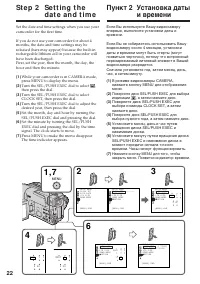
22 Set the date and time settings when you use yourcamcorder for the first time. If you do not use your camcorder for about 4months, the date and time settings may bereleased (bars may appear) because the built-inrechargeable lithium cell in your camcorder willhave been discharged.First, set the yea...
Page 23 - To ch e ck t h e p r e se t d a t e a n d t i m e; The year changes as f ollow s:; This function works only once a day.; Not e on t he t ime indicat or; back to ON in the menu settings.; Год изменяется следующим образом:; функция работает один раз в день.; Примечание по индикатору времени; Пункт 2 Установка даты и времени
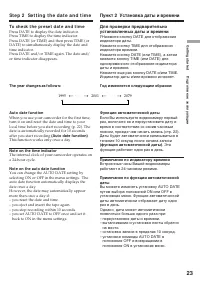
23 G etting s tarted Подготовка к эксплуатации To ch e ck t h e p r e se t d a t e a n d t i m e Press DATE to display the date indicator.Press TIME to display the time indicator.Press DATE (or TIME) and then press TIME (orDATE) to simultaneously display the date andtime indicator.Press DATE and/or ...
Page 24 - Для извлечения кассеты; mark on the cassette compartment.; To e j e ct a ca sse t t e; St e p 3 I n se r t i n g a
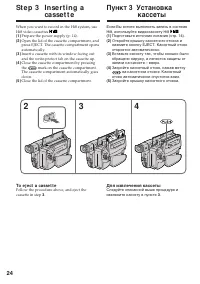
24 Если Вы хотите выполнять запись в системеHi8, используйте видеокассету Hi8 . (1 ) Подготовьте источник питания (стр. 14). (2 ) Откройте крышку кассетного отсека инажмите кнопку EJECT. Кассетный отсекоткроется автоматически. (3 ) Вставьте кассету так, чтобы окошко былообращено наружу, а лепесток з...
Page 25 - • Do not press the cassette compartment down.; To prevent accident al erasure; St e p 3 I n se r t i n g a ca sse t t e; • Не нажимайте вниз кассетный отсек. Это; Для предотвращения случайного стирания
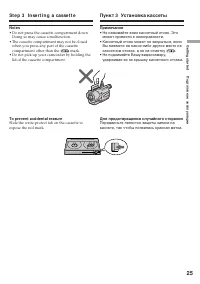
25 G etting s tarted Подготовка к эксплуатации Not es • Do not press the cassette compartment down. Doing so may cause a malfunction. • The cassette compartment may not be closed when you press any part of the cassettecompartment other than the mark. • Do not pick up your camcorder by holding the li...
Page 26 - — Re co r d i n g – Ba si cs —; Re co rd i n g a p i ct u re; Your camcorder automatically focuses for you.; Микрофон
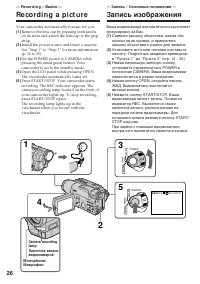
26 5 3 1 2 PLAYER POWER OFF CAMERA (CHARGE ) PLAYER POWER OFF CAMERA (CHARGE ) 4 40min REC 0:00:01 — Re co r d i n g – Ba si cs — Re co rd i n g a p i ct u re Your camcorder automatically focuses for you. (1 ) Remove the lens cap by pressing both knobson its sides and attach the lens cap to the grip...
Page 27 - Not e; A f t e r r e co r d i n g; Attach the lens cap; Af t er using your camcorder; После записи; Присоедините колпачок объектива; После использования видеокамеры
27 R ecording – B asic s Запись – Основные положения Not e Fasten the grip strap firmly. Do not touch thebuilt-in microphone during recording. To enable smoot h t ransit ion You can make the transition between the lastscene you recorded and the next scene smooth aslong as you do not eject the casset...
Page 28 - indicator appears on the screen; M irror mode; Зеркальный
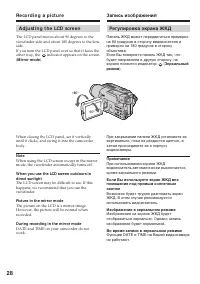
28 Re co r d i n g a p i ct u r e A d j u st i n g t h e LCD scr e e n The LCD panel moves about 90 degrees to theviewfinder side and about 180 degrees to the lensside.If you turn the LCD panel over so that it faces theother way, the indicator appears on the screen ( M irror mode ). When closing the...
Page 29 - Indicat ors in t he mirror mode; Xz; LCD screen backlight; M ENU; • Индикатор STBY появится в виде; Задняя подсветка экрана ЖКД
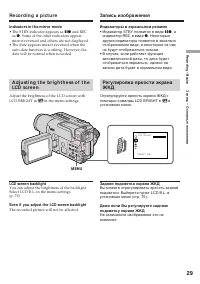
29 R ecording – B asic s Запись – Основные положения Indicat ors in t he mirror mode • The STBY indicator appears as Xz and REC as z . Some of the other indicators appear mirror-reversed and others are not displayed. • The date appears mirror-reversed when the auto date function is working. However,...
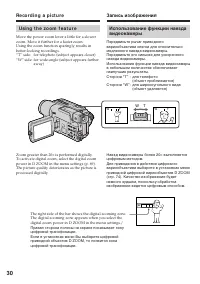
Page 30 - Usi n g t h e zo o m f e a t u r e; Zoom greater than 20
30 Usi n g t h e zo o m f e a t u r e Move the power zoom lever a little for a slowerzoom. Move it further for a faster zoom.Using the zoom function sparingly results inbetter-looking recordings.“T” side: for telephoto (subject appears closer)“W” side: for wide-angle (subject appears farther away) Z...
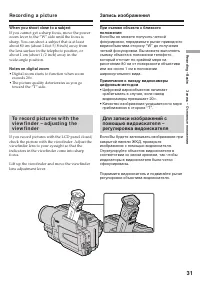
Page 31 - W hen you shoot close t o a subject; • Digital zoom starts to function when zoom
31 R ecording – B asic s Запись – Основные положения W hen you shoot close t o a subject If you cannot get a sharp focus, move the powerzoom lever to the “W” side until the focus issharp. You can shoot a subject that is at leastabout 80 cm (about 2 feet 5/8 inch) away fromthe lens surface in the tel...
Page 32 - This appears while playing back or recording in Hi8 format./; Индикатор формата Hi8; Этот индикатор появляется во время воспроизведения или записи; Индикатор режима записи; The indicators are not recorded on tape.
32 Hi8 f ormat indicat or This appears while playing back or recording in Hi8 format./ Индикатор формата Hi8 Этот индикатор появляется во время воспроизведения или записи в формате Hi8. Recording mode indicat or/ Индикатор режима записи STBY/ REC indicat or/ Индикатор STBY/REC Tape count er indicat ...
Page 33 - indicator appears on the screen.; BACK LIGHT; Функция задней подсветки будет отменена.
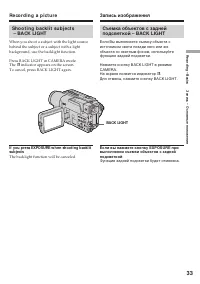
33 R ecording – B asic s Запись – Основные положения Sh o o t i n g b a ck l i t su b j e ct s – BA CK LI GHT When you shoot a subject with the light sourcebehind the subject or a subject with a lightbackground, use the backlight function. Press BACK LIGHT in CAMERA mode.The . indicator appears on t...
Page 34 - and “NIGHTSHOT” indicators flash on the; Usi n g t h e N i g h t Sh o t Li g h t; Night Shot Light emit t er/
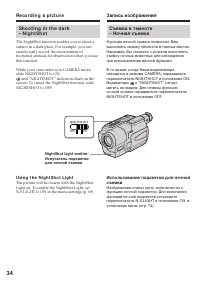
34 Sh o o t i n g i n t h e d a r k– N i g h t Sh o t The NightShot function enables you to shoot asubject in a dark place. For example, you cansatisfactorily record the environment ofnocturnal animals for observation when you usethis function. While your camcorder is in CAMERA mode,slide NIGHTSHOT ...
Page 35 - • Do not use the NightShot function in bright; Night Shot Light; • Не используйте функцию ночной съемки в; Подсветка для ночной съемки
35 R ecording – B asic s Запись – Основные положения Re co r d i n g a p i ct u r e Not es • Do not use the NightShot function in bright places (ex. outdoors in the daytime). This maycause your camcorder to malfunction. • When you keep NIGHTSHOT setting to ON in normal recording, the picture may be ...
Page 36 - DATE
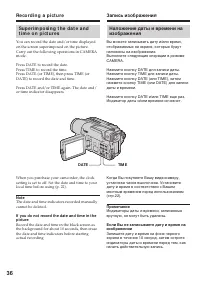
36 Re co r d i n g a p i ct u r e Su p e r i m p o si n g t h e d a t e a n dt i m e o n p i ct u r e s You can record the date and/or time displayedon the screen superimposed on the picture.Carry out the following operations in CAMERAmode. Press DATE to record the date.Press TIME to record the time...
Page 37 - The end search function does not work.; Примечание; END
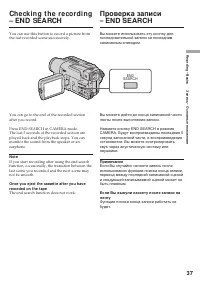
37 R ecording – B asic s Запись – Основные положения Ch e ck i n g t h e re co rd i n g– EN D SEA RCH You can use this button to record a picture fromthe last recorded scene successively. You can go to the end of the recorded sectionafter you record. Press END SEARCH in CAMERA mode.The last 5 second...
Page 38 - — Pl a y b a ck – Ba si cs —; Pl a y i n g b a ck a t a p e; Open the LCD panel while pressing OPEN.; — Воспроизведение – Основные положения—; Воспроизведение ленты; To st o p p l a y b a ck; Для остановки воспроизведения
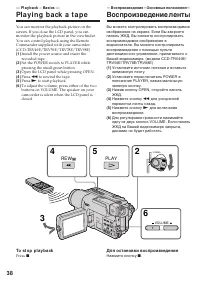
38 — Pl a y b a ck – Ba si cs — Pl a y i n g b a ck a t a p e You can monitor the playback picture on thescreen. If you close the LCD panel, you canmonitor the playback picture in the viewfinder.You can control playback using the RemoteCommander supplied with your camcorder.(CCD-TRV49E/TRV59E/TRV78E...
Page 39 - DISPLAY; W hen monit oring on t he LCD screen; . You can adjust the angle of the; Во время контроля на экране ЖКД
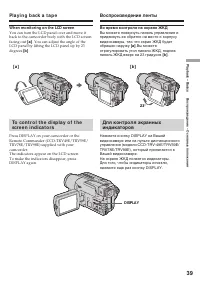
39 P laybac k – B asic s Воспроизведение – Основные положения To co n t r o l t h e d i sp l a y o f t h escr e e n i n d i ca t o r s Press DISPLAY on your camcorder or theRemote Commander (CCD-TRV49E/TRV59E/TRV78E/TRV98E) supplied with yourcamcorder.The indicators appear on the LCD screen.To make ...
Page 40 - V a r i o u s p l a y b a ck m o d e s; To a d v a n ce t h e t a p e; Для ускоренной перемотки ленты вперед
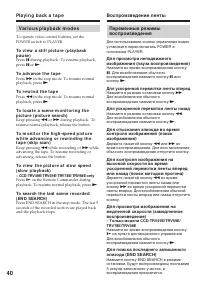
40 V a r i o u s p l a y b a ck m o d e s To operate video control buttons, set thePOWER switch to PLAYER. To v i e w a st i l l p i ct u r e ( p l a y b a ckp a u se ) Press X during playback. To resume playback, press X or N . To a d v a n ce t h e t a p e Press M in the stop mode. To resume norma...
Page 41 - In t he various playback modes; Звук будет приглушен.; При воспроизведении записанной ленты
41 P laybac k – B asic s Воспроизведение – Основные положения Pl a y i n g b a ck a t a p e Воспроизведение ленты In t he various playback modes Sound is muted. W hen t he playback pause mode last s f or 5minut es Your camcorder automatically enters the stopmode. To resume playback, press N . If slo...
Page 42 - Желтый
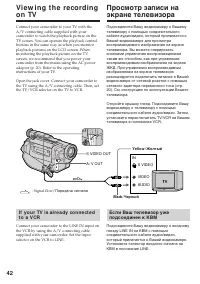
42 Vi e w i n g t h e re co rd i n go n TV Connect your camcorder to your TV with theA/V connecting cable supplied with yourcamcorder to watch the playback picture on theTV screen. You can operate the playback controlbuttons in the same way as when you monitorplayback pictures on the LCD screen. Whe...
Page 43 - If your TV has an S video jack; V i e w i n g t h e r e co r d i n g o n TV; TV
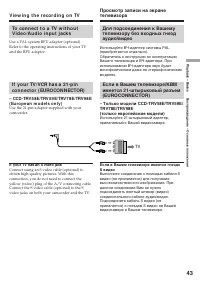
43 P laybac k – B asic s Воспроизведение – Основные положения To co n n e ct t o a TV w i t h o u tV i d e o /A u d i o i n p u t j a ck s Use a PAL system RFU adaptor (optional).Refer to the operating instructions of your TVand the RFU adaptor. I f y o u r TV /V CR h a s a 2 1 -p i nco n n e ct o r...
Page 44 - CI N EM A; back on a normal TV; — A d v a n ce d Re co r d i n g Op e r a t i o n —; Usi n g t h e w i d e m o d e; — Усовершенствованные операции съемки —; CINEM A
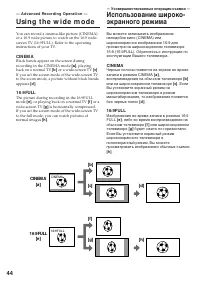
44 You can record a cinema-like picture (CINEMA)or a 16:9 wide picture to watch on the 16:9 wide-screen TV (16:9FULL). Refer to the operatinginstructions of your TV. CI N EM A Black bands appear on the screen duringrecording in the CINEMA mode [a ] , playing back on a normal TV [b ] or a wide-screen...
Page 45 - To ca n ce l t h e w i d e m o d e; Set 16:9WIDE to OFF in the menu settings.; In t he w ide mode; ”, и функция устойчивой; В широкоэкранном режиме
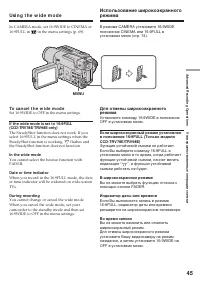
45 Advanc ed R ecording Operat ions Усовершенствованные операции съемки Usi n g t h e w i d e m o d e In CAMERA mode, set 16:9WIDE to CINEMA or16:9FULL in in the menu settings (p. 69). To ca n ce l t h e w i d e m o d e Set 16:9WIDE to OFF in the menu settings. If t he w ide mode is set t o 16:9FULL...
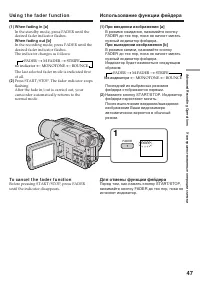
Page 47 - Usi n g t h e f a d e r f u n ct i o n; To ca n ce l t h e f a d e r f u n ct i o n; Использование функции фейдера; При введении изображения; Для отмены функции фейдера
47 Advanc ed R ecording Operat ions Усовершенствованные операции съемки Usi n g t h e f a d e r f u n ct i o n (1 ) W hen f ading in [a ] In the standby mode, press FADER until thedesired fader indicator flashes. W hen f ading out [b ] In the recording mode, press FADER until thedesired fader indica...
Page 48 - Not e on t he bounce f unct ion; the menu settings; Примечание по функции перескакивания
48 The dat e, t ime indicat or and t it le do not f adein or f ade out Erase them before operating the fader function ifthey are not needed. W hile using t he bounce f unct ion, you cannotuse t he f ollow ing f unct ions: – Focus– Zoom– Picture effect Not e on t he bounce f unct ion The BOUNCE indic...
Page 49 - : The colour and brightness of the; The picture is sepia.; SEPIA; : Яркость света будет
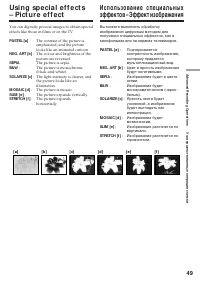
49 Advanc ed R ecording Operat ions Усовершенствованные операции съемки You can digitally process images to obtain specialeffects like those in films or on the TV. PASTEL [a ] : The contrast of the picture isemphasized, and the picturelooks like an animated cartoon. NEG. ART [b ] : The colour and br...
Page 50 - In CAMERA mode, select P EFFECT in; W hen you t urn t he pow er of f
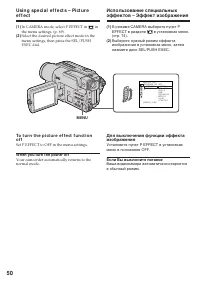
50 M A N U A L S E T O F F . N E G A R TS E P I AB & WS O L A R I Z E S L I MS T R E T C H P A S T E L MO S A I C P R O G R A M A EP E F F E C T R E T U R N [ M E N U ] : E N D Usi n g sp e ci a l e f f e ct s – Pi ct u r ee f f e ct (1 ) In CAMERA mode, select P EFFECT in in the menu settings. ...
Page 51 - Spot light
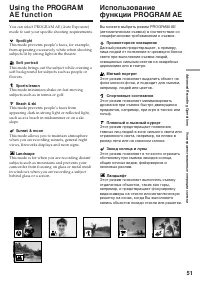
51 Advanc ed R ecording Operat ions Усовершенствованные операции съемки Usi n g t h e PROGRA MA E f u n ct i o n You can select PROGRAM AE (Auto Exposure)mode to suit your specific shooting requirements. Spot light This mode prevents people’s faces, for example,from appearing excessively white when ...
Page 52 - Usi n g t h e PROGRA M A E f u n ct i o n; In CAMERA mode, select PROGRAM AE in
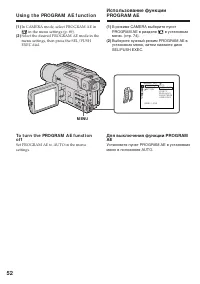
52 Usi n g t h e PROGRA M A E f u n ct i o n (1 ) In CAMERA mode, select PROGRAM AE in in the menu settings (p. 69). (2 ) Select the desired PROGRAM AE mode in themenu settings, then press the SEL/PUSHEXEC dial. To t u r n t h e PROGRA M A E f u n ct i o no f f Set PROGRAM AE to AUTO in the menusett...
Page 53 - • In the spotlight, sports lesson and beach & ski; • В режимах прожекторного освещения,
53 Advanc ed R ecording Operat ions Усовершенствованные операции съемки Not es • In the spotlight, sports lesson and beach & ski modes, you cannot take close-ups. This isbecause your camcorder is set to focus only onsubjects in the middle to far distance. • In the sunset & moon and landscape...
Page 54 - ночных сцен) с большой достоверностью; NIGHTSHOT в положение ON
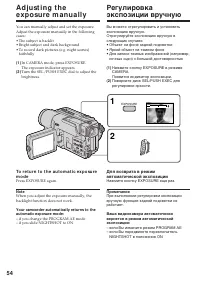
54 You can manually adjust and set the exposure.Adjust the exposure manually in the followingcases:• The subject is backlit• Bright subject and dark background• To record dark pictures (e.g. night scenes) faithfully (1 ) In CAMERA mode, press EXPOSURE.The exposure indicator appears. (2 ) Turn the SE...
Page 55 - droplets; To r e t u r n t o t h e a u t o f o cu s m o d e; Fo cu si n g m a n u a l l y; FOCUS
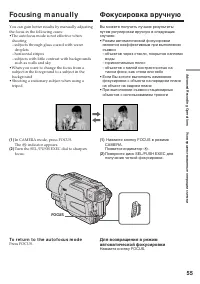
55 Advanc ed R ecording Operat ions Усовершенствованные операции съемки You can gain better results by manually adjustingthe focus in the following cases:•The autofocus mode is not effective when shooting– subjects through glass coated with water droplets – horizontal stripes– subjects with little c...
Page 56 - Для точной фокусировки; Фокусировка вручную; When recording a distant subject.
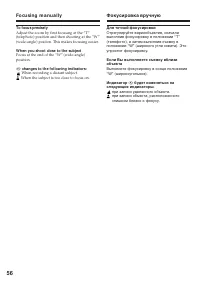
56 To f ocus precisely Adjust the zoom by first focusing at the “T”(telephoto) position and then shooting at the “W”(wide-angle) positon. This makes focusing easier. W hen you shoot close t o t he subject Focus at the end of the “W” (wide-angle)position. 9 changes t o t he f ollow ing indicat ors: F...
Page 57 - Su p e r i m p o si n g a t i t l e; Наложение титра; VACATION; T I TLE
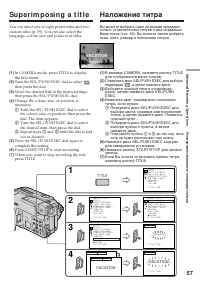
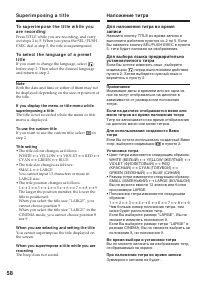
57 Advanc ed R ecording Operat ions Усовершенствованные операции съемки Su p e r i m p o si n g a t i t l e You can select one of eight preset titles and twocustom titles (p. 59). You can also select thelanguage, colour, size and position of titles. (1 ) In CAMERA mode, press TITLE to displaythe tit...
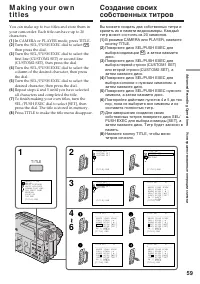
Page 60 - To ch a n g e a t i t l e y o u h a v e st o r e d; To delet e t he t it le; M a k i n g y o u r o w n t i t l e s; Если Вы выбрали команду [; вернуться к предыдущему экрану.; Для удаления титра
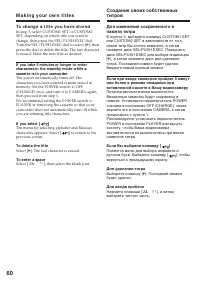
60 To ch a n g e a t i t l e y o u h a v e st o r e d In step 3, select CUSTOM1 SET or CUSTOM2SET, depending on which title you want tochange, then press the SEL/PUSH EXEC dial.Turn the SEL/PUSH EXEC dial to select [ C ], then press the dial to delete the title. The last characteris erased. Enter th...
Page 61 - To t u r n o f f t h e b u i l t -i n l i g h t; Press LIGHT until the; LIGHT; не; Для выключения встроенной подсветки
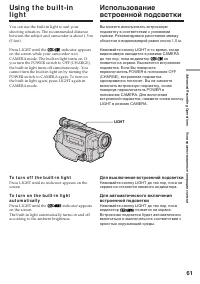
61 Advanc ed R ecording Operat ions Усовершенствованные операции съемки Usi n g t h e b u i l t -i nl i g h t You can use the built-in light to suit yourshooting situation. The recommended distancebetween the subject and camcorder is about 1.5 m(5 feet). Press LIGHT until the indicator appears on th...
Page 62 - При нажатии кнопки LIGHT; CA UTI ON; W hen you press LIGHT; Usi n g t h e b u i l t -i n l i g h t
62 ВНИМАНИЕ Будьте осторожны, чтобы не прикасатьсяк секции подсветки, посколькупластмассовое окно и прилегающаяповерхность являются горячими привключенной подсветке. Эта секция будетоставаться горячей и некоторое времяпосле выключения подсветки. ОСТОРОЖНО Детям пользоваться аппаратомзапрещено. Он из...
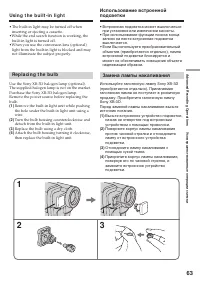
Page 63 - • The built-in light may be turned off when; Re p l a ci n g t h e b u l b; Replace the bulb using a dry cloth.; • Встроенная подсветка может выключаться; Замена лампы накаливания
63 Advanc ed R ecording Operat ions Усовершенствованные операции съемки • The built-in light may be turned off when inserting or ejecting a cassette. •While the end search function is working, the built-in light is turned off. •When you use the conversion lens (optional) light from the built-in ligh...
Page 64 - • When replacing the bulb, use only the Sony; ВНИМАНИЕ; • При замене лампы накаливания
64 Usi n g t h e b u i l t -i n l i g h t Использование встроеннойподсветки CA UTI ON • When replacing the bulb, use only the Sony XB-3D halogen lamp (optional) to reduce therisk of fire. • To prevent possible burn hazard, disconnect the power source before replacing and do nottouch the bulb until t...
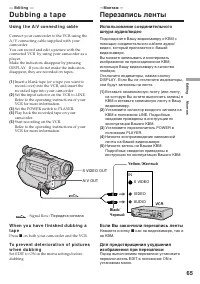
Page 65 - S VIDEO OUT; — Ed i t i n g —; D u b b i n g a t a p e; Usi n g t h e A /V co n n e ct i n g ca b l e; Set the POWER switch to PLAYER.; —Монтаж —; Перезапись ленты; Передача сигнала; Если Вы закончили перезапись ленты; Нажмите кнопку
65 E diting Монтаж S VIDEO OUT A/ V OUT S VIDEO IN VIDEO AUDIO — Ed i t i n g — D u b b i n g a t a p e Usi n g t h e A /V co n n e ct i n g ca b l e Connect your camcorder to the VCR using theA/V connecting cable supplied with yourcamcorder.You can record and edit a picture with theconnected VCR by...
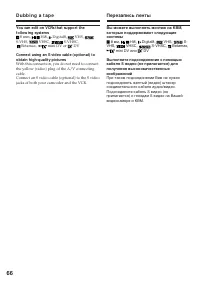
Page 66 - mini DV or; mini DV или
66 D u b b i n g a t a p e You can edit on VCRs t hat support t hef ollow ing syst ems 8 mm, Hi8, Digital8, VHS, S-VHS, VHSC, S-VHSC, Betamax, mini DV or DV Connect using an S video cable (opt ional) t oobt ain high-qualit y pict ures With this connection, you do not need to connectthe yellow (video...
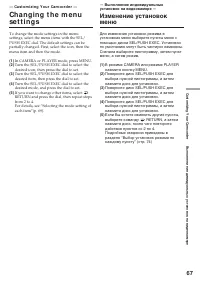
Page 67 - — Cu st o m i zi n g Y o u r Ca m co r d e r —
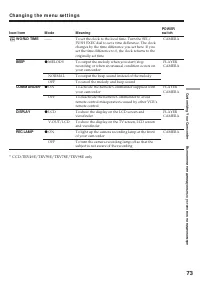
67 C ustomizing Your C amc order Выполнение индивидуальных установок на видеокамере — Cu st o m i zi n g Y o u r Ca m co r d e r — Ch a n g i n g t h e m e n use t t i n g s To change the mode settings in the menusettings, select the menu items with the SEL/PUSH EXEC dial. The default settings can b...
Page 68 - To m a k e t h e m e n u d i sp l a y d i sa p p e a r
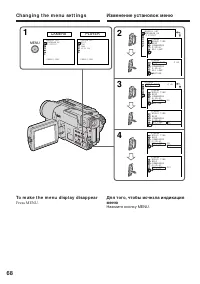
68 Ch a n g i n g t h e m e n u se t t i n g s Изменение установок меню To m a k e t h e m e n u d i sp l a y d i sa p p e a r Press MENU. Для того, чтобы исчезла индикацияменю Нажмите кнопку MENU. 1 CAMERA 2 3 4 PLAYER MENU O T H E R S WO R L D T I M E B E E P R E C L A M P R E T U R N O NO F F M A...
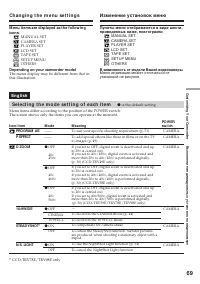
Page 69 - Ch a n g i n g t h e m e n u se t t i n g s; Depending on your camcorder model; The menu display may be different from that in; Se l e ct i n g t h e m o d e se t t i n g o f e a ch i t e m; is the default setting.; Изменение установок меню; В зависимость от модели Вашей видеокамеры; Меню индикации может отличаться от
69 C ustomizing Your C amc order Выполнение индивидуальных установок на видеокамере Ch a n g i n g t h e m e n u se t t i n g s M enu it ems are displayed as t he f ollow ingicons: MANUAL SETCAMERA SETPLAYER SETLCD SETTAPE SETSETUP MENUOTHERS Depending on your camcorder model The menu display may be...
Page 70 - The SteadyShot off indicator; Not e on t he playback of t he NTSC t apes; To lighten
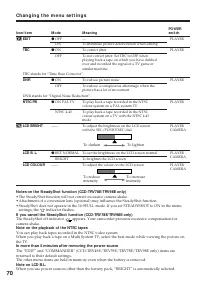
70 Icon/ it em EDIT TBC TBC stands for “Time Base Corrector”. DNR DNR stands for “Digital Noise Reduction”. NTSC PB LCD BRIGHT LCD B. L. LCD COLOUR Ch a n g i n g t h e m e n u se t t i n g s Not es on t he St eadyShot f unct ion (CCD-TRV78E/ TRV98E only) • The SteadyShot function will not correct e...
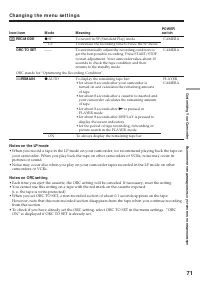
Page 71 - REC M ODE; M ode; Not es on t he LP mode; ON” is displayed if ORC TO SET is already set.
71 C ustomizing Your C amc order Выполнение индивидуальных установок на видеокамере Icon/ it em REC M ODE ORC TO SET ORC stands for “Optimizing the Recording Condition”. q REM AIN Ch a n g i n g t h e m e n u se t t i n g s M ode z SP LP —— z AUTO ON M eaning To record in SP (Standard Play) mode To ...
Page 72 - Not es on DEM O M ODE; select DEMO MODE in the menu settings.
72 Ch a n g i n g t h e m e n u se t t i n g s Not es on DEM O M ODE • You cannot select DEMO MODE when a cassette is inserted in your camcorder.• DEMO MODE is set to STBY (Standby) at the factory and the demonstration starts about 10 minutes after you have set the POWER switch to CAMERA without a c...
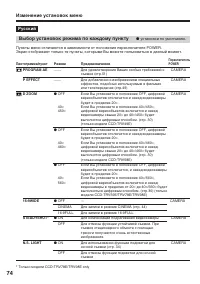
Page 74 - Предназначение; Выбор установок режима по каждому пункту; установки по умолчанию.
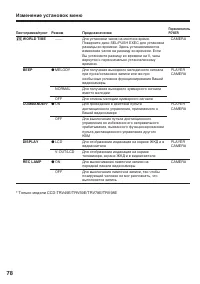
74 Пиктограмма/пункт PROGRAM AE P EFFECT D ZOOM 16:9WIDE STEADYSHOT* N.S. LIGHT * Только модели CCD-TRV78E/TRV98E only Режим —— —— z OFF 40 × 450 × z OFF 40 × 460 × z OFF 40 × 560 × z OFFCINEMA16:9FULL z ONOFF z ON OFF ПереключательPOWER CAMERA CAMERA CAMERA CAMERA CAMERA CAMERA Изменение установок ...
Page 75 - Примечание по воспроизведению лент NTSC
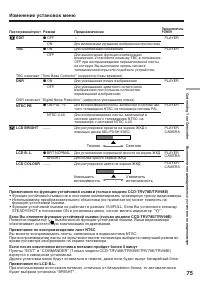
75 C ustomizing Your C amc order Выполнение индивидуальных установок на видеокамере Изменение установок меню Пиктограмма/пункт EDIT TBC ТВС означает “Time Base Corrector” (корректор базы времени). DNR DNR означает “Digital Noise Reduction” (цифровое уменьшение помех). NTSC PB LCD BRIGHT LCD B. L. LC...
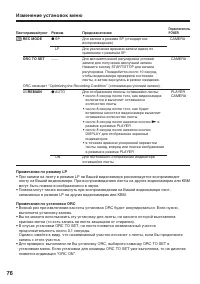
Page 76 - REC MODE; Примечания по режиму LP; записанных в режиме LP на других видеокамерах или КВМ.; Примечания по установке ORC; выполните установку заново.
76 Изменение установок меню Пиктограмма/пункт REC MODE ORC TO SET ORC означает “Optimizing the Recording Condition” (оптимизация условий записи). q REMAIN Режим z SP LP —— z AUTO ON Предназначение Для записи в режиме SP (стандартноевоспроизведение)Для увеличения времени записи вдвое посравнению с ре...
Page 77 - Примечания по режиму DEMO MODE; CLOCK SET
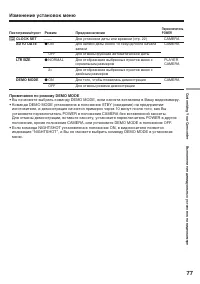
77 C ustomizing Your C amc order Выполнение индивидуальных установок на видеокамере Изменение установок меню Примечания по режиму DEMO MODE • Вы не можете выбрать команду DEMO MODE, если кассета вставлена в Вашу видеокамеру.• Команда DEMO MODE установлена в положение STBY (ожидание) на предприятии- ...
Page 79 - ss; I n t h e r e co r d i n g m o d e; Sympt om; Ty p e s o f t ro u b l e a n d t h e i r so l u t i o n s
79 T roubles hoot ing Поиск и устранение неисправностей If you run into any problem using your camcorder, use the following table to troubleshoot theproblem. If the problem persists, disconnect the power source and contact your Sony dealer or localauthorized Sony service facility. If “C: ss : ss ” a...
Page 80 - I n t h e p l a y b a ck m o d e; Ty p e s o f t r o u b l e a n d t h e i r so l u t i o n s
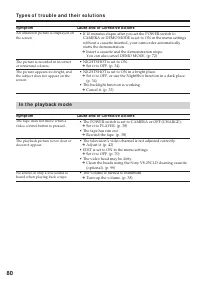
80 Sympt om Cause and/ or Correct ive Act ions • If 10 minutes elapse after you set the POWER switch to CAMERA or DEMO MODE is set to ON in the menu settingswithout a cassette inserted, your camcorder automaticallystarts the demonstration. c Insert a cassette and the demonstration stops.You can also...
Page 81 - I n t h e r e co r d i n g a n d p l a y b a ck m o d e s
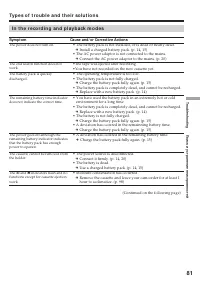
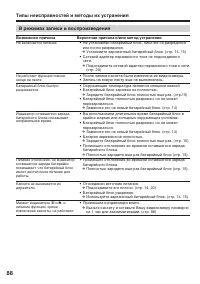
81 T roubles hoot ing Поиск и устранение неисправностей I n t h e r e co r d i n g a n d p l a y b a ck m o d e s Sympt om Cause and/ or Correct ive Act ions • The battery pack is not installed, or is dead or nearly dead. c Install a charged battery pack. (p. 14, 15) • The AC power adaptor is not co...
Page 82 - Ot h e r s
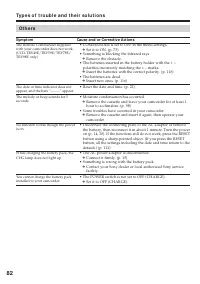
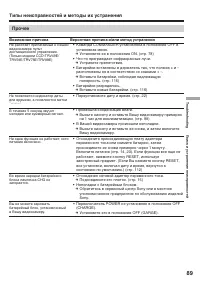
82 Ot h e r s Sympt om Cause and/ or Correct ive Act ions • COMMANDER is set to OFF in the menu settings. c Set it to ON. (p. 73) • Something is blocking the infrared rays. c Remove the obstacle. • The batteries inserted in the battery holder with the + – polarities incorrectly matching the + – mark...
Page 83 - Cause and/ or Correct ive Act ions; V i e w f i n d e r o r LCD scr e e n; Se l f -d i a g n o si s d i sp l a y
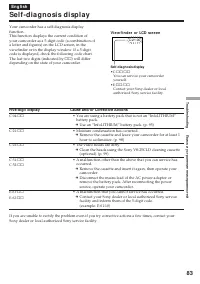
83 T roubles hoot ing Поиск и устранение неисправностей Five-digit display Cause and/ or Correct ive Act ions • You are using a battery pack that is not an “InfoLITHIUM” battery pack. c Use an “InfoLITHIUM” battery pack. (p. 95) • Moisture condensation has occurred. c Remove the cassette and leave y...
Page 84 - Wa r n i n g i n d i ca t o r s a n d m e ssa g e s; W a r n i n g i n d i ca t o r s; W arning indicat or as t o t ape
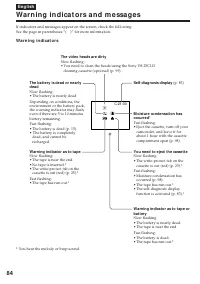
84 C:21:00 Wa r n i n g i n d i ca t o r s a n d m e ssa g e s If indicators and messages appear on the screen, check the following:See the page in parentheses “( )” for more information. W a r n i n g i n d i ca t o r s The bat t ery is dead or nearlydead Slow flashing:• The battery is nearly dead....
Page 85 - W a r n i n g m e ssa g e s; W a r n i n g i n d i ca t o r s a n d m e ssa g e s
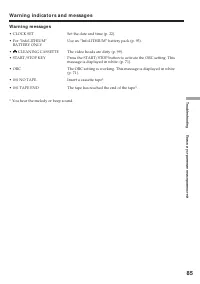
85 T roubles hoot ing Поиск и устранение неисправностей W a r n i n g m e ssa g e s • CLOCK SET Set the date and time (p. 22). • For “InfoLITHIUM” Use an “InfoLITHIUM” battery pack (p. 95). BATTERY ONLY • CLEANING CASSETTE The video heads are dirty (p. 99). • START/STOP KEY Press the START/STOP butt...
Page 86 - В режиме записи; Возможная неисправность; Типы неисправностей и методы их решения
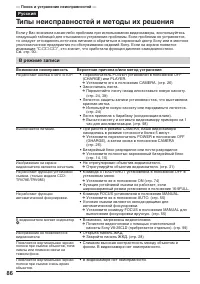
86 Не работает кнопка START/STOP. Выключается питание. Изображение на экране видоискателя является нечетким. Не работает функция автоматической фокусировки. В видоискателе мигает индикатор x . Изображение не появляется в видоискателе. Если у Вас возникла какая-либо проблема при использовании видеока...
Page 87 - Типы неисправностей и методы их устранения; В режиме воспроизведения; Возможная причина
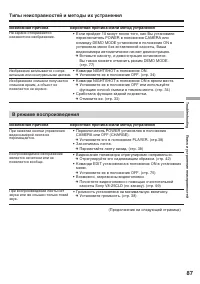
87 T roubles hoot ing Поиск и устранение неисправностей Типы неисправностей и методы их устранения На экране отображаетсянеизвестное изображение. Изображение слишком получаетсяслишком ярким, а объект непоявляется на экране. Изображение записывается с непра- вильными или ненатуральными цветами. При н...
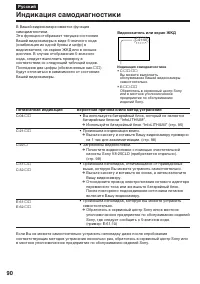
Page 90 - Видоискатель или экран ЖКД; Индикация самодиагностики
90 C:21:00 Пятизначная индикация Вероятная причина и/или метод устранения • Вы используете батарейный блок, который не является батарейным блоком “InfoLITHIUM”. c Используйте батарейный блок “InfoLITHIUM” (стр. 95) • Произошла конденсация влаги. c Выньте кассету и оставьте Вашу видеокамеру примернон...
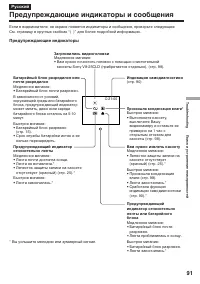
Page 91 - Предупреждающие индикаторы и сообщения; * Вы услышите мелодию или зуммерный сигнал.; Предупреждающие индикаторы; • Срок службы батарейки истек и ее; Загрязнились видеоголовки; Лента приблизилась к концу.
91 T roubles hoot ing Поиск и устранение неисправностей C:21:00 Предупреждающие индикаторы и сообщения Русский * Вы услышите мелодию или зуммерный сигнал. Если в видоискателе, на экране появятся индикаторы и сообщения, проверьте следующее:См. страницу в круглых скобках “( )” для более подробной инфо...
Page 92 - Предупреждающие сообщения
92 Предупреждающие сообщения • CLOCK SET Переустановите дату и время (стр. 22). • For “InfoLITHIUM” Используйте батарейный блок “InfoLITHIUM” (стр. 95). BATTERY ONLY • CLEANING CASSETTE Загрязнились видеоголовки (стр. 99). • START/STOP KEY Нажмите кнопку START/STOP для включения установки ORC.Это со...
Page 93 - — A d d i t i o n a l I n f o r m a t i o n —; Se l e ct i n g t h e ca sse t t e t y p e; Fo r e i g n 8 m m v i d e o; — Дополнительная информация —; Выбор типа кассеты; Иностранные 8-мм видеоленты
93 Addit ional inf ormat ion Дополнительная информация — A d d i t i o n a l I n f o r m a t i o n — Usa b l e ca sse t t e s a n dp l a y b a ck m o d e s Se l e ct i n g t h e ca sse t t e t y p e You can use both Hi8 and standard 8 mm videocassettes on your camcorder. When you use aHi8 video cass...
Page 94 - Playing back an NTSC-recorded t ape; • During playback, a black band appears on the
94 Usa b l e ca sse t t e s a n d p l a y b a ckm o d e s Playing back an NTSC-recorded t ape You can play back tapes recorded in the NTSCvideo system using the SP mode.However, note that the following will occurduring playback of an NTSC-recorded tape.• When playing back a tape on a TV screen, you ...
Page 95 - W h a t i s t h e “ I n f o LI THI UM ” b a t t e r y ?
95 Addit ional inf ormat ion Дополнительная информация A b o u t “ I n f o LI THI UM ”b a t t e r y W h a t i s t h e “ I n f o LI THI UM ” b a t t e r y ? The “InfoLITHIUM” battery is a lithium-ionbattery that has functions for communicatinginformation related to operating conditionsbetween your ca...
Page 96 - A b o u t “ I n f o LI THI UM ” b a t t e r y; Re m a i n i n g b a t t e r y t i m e i n d i ca t o r; О батарейном блоке “InfoLITHIUM”; Как хранить батарейный блок
96 A b o u t “ I n f o LI THI UM ” b a t t e r y Re m a i n i n g b a t t e r y t i m e i n d i ca t o r • If the power goes off although the remaining battery time indicator indicates that the batterypack has enough power to operate, charge thebattery pack fully again so that the indicationon the r...
Page 97 - Usi n g y o u r ca m co r d e r a b r o a d; PAL syst em; Brazil; NTSC syst em; Бразилия; Система NTSC
97 Addit ional inf ormat ion Дополнительная информация Usi n g y o u r ca m co r d e r a b r o a d You can use your camcorder in any country orarea with the AC power adaptor supplied withyour camcorder within 100 V to 240 V AC,50/60 Hz. Your camcorder is a PAL system basedcamcorder. If you want to v...
Page 98 - M o i st u r e co n d e n sa t i o n; I f m o i st u r e co n d e n sa t i o n o ccu r s; Not e on moist ure condensat ion; Конденсация влаги; Если произойдет конденсация влаги; Примечание по конденсации влаги
98 M a i n t e n a n cei n f o r m a t i o n a n dp re ca u t i o n s M o i st u r e co n d e n sa t i o n If your camcorder is brought directly from a coldplace to a warm place, moisture may condenseinside your camcorder, on the surface of the tape,or on the lens. In this condition, the tape maysti...
Page 99 - M a i n t e n a n ce i n f o r m a t i o n; Cl e a n i n g t h e v i d e o h e a d; indicator and “; Not e on video heads; Информация по уходу за аппаратом; Чистка видеоголовок; Примечание по видеоголовкам
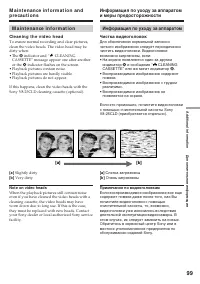
99 Addit ional inf ormat ion Дополнительная информация [a] [b] M a i n t e n a n ce i n f o r m a t i o n Cl e a n i n g t h e v i d e o h e a d To ensure normal recording and clear pictures,clean the video heads. The video head may bedirty when:• The x indicator and “ CLEANING CASSETTE” message app...
Page 100 - Caut ion; Чистка экрана ЖКД; Внимание
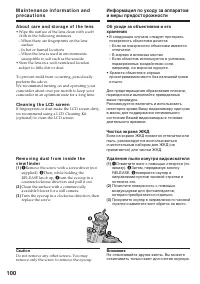
100 M a i n t e n a n ce i n f o r m a t i o n a n dp r e ca u t i o n s A b o u t ca r e a n d st o r a g e o f t h e l e n s • Wipe the surface of the lens clean with a soft cloth in the following instances.– When there are fingerprints on the lens surface – In hot or humid locations– When the len...
Page 101 - Charging t he rechargeable lit hium cell:; • Connect your camcorder to the mains using the
101 Addit ional inf ormat ion Дополнительная информация Ch a r g i n g t h e b u i l t -i nr e ch a r g e a b l e l i t h i u m ce l l Your camcorder is supplied with a built-inrechargeable lithium cell so as to retain the dateand time, etc., regardless of the setting of thePOWER switch. The recharg...
Page 102 - Pr e ca u t i o n s; Ca m co r d e r o p e r a t i o n; Меры предосторожности; Эксплуатация видеокамеры
102 M a i n t e n a n ce i n f o r m a t i o n a n dp r e ca u t i o n s Информация по уходу за аппаратоми меры предосторожности Pr e ca u t i o n s Ca m co r d e r o p e r a t i o n • Operate your camcorder on 7.2 V (battery pack) or 8.4 V (AC power adaptor). • For DC or AC operation, use the acces...
Page 103 - Bu i l t -i n l i g h t
103 Addit ional inf ormat ion Дополнительная информация Bu i l t -i n l i g h t • Do not knock or jolt the built-in light while it is turned on as it may damage the bulb or shortenthe life of the bulb. • Do not leave the built-in light on while it is resting on or against something; it may cause afi...
Page 105 - Ba t t e r y p a ck; If bat t eries are leaking
105 Addit ional inf ormat ion Дополнительная информация Ba t t e r y p a ck • Use only the specified charger or video equipment with the charging function. • To prevent an accidental short circuit, do not allow metal objects to come into contact withthe battery terminals. • Keep the battery pack awa...
Page 106 - Sp e ci f i ca t i o n s
106 M inimum illuminat ion CCD-TRV49E/TRV58E/TRV59E:1 l x (lux) (F 1.4)CCD-TRV78E/TRV98E:0.3 l x (lux) (F 1.4)0 l x (lux) (in the NightShot mode)** Objects unable to be seen due to the dark can be shot with infraredlighting. Ou t p u t co n n e ct o r s S video out put 4-pin mini DINLuminance signal...
Page 107 - A C p o w e r a d a p t o r
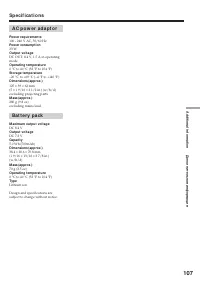
107 Addit ional inf ormat ion Дополнительная информация A C p o w e r a d a p t o r Pow er requirement s 100 - 240 V AC, 50/60 Hz Pow er consumpt ion 23 W Out put volt age DC OUT: 8.4 V, 1.5 A in operatingmode Operat ing t emperat ure 0 °C to 40 °C (32 °F to 104 °F) St orage t emperat ure –20 °C to ...
Page 108 - Технические характеристики; Видеокамера
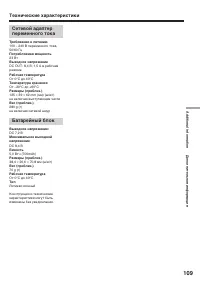
108 Русский Технические характеристики Видеокамера Система Система видеозаписи 2 вращающиеся головкиСистема наклонноймеханической развертки ЧМ Система аудиозаписи Вращающиеся головки, системаЧМ Видеосигнал Цветовой сигнал PAL, стандартМККР Используемые кассеты Кассеты 8-мм видеоформатаСтандарт Hi8 и...
Page 110 - Ca m co r d e r; qa
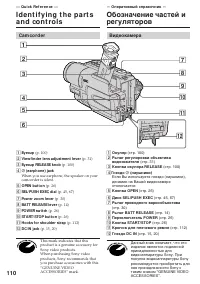
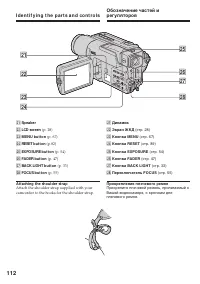
110 — Qu i ck Re f e r e n ce — I d e n t i f y i n g t h e p a r t sa n d co n t ro l s 1 Eyecup (p. 100) 2 View f inder lens adjust ment lever (p. 31) 3 Eyecup RELEASE knob (p. 100) 4 v (earphone) jack When you use earphone, the speaker on yourcamcorder is silent. 5 OPEN but t on (p. 26) 6 SEL/ PU...
Page 111 - I d e n t i f y i n g t h e p a r t s a n d co n t r o l s; PLAY (воспроизведение
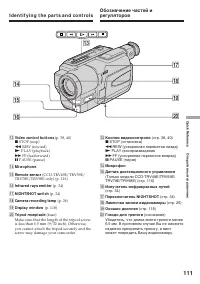
111 Quic k R eferenc e Оперативный справочник I d e n t i f y i n g t h e p a r t s a n d co n t r o l s qd Кнопки видеоконтроля (стр. 38, 40) x STOP (остановка) m REW (ускоренная перемотка назад) N PLAY (воспроизведение M FF (ускоренная перемотка вперед) X PAUSE (пауза) qf Микрофон qg Датчик дистан...
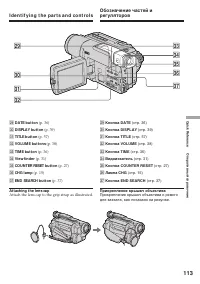
Page 113 - Attach the lens cap to the grip strap as illustrated.
113 Quic k R eferenc e Оперативный справочник I d e n t i f y i n g t h e p a r t s a n d co n t r o l s wl Кнопка DATE (стр. 36) e; Кнопка DISPLAY (стр. 39) ea Кнопка TITLE (стр. 57) es Кнопка VOLUME (стр. 38) ed Кнопка TIME (стр. 36) ef Видоискатель (стр. 31) eg Кнопка COUNTER RESET (стр. 27) eh Л...
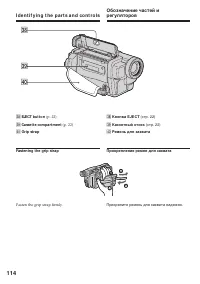
Page 114 - Кнопка EJECT; Fasten the grip strap firmly.; Прикрепление ремня для захвата; Прикрепите ремень для захвата надежно.; EJECT but t on; ek
114 I d e n t i f y i n g t h e p a r t s a n d co n t r o l s ek Кнопка EJECT (стр. 22) el Кассетный отсек (стр. 22) r; Ремень для захвата Fast ening t he grip st rap Fasten the grip strap firmly. Прикрепление ремня для захвата Прикрепите ремень для захвата надежно. Обозначение частей ирегуляторов ...
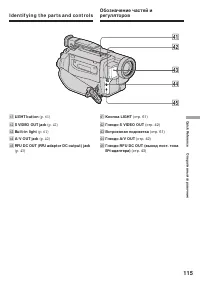
Page 115 - Кнопка LIGHT; rd
115 Quic k R eferenc e Оперативный справочник I d e n t i f y i n g t h e p a r t s a n d co n t r o l s ra Кнопка LIGHT (стр. 61) rs Гнездо S VIDEO OUT (стр. 42) rd Встроенная подсветка (стр. 61) rf Гнездо A/V OUT (стр. 42) rg Гнездо RFU DC OUT (выход пост. токаВЧ-адаптера) (стр. 43) Обозначение ча...
Page 116 - Transmit t er; To p r e p a r e t h e Re m o t e Co m m a n d e r; Пульт дистанционного управления; Передатчик
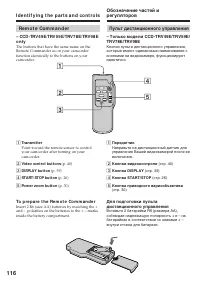
116 Re m o t e Co m m a n d e r – CCD -TRV 4 9 E/TRV 5 9 E/TRV 7 8 E/TRV 9 8 Eo n l y The buttons that have the same name on theRemote Commander as on your camcorderfunction identically to the buttons on yourcamcorder. I d e n t i f y i n g t h e p a r t s a n d co n t r o l s 1 Transmit t er Point ...
Page 117 - Not es on t he Remot e Commander; • Point the remote sensor away from strong light
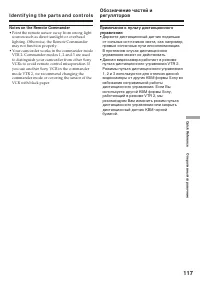
117 Quic k R eferenc e Оперативный справочник I d e n t i f y i n g t h e p a r t s a n d co n t r o l s Not es on t he Remot e Commander • Point the remote sensor away from strong light sources such as direct sunlight or overheadlighting. Otherwise, the Remote Commandermay not function properly. • ...
Page 118 - LCD scr e e n a n d V i e w f i n d e r /
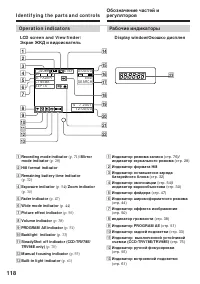
118 Op e r a t i o n i n d i ca t o r s Рабочие индикаторы LCD scr e e n a n d V i e w f i n d e r / Экран ЖКД и видоискатель D isplay window/Окошко дисплея 1 Recording mode indicat or (p. 71) / M irror mode indicat or (p. 28) 2 Hi8 f ormat indicat or 3 Remaining bat t ery t ime indicat or (p. 32) 4...
Page 119 - This indicator appears in the viewfinder only
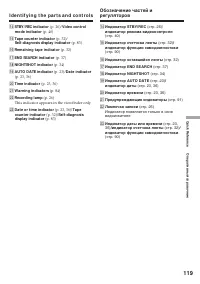
119 Quic k R eferenc e Оперативный справочник qf STBY/ REC indicat or (p. 26) / Video cont rol mode indicat or (p. 40) qg Tape count er indicat or (p. 32) / Self -diagnosis display indicat or (p. 83) qh Remaining t ape indicat or (p. 32) qj END SEARCH indicat or (p. 37) qk NIGHTSHOT indicat or (p. 3...
Page 120 - I n d e x
120 En g l i sh I n d e x A , B AC power adaptor ..................... 15Adjusting viewfinder ................ 31A/V connecting cable ......... 42, 65BACK LIGHT ............................. 33Battery pack ................................ 14Beep ............................................. 73BOUNCE...
Page 121 - Алфавитный указатель
121 Quic k R eferenc e Оперативный справочник Русский Алфавитный указатель А, Б, В, Г Батарейный блок .................. 14 Батарейный блок “InfoLITHIUM” ...................... 95 Вариообъектив ...................... 30Введение/выведение изображения ....................... 46 Время записи .............
Page 124 - Sony Corporation