Philips TAB8905/10 - User Manual
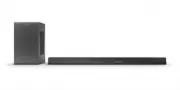
Philips TAB8905/10 – User Manual, read for free online in PDF format. We hope this helps you resolve any issues you may have. If you have further questions, please contact us through the contact form.


Table of Contents:
- Page 2 – Contents; Important; Your Soundbar
- Page 3 – Safety; Risk of electric shock or fire!
- Page 4 – Disposal of your old product and battery; Compliance
- Page 5 – Caution FCC and IC; FCC INFORMATION
- Page 6 – What’s in the Box; Main unit; a b; Display panel
- Page 7 – Connectors; f g; Wireless subwoofer; a b c
- Page 8 – Remote control; Prepare the Remote Control
- Page 9 – Replace the Remote Control Battery; Placement
- Page 10 – Wall mount; Screw length/diameter
- Page 11 – Connect; Dolby Atmos; For using Dolby Atmos; HDMI Connection; Connect to HDMI Socket; HDMI ARC
- Page 12 – Option 2: Standard HDMI; Connect to Optical Socket; OPTICAL; Connect to AUX Socket
- Page 13 – Connect to Power; Risk of product damage!; Pair up with the subwoofer; Automatic Pairing; ON; Manual Pairing; Pair
- Page 14 – • Make sure your router is turned on and; For iOS version only
- Page 15 – WPS mode; AirPlay setup
- Page 16 – Adjust the S; Dolby sound mode; Use your; Turn ON and OFF; Auto Standby
- Page 17 – Factory Reset; EQ
- Page 18 – Bluetooth Operation; NO BT
- Page 19 – ARC Operation; AUX; USB Operation; Insert the USB device.; Skip to the previous or next track.
- Page 21 – Product; Network supported
- Page 22 – Troubleshooting
- Page 23 – Cannot play Play-Fi music; Remote control does not work
Register your product and get support at
www.philips.com/support
User manual
8000 Series
TAB8905
"Loading the manual" means you need to wait until the file loads and becomes available for online reading. Some manuals are very large, and the time they take to appear depends on your internet speed.
Was this manual helpful?
About this manual
- Brand
- Philips
- Model
- TAB8905/10
- Document type
- User Manual
- Language(s)
- English
- Pages
- 25
- File size
- 4.1 MB
- Format
Other Manuals for Philips TAB8905/10
Summary
2 Contents 1 Important 3 Safety 3 Care for your product 4 Care of the environment 4 Compliance 4 Help and support 4 Caution FCC and IC statement for Users (USA and Canada only) 5 2 Your Soundbar 6 What’s in the Box 6 Main unit 6 Connectors 7 Wireless subwoofer 7 Remote control 8 Prepare the Remote C...
English 3 1 Important Read and understand all instructions before you use your product. If damage is caused by failure to follow instructions, the warranty does not apply. Safety Risk of electric shock or fire! • Before you make or change any connections, make sure that all devices are disconnected ...
4 • If the battery compartment cannot be completely secured, discontinue use of the product. Keep out of reach of children and contact the manufacturer. This is CLASS II apparatus with double insulation, and no protective earth provided. AC voltage Use only the power supplies listed in the user manu...
Ask a question
Related manuals
Popular Philips Other


More Philips Other models
 Philips TAB8205/10 User Manual
 Philips TAB8405/10 User Manual
 Philips TAB8505/10 Quick Guide
 Philips TAB8507/10 User Manual
 Philips TAB8507B/10 User Manual
 Philips TAB8805/10 User Manual
 Philips TAB8907/10 User Manual
 Philips TADR402/12 User Manual
 Philips TAE1105BK/00 Quick Guide
 Philips TAE1205BK/00 User Manual
 Philips TAE1209BK/00 Quick Guide
 Philips TAEP200/16 Quick Guide