Philips SPT6407B/05 - Quick Guide
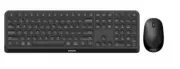
Philips SPT6407B/05 – Quick Guide, read for free online in PDF format. We hope this helps you resolve any issues you may have. If you have further questions, please contact us through the contact form.

Bluetooth.
5. Palata
10. Mut
18. Calculator
klar.
Bluetooth.
6. Procurar
lautet.
6. Ricerca
10. Mute
18. Calcolatrice
lautet.
uit.
6. Buscar
Bluetooth.
Bluetooth.
Made in China
Register your product and get support at:
www.philips.com/welcome
2021 © Top Victory Investments Limited . All r ights reserved.
Philips and the Philips Shield Emblem are registered trademarks of Koninklijke
Philips N.V. and are used under license.
This product has been manufactured by and is sold under the responsibility of
Top Victory Investments Limited , and Top Victory Investments Limited is the
warrantor in relation to this product.
The
Bluetooth
®
word mark and logos are registered trademarks owned by
Bluetooth SIG, Inc. and any use of such marks by MMD Hong Kong Holding Limited
is under license. Other trademarks and trade names are those of their respective
owners.
01
02
03
04
05
07
06
08
09
10
11
12
13
14
16
15
17
18
6. Rechercher
10. Muet
18. Calculatrice
19
20
21
22
23
24
26
25
27
28
29
30
31
32
33
34
36
35
37
38
39
40
41
42
43
44
46
45
47
48
49
50
51
52
53
54
56
55
57
58
1. The keyboard has three channels, 2.4G, Bluetooth 1 and Bluetooth 2, which can
connect three devices at the same time.
2. Mode switching. Short press the mode switch button, the corresponding mode
slowly, it means that the mode has not been connected.
1. The mouse has three channels, 2.4G, Bluetooth 1 and Bluetooth 2, which can
connect three devices at the same time.
2. Mode switching. Short press the mode switch button, the corresponding mode
slowly, it means that the mode has not been connected.
4000
Series
SPT6407B
Keyboard Mouse
Combo
iOS:
Press and hold for 3 seconds to switch the system layout.
Mac:
Win:
+
1. The factory default setting of F1-F12/ multimedia function keys is multimedia
function.
2. Press this key combination, and switch to F1-F12 function. Press it again to switch
back to multimedia function.
+
+
+
User manual
1. Wireless keyboard and mouse
2. Wireless receiver
3. User manual/warranty card
4. 1*A A battery (inside mouse)
5. 1*A A A battery (inside keyboard)
Packaging contents
Trouble shooting
1. 1 x USB port
2. Bluetooh 3.0/Buuetooh 5.0
3. Windows
®
7,Windows
®
8,Windows
®
10 or later,
Android 3.2 and above; Mac OS 10.5 or later
Note
:
System requirement
Attention
1. Connectivity
:
2.4GHz/Bluetooh 3.0/Bluetooh 5.0
2. Working distance: 2.4GHz about 15m/Bluetooh about 10m
3. Number of buttons
:
4
4. Button lifespan: 3 million clicks
5. Keyboard keys lifespan: 10 million keystrokes
6. Resolution
:
1600 DPI
7. Power supply: 1*A A Philips battery(mouse), 1*A A A Philips battery(keyboard)
8. Interface: USB wireless receiver
9. Mouse size
:
110.2x65.6x34.8mm
10. Keyboard size
:
432.8x136.4x21.9mm
11. Product weight
:
649g ± 10g
1. Make sure that the USB wireless receiver of the product is correctly plugged
into the USB port of the computer.
2. Make sure the computer meets the minimum system requirement.
range, please reduce the distance for better performance.
website or nearest retailer. Please do not disassemble the product by force.
1. Photoelectric technology can correctly detect the movement of mouse on
surfaces.
2. Please use dry and soft cloth to clean the product.
3. Do not disassemble the product by force.
4. Do not direct the light from the bottom of the mouse to your eyes.
Mode switching method of the keyboard
iOS/Mac/Win layout switch
F1-F12/ multimedia function switch
Mode switching method of the mouse
Note: make sure that the keyboard power is on before Bluetooth pairing.
1. : Lock fn function
2. : Screen brightness -
3. : Screen brightness +
4. : Multi screen display
5. : Return
6. : Search
7. : Prev song
8. : Play/Pause
9. : Next song
10. : Mute
11. : Volume -
12. : Volume +
13. : Input method switching
14. : Lock screen
15. : 2.4G wireless mode
16. : Bluetooth mode 1
17. : Bluetooth mode 2
18. : Calculator
19. Low battery indicator
20. Caps lock indicator
21. 2.4G wireless mode indicator
22. Bluetooth mode 1 indicator
23. Bluetooth mode 2 indicator
24. ON/OFF switch
25. Battery door
1. Scroll wheel
2. Left and right buttons
3. Wireless receiver
4. Bluetooth mode 2 indicator
5. Bluetooth mode 1 indicator
6. 2.4G wireless mode indicator
7. Mode switch button
8. Optical sensor
9. ON/OFF switch
10. Battery door
Note: the factory default setting of the connection mode of keyboard and mouse is 2.4G mode.
1. Select the Bluetooth mode to be connected, short press the mode key, and the
quickly, and then enter the waiting for Bluetooth pairing.
2. Turn on the Bluetooth of your computer or other devices, search and select
"Philips SPK6407" or "SPK6407" and start Bluetooth pair ing until the connection
is completed.
Note:
1. Bluetooth 5.0 is not supported on Windows 7 and below;
2. The device ID for Bluetooth 3.0 is Philips SPK6407, while for Bluetooth 5.0 is
SPK6407.
1. Short press the mode switch button to select the Bluetooth mode to be
long press the Bluetooth mode switch key, and the corresponding indicator light
2. Turn on the Bluetooth of your computer or other devices, search and select
"Philips SPK7407" or "SPK7407" and start Bluetooth pair ing until the connection
is completed.
Note:
1. Bluetooth 5.0 is not supported on Windows 7 and below;
2. The device ID for Bluetooth 3.0 is Philips SPK7407, while for Bluetooth 5.0 is
SPK7407.
1
2
3
4
5
6
7
8
9
10
11
12
13
14
15
16
17
18
24
25
21
20
19
22
23
1
8
7
4
5 6
9
10
2
3
Note: make sure that the mouse power is on before Bluetooth pairing.
Function overview of the keyboard
Function overview of the mouse
1. Push the battery door away.
3. Take out the receiver and
close the battery door.
4. Plug the receiver into the
USB port of a PC.
2.4G wireless connection guide
Keyboard Bluetooth connection guide
Mouse Bluetooth connection guide
Note: the default setting is Windows layout.
תירביה
|
שמתשמל
ךירדמ
תריקס
תדלקמה
לש
תויצקנופ
1
.
תייצקנופ
תליענ
FN
2
.
ךסמ
תוריהב
-
3
.
+
ךסמה
תוריהב
4
.
םיכסמ
תבורמ
הגוצת
5
.
רוֹז ֲחַל
6
.
שפחל
7
.
םדוק
ריש
8
.
ההשה
/
לעפה
9
.
אבה
ריש
10
.
קי ִת ְשׁ ַה ְל
11
.
חפנ
-
12
.
+
חפנ
13
.
טלק
תטיש
תפלחה
14
.
הליענ
ךסמ
15
.
יטוחלא
בצמ
2.4
G
16
.
בצמ
Bluetooth 1
17
.
בצמ
Bluetooth 2
18
.
ןוֹב ְשׁח ַמ
19
.
שלח
הללוס
ןווחמ
20
.
ספאק
הליענ
ןווחמ
21
.
יטוחלא
בצמ
ןווחמ
2.4
G
22
.
בצמ
ןווחמ
Bluetooth 1
23
.
בצמ
ןווחמ
Bluetooth 2
24
.
למשח
גתמ
25
.
הללוס
תלד
רבכעה
לש
תויצקנופ
תריקס
1
.
הלילג
לגלג
2
.
ןימיו
לאמש
ירותפכ
3
.
יטוחלא
טלקמ
4
.
בצמ
ןווחמ
Bluetooth 2
5
.
בצמ
ןווחמ
Bluetooth 1
6
.
יטוחלא
בצמ
ןווחמ
2.4
G
7
.
בצמ
גתמ
רותפכ
8
.
יטפוא
ןשייח
9
.
למשח
גתמ
10
.
הללוס
תלד
יטוחלא
רוביח
ךירדמ
2.4
G
1
.
.
הללוסה
תלד
תא
ףוחד
2
.
.
הללוסה
דודיב
טרס
תא
ךושמ
.
הלעפהה
גתמ
תא
לעפה
3
.
.
הללוסה
תלד
תא
ורגסו
תרפופשה
תא
ואיצוה
4
.
ה
תאיציל
טלקמה
תא
רבח
-
USB
.
ישיאה
בשחמה
לש
לש
רוביחה
בצמ
לש
תינרציה
לדחמה
תרירב
תרדגה
:
הרעה
רבכעהו
תדלקמה
בצמ
איה
2.4
G
.
,
חילצה
רוביחה
םא
בצמ
ןווחמ
2.4
G
.
תיטמוטוא
הבכי
רוביח
ךירדמ
Bluetooth
תדלקמה
לש
ה
תמאתה
ינפל
לעופ
תדלקמה
חוכ
יכ
אדוו
:
הרעה
-
Bluetooth
.
1
.
בצמב
רחב
Bluetooth
ןווחמהו
בצמה
שקמ
לע
הרצק
הציחל
ץחל
,
רוביחל
בהבהי
ןוילעה
וקלחב
םיאתמה
;
טאל
בצמל
גתמה
שקמ
לע
הכורא
הציחל
ץחל
Bluetooth
,
בהבהי
ןוילעה
וקלחב
םיאתמה
ןווחמהו
לש
המאתהה
זאו
,
תוריהמב
Bluetooth
.
הנכומ
היהת
2
.
ה
תא
לעפה
-
Bluetooth
רחבו
שפח
,
םירחא
םינקתה
וא
ךלש
בשחמה
לש
"
ספיליפ
SPK6407
"
וא
"
SPK6407
"
דע
'
תוטולב
תמאתהב
לחתהו
םויסל
.
רוביחה
:
הרעה
1
.
Bluetooth 5.0
ב
ךמתנ
וניא
-
Windows 7
;
הטמו
2
.
רובע
רישכמה
ההזמ
Bluetooth 3.0
אוה
SPK6407
רובע
וליאו
,
ספיליפ
לש
Bluetooth 5.0
אוה
SPK6407
.
רוביח
ךירדמ
Bluetooth
רבכעה
לש
תמאתה
ינפל
לעופ
רבכעה
חתמ
יכ
אדוו
:
הרעה
Bluetooth
.
1
.
בצמ
תריחבל
בצמה
גתמ
רותפכ
לע
הרצק
הציחל
ץחל
Bluetooth
,
רוביחל
ןוילעה
קלחב
המיאתמה
יוויחה
תרונו
;
טאל
בהבת
גתמ
שקמ
לע
הכורא
הציחל
ץחל
בצמ
Bluetooth
תבהבהמ
ןוילעה
וקלחב
המיאתמה
יוויחה
תרונו
ה
ךויש
זאו
תוריהמב
-
Bluetooth
.
ןכומ
היהי
2
.
ה
תא
לעפה
-
Bluetooth
רחבו
שפח
,
םירחא
םינקתה
וא
ךלש
בשחמה
לש
"
ספיליפ
SPK7407
"
וא
"
SPK7407
"
דע
'
תוטולב
תמאתהב
לחתהו
.
רוביחה
םויסל
:
הרעה
1
.
Bluetooth 5.0
ב
ךמתנ
וניא
-
Windows 7
;
הטמו
2
.
רובע
רישכמה
ההזמ
Bluetooth 3.0
אוה
SPK7407
רובע
וליאו
,
ספיליפ
לש
Bluetooth 5.0
אוה
SPK7407
.
רבכעה
לש
בצמ
תפלחה
תטיש
1
.
,
םיצורע
השולש
רבכעל
2.4
G, Bluetooth 1
ו
-
Bluetooth 2
םילוכיש
,
.
תינמז
וב
םירישכמ
השולש
רבחל
2
.
.
בצמ
תפלחה
לע
הרצק
הציחל
ץחל
בצמה
ןווחמ
,
בצמה
גתמ
רותפכ
ךשמל
לעפי
ןוילעה
וקלחב
םיאתמה
3
.
יובכ
היהי
אוה
זאו
תוינש
דויצל
רבעמה
.
םלשוה
םיאתמה
איה
תועמשמה
,
טאל
בהבהמ
בצמה
ןווחמ
םא
.
רבוחמ
היה
אל
בצמהש
רובע
תדלקמ
תסירפ
ףלחה
iOS / Mac / Win
)
םישקמה
ףוריצ
לע
ץחל
FN + I: iOS; FN + O: Mac; FN + P: Windows
(
המיאתמה
תדלקמה
תסירפ
תא
ףילחהל
ידכ
.
תכרעמל
רובע
איה
תדלקמה
תסירפ
לש
לדחמה
תרירב
תרדגה
:
הרעה
Windows
.
היצקנופ
ףלחה
F1-F12
הידמיטלומ
/
1
.
היצקנופ
ישקמ
לש
ןרציה
לש
לדחמה
תרירב
תרדגה
F1-F12
הידמיטלומ
/
.
הידמיטלומ
תייצקנופ
איה
2
.
בוליש
לע
ץחל
)
םישקמה
FN + ESC
היצקנופל
רובעל
ידכ
(
F1-F12
.
תייצקנופל
רוזחל
ידכ
בוש
וילע
ץחל
.
הידמיטלומה
הזיראה
תלוכת
1
.
םייטוחלא
רבכעו
תדלקמ
2
.
יטוחלא
טלקמ
3
.
בושח
עדימו
שמתשמל
ךירדמ
4
.
1
*
תללוס
AA
,(
רבכע
ךותב
)
1
*
תללוס
AAA
(
תדלקמ
ךותב
)
תכרעמ
תשירד
1
.
1
*
תאיצי
USB
2
.
Bluetooth
3.0
/
5.0
3
.
Microsoft Windows 7, Windows 8, Windows 10
,
ךליאו
Android 3.2
;
הלעמו
Mac OS 10.5
;
הלעמו
:
הרעה
ןקלחב
תויקוח
ןניא
הידמיטלומ
תויצקנופ
.
תונוש
הלעפה
תכרעמ
תואסרגב
ינכט
טרפמ
1
.
:
תוירושיק
2.4
GHz
/
Bluetooth 3.0 / Bluetooth 5.0
2
.
ליעי
קחרמ
:
יטוחלא
15
רטמ
)
2.4G), 10
)
רטמ
Bluetooth
(
3
.
:
םירותפכה
רפסמ
3
4
.
:
רבכע
ינצחל
לש
םייח
ךרוא
3
תושקה
ןוילימ
5
.
:
תדלקמ
ישקמ
לש
םייח
ךרוא
10
תושקה
ןוילימ
6
.
:
היצולוזר
1600
DPI
7
.
:
חוכ
קפס
1
ספיליפ
תללוס
*
AA
,(
רבכע
)
1
ספיליפ
תללוס
*
AAA
)
(
תדלקמ
8
.
יטוחלא
טלקמ
:
קשממ
USB
9
.
:
רצומ
דממ
110
*
66
*
35
מ
"
מ
)
,(
רבכע
433
*
136
*
22
מ
"
מ
)
(
תדלקמ
10
.
:
רצומ
לקשמ
649
םרג
תולקת
ןורתפ
1
.
ה
טלקמ
יכ
אדוו
-
USB
ה
תאיציל
יוארכ
רבוחמ
רצומה
לש
יטוחלאה
-
USB
.
בשחמה
לש
2
.
תשירדב
דמוע
בשחמהש
אדוו
.
תילמינימה
תכרעמה
ךניא
םא
יאנועמקהמ
וא
ספיליפ
רתאמ
ןורתפה
תא
אוצמל
הסנ
,
היעבה
תא
רותפל
חילצמ
קרפל
אל
אנ
.
רתויב
בורקה
.
חוכב
רצומה
תא
בלה
תמושת
1
.
הלוכי
תירטקלאוטופ
היגולונכט
םיחטשמ
לע
רבכעב
שמתשהל
ןיא
.
םיחטשמה
בורב
רבכעה
תעונת
תא
ןוכנ
תוהזל
,
םיינויער
.
םידיחא
אל
וא
םיפוקש
2
.
תשה
אנא
הכרו
השבי
תילטמב
שמ
.
רצומה
יוקינל
3
.
תא
ףפוכל
וא
לפקל
ןיא
.
רצומה
4
.
.
חוכב
רצומה
תא
קרפת
לא
5
.
תיתחתמ
רואה
תא
ןווכת
לא
.
ךיניעל
רבכעה
6
.
וא
שמשל
וא
םשגל
סנכיהל
אל
.
שאל
7
.
.
םימ
םע
תורישי
ףוטשל
ןיא
"Loading the manual" means you need to wait until the file loads and becomes available for online reading. Some manuals are very large, and the time they take to appear depends on your internet speed.
Was this manual helpful?
Helpful for 3 of 3 readers
About this manual
- Brand
- Philips
- Model
- SPT6407B/05
- Document type
- Quick Guide
- Language(s)
- German, English, Spanish, French, Italian, Dutch, Polish, Russian, Swedish
- Pages
- 1
- File size
- 92.9 MB
- Format
Ask a question
Related manuals
Popular Philips Other


More Philips Other models
 Philips SPF7010/12 User Manual
 Philips SPH8528 Manual
 Philips SPM1500 Manual
 Philips SPN7060WA/10 User Manual
 Philips SPP2284WA/17 Manual
 Philips SPP4200 Manual
 Philips SPX 15-35 Manual
 Philips SPZ2000 Manual
 Philips src3036wm/17 Manual
 Philips SRP1003/27 Manual
 Philips SRP2018/10 Quick Guide
 Philips SRP3013/10 Quick Guide