Page 2 - Contents
2 EN Transfer from PC (SPF5008/ SPF5208/SPF5010/SPF5210) 18 4 Play 19 Play photos 19 Play video 20 Play background music 21 Display a theme clock (SPF5008/ SPF5208/SPF7008/SPF7208/SPF7010/SPF7210) 22 5 Browse and manage photos/video or albums 24 %URZVHSKRWRVYLGHRÀOHVLQ album mode 24 $GGDSKRWRYLGHRÀO...
Page 3 - 0 Upgrade the PhotoFrame
3 English EN Set time/date 42 Set time/date format 42 Smar t Power setting 43 Specify time to auto on/off 43 Specify brightness to auto on/off 44 Hibernate your PhotoFrame 45 Set Auto Orientation 46 Turn on/off button sound 46 Protect/Unprotect content on a storage device 47 Set Demo 48 Bluetooth (S...
Page 4 - Notice; Important; Safety; Safety precautions and maintenance
4 Notice Warranty No components are user ser viceable. Do not open or remove covers to the inside of the product. Repairs may only be done by Philips 6HU YLFH&HQWUHVDQGRIÀFLDOUHSDLUVKRSV Failure to do so shall void any warranty, stated or implied. Any operation expressly prohibited in this manua...
Page 5 - Recycling Information for Customers; Recycling
5 For additional information on recycling contact w w w.eia.org (Consumer Education Initiative). Recycling Information for Customers Philips establishes technically and economically viable objectives to optimize the environmental per formance of the organization’s product, ser vice and activities.Fr...
Page 6 - Banned Substance Declaration; Third party software
6 Banned Substance Declaration This product complies with RoHs and Philips BSD (AR17-G04-5010 - 010) requirements. Bluetooth Statement (SPF7008/SPF7208/SPF7010/SPF7210) The Bluetooth ® word mark and logos are registered trademarks owned by Bluetooth SIG , Inc. and any use of such marks by Philips is...
Page 8 - What’s in the box; Your; Introduction
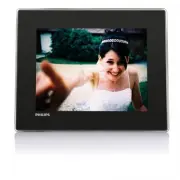
8 What’s in the box Philips Digital PhotoFrame Stand AC-DC power adaptor 2 Your PhotoFrame Congratulations on your purchase, and ZHOFRPHWR3KLOLSV7RIXOO\EHQHÀWIURPWKH suppor t that Philips offers, register your product at www.philips.com/welcome. Introduction With your PhotoFrame, you can enjoy...
Page 14 - Connect power; Get started; Install the stand
14 ( SPF5010/SPF5210/SPF7008/SPF7208/ SPF7010/SPF7210 ) Turn the stand clock wise 45 degrees to the position DQGORFNLWWRWKH3KRWR)UDPHÀUPO\ Connect power Note When you position the PhotoFr ame, ensure that the power plug and outlet are easily accessible. 1 Connect the supplied power cord to the D...
Page 15 - Transfer from a storage device; Turn on/off the PhotoFrame
15 The home screen is displayed. » To turn off the PhotoFrame, press and hold for about 2 seconds. Transfer photos or video/ PXVLFÀOHV Transfer from a storage device Caution Do not remove a stor age device from the 3KRWR)UDPHZKHQÀOHVDUHWUDQVIHUULQJIURP or to the stor age device. <RXFDQSOD\SKR...
Page 19 - Play photos
19 7RYLHZSKRWRVYLGHRÀOHVLQDOEXP mode, tap twice. To zoom in an image, tap . To zoom out an image, tap . To select the previous/nex t photo, tap / .To pause, tap OK . To resume, tap OK again. 7RYLHZSKRWRVLQÀOPVWULSPRGH fast swipe the right /lef t slider to the right. 4 Play Play photos ...
Page 20 - Play video
20 Play video Note The PhotoFr ame plays most video clips of a digital still camer a in M-JPEG (*.avi/*.mov), MPEG -1 (*.mpg), MPEG - 4 (*.avi/*.mov/*.mp4), H.263 (*.avi/*.mov) for mat. Some video clips might have compatibility issues when played on your PhotoFr ame. Before playing, ensure that th...
Page 21 - Play background music
21 During play, you can also manage the YLGHRÀOH 1 During play, tap . An option menu is displayed. » 2 Select an option, and then tap OK to FRQÀUP [Repeat] ( [Play Loop] : Play in a loop; [Play Once] : Play once) [ Viewing Format] ( [Full Screen] : Play in full screen; [Original] : Play in origin...
Page 24 - $GGDSKRWRYLGHRÀOHWRWKH; Browse and; %URZVHSKRWRVYLGHRÀOHVLQ
24 2 Select an album, and then tap to access the album. 3 Tap / / / to browse photos/video ÀOHVLQWKHDOEXP Tip If you selec t an album and then tap OK , SKRWRVYLGHRÀOHVLQWKHVHOHFWHGDOEXPDUH displayed in slideshow. $GGDSKRWRYLGHRÀOHWRWKH Favorites album 1 In album mode, select a photo and then tap ....
Page 25 - RYHDSKRWRYLGHRÀOH
25 0RYHDSKRWRYLGHRÀOH 1 In album mode, select a photo and then tap . An option menu is displayed. » 2 Select [Move] , and then tap OK to FRQÀUP 3 Select a destination album, and then tap OK WRFRQÀUP The photo is added to the » [Favorites] album. &RS\DSKRWRYLGHRÀOH 1 In album mode, select a photo...
Page 26 - Rotate a photo
26 3 Select [ Yes] , and then tap OK WRFRQÀUP Rotate a photo 1 In album mode, select a photo and then tap . An option menu is displayed. » 'HOHWHDSKRWRYLGHRÀOH 1 In album mode, select a photo and then tap . An option menu is displayed. » 2 Select [Delete] , and then tap OK to FRQÀUP $FRQÀUPDWLRQPHVV...
Page 27 - Select a photo effect
27 2 Select [Photo Style] , and then tap OK to FRQÀUP 3 Select an effect, and then tap OK to FRQÀUP 2 Select [Rotate] , and then tap OK to FRQÀUP 3 Select an option, and then tap OK to FRQÀUP Select a photo effect 1 In album mode, select a photo and then tap . An option menu is displayed. » English ...
Page 28 - Select several photos at a time; Group photos by name/date
28 If you group photos by name, photos » are displayed alphabetically in an ascending order from top left to bottom right (1, 2, ... a, b , ... z). If you group photos by time, photos » are displayed chronologically in a descending order from top left to bottom right (from the recent to the previous...
Page 29 - HPRYHSKRWRVYLGHRRUPXVLFÀOHV
29 3 In the option menu, select [Remove from favorites] and then tap OK WRFRQÀUP $FRQÀUPDWLRQPHVVDJHLVGLVSOD\HG » 4 Select [ Yes] , and then tap OK WRFRQÀUP 3 Tap / / / and OK to select photos. 4 Tap to access the option menu. 5HPRYHSKRWRVYLGHRRUPXVLFÀOHV from the Favorites album 1 In the album mode...
Page 30 - Create an album; Manage an album
30 3 Select an option, and then tap OK to FRQÀUP Tip For albums on sources other than the PhotoFr ame, [Create New Folder] is displayed instead of [Create New Album] . You can manage an album in the similar way as you manage a photo. Create an album 1 In the option menu, select [Create New Album...
Page 31 - Rename an album
31 To switch between uppercase and lowercase, select [a/A] on the displayed keypad and then tap OK to FRQÀUP 3 When the name is complete, select [Enter] and then tap OK WRFRQÀUP Tip If albums are grouped by date, the album cannot be renamed. To switch between uppercase and lowercase, select [a...
Page 32 - in slideshow
32 3 Select [Month] / [ Week] / [Clock] , and then tap OK WRFRQÀUP [Month] [ Week] 6 Show date/time in slideshow 1 In the home screen, select [Extra] and then tap OK WRFRQÀUP 2 Select [Calendar] , and then tap OK to FRQÀUP EN
Page 35 - Edit a reminder
35 2 Select [Reminder] , and then tap OK to FRQÀUP 3 Select a reminder, and then tap . An option menu is displayed. » 8 6HOHFWDSKRWRRUYLGHRÀOHDQGWKHQWDS OK WRFRQÀUP A preview message is displayed. » To select background music for the » reminder photo, tap to select the music icon and then tap OK to ...
Page 36 - Select background; Slideshow; Select a transition effect
36 4 Select a slideshow effect, and then tap OK WRFRQÀUP Select background You can select a background border color for photos that are smaller than the PhotoFrame display. 1 In the home screen, select [Settings] and then tap OK WRFRQÀUP 2 Select [Slideshow] , and then tap OK to FRQÀUP 8 Slideshow s...
Page 40 - Adjust brightness; Other settings; Use the quick menu; Select an on-screen language
40 2 Select [Language] , and then tap OK to FRQÀUP 3 Select a language, and then tap OK to FRQÀUP Adjust brightness You can adjust the brightness of the PhotoFrame to achieve the best view. 1 In the home screen, select [Settings] and then tap OK WRFRQÀUP 9 Other settings Use the quick menu In the qu...
Page 43 - Specify time to auto on/off; Smart Power setting
43 Note You can enable only one Smar t Power func tion at a time, either by timer or by light sensor.Ensure that your PhotoFr ame is tur ned on. Specify time to auto on/off Note Ensure that the cur rent time of the PhotoFr ame is set cor rec tly. 1 In the home screen, select [Settings] and the...
Page 44 - Specify brightness to auto on/off
44 2 Select [Smart Power] , and then tap OK WRFRQÀUP 3 Select [Lighting] , and then tap . 4 To specify the brightness to auto on, select [On] and then tap OK WRFRQÀUP 4 Select [Set on Timer] / [Set off Timer] , and then tap OK WRFRQÀUP 5 Tap / / / to set time, and then tap OK WRFRQÀUP Specify bright...
Page 45 - Hibernate your PhotoFrame
45 2 Select [Hibernate] , and then tap OK to FRQÀUP 3 Select an option, and then tap OK to FRQÀUP To disable hibernate function, select [Never] and then tap OK to FRQÀUP To specify the brightness to auto off, select [Off ] and then tap OK to FRQÀUP 5 Tap / to adjust brightness sensor, and then t...
Page 46 - Turn on/off button sound; Set Auto Orientation
46 3 Select [On] , and then tap OK WRFRQÀUP Turn on/off button sound 1 In the home screen, select [Settings] and then tap OK WRFRQÀUP Af ter the selected period, your PhotoFrame hibernates.To get your PhotoFrame out of hibernation, press . Set Auto Orientation You can play photos in the correct ...
Page 48 - Set up Bluetooth connection; Set Demo
48 Bluetooth (SPF7008/SPF7208/SPF7010/SPF7210) Note Bluetooth connec tivity is available only on SPF 70 08/SPF 7208/SPF 7010/SPF 7210. Set up Bluetooth connection With the PhotoFrame, you can set up Bluetooth connection with a device like a mobile phone. Once a device is recognized, it is automati...
Page 49 - Set Bluetooth pin code
49 2 Select [Bluetooth] , and then tap OK to FRQÀUP 3 Select [Security] , and then tap OK to FRQÀUP 3 Select [Setup] , and then tap OK to FRQÀUP 4 Select [Bluetooth On] , and then tap OK WRFRQÀUP To set off Bluetooth connection, select [Bluetooth Off ] and then tap OK WRFRQÀUP Tip If Bluetooth c...
Page 51 - Rename the PhotoFrame
51 5 When the name is complete, select [Enter] and then tap OK WRFRQÀUP Reset all settings to factory default 1 In the home screen, select [Settings] and then tap OK WRFRQÀUP Rename the PhotoFrame 1 In the home screen, select [Settings] and then tap OK WRFRQÀUP 2 Select [Info] , and then tap OK to F...
Page 54 - information
54 Memor y Stick Pro Memor y Stick Duo Memor y Stick Pro Duo 86%86%ÁDVKGULYH Built-in memor y capacity: SPF50 08/SPF5208/SPF5010/SPF5210: 512 MB , for up to 50 0 High 'HÀQLWLRQSKRWRV SPF70 08/SPF7208/SPF7010/ SPF7210: 1 GB , for up to 1,0 0 0 High 'HÀQLWLRQSKRWRV Connectivity USB: USB 2...
Page 56 - 2 Frequently
56 (QVXUHWKDWWKHYLGHRÀOHVDUHQRW damaged. :K\FDQQRWP\3KRWR)UDPHVKRZYLGHRÀOHV even I could see them in [Browse] mode, and I played them before? Ensure that [Slideshow Photo Only] is not enabled. To play video in slideshow mode:1. In slideshow mode, tap .2. In the displayed option menu, select [Slide...


 Philips SPF1307 Manual
 Philips SPF 3007D/G7 Manual
 Philips SPF3400/G7 Manual
 Philips SPF 3408/G7 Manual
 Philips SPF4308 Manual
 Philips SPF4628 Manual
 Philips SPH8528 Manual
 Philips SPM1500 Manual
 Philips SPN7060WA/10 User Manual
 Philips SPP2284WA/17 Manual
 Philips SPP4200 Manual
 Philips SPT6407B/05 Quick Guide