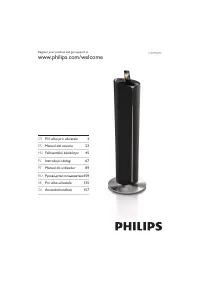
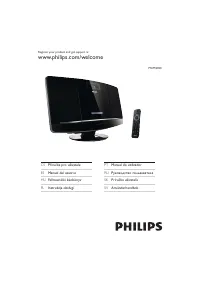
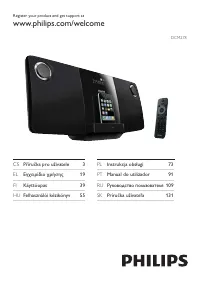
Philips NP2900 - Manual

Philips NP2900 Sound System – Manual, read for free online in PDF format. We hope this helps you resolve any issues you may have. If you have further questions, please contact us through the contact form.


Table of Contents:
- Page 2 – Register your product and get support at
- Page 3 – What’s in the box; Before using the remote control:; Insert batteries as shown.
- Page 4 – overview; Front view; Top view
- Page 5 – Remote control
- Page 6 – Connect
- Page 7 – START HERE...
- Page 8 – Connect the player to the power supply; Connect the player to a home network
- Page 10 – Wirelessly stream music and pictures from a computer
- Page 12 – Internet radio
- Page 13 – Online registration; Register
- Page 14 – User Manual; On line; Hearing Safety
- Page 15 – Important; Safety; Know these safety symbols
- Page 16 – Environmental notice; Disposal information for NP2900:
Philips Streamium Network Music Player
Quick star t guide
1
2
3
4
Overview
Connect
Enjoy
Register
NP2900
np2900_qsg_02_01eng.indd 1
3/20/2009 2:50:51 PM
"Loading the manual" means you need to wait until the file loads and becomes available for online reading. Some manuals are very large, and the time they take to appear depends on your internet speed.
Was this manual helpful?
About this manual
- Brand
- Philips
- Model
- NP2900
- Document type
- Manual
- Category
- Sound System
- Language(s)
- English
- Pages
- 19
- File size
- 1.8 MB
- Format
Summary
Please read and accept our Streamium terms & conditions as well as the Software End User License Agreement that are included in the User Manual. Register your product and get support at www.philips.com/welcome np2900_qsg_02_01eng.indd 2 3/20/2009 2:50:51 PM
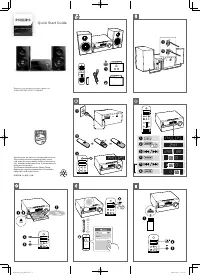
1 En What’s in the box Remote control 2 x AAA batteries 1 x AC power adapter with cable 1 x Wall mounting bracket CD-RoM containing user manual and software Philips Streamium Network Music Player Quick star t guide 1 2 3 Overview Connect Enjoy NP2500 Quick start guide Streamium Network Music Player ...
2 overview 1 Front view Display a Wi-Fi antenna b Loudspeakers c Top view y a (on / Standby / Eco standby) s b (mute the sound) +VOL- c (adjust the volume) Rear view p a jack DIGITAL OUT b (black) jack AUX In L / R c (red/white) jacks POWER SUPPLY d jack ETHERnET e jack np2900_qsg_02_01eng.indd 2 3/...