Philips CSS5330B/12 - User Manual
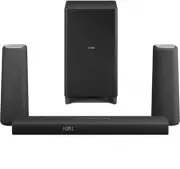
Philips CSS5330B/12 – User Manual, read for free online in PDF format. We hope this helps you resolve any issues you may have. If you have further questions, please contact us through the contact form.


Table of Contents:
- Page 3 – Contents; Product specifications
- Page 4 – Important; Help and support; Safety
- Page 5 – Mains fuse; Care for your product; Care of the environment
- Page 6 – Compliance; Your product; Main unit
- Page 7 – Remote control
- Page 8 – Connectors; Wireless subwoofer
- Page 9 – Place speakers; Pair up with the subwoofer
- Page 10 – Connect to TV; Connect digital devices; Connect audio from TV and
- Page 11 – Set up speakers
- Page 12 – Choose your sound; Sound mode
- Page 13 – USB storage devices; MP3 player
- Page 14 – Play music via Bluetooth; Play music via NFC
- Page 15 – Auto standby; Update software; Check software version
- Page 16 – Wall mount
- Page 17 – Amplifier
- Page 18 – Standby power management; Troubleshooting
- Page 19 – Bluetooth; NFC
www.philips.com/support
User manual
Always there to help you
Register your product and get support at
CSS5330B
CSS5330G
Question?
Contact
Philips
"Loading the manual" means you need to wait until the file loads and becomes available for online reading. Some manuals are very large, and the time they take to appear depends on your internet speed.
Was this manual helpful?
About this manual
- Brand
- Philips
- Model
- CSS5330B/12
- Document type
- User Manual
- Language(s)
- English
- Pages
- 22
- File size
- 352.6 KB
- Format
Summary
1 EN Contents 1 Important 2 Help and suppor t 2 Safety 2 Mains fuse 3 Care for your product 3 Care of the environment 3 Compliance 4 2 Your product 4 Main unit 4 Remote control 5 Connectors 6 Wireless subwoofer 6 3 Connect and set up 7 Place speakers 7 Pair up with the subwoofer 7 Connect to TV 8 Co...
2 EN 1 Important Read and understand all instructions before you use your product. If damage is caused by failure to follow instructions, the warranty does not apply. Help and support For extensive online suppor t, visit www.philips.com/suppor t to: • download the user manual and the quick star t gu...
3 EN Risk of overheating! • Never install this product in a confined space. Always leave a space of at least four inches around the product for ventilation. Ensure cur tains or other objects never cover the ventilation slots on the product. Risk of contamination! • Do not mix batteries (old and new ...
Ask a question
Related manuals
Popular Philips Other


More Philips Other models
 Philips CSA260/10 User Manual
 Philips CSA260/50 User Manual
 Philips CSA260/60 User Manual
 Philips CSS2123/F7 User Manual
 Philips CSS2123B/F7 User Manual
 Philips CSS5235Y/93 User Manual
 Philips CTM600BLU Manual
 Philips CTS4000/05 Manual
 Philips CTS4000/55 Manual
 Philips CX2050/00 User Manual
 Philips CX2120/01 User Manual
 Philips CX2550/00 User Manual