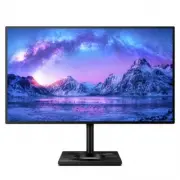
Page 2 - Table of Contents; Safety precautions and
Table of Contents 1. Important ....................................... 1 1.1 Safety precautions and maintenance .................................. 1 1.2 Notational Descriptions ............. 31.3 Disposal of product and packing material ........................................... 4 2. Setting up the...
Page 3 - Warnings
1 1. Important 1. Important This electronic user’s guide is intended for anyone who uses the Philips monitor. Take time to read this user's manual before you use your monitor. It contains important information and notes regarding the operation of your monitor. The Philips guarantee applies provided ...
Page 4 - Maintenance
2 1. Important your workstation than longer breaks and less often; for example a 5-10 minute break after 50-60-minute continuous screen use is likely to be better than a 15-minute break every two hours. Try to keep your eyes from eye strain while using the screen for a constant period of time by : •...
Page 5 - Notational Descriptions; Notes, Cautions and Warnings
3 1. Important • “Burn-in”, “after-imaging”, or “ghost imaging” is a well-known phenomenon in LCD panel technology. In most cases, the “burned in” or “after-imaging” or “ghost imaging” will disappear gradually over a period of time after the power has been switched off. Warning Failure to activate a...
Page 7 - Setting up the monitor; Package contents; Start; Note
5 2. Setting up the monitor 2. Setting up the monitor 2.1 Installation Package contents *CD Register your product and get support at www.philips.com/welcome Start 278E9 This product has been manufactured by and is sold under the responsibility of Top Victory Investments Ltd., and Top Victory Investm...
Page 8 - USB downstream
6 2. Setting up the monitor Connecting to your PC 1 2 4 11 10 6 7 9 8 3 5 Fast Charger AC/DC power input HDMI 1 input HDMI 2 input USB Type-C DisplayPort input USB downstream/USB fast charger 7 USB downstream 8 USB downstream/USB fast charger 9 USB downstream 10 Audio output 11 Kensington anti-theft...
Page 9 - Operating the monitor; Description of the control button
7 2. Setting up the monitor < Note If you Turn OFF your monitor via the power switch at any given time, all the USB ports will power OFF. Warning USB 2.4Ghz wireless devices, such as, wireless mouse, keyboard, and headphones, maybe have ...
Page 10 - Description of the On Screen Display
8 2. Setting up the monitor Description of the On Screen Display What is On-Screen Display (OSD)? On-Screen Display (OSD) is a feature in all Philips LCD monitors. It allows an end user to adjust screen performance or select functions of the monitors directly through an on-screen instruction window....
Page 11 - Resolution notification; Tilt
9 2. Setting up the monitor Resolution notification This monitor is designed for optimal performance at its native resolution, 3840x2160. When the monitor is powered on at a different resolution, an alert is displayed on screen: Use 3840x2160 for best results. Display of the native resolution alert ...
Page 12 - Remove the Base Assembly; Extend the monitor base to its
10 2. Setting up the monitor 2.3 Remove the Base Assembly for VESA Mounting Before you start disassembling the monitor base, please follow the instructions below to avoid any possible damage or injury. 1. Extend the monitor base to its maximum height. 2. Place the monitor face down on a smooth surfa...
Page 13 - EasyRead; Image Optimization
11 3. Image Optimization 1. Toggle to the left to launch the SamrtImage on screen display. 2. Toggle to the up or down to select among EasyRead , Office, Photo, Movie, Game, Economy, LowBlue Mode and Off. 3. The SmartImage on screen display will remain on screen for 5 seconds or you can also toggle ...
Page 15 - Operating system
13 4. AMD FreeSync TM 4. AMD FreeSync™ PC gaming has long been an imperfect experience because GPUs and monitors update at different rates. Sometimes a GPU can render many new pictures during a single update of the monitor, and the monitor will show pieces of each picture as a single image. This is ...
Page 17 - Technical Specifications; Connectivity
15 6. Technical Specifications 6. Technical Specifications Picture/Display Monitor Panel Type IPS Technology Backlight W-LED system Panel Size 27" W (68.47 cm) Aspect Ratio 16:9 Pixel Pitch 0.1554 x 0.1554 mm Contrast Ratio (typ.) 1,300:1 Optimum Resolution 3840x2160 @ 60Hz Viewing Angle 178° (H...
Page 18 - Stand
16 6. Technical Specifications Plug & Play Compatibility DDC/CI, Mac OS X, sRGB, Windows 10/8.1/8/7 Stand Tilt -5 / +20 degree Swivel -175 / +175 degree Height adjustment 130mm Pivot 90 degree Power Consumption AC I n p u t Vo l t a g e at 100VAC, 60Hz AC I n p u t Vo l t a g e at 115VAC, 60Hz A...
Page 19 - Environmental
17 6. Technical Specifications Environmental ROHS YES Packaging 100% recyclable Specific Substances 100% PVC BFR free housing Cabinet Color Black Finish Texture Note This data is subject to change without notice. Go to www.philips.com/support to download the latest version of leaflet.
Page 20 - Maximum Resolution
18 6. Technical Specifications 6.1 Resolution & Preset Modes Maximum Resolution 3840x2160@60Hz Recommended Resolution 3840x2160@60Hz H. freq (kHz) Resolution V. freq (Hz) 31.47 720x400 70.09 31.47 640x480 59.94 35.00 640x480 66.67 37.86 640x480 72.81 37.50 640x480 75.00 35.16 800x600 56.25 37.88...
Page 22 - Customer care and warranty; Customer care and; Philips’ Flat Panel Monitors; Sub pixels; Pixels and Sub pixels
20 8. Customer care and warranty 8. Customer care and warranty 8.1 Philips’ Flat Panel Monitors Pixel Defect Policy Philips strives to deliver the highest quality products. We use some of the industry's most advanced manufacturing processes and practice stringent quality control. However, pixel or s...
Page 24 - Pixel Defect Tolerances
22 8. Customer care and warranty Pixel Defect Tolerances In order to qualify for repair or replacement due to pixel defects during the warranty period, a TFT Monitor panel in a Philips flat panel monitor must have pixel or sub pixel defects exceeding the tolerances listed in the following tables. BR...
Page 25 - Philips Customer Care Center number listed below.
23 8. Customer care and warranty 8.2 Customer Care & Warranty For warranty coverage information and additional support requirements valid for your region, please visit www.philips.com/support website for details or contact your local Philips Customer Care Center.For extended warranty, if you wou...
Page 26 - FAQs; Common Problems
24 9. Troubleshooting & FAQs 9. Troubleshooting & FAQs 9.1 Troubleshooting This page deals with problems that can be corrected by a user. If the problem still persists after you have tried these solutions, contact Philips customer service representative. Common Problems No Picture (Power LED...