Philips 276C8/00 - User Manual
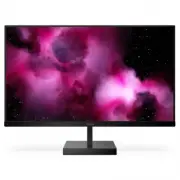
Philips 276C8/00 – User Manual, read for free online in PDF format. We hope this helps you resolve any issues you may have. If you have further questions, please contact us through the contact form.


Table of Contents:
- Page 2 – Table of Contents; Safety precautions and
- Page 3 – Warnings
- Page 4 – Maintenance
- Page 5 – Notational Descriptions; Notes, Cautions and Warnings
- Page 7 – Setting up the monitor; Start; Note
- Page 8 – Operating the monitor; Front view product description
- Page 9 – Resolution notification
- Page 10 – Toggle to the up or down to select
- Page 11 – SUB SOURCE POSSIBILITY; Swap A and B source in [
- Page 12 – EasyRead; Image Optimization
- Page 16 – Technical Specifications; Connectivity
- Page 20 – Customer care and warranty; Customer care and; Philips’ Flat Panel Monitors; Sub pixels; Pixels and Sub pixels
- Page 22 – Pixel Defect Tolerances
- Page 23 – Philips Customer Care Center number listed below.
- Page 24 – FAQs; Common Problems
Moda
276C8
EN
User manual
1
Customer care and warranty
Troubleshooting & FAQs
"Loading the manual" means you need to wait until the file loads and becomes available for online reading. Some manuals are very large, and the time they take to appear depends on your internet speed.
Was this manual helpful?
About this manual
- Brand
- Philips
- Model
- 276C8/00
- Document type
- User Manual
- Language(s)
- English
- Pages
- 28
- File size
- 2.7 MB
- Format
Other Manuals for Philips 276C8/00
Summary
Table of Contents 1. Important ....................................... 1 1.1 Safety precautions and maintenance .................................. 1 1.2 Notational Descriptions ............. 31.3 Disposal of product and packing material ........................................... 4 2. Setting up the...
1 1. Important 1. Important This electronic user’s guide is intended for anyone who uses the Philips monitor. Take time to read this user's manual before you use your monitor. It contains important information and notes regarding the operation of your monitor. The Philips guarantee applies provided ...
2 1. Important screen for a constant period of time by :• Looking at something varying distances after a long period focusing on the screen. • Conscious Blinking often while you work. • Gently closing and rolling your eyes to relax. • Reposition your screen to ap- propriate height and angle ac-cordi...
Ask a question
Related manuals
Popular Philips Other


More Philips Other models
 Philips 275S9JML/00 User Manual
 Philips 275S9JML/01 User Manual
 Philips 275V8LA/00 User Manual
 Philips 275V8LA/01 User Manual
 Philips 276B1JH/00 User Manual
 Philips 276B9/00 User Manual
 Philips 276E9QJAB/00 User Manual
 Philips 278E1A/00 User Manual
 Philips 278E8QJAB/00 User Manual
 Philips 279C9/00 User Manual
 Philips 279C9/01 User Manual
 Philips 279M1RV/00 User Manual