Philips 278E8QJAB/00 - User Manual
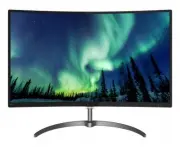
Philips 278E8QJAB/00 – User Manual, read for free online in PDF format. We hope this helps you resolve any issues you may have. If you have further questions, please contact us through the contact form.


Table of Contents:
- Page 2 – Table of Contents; Safety precautions and
- Page 3 – Warnings
- Page 5 – Notational Descriptions; Notes, Cautions and Warnings
- Page 7 – Setting up the monitor; monitor; Package contents; Note
- Page 8 – Connecting to your PC
- Page 9 – Operating the monitor; Front view product description
- Page 10 – The OSD Menu; Resolution notification
- Page 11 – How to enable SmartImage Lite?; Image Optimization
- Page 12 – This profile combines color
- Page 14 – Technical Specifications; Connectivity
- Page 15 – Stand
- Page 16 – Power
- Page 17 – Environmental
- Page 18 – Maximum Resolution
- Page 20 – Customer care and warranty; Customer care and; Philips’ Flat Panel Monitors; subpixel; Pixels and Sub pixels
- Page 23 – Philips Customer Care Center number listed below.
- Page 24 – FAQs; Common Problems
- Page 26 – Q8: Can I change the color setting of my
- Page 28 – Q14: Where can I find Important
278E8
EN
User
manual
1
Customer care and warranty
Troubleshooting & FAQs
"Loading the manual" means you need to wait until the file loads and becomes available for online reading. Some manuals are very large, and the time they take to appear depends on your internet speed.
Was this manual helpful?
About this manual
- Brand
- Philips
- Model
- 278E8QJAB/00
- Document type
- User Manual
- Language(s)
- English
- Pages
- 29
- File size
- 2.3 MB
- Format
Other Manuals for Philips 278E8QJAB/00
Summary
Table of Contents 1. Important ....................................... 1 1.1 Safety precautions and maintenance .................................. 1 1.2 Notational Descriptions ............. 31.3 Disposal of product and packing material ........................................... 4 2. Setting up the...
1 1. Important 1. Important This electronic user’s guide is intended for anyone who uses the Philips monitor. Take time to read this user's manual before you use your monitor. It contains important information and notes regarding the operation of your monitor. The Philips guarantee applies provided ...
3 1. Important that will not disappear and cannot be repaired. The damage mentioned above is not covered under your warranty. Service • The casing cover should be opened only by qualified service personnel. • If there is any need for any document for repair or integration, please contact with your l...
Ask a question
Related manuals
Popular Philips Other


More Philips Other models
 Philips 275V8LA/01 User Manual
 Philips 276B1JH/00 User Manual
 Philips 276B9/00 User Manual
 Philips 276C8/00 User Manual
 Philips 276E9QJAB/00 User Manual
 Philips 278E1A/00 User Manual
 Philips 279C9/00 User Manual
 Philips 279C9/01 User Manual
 Philips 279M1RV/00 User Manual
 Philips 279P1/00 User Manual
 Philips 288E2A/00 User Manual
 Philips 288P6LJEB Manual