Page 3 - WELCOME
WELCOME Thank you very much for purchasing the Pentax SLRcamera. Please read this manual before using thecamera in order to get the most out of all the featuresand functions. Keep this manual safe, as it can be avaluable tool in helping you to understand all the cam-era’s capabilities. MZ-6(E)00/cov...
Page 4 - This mark indicates prohibited matters.; CAUTION; FOR SAFE USE OF YOUR CAMERA; WARNING
1 Although we have carefully designed this camera for safe operation,please be sure to follow precautions given on this page. This mark indicates precautions that, ifnot followed, could result in serious injuryto the operator. This mark indicates precautions that, ifnot followed, could result in min...
Page 5 - PRECAUTIONS FOR YOUR CAMERA
Other precautions • The temperature range at which this camera functions properly is 50°C to - 10°C (122°F to 14°F). • A camera which has been submerged in water usually cannot be repaired. If such an accident should occur, it is advisable to contact a Pentax ServiceCenter immediately. • To maintain...
Page 6 - CONTENTS; REPLACING THE CAMERA
CONTENTS 4 BASIC ...................................................................21 BASIC OPERATIONS ......................................................21 QUICK AND EASY SHOOTING ................................. 22 POWER ON/OFF ....................................................22 QUICK AND ...
Page 8 - NAMES OF WORKING PARTS
9 8 NAMES OF WORKING PARTS Strap lug Select switch Shutter releasebutton Main switch Self-timer lampRemote control receiver Cable releasesocket Exposurecompensationbutton Lens mount index Preview button Focus mode switch Back coverrelease lever Tripod socket Battery cover retainer screw Back cover B...
Page 9 - USING THIS OPERATING MANUAL
10 This operating manual consists of the following sections. ◆ Things to Check This section is before "Things to Do," and it explains cautions forusing the camera and accessories, as well as the names of work-ing parts. ◆ Things to Do Explains the procedures to be followed before you use the...
Page 11 - BEFORE TAKING PICTURES; Things to do before using the camera for the first time.; Attaching the Strap
BEFORE TAKING PICTURES BEFORE TAKING PICTURES Things to do before using the camera for the first time. Attaching the Strap 1 Pass the end of the strapthrough the strap lug fromunderneath, then pass the strapthrough the clasp from under-neath. The strap’s clasp can be used to rewindthe film in mid-ro...
Page 12 - As shown in the illustration, remove the front lens cap.; Attaching a Lens; Remove the body mount cap and rear lens cap.
BEFORE TAKING PICTURES 15 3 As shown in the illustration, remove the front lens cap. Handling the Lens • To detach the lens, hold down the lens unlock button and turn the lens counterclockwise. • We assume no responsibility nor liability for damages resulting from the use of lenses made by other man...
Page 13 - Adjusting the viewfinder’s diopter; Imprinting the date or time; to set the desired
BEFORE TAKING PICTURES 17 • To set the correct date and time, see ADJUSTING THE DATA BACK on page42. • If the imprinting looks too light or if the Data back’s display looks light or showsnothing, replace the Data back’s bat-tery. ( p.40) • The date or time of the first frame will be imprinted in the...
Page 14 - Film loading
BEFORE TAKING PICTURES 19 2 Place the film cartridge in thefilm chamber as shown in theillustration. 3 As shown in the illustration, pullthe film leader out only farenough to reach the take -upspool. ★ Important ★ The shutter curtains are fine-precisionmaterial. Do not touch them with your fingers o...
Page 15 - Close the back cover.
4 Align the film leader with thefilm leader end mark and makesure that the film leader is posi-tioned under the film retainer asshown in the illustration. • If the end of the film leader is extremely bent, straighten it or cut off the bentportion. • If you have pulled out too much film, push it back...
Page 17 - QUICK AND EASY SHOOTING
QUICK AND EASY SHOOTING 23 About the LCD Panel The LCD panel displays the following indications: : Flash status information p.30 : Red-eye reduction flash indication p.33, 87 : Automatic flash information p.87 : Manual-set film speed p.36 : Shutter speed : Battery exhaustion warning p.38 : Remote co...
Page 18 - Set the Auto Picture Mode.
QUICK AND EASY SHOOTING 25 2 Set the Auto Picture Mode. q Set the mode dial to the [AUTO PICT]position. w Turn the aperture ring to the [A]position while holding down theaperture-A lock button on the lens. e The lens aperture ring can bereleased from the [A] position in thesame manner. r The selecte...
Page 19 - Set autofocus; TAKING A PICTURE; Frame the subject
QUICK AND EASY SHOOTING • In the Auto picture mode, the camera automatically selects one of 5 picture modes according to the requirement of the scene. • The Auto picture mode operates only when an FA or F lens is attached.• See page 56, 63 for any other exposure mode.• The AE lock function or exposu...
Page 20 - Taking the picture
QUICK AND EASY SHOOTING 29 Viewfinder Displays :3-points AF frame p.27 :Shutter speed:Aperture value:Standard Mode p.57 :Portrait Operation Mode p.58 :Landscape Program Mode p.59 :Close-up Program Mode p.60 :Action Program Mode p.61 :Night-scene Program Mode p.62 :Flash status information p.30 :In-f...
Page 21 - USING THE BUILT-IN FLASH; Auto pop-up flash function
BUILT-IN FLASH - SMART FLASH 31 BASIC B ASIC OPERA TIONS 30 • The built-in flash does not retract automatically.• The auto pop-up flash mode can only be set when the Auto picture mode or one of 5 picture modes is set. p.24, 56 • When the Flash pop-up button is pressed after the flash has popped up, ...
Page 22 - SETTING THE RED-EYE REDUCTION MODE; To make the eye’s iris smaller,; Setting the red-eye reduction mode; Retracting the built-in flash
BUILT-IN FLASH - SMART FLASH 33 BASIC B ASIC OPERA TIONS 32 BUILT-IN FLASH - SMART FLASH SETTING THE RED-EYE REDUCTION MODE Red-eye reduction mode: To make the eye’s iris smaller, a low-output flash fires right before the picture is taken.This is to reduce the chances of red eye from occurring inthe...
Page 23 - Rewinding a film in mid-roll; UNLOADING FILM; REWINDING THE FILM
UNLOADING FILM 35 BASIC B ASIC OPERA TIONS 34 w Before opening the back cover,check that [ ] is blinking. ◆ Rewinding a film in mid-roll If you wish to unload the film before exposing all the frames, use thisfunction. • At the end of the film rewind, you can also leave the film leader outside the ca...
Page 24 - Setting the ISO speed
UNLOADING FILM 37 BASIC B ASIC OPERA TIONS 36 e After setting the ISO speed, set themode dial to any position other than [ ISO]. SETTING THE FILM SPEED (ISO) MANUALLY The camera automatically reads the film speed from thefilm’s DX code. However, the film speed setting can bechanged. If you use a non...
Page 25 - REPLACING THE BATTERIES; REPLACING THE CAMERA BATTERIES
QUICK AND EASY SHOOTING 39 BASIC B ASIC OPERA TIONS 38 REPLACING THE BATTERIES • Replace the two batteries at the same time. Do not mix battery type, brands or old battery with new one. It may cause explosion or overheating. • When the batteries are replaced, the following settings will take effect....
Page 26 - Install a new battery.; REPLACE BATTERY FOR DATA BACK F
REPLACING THE BATTERIES 41 BASIC B ASIC OPERA TIONS 40 e Remove the old battery. 2 Install a new battery. q Install a new battery with the + sidefacing up. w Reinstall the battery chamber cover,and tighten the battery chamber fix-ing screw. REPLACE BATTERY FOR DATA BACK F J (OPTIONAL) If you have pu...
Page 27 - ADJUSTING THE DATA BACK F
REPLACING THE BATTERIES 43 BASIC B ASIC OPERA TIONS 42 2 Adjusting the hour/minute. q Press the [SELECT] button to make the hour, minute or second ( : ) you want to change blink. The digits blink in the following order.Hour → Minute → : → Hour w Change the data ( hour or minute ) with the [ADJUST] b...
Page 30 - CAMERA OPERATION; Pictures can be taken; • Wireless remote control:; The wireless remote control; CONSECUTIVE-FRAME DRIVE; Shooting consecutive frames; MULTIPLE EXPOSURES ON A SINGLE FRAME
CAMERA OPERATION 47 STEP UP AD V ANCED OPERA TIONS 46 CAMERA OPERATION Besides single-frame drive mode, the camera can be setas follows: • Consecutive-frame drive mode: Pictures can be taken consecutively while holding down the shutter release but-ton. p.46 • Multi-exposure mode: Expose the same fra...
Page 31 - Setting the self-timer mode; Using the self-timer mode; Setting the multi-exposure mode; Using the multi-exposure mode
CAMERA OPERATION 49 STEP UP AD V ANCED OPERA TIONS SELF-TIMER MODE After you pressing the shutter release button, the picturewill be taken about 12 sec. later. Use the self-timer whenyou want to be in the picture. 1 Setting the self-timer mode q Turn the main switch to ON. w Press the drive mode but...
Page 32 - Cancelling the self-timer mode; REMOTE CONTROL SHOOTING
CAMERA OPERATION w Depress the shutter release buttoncompletely. The shutter will be released about 12seconds after the shutter release but-ton is depressed. The audible PCV sig-nal is heard and the rate increases forthe last two seconds. 3 Cancelling the self-timer mode q Press the drive mode butto...
Page 33 - AUTO BRACKETING
CAMERA OPERATION 53 AUTO BRACKETING When you press the shutter release button, three consecu-tive frames will be taken at different exposures. The firstframe is exposed with no compensation. The second frameis underexposed, and the third frame is overexposed.The initial bracketing amount is ±1/2EV s...
Page 34 - Using the auto bracketing mode
CAMERA OPERATION 55 ● Taking pictures of overexposure only [±1/2] step (EV) ......Set the exposure compensation to [+1/2]. 1st frame=+1/2EV, 2nd frame=±0EV, 3rd frame=+1EV ● Taking pictures of underexposure only [±1/2] step (EV) ......Set the exposure compensation to [-1/2]. 1st frame=-1/2EV, 2nd fr...
Page 35 - STANDARD OPERATION MODE; Set the mode dial to [; USING THE PICTURE MODE
USING THE PICTURE MODE STEP UP AD V ANCED OPERA TIONS 57 STANDARD OPERATION MODE For take a picture easily, use theGreen Operation Mode. You simplydepress the shutter release button.The camera selects the best combi-nation of aperture and shutterspeed setting. 1 Set the mode dial to [ ]. [ ] on the ...
Page 36 - LANDSCAPE PROGRAM MODE; PORTRAIT PROGRAM MODE
USING THE PICTURE MODE 59 LANDSCAPE PROGRAM MODE This mode is ideal for landscapephotography and scenic snapshots. 1 Set the mode dial to [ ]. [ ] on the mode dial lights up. 2 When the shutter release buttonis depressed halfway down, theshutter speed and aperture set-tings are displayed in theviewf...
Page 37 - ACTION PROGRAM MODE; CLOSE-UP PROGRAM MODE
USING THE PICTURE MODE 61 ACTION PROGRAM MODE This mode selects a faster shutterspeed to capture a moving subject. 1 Set the mode dial to [ ]. [ ] on the mode dial lights up. 2 When the shutter release buttonis depressed halfway down, theshutter speed and aperture set-tings are displayed in theviewf...
Page 38 - SELECTING AN EXPOSURE MODE; USING THE APERTURE-PRIORITY AE MODE; NIGHT-SCENE PROGRAM MODE
SELECTING AN EXPOSURE MODE 63 SELECTING AN EXPOSURE MODE The exposure mode varies on the selection of the camera'smode dial and lens aperture ring setting as shown on the tablebelow. USING THE APERTURE-PRIORITY AE MODE When the desired aperture is selected, an appropriateshutter speed is automatical...
Page 39 - USING THE SHUTTER-PRIORITY AE MODE
SELECTING AN EXPOSURE MODE 65 Exposure Warning If the subject is too bright or too dark,the selected shutter speed will blink inthe viewfinder and on the LCD panel asa warning as shown. When the subjectis too bright, choose a smaller aper-ture, if available; when it is too dark,choose a larger apert...
Page 40 - USING THE METERED MANUAL MODE
67 Exposure Warning If the subject is too bright or too dark,the selected aperture value will blink inthe viewfinder and on the LCD panel aswarning as shown. When the subject istoo bright, choose a faster shutterspeed. If it is too dark, choose a slowershutter speed. When the shutter speedindication...
Page 42 - ABOUT EXPOSURE COMPENSATION; USING THE BULB EXPOSURE MODE
71 w When using this mode, use a steadytripod to prevent camera shake andattach the optional “Cable SwitchCS-205” after opening the releasesocket cap. • Up to approx. 8 hours of time exposure are possible with new lithium batteriesat ambient temperatures. • With the remote control shooting mode set,...
Page 43 - AE LOCK FUNCTION; Setting AE Lock
73 AE LOCK FUNCTION You can lock the exposure setting before you take the pic-ture. If the subject is too small for a proper exposure set-ting to be obtained, you can zoom in on the subject toobtain a proper exposure setting. Then you can lock theexposure setting and recompose the shot before taking...
Page 44 - ABOUT FOCUSING; USING AUTOFOCUS; CANCEL THE AUDIBLE PCV SIGNAL
75 STEP UP AD V ANCED OPERA TIONS ABOUT FOCUSING 74 ABOUT FOCUSING The autofocus modes, and manual focus mode areexplained here. USING AUTOFOCUS When the autofocus function or the viewfinder’s focus indicator [ ] can- not be used for focus confirmation for the following reasons, focus on thesubject ...
Page 45 - Taking a picture
77 STEP UP AD V ANCED OPERA TIONS ABOUT FOCUSING 76 HARD-TO-AUTOFOCUS SUBJECTS The autofocus system is highly precise, but not perfect. Depending on thebrightness, contrast, shape, and size of your subject, the autofocus sys-tem may not operate. In this situation, use the focus -lock technique( p.80...
Page 46 - MANUAL FOCUSING; ] or the viewfinder’s matte field to check if the; Using the focus indicator [; Focusing; Using the viewfinder’s matte screen.; Focus the subject
79 STEP UP AD V ANCED OPERA TIONS ABOUT FOCUSING 78 Using the snap-in focus function When the subject comes to the point where the lens was pre-focused, theshutter is automatically released. q Use a non-autofocus lens. w Set the focus mode switch to [AF]. e Focus at the point where you wish to captu...
Page 47 - Setting the autofocus mode; SPOT AF MODE; Using the Spot AF Mode; USING FOCUS LOCK
81 STEP UP AD V ANCED OPERA TIONS ABOUT FOCUSING 80 1 Setting the autofocus mode q Set the focus mode switch to [AF]. 2 Using focus lock q Frame the subject. If the subject youwant to focus is not on any of thefocus is not on the AF frame, youcan use focus lock. Figure to the right shows the person ...
Page 48 - EFFECT OF APERTURE AND SHUTTER SPEED; Focusing the subject.; Previewing the depth of field
83 STEP UP AD V ANCED OPERA TIONS ABOUT FOCUSING 82 EFFECT OF APERTURE AND SHUTTER SPEED A correct exposure is established by a combination of shutterspeed and aperture setting according to the subject bright-ness. There are many correct combinations of shutter speedand aperture for a particular sub...
Page 51 - USING THE BUILT-IN FLASH; SETTING THE FLASH MODE
87 Flash mode display The flash fires in accordance with the flash mode indicated on the LCDpanel. Icon displayed Flash mode Flash status Flash ON Flash fires when you press the shutter release button. Flash ON + Red-eye reduction When the flash is fired in the flash ONmode, red-eye reduction takese...
Page 52 - ADVANCED TECHNIQUES WITH THE BUILT-IN FLASH; Calculate the effective flash range as follows:; Guide No. ÷ Current aperture; For near distances; Far distance result ÷ 5*; For far distances
88 89 Reducing Red Eye Red eye occurs in flash pictures when the flash reflects off the eye’s reti-na. Although red eye cannot be totally prevented, it can be reduced by thefollowing methods:• Take the picture in a well-lit place.• When using a zoom lens, use the wide-angle end and a close distance....
Page 53 - F and FA Lens Compatibility with the Built-in Flash
91 Lens name Compatibility F or FA Zoom 35-80mm f/4-5.6 FA Zoom 70-200mm f/4-5.6 FA ★ Zoom 80-200mm f/2.8 ED (IF) F or FA Zoom 80-200mm f/4.7-5.6 FA Zoom 80-320mm f/4.5-5.6 F or FA Zoom 100-300mm f/4.5-5.6 FA Zoom 100-300mm f/4.7-5.8 FA ★ Zoom 250-600mm f/5.6ED(IF) FA 20mm f/2.8 FA ★ 24mm f/2 AL(IF)...
Page 54 - ] disappears from the LCD
4 After using the flash, retract thebuilt-in flash by pressing it downinto the camera body. • The flash is always discharged even if the subject is not required flash light. • The shutter cannot be released until the flash is fully charged. • If the built in flash is used continuously, the battery m...
Page 56 - USING EXTERNAL FLASH; FLASH FUNCTIONS
USING EXTERNAL FLASH USING EXTERNAL FLASH When the built-in flash cannot provide enough illumination,use a Pentax-dedicated. With an external flash unit, TTLauto wireless flash and high-speed sync photograph canbe taken with AF360FGZ. FLASH FUNCTIONS The features available with the built-in flash or...
Page 57 - Taking a flash picture; USING HIGH-SPEED SYNC WITH THE AF360FGZ; USING P-TTL AUTO FLASH MODE; Attaching the flash unit
97 2 Set the flash unit to P-TTL automode q Attach the flash unit to hot shoe. w Turn on the flash unit's power switch. e Set the flash mode switch to P-TTLauto. • With the AF360FGZ, the flash mode is always set to P-TTL auto; with any other flash unit, it is set to TTL auto. • For instructions on h...
Page 58 - Using Wireless high-speed sync flash; Positioning the flash; Using High-speed sync Flash on the Camera
99 ◆ Using Wireless high-speed sync flash 1 Positioning the flash q Place the flash unit at the desired location. w Set the flash unit’s power switch to [WIRELESS]. e Set the flash unit’s sync mode switch to HS (high-speed sync). r Set the wireless mode switch to S (Slave). • For instructions on how...
Page 59 - USING BOTH THE BUILT-IN FLASH AND EXTERNAL FLASH; Set the camera to the wireless mode.
101 When the built-in flash is ready (fully charged), the [ ] will light in the viewfinder when the shutter release button is depressed halfway down. Wireless Flash Control (P-TTL flash mode) When the AF360FGZ is used for wireless flash, the following process isexecuted between the built-in flash an...
Page 60 - Positioning the flash unit
r Off-CameraShoe Adapter F w Hot Shoe Adapter F r Off-Camera Shoe Adapter F 103 USING CONTRAST-CONTROL-SYNC FLASH MODE Using the dedicated external flash in combination with thebuilt-in flash allows twin flash photography (contrast-control-synch flash photography). This is based on the differencebet...
Page 61 - Setting the flash unit; Setting the Metered Manual Mode; Setting the flash units
105 USING SLOW-SPEED SYNC When you photograph someone in front of a sunset ordark background, using slow-speed sync flash will result inthe proper exposure of both the subject and background.Slow-speed sync can be set with the built-in flash or withany dedicated external flash unit. With slow-speed ...
Page 62 - PRECAUTIONS FOR USING FLASH; Cautions for using flash are explained below.; Using a non-Pentax flash unit; Using Shutter-Priority AE; Setting the Shutter-Priority AE Mode; Setting the Flash unit; Focus the subject and take the picture.
107 PRECAUTIONS FOR USING FLASH Cautions for using flash are explained below. ◆ Using the built-in flash and a dedicated external flash • If you use the built-in flash and a Pentax-dedicated exter- nal flash simultaneously and set the external flash to trail-ing shutter curtain sync, the built-in fl...
Page 64 - APPENDIX
APPENDIX 109 PENTAX FUNCTIONS ...............................110 BASIC SETTING OF PENTAX FUNCTIONS ...........................................111SETTING A PENTAX FUNCTIONS ........113 CAMERA FUNCTIONS AVAILABLE WITHVARIOUS LENSES ....................................117ACCESSORIES (OPTIONAL) ...........
Page 65 - BASIC SETTING OF PENTAX FUNCTIONS; Follow the procedure below to set a Pentax Function.; PENTAX FUNCTIONS
PENTAX FUNCTIONS 111 BASIC SETTING OF PENTAX FUNCTIONS Follow the procedure below to set a Pentax Function. 1 Display Pentax Function No. q Turn the mode dial to PF. w Move the select switch to display thePentax Function No. You wish to set. The Pentax Function No. will be dis-played on the LCD pane...
Page 66 - SETTING A PENTAX FUNCTION; [F1] Selection of range of auto bracketing; shooting; Display the setting No.
PENTAX FUNCTIONS 113 SETTING A PENTAX FUNCTION The settings for each Pentax Function are explained below.To display the Pentax Function No. and setting No.. seeBasic Setting of Pentax Functions. p.111 q Set the mode dial to PF ◆ [F1] Selection of range of auto bracketing correction value This is use...
Page 67 - preview button is pressed; onds
115 ◆ [F6] Selection of whether or not AE lock is used when the subject is focused This is used to select whether or not AE lock is used whena subject is focused with shutter release button isdepressed halfway down. ● Pentax Function No. [F6] ● Setting No. [1]. .AE lock not used[2]. .AE lock used ◆ ...
Page 68 - CAMERA FUNCTIONS AVAILABLE WITH VARIOUS LENSES; pattern when power is turned on
117 ■ CAMERA FUNCTIONS AVAILABLE WITH VARIOUS LENSES FUNCTION Lens FA lens F lens A lens M lens S lens [Mount type] [K AF /K AF2 ] [K AF2 ] [K A ] [K] [Screw] Autofocus (Lens only) K K ✕ ✕ ✕ (Lens with AF Adapter 1.7X) – – K *1 K *1 ✕ Manual focus (with FI)*2 K *3 K *3 K *3 K *3 ✕ (with Matte field)...
Page 70 - CABLE SWITCHES
ACCESSORIES (OPTIONAL) 119 ACCESSORIES (OPTIONAL) A number of dedicated accessories are available for thiscamera. ■ AA-BATTERY PACK F G Battery grip powered by size-AA bat-teries and dedicated to the MZ-6/ZX-L. Battery Life (Using 24-exposure film rolls) The number of 24-exposure film rolls that can...
Page 71 - FLASH ACCESSORIES; A TTL Auto flash with a guide number of 22 in meters (ISO 100).; Off–Camera Shoe Clip CL-10; Enables the AF360FGZ to be used as a wireless flash.; VIEWFINDER, LENS AND CLOSE-UP ACCESSORIES; Magnifier FB; Magnifies the image at the center of the viewfinder.; Refconverter A; Auto Extension Tube K
121 ■ FLASH ACCESSORIES AF360FGZ TTL auto flash unit with Guide No.36. Features include slave-syncflash, multiple-flash, and leading/trail-ing curtain-sync flash. High-speedsync and wireless flash can be used. AF500FTZ A TTL Auto Zoom flash with a built-in AF spotbeam and large guide number of 50 in...
Page 73 - TROUBLE SHOOTING; Nothing is displayed on the LCD panel.; Shutter does not trip.; Subject is out of focus.
TROUBLE SHOOTING 125 APPENDIX 124 TROUBLE SHOOTING Before requesting service, please check the following points. ◆ Nothing is displayed on the LCD panel. Check 1: Power is OFF. Turn the main switch to ON ( 22). Check 2: Batteries are not inserted or inserted backwards. Check the insertion direction ...
Page 74 - Imprinting data on negative is faint.; The built-in flash does not pop up automatically.
127 Move away from the subject to be photographed ( 76). Check 3: The subject is not suited for autofocus ( 77). Use focus-lock to focus on a subject which is about thesame distance as the subject to be photographed (page81), or set the focus mode switch to the [MF] positionand then use the matte sc...
Page 75 - SPECIFICATIONS TABLE
SPECIFICATIONS TABLE APPENDIX 128 SPECIFICATIONS TABLE ● Type TTL autofocus, multi-mode auto-exposure 35mm SLR withbuilt-in TTL auto flash (RTF) ● Format 24 × 36mm ● Usable Film 35mm perforated cartridge film. DX-coded film with ISO 25-5000; non-DX coded films with ISO 6-6400 ● Exposure Modes Auto P...
Page 76 - For customers in the USA; STATEMENT OF FCC COMPLIANCE; For customers in Canada
For customers in the USA STATEMENT OF FCC COMPLIANCE This device complies with Part 15 of the FCC Rules. Operation is subject tothe following two conditions: (1) This device may not cause harmful interfer-ence, and (2) this device must accept any interference received, includinginterference that may...
Page 77 - WARRANTY POLICY
133 In any case, however, shipping charges and customs clearance fees to be borneby the sender. To prove the date of your purchase when required, please keepthe receipt or bills covering the purchase of your equipment for at least a year.Before sending your equipment for servicing, please make sure ...


 Pentax K10D Manual
 Pentax K100D Manual
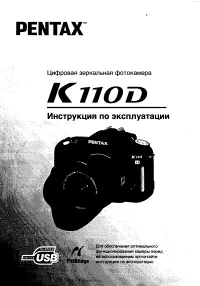 Pentax K110D Manual
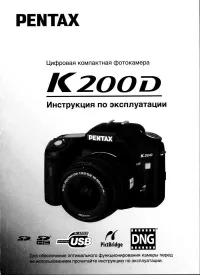 Pentax K200D Manual
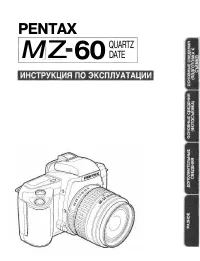 Pentax MZ-60 Manual
 Pentax Optio 555 Manual
 Pentax Optio A10 Manual
 Pentax Optio A20 Manual
 Pentax Optio E50 Manual
 Pentax Optio I-10 User Manual
 Pentax Optio M20 Manual
 Pentax Optio M30 Manual
 Pentax Optio MX4 Manual
 Pentax Optio S4 Manual
 Pentax Optio S5i Manual
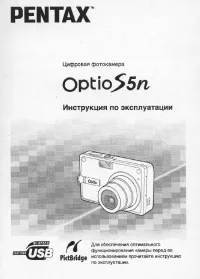 Pentax Optio S5n Manual
 Pentax Optio S5z Manual