Page 3 - FOR USING YOUR CAMERA SAFELY; Warning; ABOUT THE CAMERA
1 We have paid close attention to the safety of this product. When using this product, we request your special attention regarding items marked with the following symbols. Warning • Do not disassemble or modify the camera. High voltage areas are present inside the camera, with the risk of electric s...
Page 4 - Caution; PRECAUTIONS FOR BATTERY USAGE
2 Caution • Do not short the battery or dispose of the battery in fire. Do not disassemble the battery. The battery could explode or catch fire. • Remove the battery from the camera immediately if they become hot or begin to smoke. Be careful not to burn yourself during removal. • Some portions of t...
Page 5 - PRECAUTIONS FOR BATTERY CHARGER
3 • Only use the battery charger D-BC50 supplied with the camera. Do not use the product at a voltage other than the specified voltage. Use with a power source or voltage other than that designed can cause a fire or electrical shock. The specified voltage is 100 - 240V AC. • Do not use the battery c...
Page 7 - Memo
Page 9 - Checking the Composition, Exposure and Focus Before
7 Basic Operations 53 Basic Shooting Operation ........................................................... 54 Holding the Camera ............................................................................54Letting the Camera Choose the Optimal Settings ..............................55 Using a Zoom ...
Page 10 - Setting the Image Processing Method in Capture Mode; Playback Functions
8 Using Mirror Up Function to Prevent Camera Shake ............. 128Changing the Shooting Conditions Automatically when Shooting (Auto Bracket) ............................................................ 129Storing User Settings ................................................................ 133 U...
Page 13 - This Operating Manual contains the following chapters.; Composition of the Operating Manual
11 This Operating Manual contains the following chapters. Composition of the Operating Manual 1 Before Using Your Camera Explains camera characteristics, accessories and the names and functions of various parts. 2 Getting Started Explains your first steps from purchasing the camera to taking picture...
Page 14 - The symbols used in this Operating Manual are explained below.
12 The symbols used in this Operating Manual are explained below. 1 Shows reference page number explaining a related operation. Shows useful information. Shows precautions to take when operating the camera.
Page 16 - Camera Characteristics
14 B efore U sing Your Cam e ra 1 u Camera Characteristics • Features a 23.4×15.6 mm CMOS sensor with approximately 14.6 million effective pixels for high precision and a wide dynamic range. • Features Shake Reduction (SR), an image sensor shifting shake reduction system. This enables you to capture...
Page 18 - Checking the Contents of the
16 B efore U sing Your Cam e ra 1 Checking the Contents of the Package The following accessories are packaged with your camera.Check that all accessories are included. Hot shoe cover F K (Installed on camera) Eyecup F P (Installed on camera) ME Viewfinder cap Sync socket 2P cap (Installed on camera)...
Page 19 - Names and Functions of Working; Camera
17 B efore U sing Your Cam e ra 1 Names and Functions of Working Parts Camera Tripod socket Battery cover Self-Timer lamp/ Remote control receiver AF coupler Mirror Lens unlock button Lens information contacts Card cover Battery cover unlock lever Battery grip connector terminal cover Strap lug Hot ...
Page 20 - Capture Mode; Green button
18 B efore U sing Your Cam e ra 1 Functions of buttons, dials and levers used during shooting are noted.* The factory default settings are explained here. Depending on the button or dial, these settings can be changed in the [ A Custom Settings] menu (p.73). Capture Mode 1 Green button Sets the Expo...
Page 22 - Playback Mode
20 B efore U sing Your Cam e ra 1 Functions of buttons, dials and levers used during playback are noted.* The factory default settings are explained here. Depending on the button or dial, these settings can be changed in the [ A Custom Settings] menu (p.73). Playback Mode 3 5 2 6 7 8 0 c d b a 4 1 9
Page 24 - Display Indicators; At Start-up or when Operating the Mode Dial
22 B efore U sing Your Cam e ra 1 Display Indicators The following indicators appear on the monitor depending on the status of the camera. Guides appear on the monitor for 3 seconds when the camera is switched on or the mode dial is turned. * Indicators 3, 5, 6 and 7 only appear when a setting other...
Page 27 - Detailed information display; Av
B efore U sing Your Cam e ra 1 25 Every time you press the M button during playback, the camera switches screen displays in the following order: Standard display, Histogram display, Detailed information display and No information display (image only). Detailed information display * Indicators 6 (Fla...
Page 28 - Histogram Display; The
26 B efore U sing Your Cam e ra 1 Histogram Display The u features two histogram displays. The “Brightness histogram” shows the distribution of brightness and the “RGB histogram” shows the distribution of color intensity. Press the four-way controller ( 23 ) to switch between “Brightness histogram” ...
Page 29 - Viewfinder
B efore U sing Your Cam e ra 1 27 Viewfinder 1 AF frame (p.52) 2 Spot metering frame (p.98) 3 AF point (p.107) 4 Flash status (p.60)Appears when flash is available and blinks when flash is recommended but not set or is being charged. 5 Shutter speed (p.76)Shutter speed when capturing or adjusting (u...
Page 31 - LCD Panel
B efore U sing Your Cam e ra 1 29 The following information appears in the LCD panel on top of the camera. LCD Panel 1 Shutter speed (p.76) 6 Auto bracket (p.129) 2 Aperture (p.77) (blinks when Exposure Bracket and Extended Bracket are both set) 3 Flash mode (p.60) b : Built-in flash is ready 7 Flas...
Page 32 - How to Operate the Menu; This section explains operation methods for [; Displaying the Menu screen
30 B efore U sing Your Cam e ra 1 How to Operate the Menu This section explains operation methods for [ A Rec. Mode] menu, [ Q Playback] menu, [ R Set-up] menu and [ A Custom Setting] menu. 1 Press the 3 button in Capture mode. The [ A Rec. Mode] menu appears on the monitor. 2 Press the four-way con...
Page 33 - Selecting and Setting a Menu Item
B efore U sing Your Cam e ra 1 31 Procedure to set the [JPEG Quality] on the [ A Rec. Mode] menu is explained as an example. 3 Use the four-way controller ( 23 ) to choose an item. Turn the front e-dial to navigate the menu a page at a time. 4 Press the four-way controller ( 5 ). Quality levels avai...
Page 34 - Using the Mode Dial
32 B efore U sing Your Cam e ra 1 Using the Mode Dial You can switch the Exposure mode by setting the icons on the mode dial to the dial indicator. Item Function Page A (USER) Lets you capture images with settings that you set. p.133 B (Green) Automatically sets shutter speed and aperture to the pro...
Page 35 - Getting Started
2 Getting Started This chapter explains your first steps from purchasing the camera to taking pictures. Be sure to read it and follow the instructions. Attaching the Strap ..............................................34Using the Battery ..................................................35Inserting/...
Page 36 - Attaching the Strap
34 Gettin g Sta rte d 2 Attaching the Strap 1 Pass the end of the strap through the strap lug, then secure it on the inside of the clasp. 2 Pass the other end of the strap through the other strap lug on the camera, then secure it on the inside of the clasp.
Page 37 - Using the Battery; Insert the battery into the camera. Use only a D-LI50 battery.; Connect the AC plug cord to the battery charger.; Charging the Battery
35 Gettin g Sta rte d 2 Using the Battery Insert the battery into the camera. Use only a D-LI50 battery. When using the battery for the first time, or when the battery has not been used in a long time, or when [Battery depleted] appears, recharge the battery. Note: AC plug cord “Listed, Type SPT-2 o...
Page 38 - Open the battery cover.; Inserting/Removing the Battery
36 Gettin g Sta rte d 2 When using the battery for the first time, charge the battery and insert it into the camera. 1 Open the battery cover. Lift the battery cover unlock lever, turn towards OPEN ( 1 ) to unlock, and then pull the cover open ( 2 ). • Do not use the provided battery charger to char...
Page 39 - Face the
37 Gettin g Sta rte d 2 2 Face the S mark on the battery towards the monitor, push the battery lock lever in the direction of the arrow ( 1 ) and insert the battery. Insert until the battery locks.To remove the battery, push the battery lock lever in the direction of the arrow ( 1 ) with your hand. ...
Page 40 - Battery Level Indicator; Approximate Image Storage Capacity and
38 Gettin g Sta rte d 2 You can confirm remaining battery level by checking the { displayed on the LCD panel. The picture storage capacity (flash use 50%) is based on measuring conditions in accordance with CIPA standards and the others are based on PENTAX measuring conditions. Some deviation from t...
Page 42 - Inserting/Removing the SD Memory; Lift the card cover unlock lever; Insert the card all the way with
40 Gettin g Sta rte d 2 Inserting/Removing the SD Memory Card This camera uses either an SD Memory Card or an SDHC Memory Card. (Both cards are referred to as SD Memory Cards hereafter.) Make sure the camera is turned off before inserting or removing the SD Memory Card (market product). 1 Lift the c...
Page 43 - Precautions When Using the SD Memory Card
41 Gettin g Sta rte d 2 Precautions When Using the SD Memory Card • The SD Memory Card is equipped with a write-protect switch. Setting the switch to LOCK protects the existing data by prohibiting recording of new data, deletion of existing data or formatting of the card. • Care should be taken when...
Page 44 - Recorded Pixels and Quality Level; When the File Format is JPEG
42 Gettin g Sta rte d 2 Choose the number of pixels (size) and quality level (JPEG data compression rate) of pictures according to how you intend to use the pictures you have taken.Pictures with larger recorded pixels or more E s are clearer when printed. The number of pictures that can be taken (th...
Page 45 - When the File Format is RAW
43 Gettin g Sta rte d 2 With u , you can record in the versatile JPEG format or the high quality and editable RAW format. For RAW file format, you can select the PENTAX original PEF format or general-purpose DNG (Digital Negative) format designed by Adobe Systems. On a 512 MB SD Memory Card, you can...
Page 46 - Turning the Camera On and Off
44 Gettin g Sta rte d 2 Turning the Camera On and Off 1 Move the main switch to [ON] position. The camera will turn on.Move the main switch to [OFF] position to turn off the camera. • Always turn the camera off when not in use.• The power will automatically turn off when you do not perform any opera...
Page 47 - Initial Settings; ) to select the desired; Setting the Display Language
45 Gettin g Sta rte d 2 Initial Settings The first time the camera is turned on after purchasing, the [ Language/ ] screen appears on the monitor. Follow the procedure below to set the language displayed on the monitor and the current date and time. Once setting is done, these will not need to be se...
Page 49 - When an Incorrect Language is Set; When you mistakenly select a language in the [Language/
47 Gettin g Sta rte d 2 When an Incorrect Language is Set When you mistakenly select a language in the [Language/ ] screen, you can perform the following operations to set the correct language. 1 Press the 3 button once or twice to display the guides (p.22) on the monitor. The screen shown on the ri...
Page 50 - Setting the Date and Time
48 Gettin g Sta rte d 2 Set the current date and time and the display style. 1 Press the four-way controller ( 5 ). The frame moves to [mm/dd/yy]. 2 Use the four-way controller ( 23 ) to choose the date style. 3 Press the four-way controller ( 5 ). The frame moves to [24h]. 4 Use the four-way contro...
Page 52 - Attaching the Lens; restricted when lenses are not set to the Aperture; Check that the camera is turned off.
50 Gettin g Sta rte d 2 Attaching the Lens All camera exposure modes are available when using DA, D FA, FA J or other lenses with an Aperture s (Auto) position. Some functions are restricted when lenses are not set to the Aperture s position. Also see “Notes on [36. Using Aperture Ring]” (p.251). Ot...
Page 54 - Adjusting the Viewfinder Diopter
52 Gettin g Sta rte d 2 Adjusting the Viewfinder Diopter Adjust the viewfinder to suit your eyesight.If it is difficult to see the viewfinder image clearly, slide the diopter adjustment lever sideways.You can adjust the diopter from approximately –2.5m -1 to +1.5m -1 . 1 Look through the viewfinder ...
Page 55 - Basic Operations
3 Basic Operations This chapter explains basic operations for shooting by setting mode dial to Green mode (automatic exposure according to the Normal program line) to ensure successful capturing.For information about advanced functions and settings for taking pictures, refer to chapter 4 and onward....
Page 56 - Basic Shooting Operation; How you hold the camera is important when taking pictures.; Holding the Camera
54 B asic O p er at ions 3 Basic Shooting Operation How you hold the camera is important when taking pictures. • Hold the camera firmly with both hands.• Press the shutter release button gently when taking a picture. Holding the Camera • To reduce camera shake, support your body or the camera on a s...
Page 57 - Set the mode dial to; Set the focus mode lever to; Letting the Camera Choose the Optimal
55 B asic O p er at ions 3 The u features various Capture modes, Focus modes, and Drive modes suited for your intentions. This section explains how to take pictures by simply pressing the shutter release button. 1 Set the mode dial to B . The Exposure mode changes to B (Green) mode. In B , proper ex...
Page 59 - Operating the shutter release button; The shutter release button has two working positions.
57 B asic O p er at ions 3 6 Review the captured image on the monitor. Image appears for 1 second on the monitor after capturing (Instant Review).You can magnify the image during Instant Review with the rear e-dial. (p.174) You can delete the image during Instant Review by pressing the i button. 1 S...
Page 60 - Subjects that are Difficult to Focus on
58 B asic O p er at ions 3 The autofocus mechanism is not perfect. Focusing may be difficult when taking pictures under the following conditions ((a) to (f) below). These also apply to manual focusing using the focus indicator ] in the viewfinder. If the subject cannot be focused automatically, set ...
Page 61 - Using a Zoom Lens
59 B asic O p er at ions 3 Using a Zoom Lens Enlarge the subject (telephoto) or capture a wider area (wide angle) with a zoom lens. Adjust it to the desired size and take the picture. 1 Turn the zoom ring to the right or left. Turn the zoom ring clockwise for telephoto and counterclockwise for wide ...
Page 62 - Using the Built-in Flash; button to pop up the flash. Select a flash mode to suit your purpose; Compatibility of built-in flash and lens; Vignetting (darkening of the corners of the image due to a lack of
60 B asic O p er at ions 3 Using the Built-in Flash If you wish to discharge the flash in a dark or backlit location, press the K button to pop up the flash. Select a flash mode to suit your purpose from the Flash options screen in the Fn menu. You can adjust the flash output with the rear e-dial in...
Page 65 - Press the shutter release button halfway.; Press the shutter release button fully.
63 B asic O p er at ions 3 1 Press the K button. The built-in flash pops up and begins charging. When the flash is fully charged, E appears in the LCD panel and viewfinder. (p.27, p.29) 2 Press the shutter release button halfway. The focus indicator ] appears in the viewfinder when focused. 3 Press ...
Page 66 - Using Red-eye Reduction Flash
64 B asic O p er at ions 3 “Red-eye” is the phenomenon where eyes look reddish in photographs taken in dark environments with a flash. This is caused by the reflection of the electronic flash in the retina of the eye. Red-eye occurs because pupils are dilated in dark environments. This phenomenon ca...
Page 67 - Taking Pictures Using the Shake; Shake Reduction
65 B asic O p er at ions 3 Taking Pictures Using the Shake Reduction Function You can easily take sharp pictures using the Shake Reduction function by simply turning on the Shake Reduction switch. Shake Reduction The Shake Reduction function reduces camera shake that occurs when the shutter release ...
Page 68 - Turning On the Shake Reduction Function
66 B asic O p er at ions 3 1 Turn on the Shake Reduction switch. When the shutter release button is pressed halfway, k appears in the viewfinder and the Shake Reduction function turns on. Turning On the Shake Reduction Function • Be sure to turn off the Shake Reduction switch when using the camera w...
Page 69 - Setting the Shake Reduction Function
67 B asic O p er at ions 3 The [Input Focal Length] setting menu appears when the camera is turned on with the Shake Reduction switch on and a type of lens that does not support automatic acquisition of lens information such as focal length (p.65) is mounted. Set [Focal Length] manually on the [Inpu...
Page 70 - Playing Back Still Pictures; You can play back captured still pictures with the camera.; Playing Back Images
68 B asic O p er at ions 3 Playing Back Still Pictures You can play back captured still pictures with the camera. 1 Press the Q button after taking a picture. The most recently captured image (image with the largest file number) is displayed on the monitor.Press the M button during playback to displ...
Page 72 - Deleting Images; You can delete one image at a time.; Deleting a Single Image
70 B asic O p er at ions 3 Deleting Images You can delete one image at a time. 1 Press the Q button and use the four-way controller ( 45 ) to select an image to delete. 2 Press the i button. The Delete screen appears. 3 Use the four-way controller ( 23 ) to select [Delete]. Select the file format to...
Page 73 - Shooting Functions
4 Shooting Functions This chapter describes the various basic and advanced shooting functions available with the u . How to Operate the Shooting Menus .................72Setting the Exposure ...........................................76Focusing ..........................................................
Page 74 - How to Operate the Shooting Menus
72 Sho o ting Func tion s 4 How to Operate the Shooting Menus Press the 3 button in Capture mode. The [ A Rec. Mode] menu appears. Perform settings related to capturing in the [ A Rec. Mode] menu. [ A Rec. Mode] Menu Setting Items Item Function Page Exposure Mode Sets the Exposure mode.* Appears onl...
Page 75 - Custom Setting] Menu Setting Items
73 Sho o ting Func tion s 4 Set custom functions to fully use the functions of a SLR camera with the Custom Setting Menu. The default setting does not change custom function.The [ A Custom Setting] menu settings are activated when [Setting], the first item, is O (On). [ A Custom Setting] Menu Settin...
Page 77 - Shooting Fn Menu Setting Items
75 Sho o ting Func tion s 4 Press the { button in Capture mode. The Fn menu appears. Press the four-way controller ( 2345 ) or the 4 button to set the operation. 31. Display Sensitivity Sets whether to switch the number of recordable images in the LCD panel and viewfinder to the sensitivity display....
Page 78 - Setting the Exposure; Using slower shutter speed; Effect of Aperture and Shutter Speed; Effect of Shutter Speed
76 Sho o ting Func tion s 4 Setting the Exposure Correct exposure of the subject is determined by the combination of shutter speed and aperture setting. There are many correct combinations of shutter speed and aperture for a particular subject. Different combinations produce different effects. The s...
Page 79 - Opening the aperture (reduce the aperture value); Effect of Aperture; Depth of Field; differs depending on the lens but
77 Sho o ting Func tion s 4 Adjust the amount of light hitting the CMOS sensor by changing the aperture. Opening the aperture (reduce the aperture value) Objects closer and farther than the focused subject will be more out of focus. For instance, if you take a picture of a flower against a landscape...
Page 80 - Setting the Sensitivity; Setting the Range of Automatic Correction in AUTO
78 Sho o ting Func tion s 4 You can set the sensitivity to suit the brightness of the surroundings.The sensitivity can be set to [AUTO] or within a sensitivity range equivalent to ISO 100 to 3200. The default setting is [AUTO].Set [Sensitivity] in the Fn menu. (p.75) Set range to automatically corre...
Page 81 - Changing the Sensitivity in Capture Mode
79 Sho o ting Func tion s 4 Press the 4 button in Capture mode. The set sensitivity is displayed on the LCD panel and in the viewfinder. Turn the front e-dial while pressing the 4 button to change the sensitivity. Dynamic range is the ratio that indicates the light level expressed by the CMOS sensor...
Page 82 - Changing the Exposure Mode; Noise Reduction; Slow Shutter Speed NR; Auto: The camera determines the conditions such as the shutter; High-ISO Noise Reduction
80 Sho o ting Func tion s 4 This camera features the following nine exposure modes.Use the mode dial (p.32) to change the exposure mode. The settings available for each exposure mode are as follows. Changing the Exposure Mode Exposure Mode Description EV Com- pensation Change Shutter Speed Change Ap...
Page 84 - About Program Line; Program line or one of the following. In
82 Sho o ting Func tion s 4 * Refer to p.101 for details on EV compensation for a (Hyper-manual) and M (Flash X-sync speed). M (Flash X-sync speed) The shutter speed is locked at 1/180 seconds. Use this when using an External flash that does not automatically change the shutter speed. Yes* No Yes Ot...
Page 87 - To change the shutter speed
85 Sho o ting Func tion s 4 You can set the sensitivity to suit the brightness of the subject.The shutter speed and aperture are automatically set according to the selected sensitivity to obtain the appropriate exposure. 1 Set the mode dial to K . Using the K (Sensitivity Priority) Mode Hyper-progra...
Page 90 - Exposure Warning
88 Sho o ting Func tion s 4 • Turn the front e-dial while pressing the m button to change the EV compensation value. (p.100) • Set the shutter speed in increments of 1/2 EV or 1/3 EV. Set in [2. EV Steps] in the [ A Custom Setting] menu. (p.101) • You can automatically correct the sensitivity if app...
Page 96 - EV Bar; is in the middle of the EV bar. If
94 Sho o ting Func tion s 4 • When the sensitivity is set to [AUTO] and exposure mode is set to a (Hyper- manual) mode, the sensitivity is the lowest sensitivity set in “Setting the Range of Automatic Correction in AUTO” (p.78). • The viewfinder indicator blinks when the difference from appropriate ...
Page 97 - Combining with; About the Green Button; adjustment methods in [26. Green button in
95 Sho o ting Func tion s 4 Combining with L Press the L button (p.102) to record the exposure value in Hyper-manual. If the shutter speed or aperture is then changed, the combination of shutter speed and aperture changes while exposure is retained.Example: If the shutter speed is 1/125 sec and aper...
Page 100 - Selecting the Metering Method; Using the Multi-Segment Metering
98 Sho o ting Func tion s 4 Choose the part of the screen to use for measuring brightness and determining exposure. L (Multi-segment metering), M (Center-weighted metering) or N (Spot metering) mode can be selected. The factory default setting is L (Multi-segment metering). Set with the metering mod...
Page 101 - Using the Center-Weighted Metering; Setting the Meter Operating Time
99 Sho o ting Func tion s 4 Metering is weighted at the center of the screen. Use this metering when you want to compensate the exposure by experience, instead of leaving it to the camera. The illustration shows that sensitivity increases as the pattern height increases (center). This mode does not ...
Page 102 - button; Adjusting the Exposure
100 Sho o ting Func tion s 4 This allows you to deliberately overexpose (brighten) or under-expose (darken) your picture.Select 1/2 EV or 1/3 EV in [2. EV Steps] in the [ A Custom Setting] menu. (p.101) You can adjust the EV Compensation from –3 to +3 (EV) in increments of 1/2 EV or –2 to +2 (EV) in...
Page 103 - Changing the Exposure Steps; EV Compensation for
101 Sho o ting Func tion s 4 Set Exposure Steps in [2. EV Steps] in the [ A Custom Setting] menu to increments of 1/2 EV or 1/3 EV. EV compensation is not available when the exposure mode is set to B (Green) or p (Bulb) mode. • The EV compensation cannot be canceled by turning the camera off or by s...
Page 105 - Shooting in Multi-exposure Mode
103 Sho o ting Func tion s 4 You can take multiple frames while creating a single picture. 1 Select [Multi-exposure] in the [ A Rec. Mode] menu and press the four-way controller ( 5 ). The Multi-exposure screen appears. 2 Use the four-way controller ( 5 ) to select the number of shots. Use the four-...
Page 106 - Focusing; You can focus with the following methods.; Using the Autofocus
104 Sho o ting Func tion s 4 Focusing You can focus with the following methods. You can also choose the autofocus mode from l (Single mode) where the shutter release button is pressed halfway to focus on the subject and the focus is locked at that position, and k (Continuous mode) where the subject ...
Page 108 - AF Adjustment
106 Sho o ting Func tion s 4 AF Adjustment You can adjust the AF focusing position with [35. AF Adjustment] in the [ A Custom Setting] menu. 1 Select [35. AF Adjustment] in the [ A Custom Setting] menu and press the four-way controller ( 5 ). 2 Press the four-way controller ( 23 ) to select [On] and...
Page 109 - Select; Setting the Focus Position in the Viewfinder
107 Sho o ting Func tion s 4 Choose the part of the viewfinder to set focus to. The factory default setting is S (Auto). The selected AF point lights red in the viewfinder. (Superimpose AF Area) Set with the AF point switching dial. (p.19) 1 Select j (Select) with the AF point switching dial. Select...
Page 110 - subject, use focus lock and recompose the picture.
108 Sho o ting Func tion s 4 2 Look through the viewfinder and check the position of the subject. 3 Use the four-way controller ( 2345 ) to select the desired AF point. The AF point lights red in the viewfinder (Superimpose AF Area) and you can check where you set the AF point. If the subject is out...
Page 112 - Adjusting the Focus Manually (Manual Focus); Using the Focus Indicator
110 Sho o ting Func tion s 4 Set [6. AE-L with AF locked] in the [ A Custom Setting] menu (p.73) to lock the exposure value while focus is locked. Exposure is not locked by default during focus lock. When you adjust the focus manually, you can either check with the focus indicator in the viewfinder ...
Page 114 - How to Take Pictures
112 Sho o ting Func tion s 4 2 Look through the viewfinder and turn the focusing ring until the subject looks sharp on the focusing screen. The = button operates the autofocus mechanism in the same manner as when the shutter release button is pressed halfway. (Capturing is performed with the shutter...
Page 115 - Checking the Composition, Exposure; Selecting the Preview Method
113 Sho o ting Func tion s 4 Checking the Composition, Exposure and Focus Before Shooting You can use the preview function to check the depth of field, composition, exposure and focus before taking a picture. There are 3 preview methods. Choose whether to use Live View, Optical Preview, or Digital P...
Page 116 - Displaying the Preview; Displaying the Live View
114 Sho o ting Func tion s 4 1 Focus on the subject, and then turn the main switch to | . The mirror raises and a real-time image is displayed on the monitor. Turn the main switch to | again to exit Live View. Live View can be displayed for up to 3 minutes. Displaying the Preview Displaying the Live...
Page 117 - Turn the main switch to; Displaying the Optical Preview; Displaying the Digital Preview
115 Sho o ting Func tion s 4 1 Position the subject inside the AF frame and press the shutter release button halfway to focus on the subject. 2 Turn the main switch to | while looking through the viewfinder. You can check the depth of field in the viewfinder while the main switch is on | . 1 Focus o...
Page 119 - Continuous Shooting
117 Sho o ting Func tion s 4 Continuous Shooting Pictures can be taken continuously while the shutter release button is held down.You can select from g (Continuous shooting (Hi)) and h (Continuous shooting (Lo)) for continuous shooting. 1 Press the { button. The Fn menu appears. 2 Press the four-way...
Page 120 - or
118 Sho o ting Func tion s 4 4 Press the four-way controller ( 3 ) and use the four-way controller ( 45 ) to select g or h . 5 Press the 4 button. The camera is ready to take pictures continuously. 6 Press the shutter release button halfway. The autofocus system operates. The focus indicator ] appea...
Page 122 - Interval Shooting; to select
120 Sho o ting Func tion s 4 Interval Shooting During interval shooting, pictures are taken at a set interval from a set time. 1 Select [Interval Shooting] in the [ A Rec. Mode] menu. 2 Press the four-way controller ( 5 ). 3 Use the four-way controller ( 45 ) to select O (On). 4 Use the four-way con...
Page 124 - Mount the camera onto a tripod.
122 Sho o ting Func tion s 4 Self-Timer Shooting This camera has two types of self-timers: g and Z . 1 Mount the camera onto a tripod. 2 Press the { button. The Fn menu appears. 3 Press the four-way controller ( 2 ). The Drive Mode options screen appears. 4 Use the four-way controller ( 45 ) to sele...
Page 127 - Remote Control Shooting (Remote
125 Sho o ting Func tion s 4 Remote Control Shooting (Remote Control F: Sold Separately) The shutter can be released from a distance by using the optional remote control unit. You can select from h (remote control), i (3 sec. delayed release), or i (remote continuous shooting) for remote control sho...
Page 130 - Using Mirror Up Function to Prevent
128 Sho o ting Func tion s 4 Using Mirror Up Function to Prevent Camera Shake Use the Mirror Up function if camera shake is evident even when cable switch (optional) or remote control unit (optional) is used with a tripod.When shooting with the 2 sec. Self-Timer, the mirror pops up and the shutter i...
Page 131 - Changing the Shooting Conditions; Set the number of frames.
129 Sho o ting Func tion s 4 Changing the Shooting Conditions Automatically when Shooting (Auto Bracket) You can take continuous pictures with different exposure when the shutter release button is pressed. The first frame is exposed with no compensation, the second frame is underexposed (negative co...
Page 132 - Set the step interval.
130 Sho o ting Func tion s 4 2 Set the step interval. Turn the rear e-dial while pressing the ] button. The available bracketing amounts in [2. EV Steps] in the [ A Custom Setting] menu (p.73) are as follows. 3 Press the shutter release button halfway. The focus indicator ] appears in the viewfinder...
Page 133 - Taking Only Overexposed or Underexposed Pictures
131 Sho o ting Func tion s 4 You can save pictures with three different white balance, saturation, hue, sharpness and contrast levels.Unlike exposure bracketing, three pictures are saved with each shot.You can set the saving order with [9. Auto Bracketing order] in the [ A Custom Setting] menu. 1 Se...
Page 135 - Storing User Settings; by setting the mode dial to; Changing the Settings in
133 Sho o ting Func tion s 4 Storing User Settings You can store the current camera settings and easily retrieve them simply by setting the mode dial to A . The following settings can be stored. Store the settings in [USER] in the [ R Set-up] menu. You can also perform settings when the mode dial is...
Page 137 - Using the Flash; This chapter provides details on the built-in flash of
5 Using the Flash This chapter provides details on the built-in flash of u and describes how to take pictures with the external flash. Compensating Flash Output .............................136Allowing Shooting while Charging Flash .........137Flash Characteristics in Each Exposure Mode ...............
Page 138 - Flas; Compensating Flash Output
136 U s ing the Flas h 5 Compensating Flash Output You can change the flash output in a range of –2.0 to +1.0. The flash compensation values are as follows for 1/2 EV and 1/3 EV. * Set interval of steps in [2. EV Steps] in the [ A Custom Setting] menu. (p.101) Turn the rear e-dial to set [Flash Mode...
Page 139 - Allowing Shooting while Charging
137 U s ing the Flas h 5 Allowing Shooting while Charging Flash You can set to enable shooting while flash is being charged.Set [On] for [28. Release when Charging] in the [ A Custom Setting] menu (p.74). Pictures cannot be taken while the flash is charging by default. 28. R e l e a s e w h e n C h ...
Page 140 - Flash Characteristics in Each; • Any desired shutter speed 1/180 sec. or slower can be set for taking a; Using the Flash in
138 U s ing the Flas h 5 Flash Characteristics in Each Exposure Mode • When taking a moving subject, you can use the flash to change the blur effect. • Any desired shutter speed 1/180 sec. or slower can be set for taking a flash photograph. • The aperture value automatically changes according to the...
Page 141 - Using; Using the Slow-Speed Sync
139 U s ing the Flas h 5 You can use slow-speed sync when shooting portraits with the sunset in the background. Both the portrait and the background are captured beautifully. Using e / K / c mode 1 Set the mode dial to e , K or c . 2 Press the K button. 3 Press the { button and press the four-way co...
Page 142 - Using Trailing Curtain Sync
140 U s ing the Flas h 5 Trailing curtain sync discharges the flash immediately before the shutter curtain closes. When shooting moving objects with a slow shutter speed, Trailing curtain sync and Slow-speed sync produce different effects depending on when the flash is discharged.For example, when s...
Page 143 - Distance and Aperture when Using; Example; Calculating Shooting Distance from Aperture Value
141 U s ing the Flas h 5 Distance and Aperture when Using the Built-in Flash A set criteria is necessary between the guide number, aperture and distance when shooting with the flash to obtain the correct exposure.Calculate and adjust the shooting conditions if flash output is not sufficient.Built-in...
Page 144 - Compatibility with the Built-in Flash; Depending on the lens used with the; Unavailable due to vignetting
142 U s ing the Flas h 5 DA, D FA, FA J, FA and F Lens Compatibility with the Built-in Flash Depending on the lens used with the u , even if a lens without a hood is attached, the use of the built-in flash may not be possible or may be limited due to vignetting.DA, D FA, FA J, and FA lenses not list...
Page 146 - About the LCD Panel Display for AF360FGZ
144 U s ing the Flas h 5 The AF360FGZ does not have the function to set the FORMAT size to [DIGITAL], but the difference in angle of view between standard 35 mm format and the u is automatically calculated based on the focal length of the lens used (when using DA, D FA, FA J, FA or F lenses).The con...
Page 147 - Attaching and Using the AF540FGZ or AF360FGZ on the Camera; Remove the cover of the hot shoe and attach the external flash; Using High-Speed Flash Sync Mode
145 U s ing the Flas h 5 With the AF540FGZ or AF360FGZ, you can discharge the flash to take a picture at a shutter speed faster than 1/180 second. High-speed flash sync can be used with the flash attached to the camera, or wireless. Attaching and Using the AF540FGZ or AF360FGZ on the Camera 1 Remove...
Page 148 - Setting the Channel for the External Flash on the Camera; button and press the four-way controller (; Changing the Built-in Flash Discharge Method
146 U s ing the Flas h 5 Setting the Channel for the External Flash on the Camera First set the channel for the external flash unit on the camera.1 Set the channel for the external flash unit.2 Attach the external flash to the camera hot shoe.3 Turn on the camera and the external flash, and press th...
Page 149 - Wireless Shooting; camera, and place at the desired location.; Using a Combination of External Flash Units
147 U s ing the Flas h 5 Wireless Shooting Using a Combination of the Built-in Flash and an External Flash Unit 1 Remove the external flash unit for which the channel was set on the camera, and place at the desired location. 2 Set the flash mode of the camera to r , and pop up the built-in flash. 3 ...
Page 150 - Trailing Curtain Sync; The wireless flash unit discharges as main flash.
148 U s ing the Flas h 5 As with the built-in flash, red-eye reduction is available with an external flash.This may not be available on some flashes or may have restrictions for usage conditions. See the chart on p.143. When using the built-in flash with an external flash (AF540FGZ or AF360FGZ) that...
Page 151 - Using the Built-in Flash with the External Flash
149 U s ing the Flas h 5 As shown in the illustration below, attach the Hot Shoe Adapter F G (optional) to the camera hot shoe and an Off-Camera Shoe Adapter F (optional) to the bottom of the external flash, and connect these with the Extension Cord F5P (optional). The Off-Camera Shoe Adapter F can ...
Page 155 - Shooting Settings
6 Shooting Settings This chapter describes how to set the save format for pictures taken and other settings. Setting the Image Processing Method in Capture Mode (Custom Image) ........................................154Setting the File Format ......................................156
Page 156 - Setting the Image Processing Method
154 Sho o ting Setti ngs 6 Setting the Image Processing Method in Capture Mode (Custom Image) By using Custom Image to change the [Image Tone], you can adjust settings such as the color and contrast before shooting an image.Select from the following six modes for Image Tone: Bright, Natural, Portrai...
Page 157 - ) to choose the item you
155 Sho o ting Setti ngs 6 2 Press the 4 button. The Custom Image screen appears.After the power is turned on, the last image taken is displayed in the background. Set the main switch to | to change the background image to the Digital Preview image. 3 Use the four-way controller ( 45 ) to choose the...
Page 158 - Setting the File Format; You can select the number of recorded pixels from; Setting the JPEG Recorded Pixels
156 Sho o ting Setti ngs 6 Setting the File Format You can select the number of recorded pixels from X , J , P and i . The more pixels there are, the larger the picture and the bigger the file size. The file size will also differ according to the [JPEG Quality] setting. The default setting is X 4672...
Page 159 - Setting the JPEG Quality Level
157 Sho o ting Setti ngs 6 You can set the image quality level. The file size will also differ according to the [JPEG Rec. Pixels] setting. The default setting is C (Best). You can set the JPEG quality level in [JPEG Quality] in the [ A Rec. Mode] menu. (p.72) When the quality level is changed, the ...
Page 161 - ) to select the file format when the; Setting the RAW Button Function
159 Sho o ting Setti ngs 6 You can set the function when the | button (p.19) is pressed. The following settings are available. 1 Select [ | Button] in the [ A Rec. Mode] menu. 2 Press the four-way controller ( 5 ). 3 Use the four-way controller ( 45 ) to select O (On) or P (Off) for [Cancel each tim...
Page 162 - Setting the White Balance
160 Sho o ting Setti ngs 6 White balance is a function for adjusting the color of an image so that white objects appear white. Set the white balance if you are not satisfied with the color balance of pictures taken with white balance set to F (Auto), or to intentionally apply a creative effect to yo...
Page 164 - ) to fine tune White; Fine-Tuning the White Balance
162 Sho o ting Setti ngs 6 The u allows you to fine tune the White Balance setting. 1 Perform desired settings in Steps 1 to 3 of “Setting the White Balance”. 2 Press the four-way controller ( 5 ). The White Balance fine tune screen appears. 3 Use the four-way controller ( 2345 ) to fine tune White ...
Page 165 - Adjusting the White Balance Manually
163 Sho o ting Setti ngs 6 You can adjust the white balance depending on the light source when taking pictures. With Manual White Balance, the camera can store delicate shades that cannot be precisely adjusted with the white balance preset values provided in the camera (p.160). This provides the opt...
Page 166 - ) to move the frame to the area you want to
164 Sho o ting Setti ngs 6 6 Press the shutter release button fully. Slide the focus mode lever to \ when the shutter cannot be released.The screen to select the measuring range is displayed. 7 Use the rear e-dial to select the entire screen or spot area for the measuring range. 8 When a spot area i...
Page 167 - ) to select the Color; Adjusting the White Balance with Color Temperature
165 Sho o ting Setti ngs 6 Use figures to set the color temperature. 1 Press the { button. The Fn menu appears. 2 Press the four-way controller ( 4 ). The White Balance screen appears. 3 Use the four-way controller ( 3 ) to select Color Temperature (the default setting is 5000K). 4 Press the four-wa...
Page 168 - Adjust the Color Temperature with the front and rear e-dial.; Color Temperature
166 Sho o ting Setti ngs 6 7 Adjust the Color Temperature with the front and rear e-dial. Color Temperature steps differ depending on the e-dial. * The default setting for Color Temperature step units is Kelvin. You can change the step units to Mired in [19. Color temp. steps] in the [ A Custom Sett...
Page 169 - Setting the Color Space
167 Sho o ting Setti ngs 6 You can set the color space to use. The default setting is [sRGB]. Set [Color Space] in the [ A Rec. Mode] menu. (p.72) Setting the Color Space 1 sRGB Sets to sRGB color space. 2 AdobeRGB Sets to AdobeRGB color space. File names differ depending on the color space setting ...
Page 172 - How to Operate the Menus During; Playback] Menu Setting Items
170 Play bac k Functio n s 7 How to Operate the Menus During Playback Press the 3 button in Playback mode. The [ Q Playback] menu appears. Perform settings related to playback and editing images in the [ Q Playback] menu. Set custom functions to fully use the functions of a SLR camera with the Custo...
Page 173 - Playback Fn Menu Setting Items
171 Play bac k Functio n s 7 Press the { button during playback. The Fn menu appears. Press the four-way controller ( 2345 ) or the 4 button to set the operation. Playback Fn Menu Setting Items Key or Button Item Function Page 2 DPOF Settings Sets the DPOF settings. p.204 4 Digital Filter Changes th...
Page 174 - Rotating Images
172 Play bac k Functio n s 7 Rotating Images The u features a function that uses a sensor to rotate and correct the direction of the image when an image is captured with the side of the shutter release button facing up and the Mode dial facing down. You can also rotate the captured image 90° counter...
Page 175 - Enlarging Playback Images; Images can be magnified up to 32 times in playback mode.
173 Play bac k Functio n s 7 Enlarging Playback Images Images can be magnified up to 32 times in playback mode. 1 Press the Q button and use the four-way controller ( 45 ) to select an image. 1 0 0 - 0 0 4 6 1 0 0 - 0 0 4 6 1 0 0 - 0 0 4 6 1 / 2 0 0 0 1 / 2 0 0 0F 5 . 6 F 5 . 6 1 / 2 0 0 0F 5 . 6
Page 177 - Displaying Multiple Images; You can display 4, 9 or 16 images on the monitor at the same time.
175 Play bac k Functio n s 7 Displaying Multiple Images You can display 4, 9 or 16 images on the monitor at the same time. The default setting is 9-image display. The number of images can be changed but 9-image display is explained here. 1 Press the Q button. 2 Turn the rear e-dial to the left (towa...
Page 178 - ) to select the number; Selecting the Number of Images to Display
176 Play bac k Functio n s 7 3 Turn the rear e-dial to the right (towards y ) or press the 4 button. A full screen display of the selected image appears. 1 In the multi-image display screen, press the { button. The multi-image options screen appears. 2 Use the four-way controller ( 425 ) to select t...
Page 179 - Displaying a Folder; ) to select the folder
177 Play bac k Functio n s 7 Displaying a Folder You can display the contents of folders in the multi-image display screen. 1 Turn the rear e-dial to the left in the multi-image display screen. 2 Use the four-way controller ( 2345 ) to select the folder you want to display and press the 4 button. Th...
Page 180 - Comparing Images; Operations available during image comparison
178 Play bac k Functio n s 7 Comparing Images You can display two images side-by-side. 1 Press the { button in Playback mode, and then press the 4 button. Two images are displayed side-by-side. The same image is displayed on the left and right. Turn the front e-dial to select the images to compare.Y...
Page 181 - Slideshow
179 Play bac k Functio n s 7 Slideshow You can play back all images recorded on your SD Memory Card successively. To start continuous playback, use the menu screen displayed on the monitor. 1 Press the Q button and use the four-way controller ( 45 ) to select an image to be displayed first. 2 Press ...
Page 183 - ) to select the image display; Setting the Slideshow Display Interval
181 Play bac k Functio n s 7 Set image display interval for slideshow to [3 sec], [5 sec], [10 sec] or [30 sec]. The default setting is [3 sec].Set whether or not to play back repeatedly. The default setting is [Off]. 1 Select [Slideshow] in the [ Q Playback] menu. 2 Press the four-way controller ( ...
Page 184 - Changing Playback Display Method; The camera switches display information when you press the; Using the Histogram
182 Play bac k Functio n s 7 Changing Playback Display Method The camera switches display information when you press the M button in the Playback screen. A histogram shows the brightness distribution of an image. The horizontal axis represents brightness (dark at the left and bright at the right) an...
Page 185 - Understanding Brightness
183 Play bac k Functio n s 7 Understanding Brightness If the brightness is correct, the graph peaks in the middle. If the image is too dark, the peak is on the left side, and if it is too bright, the peak is on the right side. When the image is too dark, the part to the left is cut off (dark portion...
Page 186 - Setting the Playback Display
184 Play bac k Functio n s 7 You can set whether or not to display the Bright/Dark area warning in Playback mode and set the initial magnification when enlarging images. 1 Select [Playback display] in the [ Q Playback] menu. 2 Press the four-way controller ( 5 ). 3 Use the four-way controller ( 45 )...
Page 187 - Deleting Multiple Images; You can delete all saved images at once.; Deleting All Images
185 Play bac k Functio n s 7 Deleting Multiple Images You can delete all saved images at once. 1 Press the Q button. 2 Press the i button twice. The Delete All screen appears. 3 Use the four-way controller ( 23 ) to select [Delete All]. Deleting All Images Deleted images cannot be restored. A confir...
Page 188 - Deleting Selected Images (from Multi-image
186 Play bac k Functio n s 7 4 Press the 4 button. All images are deleted.A confirmation screen appears when there are protected images. Press the four-way controller ( 23 ) to select [Delete All] or [Leave All] and press the 4 button. You can delete multiple images from the multi-image display at o...
Page 189 - ) to move to the images
187 Play bac k Functio n s 7 3 Press the i button. 9 appears on the images. 4 Use the four-way controller ( 2345 ) to move to the images to delete and press the 4 button. Image is selected and O appears. Protected images cannot be selected. 5 Press the i button. The Delete confirmation screen appear...
Page 190 - ) in Playback mode to; Deleting a Folder
188 Play bac k Functio n s 7 You can delete all images in a selected folder. 1 Turn the rear e-dial to the left (toward f ) in Playback mode to display the folders. 2 Press the four-way controller ( 2345 ) to select the folder to delete and press the i button. The Delete Folder confirmation screen a...
Page 191 - Protecting Images from Deletion; You can protect images from being accidentally deleted.
189 Play bac k Functio n s 7 Protecting Images from Deletion (Protect) You can protect images from being accidentally deleted. 1 Press the Q button and use the four-way controller ( 45 ) to select an image. 2 Press the Z button. The Protect screen appears. 3 Use the four-way controller ( 23 ) to sel...
Page 193 - Connecting the Camera to AV; mark on the camera, and
191 Play bac k Functio n s 7 Connecting the Camera to AV Equipment By using the provided video cable (I-VC28), you can play back images using a TV or other device with a video IN jack as your monitor. Make sure that both the TV and the camera are turned off before connecting the cable. 1 Selecting t...
Page 195 - Processing Images
8 Processing Images This chapter describes how to process pictures taken and edit RAW images. Processing Images with Digital Filters .............194Editing RAW Images ..........................................197
Page 196 - Proc; Processing Images with Digital
194 Proc essing Ima g es 8 Processing Images with Digital Filters You can edit shot images using digital filters. Processed images are saved under a different name. 1 Press the { button in Playback mode. The Fn menu appears. 2 Press the four-way controller ( 4 ). The screen for selecting the filter ...
Page 199 - Editing RAW Images; You can convert captured RAW files into JPEG or TIFF files.; Editing One RAW Image
197 Proc essing Ima g es 8 Editing RAW Images You can convert captured RAW files into JPEG or TIFF files. 1 Press the { button in Playback mode. The Fn menu appears. 2 Press the four-way controller ( 3 ). 3 Press the 4 button. The parameters recorded in the image file appear.To specify the parameter...
Page 200 - Selects and edits multiple RAW images.; Editing All RAW Images
198 Proc essing Ima g es 8 4 Press the 4 button. The save confirmation screen appears. 5 Use the four-way controller ( 23 ) to select [Save as]. Press the 3 button to return to the previous screen. Select [Cancel] and press the 4 button to return to single-image playback mode. 6 Press the 4 button. ...
Page 202 - ) to choose the parameter; Specifying the Parameters
200 Proc essing Ima g es 8 Specifies the parameters for editing RAW images. When multiple images are selected, all images are edited with the same parameters.If Quality Level is not set to [TIFF], images are saved as JPEG images. 1 Select [Change Setting] in Step 3 of p.197 or Step 5 of p.199 and pr...
Page 205 - Printing from the Camera; This chapter describes how to make the printing settings.
9 Printing from the Camera This chapter describes how to make the printing settings. Setting the Printing Service (DPOF) .................204Printing Using PictBridge ..................................207
Page 206 - Printing Single Images
204 Printin g from the C amera 9 Setting the Printing Service (DPOF) You can order conventional photograph prints by taking the SD Memory Card with recorded images to a store for a printing service.DPOF (Digital Print Order Format) settings allow you to specify the number of copies or to imprint the...
Page 207 - Settings for All Images
205 Printin g from the C amera 9 4 Use the four-way controller ( 45 ) to choose the number of copies and press the four-way controller ( 3 ). The frame moves to [Date]. 5 Use the four-way controller ( 45 ) to choose whether to insert the date ( O ) or not ( P ). O : The date will be printed. P : The...
Page 209 - Printing Using PictBridge; Set the printing options
207 Printin g from the C amera 9 Printing Using PictBridge This function lets you print images directly from the camera without using a PC (direct printing).Connect the camera and PictBridge compatible printer with the included USB cable (I-USB17) to print directly.Select the images you want to prin...
Page 210 - Setting Transfer Mode
208 Printin g from the C amera 9 1 Press the 3 button. 2 Use the four-way controller ( 45 ) to select the [ R Set-up] menu. 3 Use the four-way controller ( 23 ) to select [USB Connection]. 4 Press the four-way controller ( 5 ). A pop-up menu appears. 5 Use the four-way controller ( 23 ) to select [P...
Page 211 - Face the arrow on the provided USB cable toward the; Connecting the Camera to the Printer
209 Printin g from the C amera 9 1 Turn off the camera. 2 Face the arrow on the provided USB cable toward the S mark on the camera, and connect the camera and PictBridge compatible printer. The PictBridge logo is displayed on PictBridge compatible printers. 3 Turn the printer on. 4 After printer sta...
Page 212 - ) to choose an image to; Use the
210 Printin g from the C amera 9 1 Use the four-way controller ( 23 ) to select [Single Image] on the PictBridge menu. 2 Press the 4 button. The Print single image screen appears. 3 Use the four-way controller ( 45 ) to choose an image to print. 4 Use the four-way controller ( 23 ) to choose the num...
Page 214 - Printing All Images
212 Printin g from the C amera 9 1 Use the four-way controller ( 23 ) to select [All Images] on the PictBridge menu. 2 Press the 4 button. The Print all images screen appears. 3 Choose the number of copies and whether to imprint the date or not. The number of copies and the date setting that you cho...
Page 215 - Disconnect the USB cable from the camera and printer.; Printing Images Using the DPOF Settings
213 Printin g from the C amera 9 1 Use the four-way controller ( 23 ) to select [DPOF AUTOPRINT] on the PictBridge menu. 2 Press the 4 button. The Print w/DPOF settings screen appears.Use the four-way controller ( 45 ) to check the number of copies for each image, whether the date is imprinted or no...
Page 217 - Camera Settings; This chapter describes how to change the camera settings.
10 Camera Settings This chapter describes how to change the camera settings. How to Operate the [ R Set-up] Menu ...............216 Formatting the SD Memory Card ......................218Setting the Beep Setting, Date and Time, and Display Language ...............................................219A...
Page 219 - Settin
217 Camera Settin g s 10 *1 Refer to p.11 of the “PENTAX PHOTO Browser 3/PENTAX PHOTO Laboratory 3 Operating Manual” for details on connecting the camera to a PC. *2 In USER mode, this is displayed instead of Reset. Sensor Cleaning Locks the mirror in the up position for cleaning the CMOS sensor. p....
Page 220 - Formatting the SD Memory Card; ) to display the Format
218 Camera Settin g s 10 Formatting the SD Memory Card Use this camera to format (initialize) an SD Memory Card that is unused or has been used on other cameras or digital devices.Formatting will delete all the data on the SD Memory Card. 1 Select [Format] in the [ R Set-up] menu. 2 Use the four-way...
Page 221 - Setting the Beep Setting, Date and; timer and Remote Control.; Select an item and use the four-way controller (; Turning the Beep On and Off
219 Camera Settin g s 10 Setting the Beep Setting, Date and Time, and Display Language You can turn the camera operation beep on or off. The default setting is all O (On). There are five items that you can set: In-focus, AE Lock, | button, Self- timer and Remote Control. 1 Select [Beep] in the [ R S...
Page 222 - Changing the Date and Time and the Display
220 Camera Settin g s 10 You can change the initial date and time settings. You can also set the display style. Choose [mm/dd/yy], [dd/mm/yy] or [yy/mm/dd]. Choose [12h] (12 hour) or [24h] (24 hour) for time display method.Set in [Date Adjust] in the [ R Set-up] menu. (p.216) 1 Setting the Date and ...
Page 223 - ) to select the Destination; Setting the World Time
221 Camera Settin g s 10 The date and time selected in “Initial Settings” (p.45) serve as the date and time of your present location.Setting [World Time] enables you to display the local date and time on the monitor when traveling overseas. 1 Select [World Time] in the [ R Set-up] menu. 2 Press the ...
Page 225 - List of World Time Cities
223 Camera Settin g s 10 List of World Time Cities Region City Region City North America Honolulu Africa/West Asia Dakar Anchorage Algiers Vancouver Johannesburg San Francisco Istanbul Los Angeles Cairo Calgary Jerusalem Denver Nairobi Chicago Jeddah Miami Tehran Toronto Dubai New York Karachi Halif...
Page 227 - Adjusting the Monitor and the Menu; Setting the Text Size
225 Camera Settin g s 10 Adjusting the Monitor and the Menu Display You can set the size of the text selected in the menus to [Std.] (normal display) or [Large] (magnified display).Set in [Text Size] in the [ R Set-up] menu. (p.216) Set the length of time that the guides are displayed on the monitor...
Page 228 - ) to adjust toward G or M; Adjusting the Brightness of the Monitor
226 Camera Settin g s 10 You can adjust the brightness of the monitor. Adjust settings when the monitor is hard to see.Set in [Brightness Level] in the [ R Set-up] menu. (p.216) Adjusts the color of the monitor. 1 Select [LCD Color Tuning] in the [ R Set-up] menu. 2 Press the four-way controller ( 5...
Page 229 - Setting the Display for Instant Review, Live; Setting the Instant Review
227 Camera Settin g s 10 5 Press the 3 button. The camera returns to the Capture or Playback mode. You can perform the settings related to Instant Review and Digital Preview. You can set the Instant Review display time and whether or not to display the histogram and Bright/Dark area warning. The def...
Page 230 - ) to select an item and; Setting the Live View
228 Camera Settin g s 10 4 Use the four-way controller ( 3 ) to select [Histogram]. 5 Use the four-way controller ( 45 ) to select O (On) or P (Off) for [Histogram]. 6 Use the four-way controller ( 3 ) to select [Bright/Dark area]. 7 Use the four-way controller ( 45 ) to select O (On) or P (Off). 8 ...
Page 231 - Setting the Digital Preview
229 Camera Settin g s 10 You can set whether or not to display the histogram and Bright/Dark area warning during Digital Preview. The default setting is [Off] for the histogram and Bright/Dark area warning. 1 Select [Digital Preview] in the [ Q Playback] menu. 2 Press the four-way controller ( 5 ). ...
Page 232 - Setting the Image File Naming; Selecting the Folder Name; Selecting the File Number Setting
230 Camera Settin g s 10 Setting the Image File Naming Convention You can select the method for assigning the folder names for storing images. The default setting is [Date]. Set in [Folder Name] in the [ R Set-up] menu. (p.216) You can select the method for assigning the file number of an image when...
Page 233 - Setting the File Name
231 Camera Settin g s 10 You can change the file names of images.The default naming conventions for the color space (p.167) settings are as follows.[xxxx] indicates the file number. This is displayed as a four-digit sequential number. (p.230) For sRGB, you can change [IMGP] (4 characters) to the des...
Page 234 - After entering the desired characters, press the
232 Camera Settin g s 10 4 After entering the desired characters, press the { button. The text is changed. 5 Press the 3 button twice. The camera returns to the Capture or Playback mode. You can reset the file name to the default setting by selecting [Reset File Name]. (p.241)
Page 235 - Selecting the Video Output Format
233 Camera Settin g s 10 Selecting the Video Output Format and Power Settings When you connect the camera to AV equipment such as a TV, choose the appropriate video output format (NTSC or PAL) for playing back images.Set in [Video Out] in the [ R Set-up] menu. (p.216) 1 Connecting the Camera to AV E...
Page 236 - Selecting a Battery
234 Camera Settin g s 10 You can set the battery priority to the camera or the battery grip when a battery grip (p.256) is attached. The default setting is [Auto Select]. 1 Select [Select battery] in the [ R Set-up] menu. 2 Press the four-way controller ( 5 ). The screen for selecting the battery ap...
Page 237 - Using Pixel Mapping; Mapping] and press the
235 Camera Settin g s 10 Using Pixel Mapping Pixel mapping is a function for mapping out and correcting for defective pixels in the CMOS sensor. 1 Select [Pixel Mapping] in the [ R Set-up] menu. 2 Press the four-way controller ( 5 ). 3 Press the four-way controller ( 23 ) to select [Pixel Mapping] a...
Page 238 - Selecting Capture Mode Settings to
236 Camera Settin g s 10 Selecting Capture Mode Settings to Save in the Camera You can select which settings to save when the camera is turned off.The following settings can be saved: Flash mode, Drive mode, White Balance, Sensitivity, EV Compensation, Flash Exp. Comp., Auto Bracket, Playback Displa...
Page 239 - Resets the camera settings.
11 Resetting to Default Settings Resets the camera settings. Resetting Rec. Mode/Playback/Set-up Menu ...238Resetting the Custom Function Menu ..............239Resetting Other Settings ...................................240
Page 240 - up Menu; ) to display the Reset
238 Rese tting to Defau lt Settin g s 11 Resetting Rec. Mode/Playback/Set- up Menu Settings in [ A Rec. Mode] menu, [ Q Playback] menu and [ R Set-up] menu can be reset to default settings.However, Date Adjust, Language/ , Video Out, Text Size and the World Time city setting are not reset.When the e...
Page 241 - Resetting the Custom Function Menu; Custom Setting] menu to default settings.
239 Rese tting to Defau lt Settin g s 11 Resetting the Custom Function Menu Reset settings in [ A Custom Setting] menu to default settings. Settings in [ A Rec. Mode] menu, [ Q Playback] menu and [ R Set-up] menu are not reset. 1 Select [Reset Custom Function] in the [ A Custom Setting] menu. 2 Use ...
Page 242 - Resetting Other Settings; You can reset saved USER mode settings to their default settings.; Resetting Saved USER Settings
240 Rese tting to Defau lt Settin g s 11 Resetting Other Settings You can reset saved USER mode settings to their default settings. 1 Set the mode dial to A . 2 Select [Reset USER setting] in the [ R Set-up] menu. 3 Use the four-way controller ( 5 ) to display the Reset USER setting screen. 4 Use th...
Page 243 - Resetting the File Name
241 Rese tting to Defau lt Settin g s 11 If you changed the file name setting (p.231), you can reset this to the default setting. 1 Select [File Name] in the [ R Set-up] menu and press the four-way controller ( 5 ). 2 Press the four-way controller ( 23 ) to select [Reset File Name] and press the fou...
Page 245 - Appendix
12 Appendix Default Settings ..................................................244Functions Available with Various Lens Combinations .....................................................249Notes on [36. Using Aperture Ring] ..................251Cleaning the CMOS Sensor .................................
Page 246 - App; Default Settings; Reset Setting; No : The setting is saved even after reset.
244 App e ndix 12 Default Settings The table below lists the factory default settings.Table notations are as follows.The current setting (last memory) is saved when the camera is turned off. Reset Setting Yes : The setting returns to the default setting with the reset function (p.237). No : The sett...
Page 248 - Custom Setting] Menu
246 App e ndix 12 *1 Reset only for [Reset USER setting] displayed when Mode dial is set to A (USER). *2 Reset only for [Reset File Name] in the [File Name] menu. [ A Custom Setting] Menu LCD Color Tuning ±0 Yes p.226 Video Out According to default setting No p.233 USB Connection PC Yes p.208 Auto P...
Page 250 - Fn Menu
248 App e ndix 12 Fn Menu *1 Automatically discharged in Green Mode.*2 [Bright] when [Language/ ] is set to a language other than Japanese. *3 The filter color and frequency settings can be saved or reset. Item Default Setting Reset Setting Page Drive Mode 9 (Single frame shooting) Yes p.117, p.122,...
Page 251 - Functions Available with Various; Lenses that can be used with this camera; position
249 App e ndix 12 Functions Available with Various Lens Combinations Lenses that can be used with this camera Only DA and FA J lenses and D FA/FA/F/A lenses having an s position on the aperture ring can be used with this camera. Refer to Notes on [36. Using Aperture Ring] (p.251) for other lenses an...
Page 252 - Lens names and mount names; Lenses and accessories that cannot be used with this camera
250 App e ndix 12 Lens names and mount names DA lenses with an ultrasonic motor and FA zoom lenses with power zoom use the K AF2 mount. FA prime lenses (non-zoom lenses), DA lenses without ultrasonic motors and D FA, FA J and F lenses use the K AF mount. See the lens manual for details. Lenses and a...
Page 253 - Aperture Ring Use; position or a lens without a
251 App e ndix 12 Notes on [36. Using Aperture Ring] Aperture Ring Use When [36. Using aperture ring] is set to [Permitted] in [ A Custom Setting] menu (p.75), the shutter can be released even if the aperture ring of the D FA, FA, F or A lens is not set to the s position or a lens without a s positi...
Page 254 - Cleaning the CMOS Sensor; Removing Dust by Shaking the CMOS Sensor
252 App e ndix 12 Cleaning the CMOS Sensor Shadows may appear in the image for white backgrounds and other shooting conditions if the CMOS sensor becomes dirty or dusty. This indicates that the CMOS sensor must be cleaned. The Dust Removal function shakes the CMOS sensor to remove dust that has coll...
Page 256 - Turn the camera off and remove the lens.; Removing Dust with a Blower
254 App e ndix 12 Raise the mirror up and open the shutter to clean with a blower. Please contact PENTAX Service Center for professional cleaning because the CMOS sensor is a precision part. Cleaning services involve a fee.You can use the Imagesensor Cleaning Kit O-ICK1 (optional) when cleaning the ...
Page 258 - Optional Accessories; button to accommodate shooting vertically.; Power Supply Accessories
256 App e ndix 12 Optional Accessories A number of dedicated accessories are available for this camera. Please contact a PENTAX Service Center for details regarding accessories.Products marked with an asterisk (*) are the same as those supplied with the camera. The Battery Grip has features such as ...
Page 259 - Flash Accessories
257 App e ndix 12 Auto Flash AF540FGZAuto Flash AF360FGZ The AF540FGZ and AF360FGZ are P-TTL auto flash units with a maximum guide number of approximately 54 and approximately 36 (ISO 100/m), respectively. Their features include slave-sync flash, contrast-control-sync flash, auto flash, high-speed s...
Page 260 - Magnifier Eyecup O-ME53; with a viewfinder magnification; Magnifier F; For Viewfinder
258 App e ndix 12 Off-camera Shoe Clip CL-10 When using the AF540FGZ or AF360FGZ as a wireless flash, this large clip is used for setting the external flash on a desk or table. Magnifier Eyecup O-ME53 This viewfinder accessory is for magnifying up to 1.18 times.When the eyecup is attached to the u w...
Page 261 - Eyecup F; Interchangeable Focusing Screen
259 App e ndix 12 ME Viewfinder Cap (*) Eyecup F P (*) LF-80: AF Frame Matte (standard) LL-80: AF Divided Matte LI-80: AF Scale Matte Connect to the cable switch terminal and operate the camera shutter release button. The cord length is 0.5 m. Lets you shoot pictures from within 5 m of the front or ...
Page 262 - Body Mount Cap K; Imagesensor Cleaning Kit O-ICK1
260 App e ndix 12 Camera Case O-CC55 Camera Strap O-ST53 (*) Clean the optical parts such as the CMOS sensor and lens of this camera. Body Mount Cap K Hot Shoe Cover F K (*) USB Cable I-USB17 (*) Video Cable I-VC28 (*) Sync Socket 2P Cap (*) Camera Case/Strap Imagesensor Cleaning Kit O-ICK1 Others
Page 263 - Error Messages
261 App e ndix 12 Error Messages Error Message Description Memory card full The SD Memory Card is full and no more images can be saved. Insert a new SD Memory Card or delete unwanted images. (p.40, p.70) You may be able to save new images by converting to JPEG format or changing the JPEG record pixe...
Page 266 - Troubleshooting
264 App e ndix 12 Troubleshooting We recommend checking the following items before contacting a service center. Problem Cause Remedy The camera does not turn on The battery is not installed Check if a battery is installed. If not, install a charged battery. The battery power is low Replace with a ch...
Page 268 - Main Specifications
266 App e ndix 12 Main Specifications Number of Shots Type TTL autofocus, auto-exposure SLR digital-still camera with built-in retractable P-TTL flash Effective Pixels Approx. 14.6 megapixels Sensor Total pixels approx. 15.07 megapixels, CMOS with a primary color filter Recorded Pixels X (RAW: 4672×...
Page 272 - Glossary; Overexposed area in the image loses contrast and appears white.
270 App e ndix 12 Glossary AdobeRGB Color space recommended by Adobe Systems, Inc. for commercial printing. Wider range of color reproduction than sRGB. Covers most of the color range so colors only available when printed are not lost when editing images on a computer. When image is opened by non-co...
Page 276 - Vignetting
274 App e ndix 12 sRGB (standard RGB) International standard of color space established by the IEC (International Electrotechnical Commission). This is defined from color space for PC monitors and is also used as the standard color space for Exif. Vignetting The picture edges are blackened when part...
Page 277 - Index; Symbols
275 12 Appe ndix Index Symbols [ A Custom Setting] Menu ...................... 73, 170, 246 i (Delete) button ............. 21, 70 m (EV Compensation) button ............................. 19, 100 ] (Exposure Bracket) button ............................. 19, 129 K (Flash pop-up) button .................
Page 282 - WARRANTY POLICY
280 12 Appe ndix WARRANTY POLICY All PENTAX cameras purchased through authorized bona fide photographic distribution channels are guaranteed against defects of material or workmanship for a period of twelve months from date of purchase. Service will be rendered, and defective parts will be replaced ...
Page 283 - • This warranty policy does not affect the customer’s statutory
281 12 Appe ndix required, please keep the receipt or bills covering the purchase of your equipment for at least a year. Before sending your equipment for servicing, please make sure that you are sending it to the manufacturer’s authorized representatives or their approved repair shops, unless you a...
Page 284 - For customers in Canada; This Class B digital apparatus complies with Canadian ICES-003.; Pour les utilisateurs au Canada
282 12 Appe ndix For customers in USASTATEMENT OF FCC COMPLIANCE This device complies with Part 15 of the FCC Rules. Operation is subject to the following two conditions: (1) This device may not cause harmful interference, and (2) this device must accept any interference received, including interfer...
Page 285 - Declaration of Conformity; According to 47CFR, Parts 2 and 15 for; Class B Personal Computers and Peripherals; Product Name: PENTAX Digital Still Camera
Declaration of Conformity According to 47CFR, Parts 2 and 15 for Class B Personal Computers and Peripherals We: PENTAX Imaging CompanyA Division of PENTAX of America, Inc. Located at: 600 12 Street, Suite 300Golden, Colorado 80401 U.S.A.Phone: 303-799-8000 FAX: 303-790-1131 Declare under sole respon...
Page 286 - Information on disposal for users; In the European Union
Information on disposal for users 1. In the European Union If your product is marked with this symbol, it means that used electrical/electronic products should not be mixed with general household waste. There exists a separate collection system for these products. Used electric/electronic equipment ...
Page 288 - Operating Manual; SLR Digital Camera
Opera ting M anual • Specifications and external dimensions are subject to change without notice. 57988 Copyright © PENTAX Corporation 2008 02-200802 Printed in Philippines PENTAX Corporation 2-36-9, Maeno-cho, Itabashi-ku, Tokyo 174-8639, JAPAN(http://www.pentax.co.jp/) PENTAX Europe GmbH (European...


 Pentax 67II Manual
 Pentax ist Ds Manual
 Pentax K-01 Manual
 Pentax K-7 Manual
 Pentax K10D Manual
 Pentax K100D Manual
 Pentax K110D Manual
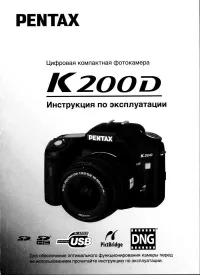 Pentax K200D Manual
 Pentax MZ-6 Manual
 Pentax MZ-60 Manual
 Pentax Optio 555 Manual
 Pentax Optio A10 Manual
 Pentax Optio A20 Manual
 Pentax Optio E50 Manual
 Pentax Optio I-10 User Manual
 Pentax Optio M20 Manual
 Pentax Optio M30 Manual
 Pentax Optio MX4 Manual