Page 2 - • The SD logo
Thank you for buying the Pentax Optio S Digital Camera.Please read this manual before using the camera in order to getthe most out of all the features and functions. Keep this manualsafe, as it can be a valuable tool in helping you to understand allthe camera's capabilities. Regarding copyrights Ima...
Page 4 - To users of this camera; LCD monitor in this manual are different form the actual product.; Care to be Taken During Handling; • Do not use the camera where it may come in contact with rain, water or
To users of this camera • There is a possibility that recorded data may be erased or that the camera may not function correctly when used in surroundings such as installationsgenerating strong electromagnetic radiation or magnetic fields. • The liquid crystal panel used in the LCD display is manufac...
Page 5 - Contents
5 4 Changing the AF Area (Focusing Area) ·······································45Setting the Light Metering Range to Determine the Exposure (AE Metering) ···············································································46Setting the Sensitivity ········································...
Page 6 - Contents of the Operating Manual; This Operating manual contains the following chapters.; This chapter explains how to set the camera-related functions.; Settings ······················································································110
7 Picture Mode Contents of the Operating Manual This Operating manual contains the following chapters. Caution indicates the reference page number for anexplanation of the related operation. ☞ indicates precautions to be taken when operating the camera. The icons above the title show the Capturemode...
Page 7 - Name of Parts; Front; Checking the Contents of the Package; About items marked with (
9 8 Name of Parts Front Back Power switch Remote control receiver Shutter release button Built-in flash Flashlight sensor Lens Self-timer lamp DC input terminal Microphone Strap lug PC/AV terminal Terminal cover Viewfinder LCD monitor Battery/Card cover Tripod socket Checking the Contents of the Pac...
Page 8 - Getting Started; Attaching the Strap; Names of Operating Parts; Guide indications
11 Getting Star ted 10 Pass the narrow end of the strap through the strap lug and passthe other end through the loop. Getting Started Attaching the Strap Focus status lamp (green)Flash status lamp (red) / button / / / button Shutter release buttonPower switch Zoom / / button Four-way controller (OK ...
Page 9 - Installing the Battery; Insert the battery with; Powering the Camera; Charging the Battery; Connect the AC plug cord to the battery charger.
13 Getting Star ted 12 Getting Star ted Caution Installing the Battery Install the battery provided. When using the camera for the firsttime, charge the battery before installing. z Slide the battery/card cover in the direction indicated bythe arrow and flip the cover open. x Insert the battery with...
Page 10 - Connect the AC plug cord to the AC adapter.; Battery Level Indicator
14 Getting Star ted 15 Getting Star ted Caution Using the AC Adapter (optional) If you intend to use the LCD monitor for a long time or connect thecamera to a PC, use of the AC adapter D-AC8 (optional) is recom-mended. z Make sure that the camera is turned off and open the terminal cover. x Connect ...
Page 11 - or in the Built-in memory if no card is inserted (; Installing the SD Memory Card/MultiMediaCard
17 Getting Star ted 16 Getting Star ted Precautions When Using a SD Memory Card/MultiMediaCard • Make sure that the camera is turned off before opening the battery/Card cover. • The SD Memory Card/MultiMediaCard is equipped with a write-protect switch. Setting the switch to [LOCK] protects theexisti...
Page 12 - Setting the Home Town; The screen for setting the next item will be displayed.; Setting the Display Language; to select the display language.; • You can change the setting after it has been made. Refer to; Initial Settings
19 Getting Star ted 18 Getting Star ted Setting the Home Town You can choose the city (Home Town) inwhich you will use the camera. z Press the four-way controller ( ) to select the desired city (HomeTown). x Press the four-way controller ( ). The screen for setting the next item will be displayed. •...
Page 13 - Setting the Date and Time; Repeat Step
21 Getting Star ted 20 Getting Star ted n When you have finished the settings, press the OK but-ton when the clock reaches 00 seconds. The camera is ready to take a picture.When you set date and time except the initial settings,press the OK button again after pressing the OK buttonwhen the clock rea...
Page 14 - Quick Start; Quic; Press the shutter release button.; Using the Shutter Release Button; Press halfway; Instant Review; Taking Still Pictures; Press the power switch.
23 Quic k Star t 22 Quick Start Quic k Star t c Press the shutter release button. The image will be displayed on the LCD monitor for 1second (Instant Review) and recorded on the SD Memory Card/MultiMediaCard or the Built-in memo-ry. (The green and red lamps on the right of theviewfinder blink altern...
Page 15 - Deleting the displayed image.; Playing Back Still Pictures; Playing Back Previous or Next Images; Press the Playback button after taking a picture.
25 Quic k Star t 24 Quick Start Quic k Star t Deleting the displayed image. During this time you can erasethe image by pressing the button (The Delete screen will bedisplayed.), press the four-waycontroller ( ) to select [Delete], and then pressing the OK button.Press the Playback button againor pre...
Page 16 - Viewing images on a PC; Viewing Images with your PC; Printing images by a printing service; Setting the Printing Service; How to View the Recorded Images; Viewing images on the camera; Viewing images on a TV; Viewing Images on a TV
27 Quic k Star t 26 Quic k Star t Viewing images on a PC Once you have installed the USB driver on your PC, you can viewrecorded images and edit them on your PC just by connecting thecamera to the PC with the USB cable and downloading the images.Or you can remove the SD Memory Card/MultiMediaCard fr...
Page 17 - Using the Button Functions; Common Operations; Turning the Camera On and Off; Playback Only Mode; Capture Mode
28 Common Oper ations 29 Common Oper ations Using the Button Functions Common Operations Turning the Camera On and Off z Press the power switch. (The power switch is illuminatedby a green light.) The camera will turn on.When the camera is turned on, the lens extends.Press the power switch again to t...
Page 18 - Playback Mode
30 Common Oper ations 31 Common Oper ations Playback Mode button Deletes the image. ( ☞ p.84) button Protects the image from erasure. ( ☞ p.87) Zoom / / button displays nine images at once. ( ☞ p.82) – + changes the size of the Zoom Display image, dis- played on the LCD monitor. ( ☞ p.79) Four-way c...
Page 19 - How to Set the Menus; Press the MENU button.; Setting the Menus; Example of menu operation
33 Common Oper ations 32 Common Oper ations Caution When you press the MENU button, the menus are displayed on theLCD monitor. You can set functions, save the settings, and change thecamera settings on these menus. How to Set the Menus When you are making settings from a menu, a guide to opera-tion ...
Page 20 - Menu List
[ Set-up] Menu Item Description Reference Format For formatting the SD Memory Card/MultiMediaCard p.110 World Time For setting the world time p.114 Sound For setting the startup, shutter, button operation sounds, and the vol-ume p.111 Date Adjust For adjusting the date and time p.114 Language/ For c...
Page 21 - Selecting the Focus Mode; Focus Mode; Press the; or; button in Capture mode.; Changing the Mode; Switching between Capture Mode and Playback Mode; The virtual mode dial appears.; Setting the Shooting Functions
37 T aking Pictures 36 T aking Pictures Selecting the Focus Mode Focus Mode z Press the or button in Capture mode. The focus mode changes each time the button is pressedand the setting is displayed on the LCD monitor.The camera is ready to take the picture in the set focus mode. • The default settin...
Page 22 - aking Pictures; Selecting the Flash Mode; Manual Focus
Caution 38 T aking Pictures 39 T aking Pictures memo Selecting the Flash Mode • The flash is off when the Capture mode is set to , continu- ous shooting or infinity-landscape. • The flash discharges a total of 3 times, 2 pre-flashes and the third time to take the picture. (In the red-eye reduction m...
Page 23 - Selecting the Recorded Pixels; Displaying Shooting Information in Capture Mode; • The display cannot be turned off in; xc
40 T aking Pictures 41 T aking Pictures Caution Selecting the Recorded Pixels You can choose the number of recorded pixels from [2048 × 1536], [1600 × 1200], [1024 × 768] and [640 × 480]. z Select [Recorded Pixels] on the[ Rec.Mode] menu. x Use the four-way controller ( ) to change the size. c Press...
Page 24 - Adjusting the Color Balance according to Lighting (White Balance); to select the setting.; Selecting the Quality Levels
42 T aking Pictures 43 T aking Pictures Adjusting the Color Balance according to Lighting (White Balance) You can take pictures in natural colors by adjusting the whitebalance according to the light conditions at the time of shooting. z Select [White Balance] on the[ Rec.Mode] menu. x Press the four...
Page 25 - You can change the angle of the autofocus area.; Press the Display button.
44 T aking Pictures 45 T aking Pictures Changing the AF Area (Focusing Area) You can change the angle of the autofocus area. z Select [Focusing Area] on the [ Rec.Mode] menu. x Use the four-way controller ( ) to change the setting. c Press the OK button. The camera is ready to take thepicture. The A...
Page 26 - Setting the Sensitivity; Sensitivity; to select the sensitivity.; to change the metering mode.
46 T aking Pictures 47 T aking Pictures Setting the Sensitivity You can select the sensitivity to suit the brightness of the sur-roundings. Sensitivity z Select [Sensitivity] on the [ Rec.Mode] menu. x Use the four-way controller ( ) to select the sensitivity. c Press the OK button. The camera is re...
Page 27 - to select the display time.
48 T aking Pictures 49 T aking Pictures Setting the Image Sharpness (Sharpness) You can choose whether you want the image to have sharp orsoft outlines. z Select [Sharpness] on the [ Rec.Mode] menu. x Use the four-way controller ( ) to change the setting from[Normal] to [Hard (+)] or [Soft (–)]. c P...
Page 28 - You can set the image contrast.; Setting the Color Saturation (Saturation); You can set the color saturation.
50 T aking Pictures 51 T aking Pictures Setting the Image Contrast (Contrast) You can set the image contrast. z Select [Contrast] on the [ Rec.Mode] menu. x Use the four-way controller ( ) to change the setting from[Normal] to [Hard (+)] or [Soft (–)]. c Press the OK button. The camera is ready to t...
Page 29 - Taking Pictures; select Standard mode (; EV Compensation
Caution 53 T aking Pictures 52 T aking Pictures Taking Pictures Setting the Functions (Standard Mode) In Standard mode ( ), you can set all the camera functions. z Press the four-way controller ( ) in Capture mode. The virtual mode dial appears. x Use the four-way controller ( ) to select Standard m...
Page 30 - zxc; Picture mode; select the Picture mode dial (
54 T aking Pictures 55 T aking Pictures n v zxc zxcvb Selecting the Picture Mode According to the Shooting Scene (Picture mode) You can select the Picture mode according to the shooting scene. Picture mode There are nine available modes in Picture mode. z Press the four-way controller ( ) in Capture...
Page 31 - Keeping the shutter release button pressed; Taking Movie Pictures (Movie Picture Mode); to display the Movie Picture mode; vb
56 T aking Pictures 57 T aking Pictures Caution Keeping the shutter release button pressed If you keep the shutter release button pressed for more thanone second, pictures will be taken for as long as you keep thebutton pressed. Shooting stops when you take a finger off fromthe shutter release butto...
Page 32 - Taking Panorama Pictures (Panorama Assist Mode); at the top of the dial.; zxcvm
58 T aking Pictures 59 T aking Pictures Caution n Move the camera to the right andtake the second picture. Repeat the above procedure to takethe third and subsequent pictures. m Press the OK button. The screen returns to Step v . To cancel Panorama mode, change to another mode. • The camera cannot j...
Page 33 - zxcvb; Color Filters; The virtual mode dial is displayed.; Setting the slim filter; The camera returns to digital filter mode.
61 T aking Pictures Caution 60 T aking Pictures n zxcvb Taking Pictures with Digital Filters (Digital Filter Mode) You can take pictures using digital filters. The filters consist ofcolor filters such as red, blue and green, and a slim filter thatproduces a slim effect. Color Filters Eight color fil...
Page 34 - Select the viewing mode.; Take the pictures; xcvbnm
63 T aking Pictures 62 T aking Pictures Taking Stereo Pictures (3D Image Mode) You can take 3D pictures using the LCD monitor and view themby the parallel method or cross method (p.65). If you print outthe 3D pictures and look at them through the 3D image viewerprovided, the image will appear in thr...
Page 35 - Take the first image.
65 T aking Pictures 64 T aking Pictures Viewing 3D pictures by the parallel method and crossmethod As our eyes are positioned about 6 – 7 cm apart, there is a veryslight deviation between what we see with our right eye andwhat we see with our left eye. The difference is processed byour brain to prod...
Page 36 - How to view 3D pictures using the 3D image viewer; direct sunlight as this may lead to fire.
67 T aking Pictures 66 T aking Pictures Example of a 3D picture Caution How to view 3D pictures using the 3D image viewer Print out the pictures so that they are about 11cm or 12cm wideand place the divider of the 3D image viewer in the middle ofthe two. As the distance between the left and right ey...
Page 37 - play; Continuous Shooting (Continuous Shooting Mode); button to display; Playing Back Images
69 T aking Pictures 68 T aking Pictures memo Using the Self-Timer The picture will be taken 10 seconds after the shutter releasebutton is pressed. z Press the four-way controller ( ) in Capture mode to dis- play on the LCD monitor. x Press the shutter release button. The self-timer is engaged and th...
Page 38 - Using the Zoom; You can use the zoom to take pictures in Tele or Wide mode.; Saving the Zoom Position; You cannot use the optical zoom in Movie Picture mode.; Press the four-way controller; meters away from the front of the camera.; Life of the Battery for the Remote Control Unit
71 T aking Pictures 70 T aking Pictures Using the Zoom You can use the zoom to take pictures in Tele or Wide mode. z Press the Zoom button in Capturemode. : makes the subject larger : makes the subject smaller When the digital zoom function isdisabled, you can take pictures atup to 3 times magnifica...
Page 39 - Press the MENU button in Movie Picture mode.; xcv; Enabling the Digital Zoom Function; Press the MENU button in Capture mode.; • If [Slim] has been selected for the digital filter, you cannot
73 T aking Pictures 72 T aking Pictures Taking Time-lapse Movie Pictures (Fast Fwd Movie) This mode lets you take movie pictures at a delayed frame rateso that when you play the movie back, the action appearsspeeded up. This function is useful for recording a bloomingflowers, etc. z Press the MENU b...
Page 40 - Press the OK button twice.; Register Functions in User Mode; Functions registered in User mode; camera is turned off.
74 T aking Pictures 75 T aking Pictures z Press the MENU button in Capturemode. x Press the four-way controller( ) to select [Memory]. c Press the four-way controller ( ). [Memory] menu will be displayed. v Use the four-way controller ( ) to select the item. b Use the four-way controller ( ) to sele...
Page 41 - Press the power switch for more than 2 seconds.; Recording and Playback; Playing Back Sound; zv; The following operations can be performed during play-; Press the Playback button.
76 Recording and Pla ybac k 77 Recording and Pla ybac k You can record sound. The recordable time is displayed on theLCD monitor according to how much space is available on theSD Memory Card/MultiMediaCard. z Press the power switch for more than 2 seconds. The power switch is illuminated by a red li...
Page 42 - You can add a voice memo to a captured image.; Adding a Voice Memo
78 Recording and Pla ybac k You can add a voice memo to a captured image. z Enter the playback mode andchoose the image to which youwant to add a voice memo with thefour-way controller ( ). The voice memo screen will be dis-played on the LCD monitor while theimage is displayed. x Press the OK button...
Page 43 - Press
79 Pla ybac k/Er asing/Editing Caution Playing Back Still Pictures See “Playing Back Images” (p.24), or “Playing Back Previous orNext Images” (p.25). Zoom Display You can display images magnified up to a maximum of 4 times. Aguide to operation is displayed on the LCD monitor during magni-fication. (...
Page 44 - Playing Back Movie Pictures; The following operations can be performed during playback.; Displaying shooting information in Playback mode; Pla
81 Pla ybac k/Er asing/Editing Playing Back Movie Pictures You can play back Movie pictures. A guide to operation is dis-played on the LCD monitor during playback. You can play backthe recording you made in Voice Recorder mode at the sametime. z Enter the Playback mode and choose the movie pictureyo...
Page 45 - Slideshow; zcvb
83 Pla ybac k/Er asing/Editing 82 Pla ybac k/Er asing/Editing Slideshow You can play back all the images on the SD Memory Card/MultiMediaCard continuously. z Enter the Playback mode and choose the image withwhich to start the slideshow with the four-way controller( ). x Press the MENU button. The [ ...
Page 46 - Erasing a Voice Memo only; Erasing a Single Image or Voice Memo; Erasing Images; zcv
84 Pla ybac k/Er asing/Editing 85 Pla ybac k/Er asing/Editing Erasing a Voice Memo only If an image has a voice memo, you can erase the voice memowithout erasing the image. z Enter the Playback mode and choose the image with thevoice memo that you want to erase with the four-waycontroller ( ). x Pre...
Page 47 - Protecting All Images; Enter the Playback mode.; Erasing All Images
86 Pla ybac k/Er asing/Editing 87 Pla ybac k/Er asing/Editing Caution Protecting Images/sound from Deletion (Protect) You can protect images/sound from being accidentally erased. z Enter the Playback mode and choose the image/soundyou want to protect with the four-way controller ( ). x Press the but...
Page 48 - Open the terminal cover and connect the AV cable.; Printing Single Image; Set the following items for each image.; Copies; Set the number of prints up to a maximum of 99.; ) to choose the image for which you want to make
88 Pla ybac k/Er asing/Editing Viewing Images on a TV 89 Pla ybac k/Er asing/Editing By using the AV cable, you can capture and play back imageson a TV or other equipment with a video IN jack. Make sure thatboth the TV and the camera are turned off before connectingthe cable. z Open the terminal cov...
Page 49 - Printing All Images; zcvbn
90 Pla ybac k/Er asing/Editing 91 Pla ybac k/Er asing/Editing Caution c Use the four-way controller ( ) to select the number of prints, thenpress the four-way controller ( ). The frame will move to [Date]. v Use the four-way controller ( ) to select whether to insert the date ornot. (On) : The date ...
Page 50 - Changing the Image Size; Editing Images; The image will be resized.
93 Pla ybac k/Er asing/Editing 92 Pla ybac k/Er asing/Editing Changing the Image Size By changing the size and quality of a selected image, you canmake the file smaller than the original. After changing the size,the image can be saved as a new image or written over theoriginal image. z Press the MEN...
Page 51 - Trimming Images; Copying Files
95 Pla ybac k/Er asing/Editing 94 Pla ybac k/Er asing/Editing Trimming Images You can trim part of a picture and save it as a separate image. z Press the MENU button. x Press the four-way controller ( ). The [ Playback] menu will be displayed. c Press the four-way controller ( ) to select [Trimming]...
Page 52 - About the included software; Pentium or later recommended; Installing the software; • If you are using Windows 2000 or Windows XP; If the PENTAX Software Installer screen is not displayed; Installing the USB Driver
97 Pla ybac k/Er asing/Editing 96 Pla ybac k/Er asing/Editing Caution Viewing Images with your PC By using the provided USB cable (I-USB7) or card reader andimage-browser software, you can transfer images recorded withthe camera to your PC and edit them or print them out.This section explains how to...
Page 53 - Reboot your computer after the screen closes.; Double click your applicable language.; Turn on your computer.; Double click your applicable language.
98 Pla ybac k/Er asing/Editing 99 Pla ybac k/Er asing/Editing b Click [Next] and then click [Finish]. Reboot your computer after the screen closes. n Turn your camera off and plug the USB cable into yourcamera and into an available USB port on your computer. m Turn your camera on. Your computer will...
Page 54 - Displaying and copying images using ACDSeeTM; Turn your computer on.; Joining Panorama Images Using ACD Photostitcher; Start up ACDSee
100 Pla ybac k/Er asing/Editing 101 Pla ybac k/Er asing/Editing Displaying and copying images using ACDSee™ z Turn your computer on. x Make sure the camera is turned off and connect it toyour computer with the USB cable. Make sure that there is an SD Memory Card/MultiMediaCard in the camera. c Turn ...
Page 55 - Adjust the position of the images.
b Trim the picture. If you move the mouse pointer onto the dotted line aroundthe picture, the pointer changes to a symbol. Trim the picture by pressing the left mouse button and moving thedotted line.When you have finished trimming, click the [Trimming] but-ton. n Save the picture. When you are sati...
Page 56 - Disconnecting your camera from your PC; A message will appear.; Disconnecting your camera from your PC (Windows XP)
104 Pla ybac k/Er asing/Editing 105 Pla ybac k/Er asing/Editing Disconnecting your camera from your PC Disconnecting the camera from your PC (Windows 2000/Me) z Double click the [Unplug oreject hardware] icon in thetask bar recognized area. The [Unplug or eject hard-ware] screen will appear. x Make ...
Page 57 - Viewing Images with your Macintosh; Power PC 266MHz or higher; Turn on your Macintosh.; Installing ACDSeeTM
107 Pla ybac k/Er asing/Editing 106 Pla ybac k/Er asing/Editing Caution Viewing Images with your Macintosh By using the provided USB cable (I-USB7) or card reader andimage-browser software, you can transfer images recorded withthe camera to your Macintosh and edit them or print them out.This section...
Page 58 - Turn your Macintosh on.; Disconnecting the camera from your Macintosh; Unplug the USB cable from your Macintosh and camera.
108 Pla ybac k/Er asing/Editing 109 Pla ybac k/Er asing/Editing Displaying and copying images using ACDSee™ z Turn your Macintosh on. x Make sure the camera is turned off and connect it toyour Macintosh with the USB cable. Make sure that there is an SD Memory Card/MultiMediaCard in the camera. c Tur...
Page 59 - Changing the Sound Settings; Changing the volume; Changing the type of start-up, shutter or operation sound; Settings; Camera Settings
111 Settings 110 Settings Changing the Sound Settings You can change the volume of the start-up sound, shutter soundand button sounds. You can also change the type of each sound. Changing the volume z Select [Sound] on the [ Set-up] menu. x Press the four-way controller ( ). The Sound screen will be...
Page 60 - Setting the Date Style; The style in which the time is displayed is set by [Date Adjust].; Changing the Start-up Screen
113 Settings 112 Settings Setting the Date Style You can set the style in which the date is displayed on the cam-era. Choose [mm/dd/yy], [dd/mm/yy] or [yy/mm/dd]. z Select [Date Style] on the [ Set-up] menu. x Use the four-way controller ( ) to change the date style. c Press the OK button. The camer...
Page 61 - ) to select the World; Changing the Date/Time
115 Settings c Switch [ ] and [ ] with the four-way controller ( ). : The time in the country selected in World Time will be dis- played. : The time in the country selected in Home Time will be dis- played. v Press the four-way controller ( ). If New York is selected as the world time city, then the...
Page 62 - Changing the Video Output Format; ) to change the video; Changing the Display Language; The camera is ready to take or play back images.
117 Settings 116 Settings Changing the Video Output Format You can select the output format (NTSC or PAL) for taking orplaying back images on a TV monitor. z Select [Video Out] on the [ Set-up] menu. x Use the four-way controller ( ) to change the video output format. c Press the OK button. The came...
Page 63 - Setting the Quick Delete Function; Setting the Quick Zoom Function; The camera is ready to capture or play back images.; Sleep Timeout; Setting Auto Power Off; The camera is ready to capture or play back images.
119 Settings 118 Settings Setting the Quick Delete Function When the Quick Delete function is set to On, the Delete screenwill be displayed when [Delete] or [Delete All] is selected. z Select [Quick Delete] on the [ Set-up] menu. x Use the four-way controller ( ) to select [On] or [Off] c Press the ...
Page 64 - Registering Functions; Registering a function; ) to choose the function; Retrieving a function
121 Settings 120 Settings Resetting to Default Settings (Reset) You can reset all the settings other than the date and time, lan-guage, world time and alarm. z Select [Reset] on the [ Set-up] menu. x Press the four-way controller button ( ). The Reset screen will be displayed. c Use the four-way con...
Page 65 - Checking the Alarm; Setting the Alarm; The list of alarms will be displayed.; Turning the Alarm Off; • To stop the alarm ringing, press any button.
123 Settings 122 Settings You can set the alarm to ring at a specified time and display aselected image. Checking the Alarm z Press the MENU button. x Press the four-way controller ( ). The [ Playback] menu will be displayed. c Press the four-way controller ( ) to select [Alarm]. v Press the four-wa...
Page 66 - Appendix; List of City Names; Code; Optional Accessories
124 Appendix 125 Appendix Refer to following list of city and code names for setting the world time. Appendix List of City Names Code PPG City names Pagopago Code THR City names Tehran HNL Honolulu DXB Dubai ANC Anchorage KHL Karachi YVR Vancouver KBL Kabul SFO San Francisco MLE Male LAX Los Angeles...
Page 67 - Messages
126 Appendix 127 Appendix Deleting The largest file number has been assigned toan image and no more images can be saved.Insert a new SD Memory Card/MultiMediaCardor format the SD Memory Card/MultiMediaCardor Built-in memory. (p.110) The image is being deleted. Image folder could not becreated. The b...
Page 68 - Troubleshooting
128 Appendix 129 Appendix Problem Cause Remedy Subject is not infocus Subject difficult tofocus on Subjects difficult to focus on usingautofocus: objects with little contrast(blue sky, white walls, etc.), darkobjects, finely patterned objects,fast-moving objects, scenery throughwindow or net, etc. L...
Page 69 - Main Specifications
130 Appendix 131 Appendix 30 sec. × 3 3.34 megapixels (total pixels) 1/2.5 inch interline transfer CCD witha primary color filter Still JPEG (Exif2.2), DCF, DPOF, PRINT Image Matching II Movie AVI (Open DML Motion JPEG), approx. 12 fps, with sound Sound WAV (ADPCM system), max. recording time 59 min...
Page 70 - WARRANTY POLICY; • This warranty policy does not affect the customer's statutory
All Pentax cameras purchased through authorized bona fide photo-graphic distribution channels are guaranteed against defects ofmaterial or workmanship for a period of twelve months from date ofpurchase. Service will be rendered, and defective parts will bereplaced without cost to you within that per...
Page 71 - Declaration of Conformity; According to 47CFR, Parts 2 and 15 for; Class B Personal Computers and Peripherals; Located at: 35 Inverness Drive East; * Consult the dealer or an experienced radio/TV technician for help.; For customers in Canada
135 Appendix Declaration of Conformity According to 47CFR, Parts 2 and 15 for Class B Personal Computers and Peripherals We: PENTAX U.S.A., Inc. Located at: 35 Inverness Drive East Englewood, Colorado 80112 USAPhone: 303-799-8000 FAX: 303-790-1131 Declare under sole responsibility that the product i...
Page 72 - MEMO
MEMO e05_kb341_110_136_41e.qk 03.2.14 4:09 PM Page 136


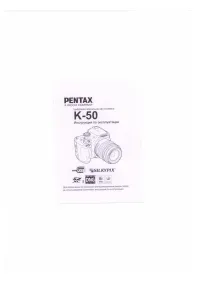
 Pentax Optio A20 Manual
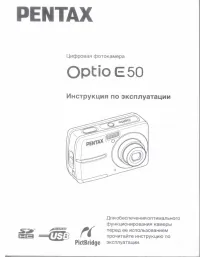 Pentax Optio E50 Manual
 Pentax Optio I-10 User Manual
 Pentax Optio M20 Manual
 Pentax Optio M30 Manual
 Pentax Optio MX4 Manual
 Pentax Optio S4 Manual
 Pentax Optio S5i Manual
 Pentax Optio S5n Manual
 Pentax Optio S5z Manual
 Pentax Optio S6 Manual
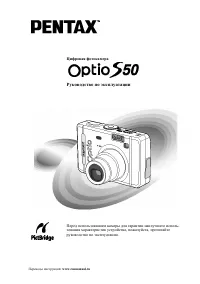 Pentax Optio S50 Manual
 Pentax Optio SV Manual
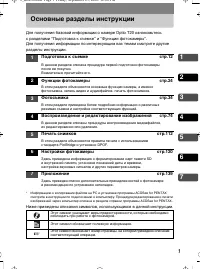 Pentax Optio T20 Manual
 Pentax Optio W20 Manual
 Pentax Optio WS80 Manual
 Pentax Optio X Manual
 Pentax 67II Manual