Page 2 - Declaration of Conformity; According to 47CFR, Parts 2 and 15 for; Class B Personal Computers and Peripherals; PENTAX Imaging Company
Thank you for purchasing the PENTAX Optio MX4 Digital Camera.Please read this manual before using the camera in order to get the most out of all the features and functions. Keep this manual safe, as it can be a valuable tool in helping you to understand all the camera’s capabilities. Regarding copyr...
Page 3 - FOR SAFE USE OF YOUR CAMERA; Warning
1 Sufficient attention has been paid to the safety of this product but please pay particular attention to the warnings indicated by the following symbols during use. Warning • Do not attempt to take the camera apart or remodel the camera. High voltages are present within the camera, and there is the...
Page 4 - Caution; About the AC Adapter
2 Caution • Never try to disassemble or short the battery. Also, do not dispose of the battery in fire, as it may explode. • Do not charge any batteries other than rechargeable lithium-ion battery D-LI7. The battery could explode or catch fire. • Do not place your finger on the flash when it is disc...
Page 5 - Care to be Taken During Handling
3 • If lightning should be present during using, unplug the power cord and discontinue using. Continuing to use the product can cause damage to the equipment, fire or electrical shock. • Wipe off the plug of the power cord if it should become covered with dust. This can cause a fire. Caution • Do no...
Page 7 - Contents
5 FOR SAFE USE OF YOUR CAMERA ............................................. 1 Care to be Taken During Handling ................................................... 3 Contents ........................................................................................... 5 Composition of the Operating Man...
Page 8 - Taking Still Pictures; Taking Movies
6 Using the Menus ................................................................................. 43 How to Use the Menus ................................................................... 43 Example of Menu Operation ........................................................... 44 Menu List .........
Page 10 - Appendix
8 Setting the World Time ................................................................. 124 Changing the Display Language .................................................. 126 Changing the Display Mode ......................................................... 126 Changing the Background Color an...
Page 11 - This operating manual contains the following chapters.; Composition of the Operating Manual
9 This operating manual contains the following chapters. Composition of the Operating Manual 1 Getting Started –––––––––––––––––––––––––––––––––––––––– This chapter explains what you need to do after purchasing the camera before you start taking pictures. Be sure to read it and follow the instructio...
Page 12 - Checking the Contents of the Package
10 • Items marked with an asterisk ( ∗ ) are also available as optional accessories. For other optional accessories, refer to “Optional Accessories” (p.135). Checking the Contents of the Package Camera Optio MX4 Strap O-ST17 ( ∗ ) Software (CD-ROM) S-SW23 AV cable I-AVC7 ( ∗ ) USB cable I-USB17 ( ∗ ...
Page 13 - Names of Parts
11 Front Back Names of Parts DC input terminal USB/AV terminal Flash Mode dial Power switch Strap lug Tripod socket Self-timer lamp f button Battery cover Lens Microphone Terminal cover Speaker Flexible LCD monitor SD Memory Card cover lever SD Memory Card cover Grip Shutter release button
Page 14 - Guide Indications; Names of Operating Parts
12 Guide Indications A guide to available button operations appears on the LCD monitor during operation.The buttons are indicated as shown below. Names of Operating Parts Four-way controller ( 2 ) 2 Zoom/ f / y lever Four-way controller ( 3 ) 3 When trimming an image y Four-way controller ( 4 ) 4 DP...
Page 15 - Getting Started; Attaching the Strap; Attach the strap to the camera.
13 1 Getting Started Getting Started Attaching the Strap Attach the cap holder to the lens cap and thread the cord onto the camera strap. Remove the lens cap by pressing the tabs on either side of the cap. 1 Attach the strap to the camera. Pass the narrow end of the strap through the strap lug and p...
Page 16 - Powering the Camera; message is displayed, charge the battery.; Connect the AC plug cord to the battery charger.; When charging is completed, remove the battery from; Charging the Battery
14 1 Getting Started Powering the Camera When using the camera for the first time or when the [Battery depleted] message is displayed, charge the battery. 1 Connect the AC plug cord to the battery charger. 2 Plug the AC plug cord into the power outlet. 3 Place the battery in the charger with the lab...
Page 17 - Open the battery cover on the end of the grip.; Insert the battery with the; Installing the Battery
15 1 Getting Started Insert the battery in the camera. Use one D-LI7 rechargeable lithium-ion battery. 1 Open the battery cover on the end of the grip. Slide the battery cover in the direction indicated by the arrow and flip the cover open . 2 Insert the battery with the 2 symbol facing toward the b...
Page 18 - You can check the battery level by the; • Recycling Batteries
16 1 Getting Started • Image Storage Capacity, Recording Time and Playback Time (at 23°C, LCD monitor on with fully charged D-LI7 battery) The still picture storage capacity is based on measuring conditions in accordance with CIPA standards and the movie recording time and playback time are based on...
Page 19 - Connect the AC power cable to the AC adapter.; Using the AC Adapter
17 1 Getting Started If you intend to use the camera for a long time or connect the camera to a PC, use of the AC adapter D-AC7 (optional) is recommended. 1 Make sure that the camera is turned off and open the terminal cover. 2 Connect the DC terminal on the AC adapter to the DC input terminal on th...
Page 20 - Installing the SD Memory Card; Push the card cover lever toward the LCD monitor.; Close the card cover.
18 1 Getting Started Installing the SD Memory Card This camera uses an SD Memory Card to record captured images. Make sure that the camera is turned off before inserting or removing the SD Memory Card. 1 Push the card cover lever toward the LCD monitor. The card cover opens. 2 Insert the SD Memory C...
Page 22 - Recorded Pixels, Quality Level and Recordable Images; Recorded Pixels and Quality Level for Still Pictures; Selecting the Recorded Pixels
20 1 Getting Started Choose the number of recorded pixels and quality level best suited to your purpose.Higher quality levels and numbers of recorded pixels produce clearer images for printing, but the resulting increase in data volume reduces the total number of pictures that can be taken. Choose t...
Page 23 - Appropriate Frame Rate According to Use; Recorded Pixels and Quality Level for Movies; Selecting the Recorded Pixels for Movies
21 1 Getting Started Choose the number of recorded pixels and quality level best suited to your purpose.The number of recorded pixels indicates the image resolution. Larger sizes produce clearer images, but results in larger filesizes.The frame rate indicates the number of images that are displayed ...
Page 25 - Operating the Camera Parts; The following is an explanation of how to operate the camera parts.; Using the Grip
23 1 Getting Started Operating the Camera Parts The following is an explanation of how to operate the camera parts. Pull the grip out from the camera and rotate it in the direction indicated by the arrow.Adjust the grip to a comfortable position for holding the camera (about 120°). Using the Grip Yo...
Page 26 - Opening the LCD Monitor
24 1 Getting Started You can swivel the LCD monitor 210 degrees vertically and 180 degrees horizontally to ensure easy viewing from different angles. Opening the LCD Monitor Do not apply excessive force when swiveling the LCD monitor. • When you aim the LCD monitor at yourself to take a picture of y...
Page 27 - lever with your index finger and the; Holding the Camera
25 1 Getting Started Holding the camera in your right hand by the grip, operate the shutter release button and the Zoom/ w / x lever with your index finger and the C button with your thumb. To prevent camera shake when using the zoom or taking movies, hold the camera steady with your left hand. Posi...
Page 28 - Press the; Using the Flash
26 1 Getting Started 1 Press the f button on the side of the camera. The flash pops up. Press the area around the PENTAX logo on the cover softly to close the flash. Using the Flash f button
Page 29 - Turning the Camera On and Off; Press the power switch.; Use this mode when you want to play back pictures one after another.; Press the power switch while pressing the; Playback Only Mode
27 1 Getting Started Turning the Camera On and Off 1 Press the power switch. The camera turns on and the power switch lights green.The shooting mode icon and name appear for one second.If the Initial Settings screen or Date Adjust screen appears when you turn the camera on, follow the procedure on p...
Page 30 - Set the mode dial to; Voice Recording Only Mode
28 1 Getting Started This mode lets you use the camera as a voice recorder.Voice Recording Only mode is exclusively for recording sound; you cannot take still pictures or movies in this mode. 1 Set the mode dial to O and press the power switch. The camera turns on in Voice Recording Only mode. Voice...
Page 31 - Initial Settings; If the Initial Settings screen appears; p.30 “Setting the Display Language” “Setting the Date; If the Date Adjust screen appears; p.30 “Setting the Date and Time”
29 1 Getting Started Initial Settings If the Initial Settings screen or Date Adjust screen appears when you turn the camera on, follow the procedure below to set the display language and/or current date and time. If the Initial Settings screen appears 1 p.30 “Setting the Display Language” “Setting t...
Page 32 - You can choose the language in which the menus, error messages, etc.; to choose the display language.; to choose the desired city (Home; Set the current date and time and the display style.; to choose the date and time; Setting the Display Language
30 1 Getting Started You can choose the language in which the menus, error messages, etc. are displayed from the following: English, French, German, Spanish, Italian, Russian, Chinese, Korean and Japanese. 1 Use the four-way controller ( 45 ) to choose the display language. The default setting is En...
Page 33 - Press the OK button when you have finished the settings.
31 1 Getting Started 4 Press the four-way controller ( 5 ). 2 and 3 appear above and below the month. 5 Use the four-way controller ( 23 ) to change the month. 6 Press the four-way controller ( 5 ). 2 and 3 appear above and below the day. 7 Use the four-way controller ( 23 ) to change the day and pr...
Page 34 - Quick Start
32 2 Quick Start Quick Start Taking Still Pictures The standard procedure for taking still pictures is described below. If the flash has been opened, it will fire automatically depending on the light conditions. 1 Pull the grip out and rotate it into position. 2 Open the LCD monitor. 3 Press the pow...
Page 35 - The shutter release button works in a two-step action.; Press halfway; or; Press fully; The picture is taken.; Using the Shutter Release Button; The camera may not be able to focus under the following conditions.
33 2 Quick Start The shutter release button works in a two-step action. Press halfway The focus and exposure are locked when the shutter release button is pressed lightly (halfway). The shutter speed and aperture settings only appear on the LCD monitor when the shutter release button is pressed half...
Page 36 - You can display the still pictures you have taken.; Playing Back Images
34 2 Quick Start Quick Start Playing Back Still Pictures You can display the still pictures you have taken. 1 Press the Q button after taking a picture. The image appears on the LCD monitor. Still pictures can be played back one at a time, proceeding either forward or backward. 1 Press the Q button ...
Page 37 - Rotating the Displayed Image; Deleting the Displayed Image
35 2 Quick Start 1 Press the Q button after taking a picture. The image appears on the LCD monitor. 2 Press the four-way controller ( 3 ). The image is rotated 90 degrees clockwise each time the button is pressed. You can delete the image displayed on the LCD monitor by pressing the i button, using ...
Page 38 - The standard procedure for recording movies is described below.; Pull the grip out and rotate it into position.
36 2 Quick Start Quick Start Taking Movies The standard procedure for recording movies is described below. 1 Pull the grip out and rotate it into position. 2 Open the LCD monitor. 3 Press the power switch. The camera turns on. 4 Press the C button. Recording starts. You can change the captured area ...
Page 39 - You can play back the movies you have taken.; Playing Back Movies
37 2 Quick Start Quick Start Playing Back Movies You can play back the movies you have taken. 1 Press the Q button after taking a movie. The image appears on the LCD monitor.The first frame appears on the monitor and h appears on the movie. 2 Press the four-way controller ( 2 ). Playback starts.Pres...
Page 40 - Common Operations; Understanding the Button Functions; OK button; MENU button; Capture Mode
38 3 Commo n Oper atio ns Common Operations Understanding the Button Functions Shutter release button Starts taking still pictures. ( 1 p.32) C button Starts recording movies. When pressed again, stops recording. ( 1 p.86) OK button Changes the information displayed on the LCD monitor. ( 1 p.66 ) Di...
Page 42 - Playback Mode
40 3 Commo n Oper atio ns Shutter release button Stops playback and switches to the Capture mode. ( 1 p.32) C button Stops playback and switches to the Capture mode. ( 1 p.32) OK button Changes the information displayed on the LCD monitor. ( 1 p.101) Saves your current menu selection. ( 1 p.43) MENU...
Page 44 - Voice Recording Mode
42 3 Commo n Oper atio ns Shutter release button When pressed, starts recording, and when pressed again, stops recording. When pressed for more than one second, recording continues for as long as the button is held down and stops when the button is released. C button When pressed during recording, a...
Page 45 - Using the Menus; to change the setting.; How to Use the Menus
43 3 Commo n Oper atio ns Using the Menus When you press the MENU button, a menu appears on the LCD monitor. The menu varies depending on the camera mode. You can set functions, save the settings and change the camera settings on these menus. When you are making settings from a menu, a guide to oper...
Page 46 - Example of Menu Operation; Capture mode
44 3 Commo n Oper atio ns Example of Menu Operation To the next screen [ A Rec. Mode] Menu MENU MENU AWB 2 3 0 4 1 0 0 R e c . M o d e R e c o r d e d P i x e l sQ u a l i t y L e v e lW h i t e B a l a n c eF o c u s i n g A r e aA E M e t e r i n gS e n s i t i v i t y E x i t OK OK [ C Movie Mode...
Page 47 - Playback mode
45 3 Commo n Oper atio ns • The [ A Rec. Mode] menu appears when you press the MENU button in Capture mode, and the [ Q Playback] menu appears when you press the MENU button in Playback mode. • You can change the menu displayed on the LCD monitor to the [ A Rec. Mode], [ C Movie Mode], [ Q Playback]...
Page 48 - Menu List
46 3 Commo n Oper atio ns [ A Rec. Mode] Menu This menu shows the functions related to taking still pictures. Some of the functions are also used for taking movies. Yes..... AdjustableNo ...... Any changes made are invalid. You can change the setting on the menu, but any changes you make are invalid...
Page 49 - This menu is only for movies.
47 3 Commo n Oper atio ns [ C Movie Mode] menu This menu is only for movies. [ Q Playback] Menu [ B Set-up] Menu Item Description Default Setting Page Recorded Pixels For selecting the number of pixels 640 (640×480) p.91 Quality Level For selecting the quality level for movies C (Best) p.92 Frame Ra...
Page 50 - Capture Modes; Selecting a Still Picture Mode
48 4 T aking Still Pictur es Taking Still Pictures Taking Still Pictures There are various ways of capturing images, from modes where the camera automatically sets the shooting functions to obtain the best pictures, to modes where settings are made manually to achieve a particular effect. Capture Mo...
Page 51 - In
49 4 T aking Still Pictur es In R (Program) mode, the camera automatically sets the shutter speed and aperture for taking still pictures. However, you can select other functions such as the flash mode or continuous shooting mode. 1 Set the mode dial to R . 2 Set the functions you want to use. Refer ...
Page 52 - Selecting the Picture Mode According to the
50 4 T aking Still Pictur es You can select the Picture mode according to the shooting scene.There are ten available modes in Picture mode. Selecting the Picture Mode According to the Shooting Scene (Picture Mode) q Landscape Lets you capture the bright colors of landscape views by emphasizing the c...
Page 53 - Use the four-way controller; Press the shutter release button fully.
51 4 T aking Still Pictur es 1 Set the mode dial to d . 2 Press the four-way controller ( 3 ). The Picture mode options screen appears. 3 Use the four-way controller ( 2345 ) to choose a Picture mode. 4 Press the OK button. The Picture mode is selected. 5 Press the shutter release button halfway. Th...
Page 54 - You can use the zoom to change the shooting area.; lever in
52 4 T aking Still Pictur es d R b c a C You can use the zoom to change the shooting area. 1 Press the Zoom/ w / x lever in Capture mode. x (Tele) : enlarges the subject. w (Wide) : enlarges the area captured by the camera. The zoom bar indicates the current level of magnification. When the digital ...
Page 55 - Press the MENU button in Capture mode.; Two-Speed Zoom Operation; Setting the Digital Zoom
53 4 T aking Still Pictur es The zoom can be operated at high speed or at low speed.Pressing the zoom lever gently toward w or x slowly changes the zoom magnification (low-speed zoom). Zoom adjustment stops when you remove your finger from the lever.Pressing the zoom lever all the way toward w or x ...
Page 56 - release button is pressed.
54 4 T aking Still Pictur es d R b c a C In self-timer mode, the picture is taken a fixed time after the shutter release button is pressed. Use the 10-second self-timer when you want to be included in a group picture. Use the 2-second self-timer to avoid camera shake when you press the shutter relea...
Page 57 - Continuous Shooting (Continuous Shooting/
55 4 T aking Still Pictur es d R b c a Pictures are taken continuously while the shutter release button is pressed. 1 Press the m button in Capture mode to display j or p on the LCD monitor. 2 Press the shutter release button halfway. The focus frame turns green if the subject is in focus. 3 Press t...
Page 58 - to choose a digital filter.
56 4 T aking Still Pictur es R b c a You can take pictures using digital filters in a variety of colors, such as red, blue and green. 1 Press the MENU button in Capture mode. The [ A Rec. Mode] menu appears. 2 Use the four-way controller ( 23 ) to select [Digital Filter]. 3 Press the four-way contro...
Page 60 - exposure and white balance over a series of three shots when the; Auto Bracket Settings; Set the mode dial to other than; Varying the Settings Automatically
58 4 T aking Still Pictur es R b c a Auto bracketing can be used to automatically vary settings such as the exposure and white balance over a series of three shots when the shutter release button is pressed. This simple operation ensures that you are able to get the best shots. Auto Bracket Settings...
Page 62 - You can take a number of images and join them together to form a; Taking Panorama Pictures (Panorama Assist)
60 4 T aking Still Pictur es d You can take a number of images and join them together to form a panorama picture. The panorama software on the CD-ROM (S-SW23) supplied with the camera (ACDSee for PENTAX) and a computer are necessary for joining the images. The Panorama Assist enables you to overlap ...
Page 63 - Take the first image.
61 4 T aking Still Pictur es 6 Take the first image. Press the shutter release button to take the first image. The right edge of the image appears in semi-transparent form on the left of the LCD monitor. 7 Move the camera to the right and take the second image. Move the camera until the semi-transpa...
Page 64 - Shutter Priority Shooting
62 4 T aking Still Pictur es b In this mode, you can set the shutter speed manually. The camera automatically sets the aperture to obtain the optimal exposure at the shutter speed you have chosen. Use this mode when you want to emphasize movement by setting a slow shutter speed to take a moving subj...
Page 65 - Aperture Priority Shooting
63 4 T aking Still Pictur es c In this mode, you can set the aperture manually. The camera automatically sets the shutter speed to obtain the optimal exposure at the aperture value you have chosen. Decreasing the aperture value will produce a picture with a blurred background. Increasing the value w...
Page 66 - Manual Shooting
64 4 T aking Still Pictur es a In this mode, you can set the shutter speed and aperture manually. This mode allows you to produce different creative effects in your pictures. 1 Set the mode dial to a . 2 Use the four-way controller ( 23 ) to change the aperture value. Pressing 2 increases the apertu...
Page 67 - Using a Wide Angle Conversion Lens (Optional)
65 4 T aking Still Pictur es The L-WC17 wide angle conversion lens is available as an optional accessory. ( 1 p.135) Simply screwing this useful accessory onto the front of the camera provides a wide angle equivalent to 27.75 mm (1.1 in) on a 35 mm (1.4 in) camera. Using a Wide Angle Conversion Lens...
Page 68 - Displaying Shooting Information in
66 4 T aking Still Pictur es Displaying Shooting Information in Capture Mode The LCD monitor display changes each time you press the OK button. If [FILT.] has been registered on the OK button, change the setting to [DISPLAY] on the [ B Set-up] menu. ( 1 p.126) Norm. (Normal display) Shooting informa...
Page 69 - Setting the Still Picture Shooting; button is for; Press the shutter release button halfway.; Shooting and Playback; To Change from Capture Mode to Playback Mode
67 4 T aking Still Pictur es Setting the Still Picture Shooting Functions Capture mode is for taking and recording images. The shutter release button is for taking still pictures in Capture mode and the C button is for taking movies.Playback mode is for viewing captured pictures. The displayed pictu...
Page 70 - Selecting the Focus Mode
68 4 T aking Still Pictur es d R b c a C Focus Modes 1 Press the ) button in Capture mode. The focus mode changes each time the button is pressed and the icon appears on the LCD monitor.The camera is ready to take pictures in the selected focus mode. Selecting the Focus Mode (No icon) Autofocus mode...
Page 71 - The procedure for setting the focus manually is described below.; Manual Focus
69 4 T aking Still Pictur es The procedure for setting the focus manually is described below. 1 Press the ) button in Capture mode to display z . The central portion of the screen is magnified twice as large when focusing. 2 Press the four-way controller ( 23 ). The indicator appears on the LCD moni...
Page 72 - Selecting the Flash Mode
70 4 T aking Still Pictur es d R b c a Flash Modes 1 Press the b button in Capture mode. The flash mode changes each time the button is pressed and the icon appears on the LCD monitor.The camera is ready to take pictures in the selected flash mode. Selecting the Flash Mode (No icon) Auto The flash d...
Page 73 - You can adjust the amount of light emitted by the flash.; Adjusting the Flash Intensity
71 4 T aking Still Pictur es d R b c a You can adjust the amount of light emitted by the flash. 1 Press the MENU button in Capture mode. The [ A Rec. Mode] menu appears. 2 Use the four-way controller ( 23 ) to select [Flash Exp. Comp.]. 3 Use the four-way controller ( 45 ) to change the light emissi...
Page 75 - Selecting the Quality Level
73 4 T aking Still Pictur es d R b c a Image quality refers to the compression rate of still pictures.The more stars, the higher the quality and the larger the filesize. The recorded pixels setting also affects the filesize of your pictures ( 1 p.72). Quality Levels 1 Press the MENU button in Captur...
Page 76 - The White Balance screen appears.; Adjusting the White Balance
74 4 T aking Still Pictur es R b c a C You can take pictures in natural colors by adjusting the white balance according to the light conditions at the time of shooting. White Balance Settings 1 Press the MENU button in Capture mode. The [ A Rec. Mode] menu appears. 2 Use the four-way controller ( 23...
Page 77 - Have a blank sheet of white paper ready.; Select; Manual Setting
75 4 T aking Still Pictur es Have a blank sheet of white paper ready. 1 Select K (manual) on the White Balance screen. 2 Point the camera at the blank sheet of paper so that it fills the screen of the LCD monitor. 3 Press the Q button. The shutter is released and the white balance is automatically a...
Page 78 - Changing the Focusing Area
76 4 T aking Still Pictur es d R b c a You can change the autofocus area (Focusing Area). Focusing Area 1 Press the MENU button in Capture mode. The [ A Rec. Mode] menu appears. 2 Use the four-way controller ( 23 ) to select [Focusing Area]. 3 Use the four-way controller ( 45 ) to change the setting...
Page 80 - Setting the Sensitivity
78 4 T aking Still Pictur es d R b c a C You can select the sensitivity to suit the brightness of the surroundings. Sensitivity Settings 1 Press the MENU button in Capture mode. The [ A Rec. Mode] menu appears. 2 Use the four-way controller ( 23 ) to select [Sensitivity]. 3 Use the four-way controll...
Page 81 - Setting the Instant Review Time (Instant Review)
79 4 T aking Still Pictur es d R b c a You can choose the Instant Review time from 1 sec, 2 sec, 3 sec, 5 sec and Off (no display). 1 Press the MENU button in Capture mode. The [ A Rec. Mode] menu appears. 2 Use the four-way controller ( 23 ) to select [Instant Review]. 3 Use the four-way controller...
Page 83 - You can set the color saturation.; Setting the Color Saturation (Saturation)
81 4 T aking Still Pictur es R b c a C You can set the color saturation. 1 Press the MENU button in Capture mode. The [ A Rec. Mode] menu appears. 2 Use the four-way controller ( 23 ) to select [Saturation]. 3 Use the four-way controller ( 45 ) to change the setting from x [Normal] to z [High (+)] o...
Page 84 - You can set the image contrast.
82 4 T aking Still Pictur es R b c a C You can set the image contrast. 1 Press the MENU button in Capture mode. The [ A Rec. Mode] menu appears. 2 Use the four-way controller ( 23 ) to select [Contrast]. 3 Use the four-way controller ( 45 ) to change the setting from x [Normal] to z [High (+)] or y ...
Page 87 - to select
85 4 T aking Still Pictur es 1 Press the MENU button in Capture mode. The [ A Rec. Mode] menu appears. 2 Use the four-way controller ( 23 ) to select [Memory]. 3 Press the four-way controller ( 5 ). The Memory screen appears. 4 Use the four-way controller ( 23 ) to choose an item. 5 Use the four-way...
Page 88 - This mode lets you take movies. Sound is recorded at the same time.; Recording Movies
86 5 T aking Mo vies Taking Movies Recording Movies This mode lets you take movies. Sound is recorded at the same time. 1 Press the C button in Capture mode. Recording starts. The following information appears on the LCD monitor. 1 Movie mode icon 2 Recording indicator (blinks during recording) 3 Re...
Page 89 - Recording starts when you keep the; Using the Zoom When Taking Movies
87 5 T aking Mo vies Recording starts when you keep the C button pressed for more than one second. Recording will continue for as long as you keep the button pressed. Recording stops when you take your finger off the C button. Using the Zoom When Taking Movies If you use the zoom when taking movies,...
Page 91 - play the movie back at the normal frame rate, the action appears; Taking Time-lapse Movies
89 5 T aking Mo vies C This mode lets you take movies at a delayed frame rate so that when you play the movie back at the normal frame rate, the action appears speeded up. For example, if you choose the ×2 setting, half the normal number of frames will be taken, so that when you play the movie back ...
Page 92 - Setting the Movie Shooting Functions
90 5 T aking Mo vies Setting the Movie Shooting Functions There are a number of functions that you can set for recording movies.However, the following functions use the settings for taking still pictures. Refer to the relevant reference pages listed below.Adjusting the White Balance 1 p.74 Setting t...
Page 93 - You can choose the number of recorded pixels for movies from; Recorded Pixels for Movies
91 5 T aking Mo vies C You can choose the number of recorded pixels for movies from [640×480], [320×240] and [160×120]. The more pixels, the bigger the picture and the larger the filesize. The quality level setting also affects the filesize of your pictures ( 1 p.92). Recorded Pixels for Movies 1 Pr...
Page 94 - Selecting the Quality Level of Movies
92 5 T aking Mo vies C The more stars, the higher the quality and the larger the filesize. The recorded pixels setting also affects the filesize of your pictures ( 1 p.91). Quality Levels of Movies 1 Press the MENU button in Capture mode. The [ A Rec. Mode] menu appears. 2 Use the four-way controlle...
Page 95 - Selecting the Frame Rate
93 5 T aking Mo vies C The frame rate refers to the number of frames taken per second. The higher the frame rate, the better the quality and the larger the filesize. There are two frame rates to choose from: 30fps and 15fps. 1 Press the MENU button in Capture mode. The [ A Rec. Mode] menu appears. 2...
Page 96 - Recording and Playback Sound; You can record sound with the camera.
94 6 Rec o rd in g an d Pla y b ack Sound Recording and Playback Sound Recording Sound (Voice Recording Mode) You can record sound with the camera. 1 Set the mode dial to O and press the power switch. The remaining recording time and the recording time of the current file appear on the LCD monitor. ...
Page 97 - Playing Back Sound; You can play back the sound files you made in Voice Recording mode.
95 6 Rec o rd in g an d Pla y b ack Sound Playing Back Sound You can play back the sound files you made in Voice Recording mode. 1 Press the Q button. 2 Use the four-way controller ( 45 ) to choose a sound file to play back. 3 Press the four-way controller ( 2 ). Playback starts. 1 Index position 2 ...
Page 98 - Adding a Voice Memo to Images; You can add a voice memo to your still pictures.; Recording a Voice Memo
96 6 Rec o rd in g an d Pla y b ack Sound Adding a Voice Memo to Images You can add a voice memo to your still pictures. 1 Enter the Playback mode and use the four-way controller ( 45 ) to choose the still picture to which you want to add a voice memo. O appears on the four-way controller operation ...
Page 99 - The following operations can be performed during playback.; Playing Back a Voice Memo
97 6 Rec o rd in g an d Pla y b ack Sound 1 Enter the Playback mode and use the four-way controller ( 45 ) to choose the still picture with the voice memo that you want to play back. If U appears on the displayed image, a voice memo has been recorded. 2 Press the four-way controller ( 2 ). Playback ...
Page 100 - Playing Back and Deleting Still Pictures/Movies; lever toward
98 7 Playin g Back and Deleti ng Still Pictu res/Mo vies Playing Back and Deleting Still Pictures/Movies Playing Back Still Pictures Press the Q button. Refer to “Playing Back Images” (p.34) for instructions. You can display nine images at the same time. 1 Press the Zoom/ f / y lever toward f in Pla...
Page 101 - Zoom Display
99 7 Playin g Back and Deleti ng Still Pictu res/Mo vies \ You can display images magnified up to 12 times. A guide to operation appears on the LCD monitor during magnification. 1 Enter the Playback mode and use the four-way controller ( 45 ) to choose an image to magnify. 2 Press the Zoom/ f / y le...
Page 102 - Press the MENU button in Playback mode.; Setting the Quick Zoom Function
100 7 Playin g Back and Deleti ng Still Pictu res/Mo vies You can display the image at set magnification simply by pressing the Zoom/ f / y lever toward y once during zoom playback. 1 Press the MENU button in Playback mode. The [ Q Playback] menu appears. 2 Use the four-way controller ( 23 ) to sele...
Page 103 - Displaying Shooting Information in Playback Mode
101 7 Playin g Back and Deleti ng Still Pictu res/Mo vies Pressing the OK button in Playback mode changes the display format (Display mode) of the image’s shooting information. Norm. (Normal display) Shooting information is displayed. 1 Voice memo icon 2 Protect icon 3 Card status 4 Folder name 5 Fi...
Page 104 - You can play back all the images on the SD Memory Card one after; Enter the Playback mode and use the four-way; Slideshow
102 7 Playin g Back and Deleti ng Still Pictu res/Mo vies You can play back all the images on the SD Memory Card one after another. 1 Enter the Playback mode and use the four-way controller ( 45 ) to choose the image with which to start the slideshow. 2 Press the MENU button. The [ Q Playback] menu ...
Page 105 - You can play back the movies you have taken. A guide to operation; Enter the Playback mode and use
103 7 Playin g Back and Deleti ng Still Pictu res/Mo vies Playing Back Movies You can play back the movies you have taken. A guide to operation appears on the LCD monitor during playback. Sound is played back at the same time. 1 Enter the Playback mode and use the four-way controller ( 45 ) to choos...
Page 106 - Viewing Still Pictures and Movies on a TV; Turn the TV and camera on.
104 7 Playin g Back and Deleti ng Still Pictu res/Mo vies Viewing Still Pictures and Movies on a TV By using the AV cable, you can capture and play back images on a TV or other equipment with a video IN jack. Make sure that both the TV and the camera are turned off before connecting the cable. 1 Ope...
Page 107 - Deleting; You can delete single images and sound files one at a time.; ) to choose an image or sound file to; Deleting Single Images and Sound Files
105 7 Playin g Back and Deleti ng Still Pictu res/Mo vies Deleting You can delete single images and sound files one at a time. 1 Enter the Playback mode and use the four-way controller ( 45 ) to choose an image or sound file to delete. 2 Press the i button. The Delete screen appears. 3 Use the four-...
Page 108 - When the Quick Delete function is set to; Deleting Voice Memos Only
106 7 Playin g Back and Deleti ng Still Pictu res/Mo vies If an image has a voice memo, you can delete the voice memo without deleting the image. 1 Enter the Playback mode and use the four-way controller ( 45 ) to choose an image with a voice memo to delete. 2 Press the i button. The Delete screen a...
Page 109 - You can delete all the images and sound files at once.; Deleting All Images
107 7 Playin g Back and Deleti ng Still Pictu res/Mo vies You can delete all the images and sound files at once. 1 Press the i button twice in Playback mode. The Delete All screen appears. 2 Use the four-way controller ( 2 ) to select [Delete All]. 3 Press the OK button. All the images and sound fil...
Page 111 - You can protect all your images and sound files.; Protecting All Images and Sound Files
109 7 Playin g Back and Deleti ng Still Pictu res/Mo vies You can protect all your images and sound files. 1 Press the Z button twice in Playback mode. The Protect All screen appears. 2 Use the four-way controller ( 2 ) to select [Protect all]. 3 Press the OK button. All the images and sound files a...
Page 112 - Editing and Printing Still Pictures; Editing Still Pictures; ) to choose an image; Changing the Image Size and Quality (Resize)
110 8 Ed itin g and P rin tin g S till Pic tu re s Editing and Printing Still Pictures Editing Still Pictures By changing the size and quality of a selected image, you can make the file smaller than the original. You can use this function to continue taking pictures when the SD Memory Card is full, ...
Page 113 - to change the quality.
111 8 Ed itin g and P rin tin g S till Pic tu re s 6 Use the four-way controller ( 45 ) to change the number of recorded pixels. 7 Press the four-way controller ( 3 ). The frame moves to [Quality Level]. 8 Use the four-way controller ( 45 ) to change the quality. 9 Press the OK button. 10 Use the fo...
Page 114 - You can trim part of a picture and save it as a separate image.; Trimming Images
112 8 Ed itin g and P rin tin g S till Pic tu re s You can trim part of a picture and save it as a separate image. 1 Press the MENU button in Playback mode. The [ Q Playback] menu appears. 2 Use the four-way controller ( 23 ) to select [Trimming]. 3 Press the four-way controller ( 5 ). Images that c...
Page 115 - Editing Pictures with Digital Filters
113 8 Ed itin g and P rin tin g S till Pic tu re s The digital filters consist of eight color filters: B&W, Sepia, Red, Pink, Purple, Blue, Green and Yellow. The Digital Filter mode enables you to edit pictures using these filters. When the special filter effect has been created, the image appea...
Page 117 - : Specify whether you want the date inserted on the print or not.; Printing Single Images
115 8 Ed itin g and P rin tin g S till Pic tu re s Setting the Printing Service (DPOF) You can print the images on the SD Memory Card using a DPOF (Digital Print Order Format) compatible printer or photo processing lab. Set the following items for each image.Copies : Choose the number of copies up t...
Page 119 - to choose whether to insert the date or not.; Printing All Images
117 8 Ed itin g and P rin tin g S till Pic tu re s 1 Press the g button twice in Playback mode. 2 Use the four-way controller ( 45 ) to choose the number of copies. You can print up to 99 copies. 3 Press the four-way controller ( 3 ). The frame moves to [Date]. 4 Use the four-way controller ( 45 ) t...
Page 120 - Direct Printing Using PictBridge; Connecting the Camera to the Printer
118 8 Ed itin g and P rin tin g S till Pic tu re s Direct Printing Using PictBridge By connecting the camera to a PictBridge-compatible printer using the USB cable (I-USB17) supplied with the camera, you can print images directly from the camera without using a PC. Connect the camera to the printer ...
Page 121 - to choose an image to print.; Use the
119 8 Ed itin g and P rin tin g S till Pic tu re s 1 Use the four-way controller ( 23 ) to select [Print One] on the PictBridge menu. 2 Press the OK button. The Print One screen appears. 3 Use the four-way controller ( 45 ) to choose an image to print. 4 Use the four-way controller ( 23 ) to choose ...
Page 122 - to choose the number of copies.
120 8 Ed itin g and P rin tin g S till Pic tu re s 1 Use the four-way controller ( 23 ) to select [Print All] on the PictBridge menu. 2 Press the OK button. The Print All screen appears. 3 Use the four-way controller ( 23 ) to choose the number of copies. The number of copies you choose applies to a...
Page 123 - Disconnecting the Camera from the Printer
121 8 Ed itin g and P rin tin g S till Pic tu re s Disconnect the camera from the printer when you have finished printing. 1 Disconnect the USB cable from the camera. 2 Disconnect the USB cable from the printer. Disconnecting the Camera from the Printer The camera automatically turns off when the US...
Page 124 - Settings; Camera Settings; Formatting will delete all the data on the SD Memory Card.; Formatting an SD Memory Card
122 9 Settings Settings Camera Settings Formatting will delete all the data on the SD Memory Card. 1 Select [Format] on the [ B Set-up] menu. 2 Press the four-way controller ( 5 ). The Format screen appears. 3 Use the four-way controller ( 23 ) to select [Format]. 4 Press the OK button. Formatting s...
Page 125 - You can adjust the playback volume and the volume of operation; to adjust the volume.; Press the OK button twice.; Changing the Sound Settings; Changing the Playback Volume and Operation Volume
123 9 Settings You can adjust the playback volume and the volume of operation sounds, such as the start-up sound, shutter sound and key operation sound. You can also change the type of sound. 1 Select [Sound] on the [ B Set-up] menu. 2 Press the four-way controller ( 5 ). The Sound screen appears. 3...
Page 126 - Changing the Date and Time
124 9 Settings You can change the initial date and time settings. You can also set the style in which the date appears on the camera. Choose [mm/dd/yy], [dd/mm/yy] or [yy/mm/dd]. 1 Select [Date Adjust] on the [ B Set-up] menu. 2 Press the four-way controller ( 5 ). The Date Adjust screen appears.Ref...
Page 128 - You can change the language in which the menus, error messages, etc.; shooting or playback.; Changing the Display Language
126 9 Settings You can change the language in which the menus, error messages, etc. are displayed. You can choose from English, French, German, Spanish, Italian, Russian, Korean, Chinese (traditional and simplified) and Japanese. 1 Select [Language/ ] on the [ B Set-up] menu. 2 Press the four-way co...
Page 129 - Selecting; You can choose the background color of the menus displayed on the; ) to open the sub menu; Using Screen Effects
127 9 Settings 1 Select [Screen Setting] on the [ B Set-up] menu. 2 Press the four-way controller ( 5 ). The Screen Setting screen appears. Selecting O (On) lets you display various animated effects when you change the image displayed on the LCD monitor. 3 Use the four-way controller ( 23 ) to selec...
Page 130 - You can adjust the brightness of the LCD monitor.; to adjust the brightness.; Adjusting the Brightness of the LCD Monitor
128 9 Settings You can adjust the brightness of the LCD monitor. 1 Select [Brightness Level] on the [ B Set-up] menu. 2 Press the four-way controller ( 5 ). The Brightness Level screen appears. 3 Use the four-way controller ( 45 ) to adjust the brightness. The monitor gets darker as the bar slider m...
Page 132 - Changing the USB Connection Mode
130 9 Settings Choose the appropriate USB connection mode depending on whether you are going to connect the USB cable to a printer or a computer. 1 Select [USB Connection] on the [ B Set-up] menu. 2 Use the four-way controller ( 45 ) to select [PC], [PictBridge] or [PC-F]. [PictBridge]: Select this ...
Page 133 - Setting Sleep Timeout
131 9 Settings You can set the LCD monitor to turn off automatically when no operation is performed for a fixed time. Pressing any button other than the power switch during Sleep Timeout will turn the LCD monitor back on. 1 Select [Sleep Timeout] on the [ B Set-up] menu. 2 Use the four-way controlle...
Page 135 - You can reset all the settings other than the Date Adjust, Language/
133 9 Settings You can reset all the settings other than the Date Adjust, Language/ and World Time. 1 Select [Reset] on the [ B Set-up] menu. 2 Press the four-way controller ( 5 ). The Reset screen appears. 3 Use the four-way controller ( 2 ) to select [Reset]. 4 Press the OK button. The camera is r...
Page 136 - List of City Codes
134 10 Appendix Appendix List of City Codes Refer to the following list of city codes when setting the World Time. TYO Tokyo JNB Johannesburg GUM Guam IST Istanbul SYD Sydney CAI Cairo NOU Noumea JRS Jerusalem WLG Wellington MOW Moscow AKL Auckland JED Jeddah PPG Pago Pago THR Tehran HNL Honolulu DX...
Page 137 - Optional Accessories; A number of dedicated accessories are available for this camera.
135 10 Appendix Optional Accessories A number of dedicated accessories are available for this camera. Wide angle conversion lens L-WC17 ( 1 p.65) AC adapter D-AC7 Rechargeable lithium-ion battery D-LI7 ( ∗ ) Battery charger D-BC7 ( ∗ ) AC plug cord D-CO2 ( ∗ ) D-CO2A Australia D-CO2B United Kingdom ...
Page 138 - Messages
136 10 Appendix Messages Messages such as the following may appear on the LCD monitor during camera operation. No image & sound There are no image/sound files on the SD Memory Card. Memory card full The SD Memory Card is full and no more images can be saved.Insert a new SD Memory Card or delete ...
Page 140 - Troubleshooting
138 10 Appendix Troubleshooting Problem Cause Remedy Camera will not turn on Battery is not installed Check battery is installed. If not, install battery. Battery is installed incorrectly Check orientation of battery.Reinsert battery according to the +- symbols on the battery compartment. (p.15) Bat...
Page 142 - Main Specifications
140 10 Appendix Main Specifications Image Storage Capacity and Recording Time (when using a 64MB SD Memory Card) Type Fully automatic compact digital still camera with built-in zoom lens Effective Pixels 4.0 megapixels Sensor 4.23 megapixels (total pixels) 1/2.7 inch interline transfer CCD with prim...
Page 144 - WARRANTY POLICY
142 10 Appendix WARRANTY POLICY All PENTAX cameras purchased through authorized bona fide photographic distribution channels are guaranteed against defects of material or workmanship for a period of twelve months from date of purchase. Service will be rendered, and defective parts will be replaced w...
Page 146 - * Consult the dealer or an experienced radio/TV technician for help.; For customers in Canada
144 10 Appendix For customers in USA STATEMENT OF FCC COMPLIANCE This device complies with Part 15 of the FCC Rules. Operation is subject to the following two conditions: (1) This device may not cause harmful interference, and (2) this device must accept any interference received, including interfer...
Page 148 - Digital Camera; Operating Manual
• Specifications and external dimensions are subject to change without notice. AP009001/ENG Copyright © PENTAX Corporation 2004 FOM 01.09.2004 Printed in Belgium PENTAX Corporation 2-36-9, Maeno-cho, Itabashi-ku, Tokyo 174-8639, JAPAN(http://www.pentax.co.jp/) PENTAX Europe GmbH (European Headquarte...


 Pentax Optio A10 Manual
 Pentax Optio A20 Manual
 Pentax Optio E50 Manual
 Pentax Optio I-10 User Manual
 Pentax Optio M20 Manual
 Pentax Optio M30 Manual
 Pentax Optio S4 Manual
 Pentax Optio S5i Manual
 Pentax Optio S5n Manual
 Pentax Optio S5z Manual
 Pentax Optio S6 Manual
 Pentax Optio S50 Manual
 Pentax Optio SV Manual
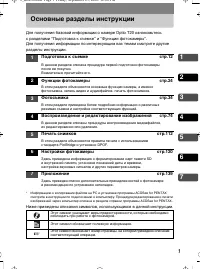 Pentax Optio T20 Manual
 Pentax Optio W20 Manual
 Pentax Optio WS80 Manual
 Pentax Optio X Manual