Page 2 - Table of Contents
Introduction Model composition ..............................................3Accessory information ........................................3System capabilities .............................................5 Important Information For your safety ....................................................6I...
Page 3 - Model composition; Series; Accessory information; Supplied accessories; Accessory item/Order number; Introduction
Model composition Series Model No. Base unit Handset Part No. Part No. Quantity KX-TG9541 series KX-TG9541 *1 KX-TG9541 KX-TGA950 1 KX-TG9542 KX-TG9541 KX-TGA950 2 *1 Single handset models: Intercom calls can be made between handsets by purchasing and registering one or more optional handsets (page ...
Page 4 - Additional/replacement accessories; Expanding your phone system
Additional/replacement accessories Please contact your nearest Panasonic dealer for sales information (page 83). Accessory item Order number Rechargeable batteries HHR-55AAABUG *1 R To order, please call 1-800-332-5368 or visithttp://www.panasonic.com/batterystore Battery type:– Nickel metal hydride...
Page 5 - Trademarks; System capabilities; How many units can be in use at one time?
Trademarks R The Bluetooth ® word mark and logos are owned by the Bluetooth SIG, Inc. and any use of such marks by Panasonic Corporation is under license. All other trademarks identified herein are the property oftheir respective owners. System capabilities The unit can accommodate up to 2 external ...
Page 6 - For your safety; WARNING; CAUTION; Important Information
For your safety To prevent severe injury and loss of life/property, read thissection carefully before using the product to ensureproper and safe operation of your product. WARNING Power connection R Use only the power source marked on the product. R Do not overload power outlets and extension cords....
Page 8 - Specifications
Specifications R Standard: DECT 6.0 (Digital EnhancedCordless Telecommunications 6.0)Bluetooth wireless technology 2.1 R Frequency range: 1.92 GHz to 1.93 GHz (DECT)2.402 GHz to 2.48 GHz (Bluetooth) R RF transmission power: 115 mW (max.) R Power source: 120 V AC, 60 Hz R Power consumption:Base unit:...
Page 9 - Setting up; Connecting the AC adaptor; Base unit; Charger; Connecting the telephone line cord; To connect to a 2-line telephone jack; Getting Started
Setting up Connecting the AC adaptor n Base unit R Use only the supplied Panasonic AC adaptorPNLV234. A A B B B B B B A A To power outlet “Click” R The words “UP DESK” should be facing up. R Follow the directions on the display to set upthe unit. n Charger To power outlet Connecting the telephone li...
Page 10 - Auto; Check tel line 2; GREEN; GREEN
If you use the unit as a single-line telephoneonly Be sure to connect the telephone line cord to LINE1/2. Change the line selection mode from “ Auto ” to “ Line1 ” (page 16). 2-wire cord “Click” “Transparent” plug To single-linetelephonejack (RJ11C) Note: R “ Check tel line 2 ” is displayed on the u...
Page 11 - Battery installation; Battery charging; Fully; Charging; Note when setting up
Battery installation R USE ONLY Ni-MH batteries AAA (R03) size. R Do NOT use Alkaline/Manganese/Ni-Cdbatteries. R Confirm correct polarities ( , ). Rechargeable Ni-MH ONLY R Follow the directions on the display to set upthe unit. Battery charging Charge for about 7 hours. R When the batteries are fu...
Page 12 - Power back-up operation; Battery caution; Intelligent eco mode
Power back-up operation The backup battery in the base unit works asemergency power during a power failure. Battery installation The base unit can provide emergency power ifsupplied with 2 standard AAA (R03) batteries (notsupplied). Important: R Before inserting the batteries into the base unit,disc...
Page 13 - Controls; Handset
Controls Handset A A B D C H IJ G K B EF L M N O P A Belt clip holeSpeakerHeadset jackDial keypad ( * : TONE) MZN (SP-PHONE: Speakerphone) MicrophoneReceiverDisplay M FLASH N M CALL WAIT N M NM NOISE REDUCTION N Charge contacts M N (TALK) M OFF N M L1 N (Line 1) M L2 N (Line 2) M CELL N n Control ty...
Page 14 - Charging the cellular phone by USB; Display icons/Indicators
M N (PLAY2) (Stop) Message indicator M LINE 1 N LINE 1 indicator M LINE 2 N LINE 2 indicator M HEADSET N Bluetooth HEADSET indicatorUSB jackDesk stand/Wall mounting adaptor R The adaptor is a removable attachment fordesk stand or wall mounting use(page 62). MicrophoneDial keypad ( * : TONE) M SPEED ...
Page 15 - Greeting only
Item Meaning – The cellular line is selected for the setting. – A cellular call is being received on that line. Noise reduction is set. (page 24) Equalizer is set. (page 24) Z Speakerphone is on. (page 22) Ringer volume is off. *4 (page 23, 39)Silent mode is on. (page 44) Call sharing mode is off.(p...
Page 16 - Display language; Voice guidance language; Other settings; Dialing mode; Tone; Line selection mode for landline
Status Meaning Light on The line is in use. Flashingrapidly A call is being received. Flashing A call is put on hold or theanswering system is answering acall. Date and time Program this setting using either the base unit orone of the handsets. Handset / Base unit 1 M MENU N#101 2 Enter the current ...
Page 17 - MENU; SAVE; OFF
When answering a call, the ringing line isselected. – “ Line1 ” : Line 1 is selected. – “ Line2 ” : Line 2 is selected. Handset / Base unit 1 M MENU N#250 2 MbN : Select the desired setting. a M SAVE N 3 Proceed with the operation for your unit. Handset: M OFF N Base unit: M EXIT N Note: R You can s...
Page 18 - On; Unpairing a cellular phone; Yes; Link to Cell
Link to cell feature To use this feature, you must first pair and connectyour cellular phones to the base unit (page 18).Your cellular phones must have Bluetooth wirelesstechnology that is compatible with this product.This feature allows you to:– make or answer cellular calls using your home phone (...
Page 19 - Link to cell settings; Ring as cell mode; Auto connection to the cellular phone
Base unit: M EXIT N Link to cell settings Selecting which unit receives cellularcalls You can select which unit rings and receives callsfor a cellular line. When “ All ” is selected, all handsets and the base unit ring.Program this setting using either the base unit orone of the handsets. Handset / ...
Page 20 - Off; Cellular line selection; Manual
from the base unit. This feature allows the baseunit to try to reconnect the cellular phone atregular intervals when it returns within base unitrange. You can set the interval. The default settingis “ 1 min ” . Program this setting using either the base unit orone of the handsets. Important: R When ...
Page 22 - Making cellular calls; Making landline calls; Making/Answering Calls Using the Handset
Making cellular calls Important: R Only 1 cellular line can be used at a time. R Before making calls, confirm that thecorresponding CELL indicator on the base unitlights up (page 15). 1 Lift the handset and dial the phone number. R To correct a digit, press M CLEAR N . 2 M CELL N R The unit starts d...
Page 23 - Hold; Mute
Answering calls 1 Press M N or MZN when the unit rings. R To answer a cellular call, you can also press M CELL N . R The called landline is automaticallyselected. To change the line selectionmode, see page 16. R You can also answer the landline call bypressing M L1 N or M L2 N . 2 When you finish ta...
Page 27 - Answering calls; Making/Answering Calls Using the Base Unit
Making cellular calls Important: R Only 1 cellular line can be used at a time. R Before making calls, confirm that correspondingCELL indicator lights up (page 15). 1 Dial the phone number. 2 Press the desired cellular line key ( M CELL 1 N to M CELL 4 N ). 3 When the other party answers, speak into ...
Page 28 - Useful features during a call; Flash for landline calls
R The called landline is automaticallyselected. To change the line selectionmode, see page 16. R You can also answer the landline call bypressing M LINE 1 N or M LINE 2 N . 2 Speak into the microphone. 3 When you finish talking, press MZN . Temporary ringer off: You can turn the ringer off temporari...
Page 29 - Transferring calls; Conference landline calls; Conference
Transferring calls Outside calls can be transferred between 2 people. 1 During an outside call, press M INTERCOM N . When 2 or more handsets are registered: – To page a specific handset, enter the handset number. – To page all handsets, press 0 or wait for a few seconds. 2 Wait for the paged party t...
Page 31 - Making an intercom call; Intercom; Answering an intercom call; Intercom
Intercom Intercom calls can be made:– between handsets– between a handset and the base unit Note: R When paging unit(s), the paged unit(s) beepsfor 1 minute. R If you receive an outside call while talking on theintercom, you hear 2 tones.– To answer the call with the handset, press M OFF N , then pr...
Page 32 - Home; Adding entries; Add new entry; Phonebook
Phonebook You can add 3,000 names (16 characters max.)and phone numbers (24 digits max.) to thephonebook, and assign each phonebook entry tothe desired group ( “ Home ” , “ Cell 1 ” to “ Cell 4 ” ). Important: R All entries can be shared by the base unit andany registered handset. R You can copy pho...
Page 33 - Groups; Group
2 MbN : Select the desired entry. R To edit the number: M MENU N a MbN : “ Edit ” a M SELECT N Press M EDIT N repeatedly until the phone number is shown in the desired format. Andthen, press M SAVE N . Go to step 5. 3 M MENU N 4 MbN : “ Save CID ” a M SELECT N 5 MbN : “ Phonebook ” a M SELECT N 6 Co...
Page 35 - Speed dial; Editing an entry; Edit
entry, press MDN (Pause) to add pauses after the number and PIN as necessary (page 22). R If you have rotary/pulse service, you need topress * (TONE) before pressing M MENU N on the handset or M N on the base unit in step 1 to change the dialing mode temporarily to tone.When adding entries to the ph...
Page 36 - Erasing an entry; Erase; Viewing an entry/Making a call
Erasing an entry Handset 1 Press and hold the desired speed dial key ( 1 to 0 ). a M MENU N 2 MbN : “ Erase ” a M SELECT N 3 MbN : “ Yes ” a M SELECT N 4 M OFF N Base unit 1 M SPEED DIAL N 2 MbN : Select the desired entry. a M DETAIL N 3 M ERASE N 4 MbN : “ Yes ” a M SELECT N 5 M EXIT N Viewing an e...
Page 37 - Menu list; Display menu tree and direct command code table; Programming
Menu list To access the features, there are 2 methods. Handset / Base unit n Scrolling through the display menus 1 M MENU N 2 Press MCN or MDN to select the desired main menu. a M SELECT N 3 Press MCN or MDN to select the desired item from the next sub-menus. a M SELECT N 4 Press MCN or MDN to selec...
Page 43 - Alarm
Main menu: “ Key detector ” *13 Sub-menu 1 Sub-menu 2 Settings Code Unit Search – – #655 – Battery check – – *1 For Line 1*2 For Line 2*3 If you program these settings using one of the units, you do not need to program the same item using another unit. *4 After the Bluetooth device is paired, the de...
Page 44 - Silent mode; Call block
“ Daily ” An alarm sounds daily at the settime. Go to step 4. 3 Enter the desired month and date. a M OK N 4 Set the desired time. 5 * : Select “ AM ” or “ PM ” . a M OK N 6 MbN : Select the desired alarm tone. a M SELECT N R We recommend selecting a different ringertone from the one used for outsid...
Page 46 - Other programming; Changing the handset name; Registering a unit; Operating additional units
M ERASE N a MbN : “ Yes ” a M SELECT N a M EXIT N Note for handset and base unit: R When viewing, “ Block w/o num. ” *1 / “ Block w/o number ” *2 is displayed if the blocking incoming calls without phone number feature isturned on. To turn the feature off: M ERASE N a MCN a M SAVE N a M OFF N (Hands...
Page 47 - Using Caller ID service; Caller ID features; Out of area; Talking Caller ID; Caller list; Viewing the caller list and calling back; Caller ID Service
Using Caller ID service Important: R This unit is Caller ID compatible. To use CallerID features, you must subscribe to a Caller IDservice. Contact your service provider/telephonecompany for details. Caller ID features Handset / Base unit When an outside call is being received, the callerinformation...
Page 48 - Editing a caller’s phone number; Caller ID number auto edit feature
Base unit 1 M CID N 2 Press MCN to search from the most recent call, or MDN to search from the oldest call. 3 To call back, press the desired cellular line key( M CELL 1 N to M CELL 4 N ). To exit, press M EXIT N . n Using the landline Handset / Base unit 1 Proceed with the operation for your unit. ...
Page 49 - Erasing selected caller information; Erasing all caller information
Note: R Phone numbers from the 4 most recently editedarea codes are automatically edited. Erasing selected caller information Handset / Base unit 1 Proceed with the operation for your unit. Handset: MCN CID Base unit: M CID N 2 MbN : Select the desired entry. 3 M ERASE N a MbN : “ Yes ” a M SELECT N...
Page 50 - Setting conversion codes; Using Bluetooth Devices
Copying phonebook from acellular phone (phonebooktransfer) You can copy phonebook entries from the pairedcellular phones or other cellular phones (notpaired) to the unit’s phonebook. A cellular phonemust be compatible with Bluetooth wirelesstechnology. Important: R If a copied entry has 2 or more ph...
Page 51 - Pairing a headset to the base unit
Note: R After you copy the entries, confirm that thenumbers were transferred correctly. Text message (SMS) alert This feature sets the handset and base unit tonotify the arrival of a new text message on acellular phone that is paired with the base unit.This notification is displayed momentarily on b...
Page 53 - While your headset is on a landline call:; Adjusting your headset receiver volume
n While your headset is on a landline call: To join the conversation with the handset, press M N . R An available line is automatically selected. Tochange the line selection mode, see page 16. Adjusting your headset receiver volume Base unit Press MDN or MCN repeatedly while using your headset. For ...
Page 54 - Call screening; Greeting message; Selecting the greeting message; Answering System for Landline
Answering system forlandline The answering system can answer and recordcalls for you when you are unavailable to answerthe phone.You can also set the unit to play a greetingmessage but not to record caller messages byselecting “ Greeting only ” as the greeting setting (page 61).Answering system sett...
Page 55 - Recording your greeting message
– “ Greeting2 ” : The answering system only plays “ Greeting2 ” for all calls. – “ Greeting1&2 ” : The answering system announces either “ Greeting1 ” or “ Greeting2 ” , depending on the time of the incoming call. *1 – “ Greeting1&Only ” : The answering system announces either “ Greeting1 ” ...
Page 56 - Playing back the greeting message; New message
3 M YES N 4 Proceed with the operation for your unit. Handset: M OFF N Base unit: M EXIT N Playing back the greeting message Handset / Base unit 1 For line 1: M MENU N#3031 For line 2: M MENU N#3032 2 MbN : Select the desired greeting message. a M SELECT N 3 Proceed with the operation for your unit....
Page 59 - Remote operation; Remote access code
Activating/inactivating the remote access codeto play messages If you activate this feature, you must enter theremote access code (page 59) to play the newmessage from the new message alert call. This isso that unauthorized parties cannot listen to yourmessages. The default setting is “ Inactivate ”...
Page 60 - Answering system settings; Ring count
Voice guidance n When the English voice guidance is selected During remote operation, the unit’s voiceguidance starts and prompts you to press 1 to perform a specific operation, or press 2 to listen to more available operations. n When the Spanish voice guidance is selected To start the voice guidan...
Page 61 - Caller’s recording time
your service provider/telephone company todeactivate your voice mail service.If your service provider/telephone companycannot do this:– Set this unit’s “ Ring count ” setting so that this unit’s answering system answers callsbefore the voice mail service of your serviceprovider/telephone company doe...
Page 62 - Voice mail message indication; Wall mounting; Useful Information
Voice mail service forlandline Voice mail is an automatic answering serviceoffered by your service provider/telephonecompany. After you subscribe to this service, yourservice provider/telephone company’s voice mailsystem answers calls for you when you areunavailable to answer the phone or when your ...
Page 64 - Error messages; Display message
Error messages Display message Cause/solution Base no power or No link. Re-connectbase AC adaptor. R The handset has lost communication with the base unit. Movecloser to the base unit and try again. R Unplug the base unit’s AC adaptor to reset the unit. Reconnectthe adaptor and try again. R The hand...
Page 65 - Troubleshooting; General use
Troubleshooting If you still have difficulties after following the instructions in this section, disconnect the base unit’s ACadaptor, then reconnect the base unit’s AC adaptor. Remove the batteries from the handset, and theninsert the batteries into the handset again. General use Problem Cause/solu...
Page 67 - Problem; Caller ID/Talking Caller ID
Problem Cause/solution I cannot make or answer cellularcalls with the handset or baseunit. R Depending on the cellular phone’s compatibility, you may not beable to make or answer cellular calls even if the cellular phoneis connected to the base unit. R Make sure that the CELL indicator lights up and...
Page 71 - FCC and other information
FCC and other information This equipment complies with Part 68 of the FCC rules and the requirements adopted by the ACTA. On the bottom of this equipment is a label that contains, among other information, a product identifier in the format US:ACJ----------.If requested, this number must be provided ...
Page 73 - Guía Rápida Española; Cómo conectar el adaptador para corriente
Guía Rápida Española Para obtener ayuda, visite http://www.panasonic.com/help (solo en inglés) 73 Guía Rápida Española Cómo conectar el adaptador para corriente L Use solo el adaptador de corriente alterna Panasonic PNLV234 que se suministra. *Se requiere un filtro DSL/ADSL (no incluido) si tiene se...
Page 74 - Instalación y carga de la batería; Cómo usar la unidad solo como teléfono de una sola línea; Cómo conectar el cable de la línea telefónica
74 Para obtener ayuda, visite http://www.panasonic.com/help (solo en inglés) Guía Rápida Española N Para conectarlo a 2 tomas telefónicas de una sola línea Instalación y carga de la batería Cargue aproximadamente durante 7 horas. Nota: L UTILICE SOLO baterías de Ni-MH tamaño AAA (R03). L NO utilice ...
Page 75 - Sugerencias de operación
Para obtener ayuda, visite http://www.panasonic.com/help (solo en inglés) 75 Guía Rápida Española Sugerencias de operación Teclas de función Al oprimir una tecla de función, puede seleccionar la función que aparece directamente encima de ella en la pantalla. Preste atención a la pantalla para ver qu...
Page 76 - Enlace a celular
76 Para obtener ayuda, visite http://www.panasonic.com/help (solo en inglés) Guía Rápida Española Cómo grabar el mensaje de saludo del contestador de llamadas para la línea terrestre (Auricular/Unidad base) Si utiliza un mensaje de saludo pregrabado, no es necesario que grabe su propio mensaje de sa...
Page 78 - Operaciones básicas
78 Para obtener ayuda, visite http://www.panasonic.com/help (solo en inglés) Guía Rápida Española Operaciones básicas Cómo hacer y contestar llamadas (Auricular) Para hacer llamadas de celular 1 Marque el número telefónico. s { CELL } L Cuando solo hay 1 teléfono celular emparejado, la unidad comien...
Page 80 - Cómo usar dispositivos Bluetooth
80 Para obtener ayuda, visite http://www.panasonic.com/help (solo en inglés) Guía Rápida Española Cómo usar dispositivos Bluetooth Copiado de entradas del directorio telefónico desde un teléfono celular con Bluetooth (transferencia del directorio telefónico) (Auricular/Unidad base) Puede copiar entr...
Page 82 - Preguntas frecuentes
82 Para obtener ayuda, visite http://www.panasonic.com/help (solo en inglés) Guía Rápida Española Preguntas frecuentes Pregunta Causa y solución ¿Por qué aparece _ ? L El auricular está demasiado lejos de la unidad base. Acérquelo. L El adaptador para corriente de la unidad base no está conectado co...
Page 83 - Customer services; Customer Services Directory (United States and Puerto Rico); Appendix
Customer services Customer Services Directory (United States and Puerto Rico) Obtain Product Information and Operating Assistance; locate your nearest Dealer or Service Center; purchase Parts and Accessories; or make Customer Service and Literature requests by visiting our Web Site at: http://www.pa...
Page 84 - Warranty (For United States and Puerto Rico); Limited Warranty Coverage; Online Repair Request; Panasonic Telephone Products
Warranty (For United States and Puerto Rico) PANASONIC CORPORATION OF NORTH AMERICA One Panasonic Way, Secaucus, New Jersey 07094 Limited Warranty Coverage If your product does not work properly because of a defect in materials or workmanship, Panasonic Corporation of North America (referred to as “...
Page 85 - When you ship the product; ALL
L Carefully pack your unit, preferably in the original carton. L Attach a letter, detailing the symptom. L Send the unit to Panasonic Exchange Center, prepaid and adequately insured. L Do not send your unit to Panasonic Corporation of North America listed on the back cover or to executive or regiona...
Page 86 - Index
Index # 3-way conference: 24 , 28 A Additional handset: 46 Alarm: 43 Answering calls: 23 , 27 Answering system Call screening: 54 Erasing messages: 56 , 57 , 60 Greeting message: 54 Greeting only: 61 Listening to messages: 56 , 59 New message alerting: 57 Number of rings: 60 Recording time: 61 Remot...
Page 88 - Read; troubleshooting; page in the; Operating Instructions; For your future reference
1 Reconnect AC adaptor to the base unit. 2 Check if telephone line cord is connected. 3 Use rechargeable Ni-MH batteries. (Alkaline/Manganese/Ni-Cd batteries CANNOT be used.) 4 Read troubleshooting page in the Operating Instructions . Visit our Web site: http://www.panasonic.com/help L FAQ and troub...


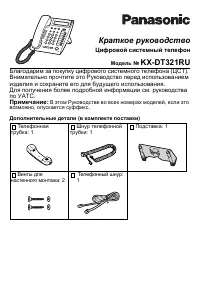 Panasonic KX-DT321 Manual
 Panasonic KX-NT700 Manual
 Panasonic KX-T2365 Manual
 Panasonic KX-T2470 Manual
 Panasonic KX-T7630 Manual
 Panasonic KX-T7710 Manual
 Panasonic KX-T7735 Manual
 Panasonic KX-TCD815RU / KX-TCD825RU User Manual
 Panasonic KX-TG6541 Manual
 Panasonic KX-TG6611 / KX-TG6621 User Manual
 Panasonic KX-TG9582B User Manual
 Panasonic KX-TGA950B User Manual
 Panasonic KX-TGF573S User Manual
 Panasonic KX-TGM430B User Manual
 Panasonic KX-TS208W User Manual
 Panasonic KX-TS2368RUW Manual


