Page 2 - CONTENTS; Slimline Weather Station; User Manual
EN 1 CONTENTS Introduction .............................................................. 3 Product Overview .................................................... 4 Front View .............................................................. 4 Back View .....................................................
Page 4 - NOTE; INTRODUCTION; T h a n k y o u f o r s e l e c t i n g t h e O r e g o n S c i e n t i f i c; Main unit
EN 3 NOTE INTRODUCTION T h a n k y o u f o r s e l e c t i n g t h e O r e g o n S c i e n t i f i c T M BAR988HG / BAR986HG Slimline Weather Station. Thisp o w e r f u l d e v i c e b u n d l e s t i m e k e e p i n g , w e a t h e rmonitoring, indoor and outdoor temperature and humidityreadings, b...
Page 5 - PRODUCT OVERVIEW; FRONT VIEW
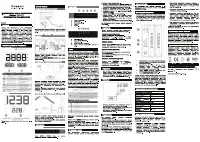
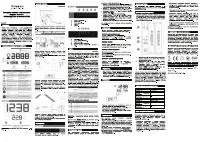
EN 4 PRODUCT OVERVIEW FRONT VIEW 1. LCD display 2. MODE: Change settings / display 3. MEMORY: View current, maximum and minimum temperature / humidity / UV readings 4. H I S TO RY: Vi e w h i s t o r i c a l b a r o m e t e r a n d U V readings 5. ALARM / : View alarm status; set alarm 6. SNOOZE / L...
Page 7 - Animated weather forecast
EN 6 LCD DISPLAY 1. Weather Forecast Area: Animated weather forecast 2. Temperature / Humidity / Comfort Zone Area: Readings and trend lines; comfort zone; sensorchannel number 3. UVI / Barometer Area: UV level and barometric p r e s s u r e b a r c h a r t ; U V I n d e x a n d b a r o m e t r i cr...
Page 8 - Weather Forecast Area; Low battery icon for main unit; Temperature / Humidity / Comfort Zone Area; Selected Area icon
EN 7 Weather Forecast Area 1. Low battery icon for main unit 2. AC adaptor icon - displays when unplugged 3. Weather display 1 2 3 Temperature / Humidity / Comfort Zone Area 1. Selected Area icon 2. Temperature trend 3. Channel number (1-5) / reception status 4. Low battery icon for remote sensor 5....
Page 11 - GETTING STARTED; BATTERIES
EN 10 GETTING STARTED BATTERIES Batteries are supplied with this product: • Main unit 4 x UM-4 (AAA) 1.5V • Remote unit 2 x UM-3 (AA) 1.5V Insert batteries before first use, matching the polarity asshown in the battery compartment. For best results,install batteries in the remote sensor before the m...
Page 12 - CHANGE SETTINGS; REMOTE SENSOR
EN 11 I t i s r e c o m m e n d e d t h a t y o u u s e a l k a l i n e batteries with this product for longer performance. NOTE UNIT LOCATION Main Weather Forecast Area Remote Temperature / Humidity Area UV Sensor UVI / Barometric Pressure Area AC ADAPTOR (MAIN UNIT) The batteries serve as a back-u...
Page 14 - CLOCK AND CALENDAR
EN 13 The transmission range may vary and is subject to the receiving range of the main unit. You may need to experiment with various locations toget the best results. SENSOR DATA TRANSMISSION Data is sent from the sensor(s) every 60 Seconds. Thereception icon shown in the Temperature / Humidity Are...
Page 15 - RADIO-CONTROLLED CLOCK
EN 14 RADIO-CONTROLLED CLOCK The time and date are automatically updated by radio-controlled clock signals from official time-keepingorganizations in Frankfurt (Germany) and Rugby(England) unless you disable this feature. The signalsare collected by the remote sensor (RTGR328N)whenever it is within ...
Page 16 - ALARMS; SET DAILY ALARM
EN 15 RF clock disabled: SET CLOCK You only need to do this if you have disabled the radio-controlled clock, or if you are too far from a RF signal. 1. Press SELECT to navigate to the Clock Area. will show next to the Area. 2. Press and hold MODE for 2 seconds. 3. Select the time zone offset hour (+...
Page 17 - BAROMETER; VIEW BAROMETER AREA
EN 16 SET PRE-ALARM The Pre-Alarm can be set to sound 15, 30, 45, or60 minutes before the Daily Alarm. It will sound wheneverthe recorded temperature from Channel 1 Sensor fallsto 2 ° C (35.6 ° F) or below. For example, if you set the alarm to 7:00 AM, and thePre-Alarm to 45 minutes, the Pre-Alarm w...
Page 18 - SELECT MEASUREMENT UNIT; Slide the; VIEW BAROMETER HISTORY; Navigate to the Barometer Area. Then press; HISTORY
EN 17 Barometric data is shown in 2 areas at the bottom of thedisplay. The upper area shows a 24-hour bar chart.The lower area shows current and historical readings. SELECT MEASUREMENT UNIT Slide the mb / inHg switch (in the clock battery compartment), to change the display unit. VIEW BAROMETER HIST...
Page 19 - WEATHER FORECAST; WEATHER FORECAST ICONS; UV MEASUREMENT
EN 18 3. Press UP or DOWN to set the altitude in 10-metre increments (-100m to 2500m). 4. Press HISTORY to confirm. WEATHER FORECAST This product forecasts the next 12 to 24 hours of weatherwithin a 30-50 km (19-31 mile) radius. The forecast isbased on barometric pressure trend readings. The top are...
Page 20 - NEW ADDITIONAL UV FEATURES
EN 19 • UVI Danger Alert when UV Index reaches unsafe levels. UV data is shown in the same area as the Barometer.Press SELECT to navigate to the Barometer Area, then press MODE to display the UV icon and data. Refer to the UVR138 User Manual for more information and see below to learn about the newa...
Page 21 - TEMPERATURE AND HUMIDITY; VIEW TEMPERATURE AND HUMIDITY AREA
EN 20 The UV sensor must be activated before you try and set the additional features. Please refer to theUVR138 User Manual for more information. TEMPERATURE AND HUMIDITY The weather station can display the following informationfrom any of the 5 remote sensors: • Current, minimum, and maximum temper...
Page 23 - RESET; SAFETY AND CARE; WARNINGS
EN 22 BACKLIGHT Press SNOOZE / LIGHT to illuminate the backlight for 8 seconds. RESET SYSTEM The RESET button is located at the bottom of the unit. Press RESET when you change the batteries and whenever performance is not behaving as expected (forexample, unable to establish radio frequency link wit...
Page 26 - ABOUT OREGON SCIENTIFIC; OR
EN 25 ABOUT OREGON SCIENTIFIC Visit our website (www.oregonscientific.com) to learnmore about Oregon Scientific products such as digitalcameras; MP3 players; children's electronic learningproducts and games; projection clocks; health andfitness gear; weather stations; and digital and conferencephone...
Page 27 - EC-DECLARATION OF CONFORMITY; Safety of information technology equipment; Additional information:; COUNTRIES RTTE APPROVAL COMPLIED; All EC countries, Switzerland; CH; and Norway
EN 26 EC-DECLARATION OF CONFORMITY This product contains the approved transmitter modulethat complies with the essential requirements of Article3 of the R&TTE 1999 / 5 / EC Directive, if used asintended and the following standards have been applied: Safety of information technology equipment (Ar...
Page 28 - © 2004 Oregon Scientific. All rights reserved.
© 2004 Oregon Scientific. All rights reserved. 086-003590-014 BAR988HG English Back R5 OP 8/20/04, 11:26 AM 1 Black