Page 2 - ENGLISH; LICENSES; are trademarks of USB Implementers Forum.; NOTE
2 ENGLISH LICENSES Supported licenses may differ by model. For more information about licenses, visit www.lg.com. Manufactured under license from Dolby Laboratories. Dolby, Dolby Vision, Dolby Audio, and the double-D symbol are trademarks of Dolby Laboratories.This DivX Certified ® device has passed...
Page 3 - Indoor Installation; SAFETY PRECAUTIONS; WARNING
3 ENGLISH WARNING/CAUTION RISK OF ELECTRIC SHOCK DO NOT OPEN The lightning flash with arrowhead symbol, within an equilateral triangle, is intended to alert the user to the presence of uninsulated dangerous voltage within the product’s enclosure that may be of sufficient magnitude to constitute a ri...
Page 4 - CAUTION
4 ENGLISH • Do not allow children to cling to or climb up to the projector. - This may cause the projector to fall, causing injury or death. • Do not install the product in a place with no ventilation (e.g., on a bookshelf or in a closet) or on a carpet or cushion. - This may result in fire due to t...
Page 12 - Risk Group 2
12 ENGLISH • Do not throw or disassemble the battery. - This may result in fire or explosion due to damage to the battery. • Store batteries away from metallic objects, such as keys and paper clips. - Excess current may cause a rapid increase in temperature, resulting in fire or burns. • Do not stor...
Page 13 - CONTENTS
13 ENGLISH CONTENTS USING THE PROJECTOR 29 Using The Battery 29 Battery using time information 30Watching Projector 32 - Turning on the Projector 32 - Focus of the Screen Image 33 CONNECTING DEVICES 34 HDMI Connection 35 - Connecting to HD Receiver, DVD, or External Devices 35 - Connecting a PC 35 -...
Page 14 - PREPARATION; Accessories
14 ENGLISH PREPARATION The pictures may differ slightly from the actual product. Accessories Accessories included with the projector are show below.Accessories are subject to change without prior notice.New accessories may be added or old ones removed.  + Remote Control Two AAA Batteries Owner's M...
Page 15 - Optional Extras; are subject to change without prior notice.
15 ENGLISH Optional Extras To purchase optional accessories, visit an electronics store or online shopping site or contact the retail store where you purchased the product. Optional accessories are subject to change without prior notice. Projection Screen Tripod HDMI Cable MHL Cable USB-C Cable
Page 16 - Parts and Components; Main Unit
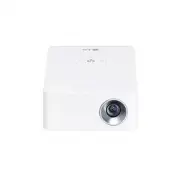
16 ENGLISH Parts and Components This projector is manufactured using high-precision technology. You may, however, see tiny black dots and/or bright colored dots (red, blue, or green) that continuously appear on the projector screen. This is a normal result of the manufacturing process and does not i...
Page 17 - Description
17 ENGLISH Side 1 2 3 4 1 Description 1 Battery Charge Indicator - Red: Charging - Green: Charging complete 2 Port 3 (USB-C port) 4 (Headphone Port)
Page 20 - Using the Buttons; Basic functions; Power On; Adjusting the menu
20 ENGLISH Using the Buttons You can operate the projector by pressing the button. Basic functions Power On Press the Power button once while the projector is off. Power Off (Press and Hold) Press and hold the Power button for a few seconds while the projector is on.(However, if the Menu button is s...
Page 21 - Projector Status Indicators; LED Power
21 ENGLISH Projector Status Indicators LED Power Indicator LED Power Indicator Red Power standby state Off The projector is operating with the power on.
Page 22 - Installation; Installation Precautions
22 ENGLISH Installation Installation Precautions • Place the projector in a well- ventilated environment. - To prevent internal overheating, install the projector in a well- ventilated place. Do not place anything near the projector. That may block its air vents. If the air vents are blocked, the in...
Page 23 - correct the distortion, use the Keystone function.
23 ENGLISH Projection Distance per Screen Size 1 Place the projector on a sturdy, level surface, together with the PC or audio/ video source. 2 Place the projector an appropriate distance away from the screen. The distance between the projector and the screen determines the actual size of the imag...
Page 25 - The Kensington Security System is an optional accessory.
25 ENGLISH Kensington Security System • This projector has a Kensington Security Standard connector as an anti-theft mechanism. Connect a Kensington Security System cable as shown below. • For more information on installation and use of the Kensington Security System, refer to the user’s guide provi...
Page 26 - REMOTE CONTROL; Open the battery cover on the back of the
26 ENGLISH REMOTE CONTROL Open the battery cover on the back of the remote control and insert the batteries which are specified in the battery room with poles pointing in the correct direction. The new and same type of batteries (1.5 V AAA) must be used. ① ② • Do not mix new batteries with old ones....
Page 29 - USING THE PROJECTOR; Using The Battery; It is displayed when the battery is running out.
29 ENGLISH USING THE PROJECTOR Using The Battery The battery is low. Connect a power supply for charging. • It is displayed when the battery is low (Energy Saving will be changed Maximum mode and will be disabled). • If the screen shows a low battery message, be sure to charge the battery. The devic...
Page 30 - Battery using time information; Status
30 ENGLISH Battery using time information Status Time and Display Charging About 3 hours (When in standby and charging) Usage Hours Up to 4 hours(Available battery using time up to 4 hours when Energy Saving mode set to Max.) Battery Level Indicator Step 5 Step 4 Step 3 Step 2 Step 1 Full Step 1 Ste...
Page 31 - of a battery, that can result in an explosion.
31 ENGLISH • Do not store or transport at pressures lower than 11.6 kPa and at above 15 000 m altitude. • Replacement of a battery with an incorrect type that can defeat a safeguard (for example, in the case of some lithium battery types). • Disposal of a battery into fire or a hot oven, or mechanic...
Page 32 - Watching Projector; Turning on the Projector; ON
32 ENGLISH Watching Projector Turning on the Projector The menu screen display in this owner's manual is an example to help users understand how to operate the product and may look different from the actual screen. 1 Connect the power cord correctly. 2 Place the OFF/ON switch on the rear port area...
Page 33 - Focus Ring
33 ENGLISH Focus of the Screen Image When an image appears on the screen, check if it is in focus and fits the screen properly.Adjust the focus of the image by rotating the Focus Ring to the up or down.Make sure the product does not move when adjusting the focus. Focus Ring
Page 34 - CONNECTING DEVICES; You can connect various external devices to the projector.
34 ENGLISH CONNECTING DEVICES You can connect various external devices to the projector.   Computer/Notebook Digital Device Headphones DVD USB Game Console Mobile Phone USB-C HDMI - Page 35 USB-C - Page 37 Headphone - Page 38
Page 35 - HDMI Connection; HDMI; Connecting to HD Receiver,
35 ENGLISH HDMI Connection Connect an HD receiver, DVD, or external devices to the projector and select an appropriate input mode. • → HDMI Connecting to HD Receiver, DVD, or External Devices With an HDMI cable, you can enjoy high quality picture and sound.Using a HDMI cable, connect the port of the...
Page 37 - Connecting with a; Phone Connections
37 ENGLISH Connecting with a USB-C Cable • → USB-C Computer/Laptop and Phone Connections Use a USB-C cable to connect to the projector's USB-C port and the USB-C output port on your PC/laptop or phone. Both video and audio are output at the same time. To find out whether your device is USB-C-certifi...
Page 38 - Connecting Headphones; You can listen to the audio through a
38 ENGLISH Connecting Headphones Connecting Headphones You can listen to the audio through a headphone. * Not provided
Page 39 - MAINTENANCE; Clean your Projector to keep it in optimal condition.; Cleaning; Cleaning the Lens
39 ENGLISH MAINTENANCE Clean your Projector to keep it in optimal condition. Cleaning Cleaning the Lens If there is any dust or staining on the lens surface, you must clean the lens.Use an air spray or a cleaning cloth to clean the lens.To remove dust or stains on the lens, use a compressed air dust...
Page 40 - SPECIFICATIONS; Use only power supplies listed in the user instructions.
40 ENGLISH SPECIFICATIONS MODEL PH30JG (PH30JG-GL) Resolution (Pixel) 1280 (Horizontal) × 720 (Vertical) Aspect ratio 16:9 (Horizontal:Vertical) Panel size 7.93 mm Projection distance (Screen size) 585 mm to 2,950 mm (508 mm to 2,540 mm) Ratio of upward projection 100 % Working range of the remote c...
Page 41 - Resolution
41 ENGLISH Supported HDMI (PC) / USB-C (PC) Modes Resolution Horizontal Frequency (kHz) Vertical Frequency (Hz) 640 x 350 31.468 70.09 720 x 400 31.469 70.08 640 x 480 31.469 59.94 800 x 600 37.879 60.31 1024 x 768 48.363 60.00 1152 x 864 54.348 60.053 1280 x 720 45.00 60 1280 x 1024 63.981 60.02 14...
Page 43 - SYMBOLS; Refers to class II equipment.
43 ENGLISH SYMBOLS Refers to alternating current(AC).Refers to direct current(DC). Refers to class II equipment. Refers to stand-by. Refers to “ON” (power). Refers to dangerous voltage.
Page 47 - Store Demo
3 ENGLISH USING THE PROJECTOR Watching Projector Turning on the Projector The menu screen display in this owner's manual is an example to help users understand how to operate the product and may look different from the actual screen. 1 Connect the power cord correctly. 2 After waiting for a moment, ...
Page 48 - Additional Options; Adjusting Aspect Ratio; Just Scan
4 ENGLISH Additional Options Adjusting Aspect Ratio Resize an image to view at its optimal size by pressing while you are using the projector. • Available picture size may differ depending on the input signal. • You can also use the or button. NOTE • 16:9 Displays an aspect ratio of 16:9. • Just Sca...
Page 49 - Keystone
5 ENGLISH Using the Keystone Function To prevent the screen image from becoming trapezoidal, Keystone adjusts the top and bottom width of the image if the projector is not set up at a right angle to the screen.Because the Keystone function may cause inferior screen image quality, use this function o...
Page 50 - To select an external input
6 ENGLISH Changing Input Device To select an external input Selects external input.The illustration of the menu may differ from the actual screen on the product. • Press the button on the remote control to display the input selection screen. - Connected inputs are displayed first. However, SCREEN SH...
Page 51 - Selecting an Input Label; Red; Blank Function; Using the Blank Function
7 ENGLISH Selecting an Input Label Displays which devices are connected to which input ports. Input Label HDMI1 Close 1 Press the button on the remote control to display the input selection screen. 2 Press the Red button. 3 Use the or button to scroll to one of the input sources. Blank Function Usin...
Page 52 - Selecting a Blank Image; Using the Quick Menu
8 ENGLISH Selecting a Blank Image 1 Press the button. 2 Press the , , , or buttons to select OPTION 2 and press the button. 3 Press the , buttons to select Blank Image and press the button. 4 Press the or button to move to the setting or option you want and press the button. Using the Quick Menu You...
Page 53 - ENTERTAINMENT; Using SCREEN SHARE; Set the external input of the projector to
9 ENGLISH ENTERTAINMENT Using SCREEN SHARE 1 Set the external input of the projector to SCREEN SHARE . 2 Enable related SCREEN SHARE function on the device you wish to connect. 3 Connect the projector from the search list on the device you wish to connect. (When you connect the projector to your lap...
Page 54 - Setting Up Bluetooth on the Projector; Bluetooth
10 ENGLISH Setting Up Bluetooth on the Projector This option is used to output sound from the projector through Bluetooth audio devices. • Press the button on the remote control, and then set Bluetooth to On in the WIRELESS menu. • The devices that can be connected are as follows: LG BTS1, LG HBS-70...
Page 55 - Stop searching
11 ENGLISH Searching for Bluetooth Devices and Connecting Go to WIRELESS Search Device to search for nearby Bluetooth audio devices and then connect any detected devices to the projector. (If the device name is longer than 20 characters, only the first 20 will be displayed.) 1 Set the Bluetooth devi...
Page 56 - List of registered devices; Connecting
12 ENGLISH 3 When a Bluetooth device is connected, you will hear sound from the projector through the connected device. • The connected Bluetooth device will be added automatically to the List of registered devices . Once registered, Bluetooth devices can be connected simply by selecting them from t...
Page 57 - Disconnecting; Adjusting AV Sync. Adjust
13 ENGLISH Disconnecting Select Disconnect to disconnect the device. • You can only disconnect a device from the List of registered devices . Deleting Select Delete Marked or Delete All to delete any registered devices. • Delete Marked : Press the red button in List of registered devices to delete t...
Page 58 - MY MEDIA; Before Using; Connecting a USB Device; enjoy the content files stored in the USB; Removing a USB Device; USB Device
14 ENGLISH MY MEDIA Before Using Connecting a USB Device Connect a USB device (external HDD, USB memory) to the USB port of projector to enjoy the content files stored in the USB device with your projector. You cannot write or delete data in the USB device. Connect a USB flash drive as shown below. ...
Page 59 - Tips for using a USB device
15 ENGLISH Tips for using a USB device • If the USB storage device has a built-in auto recognition program or uses its own driver, it may not work. • Some USB storage devices may not work or may work incorrectly. • If you use a USB extension cable, the USB device may not be recognized or may not wor...
Page 60 - To Use My Media
16 ENGLISH To Use My Media 1 Press the button on the remote control. 2 Select MY MEDIA . Select desired file from the list. Watch the chosen file. Sets play related settings by checking option during disk playback. My Media supporting file • Maximum data transmission rate: 20 Mbps (Mega bit per seco...
Page 62 - * BMP and PNG format files may be slower to display than JPEG.
18 ENGLISH Available photo file File type Item Info jpeg, jpg, jpe Support File type SOF0: Baseline, SOF1: Extend Sequential, SOF2: Progressive Picture Size Minimum: 64 x 64Maximum: Normal Type: 15,360 (W) x 8,640 (H) Progressive Type: 1,920 (W) x 1,440 (H) BMP Picture Size Minimum: 64 x 64Maximum: ...
Page 63 - Movie List
19 ENGLISH Watching the Videos In the Movie List , you can watch movies stored on the connected USB device. Controls playback and sets options while viewing videos. Tips for Playing Video Files • Some subtitles created by users may not work properly. • The video and subtitle files should be placed i...
Page 64 - button to select the file you want and press the
20 ENGLISH 4 Use the , , , or button to select the file you want and press the button. USB STORAGE DEVICE Page 1/1 Page 1/1 Drive1 Drive5 Drive3 Drive4 Drive2 PAGE Page Change Movie List Butterfly_... 01:34:33 Change device Go to root folder 1 2 4 6 7 8 3 5 9 10 Go to upper folder Exit No. Descripti...
Page 65 - Item
21 ENGLISH 5 Control playback by using the following buttons. Option Hide Exit Item Description Shows the current playing position. Use or buttons to move forward or backward.Stops playing and returns to Movie List.Returns to normal playback.Pauses the media player.If no button is pressed on the rem...
Page 66 - Options for Movie List
22 ENGLISH Options for Movie List 1 Press the button. 2 Use the or button to move to a desired option and press the button. 3 Use the , , , or button to set up each item. Set Video Play. • Picture Size Selects the size of a playback screen. - Full : Files are played in full screen mode according to ...
Page 67 - Registering the DivX code; Registration; Registration Code
23 ENGLISH Registering the DivX code Checks DivX Reg. Code for replaying DivX protected videos. Register at http://vod. divx.com.Use Reg. Code to rent or purchase movies at www.divx.com/vod. 1 In the Settings menu, move to OPTION 1 and press DivX(R) VOD . Registration Deregistration Close 2 Press th...
Page 68 - To deregister the DivX code
24 ENGLISH To deregister the DivX code Use the DivX deregistration code to deactivate the DivX DRM function. 1 In the Settings menu, move to OPTION 1 and press DivX(R) VOD . 2 Use the or button to go to Deregistration and press the button. 3 Select Yes . Registration Deregistration Close No No Yes Y...
Page 69 - Supported Photo Files
25 ENGLISH Viewing the Photos You can view photos stored on a connected device. Supported Photo Files PHOTO (*.JPEG)Baseline: 64-pixel (width) x 64-pixel (height) - 15,360-pixel (width) x 8,640-pixel (height)Progressive: 64-pixel (width) x 64-pixel (height) - 1,920-pixel (width) x 1,440-pixel (heigh...
Page 72 - BLUETOOTH; Listening to Music; You can play audio files stored on the connected device.
28 ENGLISH Set Video. You can change video settings. (Refer to PICTURE Settings on page 36.) Set Audio. You can change audio settings. (Refer to AUDIO Settings on page 42.) BLUETOOTH You can change Bluetooth settings. (Refer to Setting Up Bluetooth on the Projector on page 10.) Listening to Music Yo...
Page 75 - You can see document files stored on a connected device.
31 ENGLISH Viewing Files You can see document files stored on a connected device. Supported File Formats XLS, XLSX, DOC, DOCX, PPT, PPTX, TXT, PDF, HWP Microsoft Office: 97/2000/2002/2003/2007 Version Adobe PDF: 1.0/1.1/1.2/1.3/ 1.4 VersionHangul: 97/2000/2002/2005/2007 Version • File Viewer realign...
Page 76 - Browsing File List
32 ENGLISH Browsing File List 1 Connect a USB storage device. 2 Press the / button. 3 Use the or button to select File List and press the button. 4 Use the , , , or button to select the file you want and press the button. USB STORAGE DEVICE Page 1/1 Page 1/1 Drive1 Drive5 Drive3 Drive4 Drive2 PAGE P...
Page 78 - Options for File List
34 ENGLISH Options for File List 1 Press the button. 2 Use the , , , or button to set up each item. Set FileViewer Option • Single Page Loading - On : Loads and displays pages one by one. The initial loading time is short but a content-heavy page may be displayed slowly. - Off : Loads all pages of a...
Page 79 - CUSTOMIZING SETTINGS; SETTINGS; Menu
35 ENGLISH CUSTOMIZING SETTINGS SETTINGS 1 Press the button. 2 Use the , , , or button to select the desired item and press the button. 3 Use the , , , or button to set up the desired item and press the button. 4 Press the button when completed. Menu Description PICTURE Adjusts the image quality for...
Page 80 - PICTURE Settings
36 ENGLISH PICTURE Settings 1 Press the button. 2 Use the , , , or buttons to select PICTURE and press the button. 3 Use the , , , or button to set up the desired item and press the button. - To return to the previous menu, press the button. 4 Press the button when completed. • ꕊ Energy Saving : Min...
Page 82 - Tint
38 ENGLISH • Tint Adjusts the balance between red and green levels. • Advanced Control Customizes the advanced settings. • Picture Option Sets optional settings. • Picture Reset Resets values customized by the user. Each picture mode is reset. Select the picture mode you wish to reset. • Aspect Rati...
Page 83 - Advanced Control
39 ENGLISH Advanced Control • Dynamic Contrast Adjusts contrast and color to the optimal level according to the screen’s brightness. • Dynamic Color Adjusts colors for more natural-looking colors. • Color Gamut Selects the range of colors that can be expressed. - Standard : Displays the original col...
Page 84 - Expert Control
40 ENGLISH Expert Control • Dynamic Contrast Adjusts contrast and color to the optimal level according to the screen’s brightness. • Color Gamut Selects the range of colors that can be expressed. - Standard : Displays the original colors of an input signal regardless of the display features. - Wide ...
Page 85 - Picture Option
41 ENGLISH • Color Management System Adjusts Red/Green/Blue/Cyan/Magenta/Yellow colors. Allows an expert to adjust the tint using a test pattern. Six colors (Red/Green/Blue/Cyan/Magenta/ Yellow) can be selectively adjusted without affecting other colors. You may not see colors change on a normal pic...
Page 86 - AUDIO Settings; Sets audio optimized for a specific genre.
42 ENGLISH AUDIO Settings 1 Press the button. 2 Use the , , , or button to select AUDIO and press the button. 3 Use the , , , or button to set up the desired item and press the button. - To return to the previous menu, press the button. 4 Press the button when completed. AUDIO • Sound Mode : Standar...
Page 87 - TIME Settings
43 ENGLISH TIME Settings 1 Press the button. 2 Use the , , , or button to select TIME and press the button. 3 Use the , , , or button to set up the desired item and press the button. - To return to the previous menu, press the button. 4 Press the button when completed. TIME • Sleep Timer : Off • Aut...
Page 88 - WIRELESS Settings
44 ENGLISH WIRELESS Settings 1 Press the button. 2 Use the , , , or button to select WIRELESS and press the button. 3 Use the , , , or button to set up the desired item and press the button. - To return to the previous menu, press the button. 4 Press the button when completed. WIRELESS • SCREEN SHAR...
Page 90 - OPTION 1 Settings
46 ENGLISH OPTION 1 Settings 1 Press the button. 2 Use the , , , or button to select OPTION 1 and press the button. 3 Use the , , , or button to set up the desired item and press the button. - To return to the previous menu, press the button. 4 Press the button when completed. OPTION 1 • Language • ...
Page 91 - OPTION 2 Settings
47 ENGLISH OPTION 2 Settings 1 Press the button. 2 Use the , , , or button to select OPTION 2 and press the button. 3 Use the , , , or button to set up the desired item and press the button. - To return to the previous menu, press the button. 4 Press the button when completed. OPTION 2 • Keystone 0 ...