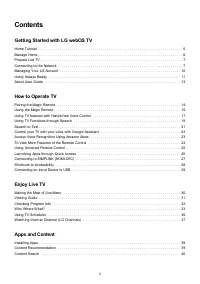
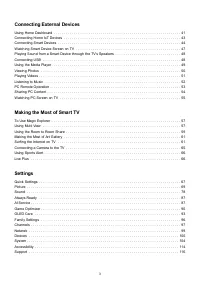
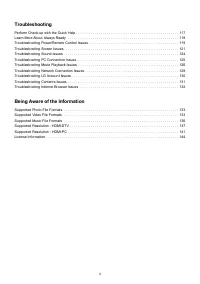
Page 2 - Contents; Getting Started with LG webOS TV
. . . . . . . . . . . . . . . . . . . . . . . . . . . . . . . . . . . . . . . . . . . . . . . . . . . . . . . . . . . . . . . . . . . . . . . . . . . . . . . . . . . . . . . . . . . . . . . . . . . . . . . . . . . . . . . . . . . . . . . . . . . . . . . . . . . . . . . . . . . . . . . . . . . . . . ...
Page 5 - Home Tutorial; Using the Home Feature of the LG webOS TV; button on the Magic Remote to scroll through the menu. You can
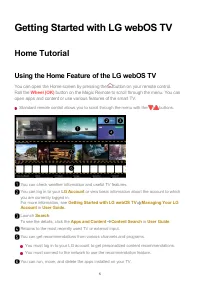
Getting Started with LG webOS TV Home Tutorial Using the Home Feature of the LG webOS TV You can open the Home screen by pressing the button on your remote control. Roll the Wheel (OK) button on the Magic Remote to scroll through the menu. You can open apps and content or use various features of the...
Page 6 - Manage Home; Manage LG webOS TV Home
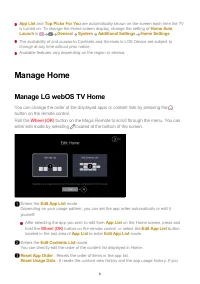
App List and Top Picks For You are automatically shown on the screen each time the TV is turned on. To change the Home screen display, change the setting of Home Auto Launch in General System Additional Settings Home Settings . The availability of and access to Contents and Services in LGE Device ar...
Page 7 - Prepare Live TV; Watching TV Broadcasting; Connecting to the Network; Setting a Wired Network; Connect the broadcast antenna/cable to the TV.; General; Finds and adds only channels being broadcast.
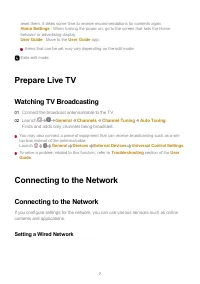
Prepare Live TV Watching TV Broadcasting You may also connect a piece of equipment that can receive broadcasting such as a set-top box instead of the antenna/cable. Launch General Devices External Devices Universal Control Settings . To solve a problem related to this function, refer to Troubleshoot...
Page 8 - If the Network Is Not Automatically Connected; Setting a Wireless Network; Press the button on the remote control.; To see the details, click the; Settings; in; User Guide; Turn on the power of the router connected to the Internet.
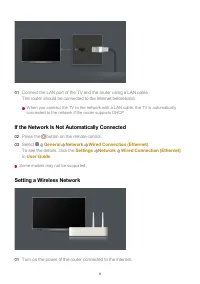
If the Network Is Not Automatically Connected Some models may not be supported. Setting a Wireless Network Connect the LAN port of the TV and the router using a LAN cable. The router should be connected to the Internet beforehand. When you connect the TV to the network with a LAN cable, the TV is au...
Page 9 - Network Setting Warnings
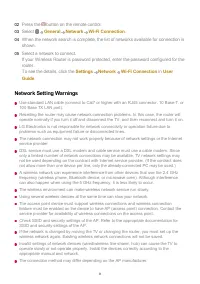
Network Setting Warnings Use standard LAN cable (connect to Cat7 or higher with an RJ45 connector, 10 Base-T, or100 Base TX LAN port). Resetting the router may cause network connection problems. In this case, the router willoperate normally if you turn it off and disconnect the TV, and then reconnec...
Page 10 - LG Membership; Logging in with; Managing Your LG Account; When you enter
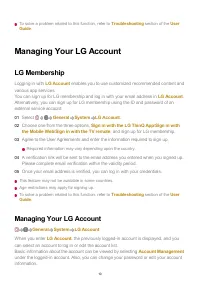
To solve a problem related to this function, refer to Troubleshooting section of the User Guide . Managing Your LG Account LG Membership Logging in with LG Account enables you to use customized recommended content and various app services. You can sign up for LG membership and log in with your email...
Page 11 - Using Always Ready; Using
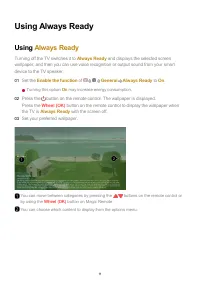
Using Always Ready Using Always Ready Turning off the TV switches it to Always Ready and displays the selected screen wallpaper, and then you can use voice recognition or output sound from your smartdevice to the TV speaker. Set the Enable the function of General Always Ready to On . Turning this op...
Page 12 - To watch TV when it is on; with the screen on, press the button or the; Always Ready; with the screen off, the TV can be turned on by pressing
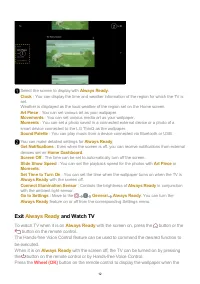
Exit Always Ready and Watch TV To watch TV when it is on Always Ready with the screen on, press the button or the button on the remote control. The Hands-free Voice Control feature can be used to command the desired function tobe executed. When it is on Always Ready with the screen off, the TV can b...
Page 13 - About User Guide; About
TV is Always Ready with the screen off. The wallpaper is displayed. Using Always Ready Without Screen Wallpaper Even when the screen is off, you can play music using voice recognition or byconnecting to a smart device via Bluetooth. Users can turn off only the screen in Always Ready using the below ...
Page 14 - How to Operate TV; Learn More about Magic Remote; Pairing the Magic Remote
The images and information in the User Guide may differ depending on the model and operating environment. Product specifications may be changed without prior notice due to upgrade of productfunctions. How to Operate TV Pairing the Magic Remote Learn More about Magic Remote You can select the functio...
Page 15 - Unregistering Magic Remote; Using the Magic Remote; Using the Remote Control Button; time for more than 5 seconds until instructions appear.
Unregistering Magic Remote If you have multiple LG Smart TVs and want to register the Magic Remote currently inuse to another TV, you must unregister the previous one. Using the Magic Remote Using the Remote Control Button Briefly press or press and hold remote control button to access various funct...
Page 16 - Move the pointer to the location you want and press the
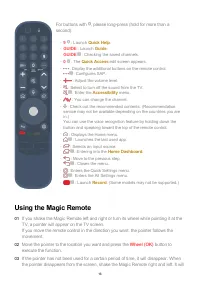
For buttons with , please long-press (hold for more than asecond). Using the Magic Remote 9 : Launch Quick Help . ● GUIDE : Launch Guide . GUIDE : Checking the saved channels. ● 0 : The Quick Access edit screen appears. ● : Display the additional buttons on the remote control. : Configures SAP. ● : ...
Page 17 - Using TV features with Hands-free Voice Control; Use Hands-free Voice Control; When the TV is on
If the pointer is not responding smoothly, you can reset the pointer by moving it to the edgeof the screen. Use the remote control within the working distance (within 10 meters or 33 feet). If there isan obstacle between the TV and the remote control, it may not operate properly. Depending on the pe...
Page 18 - When the TV is off; to; The Standby Light on the front of the TV will change to white.
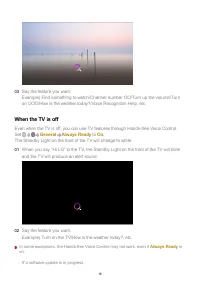
When the TV is off Even when the TV is off, you can use TV features through Hands-free Voice Control. Set General Always Ready to On . The Standby Light on the front of the TV will change to white. In some exceptions, the Hands-free Voice Control may not work, even if Always Ready is on. Say the fea...
Page 19 - Precautions When Using Hands-free Voice Control; Using TV Functions through Speech
Precautions When Using Hands-free Voice Control Some models do not support this function. The operation may be limited depending on the country and language settings. When updating the TV, the existing functions or operations you have used may change. The Hands-free Voice Control function enables th...
Page 20 - Cautions for Speech Recognition
Some models may not be supported. Menu Language must be set as the official language of the country in Location to see correct search results. If Menu Language is not set as the official language, some functions may be limited. You can change the language in General System Language Menu Language . T...
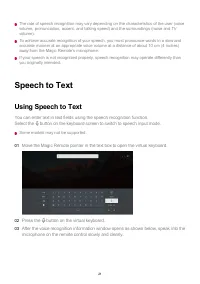
Page 21 - Speech to Text; Using Speech to Text; Press the button on the virtual keyboard.
The rate of speech recognition may vary depending on the characteristics of the user (voicevolume, pronunciation, accent, and talking speed) and the surroundings (noise and TVvolume). To achieve accurate recognition of your speech, you must pronounce words in a slow andaccurate manner at an appropri...
Page 22 - Cautions When Using Speech to Text; RETRY; to try again. Select a result and it will be displayed on the text box.
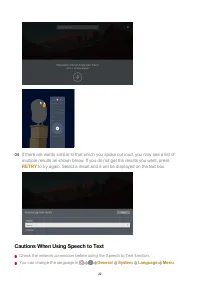
Cautions When Using Speech to Text Check the network connection before using the Speech to Text function. You can change the language in General System Language Menu If there are words similar to that which you spoke out loud, you may see a list ofmultiple results as shown below. If you do not get t...
Page 23 - Control your TV with your voice with Google Assistant; Access Voice Recognition Using Amazon Alexa; Press and hold the
Language . To temporarily switch to another speech recognition language, press the button in the voice recognition information display window. You can use this function only when you agree to the Voice Recognition terms. The Speech to Text rate may vary depending on the user’s characteristics (voice...
Page 24 - To View More Features of the Remote Control; More Actions; displayed on
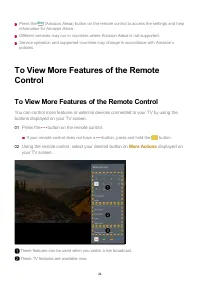
Press the (Amazon Alexa) button on the remote control to access the settings and help information for Amazon Alexa. Different services may run in countries where Amazon Alexa is not supported. Service operation and supported countries may change in accordance with Amazon’spolicies. To View More Feat...
Page 25 - Using Universal Remote Control; Automatically Setting the Universal Remote Control; Connect the devices to be set to the TV's; HDMI IN; Manually Setting the Universal Remote Control; Select the; Select the type of the device you want to set.
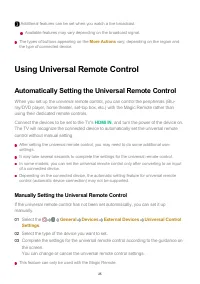
The types of buttons appearing on the More Actions vary, depending on the region and the type of connected device. Using Universal Remote Control Automatically Setting the Universal Remote Control When you set up the universal remote control, you can control the peripherals (Blu-ray/DVD player, home...
Page 26 - Launching Apps through Quick Access; Using Apps Quickly and Easily with; Setting the; Checking and Editing; Quick Access
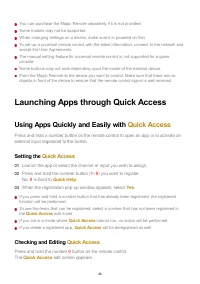
You can purchase the Magic Remote separately if it is not provided. Some models may not be supported. When changing settings on a device, make sure it is powered on first. To set up a universal remote control with the latest information, connect to the network andaccept the User Agreements. The manu...
Page 27 - Using SIMPLINK
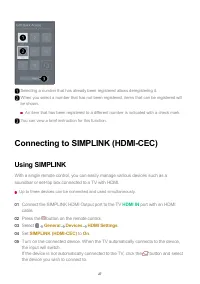
Connecting to SIMPLINK (HDMI-CEC) Using SIMPLINK With a single remote control, you can easily manage various devices such as asoundbar or set-top box connected to a TV with HDMI. Up to three devices can be connected and used simultaneously. Selecting a number that has already been registered allows ...
Page 28 - Supported SIMPLINK Functions; Instant Play; Turning on a SIMPLINK device will also turn on the TV.; Shortcuts to Accessibility; Shortcuts to; You may go directly to; Accessibility; without entering the Advanced Settings menu.
This feature works only with devices with the logo. Check for the SIMPLINK logo on the external device. Use of any product other than those specified may cause problems during operation. To use SIMPLINK, you need to use a high-speed HDMI ® cable with CEC (Consumer Electronics Control) function. The ...
Page 29 - Connecting an Input Device to USB; Using a USB Wired/Wireless Mouse; Using a USB Wired/Wireless Keyboard; Using a Gamepad
Press and hold the button on your remote control. In Accessibility , you can set up High Contrast , Grayscale , Invert Colors , etc. Connecting an Input Device to USB Using a USB Wired/Wireless Mouse Connect your mouse to the USB port. Use the mouse to move the pointer on the TVscreen and select the...
Page 30 - Connecting Bluetooth Input Devices; Making the Most of Live Menu; Using Live Menu; button on the Magic Remote.; LIST; button on the standard remote control.
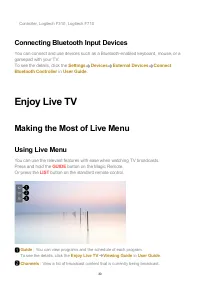
Controller, Logitech F310, Logitech F710 Connecting Bluetooth Input Devices You can connect and use devices such as a Bluetooth-enabled keyboard, mouse, or agamepad with your TV. To see the details, click the Settings Devices External Devices Connect Bluetooth Controller in User Guide . Enjoy Live T...
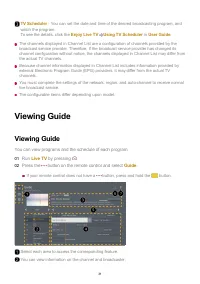
Page 31 - Viewing Guide; You can view programs and the schedule of each program.; Run; Live TV
The channels displayed in Channel List are a configuration of channels provided by thebroadcast service provider. Therefore, if the broadcast service provider has changed itschannel configuration without notice, the channels displayed in Channel List may differ fromthe actual TV channels. Because ch...
Page 32 - Viewing Set-Top Box Guide; Checking Program Info; Viewing Program Information; While watching a live broadcast press the; Change Banner Location
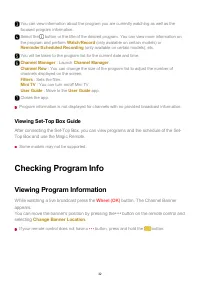
Program information is not displayed for channels with no provided broadcast information. Viewing Set-Top Box Guide After connecting the Set-Top Box, you can view programs and the schedule of the Set-Top Box and use the Magic Remote. Some models may not be supported. Checking Program Info Viewing Pr...
Page 34 - Entering; button on your remote control.; Viewing Information about the Scene with; Wish List; and come back anytime you want.
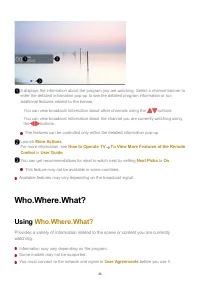
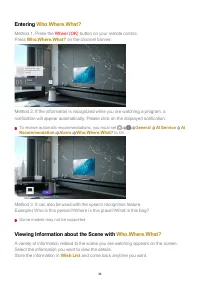
Entering Who.Where.What? Method 1. Press the Wheel (OK) button on your remote control. Press Who.Where.What? on the channel banner. Method 2. If the information is recognized while you are watching a program, anotification will appear automatically. Please click on the displayed notification. To rec...
Page 35 - Viewing Information about the Content with; Press the button on the remote control and select; Sharing Information with
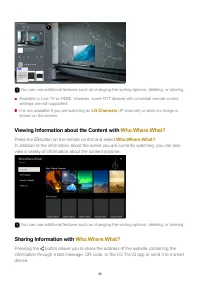
Available in Live TV or HDMI. However, some OTT devices with universal remote controlsettings are not supported. It is not available if you are watching an LG Channels (IP channel) or when no image is shown on the screen. Viewing Information about the Content with Who.Where.What? Press the button on...
Page 36 - Using TV Scheduler; Scheduling a selected broadcast from
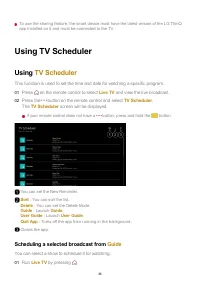
To use the sharing feature, the smart device must have the latest version of the LG ThinQapp installed on it and must be connected to the TV. Using TV Scheduler Using TV Scheduler This function is used to set the time and date for watching a specific program. Scheduling a selected broadcast from Gui...
Page 37 - Manual Scheduling; Watching Internet Channel
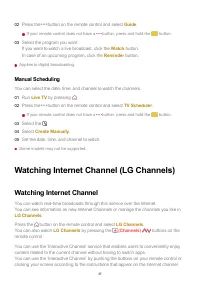
Applies to digital broadcasting. Manual Scheduling You can select the date, time, and channel to watch the channels. Some models may not be supported. Watching Internet Channel (LG Channels) Watching Internet Channel You can watch real-time broadcasts through this service over the Internet. You can ...
Page 38 - Apps and Content; Installing Apps; Apps
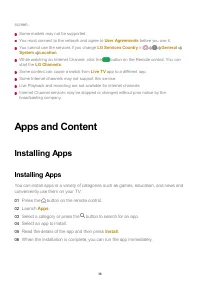
screen. Some models may not be supported. You must connect to the network and agree to User Agreements before you use it. You cannot use the services if you change LG Services Country in General System Location . While watching an Internet Channel, click the button on the Remote control. You can sta...
Page 39 - Content Recommendation
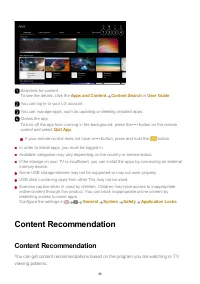
In order to install apps, you must be logged in. Available categories may vary depending on the country or service status. If the storage on your TV is insufficient, you can install the apps by connecting an externalmemory device. Some USB storage devices may not be supported or may not work properl...
Page 40 - User; Content Search; You can view more content by pressing the
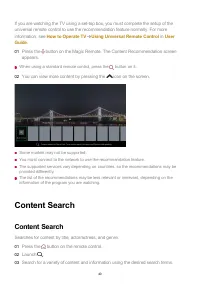
If you are watching the TV using a set-top box, you must complete the setup of theuniversal remote control to use the recommendation feature normally. For moreinformation, see How to Operate TV Using Universal Remote Control in User Guide . When using a standard remote control, press the button on i...
Page 41 - Connecting External Devices; Using Home Dashboard; Home Dashboard; by pressing the
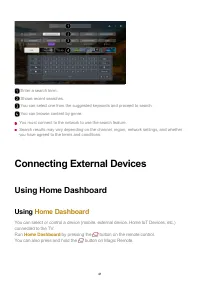
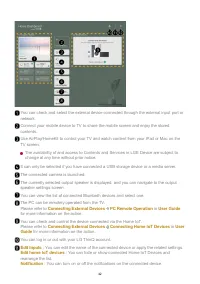
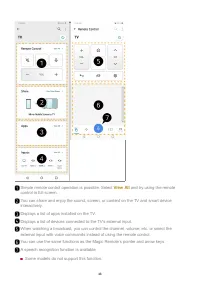
You must connect to the network to use the search feature. Search results may vary depending on the channel, region, network settings, and whetheryou have agreed to the terms and conditions. Connecting External Devices Using Home Dashboard Using Home Dashboard You can select or control a device (mob...
Page 43 - Connecting Home IoT Devices; Install LG ThinQ app on your smartphone.
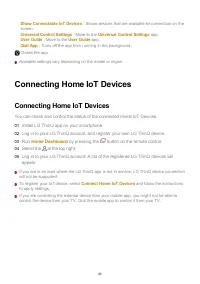
Available settings vary depending on the model or region. Connecting Home IoT Devices Connecting Home IoT Devices You can check and control the status of the connected Home IoT Devices. If you are in an area where the LG ThinQ app is not in service, LG ThinQ device connectionwill not be supported. T...
Page 44 - Connecting Smart Devices; Connecting Your Smart Device to a TV Using the LG ThinQ App
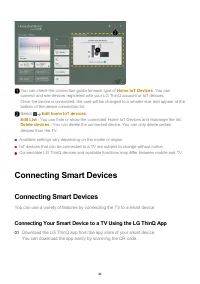
Available settings vary depending on the model or region. IoT devices that can be connected to a TV are subject to change without notice. Connectable LG ThinQ devices and available functions may differ between mobile and TV. Connecting Smart Devices Connecting Smart Devices You can use a variety of ...
Page 45 - Controlling Your TV with the LG ThinQ App; Run the LG ThinQ app installed on your smart device.
Voice commands can also be made through Smart Speaker linked to the account in thesettings of the LG ThinQ app. The service may not offer depending on country. Controlling Your TV with the LG ThinQ App You can tap the buttons on your smart device’s screen to control the TV. Connect your TV and smart...
Page 47 - Watching Smart Device Screen on TV; Enable Screen Share mode on the smart device.; Accept; in the connection request popup window.
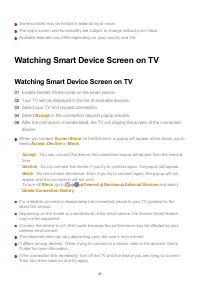
Some controls may be limited in external input mode. The app’s screen and functionality are subject to change without prior notice. Available features may differ depending on your country and OS. Watching Smart Device Screen on TV Watching Smart Device Screen on TV When you connect Screen Share for ...
Page 48 - Connecting USB; The TV will be connected to the smart device.
Playing Sound from a Smart Device throughthe TV’s Speakers Playing Sound from a Smart Device through the TV’sSpeakers Connect a smart device to the TV via Bluetooth to play sound from the smart devicethrough the TV’s speakers. The TV may not be found in the list of smart devices while searching for ...
Page 49 - Using the Media Player; Using the; You can search and view photos or play videos and songs with the; Media Player; Select a device to use from the device list.
and a rated current of 500 mA or less. If you use a device requiring a higher voltage/currentthan the rated voltage/current, it may not operate properly due to lack of current. It is recommended that you use a USB hub or USB storage device with a power supply. We recommend using a storage device wit...
Page 50 - Viewing Photos; You can select a photo from the; app and view the photo.
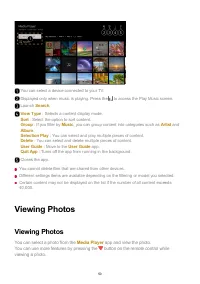
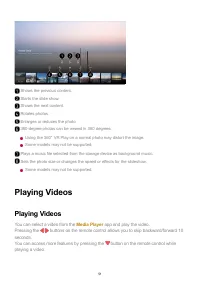
You cannot delete files that are shared from other devices. Different settings items are available depending on the filtering or model you selected. Certain content may not be displayed on the list if the number of all content exceeds40,000. Viewing Photos Viewing Photos You can select a photo from ...
Page 51 - Playing Videos; You can select a video from the; app and play the video.
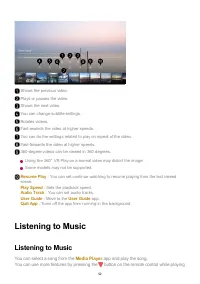
Playing Videos Playing Videos You can select a video from the Media Player app and play the video. Pressing the / buttons on the remote control allows you to skip backward/forward 10seconds. You can access more features by pressing the button on the remote control whileplaying a video. Shows the pre...
Page 52 - Listening to Music; You can select a song from the; app and play the song.
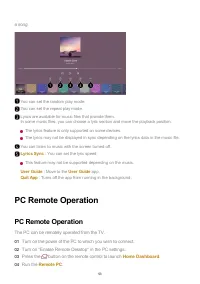
Listening to Music Listening to Music You can select a song from the Media Player app and play the song. You can use more features by pressing the button on the remote control while playing Shows the previous video. Plays or pauses the video. Shows the next video. You can change subtitle settings. R...
Page 53 - PC Remote Operation; The PC can be remotely operated from the TV.; Turn on the power of the PC to which you wish to connect.; Run the; Remote PC
a song. PC Remote Operation PC Remote Operation The PC can be remotely operated from the TV. You can set the random play mode. You can set the repeat play mode. Lyrics are available for music files that provide them. In some music files, you can choose a lyric section and move the playback position....
Page 54 - Sharing PC Content; Watch content saved in your PC on the TV; Browse the content on your PC to watch on TV (Windows 10); User Name
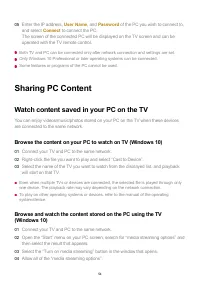
Both TV and PC can be connected only after network connection and settings are set. Only Windows 10 Professional or later operating systems can be connected. Some features or programs of the PC cannot be used. Sharing PC Content Watch content saved in your PC on the TV You can enjoy videos/music/pho...
Page 55 - Matters That Require Special Attention during Content Share; Watching PC Screen on TV; Select “OK” to save the settings.; app on the TV, and then select
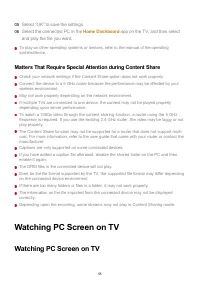
To play on other operating systems or devices, refer to the manual of the operatingsystem/device. Matters That Require Special Attention during Content Share Check your network settings if the Content Share option does not work properly. Connect the device to a 5 GHz router because the performance m...
Page 56 - Connect Wired; Making the Most of Smart TV; Select the TV you want to connect to and request the connection.
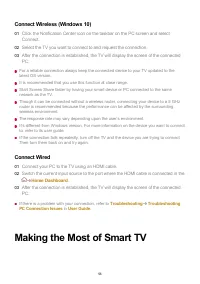
Connect Wireless (Windows 10) For a reliable connection always keep the connected device to your TV updated to thelatest OS version. It is recommended that you use this function at close range. Start Screen Share faster by having your smart device or PC connected to the samenetwork as the TV. Though...
Page 57 - To Use Magic Explorer; Using Multi View
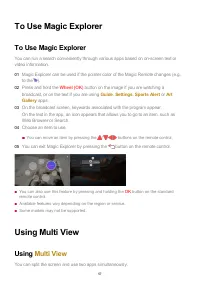
To Use Magic Explorer To Use Magic Explorer You can run a search conveniently through various apps based on on-screen text orvideo information. You can also use this feature by pressing and holding the OK button on the standard remote control. Available features vary depending on the region or servi...
Page 59 - Using the Room to Room Share; Room to Room Share; Connect TV; and follow the on-screen instructions to connect.
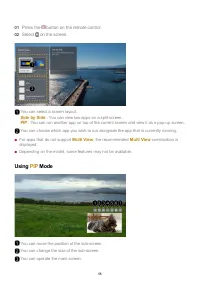
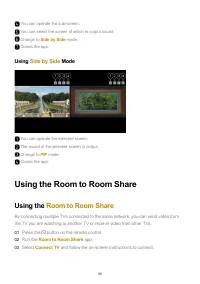
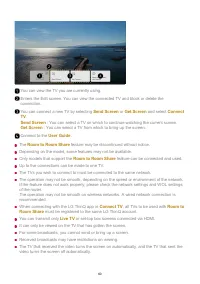
Using Side by Side Mode Using the Room to Room Share Using the Room to Room Share By connecting multiple TVs connected to the same network, you can send video fromthe TV you are watching to another TV or receive video from other TVs. You can operate the sub-screen. You can select the screen of which...
Page 61 - Making the Most of Art Gallery; Making the Most of; You can enjoy a high-definition image provided for each theme.; Surfing the Internet on TV; Art Gallery
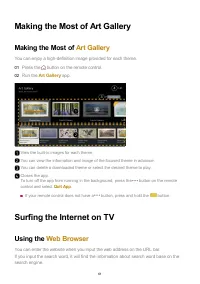
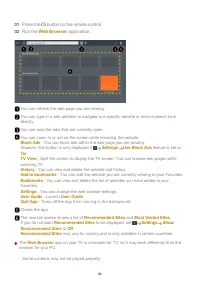
Making the Most of Art Gallery Making the Most of Art Gallery You can enjoy a high-definition image provided for each theme. Surfing the Internet on TV Using the Web Browser You can enter the website when you input the web address on the URL bar. If you input the search word, it will find the inform...
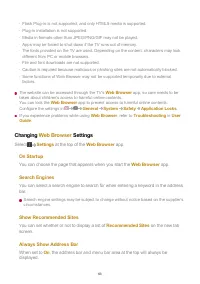
Page 63 - On Startup; Search Engines; Recommended Sites; Always Show Address Bar
The website can be accessed through the TV's Web Browser app, so care needs to be taken about children's access to harmful online contents. You can lock the Web Browser app to prevent access to harmful online contents. Configure the settings in General System Safety Application Locks . If you experi...
Page 65 - Clear Browsing Data; Connecting a Camera to the TV; Video Conferencing; USB IN
Clear Browsing Data Clear Cookies : Deletes cookie data. When deleted, you are logged out of most sites. Clear All Browsing Data : Deletes all browsing history, including cookies. Connecting a Camera to the TV Connecting a Camera to the TV By connecting a camera to the TV, you can use it for video c...
Page 66 - Using Sports Alert
This feature is available only on models that support the Multi View feature. Using Sports Alert Using Sports Alert The match schedule or status may differ from actual ones depending on the circumstancesof the data provider. Real-time alarm may not be available when using certain apps. This feature ...
Page 67 - Quick Settings; To Use Setting Function Quickly; Displays a set of light-weight controls quickly and simply such as; Picture Mode
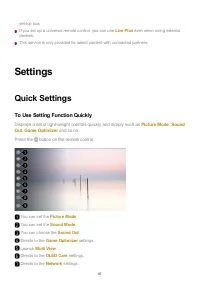
set-top box. If you set up a universal remote control, you can use Live Plus even when using external devices. This service is only provided for select content with contracted partners. Settings Quick Settings To Use Setting Function Quickly Displays a set of light-weight controls quickly and simply...
Page 68 - Game Dashboard
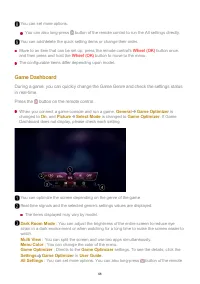
Move to an item that can be set up, press the remote control's Wheel (OK) button once, and then press and hold the Wheel (OK) button to move to the menu. The configurable items differ depending upon model. Game Dashboard During a game, you can quickly change the Game Genre and check the settings sta...
Page 69 - Picture; Picture; APS; Suitable picture for movies.
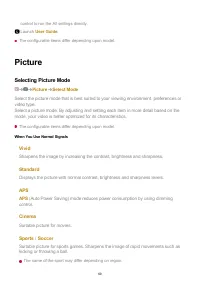
The configurable items differ depending upon model. Picture Selecting Picture Mode Picture Select Mode Select the picture mode that is best suited to your viewing environment, preferences orvideo type. Select a picture mode. By adjusting and setting each item in more detail based on themode, your vi...
Page 70 - Cinema
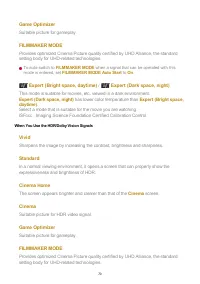
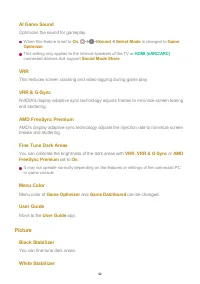
Game Optimizer Suitable picture for gameplay. FILMMAKER MODE Provides optimized Cinema Picture quality certified by UHD Alliance, the standardsetting body for UHD-related technologies. To auto-switch to FILMMAKER MODE when a signal that can be operated with this mode is entered, set FILMMAKER MODE A...
Page 71 - Setting the Screen Size; Original; and
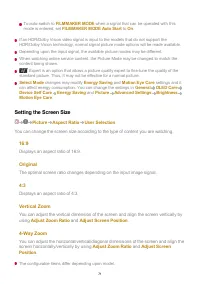
To auto-switch to FILMMAKER MODE when a signal that can be operated with this mode is entered, set FILMMAKER MODE Auto Start to On . If an HDR/Dolby Vision video signal is input to the models that do not support theHDR/Dolby Vision technology, normal signal picture mode options will be made availabl...
Page 72 - Panel Brightness
The picture may get distorted while zooming in or out. Selecting a different screen size from the original size may cause the image to lookdifferent. Depending on the combination of picture format and screen size, the edges may be hiddenor shown in black, or both sides of the picture may flicker. Al...
Page 73 - Adjust peak brightness for the brightest luminance.; Video; to match the color range of the external input device.
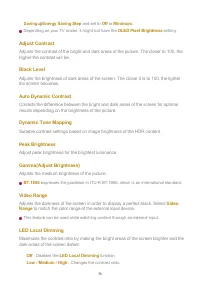
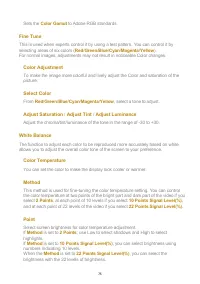
Saving Energy Saving Step and set to Off or Minimum . Depending on your TV model, it might not have the OLED Pixel Brightness setting. Adjust Contrast Adjusts the contrast of the bright and dark areas of the picture. The closer to 100, thehigher the contrast will be. Black Level Adjusts the brightne...
Page 74 - Adjusting the Color of an Picture; Selects the range of Colors to display.; Color Gamut; to match the signal.
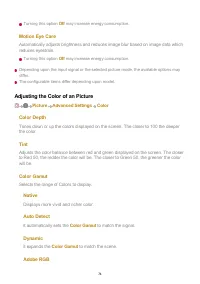
Turning this option Off may increase energy consumption. Motion Eye Care Automatically adjusts brightness and reduces image blur based on image data whichreduces eyestrain. Turning this option Off may increase energy consumption. Depending upon the input signal or the selected picture mode, the avai...
Page 76 - Adjusting the Contrast of a Picture
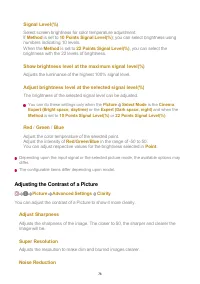
Signal Level(%) Select screen brightness for color temperature adjustment. If Method is set to 10 Points Signal Level(%) ; you can select brightness using numbers indicating 10 levels. When the Method is set to 22 Points Signal Level(%) , you can select the brightness with the 22 levels of brightnes...
Page 77 - Removes small dots that stand out so as to make the image clean.; MPEG Noise Reduction; Optimize display for movies.; TruMotion; Suitable the image quality of fast-moving pictures.; Applying the Current Picture Settings to All Inputs
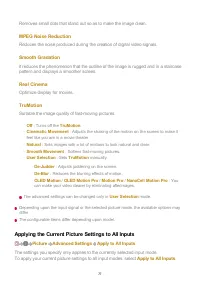
Removes small dots that stand out so as to make the image clean. MPEG Noise Reduction Reduces the noise produced during the creation of digital video signals. Smooth Gradation It reduces the phenomenon that the outline of the image is rugged and in a staircasepattern and displays a smoother screen. ...
Page 78 - To Use; Sound; Select Mode; AI Sound
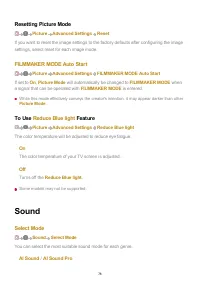
Resetting Picture Mode Picture Advanced Settings Reset If you want to reset the image settings to the factory defaults after configuring the imagesettings, select reset for each image mode. FILMMAKER MODE Auto Start Picture Advanced Settings FILMMAKER MODE Auto Start If set to On , Picture Mode will...
Page 79 - Use TV Speaker
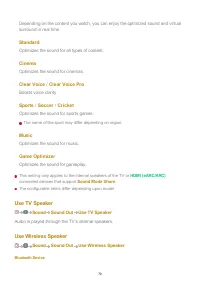
Depending on the content you watch, you can enjoy the optimized sound and virtualsurround in real time. Standard Optimizes the sound for all types of content. Cinema Optimizes the sound for cinemas. Clear Voice / Clear Voice Pro Boosts voice clarity. Sports / Soccer / Cricket Optimizes the sound for...
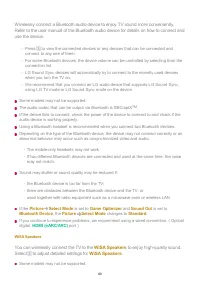
Page 80 - You can wirelessly connect the TV to the; WiSA Speakers; Select to adjust detailed settings for; WiSA Speakers
Wirelessly connect a Bluetooth audio device to enjoy TV sound more conveniently. Refer to the user manual of the Bluetooth audio device for details on how to connect anduse the device. Some models may not be supported. The audio codec that can be output via Bluetooth is SBC/aptX TM . If the device f...
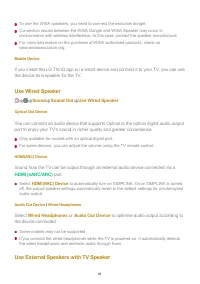
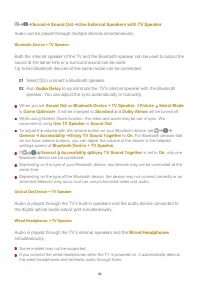
Page 81 - Use Wired Speaker; Wired Headphones; or; Audio Out Device; to optimise audio output according to; Use External Speakers with TV Speaker
To use the WiSA speakers, you need to connect the exclusive dongle. Connection issues between the WiSA Dongle and WiSA Speaker may occur inenvironments with wireless interference. In this case, contact the speaker manufacturer. For more information on the purchase of WiSA authorized products, check ...
Page 83 - Dolby Atmos; . Given the effect of the; Balance; You can adjust the volume of the left and right speakers.; Equalizer; Applying the Current Sound Settings to All Inputs
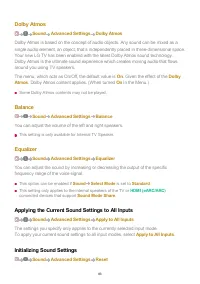
Dolby Atmos Sound Advanced Settings Dolby Atmos Dolby Atmos is based on the concept of audio objects. Any sound can be mixed as asingle audio element, an object, that’s independently placed in three-dimensional space.Your new LG TV has been enabled with the latest Dolby Atmos sound technology.Dolby ...
Page 84 - Installation Type; Stand; Automatic Volume Adjustment; Adjusting AV Synchronization
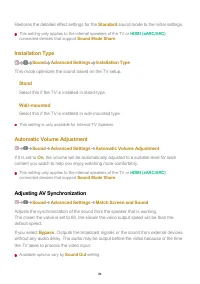
Restores the detailed effect settings for the Standard sound mode to the initial settings. This setting only applies to the internal speakers of the TV or HDMI (eARC/ARC) connected devices that support Sound Mode Share . Installation Type Sound Advanced Settings Installation Type This mode optimizes...
Page 85 - LG Sound Sync
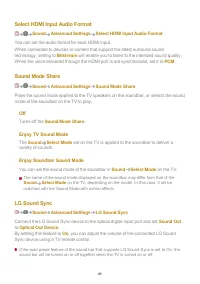
Select HDMI Input Audio Format Sound Advanced Settings Select HDMI Input Audio Format You can set the audio format for each HDMI input. When connected to devices or content that support the latest surround soundtechnology, setting to Bitstream will enable you to listen to the intended sound quality....
Page 86 - Using eARC Supported Audio Device
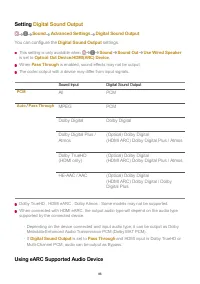
Setting Digital Sound Output Sound Advanced Settings Digital Sound Output You can configure the Digital Sound Output settings. This setting is only available when Sound Sound Out Use Wired Speaker is set to Optical Out Device / HDMI(ARC) Device . When Pass Through is enabled, sound effects may not b...
Page 87 - AI Service; AI Picture Pro
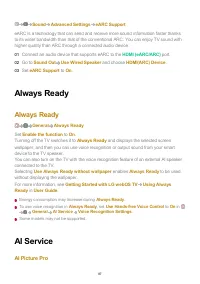
Sound Advanced Settings eARC Support eARC is a technology that can send and receive more sound information faster thanksto its wider bandwidth than that of the conventional ARC. You can enjoy TV sound withhigher quality than ARC through a connected audio device. Always Ready Always Ready General Alw...
Page 89 - Viewing; It shows a list of voice commands the TV can perform.; You can apply settings for voice recognition features.; AI Recommendation
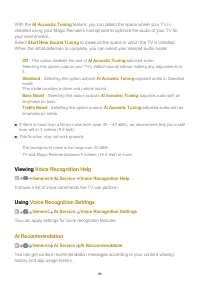
With the AI Acoustic Tuning feature, you can detect the space where your TV is installed using your Magic Remote’s microphone to optimize the audio of your TV foryour environment. Select Start New Sound Tuning to measure the space in which the TV is installed. When the initial detection is complete,...
Page 90 - You can get recommendations based on your TV viewing patterns.; Move to the; Sports Alert; app. You can check information about sports events and; Game Optimizer
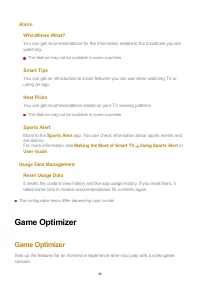
Alarm Who.Where.What? You can get recommendations for the information related to the broadcast you arewatching. This feature may not be available in some countries. Smart Tips You can get an introduction to smart features you can use when watching TV orusing an app. Next Picks You can get recommenda...
Page 91 - Game
It only works with HDMI inputs. If you set Picture Select Mode to a mode other than Game Optimizer , some items in Game Optimizer cannot be set. If you turn this feature On , you cannot change some video settings items. When Game Optimizer is set to On , audio delays may occur if you set Sound Out t...
Page 93 - OLED Care
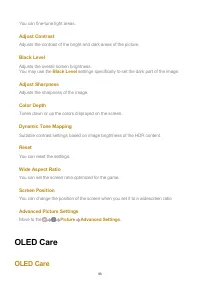
You can fine-tune light areas. Adjust Contrast Adjusts the contrast of the bright and dark areas of the picture. Black Level Adjusts the overall screen brightness. You may use the Black Level settings specifically to set the dark part of the image. Adjust Sharpness Adjusts the sharpness of the image...
Page 94 - Care Picture Settings; Device Self Care
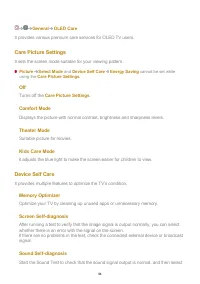
General OLED Care It provides various premium care services for OLED TV users. Care Picture Settings It sets the screen mode suitable for your viewing pattern. Picture Select Mode and Device Self Care Energy Saving cannot be set while using the Care Picture Settings . Off Turns off the Care Picture ...
Page 95 - OLED Panel Care
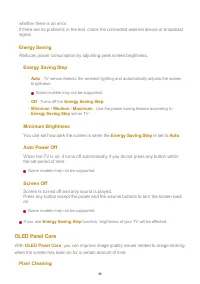
whether there is an error. If there are no problems in the test, check the connected external device or broadcastsignal. Energy Saving Reduces power consumption by adjusting peak screen brightness. Energy Saving Step Minimum Brightness You can set how dark the screen is when the Energy Saving Step i...
Page 96 - Screen Move; Family Settings; Usage Limits Setting; Eye Care Mode
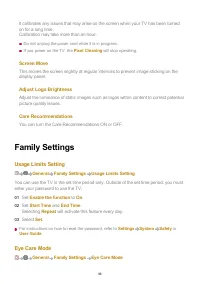
It calibrates any issues that may arise on the screen when your TV has been turnedon for a long time. Calibration may take more than an hour. Do not unplug the power cord while it is in progress. If you power on the TV, the Pixel Cleaning will stop operating. Screen Move This moves the screen slight...
Page 97 - Volume Limit Mode; Screen Time Reports; Channels; Automatically Setting Up Channels
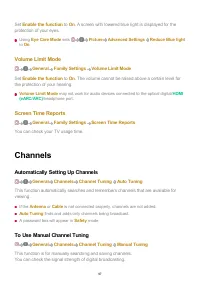
Set Enable the function to On . A screen with lowered blue light is displayed for the protection of your eyes. Using Eye Care Mode sets Picture Advanced Settings Reduce Blue light to On . Volume Limit Mode General Family Settings Volume Limit Mode Set Enable the function to On . The volume cannot be...
Page 98 - Edit Channels
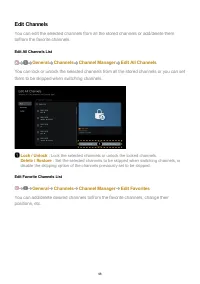
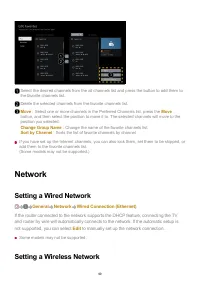
Edit Channels You can edit the selected channels from all the stored channels or add/delete themto/from the favorite channels. Edit All Channels List General Channels Channel Manager Edit All Channels You can lock or unlock the selected channels from all the stored channels or you can setthem to be ...
Page 99 - Network; to manually set up the network connection.
If you have set up the Internet channels, you can also lock them, set them to be skipped, oradd them to the favorite channels list. (Some models may not be supported.) Network Setting a Wired Network General Network Wired Connection (Ethernet) If the router connected to the network supports the DHCP...
Page 100 - Devices; Setting TV; You can choose between
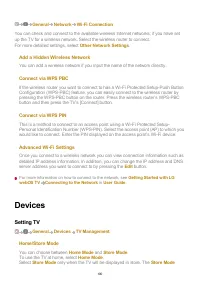
General Network Wi-Fi Connection You can check and connect to the available wireless Internet networks; if you have setup the TV for a wireless network. Select the wireless router to connect. For more detailed settings, select Other Network Settings . Add a Hidden Wireless Network You can add a wire...
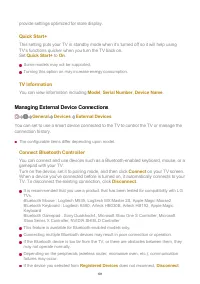
Page 101 - TV Information; You can view information including; Managing External Device Connections; Connect Bluetooth Controller
provide settings optimized for store display. Quick Start+ This setting puts your TV in standby mode when it’s turned off so it will help usingTV’s functions quicker when you turn the TV back on. Set Quick Start+ to On . Some models may not be supported. Turning this option on may increase energy co...
Page 102 - Delete Connection History; Setting HDMI External Input; HDMI Deep Color
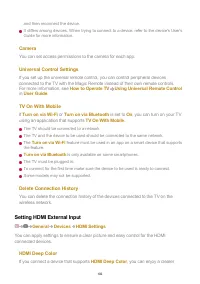
and then reconnect the device. It differs among devices. When trying to connect to a device, refer to the device's User'sGuide for more information. Camera You can set access permissions to the camera for each app. Universal Control Settings If you set up the universal remote control, you can contro...
Page 103 - image. After connecting the playback device, set; setting to; Supported Display Resolution
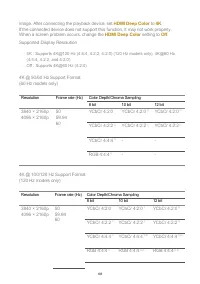
image. After connecting the playback device, set HDMI Deep Color to 4K . If the connected device does not support this function, it may not work properly. When a screen problem occurs, change the HDMI Deep Color setting to Off . Supported Display Resolution 4K @ 50/60 Hz Support Format (60 Hz models...
Page 104 - System; Configuring Language Settings; Menu Language
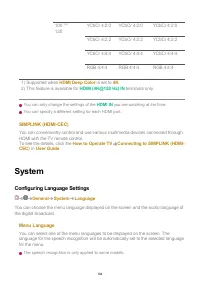
100 120 YCbCr 4:2:0 YCbCr 4:2:0 YCbCr 4:2:0 YCbCr 4:2:2 YCbCr 4:2:2 YCbCr 4:2:2 YCbCr 4:4:4 YCbCr 4:4:4 YCbCr 4:4:4 RGB 4:4:4 RGB 4:4:4 RGB 4:4:4 1) Supported when HDMI Deep Color is set to 4K . 2) This feature is available for HDMI (4K@120 Hz) IN terminals only. You can only change the settings of ...
Page 105 - Audio Language; Keyboard Languages; Select the language to use the on-screen keyboard.; Setting the Location; You can change the location setting of your Smart TV.; Broadcast Country; You can set the broadcast country on your TV.; Zip Code; If you haven't selected; You can check the time or configure related settings.
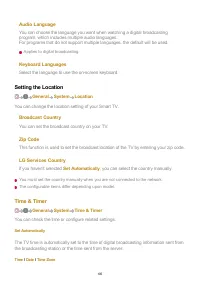
Audio Language You can choose the language you want when watching a digital broadcastingprogram, which includes multiple audio languages. For programs that do not support multiple languages, the default will be used. Applies to digital broadcasting. Keyboard Languages Select the language to use the ...
Page 106 - Sleep Timer
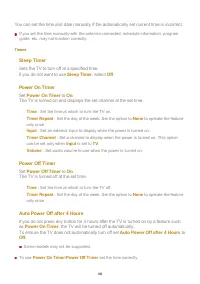
You can set the time and date manually if the automatically set current time is incorrect. If you set the time manually with the antenna connected, schedule information, programguide, etc. may not function correctly. Timers Sleep Timer Sets the TV to turn off at a specified time. If you do not want ...
Page 107 - TV Program Locks; Movie Lock
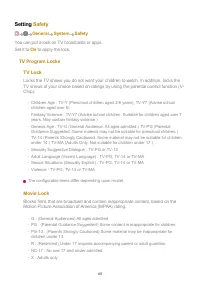
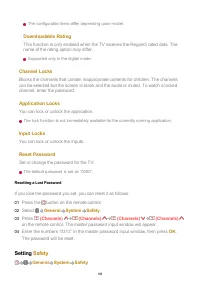
Setting Safety General System Safety You can put a lock on TV broadcasts or apps. Set it to On to apply the lock. TV Program Locks TV Lock Locks the TV shows you do not want your children to watch. In addition, locks theTV shows of your choice based on ratings by using the parental control function ...
Page 108 - Downloadable Rating; Channel Locks; Setting
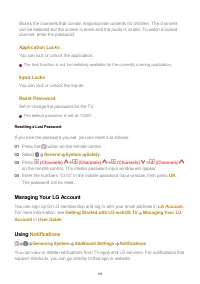
The configurable items differ depending upon model. Downloadable Rating This function is only enabled when the TV receives the Region5 rated data. Thename of the rating option may differ. Supported only in the digital mode. Channel Locks Blocks the channels that contain inappropriate contents for ch...
Page 109 - Select Canadian English Rating System.; TV Rating French; Select Canadian French Rating System.
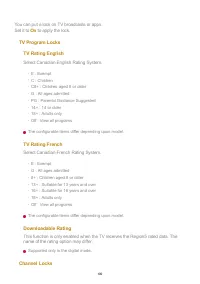
You can put a lock on TV broadcasts or apps. Set it to On to apply the lock. TV Program Locks TV Rating English Select Canadian English Rating System. The configurable items differ depending upon model. TV Rating French Select Canadian French Rating System. The configurable items differ depending up...
Page 111 - Home Settings; Home Auto Launch; You can set Home to launch automatically when turning on the TV.; Home Promotion; You can turn on or off the advertisements on the Home screen.; To Set Power Indicator; You can turn the standby light on or off.; Setting the Pointer of Magic Remote
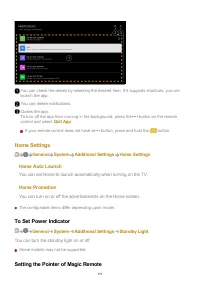
Home Settings General System Additional Settings Home Settings Home Auto Launch You can set Home to launch automatically when turning on the TV. Home Promotion You can turn on or off the advertisements on the Home screen. The configurable items differ depending upon model. To Set Power Indicator Gen...
Page 112 - Tracking Speed; Sets the pointer speed.; Pointer Size; Selects the pointer size.; Advertisement; Limit AD Tracking; If set to; Reset AD ID; To Use Settings Help
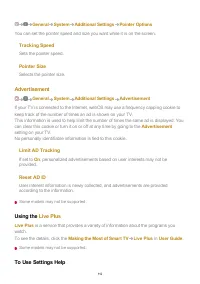
General System Additional Settings Pointer Options You can set the pointer speed and size you want while it is on the screen. Tracking Speed Sets the pointer speed. Pointer Size Selects the pointer size. Advertisement General System Additional Settings Advertisement If your TV is connected to the In...
Page 113 - When set to; Set ID; Reset All; All items on the TV are changed to their default settings.; Reset all except network settings
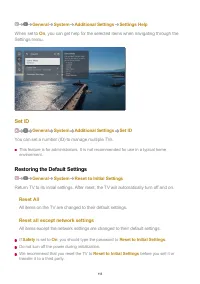
General System Additional Settings Settings Help When set to On , you can get help for the selected items when navigating through the Settings menu. Set ID General System Additional Settings Set ID You can set a number (ID) to manage multiple TVs. This feature is for administrators. It is not recomm...
Page 114 - To Use Audio Guidance; Speed; TV Power Sound
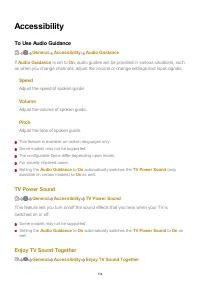
Accessibility To Use Audio Guidance General Accessibility Audio Guidance If Audio Guidance is set to On , audio guides will be provided in various situations, such as when you change channels, adjust the volume or change settings and input signals. Speed Adjust the speed of spoken guide. Volume Adju...
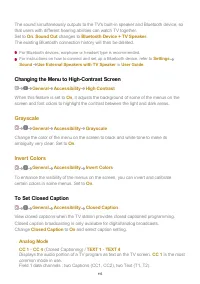
Page 115 - Changing the Menu to High-Contrast Screen; Analog Mode
The sound simultaneously outputs to the TV's built-in speaker and Bluetooth device, sothat users with different hearing abilities can watch TV together. Set to On . Sound Out changes to Bluetooth Device + TV Speaker . The existing Bluetooth connection history will then be deleted. For Bluetooth devi...
Page 116 - Digital Mode; HD Mode; Position Settings; Software Update; Support; Auto Update; Check for Updates
Field 2 data channels : two Captions (CC3, CC4), two Text (T3, T4). Digital Mode According to the digital broadcasting type you are watching, you can select thecaption in HD Mode or the NEXTGEN TV Mode . In the case of HD broadcasting, you can set the size and color of the caption at the HD Mode Opt...
Page 117 - User Agreements; It's a legal notice for services provided via TV.; Open Source Software Notice; You can view the instructions for each item.; Perform Check-up with the Quick Help; Perform Check-up with the; You can also long-press the number; Quick; Optimization Settings
In some countries, Auto Update is not displayed if you are not connected to the Internet. Privacy & Terms Support Privacy & Terms User Agreements These are the terms and conditions related to use of the Smart TV service andprotection of privacy. Legal Notice It's a legal notice for services ...
Page 118 - LG Remote Service; , make sure to contact the LG Electronics Customer Service; Learn More About Always Ready; Learn More About; What is the difference between; How can I use
Select the problematic item, and you can get help to solve the problem. LG Remote Service You can get help for troubleshooting through the remote control. For LG Remote Service , make sure to contact the LG Electronics Customer Service Center. This function may not be available in some countries or ...
Page 119 - How can I continue to use; without a wallpaper?; When the TV is; Troubleshooting Power/Remote Control Issues
remain. When the TV is Always Ready with the screen off To watch TV, press the button on the remote control. To turn on the screen, press the Wheel (OK) button on the remote control. Always Ready will remain. How can I continue to use Always Ready without a wallpaper? Selecting Use Always Ready with...
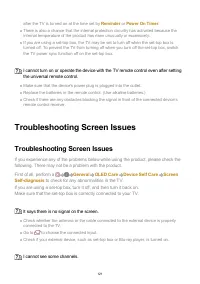
Page 121 - Troubleshooting Screen Issues; First of all, perform a; to check for any abnormalities in the TV.; I cannot see some channels.
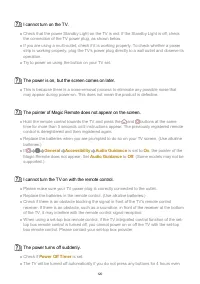
after the TV is turned on at the time set by Reminder or Power On Timer . There is also a chance that the internal protection circuitry has activated because theinternal temperature of the product has risen unusually or excessively. If you are using a set-top box, the TV may be set to turn off when ...
Page 124 - Troubleshooting Sound Issues
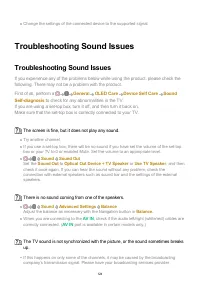
Change the settings of the connected device to the supported signal. Troubleshooting Sound Issues Troubleshooting Sound Issues If you experience any of the problems below while using the product, please check thefollowing. There may not be a problem with the product. First of all, perform a General ...
Page 125 - Troubleshooting PC Connection Issues; Edit Inputs; connected to the PC to; PC; to apply the video and aspect ratio settings that are aligned
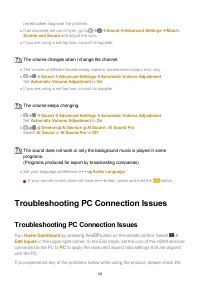
(wired/cable) diagnose the problem. If all channels are out of sync, go to Sound Advanced Settings Match Screen and Sound and adjust the sync. If you are using a set-top box, consult its supplier. The volume changes when I change the channel. The volume of different broadcasting stations’ transmissi...
Page 126 - The screen is not fully shown or is lopsided when connected to a PC.; Troubleshooting Movie Playback Issues; Being Aware of the
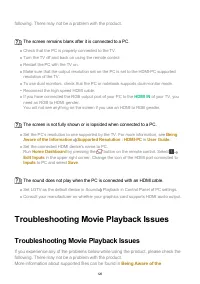
following. There may not be a problem with the product. The screen remains blank after it is connected to a PC. Check that the PC is properly connected to the TV. Turn the TV off and back on using the remote control. Restart the PC with the TV on. Make sure that the output resolution set on the PC i...
Page 127 - in the; I cannot find a file in the; I see a message that says the file is not supported.
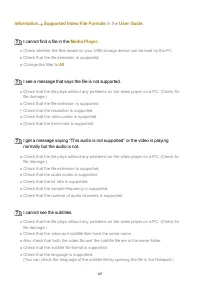
Information Supported Video File Formats in the User Guide . I cannot find a file in the Media Player . Check whether the files saved on your USB storage device can be read by the PC. Check that the file extension is supported. Change the filter to All . I see a message that says the file is not sup...
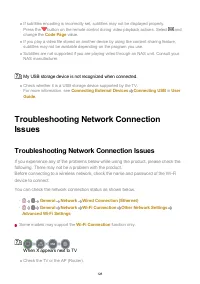
Page 128 - My USB storage device is not recognized when connected.; Troubleshooting Network Connection Issues; You can check the network connection status as shown below.; When X appears next to TV
If subtitles encoding is incorrectly set, subtitles may not be displayed properly. Press the button on the remote control during video playback actions. Select and change the Code Page value. If you play a video file stored on another device by using the content sharing feature,subtitles may not be ...
Page 129 - When X appears next to Gateway; When X appears next to DNS
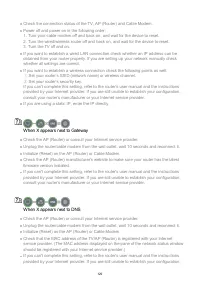
Check the connection status of the TV, AP (Router) and Cable Modem. Power off and power on in the following order; 1. Turn your cable modem off and back on, and wait for the device to reset. 2. Turn the wired/wireless router off and back on, and wait for the device to reset. 3. Turn the TV off and o...
Page 130 - Troubleshooting LG Account Issues; I wish to delete the account saved on the TV.
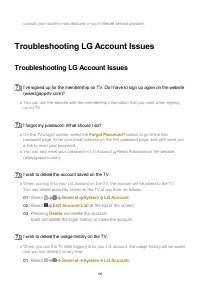
consult your router’s manufacturer or your Internet service provider. Troubleshooting LG Account Issues Troubleshooting LG Account Issues I’ve signed up for the membership on TV. Do I have to sign up again on the website(www.lgappstv.com)? You can use the website with the membership information that...
Page 131 - I wish to close my account on the TV.; Troubleshooting Contents Issues; I cannot see any content in HOME.
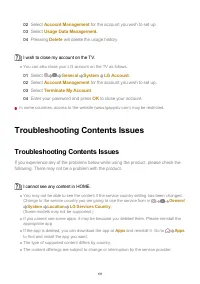
I wish to close my account on the TV. You can also close your LG account on the TV as follows. In some countries, access to the website (www.lgappstv.com) may be restricted. Troubleshooting Contents Issues Troubleshooting Contents Issues If you experience any of the problems below while using the pr...
Page 132 - Troubleshooting Internet Browser Issues; When watching a video in; Being Aware of the Information
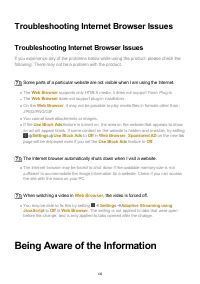
Troubleshooting Internet Browser Issues Troubleshooting Internet Browser Issues If you experience any of the problems below while using the product, please check thefollowing. There may not be a problem with the product. Some parts of a particular website are not visible when I am using the Internet...
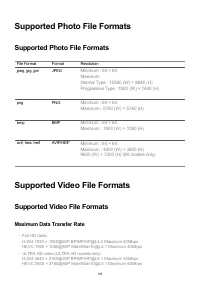
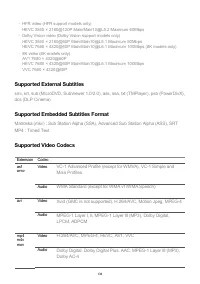
Page 133 - Supported Photo File Formats; Supported Video File Formats; Maximum Data Transfer Rate
Supported Photo File Formats Supported Photo File Formats File Format Format Resolution jpeg, jpg, jpe JPEG Minimum : 64 × 64 Maximum Normal Type : 15360 (W) × 8640 (H) Progressive Type : 1920 (W) × 1440 (H) png PNG Minimum : 64 × 64 Maximum : 5760 (W) × 5760 (H) bmp BMP Minimum : 64 × 64 Maximum : ...
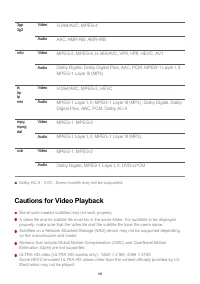
Page 135 - Cautions for Video Playback
3gp 3g2 Video H.264/AVC, MPEG-4 Audio AAC, AMR-NB, AMR-WB mkv Video MPEG-2, MPEG-4, H.264/AVC, VP8, VP9, HEVC, AV1 Audio Dolby Digital, Dolby Digital Plus, AAC, PCM, MPEG-1 Layer I, II,MPEG-1 Layer III (MP3) ts trp tp mts Video H.264/AVC, MPEG-2, HEVC Audio MPEG-1 Layer I, II, MPEG-1 Layer III (MP3)...
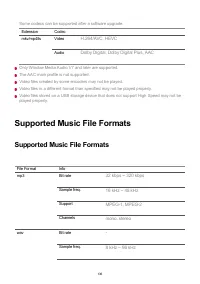
Page 136 - Supported Music File Formats
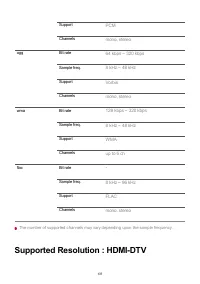
Some codecs can be supported after a software upgrade. Extension Codec mkv/mp4/ts Video H.264/AVC, HEVC Audio Dolby Digital, Dolby Digital Plus, AAC Only Window Media Audio V7 and later are supported. The AAC main profile is not supported. Video files created by some encoders may not be played. Vide...
Page 138 - HDMI-DTV Supported Mode
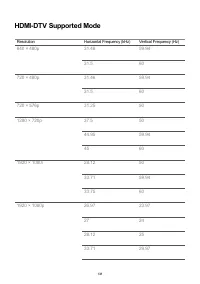
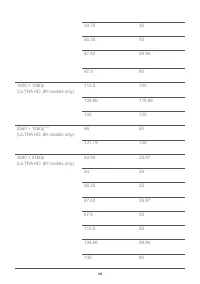
HDMI-DTV Supported Mode Resolution Horizontal Frequency (kHz) Vertical Frequency (Hz) 640 × 480p 31.46 59.94 31.5 60 720 × 480p 31.46 59.94 31.5 60 720 × 576p 31.25 50 1280 × 720p 37.5 50 44.95 59.94 45 60 1920 × 1080i 28.12 50 33.71 59.94 33.75 60 1920 × 1080p 26.97 23.97 27 24 28.12 25 33.71 29.97...
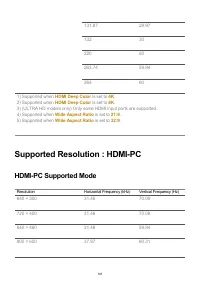
Page 141 - is set to; Wide Aspect Ratio; Wide Aspect Ratio; is set to; HDMI-PC Supported Mode
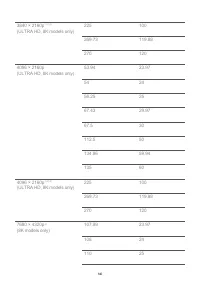
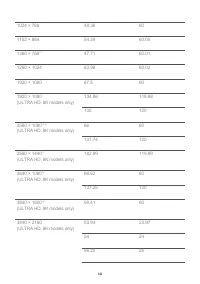
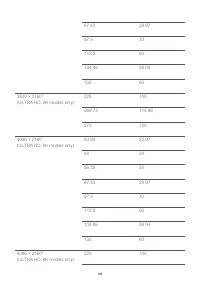
131.87 29.97 132 30 220 50 263.74 59.94 264 60 1) Supported when HDMI Deep Color is set to 4K . 2) Supported when HDMI Deep Color is set to 8K . 3) (ULTRA HD models only) Only some HDMI input ports are supported. 4) Supported when Wide Aspect Ratio is set to 21:9 . 5) Supported when Wide Aspect Rati...
Page 144 - License Information
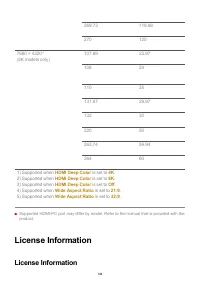
269.73 119.88 270 120 7680 × 4320 (8K models only) 107.89 23.97 108 24 110 25 131.87 29.97 132 30 220 50 263.74 59.94 264 60 1) Supported when HDMI Deep Color is set to 4K . 2) Supported when HDMI Deep Color is set to 8K . 3) Supported when HDMI Deep Color is set to Off . 4) Supported when Wide Aspe...
Page 145 - Supported licenses may differ by model.; Dolby; The Bluetooth; Quickset
Supported licenses may differ by model. Dolby Manufactured under license from Dolby Laboratories. Dolby, Dolby Vision, DolbyVision IQ, Dolby Audio, Dolby Atmos, and the double-D symbol are trademarks ofDolby Laboratories Licensing Corporation. HDMI The terms HDMI and HDMI High-Definition Multimedia ...