Page 2 - Table of Contents
Warning and precautions…………….…………….....…………………...………..……2 Important safety instructions ……………………………….....…….........………..……3 Warnings and cautions…………………………………………………………….…..….5 Technical specifcations…………………………………………………….……...……....6 Installation………………………………………………………………………....….…….7 Remote control……...
Page 3 - WARNING AND PRECAUTIONS
Page 4 - IMPORTANT SAFETY INSTRUCTIONS
Page 6 - WARNINGS AND CAUTIONS; When the television receiver is not; Caution
WARNINGS AND CAUTIONS Warning High voltages are used in the operation of this television receiver. Do not remove the cabinet back from your set. Refer servicing to qualified service personnel. Warning To prevent fire or electrical shock hazard, do not expose the television receiver to rain or moistu...
Page 7 - TECHNICAL SPECIFICATIONS
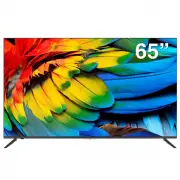
TECHNICAL SPECIFICATIONS 65" Viewing Picture Size (Diagonal)ResolutionAspect Ratio TV System Power Consumption Signal Input Input Power Voltage 3840 x 2160 16 : 9 Brightness 300cd/m² Contrast Ratio 4 0 0 0 : 1 Unit Size 1448x300x899mm Unit Size (Without Stand) 1448x61x837mm Net Weight 17.3KG Aud...
Page 8 - INSTALLATION; BASE STAND ASSEMBLY INSTRUCTION
INSTALLATION BASE STAND ASSEMBLY INSTRUCTION Place the TV with the display side down on a flat surface. Ensure the table or desk you use provides a flat, totally clean surface and use a soft cloth between the face of the TV and the table to protect the TV's screen. M4X14MM M4X14MM 1. Place the TV fa...
Page 10 - : Remote control sensor; The control buttons on the TV are located on the bottom; KEYBOARD
INSTALLATION FRONT PANEL REAR AV CONNECTIONS 1 REAR AV CONNECTIONS (SIDE) 1: Remote control sensor 1, RJ45: Connect the Network Interface. 2, OPTICAL: Optical Digital Audio ouput. 3, USB: Plug in your USB memory device (eg. USB stick) to play compatible files that are stored in it. 4, HDMI: Connect ...
Page 12 - You can use the input terminals on TV set rear as follows:; AV EQUIPMENT
You can use the input terminals on TV set rear as follows: AV EQUIPMENT It can be connected to the following appliances: VCR, multi disc player, DVD, camcorder, video game, stereo system, etc... Audio / Video machine with HDMI interfaces Audio Receiver 1 WAN 2 3 4 Y W R VIDEO EQUIPMENT Y W R INSTALL...
Page 13 - REMOTE CONTROL
REMOTE CONTROL REMOTE CONTROL REMOTE CONTROL -12- The remote control uses 2 x 'AAA' batteries (included). Please ensure correct polarities when inserting batteries.This is a Bluetooth remote control. In order to use all its features including voice control, please pair it with the TV as explained in...
Page 14 - OPERATION; INITIAL SETUP
OPERATION -13- Allow Google to get the location information of your device to access more features,choose YES to accept. " " Allow to automatically send diagnostic information to Google. Choose "YES" to accept 1. You will now see a screen saying your device is powered by Android TV. ...
Page 15 - HOME SCREEN
OPERATION -14- Confirm the password again and keep it consistent . Use the remote control to enter the password and complete the password confirmation . If you accidentally forget your parent password, please go to Setting->Devices Preference ->Reset. Re-create the password after reset. For se...
Page 16 - Inputs; Composite
OPERATION -15- CHANNEL Channels :Display the scan sub-menu based on different Channel installation modes . Auto Channel Update Parental controls : Press button to select the option then press OK button to enter the sub-menu . Audio Channel : Press ▼▲ button to select the option then press OK button ...
Page 17 - DEVICE PREFERENCES; APPS; button to select what you want set.
OPERATION -16- Analog Manual Scan : Manual ATV search station. After inputting the frequency point,you can select to go up or down (higher or lower frequencies). Note: ATV channels are no longer broadcast in Australia, so only DTV (digital) channels will be tuned. Single RF Scan : DTV manual search ...
Page 22 - MENU
OPERATION -21- MULTIMEDIA PLAYER In the HOME interface , select the MMP APP to display Video,Photo,Audio,Text.After inserting the USB flash drive, you can view the corresponding files in the USB flash drive. REMOTE & ACCESSORIES Captions : Press button to select the option then press OK button t...
Page 23 - EPG
OPERATION -22- EPG Under the Live TV, press the GUIDE key on the remote to open the EPG interface. Program information will be displayed,and you can operate the EPG menu through the Red/Yellow/Green/Blue key. Under the EPG menu, you can also press PVR key to set up recording schedule.
Page 24 - RECORD
OPERATION -23- RECORD When the program is playing, press the PVR key and the program will start to record. Note: A USB memory device must be connected to one of the USB ports in order to do any recording. Under the Live TV,press the menu key and down to select the Record menu. Select Record List,You...
Page 25 - Multimedia Formats
OPERATION -24- Open the schedule list from the Record menu ,and pre recording details will be displayed. Multimedia Formats For DTV PVR USB stick: Format: FAT32, max 64G HDD: Format: FAT32, max 2T For media playback Format: FAT32/NTFS, max 2T Photo format JPEG 、 JPG 、 PNG 、 BMP 、 GIF Text format TXT...
Page 26 - TROUBLESHOOTING; Picture
TROUBLESHOOTING Picture Audio Inspection Check Inter ference Noise Electronic equipment, car/ motorcycle, fluorescent light Normal Picture Mute Volume(check if mute is activated or if the audio system connections are not correct) No Picture Mute Power cord is not inser ted Power switch has not been ...