Canon SELPHY CP520 - User Manual

Canon SELPHY CP520 – User Manual, read for free online in PDF format. We hope this helps you resolve any issues you may have. If you have further questions, please contact us through the contact form.


Table of Contents:
- Page 2 – Component Names and Functions; step; Unpack
- Page 3 – Install the ink cassette.; Correct Position; Prepare
- Page 4 – Can I use general printer paper or postcards?
- Page 5 – Printing by Connecting Your Camera; Printing from Mobile Telephones; Turn the camera on and prepare the camera to play back images.; Print
- Page 6 – Installing the Printer Driver; Follow the onscreen instructions.
- Page 7 – Installing the Application Software; Windows; Macintosh
- Page 8 – Separately Sold Items
- Page 10 – Troubleshooting
- Page 11 – Cannot print a particular image; Can’t print the specified number of prints. Paper is left over.
- Page 12 – The indicator is blinking red.
- Page 13 – WARNINGS; Safety Precautions
- Page 14 – Handling Precautions
- Page 15 – Compact Photo Printer SELPHY CP520; Specifications
- Page 16 – Compact Power Adapter CA-CP200
step
1
Unpack
p. 2
step
2
Prepare
step
3
Connecting the
Printer to Your
Computer
p. 3
p. 5
p. 6
p. 8
p. 9
p. 10
p. 15
Separately Sold
Items
Maintenance,
Storage and
Transport
Troubleshooting
Specifications
Safety
Precautions
p. 13
This guide describes the basic and advanced operations
of your SELPHY printer in easy to understand terms.
Basic operation is simple! Just three steps: 1. Unpack,
2. Prepare, 3. Print.
Printing Guide
ENGLISH
"Loading the manual" means you need to wait until the file loads and becomes available for online reading. Some manuals are very large, and the time they take to appear depends on your internet speed.
Was this manual helpful?
About this manual
- Brand
- Canon
- Model
- SELPHY CP520
- Document type
- User Manual
- Language(s)
- English
- Pages
- 18
- File size
- 825.6 KB
- Format
Summary
2 Check that the following items are supplied with your purchase. Component Names and Functions Main Printer Unit Compact Power Adapter Power Cord Paper Cassette (Postcard Size) Starter Paper Pack (Postcard Size) Starter Ink Cassette (Postcard Size) Cleaner CD-ROM: Compact Photo Printer Solution Dis...
3 Continued In this step you will insert the ink and paper cassette to prepare for printing. 1 Install the ink cassette. 2 Place paper into the paper cassette. Open the ink cassette compartment cover on the printer. Insert the starter ink cassette into the printer until it clicks firmly into place a...
4 3 Install the paper cassette into the printer. 4 Attach the power cord. Open the paper cassette slot cover. Insert the paper cassette into the printer all the way. Hold here. Paper visible through opening Turning Off the Printer Detach the compact power adapter connector of the from the printer. T...
Ask a question
Related manuals
Popular Canon Other


More Canon Other models
 Canon SD1300 IS Manual
 Canon SD1400 IS Manual
 Canon SD3500 Manual
 Canon SD4500 User Manual
 Canon SELPHY CP400 User Manual
 Canon SELPHY CP510 User Manual
 Canon SELPHY CP600 User Manual
 Canon SELPHY CP710 User Manual
 Canon Selphy CP720 User Manual
 Canon SELPHY CP730 Manual
 Canon SELPHY CP740 User Manual
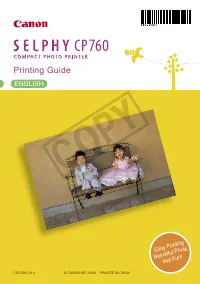 Canon SELPHY CP760 User Manual