Page 3 - Setting Up the Printer; Online Setup; Removing Packing Materials
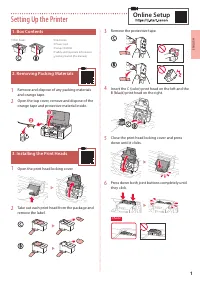
1 ENGLISH Setting Up the Printer Online Setup 1. Box Contents • Print heads • Ink bottles • Power cord • Setup CD-ROM • Safety and Important Information • Getting Started )this manual) 2. Removing Packing Materials 1 Remove and dispose of any packing materials and orange tape. 2 Open the top cover, ...
Page 4 - PGBK; securely; Turning on the Printer; ON
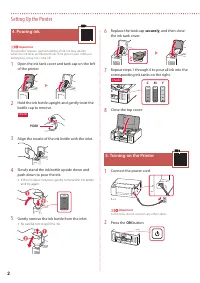
2 Setting Up the Printer 4. Pouring Ink Important This product requires careful handling of ink. Ink may splatter when the ink tanks are filled with ink. If ink gets on your clothes or belongings, it may not come off. 1 Open the ink tank cover and tank cap on the left of the printer. 2 Hold the ink ...
Page 5 - OK; Yes; Ready to connect; Online Manual; If an error message (support code) appears on
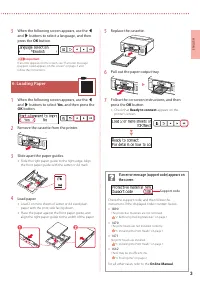
3 ENGLISH 3 When the following screen appears, use the [ and ] buttons to select a language, and then press the OK button. Important If an error appears on the screen, see "If an error message )support code) appears on the screen" on page 3 and follow the instructions. 6. Loading Paper 1 Whe...
Page 6 - Connecting to a Computer; What device are you connecting?
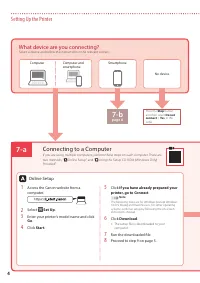
7-b page 6 7-a 4 Setting Up the Printer Press the Stop button, and then select Do not connect > Yes , in this order. Computer Computer and smartphone Smartphone No device Connecting to a Computer If you are using multiple computers, perform these steps on each computer. There are two methods, �...
Page 7 - Insert the Setup CD-ROM; Windows 7; Proceed to step 9 below.; Start Setup; When the following screen appears, click; Exit
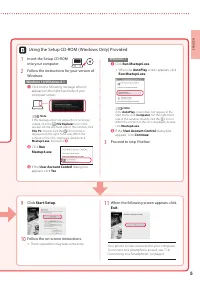
5 ENGLISH 1 Insert the Setup CD-ROM into your computer. 2 Follow the instructions for your version of Windows. Windows 10/Windows 8.1 a Click on the following message when it appears on the right-hand side of your computer screen. Note If the message does not appear )or is no longer visible), click ...
Page 8 - Check the printer's screen and proceed to each step.; Connecting to a Smartphone; Open the installed app.
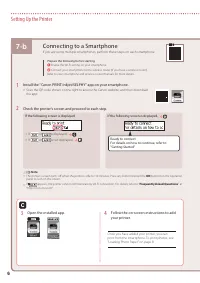
7-b 6 Setting Up the Printer 1 Install the "Canon PRINT Inkjet/SELPHY" app on your smartphone. • Scan the QR code shown on the right to access the Canon website, and then download the app. 2 Check the printer's screen and proceed to each step. If the following screen is displayed, Ready to c...
Page 9 - Settings; Wireless connect
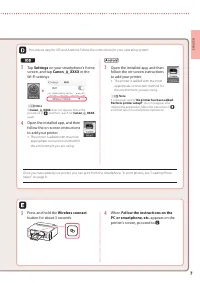
7 ENGLISH 3 Tap Settings on your smartphone's home screen, and tap Canon_ij_XXXX in the Wi-Fi settings. Note If Canon_ij_XXXX does not appear, follow the procedure in , and then search for Canon_ij_XXXX again. 4 Open the installed app, and then follow the on-screen instructions to add your printer. ...
Page 10 - Loading Photo Paper; Save the rear tray paper information; Transporting Your Printer
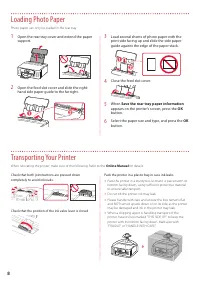
8 Loading Photo Paper 1 Open the rear tray cover and extend the paper support. 2 Open the feed slot cover and slide the right- hand side paper guide to the far right. a b 3 Load several sheets of photo paper with the print side facing up and slide the side paper guide against the edge of the paper s...
Page 11 - Instalación de la impresora; Configuración en línea; Contenido de la caja
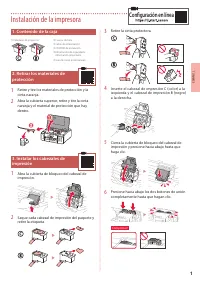
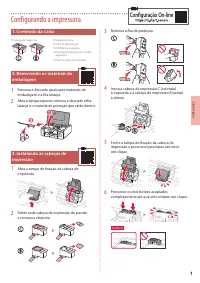
1 ESP AÑOL Instalación de la impresora Configuración en línea 1. Contenido de la caja • Cabezales de impresión • Frascos de tinta • Cable de alimentación • CD-ROM de instalación • Información de seguridad e información importante • Guía de inicio )este manual) 2. Retirar los materiales de protección...
Page 12 - de manera; Encender la impresora
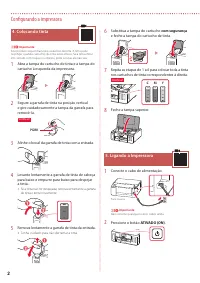
2 Instalación de la impresora 4. Verter la tinta Importante Este producto un tratamiento cuidadoso de la tinta, ya que puede salpicar cuando se rellenan de tinta los depósitos de tinta. Es posible que las manchas de tinta no salgan de la ropa u otras pertenencias. 1 Abra el cubierta del depósito de ...
Page 13 - Listo para conectarse (Ready to; Manual en línea; Si un mensaje de error (código de asistencia)
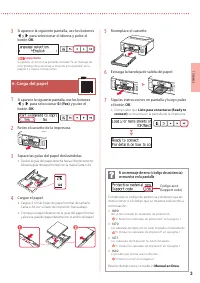
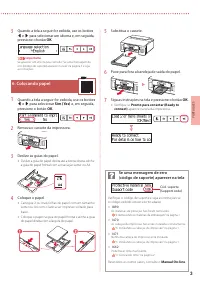
3 ESP AÑOL 3 Si aparece la siguiente pantalla, use los botones [ y ] para seleccionar el idioma y pulse el botón OK . Importante Si aparece un error en la pantalla, consulte "Si un mensaje de error )código de asistencia) se muestra en la pantalla" en la página 3 y siga las instrucciones. 6. ...
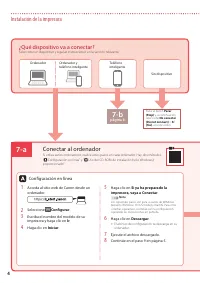
Page 14 - página 6; Conectar al ordenador; ¿Qué dispositivo va a conectar?
7-b página 6 7-a 4 Instalación de la impresora Pulse el botón Parar (Stop) y, a continuación, seleccione No conectar (Do not connect) > Sí (Yes) , en este orden. Ordenador Ordenador y teléfono inteligente Teléfono inteligente Sin dispositivo Conectar al ordenador Si utiliza varios ordenadores, re...
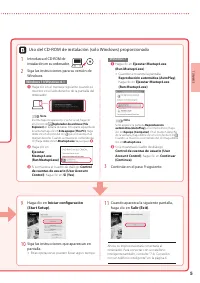
Page 15 - Iniciar configuración
5 ESP AÑOL 1 Introduzca el CD-ROM de instalación en su ordenador. 2 Siga las instrucciones para su versión de Windows. Windows 10/Windows 8.1 a Haga clic en el mensaje siguiente cuando se muestre en el lado derecho de la pantalla del ordenador. Nota Si el mensaje no aparece )o si ya no se ve), haga ...
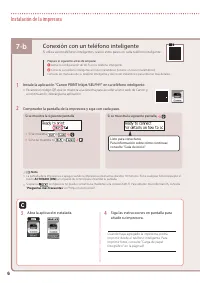
Page 16 - Compruebe la pantalla de la impresora y siga con cada paso.; Conexión con un teléfono inteligente; Abra la aplicación instalada.
7-b 6 Instalación de la impresora 1 Instale la aplicación "Canon PRINT Inkjet/SELPHY" en su teléfono inteligente. • Escanee el código QR que se muestra a la derecha para acceder al sitio web de Canon y, a continuación, descargue la aplicación. 2 Compruebe la pantalla de la impresora y siga c...
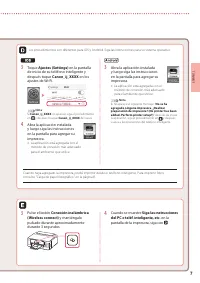
Page 17 - Conexión inalámbrica
7 ESP AÑOL 3 Toque Ajustes (Settings) en la pantalla de inicio de su teléfono inteligente y después toque Canon_ij_XXXX en los ajustes de Wi-Fi. Nota Si Canon_ij_XXXX no aparece, siga el procedimiento en y después busque Canon_ij_XXXX de nuevo. 4 Abra la aplicación instalada y luego siga las instruc...
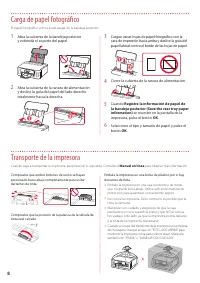
Page 18 - Carga de papel fotográfico; Registre la información de papel de; Transporte de la impresora
8 Carga de papel fotográfico 1 Abra la cubierta de la bandeja posterior y extienda el soporte del papel. 2 Abra la cubierta de la ranura de alimentación y deslice la guía del papel del lado derecho totalmente hacia la derecha. a b 3 Cargue varias hojas de papel fotográfico con la cara de impresión h...
Page 19 - Configurando a impressora; Removendo os materiais da
1 POR TUGUÊS Configurando a impressora Configuração On-line 1. Conteúdo da Caixa • Cabeças de impressão • Garrafas de tinta • Cabo de alimentação • CD-ROM de instalação • Informações Importantes e Sobre Segurança • Para Começar )este manual) 2. Removendo os materiais da embalagem 1 Remova e descarte...
Page 20 - com segurança; Ligando a Impressora
2 Configurando a impressora 4. Colocando tinta Importante Este produto requer manuseio cauteloso da tinta. A tinta pode respingar quando cartuchos de tinta estão cheios. Se a tinta entrar em contato com roupas ou objetos, pode ser que ela não saia. 1 Abra a tampa do cartucho de tinta e a tampa do ca...
Page 21 - Pronto para conectar (Ready to; Se uma mensagem de erro
3 POR TUGUÊS 5 Substitua o cassete. 6 Puxe para fora a bandeja de saída do papel. 7 Siga as instruções na tela e pressione o botão OK . • Verifique se Pronto para conectar (Ready to connect) aparece na tela da impressora. 3 Quando a tela a seguir for exibida, use os botões [ e ] para selecionar um i...
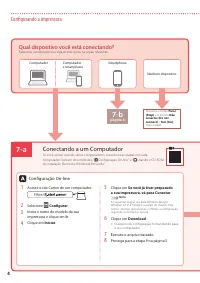
Page 22 - Conectando a um Computador; Qual dispositivo você está conectando?
7-b página 6 7-a 4 Configurando a impressora Pressione o botão Parar (Stop) e selecione Não conectar (Do not connect) > Sim (Yes) , nesta ordem. Computador Computador e smartphone Smartphone Nenhum dispositivo Conectando a um Computador Se você estiver usando vários computadores, execute estas et...
Page 23 - Iniciar configuração
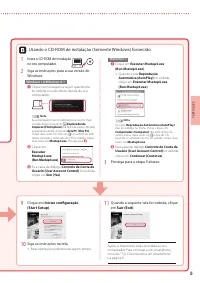
5 POR TUGUÊS 1 Insira o CD-ROM de instalação no seu computador. 2 Siga as instruções para a sua versão do Windows. Windows 10/Windows 8.1 a Clique na mensagem a seguir quando ela for exibida no lado direito da tela do seu computador. Nota Se a mensagem não for exibida )ou se não for mais visível), c...
Page 24 - Verifique a tela da impressora e prossiga pelas etapas.; Conectando a um smartphone; Abra o aplicativo instalado.
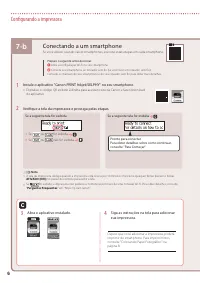
7-b 6 Configurando a impressora 1 Instale o aplicativo "Canon PRINT Inkjet/SELPHY" no seu smartphone. • Digitalize o código QR exibido à direita para acessar o site da Canon e fazer download do aplicativo. 2 Verifique a tela da impressora e prossiga pelas etapas. Se a seguinte tela for exibi...
Page 25 - Conexão
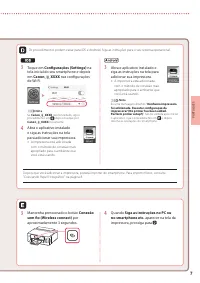
7 POR TUGUÊS 3 Toque em Configurações (Settings) na tela inicial do seu smartphone e depois em Canon_ij_XXXX nas configurações de Wi-Fi. Nota Se Canon_ij_XXXX não for exibido, siga o procedimento em , depois busque por Canon_ij_XXXX novamente. 4 Abra o aplicativo instalado e siga as instruções na te...
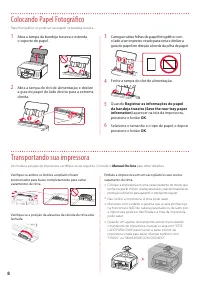
Page 26 - Colocando Papel Fotográfico; Registrar as informações do papel; Transportando sua impressora
8 Colocando Papel Fotográfico 1 Abra a tampa da bandeja traseira e estenda o suporte de papel. 2 Abra a tampa do slot de alimentação e deslize a guia do papel do lado direito para a extrema direita. a b 3 Carregue várias folhas de papel fotográfico com o lado a ser impresso virado para cima e desliz...
Page 27 - Configuration de l'imprimante; Configuration en ligne; Contenu de la boîte; Retrait du matériel
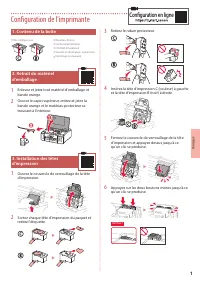
1 FR ANÇ AIS Configuration de l'imprimante Configuration en ligne 1. Contenu de la boîte • Têtes d'impression • Bouteilles d'encre • Cordon d'alimentation • CD-ROM d'installation • Sécurité et informations importantes • Démarrage )ce manuel) 2. Retrait du matériel d'emballage 1 Enlevez et jetez tout...
Page 28 - fermement; Mise sous tension de
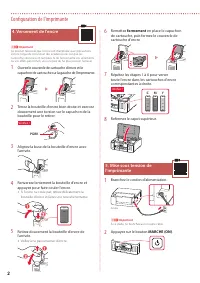
2 Configuration de l'imprimante 4. Versement de l'encre Important Ce produit nécessite que l'encre soit manipulée avec précautions. L'encre risque de provoquer des éclaboussures lorsque les cartouches d'encre sont remplies. Si de l'encre tache vos vêtements ou vos effets personnels, vous risquez de ...
Page 29 - Chargement du papier; Oui; Prêt pour la connexion; Manuel en ligne
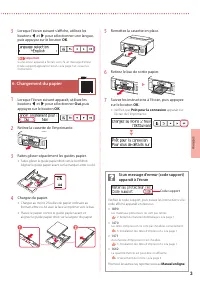
3 FR ANÇ AIS 3 Lorsque l'écran suivant s'affiche, utilisez les boutons [ et ] pour sélectionner une langue, puis appuyez sur le bouton OK . Important Si une erreur apparaît à l'écran, voir « Si un message d'erreur )code support) apparaît à l'écran » à la page 3 et suivez les instructions. 6. Chargem...
Page 30 - Connexion à un ordinateur
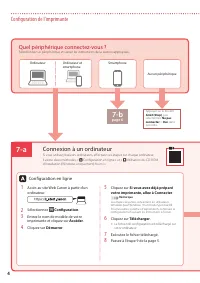
7-b page 6 7-a 4 Configuration de l'imprimante Appuyez sur le bouton Arrêt (Stop) , puis sélectionnez Ne pas connecter > Oui , dans cet ordre. Ordinateur Ordinateur et smartphone Smartphone Aucun périphérique Connexion à un ordinateur Si vous utilisez plusieurs ordinateurs, effectuez ces étapes s...
Page 31 - Suivez les instructions correspondant à; Cliquez sur; Commencer la configuration; Lorsque l'écran suivant apparaît, cliquez; Quitter
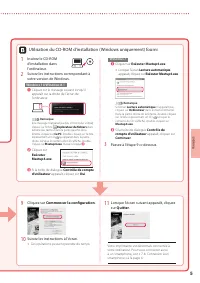
5 FR ANÇ AIS 1 Insérez le CD-ROM d'installation dans l'ordinateur. 2 Suivez les instructions correspondant à votre version de Windows. Windows 10/Windows 8.1 a Cliquez sur le message suivant lorsqu'il apparaît sur la droite de l'écran de l'ordinateur. Remarque Si le message n'apparaît pas )ou s'il n...
Page 32 - Connexion à un smartphone; Suivez les instructions à l'écran pour
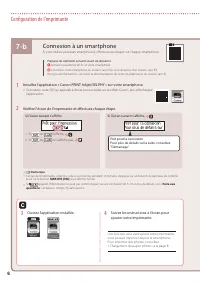
7-b 6 Configuration de l'imprimante 1 Installez l'application « Canon PRINT Inkjet/SELPHY » sur votre smartphone. • Scannez le code QR qui apparaît à droite pour accéder au site Web Canon, puis téléchargez l'application. 2 Vérifiez l'écran de l'imprimante et effectuez chaque étape. Si l'écran suivan...
Page 33 - Réglages; Connexion sans
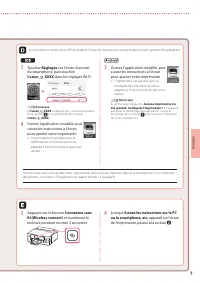
7 FR ANÇ AIS 3 Touchez Réglages sur l'écran d'accueil du smartphone, puis touchez Canon_ij_XXXX dans les réglages Wi-Fi. Remarque Si Canon_ij_XXXX n'apparaît pas, suivez la procédure de la section , puis recherchez de nouveau Canon_ij_XXXX . 4 Ouvrez l'application installée, puis suivez les instruct...
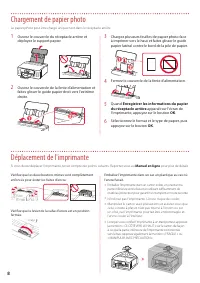
Page 34 - Chargement de papier photo; Enregistrer les informations du papier; Déplacement de l'imprimante
8 Chargement de papier photo 1 Ouvrez le couvercle du réceptacle arrière et déployez le support papier. 2 Ouvrez le couvercle de la fente d'alimentation et faites glisser le guide papier droit vers l'extrême droite. a b 3 Chargez plusieurs feuilles de papier photo face à imprimer vers le haut et fai...
Page 35 - Настройка принтера; Содержимое коробки
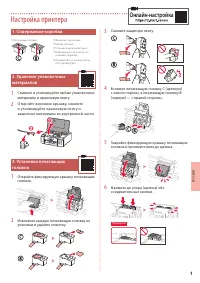
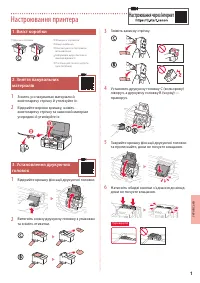
1 РУ ССКИЙ Настройка принтера Онлайн-настройка 1. Содержимое коробки • Печатающие головки • Флаконы с чернилами • Кабель питания • Установочный компакт-диск • Информация о безопасности и важные сведения • Руководство по началу работы )это руководство) 2. Удаление упаковочных материалов 1 Снимите и у...
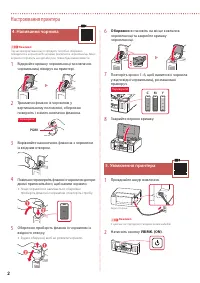
Page 36 - Надежно; Включение принтера
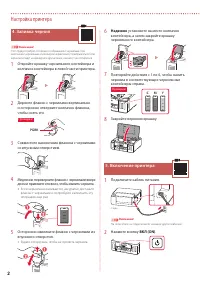
2 Настройка принтера 4. Заливка чернил Внимание! Этот продукт требует осторожного обращения с чернилами. При заполнении чернильных контейнеров чернила могут разбрызгаться. Если чернила попадут на одежду или другие вещи, они могут не отстираться. 1 Откройте крышку чернильного контейнера и колпачок ко...
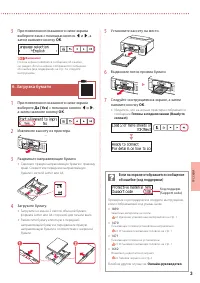
Page 37 - Готовы к подключению (Ready to; Если на экране отображается сообщение
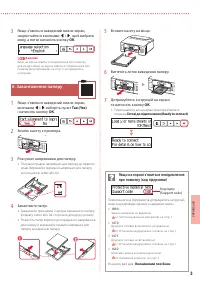
3 РУ ССКИЙ 3 При появлении показанного ниже экрана выберите язык с помощью кнопок [ и ] , а затем нажмите кнопку OK . Внимание! Если на экране появляется сообщение об ошибке, см. раздел «Если на экране отображается сообщение об ошибке )код поддержки)» на стр. 3 и следуйте инструкциям. 6. Загрузка бу...
Page 38 - Подключение к компьютеру; Какое устройство вы подключаете?
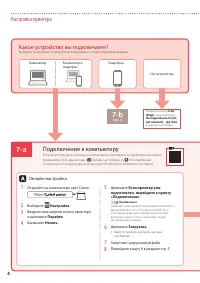
7-b стр. 6 7-a 4 Настройка принтера Нажмите кнопку Стоп (Stop) , затем выберите Не подключаться (Do not connect) > Да (Yes) в указанном порядке. Компьютер Компьютер и смартфон Смартфон Нет устройства Подключение к компьютеру Если вы используете несколько компьютеров, выполните эти действия на каж...
Page 39 - Начать настройку
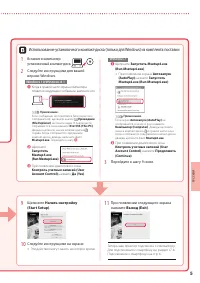
5 РУ ССКИЙ 1 Вставьте в компьютер установочный компакт-диск. 2 Следуйте инструкциям для вашей версии Windows. Windows 10/Windows 8.1 a Когда в правой части экрана компьютера появится следующее сообщение, щелкните его. Примечание. Если сообщение не появляется )или перестало отображаться), щелкните зн...
Page 40 - Установите на смартфон приложение «Canon PRINT Inkjet/SELPHY».; Подключение к смартфону; Откройте установленное приложение.
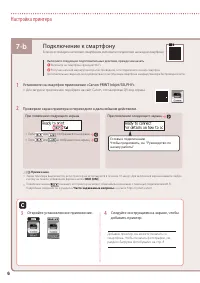
7-b 6 Настройка принтера 1 Установите на смартфон приложение «Canon PRINT Inkjet/SELPHY». • Для загрузки приложения перейдите на сайт Canon, отсканировав QR-код справа. 2 Проверьте экран принтера и переходите к дальнейшим действиям. При появлении следующего экрана, Готовы к подключению Чтобы продолж...
Page 41 - Беспроводное подключение (Wireless
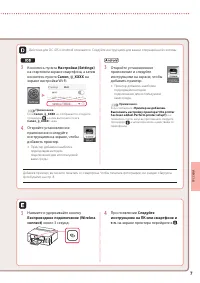
7 РУ ССКИЙ 3 Коснитесь пункта Настройки (Settings) на стартовом экране смартфона, а затем коснитесь пункта Canon_ij_XXXX на экране настройки Wi-Fi. Примечание. Если Canon_ij_XXXX не отображается, следуйте процедуре , а затем выполните поиск Canon_ij_XXXX снова. 4 Откройте установленное приложение и ...
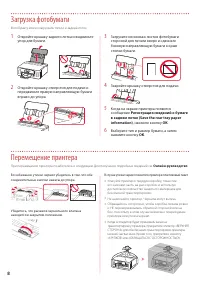
Page 42 - Загрузка фотобумаги; Регистрация сведений о бумаге; Перемещение принтера
8 Загрузка фотобумаги 1 Откройте крышку заднего лотка и выдвиньте упор для бумаги. 2 Откройте крышку отверстия для подачи и передвиньте правую направляющую бумаги вправо до упора. a b 3 Загрузите несколько листов фотобумаги стороной для печати вверх и сдвиньте боковую направляющую бумаги к краю стоп...
Page 43 - Настроювання принтера; Настроювання через Інтернет; Зняття пакувальних
1 УКР АЇНСЬ КА Настроювання принтера Настроювання через Інтернет 1. Вміст коробки • Друкуючі головки • Флакони з чорнилом • Шнур живлення • Компакт-диск із програмою встановлення • Інформація щодо безпеки й важливі відомості • Посібник для початку роботи )цей посібник) 2. Зняття пакувальних матеріал...
Page 44 - Обережно; Увімкнення принтера
2 Настроювання принтера 4. Наливання чорнила Важливо Під час використання цього продукту потрібно обережно поводитися з чорнилом. Воно може розлитися з чорнильниць. Якщо чорнило потрапить на одяг або речі, плями буде важко вивести. 1 Відкрийте кришку чорнильниці та ковпачок чорнильниці ліворуч на пр...
Page 45 - Завантаження паперу; Онлайновий посібник; Якщо на екрані з’явиться повідомлення
3 УКР АЇНСЬ КА 3 Якщо з’явиться наведений нижче екран, скористайтеся кнопками [ і ] , щоб вибрати мову, а потім натисніть кнопку OK . Важливо Якщо на екрані з’явиться повідомлення про помилку, див. розділ «Якщо на екрані з’явиться повідомлення про помилку )код підтримки)» на стор. 3 і дотримуйтесь і...
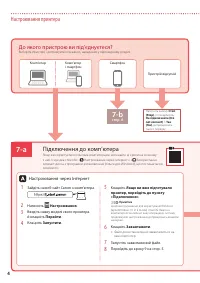
Page 46 - Підключення до комп’ютера; До якого пристрою ви під’єднуєтеся?
7-b стор. 6 7-a 4 Настроювання принтера Натисніть кнопку Стоп (Stop) , потім виберіть Не підключайте (Do not connect) > Так (Yes) , дотримуючись такого порядку. Комп’ютер Комп’ютер і смартфон Смартфон Пристрій відсутній Підключення до комп’ютера Якщо ви користуєтеся кількома комп’ютерами, виконай...
Page 47 - Запуск настроювання
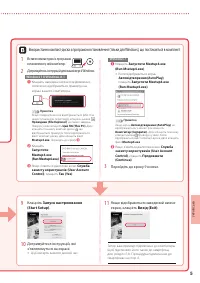
5 УКР АЇНСЬ КА 1 Вставте компакт-диск із програмою встановлення у свій комп’ютер. 2 Дотримуйтесь інструкцій для вашої версії Windows. Windows 10/Windows 8.1 a Клацніть наведене нижче повідомлення, коли воно відобразиться праворуч на екрані вашого комп’ютера. Примітка Якщо повідомлення не відображаєт...
Page 48 - Перевіряйте екран принтера й переходьте до наступних кроків.; Процедура підключення до смартфона; Відкрийте встановлену програму.
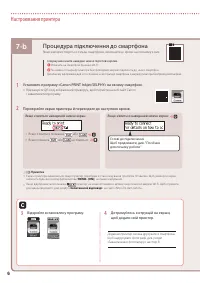
7-b 6 Настроювання принтера 1 Установіть програму «Canon PRINT Inkjet/SELPHY» на своєму смартфоні. • Відскануйте QR-код, зображений праворуч, щоб перейти на веб-сайт Canon і завантажити програму. 2 Перевіряйте екран принтера й переходьте до наступних кроків. Якщо з’явиться наведений нижче екран: Гот...
Page 49 - Безпроводове підключення (Wireless
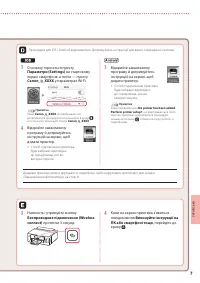
7 УКР АЇНСЬ КА 3 Спочатку торкніться пункту Параметри (Settings) на стартовому екрані смартфона, а потім — пункту Canon_ij_XXXX у параметрах Wi-Fi. Примітка Якщо Canon_ij_XXXX не відображається, дотримуйтеся процедури, що зазначена в кроці , а потім знову виконайте пошук Canon_ij_XXXX . 4 Відкрийте ...
Page 50 - Завантаження фотопаперу; Зареєструвати відомості про; Транспортування принтера
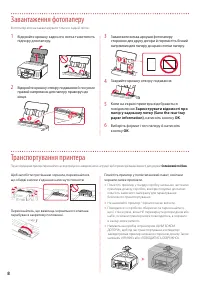
8 Завантаження фотопаперу 1 Відкрийте кришку заднього лотка та витягніть підпору для паперу. 2 Відкрийте кришку отвору подавання й посуньте правий напрямник для паперу праворуч до кінця. a b 3 Завантажте кілька аркушів фотопаперу стороною для друку догори й перемістіть бічний напрямник для паперу до...
Page 51 - تنرتنلإا
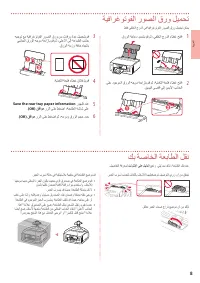
8 ةيبرعلا ةيفارغوتوفلا روصلا قرو ليمحت 1 . قرولا ةماعد ديدمتب مق مث ،يفلخلا جردلا ءاطغ حتفا 2 ىلع دوجوملا قرولا هجوم ةحازإب مق مث ،ةيذغتلا ةحتف ءاطغ حتفا . نيميلا ىصقأ ىلإ نميلأا بناجلا a b 3 هيجوت عم ةيفارغوتوفلا روصلا قرو نم تاقرو ةدع ليمحتب مق يبناجلا قرولا هجوم ةحازإب مق مث ،ىلعلأا ىلإ ةعابطلا ب...
Page 52 - تادادعلإا; يكلسلالا
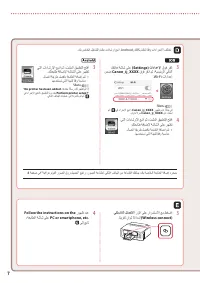
7 3 كفتاه ةشاش ىلع (Settings) تادادعلإا قوف رقنا نمض Canon_ij_XXXX قوف رقنا مث ،ةيسيئرلا يكذلا .Wi-Fi تادادعإ ةظحلام مث ، يف ءارجلإا عبتا ، Canon_ij_XXXX روهظ مدع ةلاح يف . ىرخأ ةرم Canon_ij_XXXX نع ثحبا 4 يتلا تاداشرلإا عبتا مث ،تبثملا قيبطتلا حتفا . كتعباط ةفاضلإ ةشاشلا ىلع رهظت • لاصتا ةقيرط لضفأ...
Page 53 - يكذ
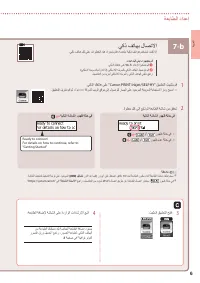
7-b 6 ةيبرعلا 1 . يكذلا كفتاه ىلع "Canon PRINT Inkjet/SELPHY" قيبطتلا تيبثتب مق • . قيبطتلا ليزنتب مق مث ، Canon ةكرشل بيولا عقوم ىلإ لوصولل راسيلا ىلع دوجوملا ةعيرسلا ةباجتسلاا زمر حسما 2 . ةوطخ لك ىلإ عبات مث ةعباطلا ةشاش نم ققحت ،ةيلاتلا ةشاشلا روهظ ةلاح يف Ready to connect For details on...
Page 54 - Windows; دادعلإا
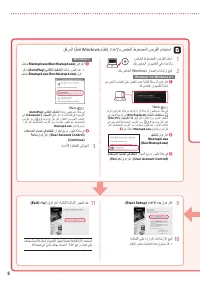
5 1 صاخلا طوغضملا صرقلا لخدأ . كب صاخلا رتويبمكلا يف دادعلإاب 2 . كب صاخلا Windows رادصإ تاداشرإ عبتا Windows 10/Windows 8.1 a نم نميلأا بناجلا ىلع رهظت امدنع ةيلاتلا ةلاسرلا قوف رقنا . كب صاخلا رتويبمكلا ةشاش ةظحلام زمرلا قوف رقنا ، ) ةيئرم دعت مل اذإ وأ ( ةلاسرلا روهظ مدع ةلاح يف يف . ماهملا طيرش ...
Page 55 - ةحفص; رتويبمك; Download; ؟هليصوتب; ةعباطلا
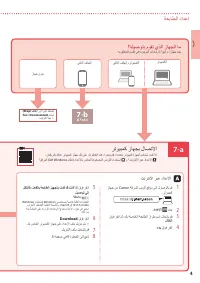
7-b 6 ةحفص 7-a 4 ةيبرعلا ، (Stop) فاقيإ رزلا ىلع طغضا ، Yes < Do not connect ددح مث . بيترتلا اذهب > رتويبمكلا يكذلا فتاهلاو رتويبمكلا يكذلا فتاهلا زاهج نودب رتويبمك زاهجب لاصتلاا ،ناتقيرط كانه . رتويبمك زاهج لك ىلع تاوطخلا هذه ءارجإب مقف ،ةددعتم رتويبمك ةزهجأ مدختست تنك اذإ ." قفرملا ) طق...
Page 56 - قرولا; قفاوم
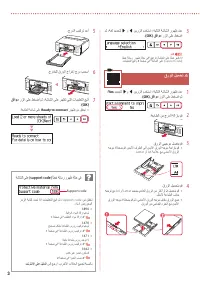
3 3 مث ،ةغل ديدحتل ] و [ نيرزلا مدختسا ،ةيلاتلا ةشاشلا روهظ دنع . (OK) قفاوم رزلا ىلع طغضا ماه أطخ ةلاسر روهظ ةلاح يف " عجارف ،ةشاشلا ىلع أطخ رهظ اذإ . تاميلعتلا عبتاو 3 ةحفص يف "ةشاشلا ىلع )support code) قرولا ليمحت .6 1 ، Yes ديدحتل ] و [ نيرزلا مدختسا ،ةيلاتلا ةشاشلا روهظ دنع . (OK) قفاوم...
Page 57 - ربحلا; ماكحإب; ليغشت
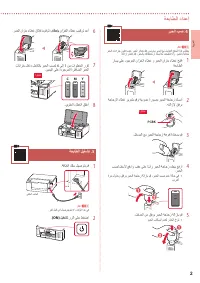
2 ةيبرعلا ربحلا بص .4 ماه ربحلا تانازخ نوكت امدنع ربحلا رثانتي دقف . صرحب ربحلا عم لماعتلا جتنملا اذه بلطتي . هتلازإ رذعتت دقف ،ربحلاب كتاقلعتم وأ كسبلام تخطلت اذإو . ربحلاب ةئلتمم 1 راسي ىلع دوجوملا نازخلا ءاطغ و ربحلا نازخ ءاطغ حتفا . ةعباطلا 2 ةجاجزلا ءاطغ ريودتب مقو ةيدومع ةروصب ربحلا ةجاجز كسمأ...
Page 58 - تنرتنلإا ربع دادعلإا
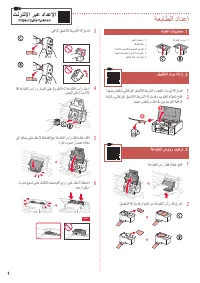
1 3 . يقاولا قصلالا طيرشلا ةلازإب مق 4 B ةعابطلا سأر و راسيلا ىلع ) نولملا ( C ةعابطلا سأر لخدأ . نيميلا ىلع ) دوسلأا ( 5 يف رقتسي ىتح لفسلأ طغضلا عم ةعابطلا سأر لفق ءاطغ لفقا . ةرقن توص ا ًردصم هناكم 6 توص عمست ىتح لماكلاب ليصوتلا يرز ىلع لفسلأ طغضا . امهرارقتسا ! ققحت ةعباطلا دادعإ تﻧرﺗﻧﻹا رﺑﻋ داد...