Brother MFC-990CW - User Manual
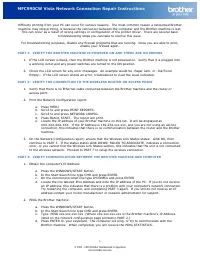
Brother MFC-990CW – User Manual, read for free online in PDF format. We hope this helps you resolve any issues you may have. If you have further questions, please contact us through the contact form.


Table of Contents:
- Page 2 – MFC990CW Vista Network Connection Repair Instructions; Printer Status
- Page 3 – Click the PORTS tab.; PART 7: ESTABLISH A WIRELESS CONNECTION:; Scroll to NETWORK and press NETWORK.
- Page 5 – Choose WIRELESS NETWORK CONNECTION and click NEXT.
- Page 6 – Attempt to print again.
MFC990CW Vista Network Connection Repair Instructions
1
© 1995 - 2010 Brother International Corporation
www.brother-usa.com
Difficulty printing from your PC can occur for various reasons. The most common reason a networked Brother
machine may stop printing, is because the connection between the computer and the Brother machine is lost.
This can occur as a result of wrong settings or configuration of the printer driver. There are several basic
troubleshooting steps you can take to resolve this issue.
For troubleshooting purposes, disable any firewall programs that are running. Once you are able to print,
enable your firewall again.
PART 1: VERIFY THE BROTHER MACHINE IS POWERED ON AND THERE ARE NO ERRORS
1.
If the LCD screen is blank, then the Brother machine is not powered on. Verify that it is plugged into
a working outlet and any power switches are turned to the ON position.
2.
Check the LCD screen for any error messages. An example would be -Paper Jam- or -Ink/Toner
Empty-. If the LCD screen shows an error, troubleshoot to clear the issue indicated.
PART 2: VERIFY THE CONNECTION TO THE WIRELESS ROUTER OR ACCESS POINT
1.
Verify that there is no Ethernet cable connected between the Brother machine and the router or
access point.
2.
Print the Network Configuration report:
a.
Press MENU
b.
Scroll to and press PRINT REPORTS.
c.
Scroll to and press NETWORK CONFIG.
d.
Press BLACK START. The report will print.
e.
Locate the IP address of your Brother machine on this list. It will be displayed as
XXX.XXX.XXX.XXX. If the IP Address is 169.254.xxx.xxx, and you are not using an ad-hoc
connection, this indicates that there is no communication between the router and the Brother
machine.
3.
On the Network Configuration report, ensure that the Wireless Link Status states: LINK OK, then
continue to PART 3. If the status states LINK DOWN, FAILED TO ASSOCIATE, indicates a connection
error, or you cannot find the Wireless Link Status section, this indicates that the unit is not connected
to the wireless network. Proceed to PART 7 to setup the wireless connection.
PART 3: VERIFY COMMUNICATION BETWEEN THE BROTHER MACHINE AND COMPUTER
1.
Obtain the computer’s IP Address:
a.
Press the WINDOWS/START button.
b.
In the Start Search line type CMD and press ENTER.
c.
On the command prompt line type IPCONFIG and press ENTER
d.
Locate the line labeled IPv4 Address and note the IP address of the PC. If you do not receive
an IP address, this indicates that there is a problem with your computer’s network connection.
Try restarting the computer, and completing PART 3 again. If you still do not receive an IP
address contact your router manufacturer or network administrator for support.
2.
PING the Brother machine:
a.
Press the WINDOWS/START button.
b.
In the Start Search line type CMD and press ENTER.
c.
Type: PING xxx.xxx.xxx.xxx (Where xxx.xxx.xxx.xxx is the Brother machine’s IP Address
listed on the network configuration page printed in PART 2.)
d.
Press ENTER on your keyboard. The computer will ping, or try to communicate with the
Brother machine. When completed, you will receive the PING STATISTICS.
"Loading the manual" means you need to wait until the file loads and becomes available for online reading. Some manuals are very large, and the time they take to appear depends on your internet speed.
Was this manual helpful?
About this manual
- Brand
- Brother
- Model
- MFC-990CW
- Document type
- User Manual
- Language(s)
- English
- Pages
- 6
- File size
- 122.5 KB
- Format
Summary
MFC990CW Vista Network Connection Repair Instructions 2 © 1995 - 2010 Brother International Corporation www.brother-usa.com e. If the number of packets sent DOES NOT equal the number of packets received, then there is a communication problem between the Brother machine and the Computer. Attempt to r...
MFC990CW Vista Network Connection Repair Instructions 3 © 1995 - 2010 Brother International Corporation www.brother-usa.com 3. Right click on the Brother driver and left click on PROPERTIES. The Brother printer driver properties screen will now appear. 4. Click the PORTS tab. 5. You will see a list ...
MFC990CW Vista Network Connection Repair Instructions 5 © 1995 - 2010 Brother International Corporation www.brother-usa.com FAILED is displayed then the print server has not successfully connected to your router or access point. Verify your Network Settings in step 1 and try connecting from step 2 a...
Ask a question
Related manuals
Popular Brother Other



More Brother Other models
 Brother MFC-440CN User Manual
 Brother MFC-465CN User Manual
 Brother MFC-490CW User Manual
 Brother MFC-495CW User Manual
 Brother MFC-790CW User Manual
 Brother MFC-885CW User Manual
 Brother MFC-1810 User Manual
 Brother MFC-1810E User Manual
 Brother MFC-1811 User Manual
 Brother MFC-1910W User Manual
 Brother MFC-5460CN User Manual
 Brother MFC-5490CN User Manual