Page 3 - Country Restriction
II FCC RF Radiation Exposure Statement This equipment complies with FCC RF radiation exposure limits set forth for an uncontrolled environment. This device and its antenna must not be co-located or operating in conjunction with any other antenna or transmitter. “To comply with FCC RF exposure compli...
Page 4 - Industry Canada Statement:; Radiation Exposure Statement:; Korea Warning Statements:; 당해
III Industry Canada Statement: This device complies with RSS-210 of the Industry Canada Rules. Operation is subject to the following two conditions: (1)This device may not cause harmful interference, and (2)This device must accept any interference received, including interference that may cause unde...
Page 5 - DECLARATION OF CONFORMITY; For the following equipment:; 50Mbps Wireless N Router; The product carries the CE Mark:; Yang Hongliang
TP-LINK TECHNOLOGIES CO., LTD DECLARATION OF CONFORMITY For the following equipment: Product Description: 150Mbps Wireless N Router Model No.: TL-WR720N Trademark: TP-LINK We declare under our own responsibility that the above products satisfy all the technical regulations applicable to the product ...
Page 6 - CONTENTS
TL-WR720N 150Mbps Wireless N Router I CONTENTS Package Contents .......................................................................................................................... 1 Chapter 1. Introduction...........................................................................................
Page 9 - Package Contents; missing, please contact with your distributor.
TL-WR720N 150Mbps Wireless N Router Package Contents The following items should be found in your package: ¾ TL-WR720N 150Mbps Wireless N Router ¾ Power Adapter for TL-WR720N 150Mbps Wireless N Router ¾ Quick Installation Guide ¾ Resource CD for TL-WR720N 150Mbps Wireless N Router, including: • This ...
Page 10 - Chapter 1. Introduction; Overview of the Router; Incredible Speed; Router without any explanation.
TL-WR720N 150Mbps Wireless N Router Chapter 1. Introduction 1.1 Overview of the Router The 150Mbps Wireless N Router delivers exceptional range and speed, which can fully meet the need of Small Office/Home Office (SOHO) networks and the users demanding higher networking performance. Incredible Speed...
Page 12 - Figure 1-1 Front Panel sketch; Name
TL-WR720N 150Mbps Wireless N Router 1.4 Panel Layout 1.4.1 The Front Panel Figure 1-1 Front Panel sketch The Router’s LEDs and the WPS button are located on the front panel (View from left to right). Name Status Indication Off Power is off. ( Power ) On Power is on. Flashing The Router is working pr...
Page 13 - Figure 1-2 Rear Panel sketch; Used as RESET button:; There are two ways to reset to the Router's factory defaults:; Factory Defaults; function on; System Tools; page in the; RESET
TL-WR720N 150Mbps Wireless N Router 1.4.2 The Rear Panel Figure 1-2 Rear Panel sketch The following parts are located on the rear panel (View from left to right). ¾ WPS/RESET: This button is used for both WPS and Reset function. To use the WPS function, press it for less than five seconds; to use th...
Page 14 - Chapter 2. Connecting the Router; System Requirements; Installation Environment Requirements
TL-WR720N 150Mbps Wireless N Router Chapter 2. Connecting the Router 2.1 System Requirements ¾ Broadband Internet Access Service (DSL/Cable/Ethernet) ¾ One DSL/Cable Modem that has an RJ45 connector (which is not necessary if the Router is connected directly to the Ethernet.) ¾ PCs with a working Et...
Page 15 - Figure 2-1 Hardware Installation of the 150Mbps Wireless N Router
TL-WR720N 150Mbps Wireless N Router 6. Power on your PC and Cable/DSL Modem. Figure 2-1 Hardware Installation of the 150Mbps Wireless N Router -7-
Page 16 - Chapter 3. Quick Installation Guide; Quick Setup; Figure 3-1 Success result of Ping command
TL-WR720N 150Mbps Wireless N Router Chapter 3. Quick Installation Guide This chapter will show you how to configure the basic functions of your 150Mbps Wireless N Router using Quick Setup Wizard within minutes. 3.1 TCP/IP Configuration The default domain name of the 150Mbps Wireless N Router is http...
Page 17 - Figure 3-2 Failure result of Ping command; Please check the connection following these steps:; network connection between your PC and the Router, you can open a; Enter; Quick Installation Guide
TL-WR720N 150Mbps Wireless N Router ¾ If the result displayed is similar to the Figure 3-2, it means the connection between your PC and the Router failed. Figure 3-2 Failure result of Ping command Please check the connection following these steps: 1. Is the connection between your PC and the Router ...
Page 18 - Figure 3-4 Login Windows; OK; Figure 3-5 Quick Setup
TL-WR720N 150Mbps Wireless N Router 1. To access the configuration utility, open a web-browser and type the default address http://tplinklogin.net in the address field of the browser. Figure 3-3 Login the Router After a moment, a login window will appear, similar to the Figure 3-4. Enter admin for t...
Page 19 - Figure 3-6 Choose WAN Connection Type
TL-WR720N 150Mbps Wireless N Router Figure 3-6 Choose WAN Connection Type The Router provides Auto-Detect function and supports three popular ways PPPoE , Dynamic IP and Static IP to connect to the Internet. It’s recommended that you make use of the Auto-Detect function. If you are sure of what kind...
Page 20 - This is the WAN IP address seen by external users on the Internet; Primary; Enter the DNS Server IP address into the box if required.; Next
TL-WR720N 150Mbps Wireless N Router ¾ If the connection type detected is Dynamic IP, the next screen will appear as shown in Figure 3-9. ¾ If the connection type detected is Static IP, the next screen will appear as shown in Figure 3-8. Figure 3-8 Quick Setup - Static IP ¾ IP Address - This is the W...
Page 21 - Figure 3-9 Quick Setup – Wireless; TEST; Region
TL-WR720N 150Mbps Wireless N Router Figure 3-9 Quick Setup – Wireless ¾ Wireless Radio - Enable or disable the wireless radio by choosing from the drop-down list. ¾ SSID - Enter a value of up to 32 characters. The same name of SSID (Service Set Identification) must be assigned to all wireless device...
Page 22 - Figure 3-10 Quick Setup – Finish
TL-WR720N 150Mbps Wireless N Router z PSK Password - You can enter ASCII or Hexadecimal characters. For ASCII , the key can be made up of any numbers from 0 to 9 and any letters from A to Z, and the length should be between 8 and 63 characters. For Hexadecimal , the key can be made up of any numbers...
Page 23 - Chapter 4. Configuring the Router
TL-WR720N 150Mbps Wireless N Router Chapter 4. Configuring the Router This chapter will show each Web page's key functions and the configuration way. 4.1 Login After your successful login, you will see the main menu on the left of the Web-based utility. On the right, there are the corresponding expl...
Page 24 - Figure 4-1 Router Status; Please refer to
TL-WR720N 150Mbps Wireless N Router Figure 4-1 Router Status 4.3 Quick Setup Please refer to Section 3.2: "Quick Installation Guide". 4.4 WPS This section will guide you to add a new wireless device to an existing network quickly by WPS (Wi-Fi Protected Setup) function. a). Choose menu “WPS”...
Page 26 - Figure 4-3 Add A New Device
TL-WR720N 150Mbps Wireless N Router Figure 4-3 Add A New Device Step 2: Press and hold the WPS button of the client device directly. Step 3: The Wi-Fi Protected Setup LED flashes for two minutes during the Wi-Fi Protected Setup process. Step 4: When the WPS LED is on, the client device has successfu...
Page 27 - successfully added to the network.; Figure 4-5 the Network menu; There are three submenus under the Network menu (shown in
TL-WR720N 150Mbps Wireless N Router ) Note: 1) The WPS LED on the Router will light green for five minutes if the device has been successfully added to the network. 2) The WPS function cannot be configured if the Wireless Function of the Router is disabled. Please make sure the Wireless Function is ...
Page 31 - Only when you have configured the system time on; Time-based Connecting; function can take effect.; Figure 4-10 PPPoE Advanced Settings
TL-WR720N 150Mbps Wireless N Router start time to the end time (both are in HH:MM format). ) Note: Only when you have configured the system time on System Tools -> Time Settings page, ¾ button to connect/disconnect to Max Idle age will the Time-based Connecting function can take effect. Connect M...
Page 32 - Figure 4-11 WAN – BigPond Cable
TL-WR720N 150Mbps Wireless N Router The default value is “0”. You can input the value between “0”and “120”. The value “0” means no detect. ¾ DNS IP address - If your ISP does not automatically assign DNS addresses to the Router 4. during login, please click “ Use the following DNS servers ” check bo...
Page 35 - Figure 4-13 WAN –PPTP
TL-WR720N 150Mbps Wireless N Router After a specified period of inactivity ( Max Idle Time ), the Router will disconnect from your Internet connection, and you will not be able to re-establish your connection automatically as soon as you attempt to access the Internet again. To use this option, clic...
Page 36 - button to allow; PPPoE; Connections which use dynamic IP address assignment.; Static IP; Connections which use static IP address assignment.
TL-WR720N 150Mbps Wireless N Router If you choose static IP and enter the domain name, you should also enter the DNS assigned by your ISP. And click the Save button. Click the Connect button to connect immediately. Click the Disconnect button to disconnect immediately. ¾ Connect on Demand - You can ...
Page 37 - Figure 4-14 MAC Address Clone; Only the PC on your LAN can use the; MAC Address Clone; Figure 4-15 Wireless menu
TL-WR720N 150Mbps Wireless N Router 4.5.3 MAC Clone Choose menu “ Network → MAC Clone ”, and then you can configure the MAC address of the WAN on the screen below, Figure 4-14: Figure 4-14 MAC Address Clone Some ISPs require that you register the MAC Address of your adapter. Changes are rarely neede...
Page 38 - Choose menu “; Wireless; ”, and then you can configure the basic settings for; Figure 4-16 Wireless Settings; segregation stations which share the same channel.; When you select your local region from the drop-down list, click the; Save; the Note Dialog will appear. Click
TL-WR720N 150Mbps Wireless N Router 4.6.1 Wireless Settings Choose menu “ Wireless → Wireless Setting ”, and then you can configure the basic settings for the wireless network on this page. Figure 4-16 Wireless Settings ¾ SSID (1-4) - Up to four SSIDs for each BSS (Basic Service Set) can be entered ...
Page 39 - If; Mode
TL-WR720N 150Mbps Wireless N Router Note Dialog ) Note: Limited by local law regulations, version for North America does not have region selection option. ¾ Channel - This field determines which operating frequency will be used. The default channel is set to Auto , so the AP will choose the best cha...
Page 41 - notice in red as show in
TL-WR720N 150Mbps Wireless N Router Figure 4-17 ¾ Disable Security - If you do not want to use wireless security, select this check box, but it’s strongly recommended to choose one of the following modes to enable security. ¾ WEP - It is based on the IEEE 802.11 standard. If you select this check bo...
Page 42 - If you check the
TL-WR720N 150Mbps Wireless N Router • Type - you can choose the type for the WEP security on the drop-down list. The default setting is Automatic , which can select Open System or Shared Key authentication type automatically based on the wireless station's capability and request. • WEP Key Format - ...
Page 44 - Figure 4-21 Wireless MAC address Filtering
TL-WR720N 150Mbps Wireless N Router Figure 4-21 Wireless MAC address Filtering To filter wireless users by MAC Address, click Enable . The default setting is Disabled . ¾ MAC Address - The wireless station's MAC address that you want to filter. ¾ Status - The status of this entry either Enabled or D...
Page 47 - Disconnected
TL-WR720N 150Mbps Wireless N Router DTIM Interval value. You can specify the value between 1-255 Beacon Intervals. The default value is 1, which indicates the DTIM Interval is the same as Beacon Interval. ¾ Enable WMM - WMM function can guarantee the packets with high- priority messages being transm...
Page 48 - This page will be refreshed automatically every 5 seconds.; Figure 4-25 The DHCP menu
TL-WR720N 150Mbps Wireless N Router ) Note: This page will be refreshed automatically every 5 seconds. 4.7 DHCP Figure 4-25 The DHCP menu There are three submenus under the DHCP menu (shown in Figure 4-25 ): DHCP Settings , DHCP Clients List and Address Reservation. Click any of them, and you will b...
Page 49 - Figure 4-27 DHCP Clients List
TL-WR720N 150Mbps Wireless N Router addresses. 192.168.0.199 is the default end address. ¾ Address Lease Time - The Address Lease Time is the amount of time a network user will be allowed connection to the Router with their current dynamic IP Address. Enter the amount of time in minutes and the user...
Page 50 - Figure 4-28 Address Reservation
TL-WR720N 150Mbps Wireless N Router 4.7.3 Address Reservation Choose menu “ DHCP → Address Reservation ”, and then you can view and add a reserved address for clients via the next screen (shown in Figure 4-28 ). When you specify a reserved IP address for a PC on the LAN, that PC will always receive ...
Page 51 - Figure 4-30 The Forwarding menu
TL-WR720N 150Mbps Wireless N Router Click the Enable/ Disable All button to make all entries enabled/disabled Click the Delete All button to delete all entries Click the Next button to go to the next page and Click the Previous button to return to the previous page. 4.8 Forwarding Figure 4-30 The Fo...
Page 52 - Figure 4-32 Add or Modify a Virtual Server Entry; Security –> Remote Management; page to be any other value except 80 such as 8080.
TL-WR720N 150Mbps Wireless N Router ¾ Modify - To modify or delete an existing entry. To setup a virtual server entry: 1. Click the Add New... button. (pop-up Figure 4-32 ) 2. Select the service you want to use from the Common Service Port list. If the Common Service Port menu does not list the serv...
Page 54 - Figure 4-34 Add or Modify a Triggering Entry
TL-WR720N 150Mbps Wireless N Router Figure 4-34 Add or Modify a Triggering Entry ¾ Trigger Port - The port for outgoing traffic. An outgoing connection using this port will trigger this rule. ¾ Trigger Protocol - The protocol used for Trigger Ports, either TCP , UDP , or All (all protocols supported...
Page 55 - hosts on the LAN will be refused.; Incoming Ports; ranges cannot overlap each other.
TL-WR720N 150Mbps Wireless N Router 2. The Router records this connection, opens the incoming port or ports associated with this entry in the Port Triggering table, and associates them with the local host. 3. When necessary, the external host will be able to connect to the local host using one of th...
Page 56 - Figure 4-36 UPnP Setting
TL-WR720N 150Mbps Wireless N Router Figure 4-36 UPnP Setting ¾ Current UPnP Status - UPnP can be enabled or disabled by clicking the Enable or Disable button. This feature is enabled by default. ¾ Current UPnP Settings List - This table displays the current UPnP information. • App Description - The ...
Page 57 - Figure 4-37 The Security menu
TL-WR720N 150Mbps Wireless N Router 4.9 Security Figure 4-37 The Security menu There are seven submenus under the Security menu as shown in Figure 4-37: Firewall , IP Address Filtering , Domain Filtering , MAC Address Filtering , Local Management , Remote Management and Advanced Security . Click any...
Page 58 - set MAC Address Filtering is enabled or disabled. You can; Figure 4-39 IP address Filtering; Address Filtering entry, click; Figure 4-40 Add or Modify an IP Address Filtering Entry; Enter a LAN IP Address or a range of LAN IP addresses in the field, in
TL-WR720N 150Mbps Wireless N Router ¾ Enable MAC Address Filtering - set MAC Address Filtering is enabled or disabled. You can select the default filtering rules of MAC Address Filtering, either Allow or Deny accessing the router. 4.9.2 IP Address Filtering The IP address Filtering feature allows yo...
Page 60 - Figure 4-41 Domain Filtering
TL-WR720N 150Mbps Wireless N Router specifying their domains or key words. Figure 4-41 Domain Filtering Before adding a Domain Filtering entry, you must ensure that Enable Firewall and Enable Domain Filtering have been selected on the Firewall page. To Add a Domain filtering entry, click the Add New...
Page 61 - Figure 4-43 MAC address Filtering
TL-WR720N 150Mbps Wireless N Router Click the Delete All button to delete all entries Click the Next button to go to the next page and the Previous button to return to the previous page. For example : if you want to block the PC(s) on your LAN to access websites www.xxyy.com.cn, www.aabbcc.com and w...
Page 63 - Figure 4-45 Local Management; defaults on the Router’s Web-Based Utility.
TL-WR720N 150Mbps Wireless N Router Figure 4-45 Local Management By default, the radio button “ All the PCs on the LAN are allowed to access the Router's Web-Based Utility ” is checked. If you want to allow PCs with specific MAC Addresses to access the Setup page of the Router's Web-Based Utility lo...
Page 64 - Figure 4-46 Remote Management; Web Management Port -; Web browser access normally uses the standard HTTP service; Remote Management IP Address; This is the current address you will use when accessing
TL-WR720N 150Mbps Wireless N Router Figure 4-46 Remote Management ¾ Web Management Port - Web browser access normally uses the standard HTTP service port 80. This Router's default remote management web port number is 80. For greater security, you can change the remote management web port to a custom...
Page 65 - Figure 4-47 Advanced Security settings
TL-WR720N 150Mbps Wireless N Router Figure 4-47 Advanced Security settings ¾ Packets Statistic interval (5 ~ 60) - The default value is 10. Select a value between 5 and 60 seconds in the pull-down list. The Packets Statistic interval value indicates the time section of the packets statistic. The res...
Page 66 - Figure 4-48 Thwarted DoS Host Table; Click the; Return; button to return to the; Advanced Security; Parental Control; Figure 4-49 Parental Control Settings
TL-WR720N 150Mbps Wireless N Router ¾ Forbid Ping Packet from LAN Port - Enable or Disable forbidding Ping Packet to access the router from the LAN port. The default value is disabled. If enabled, the ping packet from the LAN port cannot access the router. (Defends against some viruses) Click the Sa...
Page 67 - Figure 4-50 Add or Modify Parental Control Entry
TL-WR720N 150Mbps Wireless N Router To add a new entry, please follow the steps below. 1. Click the Add New… button and the next screen will pop-up as shown in Figure 4-50. Figure 4-50 Add or Modify Parental Control Entry ¾ Parental Control - Check Enable if you want this function to take effect; ot...
Page 69 - Figure 4-51 Parental Control Settings; Access Control; Figure 4-52 Access Control
TL-WR720N 150Mbps Wireless N Router Figure 4-51 Parental Control Settings 4.11 Access Control Figure 4-52 Access Control There are four submenus under the Access Control menu as shown in Figure 4-52: Rule , Host , Target and Schedule . Click any of them, and you will be able to configure the corresp...
Page 70 - Figure 4-54 Quick Setup – Create a Host Entry
TL-WR720N 150Mbps Wireless N Router ¾ Schedule - Here displays the schedule selected in the corresponding rule. ¾ Enable - Here displays the status of the rule, enabled or not. Check this option to enable a specific entry. ¾ Modify - Here you can edit or delete an existing rule. ¾ Setup Wizard - Cli...
Page 72 - - Here you can enter 4 domain names, either the full name or the
TL-WR720N 150Mbps Wireless N Router ¾ Domain Name - Here you can enter 4 domain names, either the full name or the keywords (for example, google). Any domain name with keywords in it (www.google.com, www.google.cn) will be blocked or allowed. 3. Click Next when finishing creating the access target e...
Page 74 - Figure 4-58 Add Internet Access Control Entry
TL-WR720N 150Mbps Wireless N Router Figure 4-58 Add Internet Access Control Entry For example : If you desire to allow the host with MAC address 00-11-22-33-44-AA to access www.google.com only from 18:00 to 20:00 on Saturday and Sunday, and forbid other hosts in the LAN to access the Internet, you s...
Page 75 - Figure 4-59 Host Settings
TL-WR720N 150Mbps Wireless N Router 4.11.2 Host Choose menu “ Access Control → Host ”, and then you can view and set a Host list in the screen as shown in Figure 4-59. The host list is necessary for the Access Control Rule. Figure 4-59 Host Settings ¾ Host Description - Here displays the description...
Page 76 - Figure 4-61 Add or Modify a Host Entry
TL-WR720N 150Mbps Wireless N Router Figure 4-61 Add or Modify a Host Entry For example : If you desire to restrict the internet activities of host with MAC address 00-11-22-33-44-AA, you should first follow the settings below: 1. Click Add New... button in Figure 4-59 to enter the Add or Modify a Ho...
Page 77 - Figure 4-63 Add or Modify an Access Target Entry; field, enter the IP address of the target.; Figure 4-64 Add or Modify an Access Target Entry; field, enter the domain name, either the full name or the keywords
TL-WR720N 150Mbps Wireless N Router 3. If you select IP Address , the screen shown is Figure 4-63. Figure 4-63 Add or Modify an Access Target Entry 1) In Target Description field, create a unique description for the target (e.g. Target_1). 2) In IP Address field, enter the IP address of the target. ...
Page 78 - Figure 4-65 Schedule Settings
TL-WR720N 150Mbps Wireless N Router (www.google.com, www.google.cn) will be blocked or allowed. You can enter 4 domain names. 5. Click the Save button. Click the Delete All button to delete all the entries in the table. Click the Next button to go to the next page, or click the Previous button to re...
Page 79 - Figure 4-66 Advanced Schedule Settings
TL-WR720N 150Mbps Wireless N Router To add a new schedule, follow the steps below: 1. Click Add New... button shown in Figure 4-65 and the next screen will pop-up as shown in Figure 4-66. 2. In Schedule Description field, create a unique description for the schedule (e.g. Schedule_1). 3. In Day fiel...
Page 80 - Static Routing; Figure 4-67 Static Routing List
TL-WR720N 150Mbps Wireless N Router Then you will go back to the Schedule Settings page and see the following list. 4.12 Static Routing A static route is a pre-determined path that network information must travel to reach a specific host or network. To add or delete a route, work in the area under t...
Page 82 - button for the change to take effect.; Figure 4-71 Binding Setting
TL-WR720N 150Mbps Wireless N Router Click Enable to enable this entry. Click the Clear button to clear a single entry. Click the Clear All button to clear all entries. Click the Save button to save all configurations. ) Note: 1. The conversion relation of bandwidth: 1Mbps = 1000Kbps. 2. Please choos...
Page 84 - Figure 4-73 Find IP & MAC Binding Entry; interference to the IP & MAC Binding list.
TL-WR720N 150Mbps Wireless N Router Figure 4-73 Find IP & MAC Binding Entry Click the Enable All button to make all entries enabled. Click the Delete All button to delete all entries. 4.14.2 ARP List To manage the computer, you could observe the computers in the LAN by checking the relationship ...
Page 87 - Figure 4-78 The System Tools menu
TL-WR720N 150Mbps Wireless N Router To set up for DDNS, follow these instructions: 1. Type the User Name for your DDNS account. 2. Type the Password for your DDNS account. 3. Type the Domain Name you received from dynamic DNS service provider. 4. Click the Login button to log in the DDNS service. Co...
Page 88 - Figure 4-79 Time settings
TL-WR720N 150Mbps Wireless N Router Figure 4-79 Time settings ¾ Time Zone - Select your local time zone from this pull down list. ¾ Date - Enter your local date in MM/DD/YY into the right blanks. ¾ Time - Enter your local time in HH/MM/SS into the right blanks. ¾ Primary NTP Server / Secondary NTP S...
Page 89 - Figure 4-80 Time settings; The time will be lost if the router is turned off.
TL-WR720N 150Mbps Wireless N Router Internet. To set Daylight Saving: 1. Check the box to enable Daylight Saving. 2. Select the start time from the drop-down lists in the Start field. 3. Select the end time from the drop-down lists in the End field. 4. Click the Save button to save the settings. Fig...
Page 91 - Only one user can use the diagnostic tools at one time.; Figure 4-83 Firmware Upgrade
TL-WR720N 150Mbps Wireless N Router The Diagnostic Results page displays the result of diagnosis. If the result is similar to the following screen, the connectivity of the Internet is fine. Figure 4-82 Diagnostic Results ) Note: 1. Only one user can use the diagnostic tools at one time. 2. "Ping...
Page 92 - configuration, you can try to upgrade the firmware.; Figure 4-84 Restore Factory Default; All changed settings will be lost when defaults are restored.
TL-WR720N 150Mbps Wireless N Router ) Note: 1) New firmware versions are posted at http://www.tp-link.com and can be downloaded for free. There is no need to upgrade the firmware unless the new firmware has a new feature you want to use. However, when experiencing problems caused by the Router rathe...
Page 93 - Figure 4-85 Backup & Restore Configuration
TL-WR720N 150Mbps Wireless N Router Figure 4-85 Backup & Restore Configuration ¾ Click the Backup button to save all configuration settings as a backup file in your local computer. ¾ To upgrade the Router's configuration, follow these instructions. • Click the Browse button to find the configura...
Page 94 - Figure 4-87 Password; spaces. Enter the new Password twice to confirm it.
TL-WR720N 150Mbps Wireless N Router 4.16.7 Password Choose menu “ System Tools → Password ”, and then you can change the factory default user name and password of the Router in the next screen as shown in Figure 4-87. Figure 4-87 Password It is strongly recommended that you should change the factory...
Page 95 - Figure 4-88 System Log; Indicates whether auto mail feature is enabled or not.; From
TL-WR720N 150Mbps Wireless N Router Figure 4-88 System Log ¾ Auto Mail Feature - Indicates whether auto mail feature is enabled or not. ¾ Mail Settings - Set the receiving and sending mailbox address, server address, validation information as well as the timetable for Auto Mail Feature, as shown in ...
Page 96 - Only when you select; Authentication; , do you have to enter the User Name and Password in
TL-WR720N 150Mbps Wireless N Router You can log on the relevant website for help if you are not clear with the address. • Authentication - Most SMTP Server requires Authentication. It is required by most mailboxes that need User Name and Password to log in. ) Note: Only when you select Authenticatio...
Page 97 - Figure 4-90 Statistics
TL-WR720N 150Mbps Wireless N Router Figure 4-90 Statistics ¾ Current Statistics Status - Enable or Disable. The default value is disabled. To enable it, click the Enable button. If it is disabled, the function of DoS protection in Security settings will be disabled. ¾ Packets Statistics Interval ( 5...
Page 98 - There would be 5 entries on each page. Click; Previous; to return to the previous page and; to
TL-WR720N 150Mbps Wireless N Router Statistics Table: IP/MAC Address The IP and MAC address are displayed with related statistics. Packets The total number of packets received and transmitted by the Router. Total Bytes The total number of bytes received and transmitted by the Router. Packets The tot...
Page 99 - telephone cord plugs into the Line port of the ADSL Modem.; Figure A-1 PPPoE Connection Type; Internet connection mode.; Figure A-2 PPPoE Connection Mode
TL-WR720N 150Mbps Wireless N Router Appendix A: FAQ 1. How do I configure the Router to access Internet by ADSL users? 1) First, configure the ADSL Modem configured in RFC1483 bridge model. 2) Connect the Ethernet cable from your ADSL Modem to the WAN port on the Router. The telephone cord plugs int...
Page 100 - Figure A-3 MAC Clone
TL-WR720N 150Mbps Wireless N Router 2. How do I configure the Router to access Internet by Ethernet users? 1) Login to the Router, click the “Network” menu on the left of your browser, and click "WAN" submenu. On the WAN page, select “Dynamic IP” for "WAN Connection Type", finish by ...
Page 101 - Figure A-5 Add or Modify a Virtual server Entry; ) How to enable DMZ Host: Log in to the Router, click the “
TL-WR720N 150Mbps Wireless N Router Figure A-5 Add or Modify a Virtual server Entry ) Note: Your opposite side should call your WAN IP, which is displayed on the “Status” page. 4) How to enable DMZ Host: Log in to the Router, click the “ Forwarding ” menu on the left of your browser, and click "...
Page 102 - igure A-7 Remote Management; (the Router’s LAN IP address: Web Management Port) in the address; Figure A-8 Virtual Servers
TL-WR720N 150Mbps Wireless N Router F igure A-7 Remote Management ) Note: If the above configuration takes effect, you can visit and configure the Router by typing http://192.168.0.1:88 (the Router’s LAN IP address: Web Management Port) in the address field of the Web browser. If the LAN IP of the m...
Page 103 - Figure A-9 Add or Modify a Virtual server Entry; The wireless stations cannot connect to the Router.; of your wireless stations.
TL-WR720N 150Mbps Wireless N Router Figure A-9 Add or Modify a Virtual server Entry 5. The wireless stations cannot connect to the Router. 1) Make sure the " Wireless Router Radio " is enabled. 2) Make sure that the wireless stations' SSID accord with the Router's SSID. 3) Make sure the wire...
Page 104 - Appendix B: Configuring the PCs; the
TL-WR720N 150Mbps Wireless N Router Appendix B: Configuring the PCs In this section, we’ll introduce how to install and configure the TCP/IP correctly in Windows XP. First make sure your Ethernet Adapter is working, refer to the adapter’s manual if needed. 1. Install TCP/IP component 1) On the Windo...
Page 105 - ) In the prompt page that showed below, double click on the; IP Address; tab is open on
TL-WR720N 150Mbps Wireless N Router 4) In the prompt page that showed below, double click on the Internet Protocol (TCP/IP) . Figure B-2 5) The following TCP/IP Properties window will display and the IP Address tab is open on this window by default. -97-
Page 106 - and; Obtain DNS server automatically; shown in the Figure below:
TL-WR720N 150Mbps Wireless N Router 6) Select Obtain an IP address automatically and Obtain DNS server automatically , as shown in the Figure below: Figure B-3 -98-
Page 107 - Appendix C: Specifications; General
TL-WR720N 150Mbps Wireless N Router Appendix C: Specifications General Standards IEEE 802.3, IEEE 802.3u, IEEE802.11n, IEEE802.11b, IEEE 802.11g Protocols TCP/IP, PPPoE, DHCP, ICMP, NAT, SNTP Ports One 10/100M Auto-Negotiation WAN RJ45 port, Two 10/100M Auto-Negotiation LAN RJ45 ports supporting Aut...


 TP-Link Archer AX10
User Manual
TP-Link Archer AX10
User Manual
 TP-Link ARCHER AX11000
User Manual
TP-Link ARCHER AX11000
User Manual
 TP-Link Archer AX6000
User Manual
TP-Link Archer AX6000
User Manual
 TP-Link ARCHER AX73 AX5400 (ARCHER-AX73)
User Manual
TP-Link ARCHER AX73 AX5400 (ARCHER-AX73)
User Manual
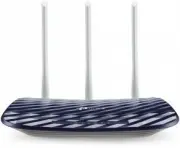 TP-Link Archer C20 v5.0
User Manual
TP-Link Archer C20 v5.0
User Manual
 TP-Link ARCHER GX90 AX6600
User Manual
TP-Link ARCHER GX90 AX6600
User Manual
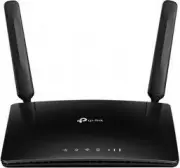 TP-Link Archer MR400
User Manual
TP-Link Archer MR400
User Manual
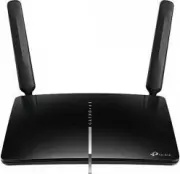 TP-Link Archer MR600
User Manual
TP-Link Archer MR600
User Manual
 TP-Link CPE210 N300, 10/100BASE-TX White
User Manual
TP-Link CPE210 N300, 10/100BASE-TX White
User Manual
 TP-Link CPE510 N300, 10/100BASE-TX White
User Manual
TP-Link CPE510 N300, 10/100BASE-TX White
User Manual
 TP-Link Deco E3
User Manual
TP-Link Deco E3
User Manual
 TP-Link Deco E4
User Manual
TP-Link Deco E4
User Manual
 TP-Link Deco E4 (2-Pack)
User Manual
TP-Link Deco E4 (2-Pack)
User Manual
 TP-Link Deco E4 +
User Manual
TP-Link Deco E4 +
User Manual
 TP-Link Deco M3
User Manual
TP-Link Deco M3
User Manual
 TP-Link Deco M4
User Manual
TP-Link Deco M4
User Manual
 TP-Link Deco M4 AC1200 (3-PK)
User Manual
TP-Link Deco M4 AC1200 (3-PK)
User Manual
 TP-Link Deco M5
User Manual
TP-Link Deco M5
User Manual
 TP-Link DECO M9 1 pcs AC2200
User Manual
TP-Link DECO M9 1 pcs AC2200
User Manual
 TP-Link Deco M9 Plus
User Manual
TP-Link Deco M9 Plus
User Manual